




Using Tailscale while on vacation: How I access my home network from abroad
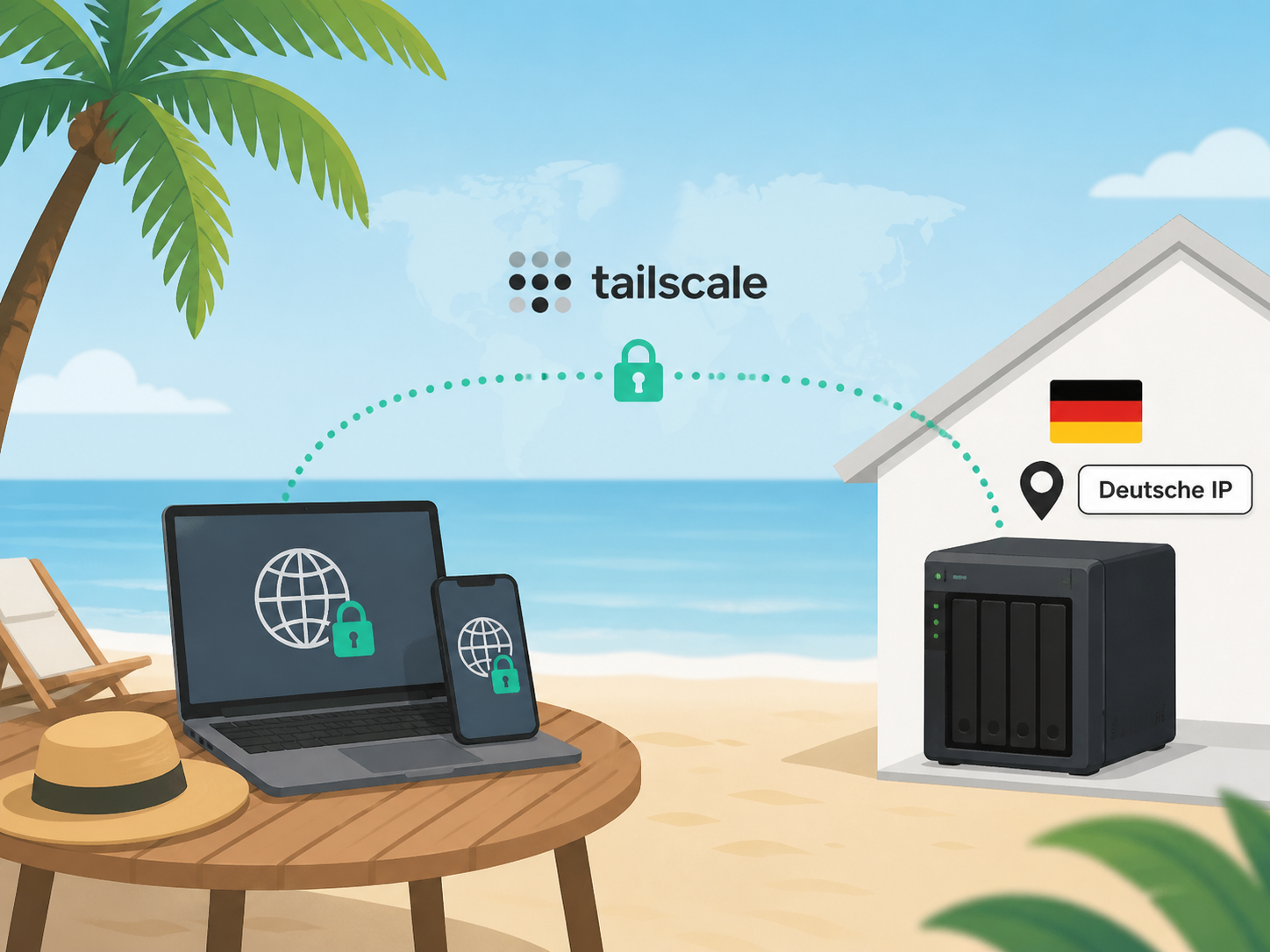
Why Tailscale can be better than a classic VPN while on vacation
I want to travel abroad but still access German content. For example, some Bundesliga football content cannot be reached from outside Germany, neither via its website nor via YouTube. Amazon also restricts content for users abroad. Of course, this can be bypassed with a VPN, but maybe you only have a free VPN with a 1 GB traffic limit or no German servers at all.
On top of that, I also want to access my home server and the apps running on it, such as Jellyfin, so I can stream my stored movies or view photos while on vacation.
Bypassing foreign geoblocking with your own home network IP
So I installed Tailescale on all devices. With it, I can connect all my devices across long distances and even decide that all traffic is routed through one of them. Ideally through my small home server, since it is always online and provides me with a German IP address. My device abroad then connects to the home server, the traffic is routed through it, and I effectively browse using the IP of my own server.
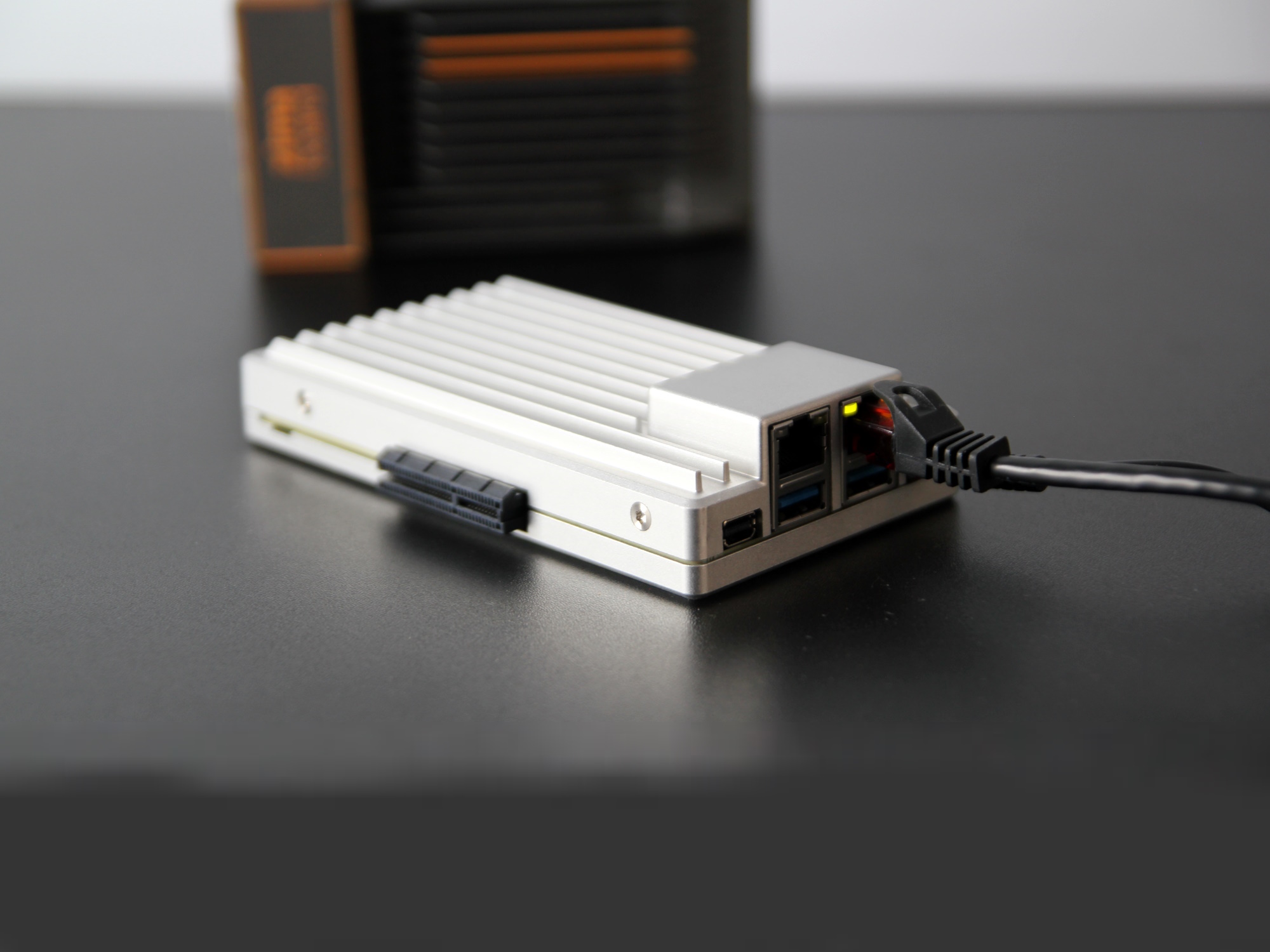
As my home server, I use a Zimaboard 2 (our review) running ZimaOS (on Amazon). It offers apps like Tailscale as a Docker container, which unfortunately can sometimes cause issues because these isolated containers may lack certain permissions. Together with Claude, I still managed to get it working despite some challenges, which I describe here.
Tailscale: Easy installation, tricky configuration
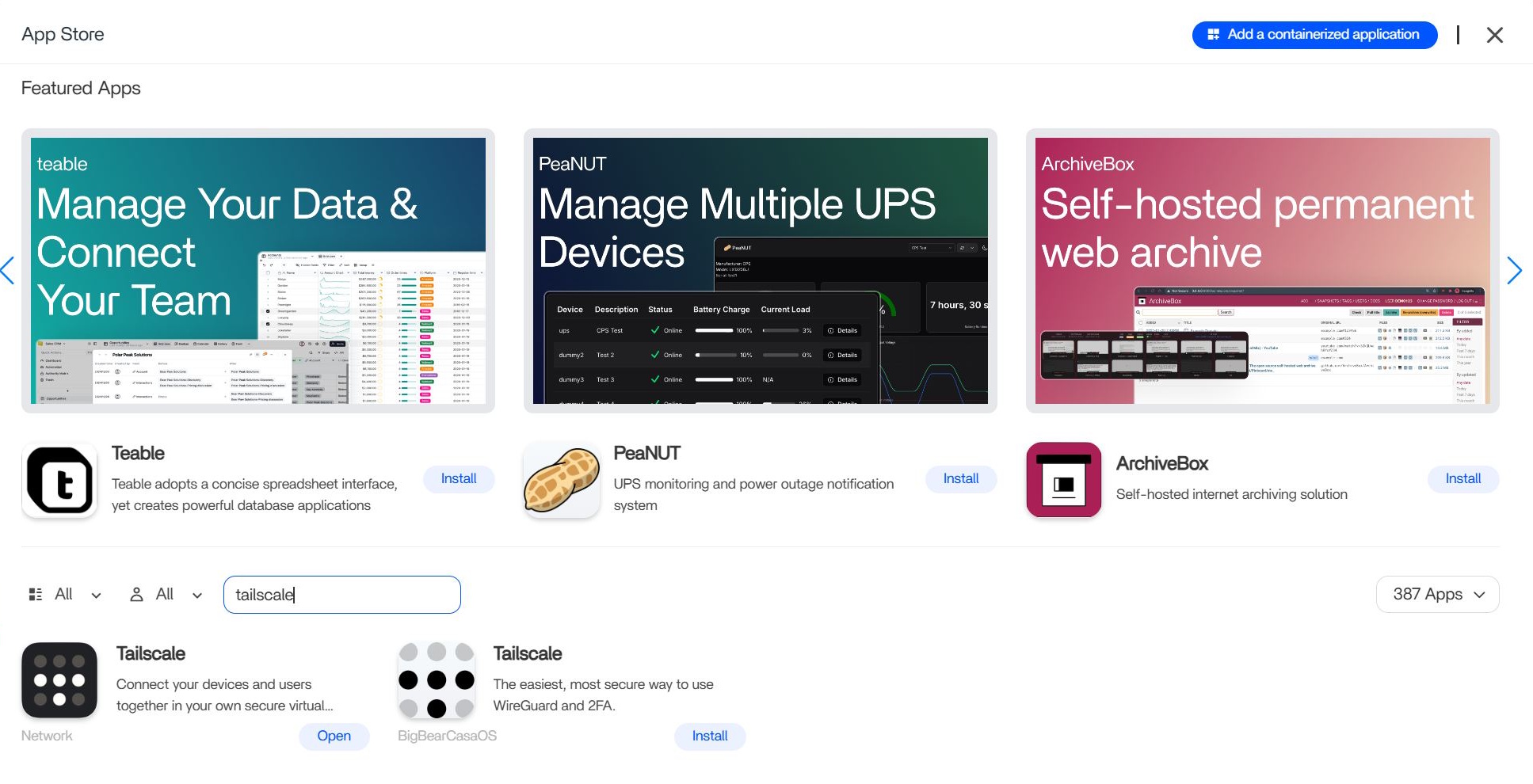
Tailscale can be found in the ZimaOS app store and installation works with a single click. Tailscale is also available for Windows, macOS, Android, and more, so that part is not a problem. After installation, you create an account. If all devices log in with the same account, they immediately appear in the same network and can “see” each other in Tailscale.
The first issue appeared when I tried to set one of my devices as an exit node in Tailscale, in this case the home server. All traffic from abroad should be routed through it. Unfortunately, the option was greyed out. Apparently, it first needs to be enabled using the --advertise-exit-node flag, a security feature due to potential risks in multi-device setups.
Configuring Tailscale correctly on ZimaOS, travel phone and laptop
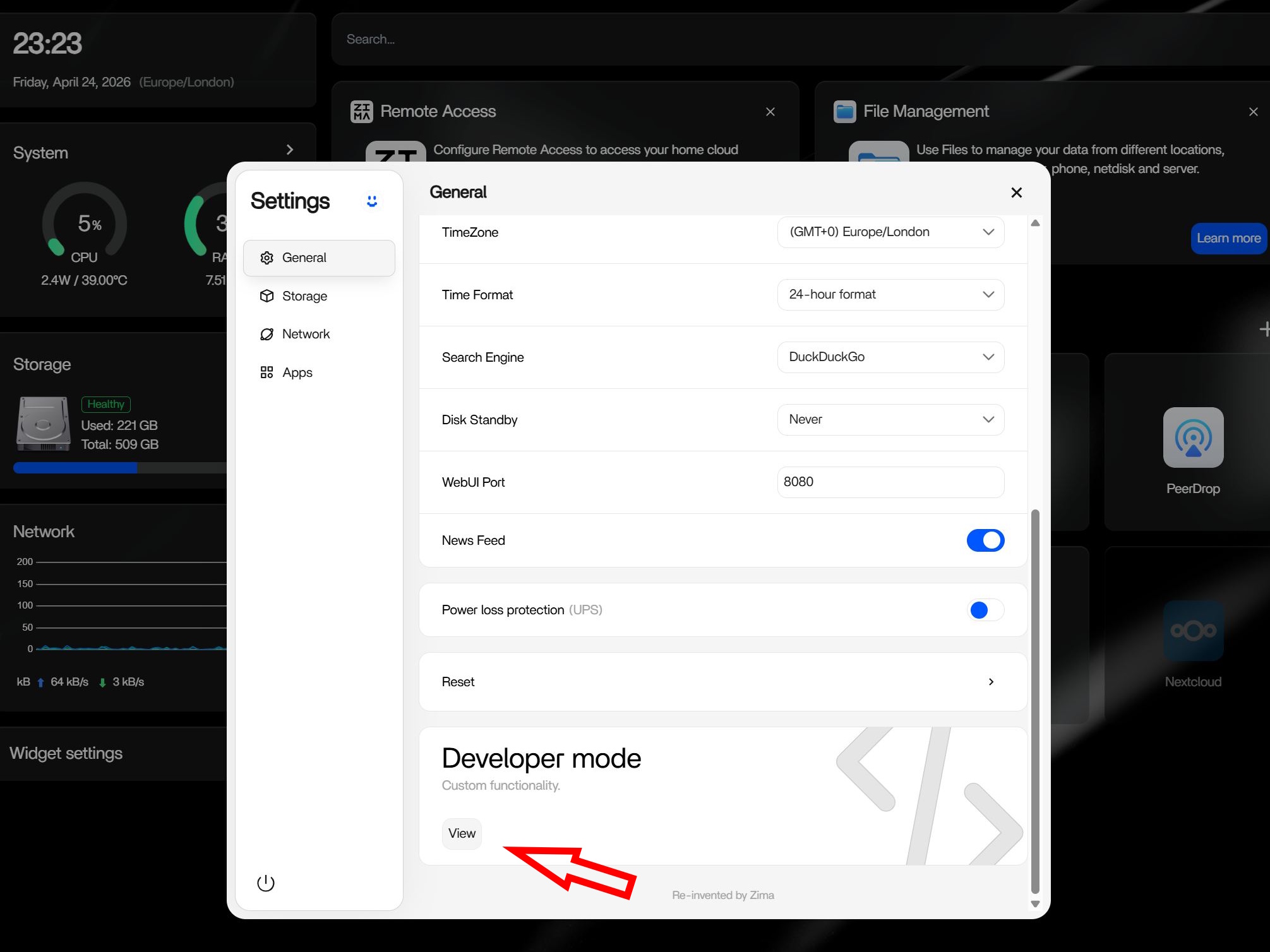
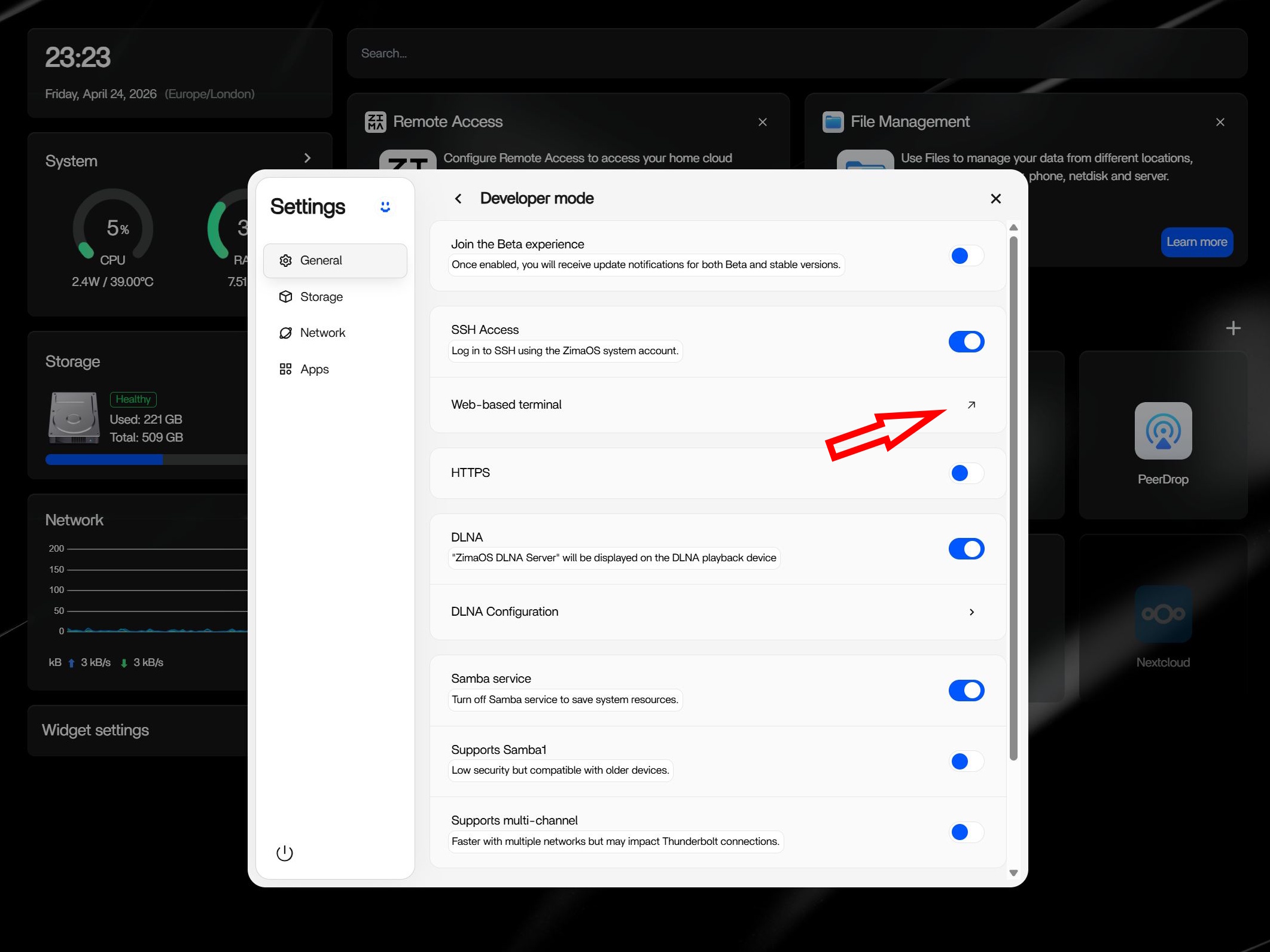
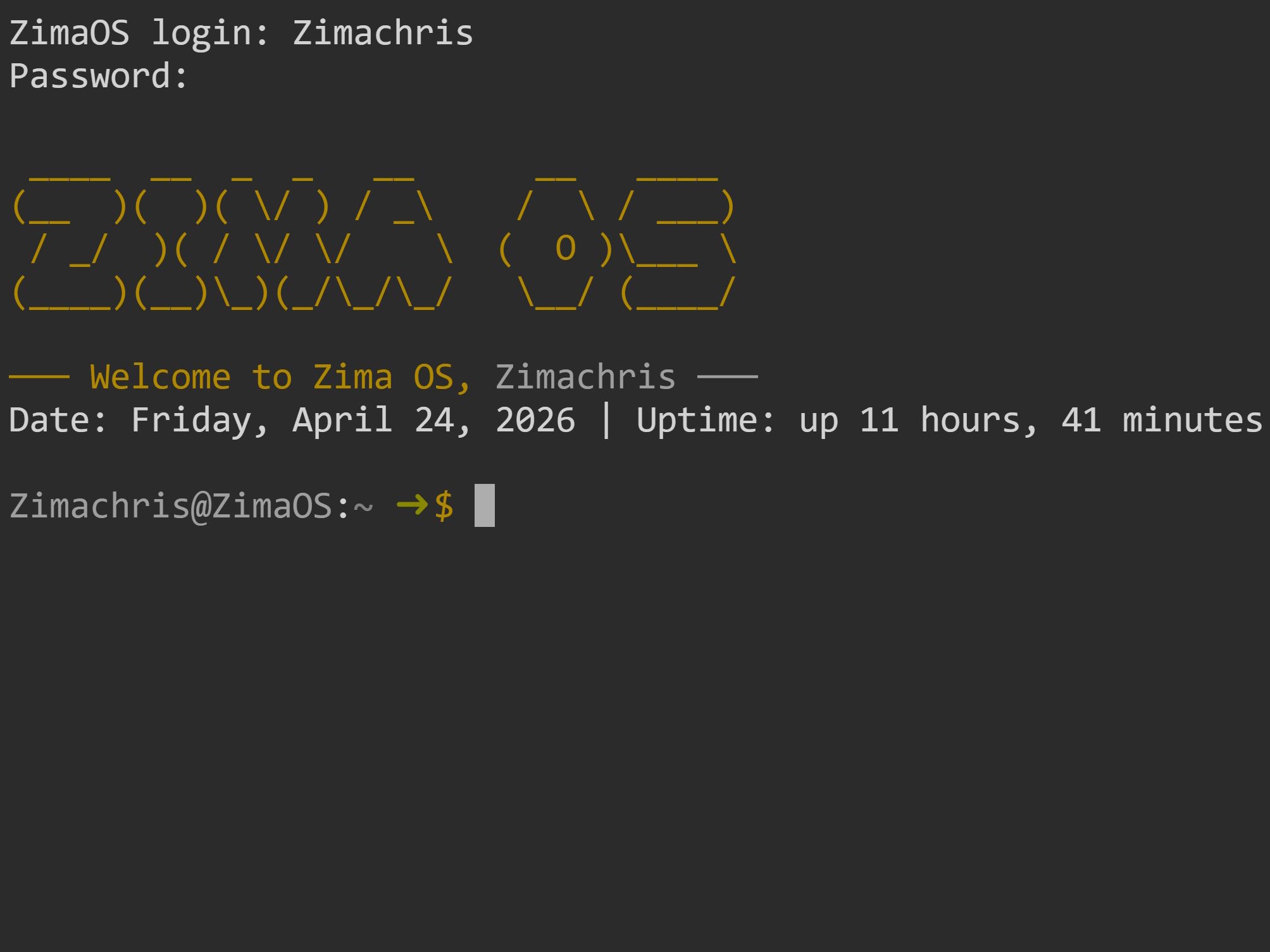
The solution: In ZimaOS, go to Settings → General → Developer mode (view) and enable SSH there, then open the web terminal link. Then enter:
sudo docker ps | grep tailscale
Using the Tailscale ID shown afterward (a cryptic string of letters and numbers), run the following command (replace the ID accordingly):
sudo docker exec -it <id> tailscale up --advertise-exit-node
This activates the exit node option. A warning may appear stating that IPv6 port forwarding is not enabled. You can enable it with:
echo 'net.ipv4.ip_forward = 1' | sudo tee -a /etc/sysctl.conf
echo 'net.ipv6.conf.all.forwarding = 1' | sudo tee -a /etc/sysctl.conf
sudo sysctl -p
Then the so-called UDP GRO forwarding fix:
sudo ethtool -K eth1 rx-udp-gro-forwarding on
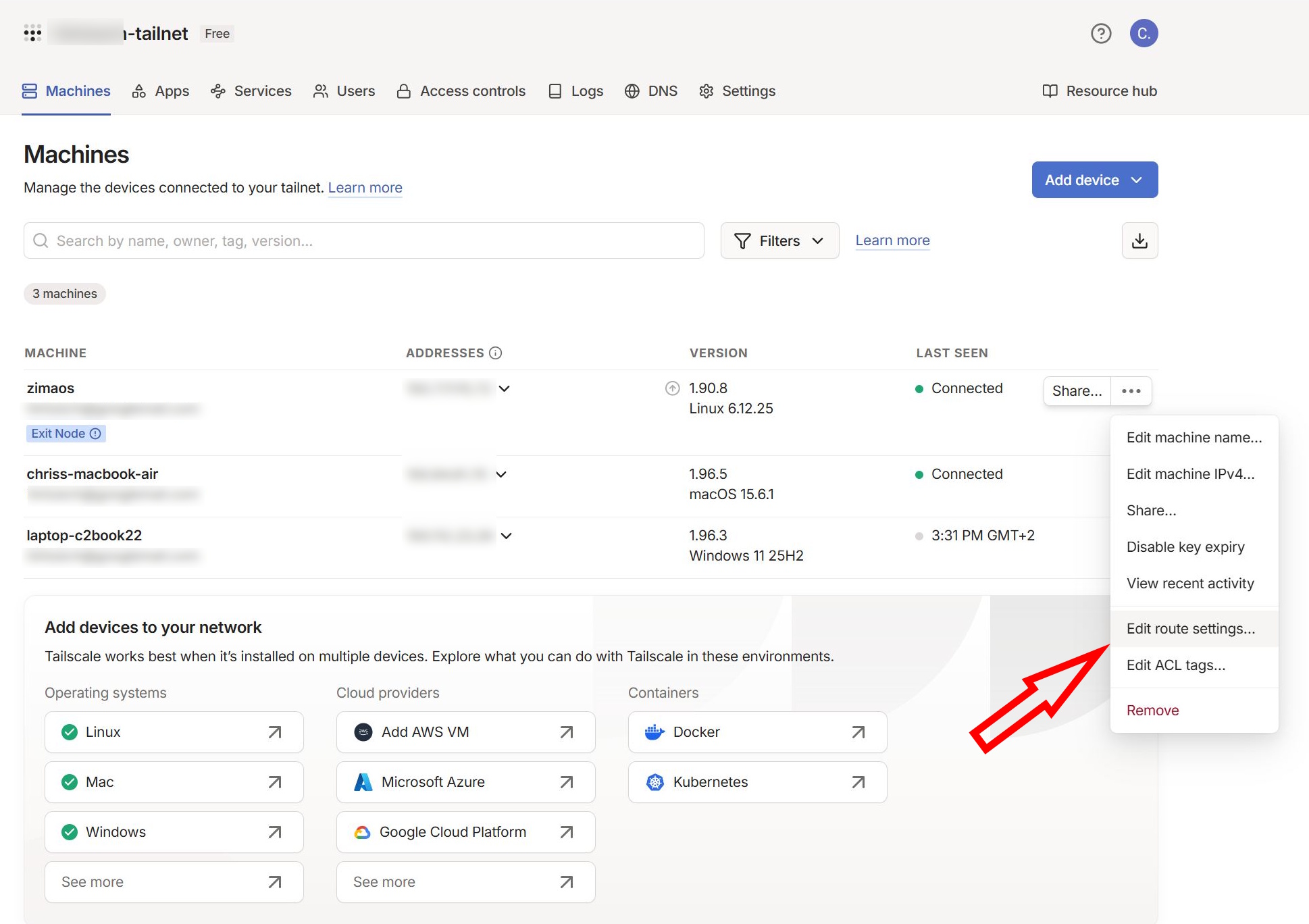
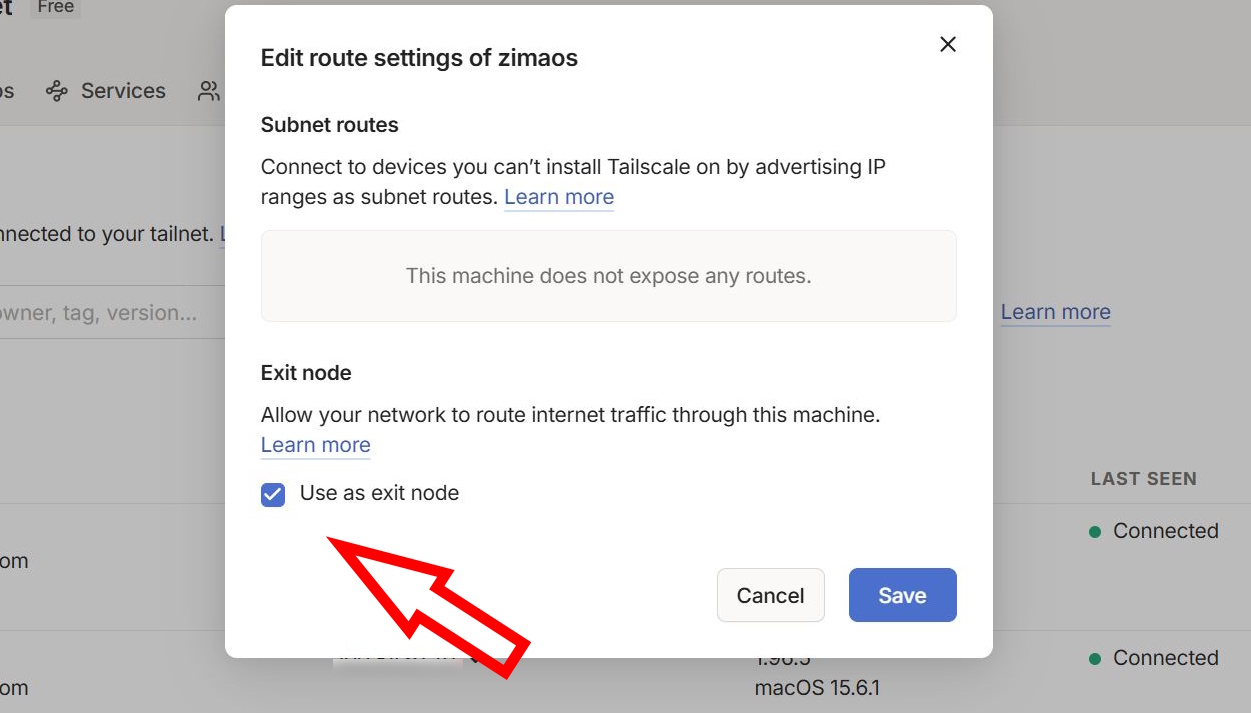
Now you should log into Tailscale again on the home server and the option should be selectable under Machines → zimaos, then via the three-dot menu and “edit route settings.”
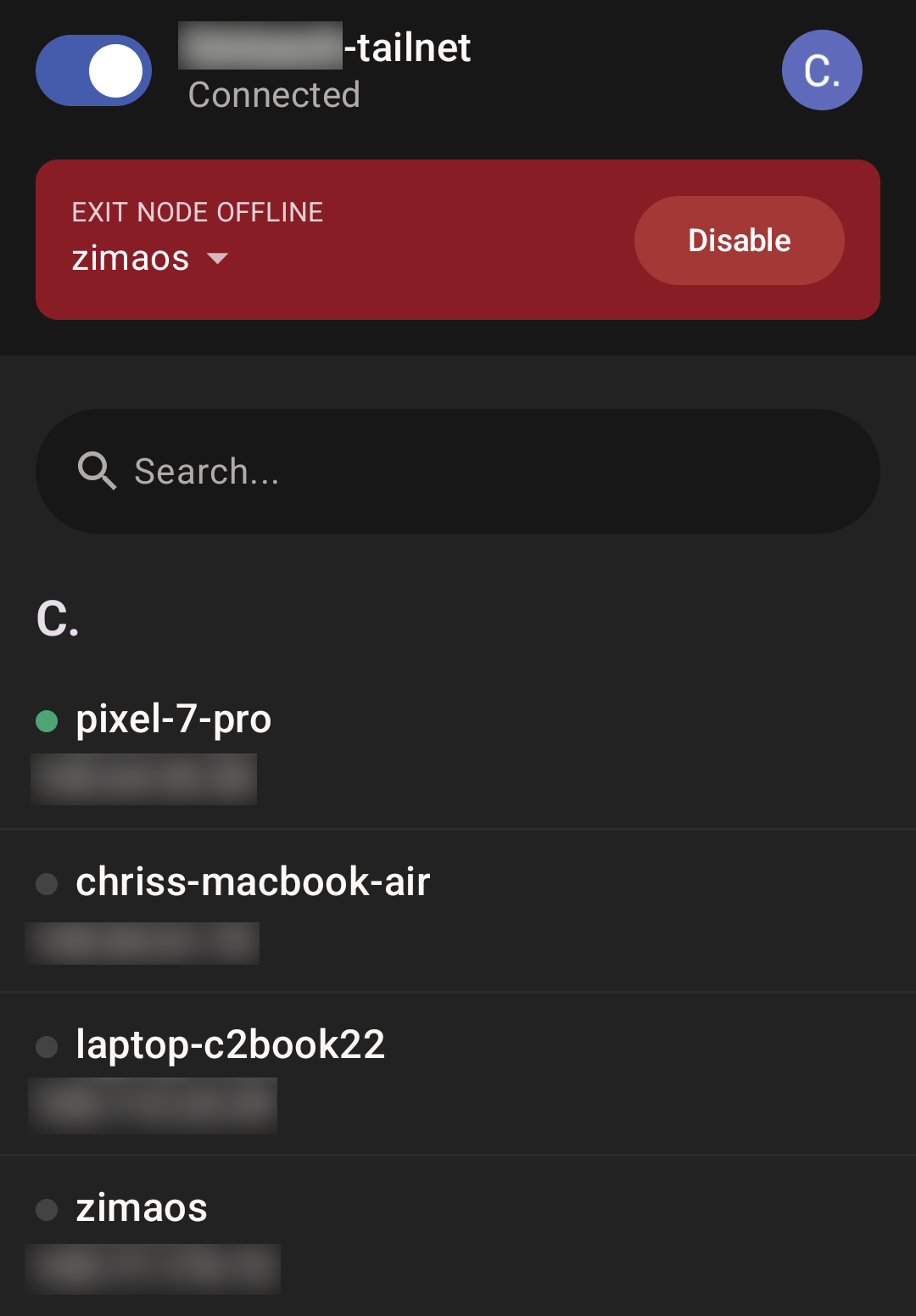
Then, the Zimaboard is defined as an exit node. On my travel phone or laptop, I can activate the Zima NAS as the exit node in Tailscale, and all traffic is then routed through the home server on my home network. I can also see all other devices within the same Tailscale network.
How to verify that traffic is actually routed through the home network
You can verify this using sites like whatismyip.com. If the phone is using mobile data (Wi-Fi turned off for testing) and now shows the same IP address as, for example, the PC in the home Wi-Fi network, then everything worked. This is a great way to bypass German geo-restrictions while abroad.
Accessing the home server/ZimaOS from abroad
If you also want to access the home server and its apps (e.g., Jellyfin), you may run into another issue like I did: entering the Zimaboard IP (shown in Tailscale under devices) does not open in the browser. However, it works when combined with the port. So check the URL in the ZimaOS web UI and note down the IP plus port. Then the Zimaboard, meaning the home server, is also reachable from abroad via:
"http://<IP>:<Port>"
for example:
"http://192.168.2.99:8080"
 Add as a preferred source on Google


