



Stream Deck+ in a Fallout-inspired style: How to install animated icon packs
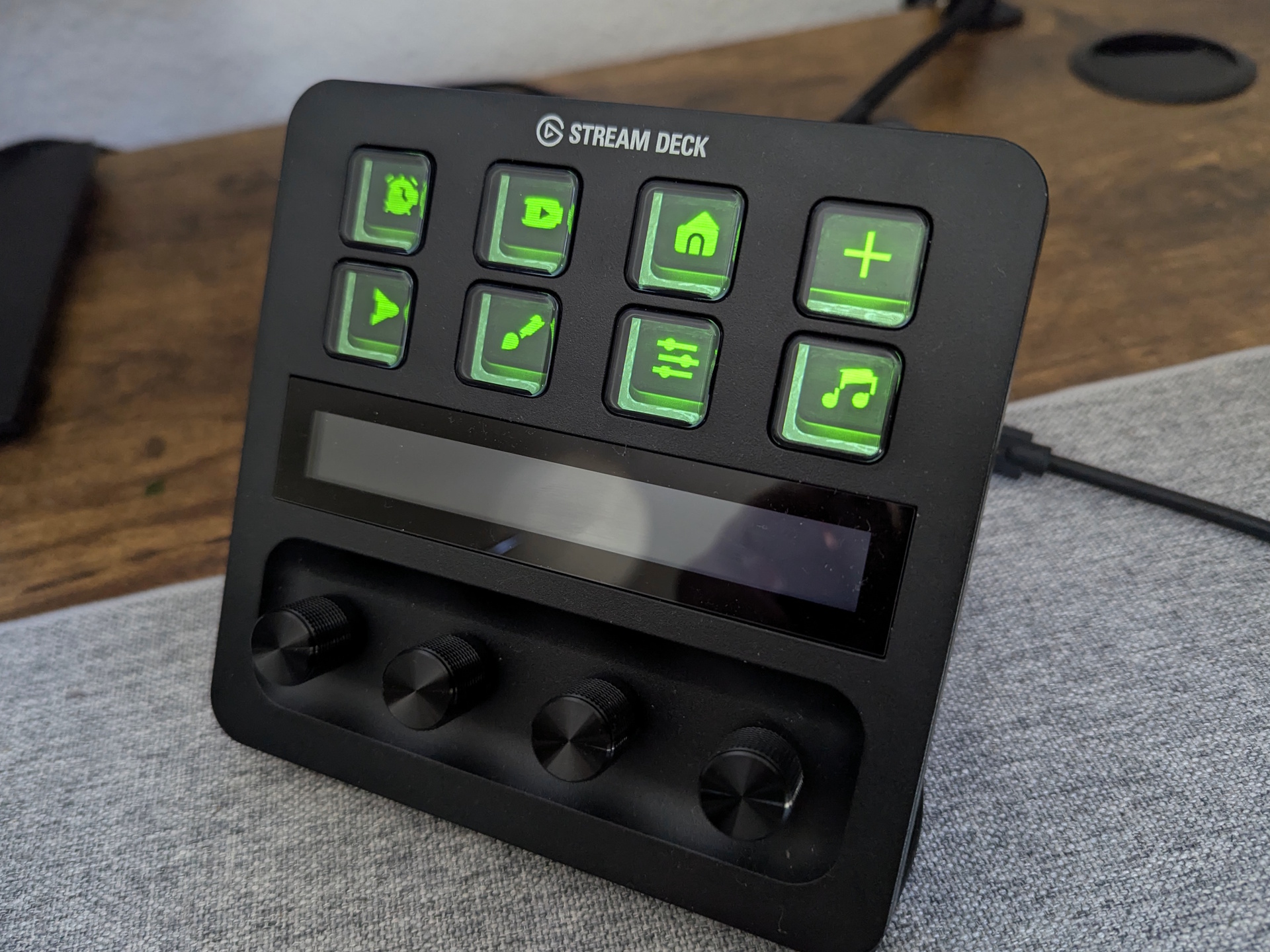
We recently reviewed the Elgato Stream Deck+ together with the XLR Dock MK.2 and got firsthand experience with how fun and customizable the control surface can be. In that article, we didn’t even touch on the interchangeable knobs and custom face plates.
Animated icons: What’s behind the mini displays
One of the easiest ways to personalize the Stream Deck+ is through icons. You can either create them yourself or simply use one of the many icon packs available through the integrated Elgato Marketplace, most of which are free. Some icon sets even include animated GIFs or fully 3D-designed icons.
Finding and installing icon packs in the Elgato Marketplace
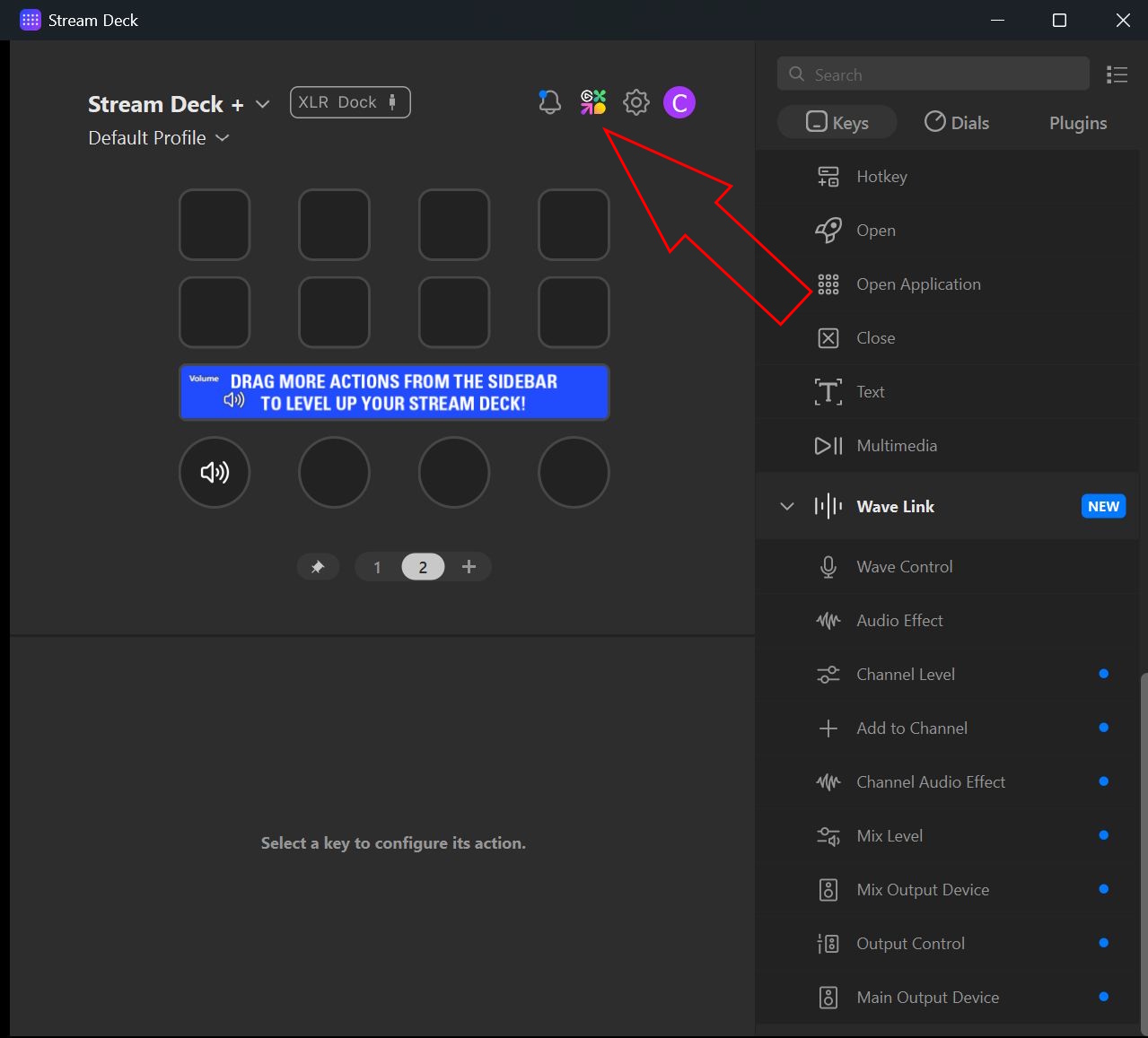
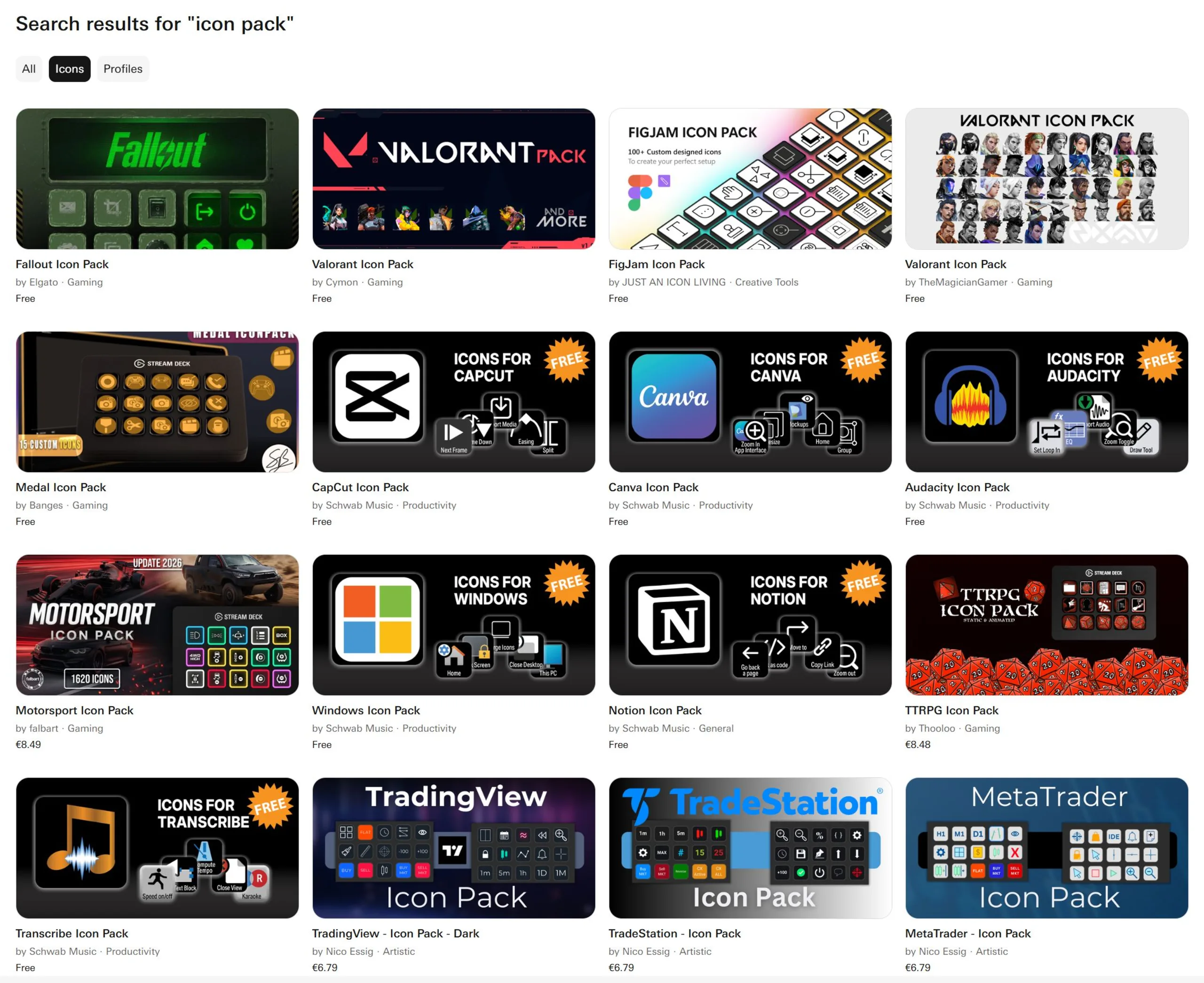
First, open the Stream Deck app. At the top center, there’s a link that takes you directly to the Marketplace website. Search for “Icon Pack” and display all available results. The Fallout pack appeared right at the top for us, but if it doesn’t show up immediately, you can also search for it directly.
Click on the pack, then hit “Get” in the top-right corner. It’s best to accept the prompt that asks whether the content should be opened with the app. The icon pack will then install automatically.
How to open and use the icon library
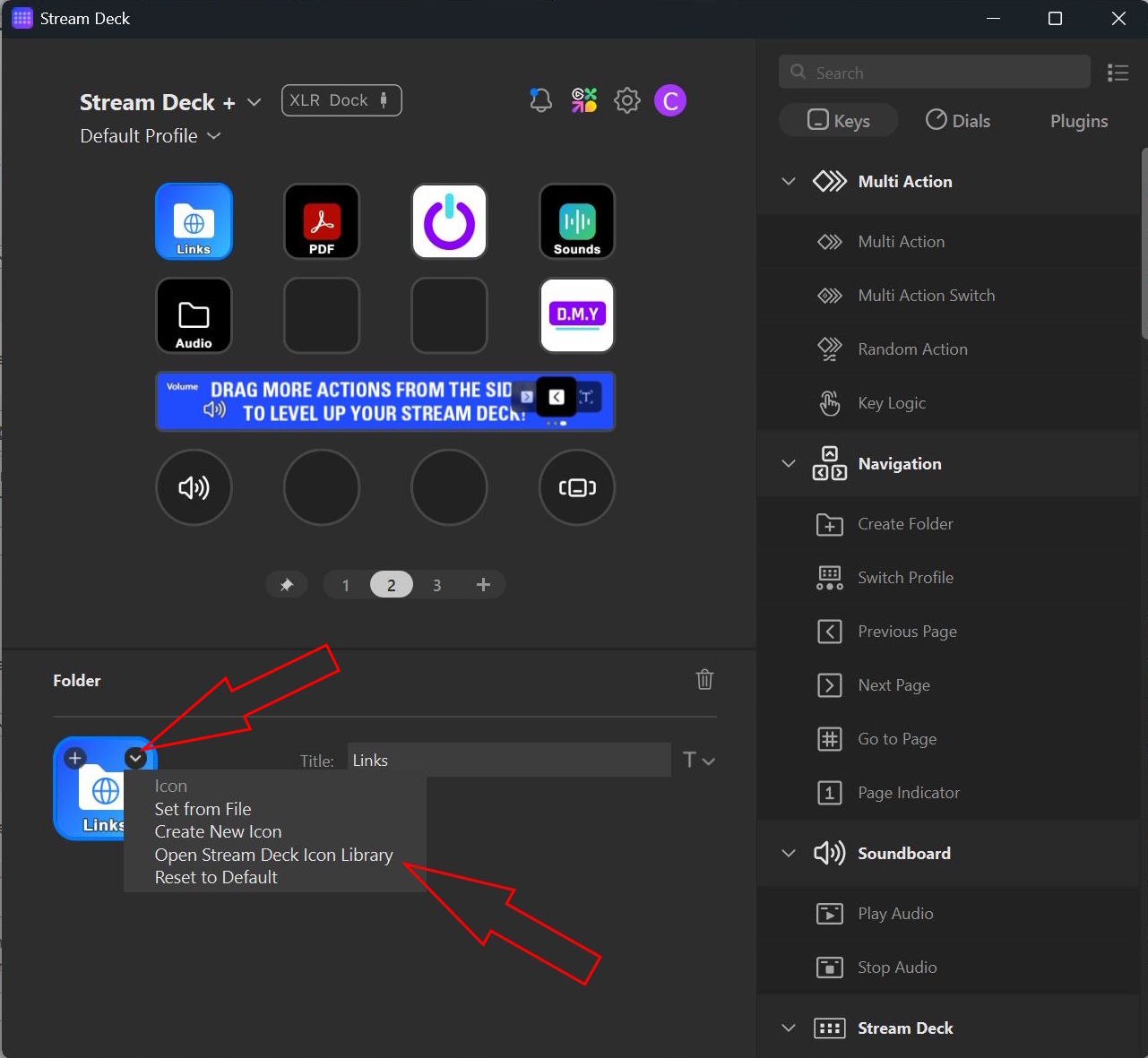
So where do the new icons show up? Simply click one of the icons already assigned on the deck inside the app, then click the small arrow in the upper-right corner of the icon window below. Next, select “Open Stream Deck Icon Library.”
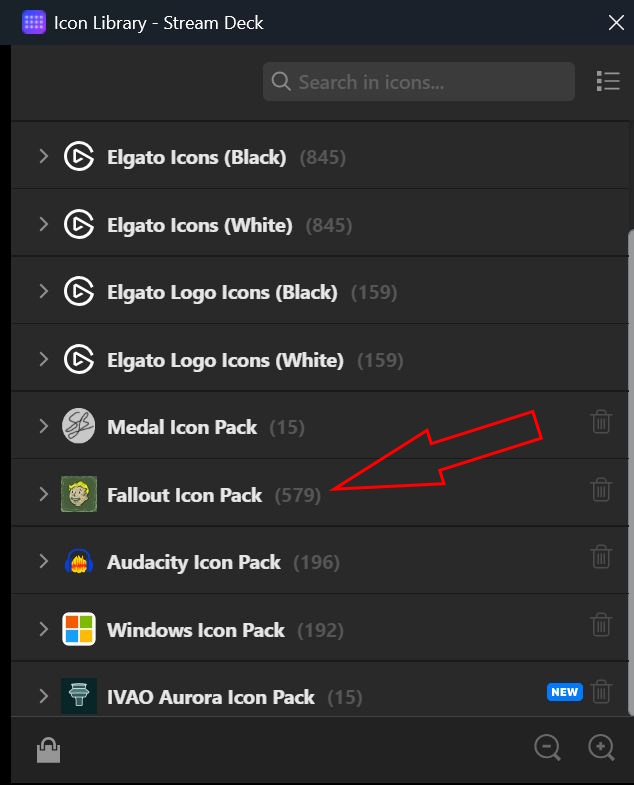
The library now displays all installed icons sorted by pack. The Fallout pack should appear as its own entry, and you can preview the icons by expanding the category.
Animated vs. static icons: Everyday differences
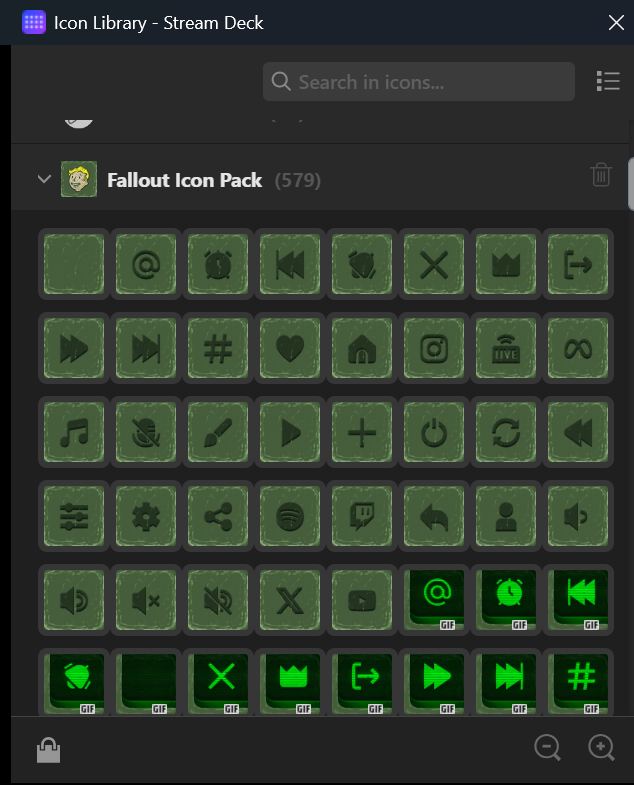
The pack includes both animated and static icons. You can identify animated versions by the small “gif” label displayed on the icon preview.
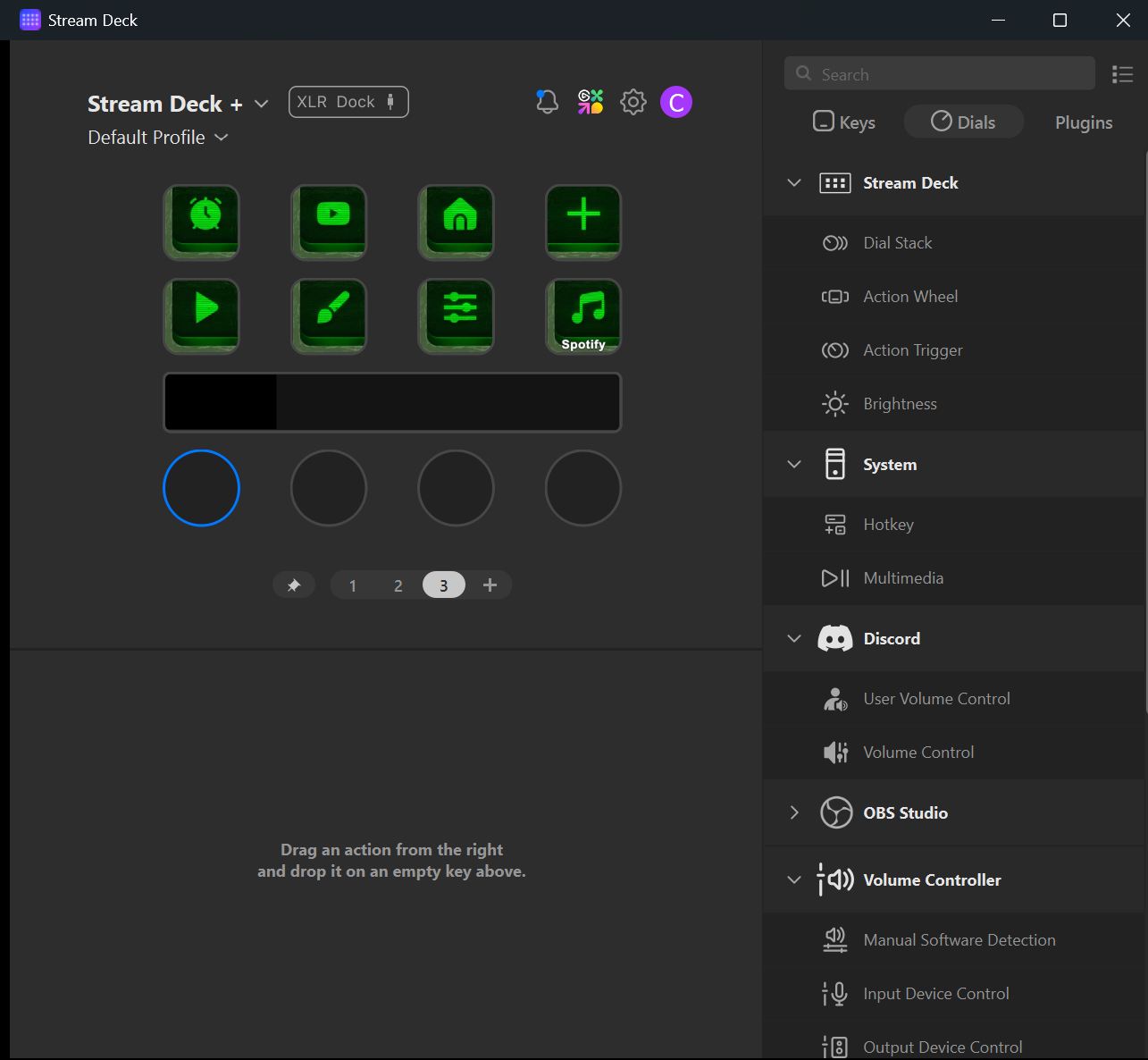
Now simply drag your desired functions onto the Stream Deck keys, click their default icons, reopen the Icon Library, and select the Fallout-themed icon you want — done.
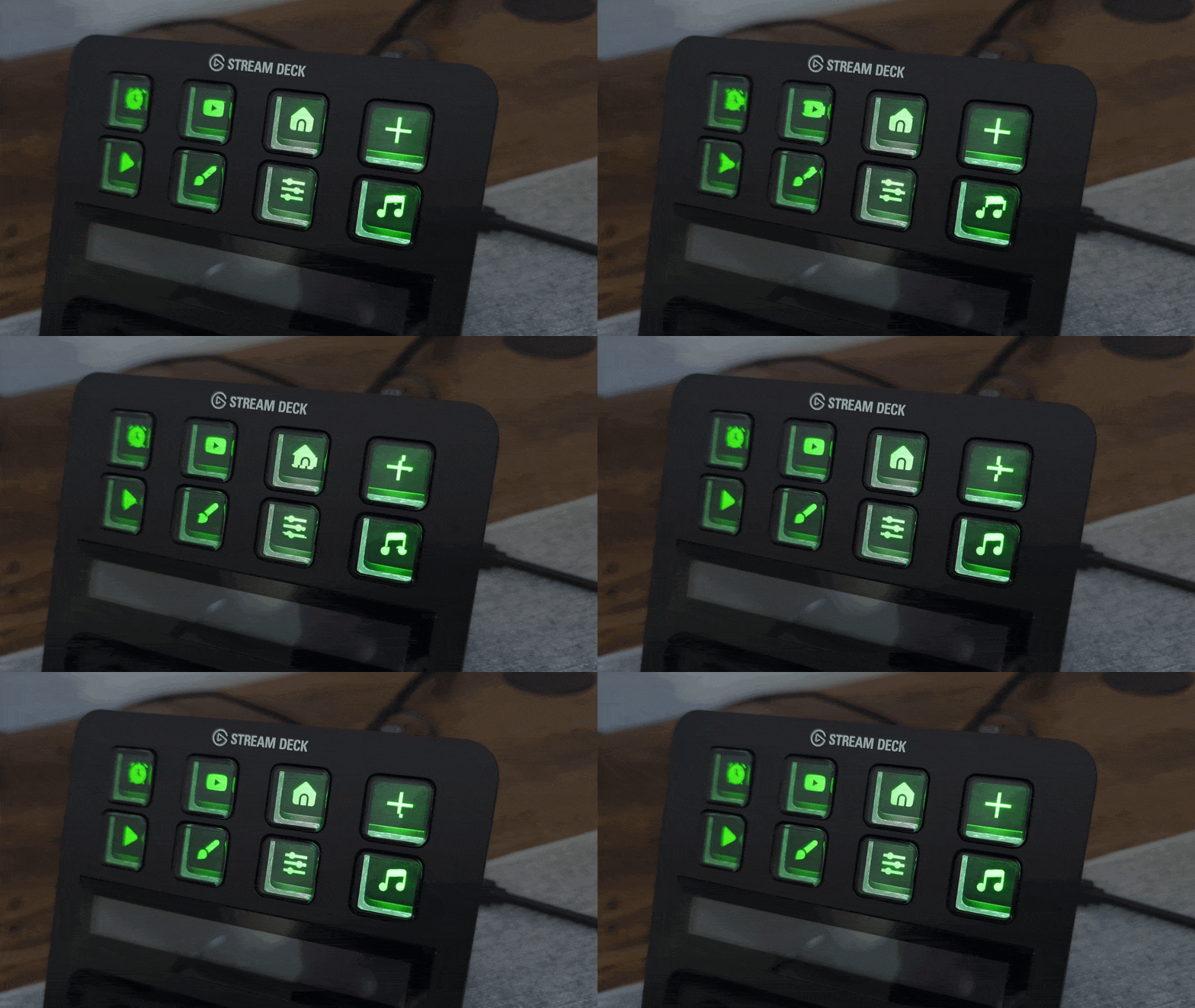
With the Fallout-style pack, we now have eight keys displaying greenish Fallout-inspired symbols that periodically distort, flicker, or glitch like an old CRT monitor. That said, the static icons also look great — it’s worth experimenting with both styles.
 Add as a preferred source on Google


