




How to use the new Windows 11 Shared Audio feature
Microsoft resolved a persistent multi-user playback limitation by baking a native audio broadcaster directly into Windows 11. Instead of forcing users to wrestle with physical splitters or finicky third-party mirroring applications, the operating system splits the audio output stream at the system level, pushing synchronized sound to two separate Bluetooth devices simultaneously.
Pair your wireless hardware
- Check if your device is compatible.
- Connect both wireless devices to the computer before initializing a shared session.
- Use the keyboard shortcut Windows Key + I to open the Settings menu, then head straight to the Bluetooth & devices tab.
- Put your first pair of headphones into pairing mode, click Add device, and select them from the list of discovered hardware.
- Follow the same sequence for the second headset, making sure both accessories show an active connection status in the device panel before moving forward.
Activate the audio broadcast
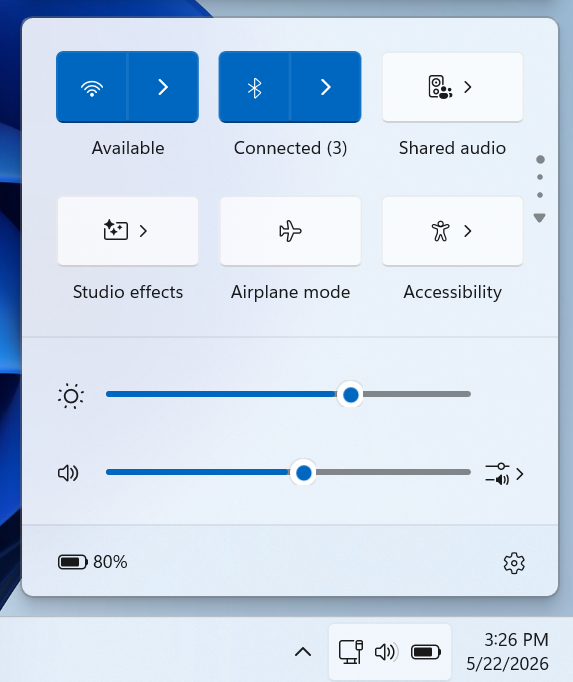
- Click the speaker icon in the bottom-right corner of the taskbar to bring up the Quick Settings tray.
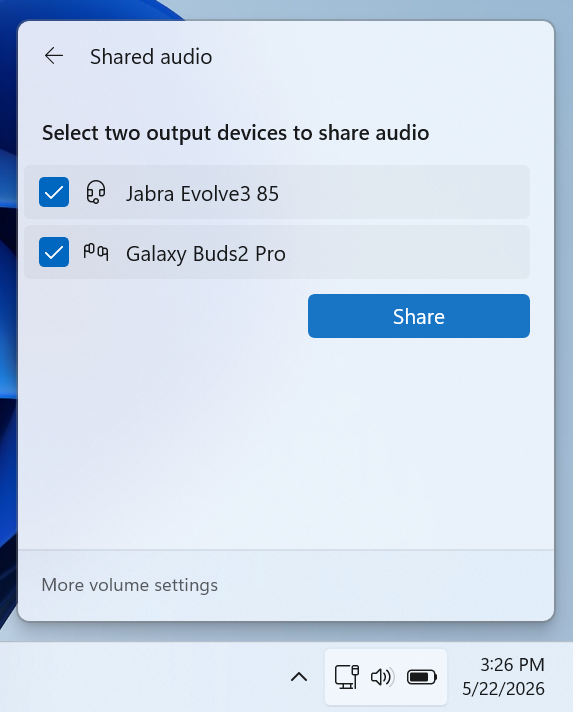
- Select the Shared audio option to launch the device configuration panel, which automatically detects and lists your connected hardware.
- Tick the checkboxes next to both target headsets and click Share to initiate the wireless broadcast.
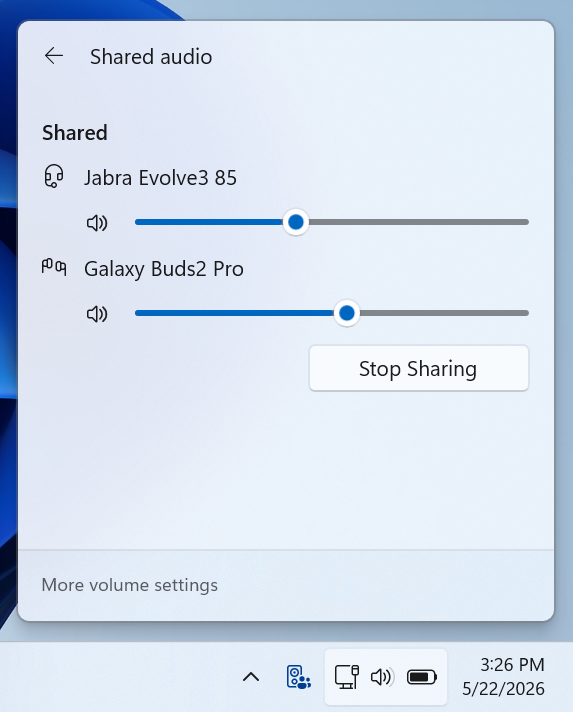
A new status icon will appear on the taskbar to confirm the stream is live and to provide a direct shortcut back to the configuration overlay. Each listener can dial in a distinct volume profile using independent software sliders within the menu, or by pressing the physical volume buttons on their respective headsets. Note that this routing pipeline temporarily locks out standard Bluetooth headset microphone inputs, meaning Windows will automatically default to your laptop's built-in microphone array for any voice calls.
Hardware and system compatibility specifications
Because this tool bypasses legacy Bluetooth Classic standards in favor of modern Bluetooth Low Energy (LE) Audio protocols, it requires Windows 11 build 26100.8522 or newer alongside specific internal hardware components.
Compatible PCs include modern Copilot+ laptops driven by Qualcomm Snapdragon X Elite or Snapdragon X Plus processors—such as the Microsoft Surface Laptop 7, Surface Pro 11, Samsung Galaxy Book4 Edge, and Dell XPS 13 9345—as well as newer systems built on Intel Core Ultra Series 200 silicon.
For audio playback, users must connect broadcast-ready endpoints, which include the Samsung Galaxy Buds2 Pro, Galaxy Buds3, Galaxy Buds3 Pro, Sony LinkBuds S, and modern LE Audio-equipped hearing aids from manufacturers like ReSound and Beltone.
Controlled feature rollout constraints
Even if a machine satisfies the required hardware criteria and runs the correct build number, the Shared Audio option might still be missing from the interface. Microsoft is deploying this utility via a Controlled Feature Rollout (CFR). This server-side staging means the software architecture remains gated behind a configuration flag until Microsoft remotely activates the tile for your specific device pool.
 Add as a preferred source on Google


