




How to check if your PC is Secure Boot ready
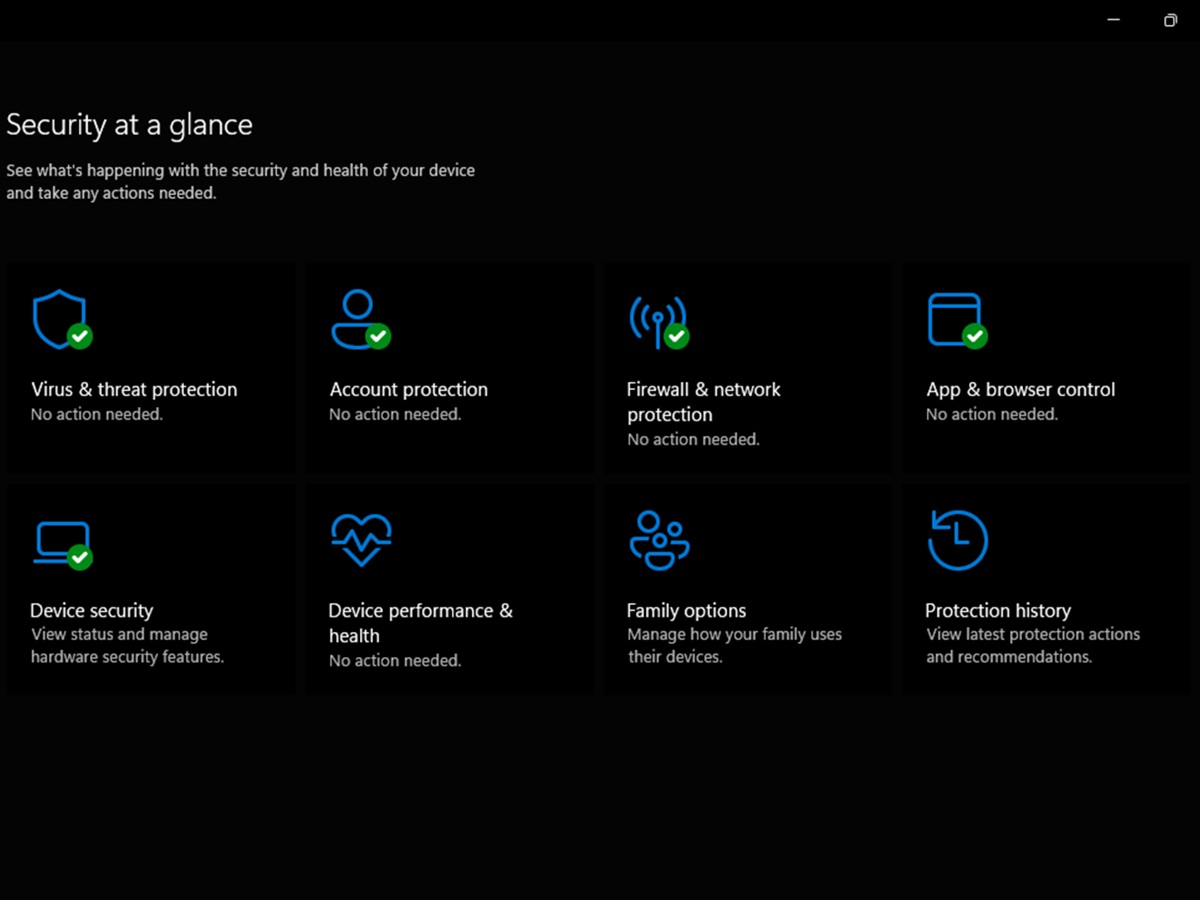
Microsoft is rolling out an update to replace its legacy 2011 Secure Boot keys before they expire later this year. For the vast majority of consumers, this transition happens completely behind the scenes through regular Windows Updates. If you want to verify your computer's status using Microsoft's official tools, the process is simple and completely built into Windows. Here is how to check where your system stands.
The Windows security app
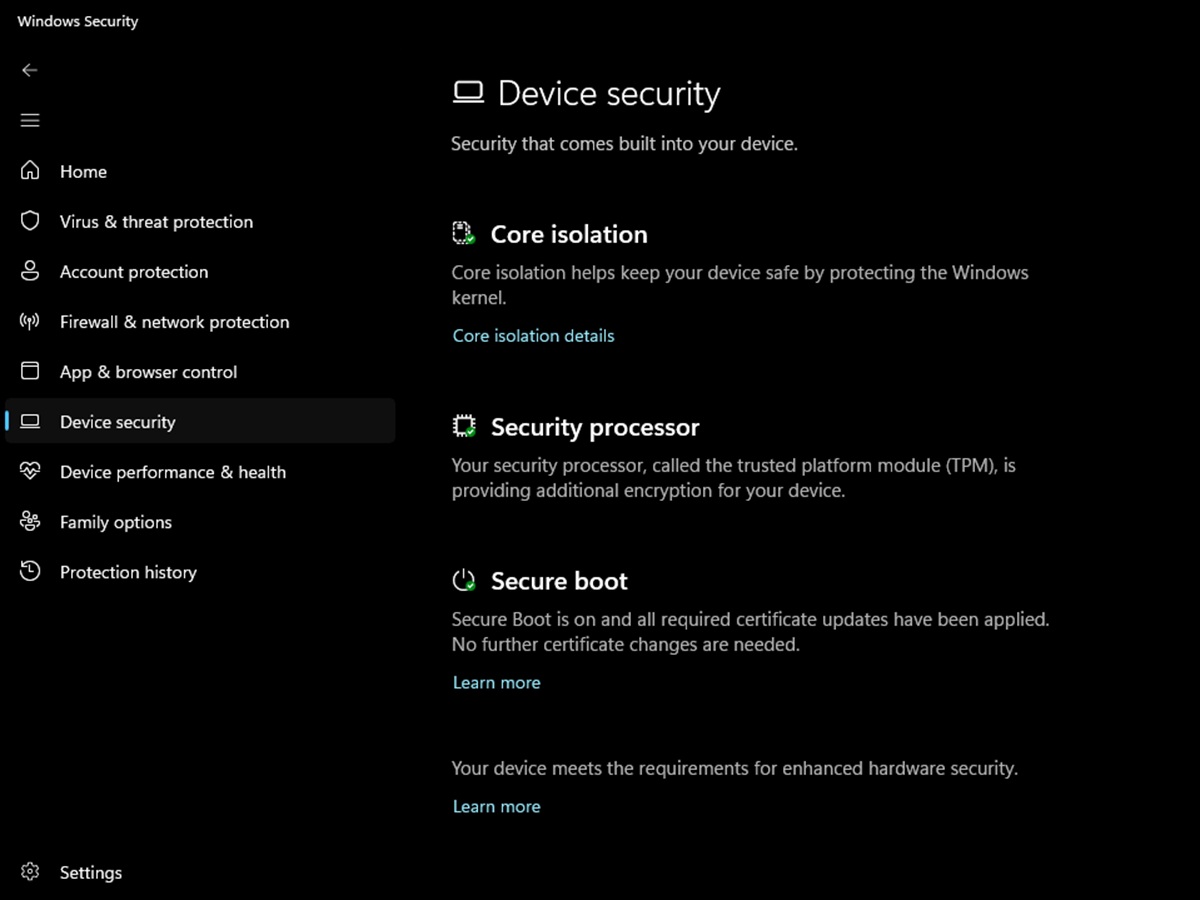
Microsoft has updated the built-in Windows Security application specifically to show you the real-time status of your Secure Boot certificate migration. You can check your status by following these steps:
- Open your Start menu.
- Type Windows Security and select the app.
- Click on Device security from the main menu.
- Locate the Secure Boot section to view your current status badge.
The app will display one of three indicators to communicate your system health:
- A green checkmark means your device is fully updated—no further action needed.
- A yellow cautionary badge indicates that your system is not yet updated and is still using older certificates. Microsoft states that this update is designed to apply automatically, so you should ensure your device stays connected to the internet and check for any pending items in Windows Update. This badge can also appear if the update is temporarily waiting on a firmware or BIOS update from your PC manufacturer.
- A red stop icon indicates that action is needed because the Secure Boot updates are currently paused or blocked on your machine due to a specific hardware or configuration conflict that requires attention.
System information baseline check
If you just want to verify that your system has Secure Boot active and running in the correct hardware environment, you can use the native System Information panel:
- Press the Windows Key + R on your keyboard to open the Run dialog box.
- Type msinfo32 and press Enter.
- Scroll down the System Summary list to find your system settings.
- Verify in your BIOS settings that the UEFI boot mode is on, because if this is set to Legacy, Secure Boot cannot run.
- Verify in your BIOS settings that Secure Boot and TPM are on.
Checking your Windows update history
Because Microsoft delivers these security trust updates directly through its standard monthly servicing pipeline, you can confirm whether the package has reached your device by looking at your update log:
- Open Settings by pressing the Windows Key + I.
- Select Windows Update from the side menu.
- Click on Update history.
- Scroll down to the Other Updates section.
- Look for a successful entry titled Secure Boot allowed signature database (DB) update.
As long as your computer displays a green checkmark in your native security app and stays current with standard Windows Updates, you can let the operating system handle the transition autonomously in the background.
Source(s)
 Add as a preferred source on Google


