



Tips & Tricks for multitasking on the Fold8
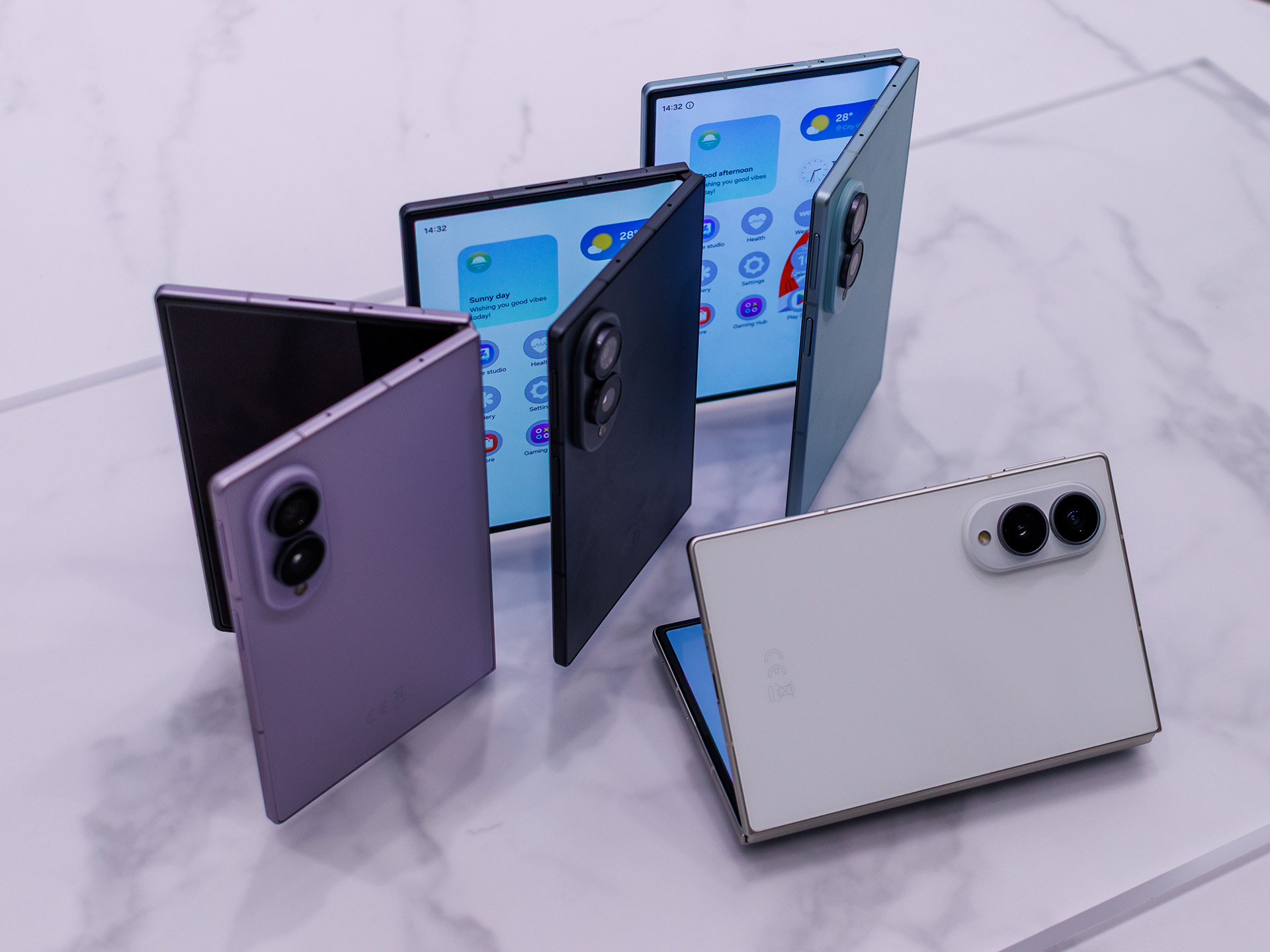
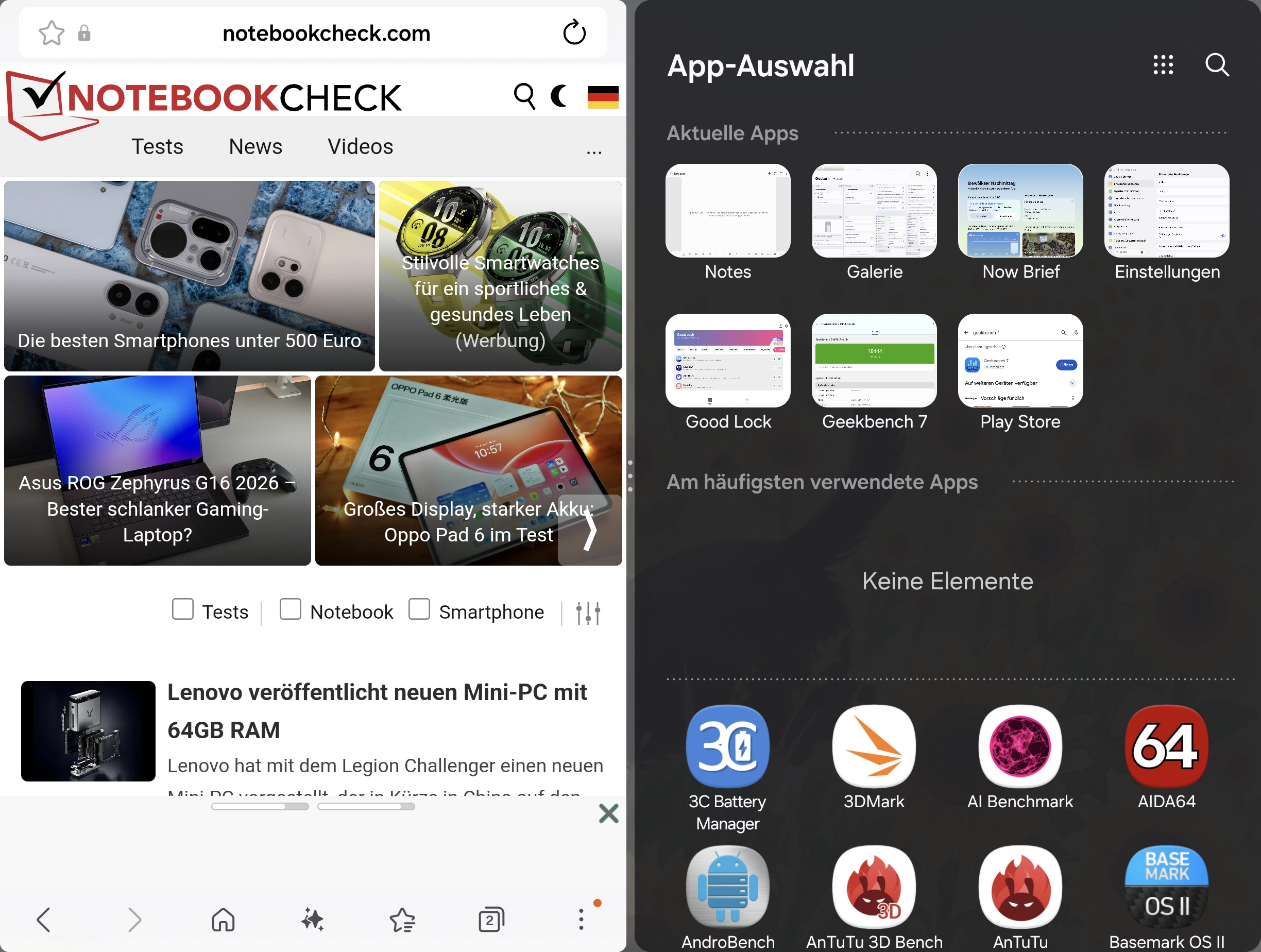
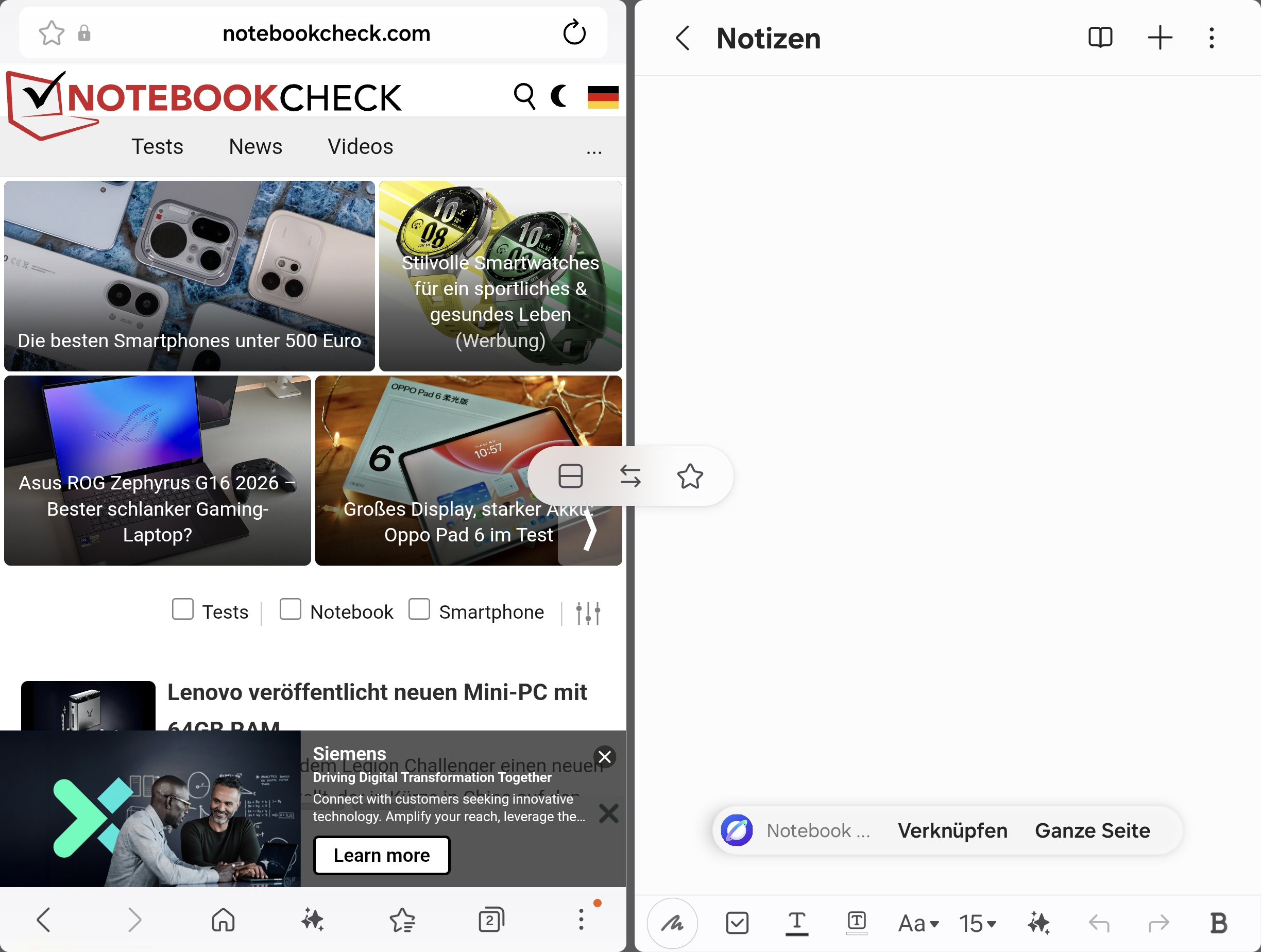
The Samsung Galaxy Z Fold8 is perfect for multitasking. On the unfolded 4:3 display, you can comfortably use two apps side by beside each other, such as a browser and Notes, Maps and Messages, or Calendar and Mail. Even more interesting is the ability to arrange three apps at the same time. One UI 9 also allows for unconventional layouts, where one app takes up almost the entire screen and two others are displayed in narrow columns. This is especially handy when you need information from multiple apps at the same time.
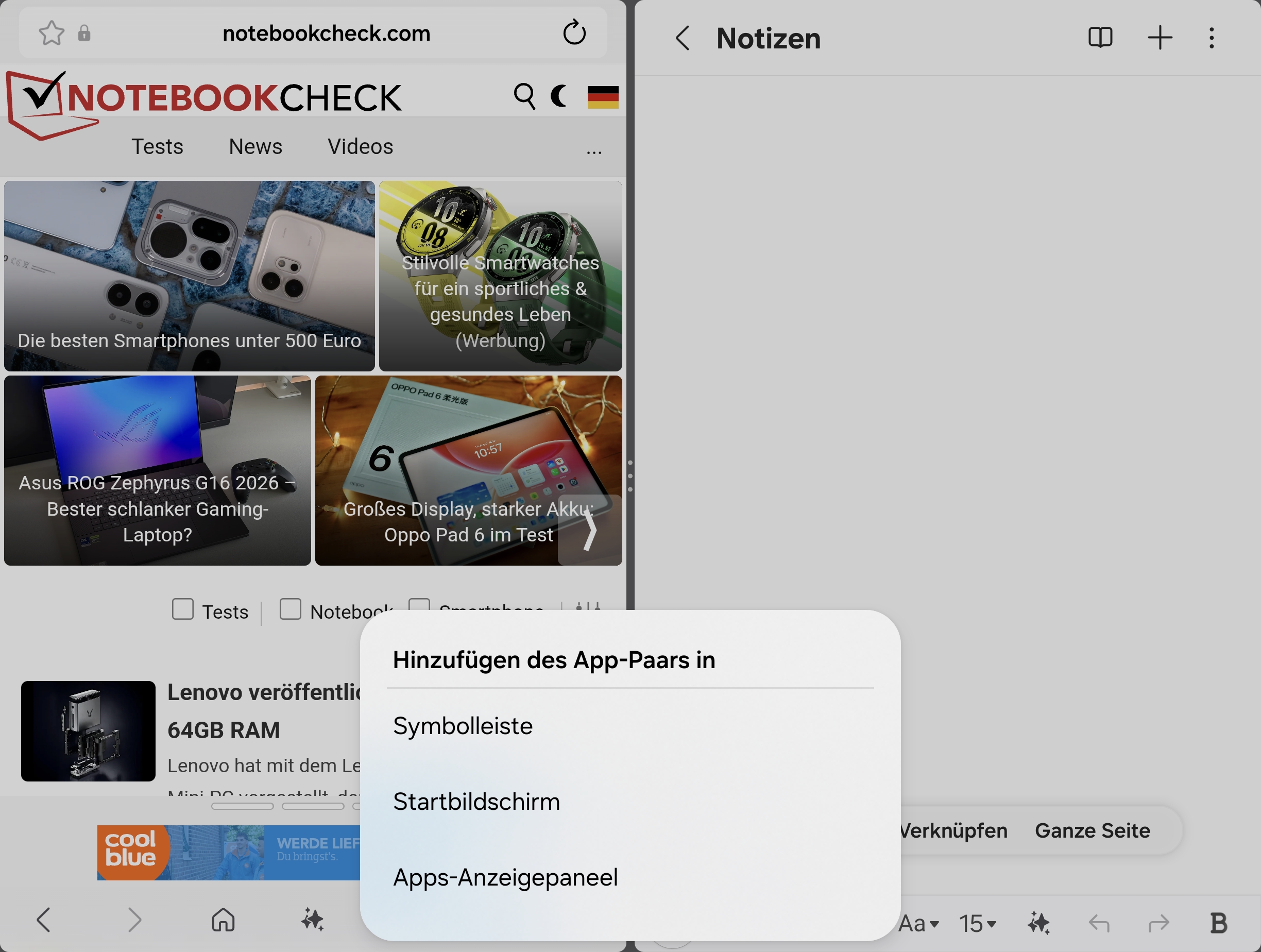
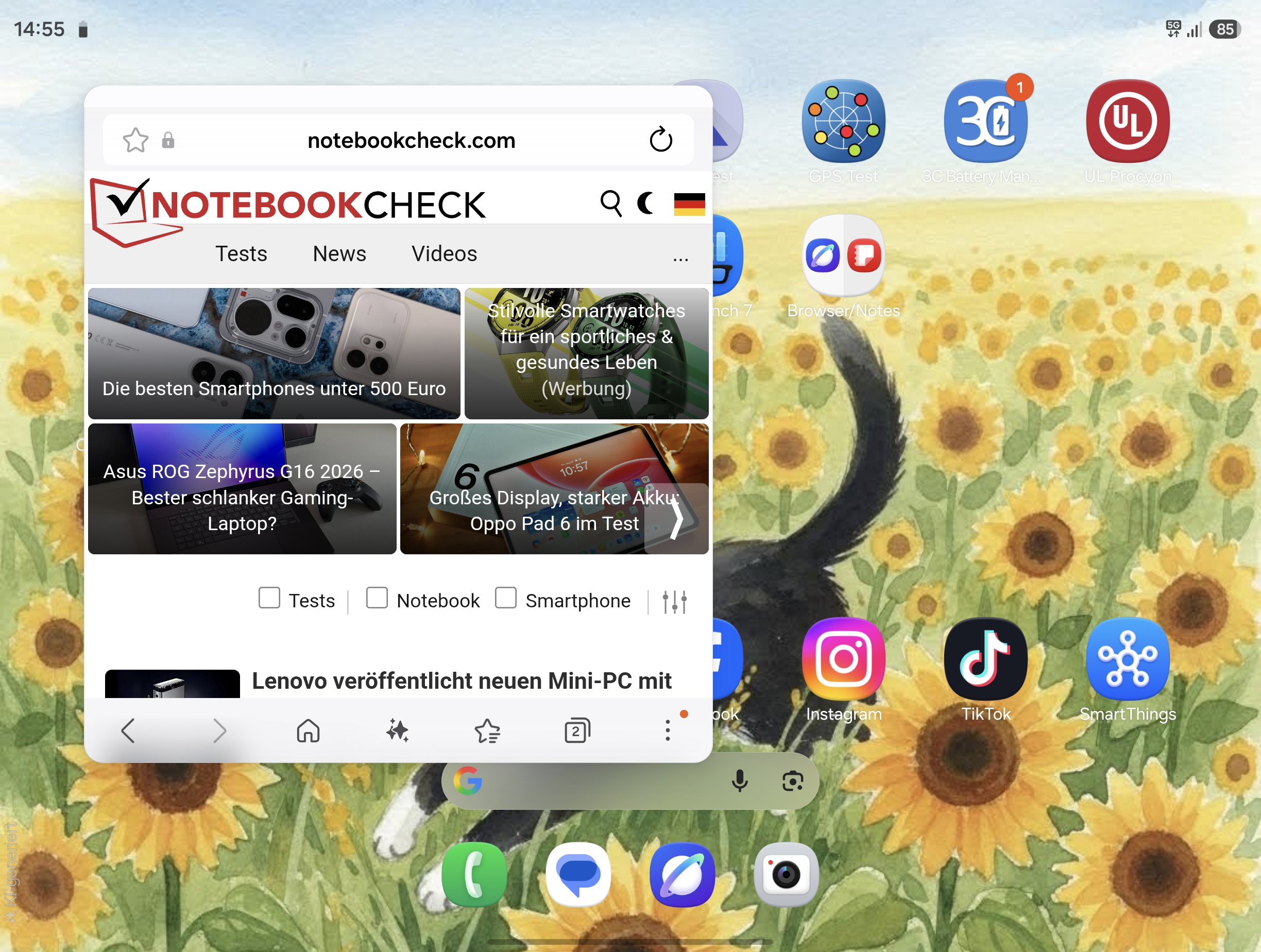
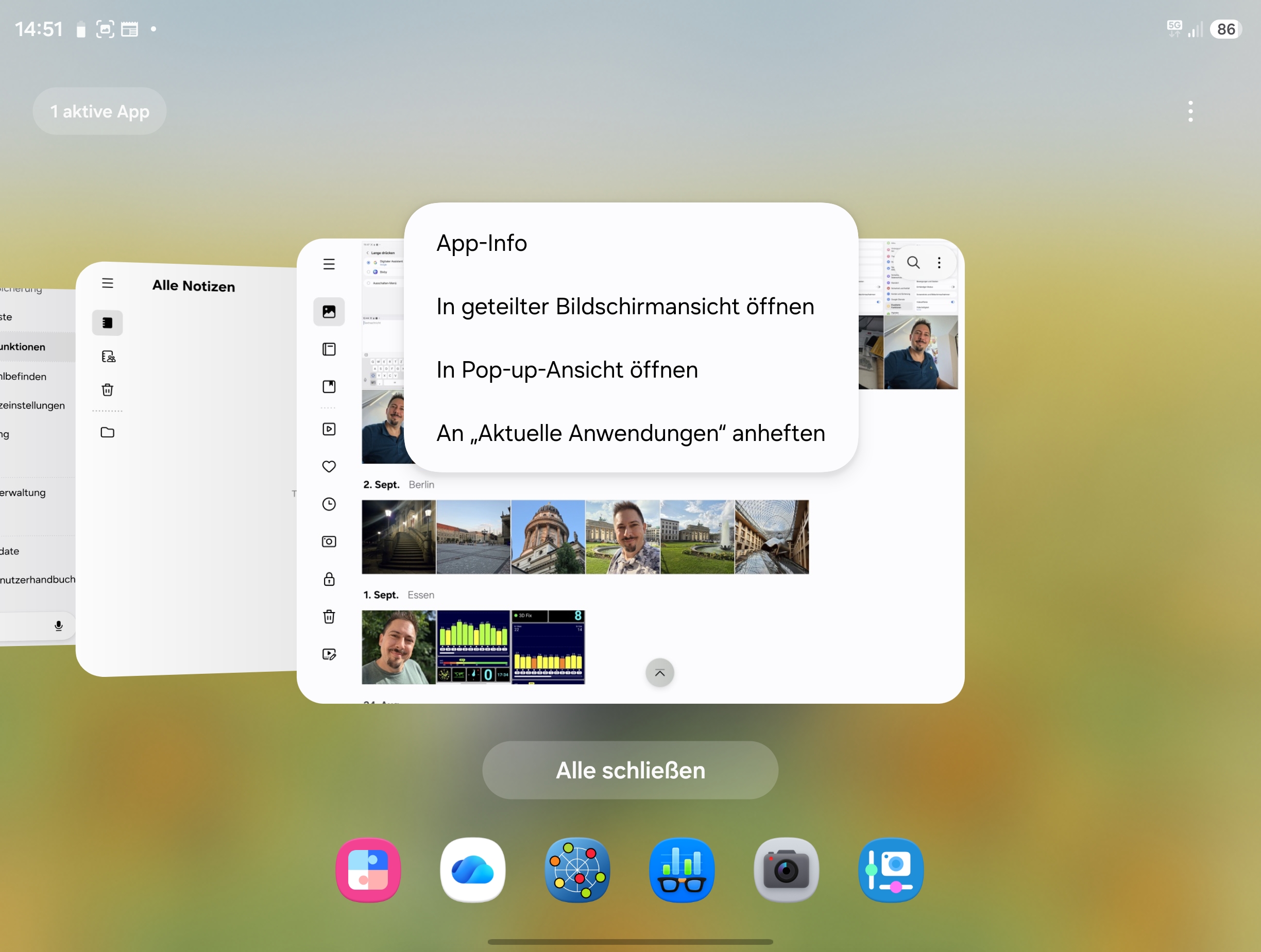
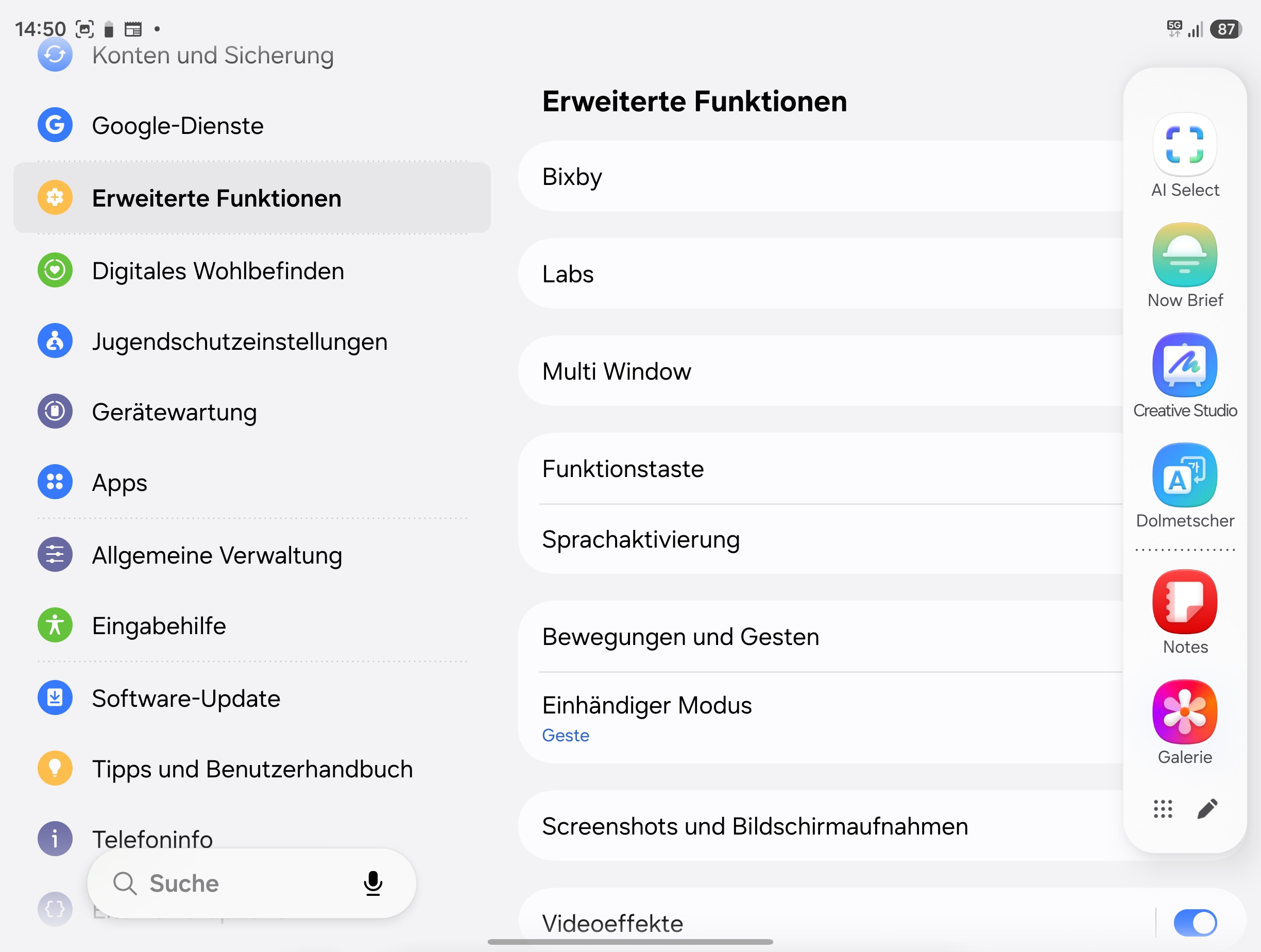
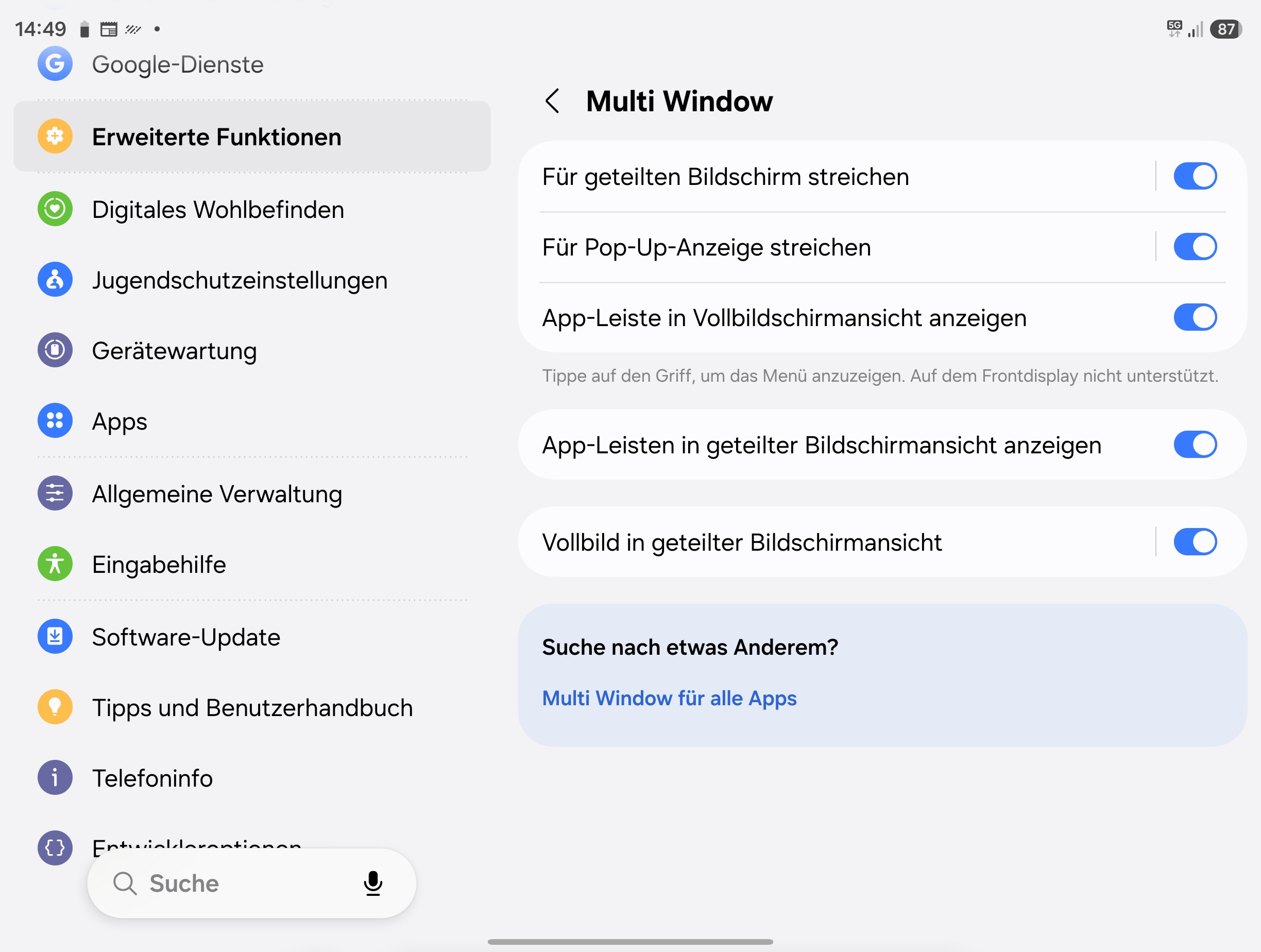
However, many of these features aren’t visible at first glance. If you enable the Multi Window options under “Advanced Features” in the settings, you can open the split view directly by swiping with two fingers from the edge. Swiping from the upper-right corner, on the other hand, transforms an app into a freely movable and resizable pop-up window. It becomes even more convenient with the taskbar and the Edge Panel. Frequently used apps can be pinned there and dragged and dropped directly into a new window layout. App pairs are especially handy: combinations like a browser and Notes can be saved and then opened together with a single tap.
Another standout feature is Samsung DeX. When connected to a monitor, the Fold8 transforms into a desktop workstation with freely resizable windows and support for a mouse and keyboard. The smartphone and the external screen can display different content at the same time. This makes multitasking a key selling point of the Fold8 (buy it here on Amazon). If you only use one app at a time, you’re hardly tapping into its full potential. But if you frequently switch between apps, compare information, or need to work productively on the go, you’ll get a smartphone that actually feels like a small computer.
 Add as a preferred source on Google


