




This handy open source tool pulls text from anything for me — even videos and images
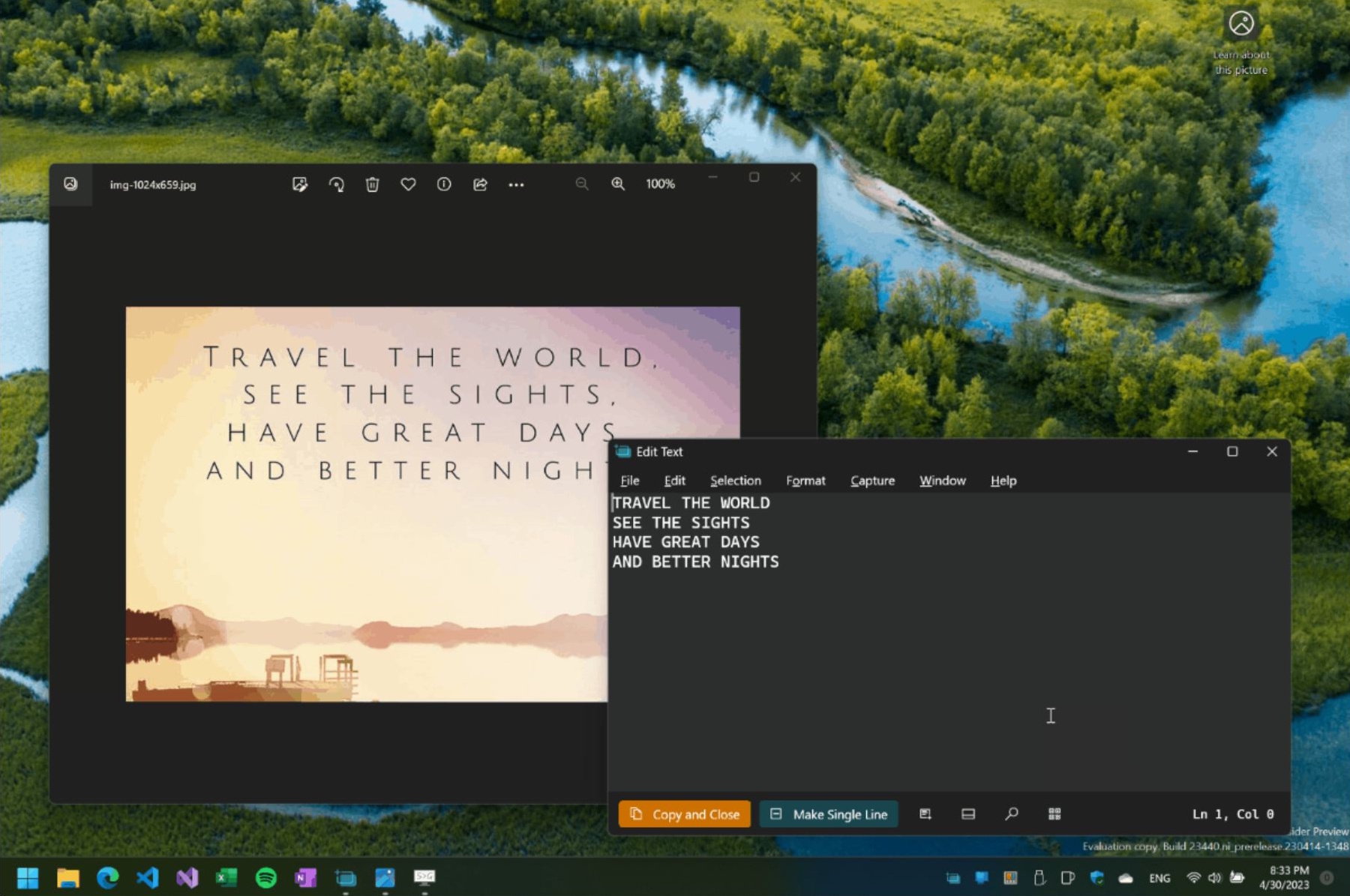
Familiar problem? Most PDF files let you copy text without any trouble. But every now and then you run into a PDF that clearly wasn’t created from a text document at all — it was generated from scanned images, even though the content is entirely text. In those cases, you can’t highlight or copy anything unless you use extra tools. It’s frustrating.
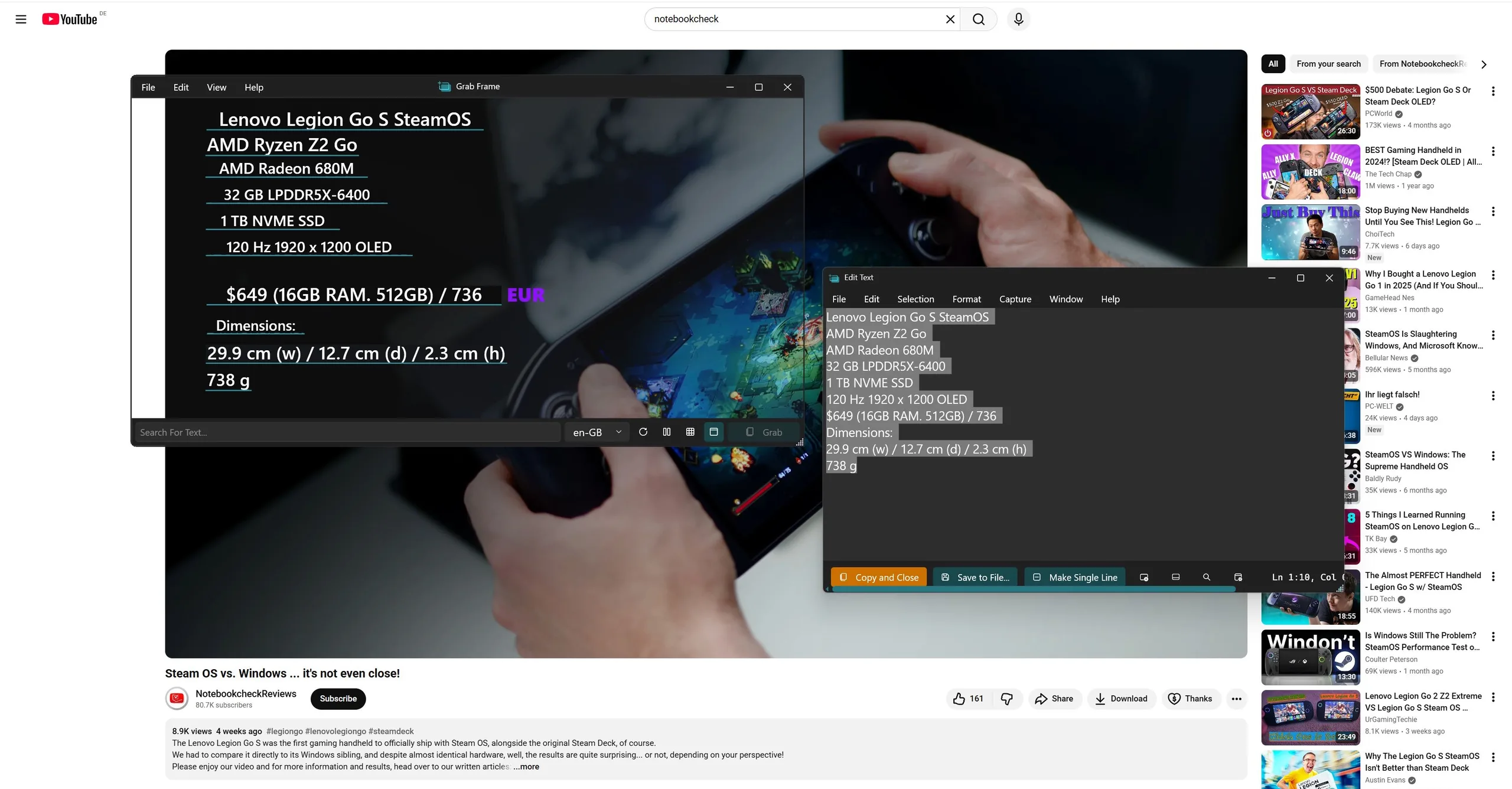
Another example: I’m watching a video about the best RC crawlers (remote-controlled cars built specifically for tackling extremely rough terrain) in a certain price range because my kid is into them. The model names are shown in the video, but they’re nowhere to be found as selectable text in the description.
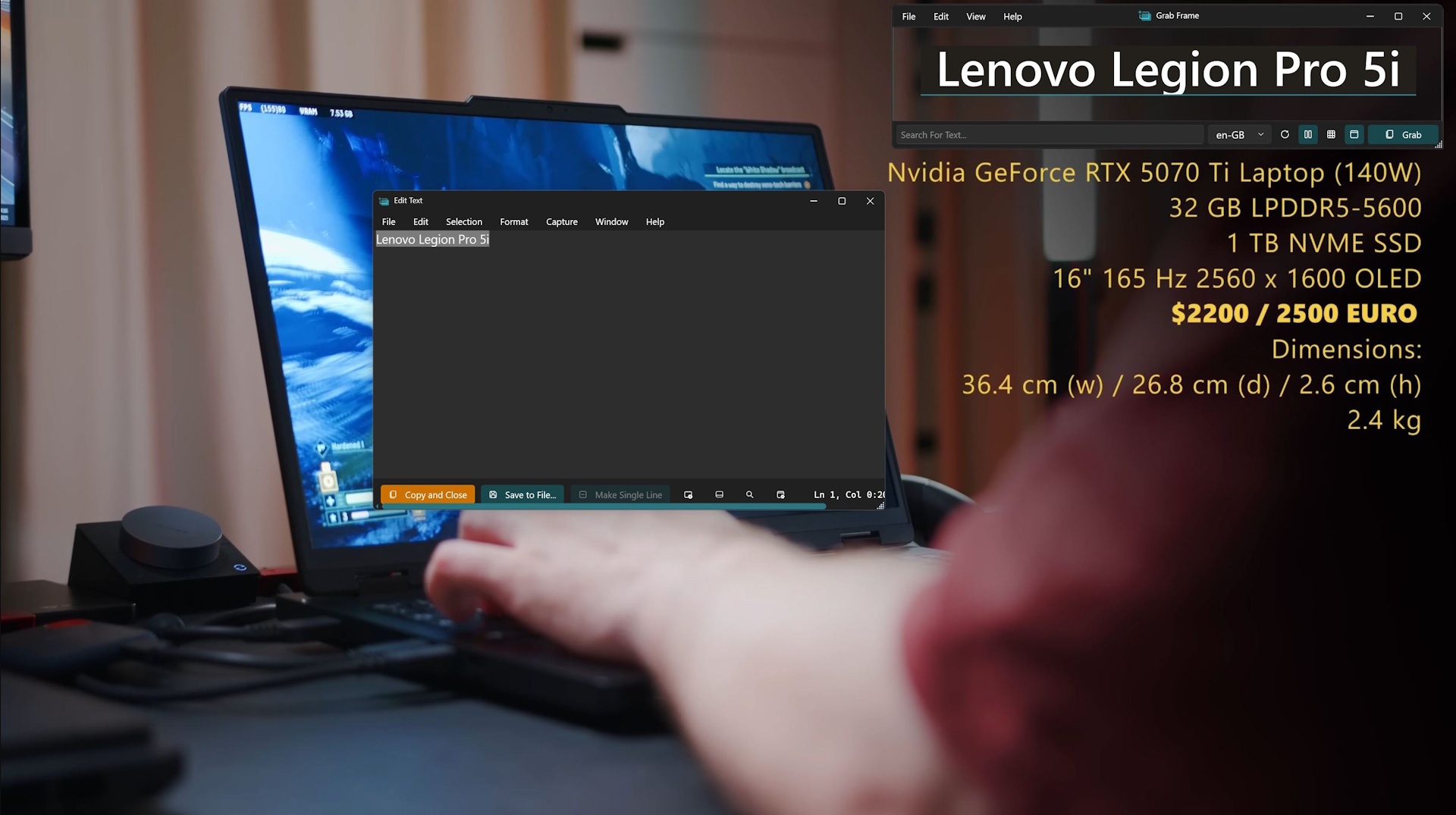
That’s where Text Grab comes in: This open source tool is available on Github for Windows x86 and ARM64 PCs, and it does exactly what I wish I had in those situations: it extracts text from images, videos, photo-based PDFs — basically from anything that appears on your screen.
Using it couldn’t be simpler. The app works like a standard screenshot tool. You snap a picture of your entire screen or just a selected area, and Text Grab immediately recognizes any text in that image and copies it to your clipboard. Just like with other screenshot utilities, you can set up your own hotkeys for grabbing the whole screen or specific regions.
Despite being only 74 MB, the app offers several ways to capture text. You can scan the entire screen, draw a frame around a smaller area, or even click directly on a single word. If you want, the tool can automatically open Notepad with the extracted text ready for editing.
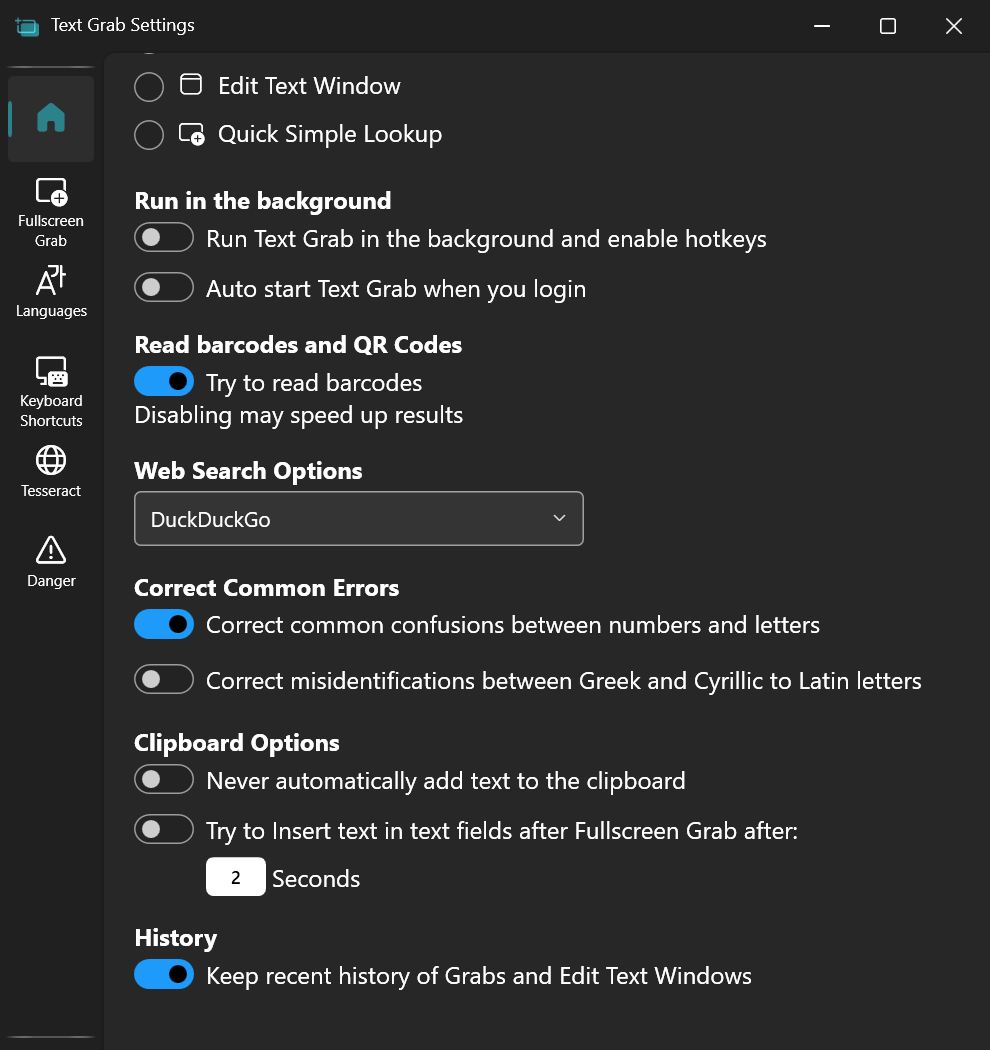
How it works: Behind the scenes, the app takes a screenshot and sends it to the OCR engine (Optical Character Recognition) built into the Windows API. Everything runs locally.
The tool is generally very accurate, lightweight, and fully open source. It’s not perfect, though. I’ve had a few cases where it misread something, but the built-in editor that pops up automatically makes quick corrections easy.
 Add as a preferred source on Google


