




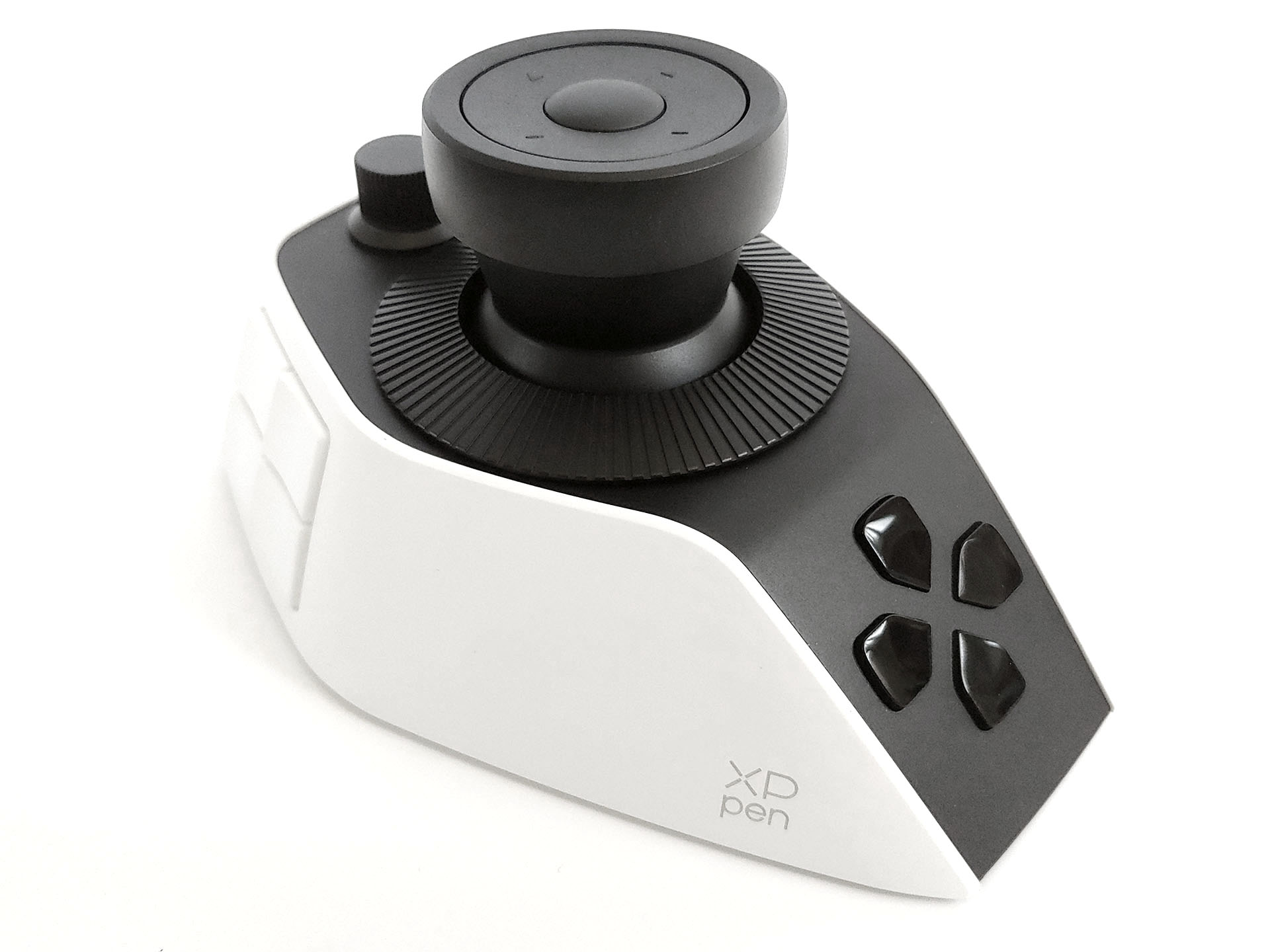
XPPen Pilot Pro editing console hands-on: Programmable controls for more efficient video editing
Powerful versatility.
Video editors can work more efficiently with the XPPen Pilot Pro’s many programmable controls, bringing tools and keyboard shortcuts directly under the control of the left hand.David Chien Published 🇳🇱 🇫🇷 ...
Verdict – Less fatigue, faster video editing
The XPPen Pilot Pro boosts editing efficiency by putting frequently used shortcuts under the left hand, with three dials, 16 buttons, and a joystick for tasks like scrubbing, cutting, and adjusting audio.
The controller and app have a few niggles the company plans to fix, and it can’t replace the mouse entirely.
Nonetheless, the Pilot Pro improves efficiency in completing common editing tasks, such as scrubbing through footage, adjusting colors, and changing tools, while reducing fatigue on the right hand during hours of nonstop video editing.
Pros
Cons
Price and availability

The XPPen Pilot Pro editing console helps reduce right-hand fatigue while editing hours of videos by providing instant access to shortcuts and tools under the left hand.
Specifications
| Buttons | 12 physical buttons, 4 touch buttons |
| Dials | Three dials with haptic feedback |
| Joystick | Switchable 4- or 8-way joystick |
| Connectivity | Bluetooth wireless or USB-C |
| OS Support | Windows 10 or later, macOS 10.12 or later |
| Power | 1,900 mAh lithium-ion battery |
| Runtime | Up to a week at 8 hours per day of use |
| Dimensions | 130 x 92 x 67 mm (5.1 x 3.6 x 2.6 in.) |
| Weight | 251 g (8.85 oz.) |
Packaging
The controller came with a warranty card, a quick-start manual, a case, a USB-C to USB-A cable, a USB-A to USB-C adapter, and a USB-A Bluetooth receiver.
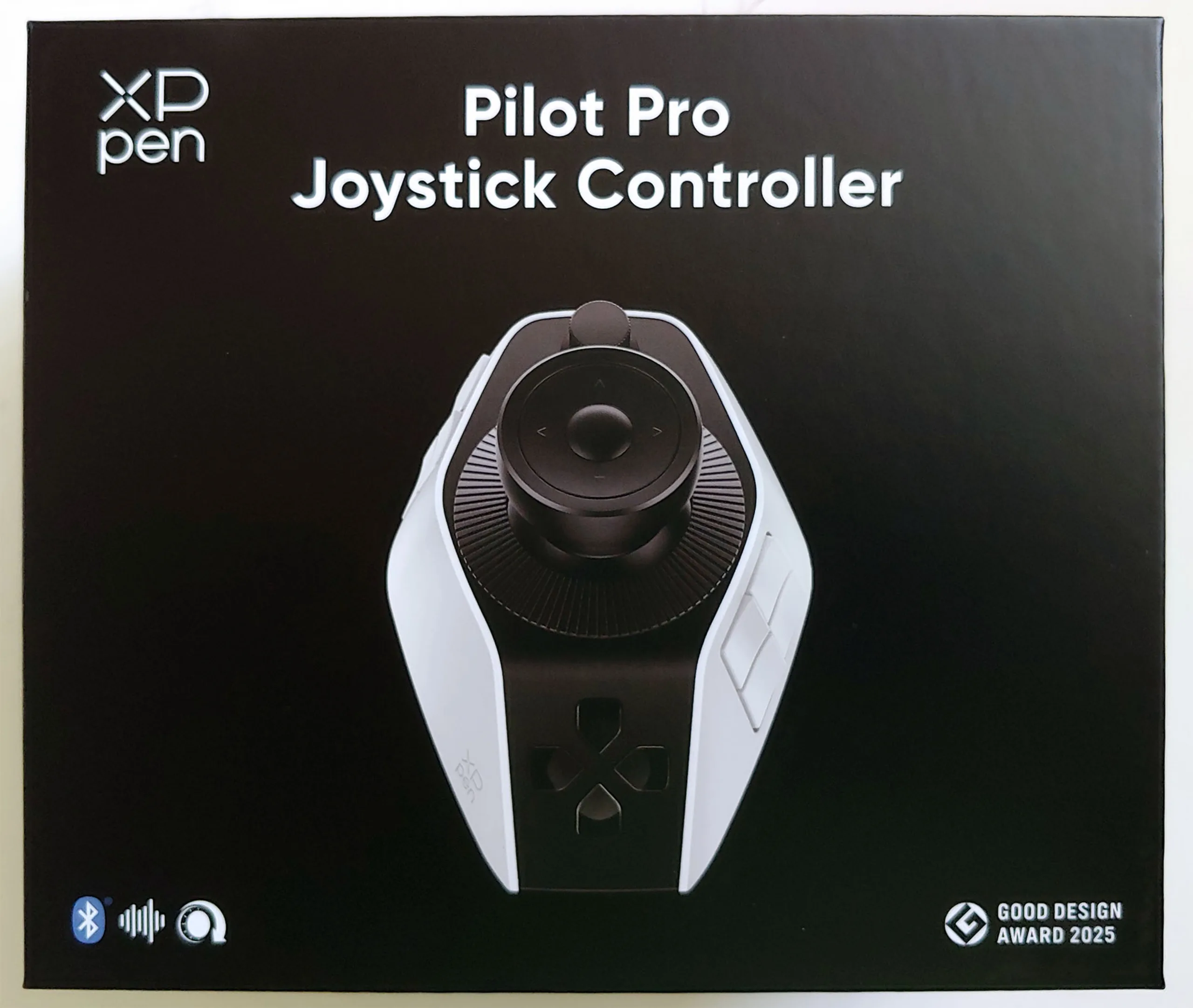
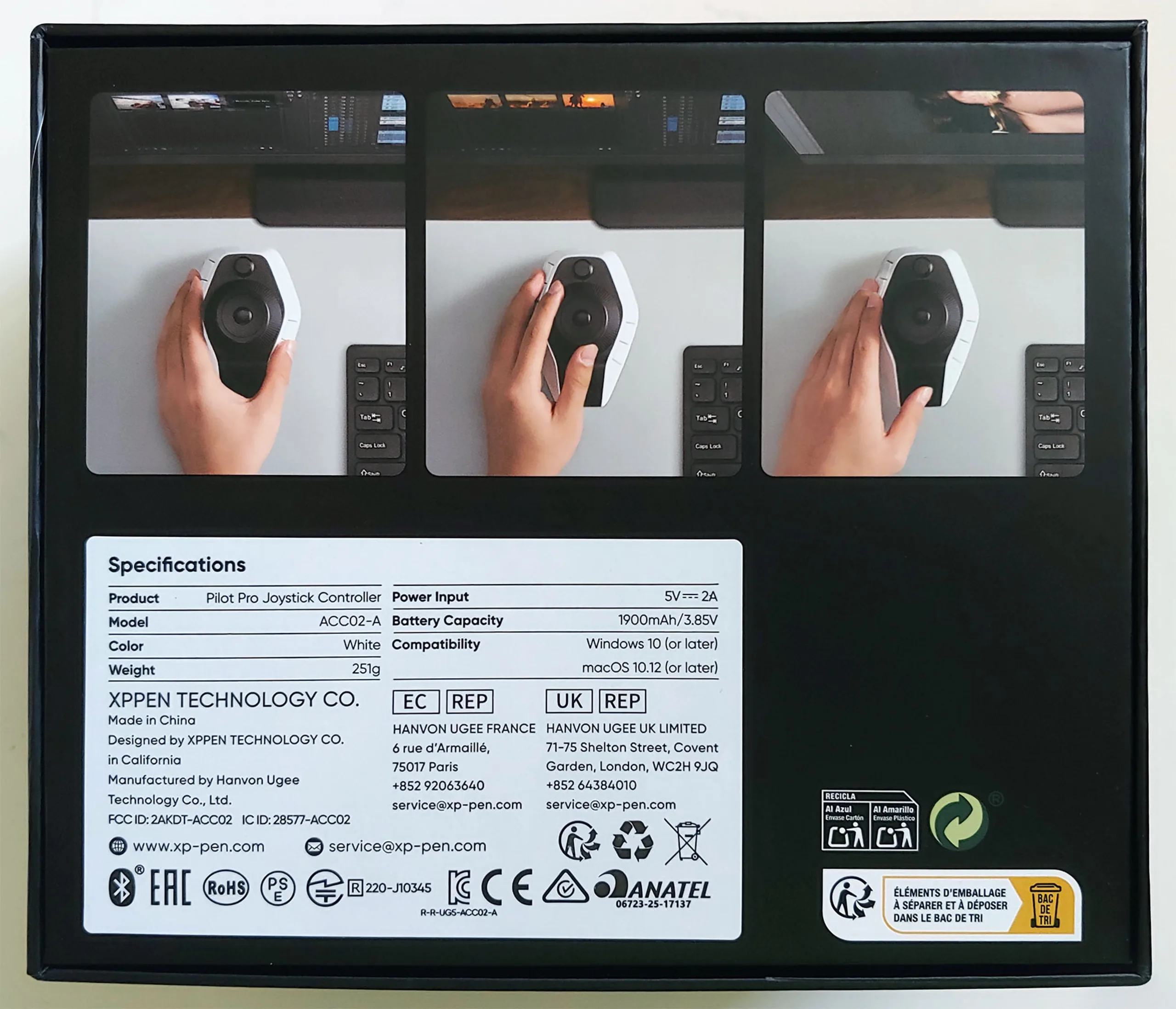
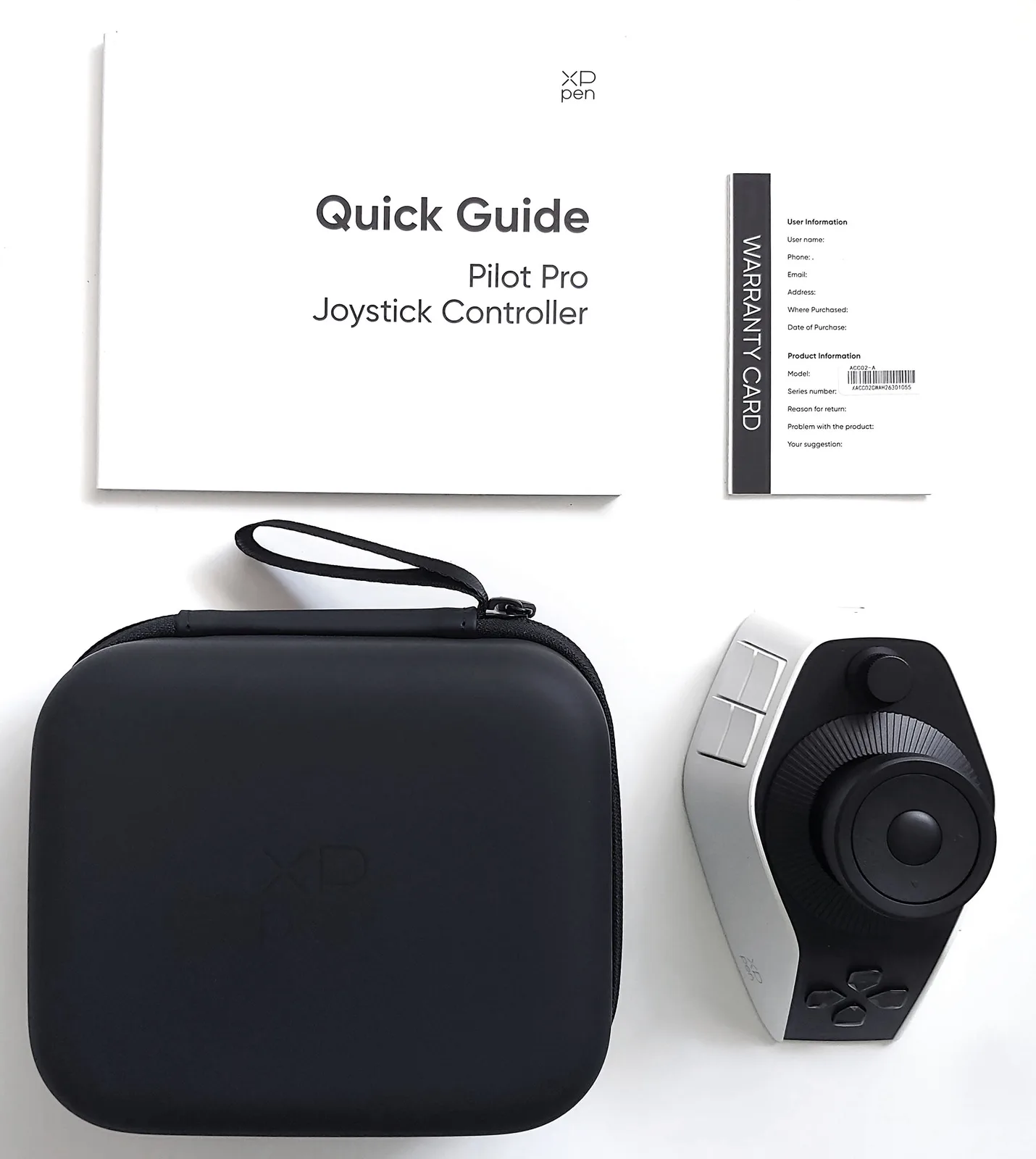
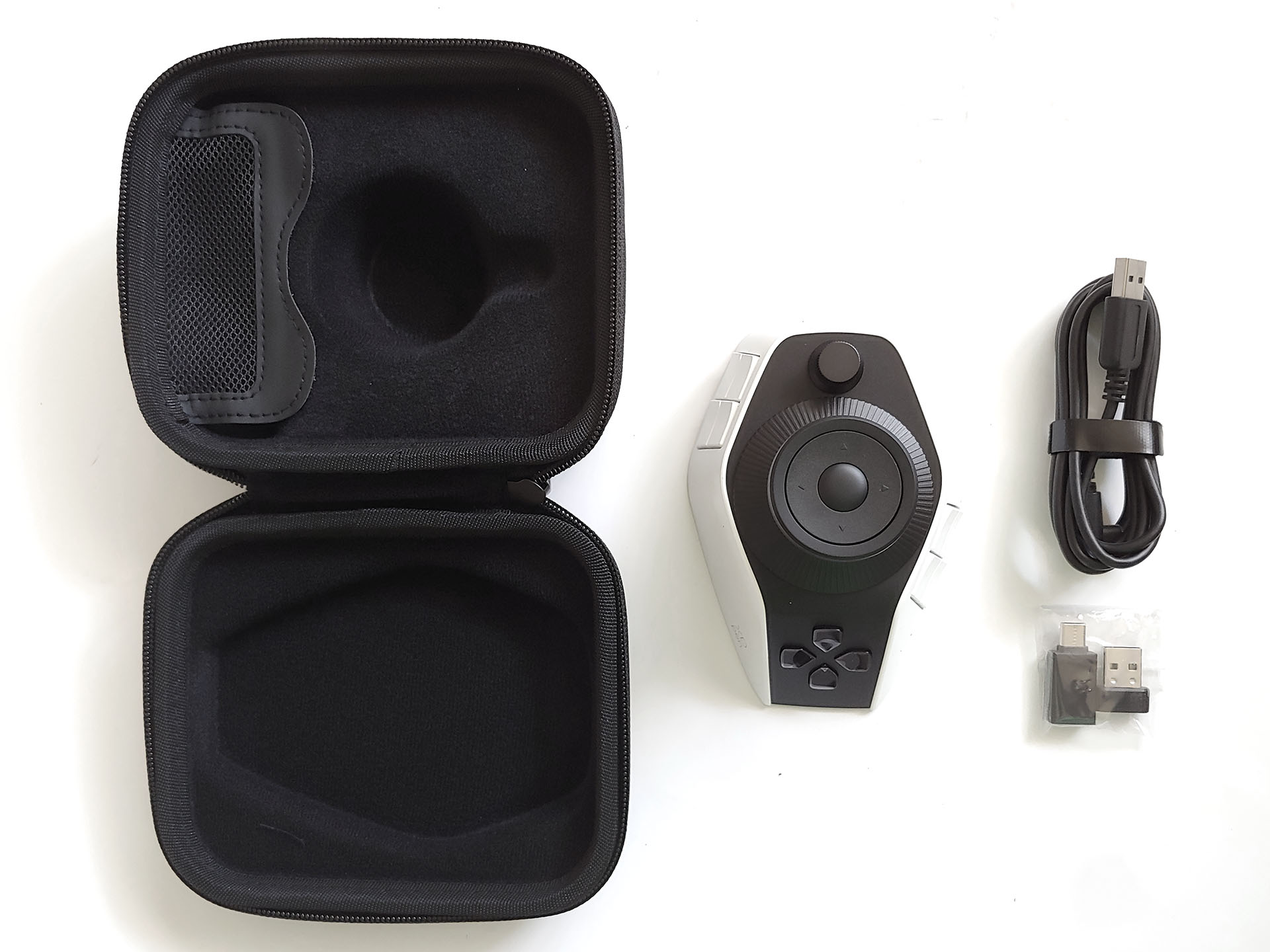
Left-handed Design
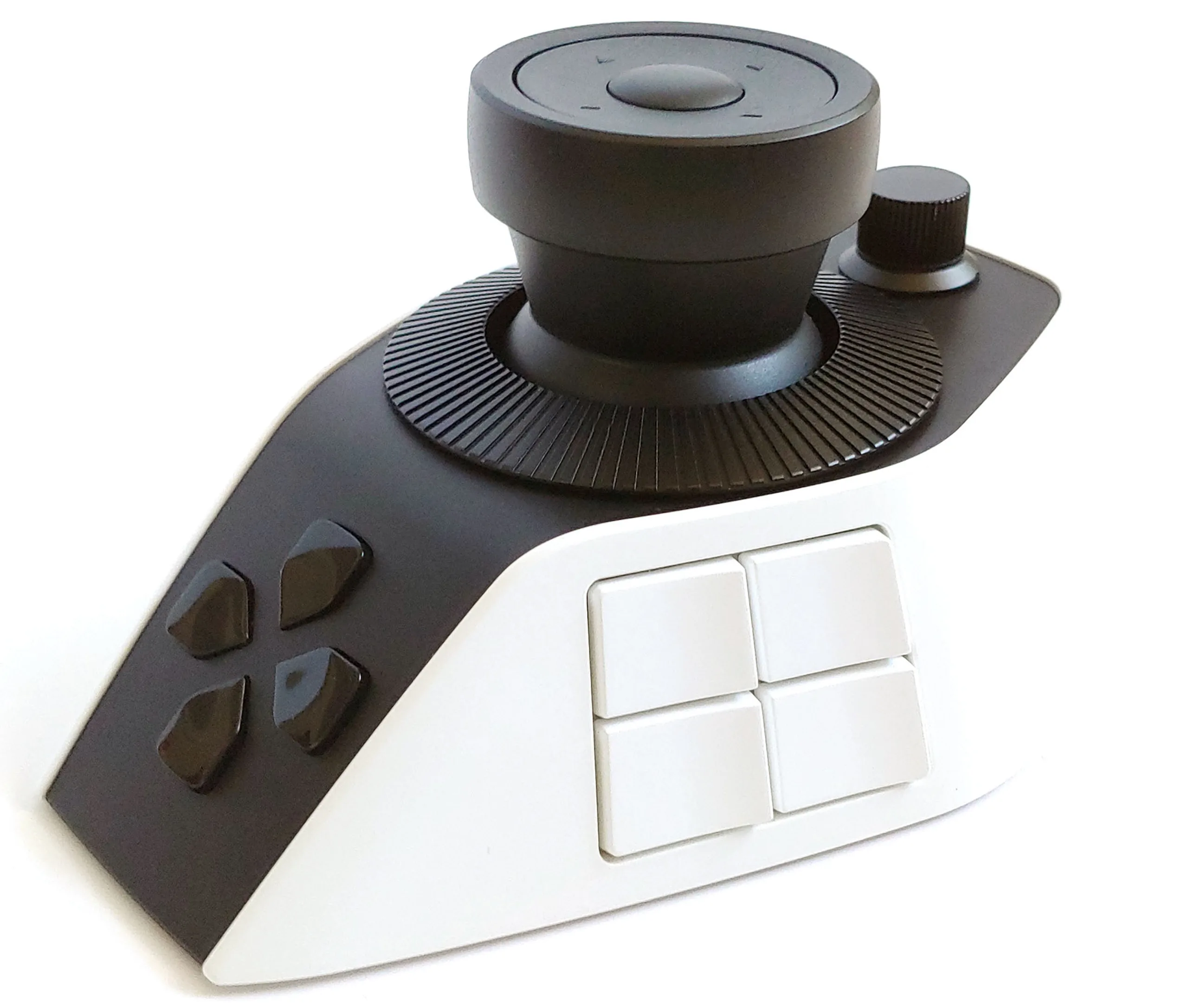
The Pilot Pro has a black‑and‑white, left‑handed design with three sides each holding four buttons and a USB‑C port on the rear. A joystick sits on top, surrounded by a large base dial, a medium upper dial, and a small front dial, with four touch buttons on the joystick itself. A power switch, Bluetooth pairing button, and status LED sit on the bottom.
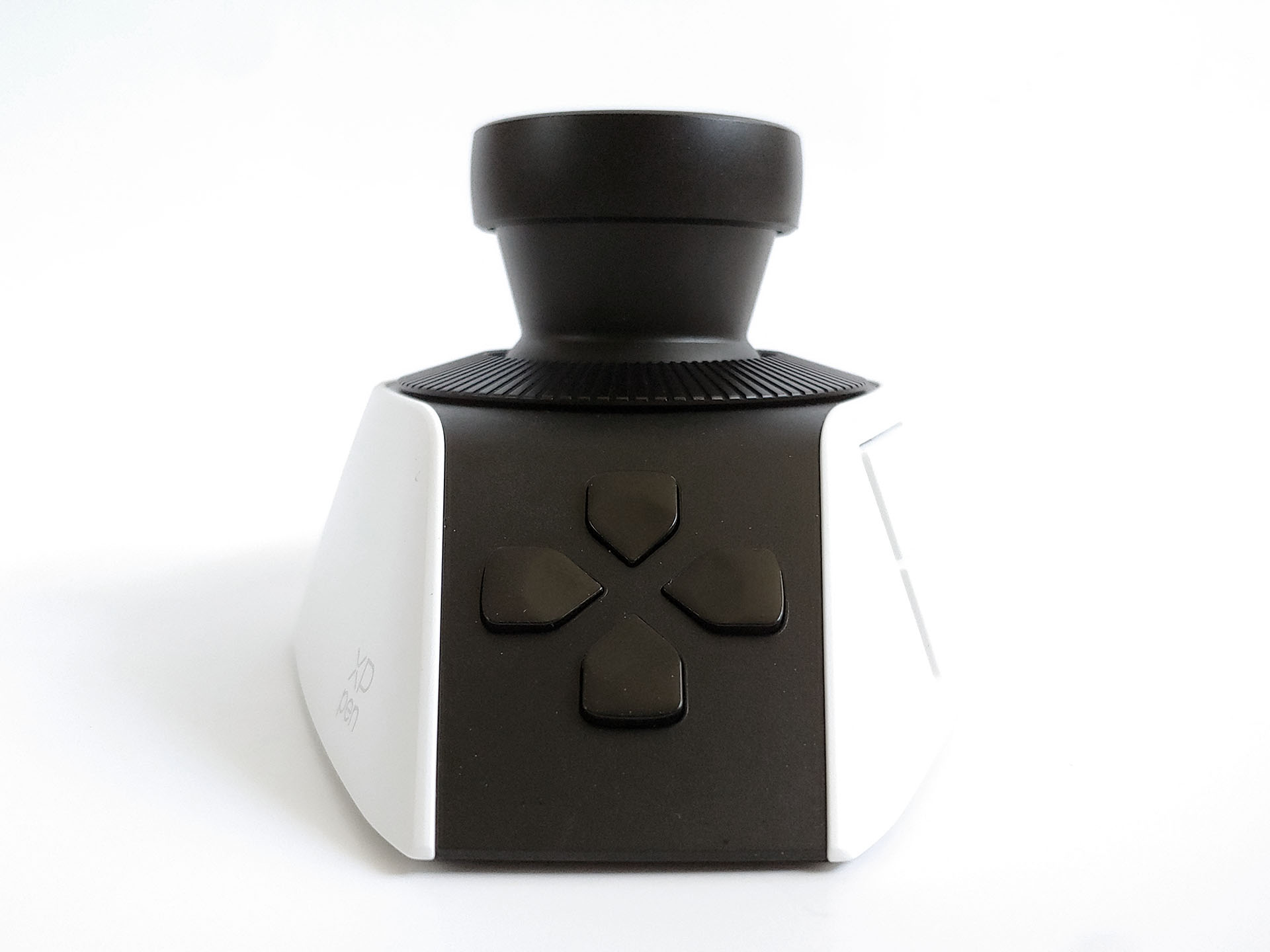
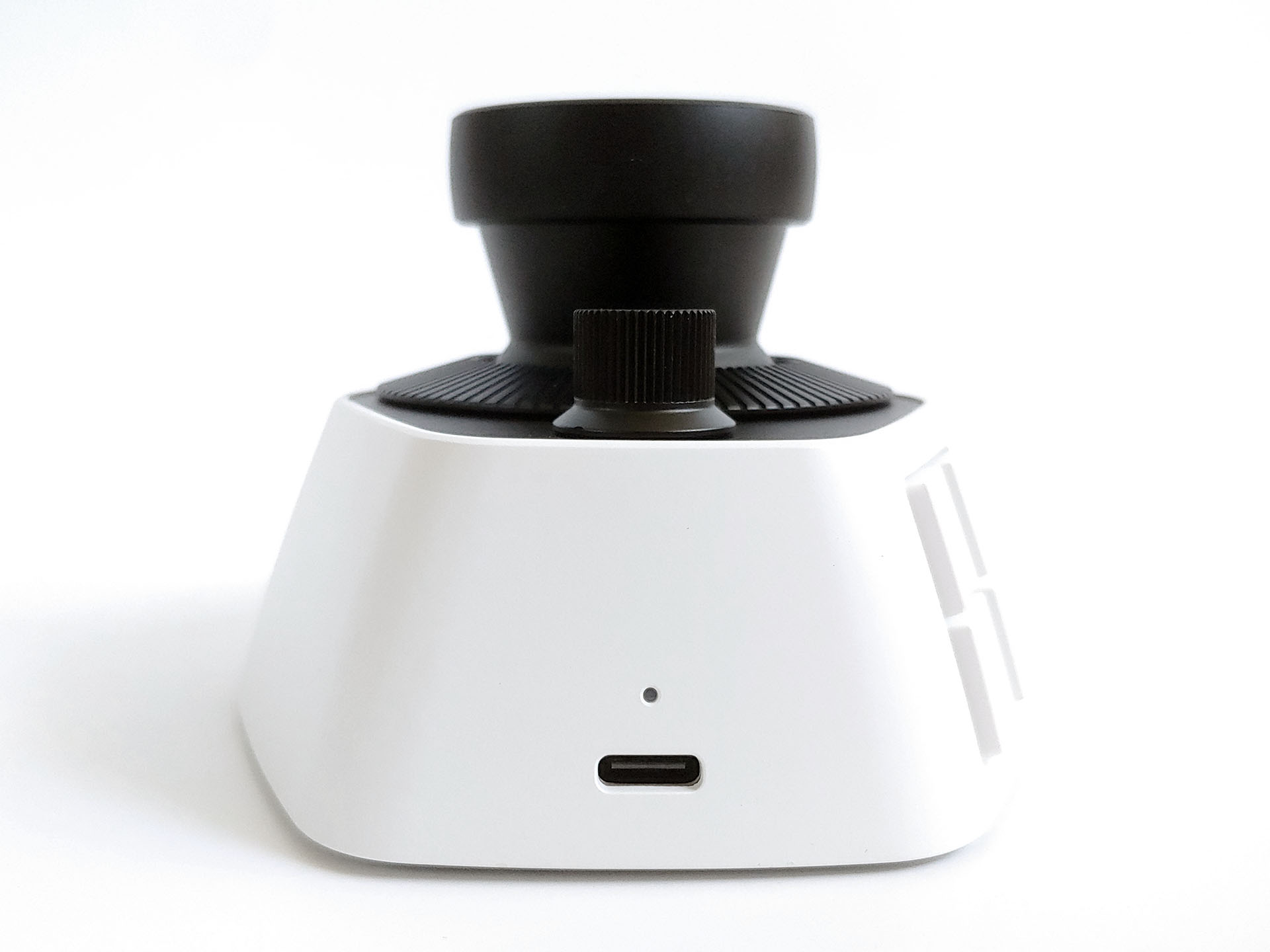
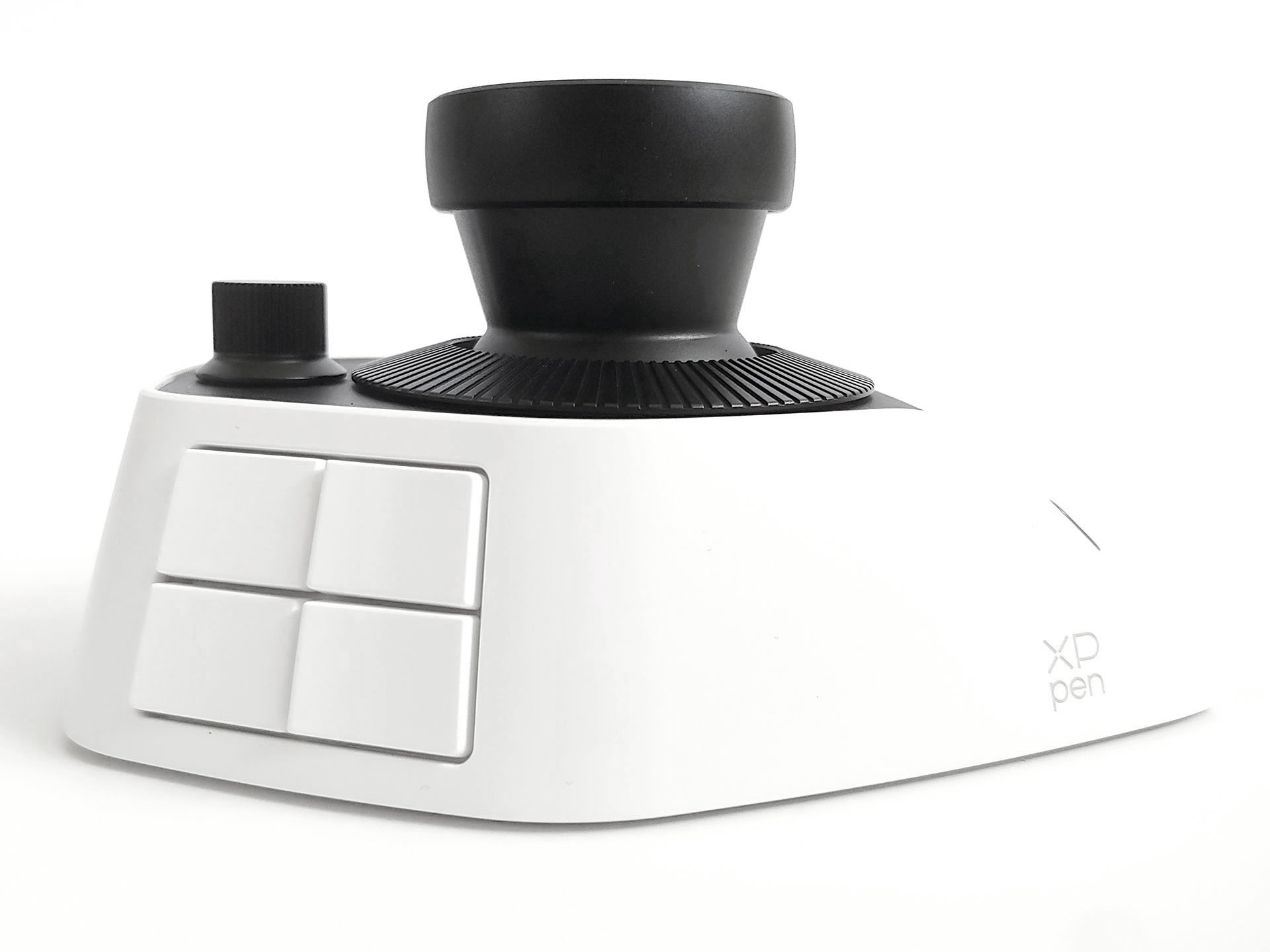
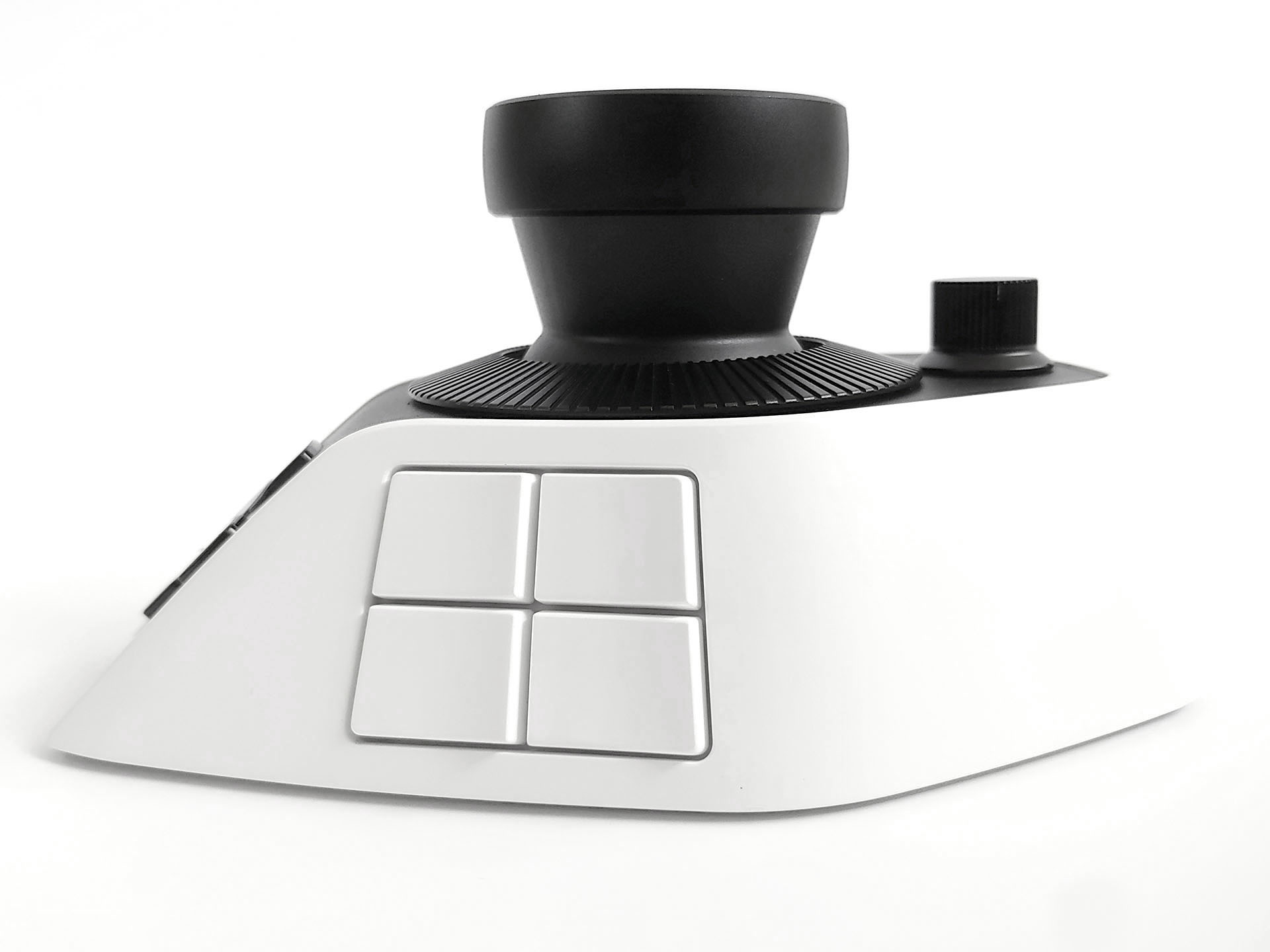
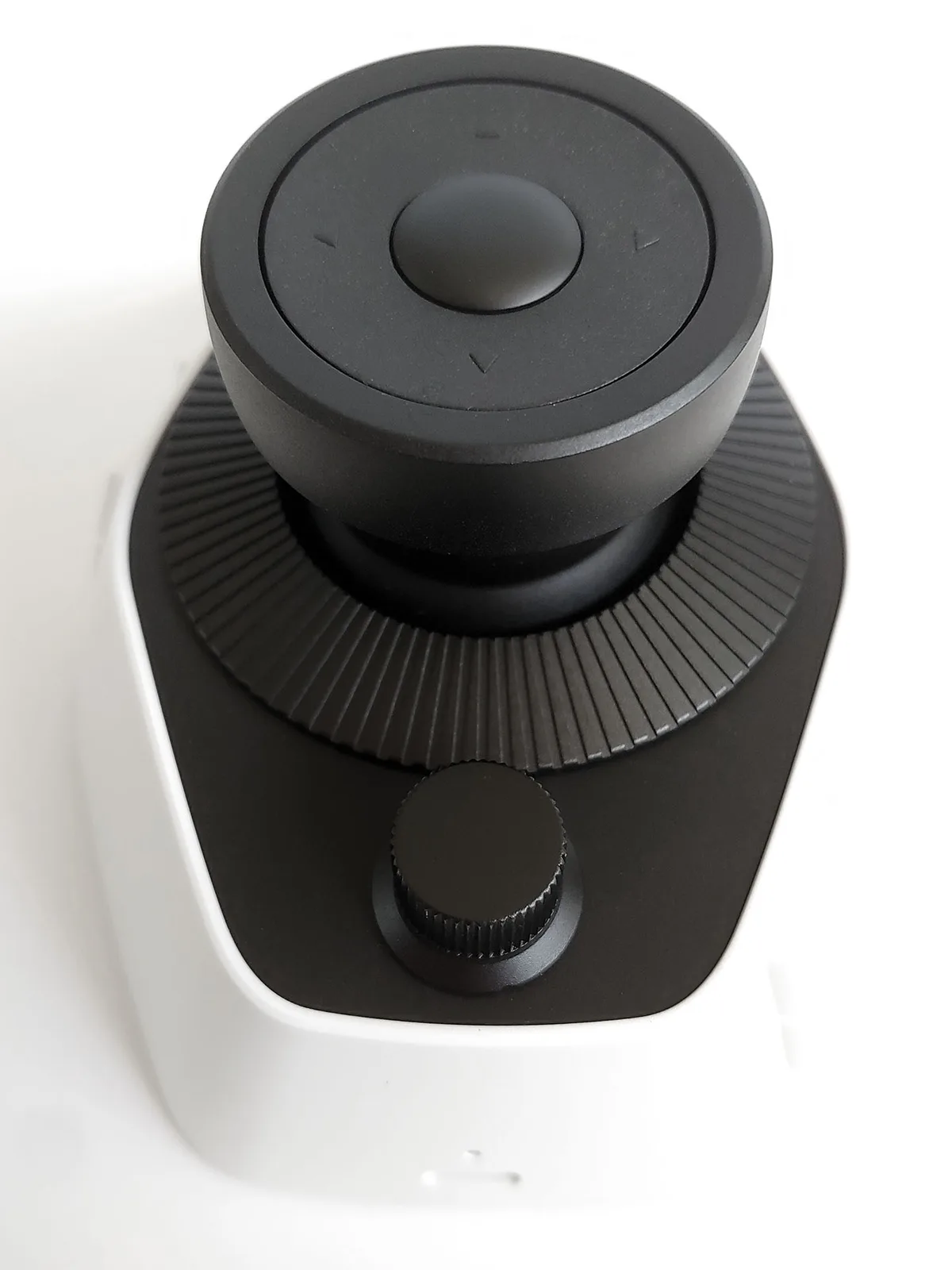
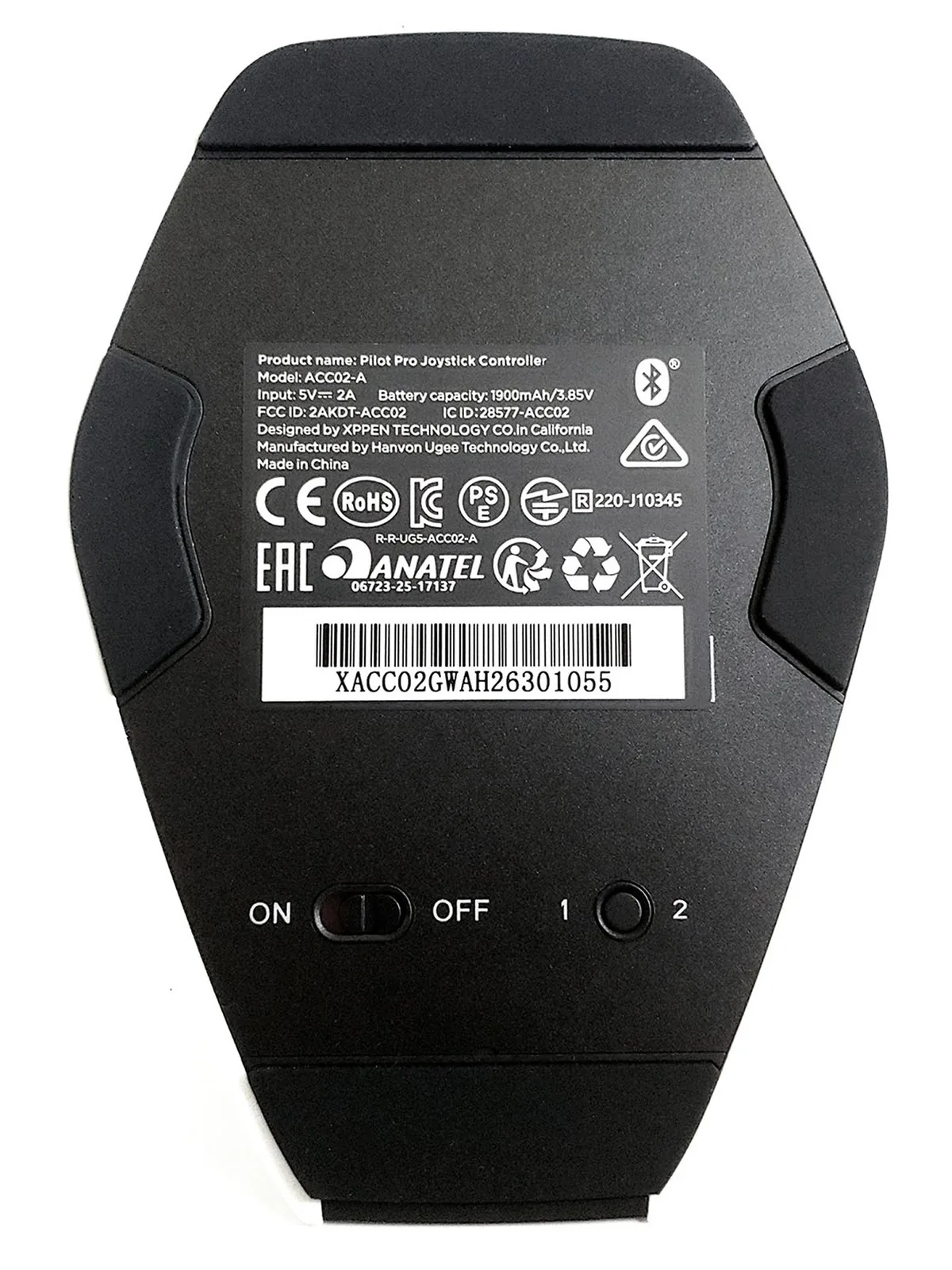
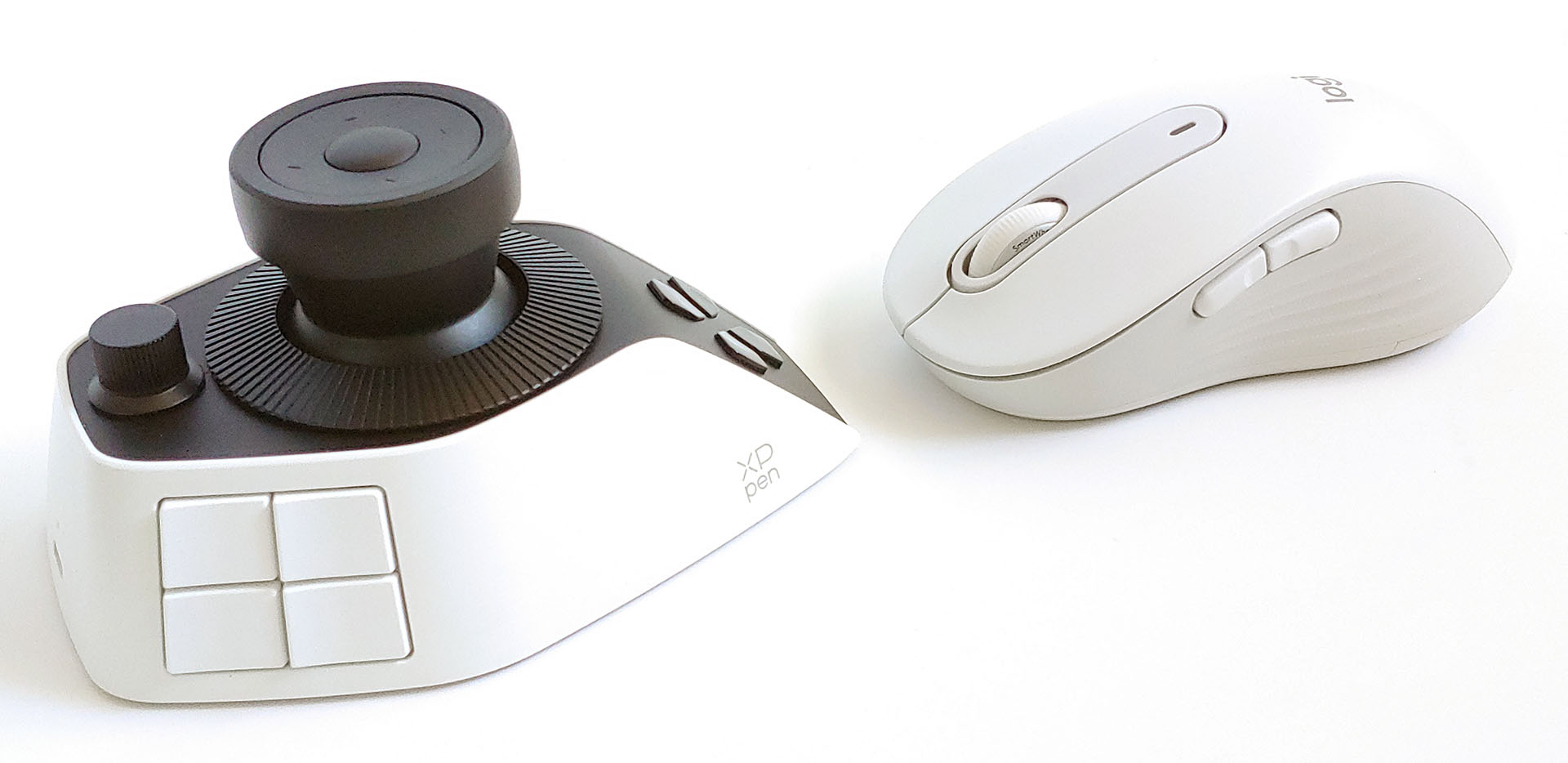
The controller is only slightly larger than a Logitech M650L mouse.
Connections and Charging
Once powered on, holding the Bluetooth pairing button lets PCs and Macs find and connect to the Pilot Pro. It can pair with two systems and lasts about a week per charge. It can also be used wired via a standard USB‑C cable.
App
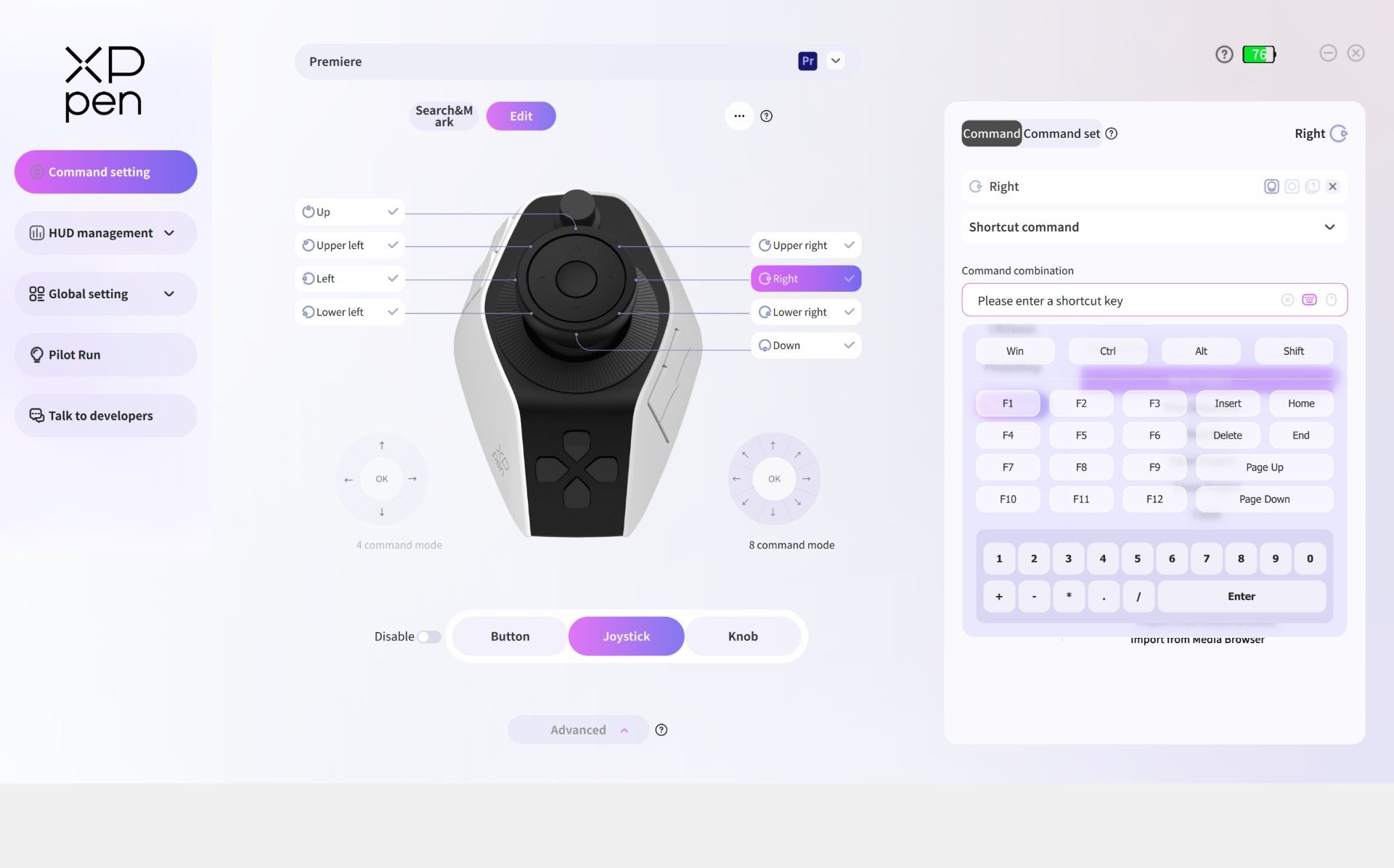
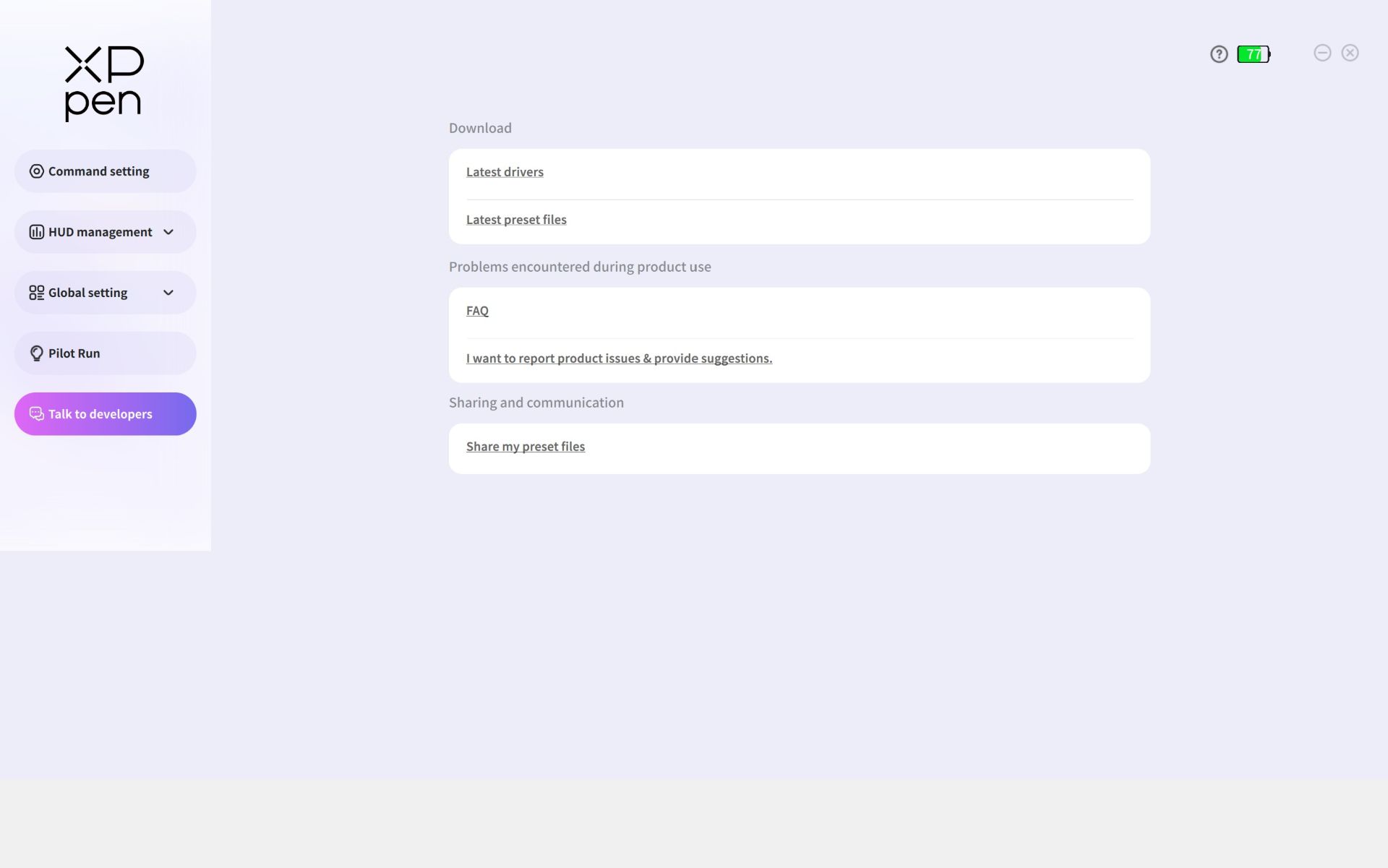
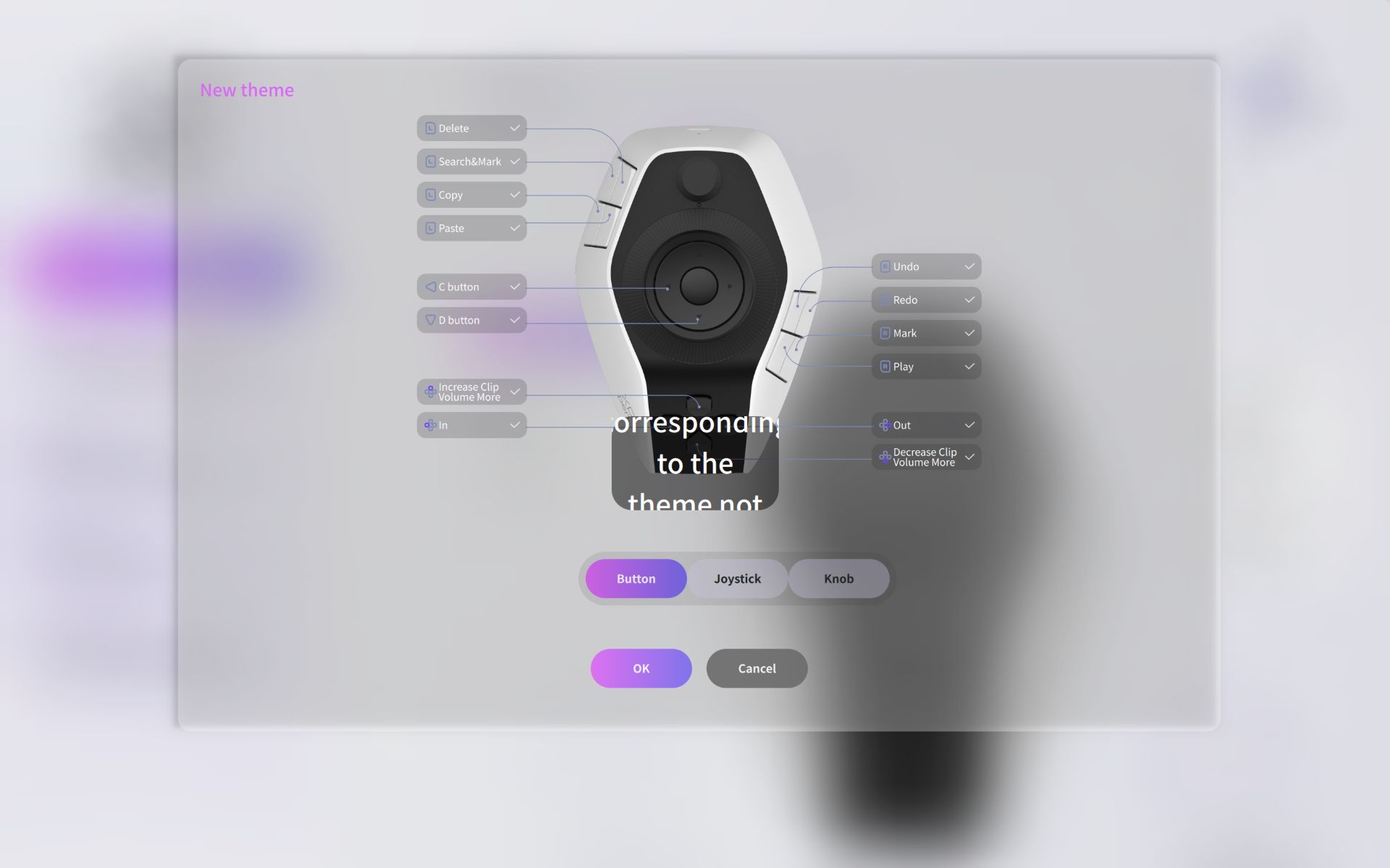
The app and driver must be installed to fully use the Pilot Pro. Assigning shortcuts or tools is as simple as pressing a button or joystick, then adding the keyboard, mouse, or macro shortcut. It also includes preset commands for Premiere, Photoshop, and Lightroom, such as Editing Motion Rotation or Correction Midtones X.
You can create additional shortcut banks and switch between them using the touch buttons on top of the joystick. For example, users can enabling one set for timeline work and another for color adjustments.
Command settings
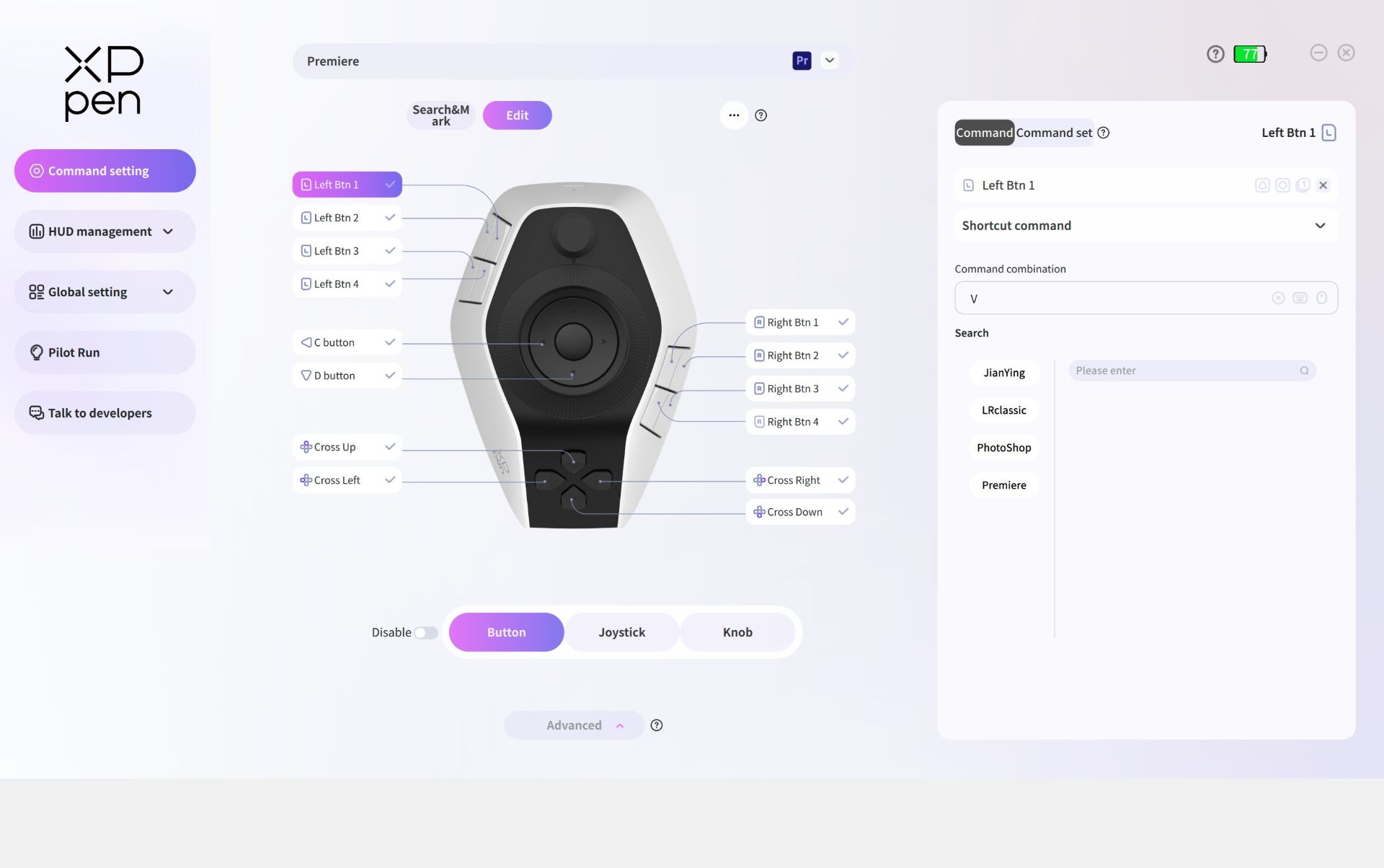
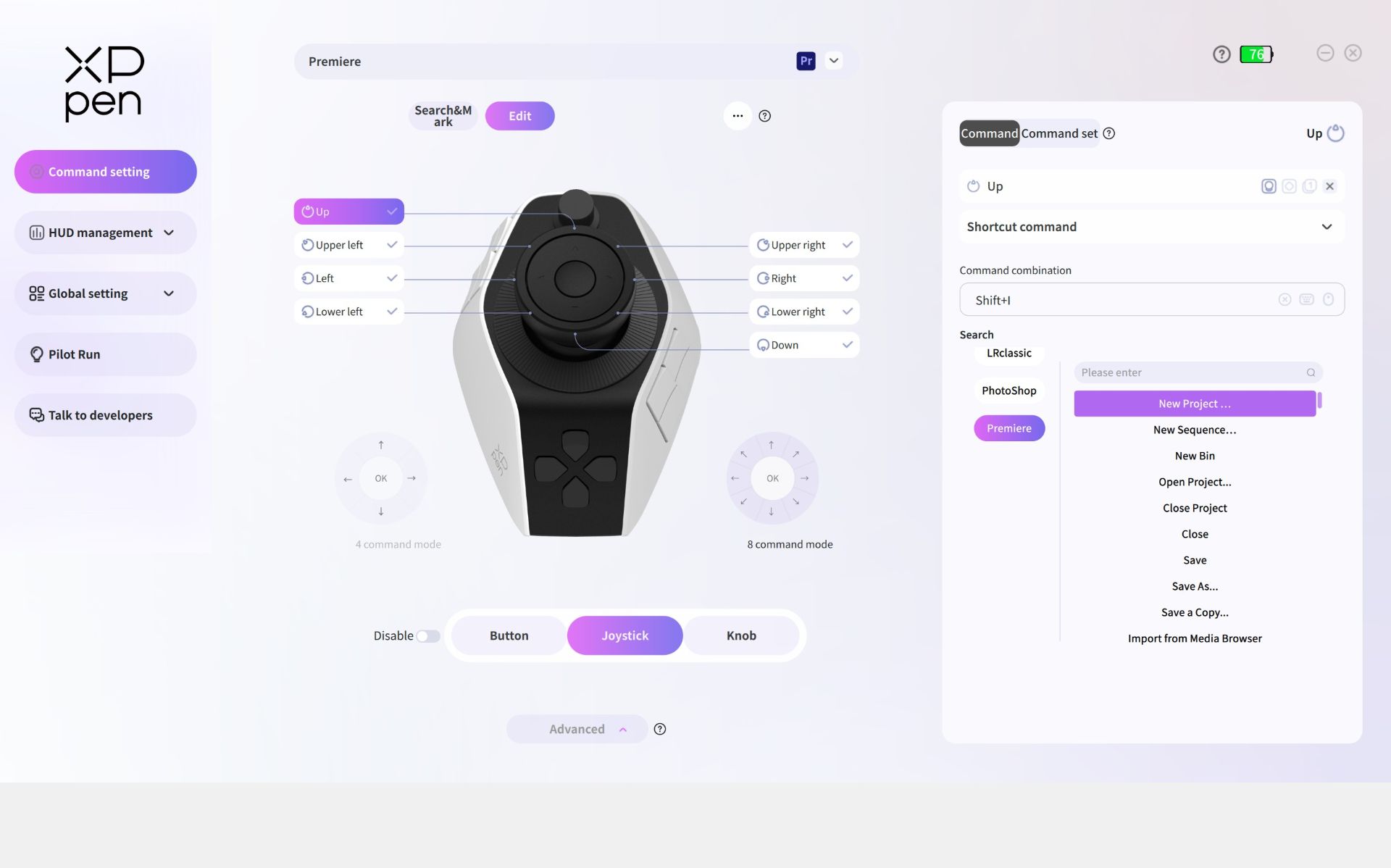
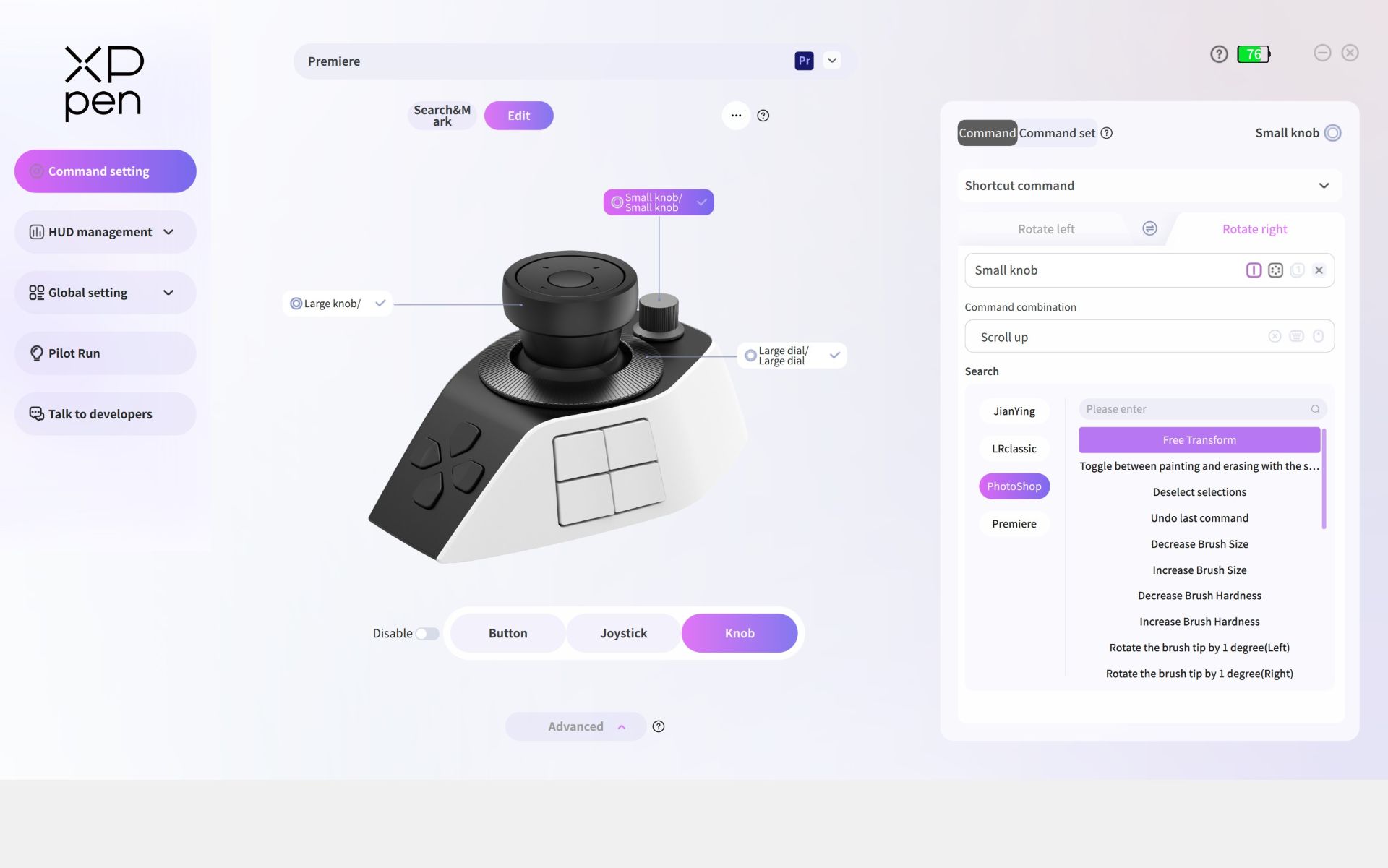
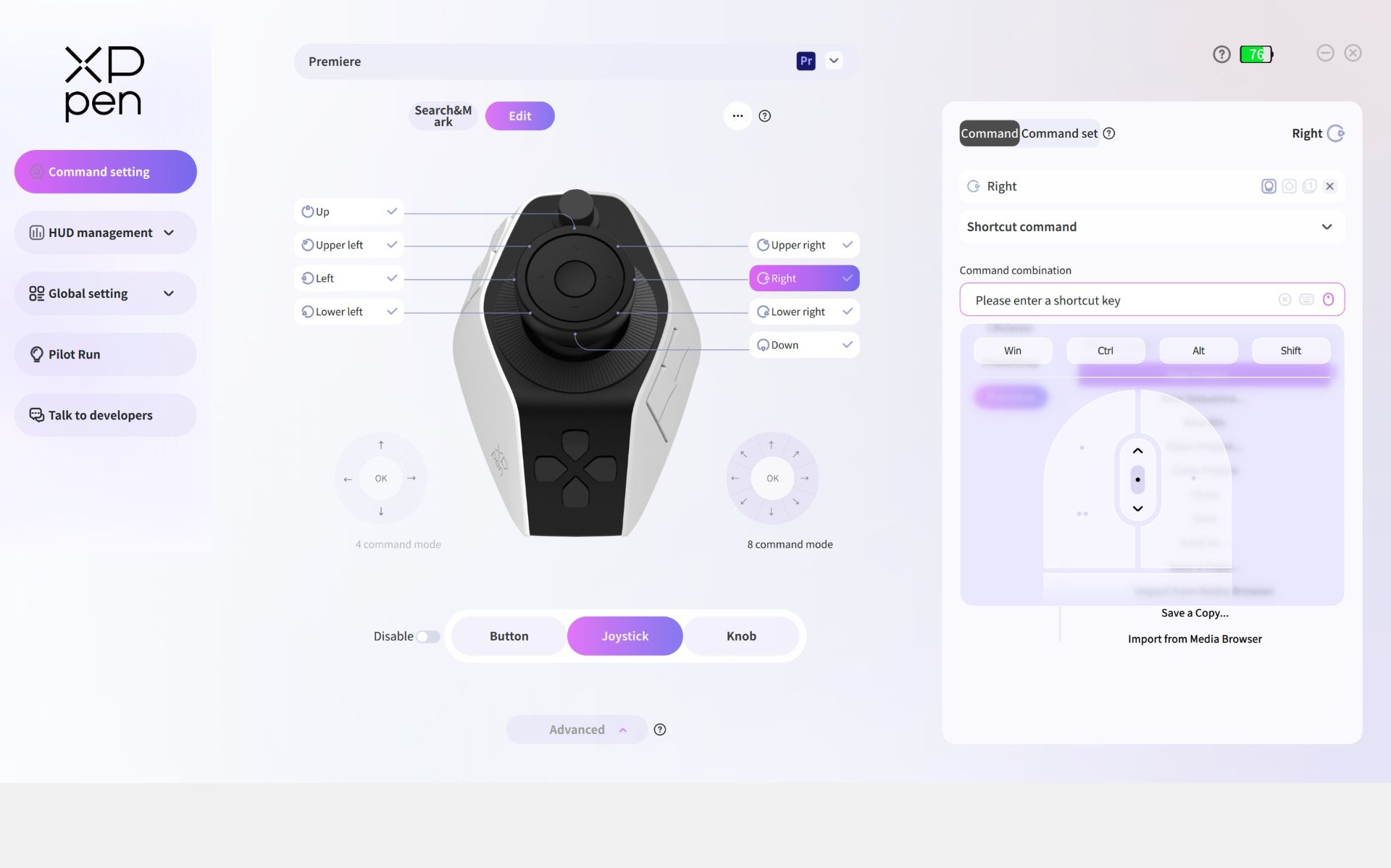
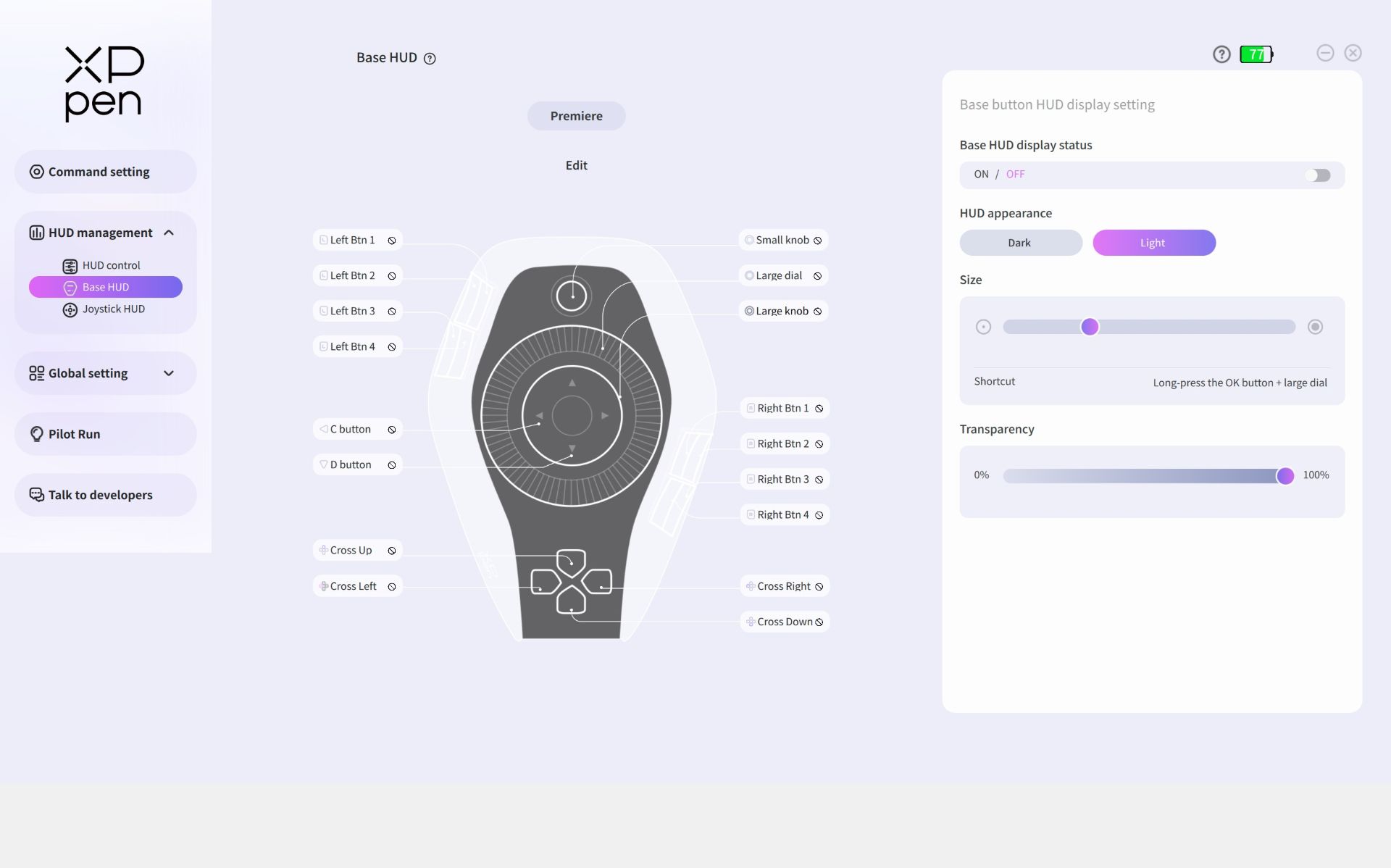
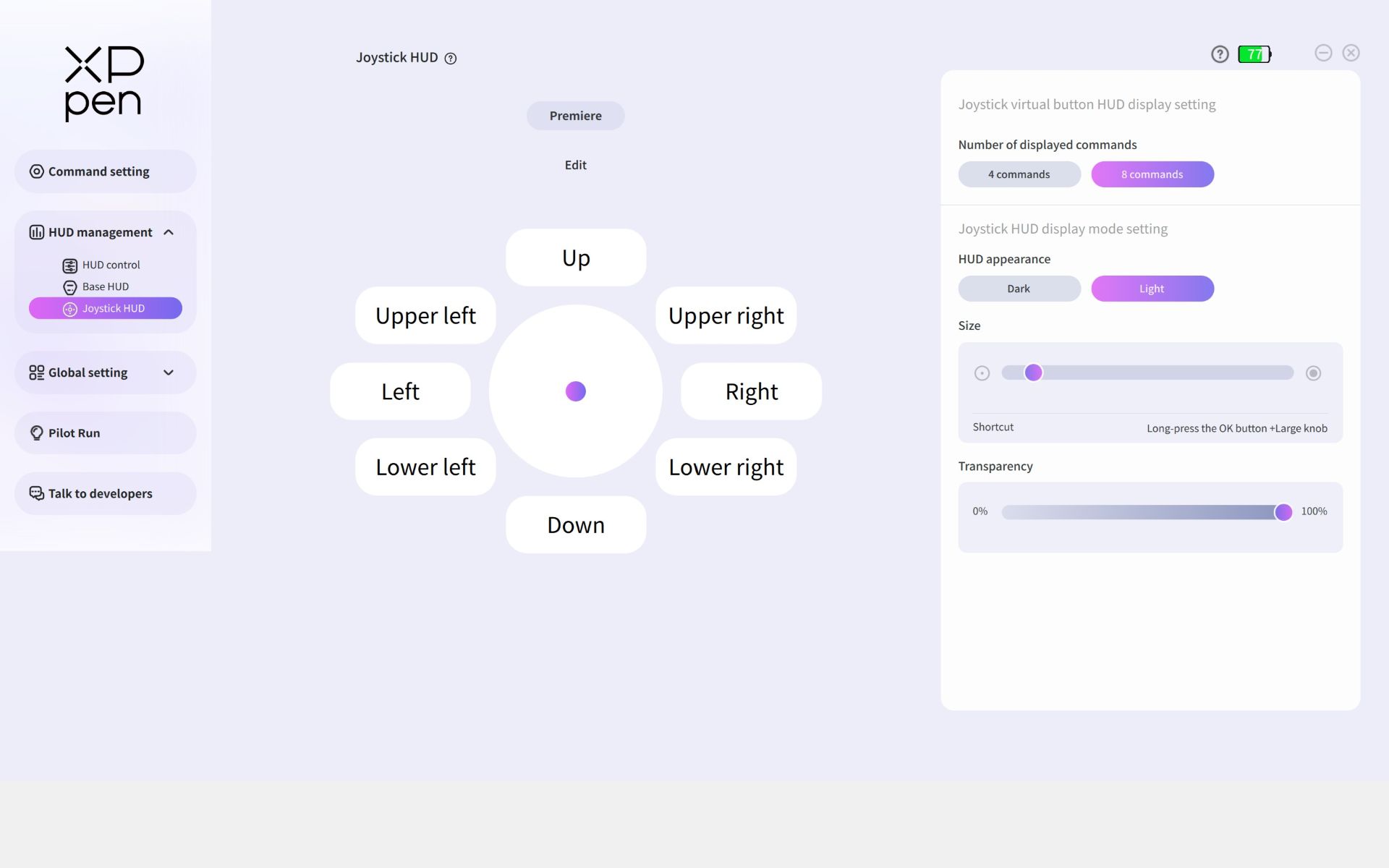
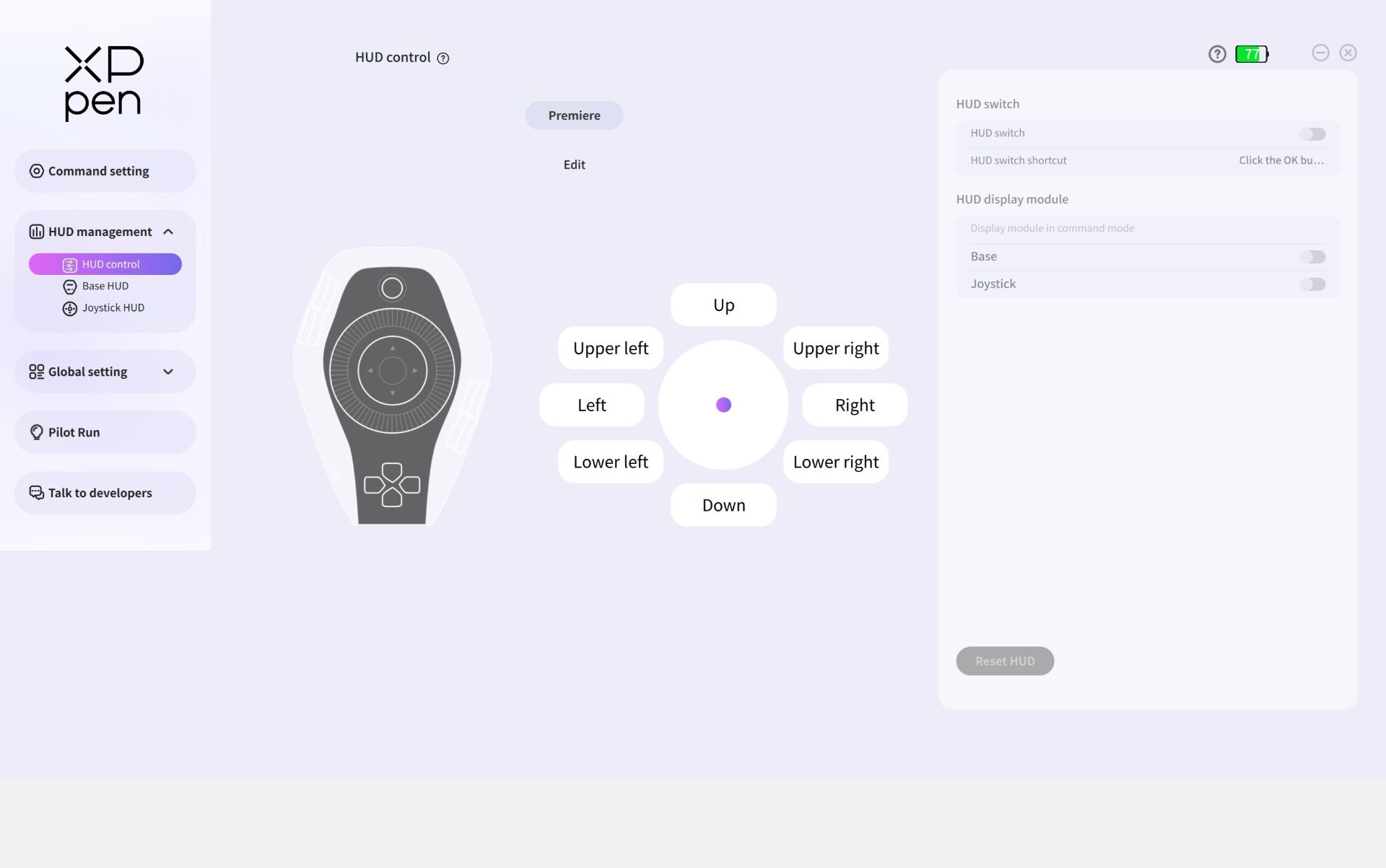
Heads-up Display management
Global settings
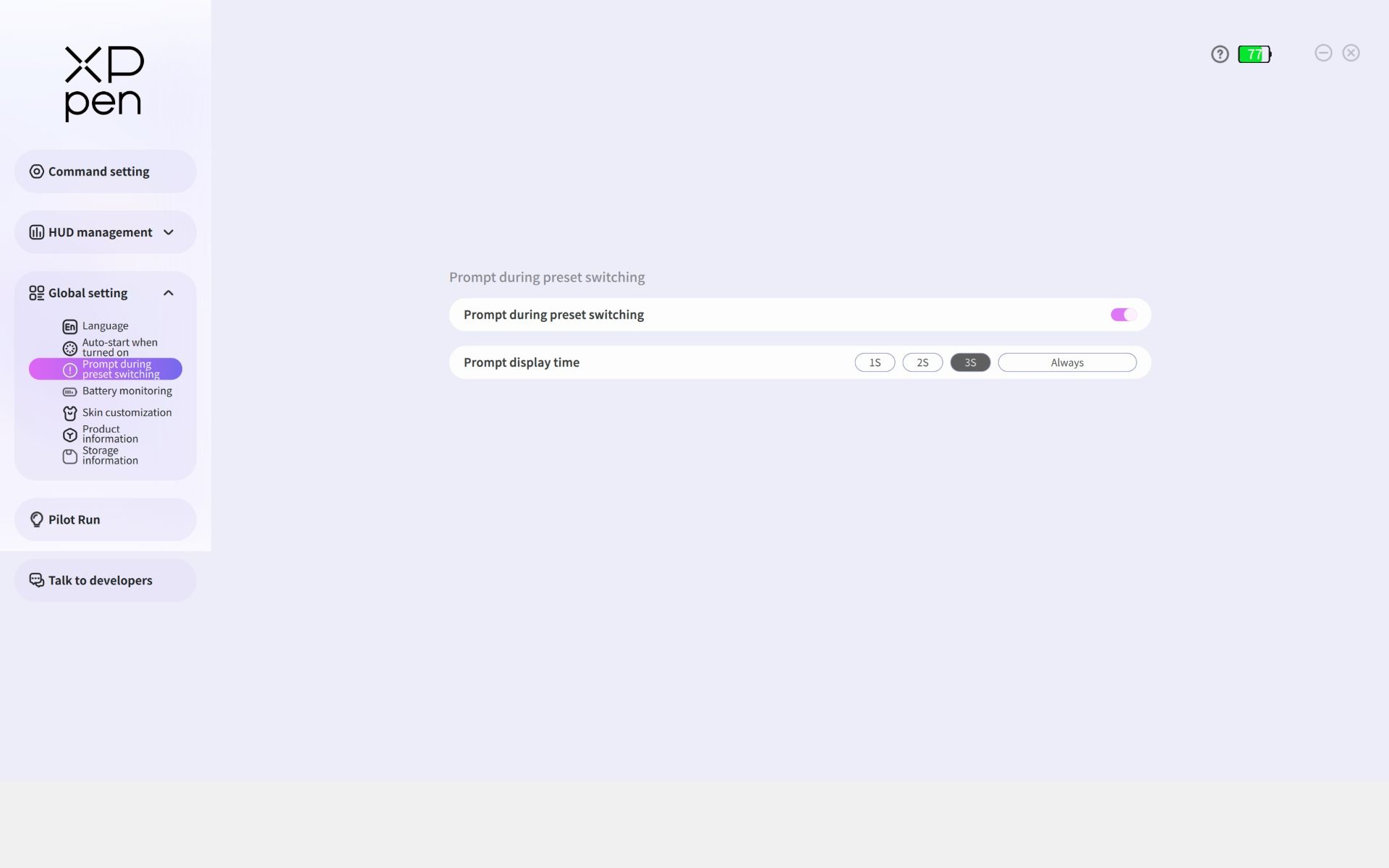
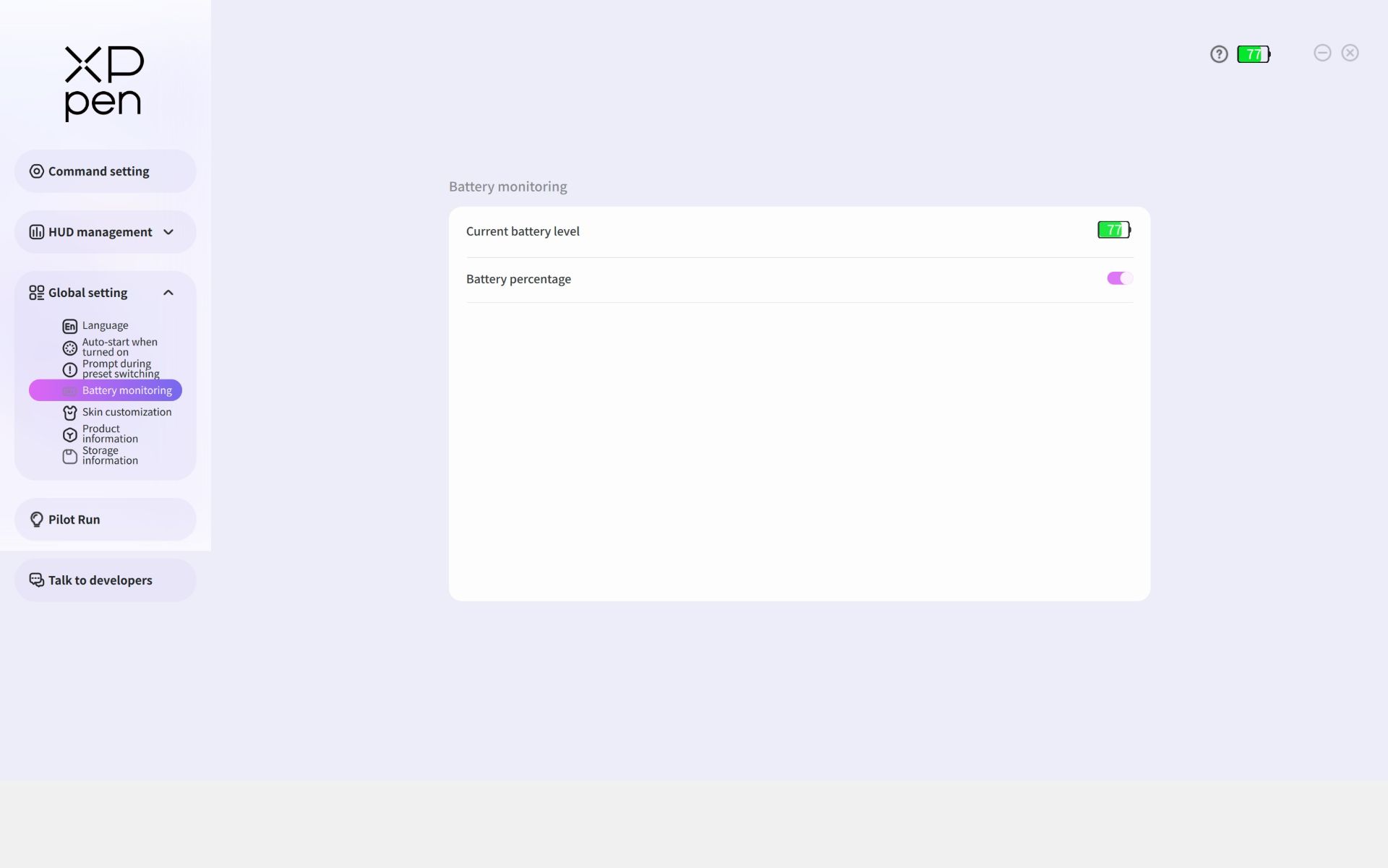
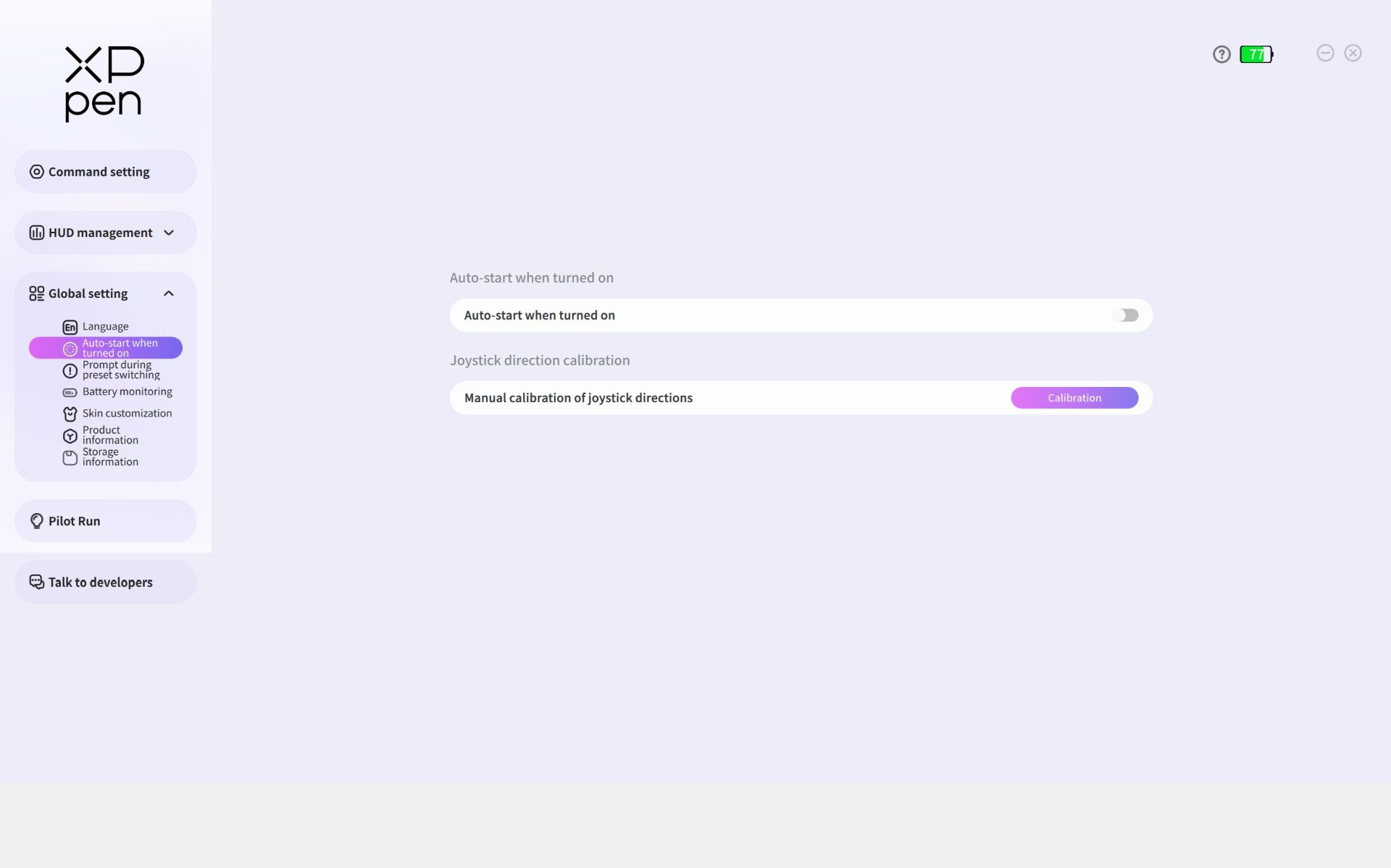
Other Settings and UI scaling
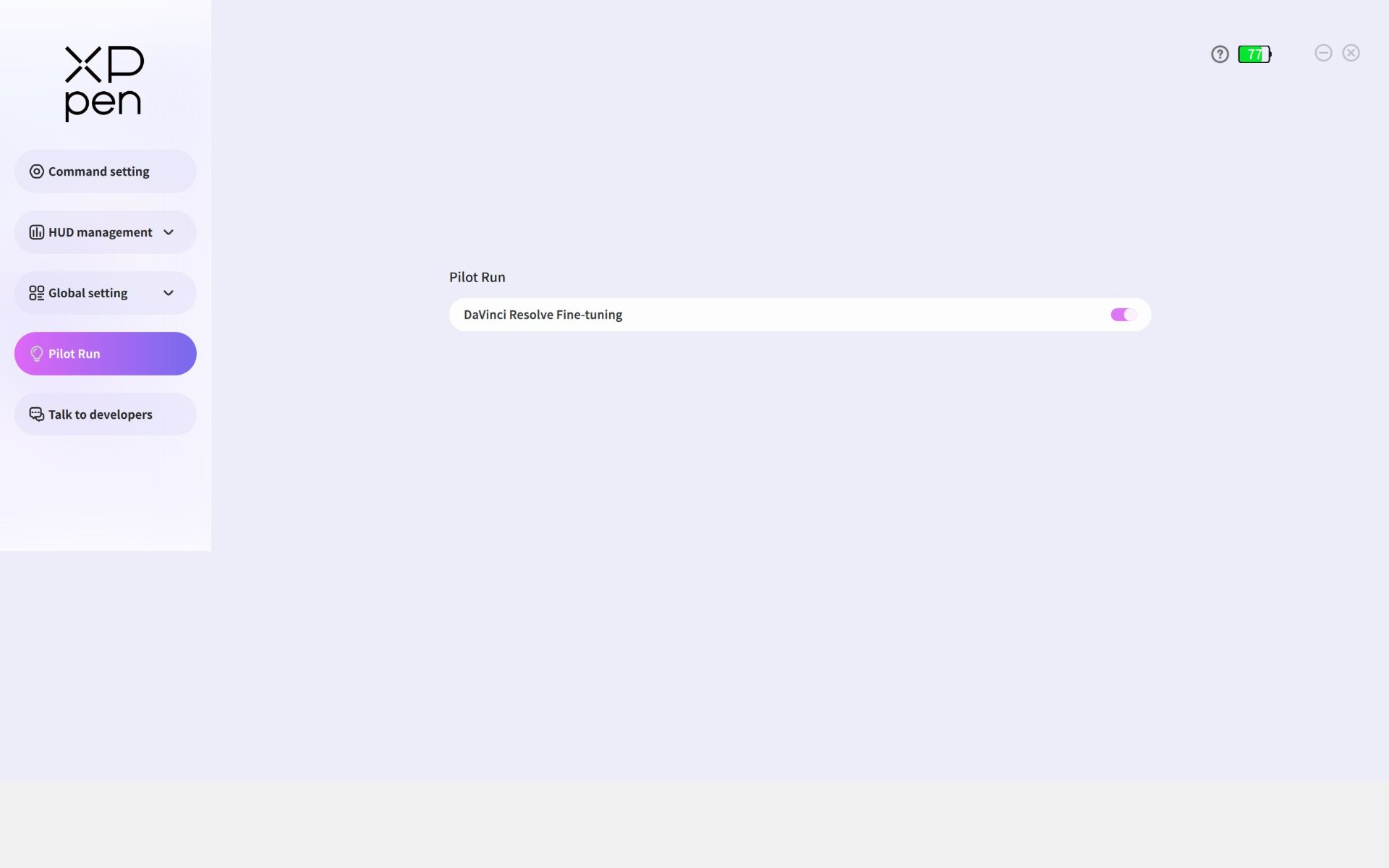
The app is optimized for 1:1 display scaling on large monitors, so users of small, high‑resolution displays—such as Microsoft Surface Pro laptops set to 200%+ scaling—may encounter occasional interface issues. The company plans to fix this in an upcoming release.
In-use
The Pilot Pro is easy to adapt to thanks to its comfortable, ergonomic design, which makes the shift to left‑handed use mostly seamless. Still, like using a TV remote in your non‑dominant hand, it takes a few hours to a couple of days to fully adjust while you fine‑tune settings and shortcuts.
Some argue they don’t need an editing console because keyboard shortcuts, multi‑button mice, or other devices already cover their workflow. But ergonomics is the real differentiator—a well‑designed controller can ease fatigue, boost efficiency, and help prevent carpal tunnel during long editing sessions.
VIDEO EDITING
After weeks of testing, the controller handled most tasks without needing the mouse or keyboard, and its wireless design made couch editing on the lap or belly easy while previewing the edit on a large TV.
The first step in using the Pilot Pro efficiently with any video editing app is to customize the 16 buttons, three dials, and joystick with the most-used tools and shortcuts. This means thinking through which actions are fastest with the mouse and which belong on the Pilot Pro.
In the following example, the In and Out shortcuts were assigned to the right‑side buttons, with Extract on a left‑side button. The joystick was mapped to J, K, and L, while the large dial moved 5 frames at a time and the medium dial moved 1 frame at a time. Additional mappings, such as Undo and Jump to In, were mapped to the other buttons.
This setup improved the editing process by letting the mouse handle selecting and moving clips while the Pilot Pro handled scrubbing, marking In and Out points, and quickly deleting unwanted segments. It also eliminated the constant mouse travel, like jumping to the Razor tool and back to the timeline, just to cut clips. And while it’s not as fast as a three‑trackball color control panel, the Pilot Pro’s three dials still allow finer, quicker adjustments to individual color channels than a mouse alone.
AUDIO, PHOTO, AND OTHER APPS
The Pilot Pro can be programmed to access tools and shortcuts in audio, photo, and productivity apps like Audition, Photoshop, Microsoft Office, and web browsers. The dials can handle tasks such as image rotation or document scrolling, while the buttons can trigger complex spreadsheet macros or paste preset text.
GAMING
The Pilot Pro isn’t designed for gaming despite its eight‑way joystick and four‑way pad, and rotating the stick in a full circle can nudge the large dial into motion. Mapping the D‑pad to movement and the left‑side buttons to jump made it usable for Sonic the Hedgehog, though the hand position is unusual. RPG, flight, and other similar games can make use of the dozen-plus buttons more effectively.
Conclusion
The Pilot Pro offers quick access to over a dozen editing tools through an ergonomic left‑hand controller with customizable buttons, dials, and a joystick.
Transparency
The selection of devices to be reviewed is made by our editorial team. The test sample was given to the author by the manufacturer free of charge for the purposes of review. There was no third-party influence on this review, nor did the manufacturer receive a copy of this review before publication. There was no obligation to publish this review. As an independent media company, Notebookcheck is not subjected to the authority of manufacturers, retailers or publishers.
 Add as a preferred source on Google


