


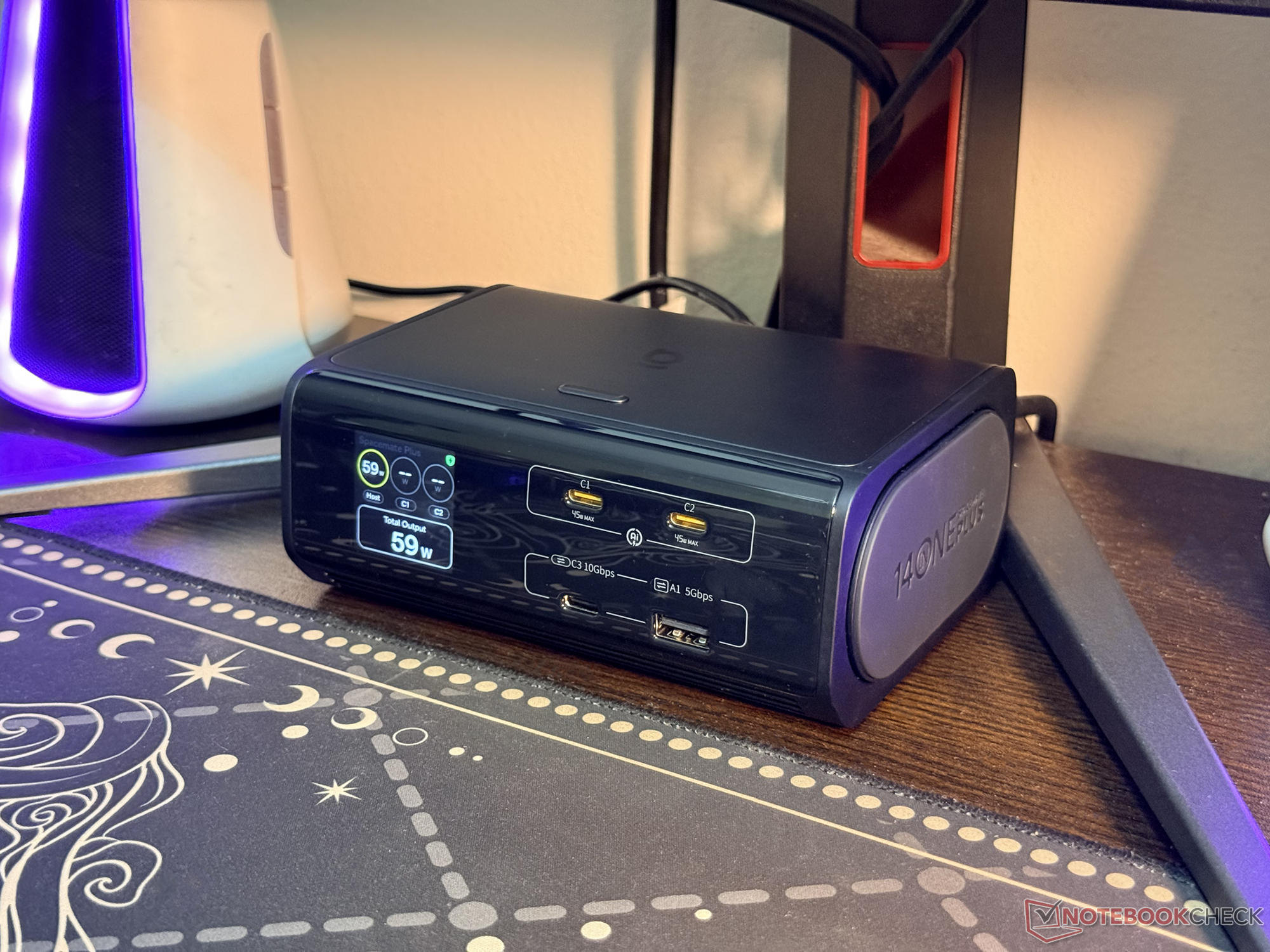
A versatile 14-in-1 dock with one notable compromise: Baseus Spacemate RD1 Plus review
Feature-rich dock, limited video flexibility.
The Baseus Spacemate RD1 Plus is a proper step-up from the non-Plus model, and while it's not as feature-rich as the Pro docking station, its price point makes it a good pick for those who want to declutter their workspace. There's one big caveat, though.Abid Ahsan Shanto Published
Verdict – this mid-range dock does a lot right but falls short in some aspects
The Baseus Spacemate RD1 Plus is a solid 14-in-1 dock with enough data ports and three power output ports. It has what it takes to declutter most productivity-focused workspaces, and the 100W host charging option should be good enough for most setups.
However, the lack of USB-C ports with DP Alt Mode is a major catch for me, as my QHD 144Hz monitor doesn't have anything higher than HDMI 2.0. The power allocation feature is also a bit quirky, and the short included cable is another thing that needs to be noted by potential buyers.
Other than these, the Spacemate RD1 Plus is a well-built dock with a useful integrated display and a versatile button.
Pros
Cons
Price and availability
This 14-in-1 docking station has a retail price of $259.99, but until December 31, 2026, the RD1 Plus can be scored for $149.99 on Amazon through the exclusive discount code RPLUSNBC. Baseus is also offering it on the official store, where it's currently discounted to $139.99 as part of the company's Black Friday sale.

Table of Contents
Baseus released the RD1 Plus as a mid-range model in the series. It brings some proper upgrades over the standard model, and the 14-in-1 nature makes the dock capable of decluttering workspaces. However, there's one big caveat that might make some second-guess this docking station.
Specifications
| Total power output rating | 120W |
| Power output ports | 3x USB-C ports (one is for the host) |
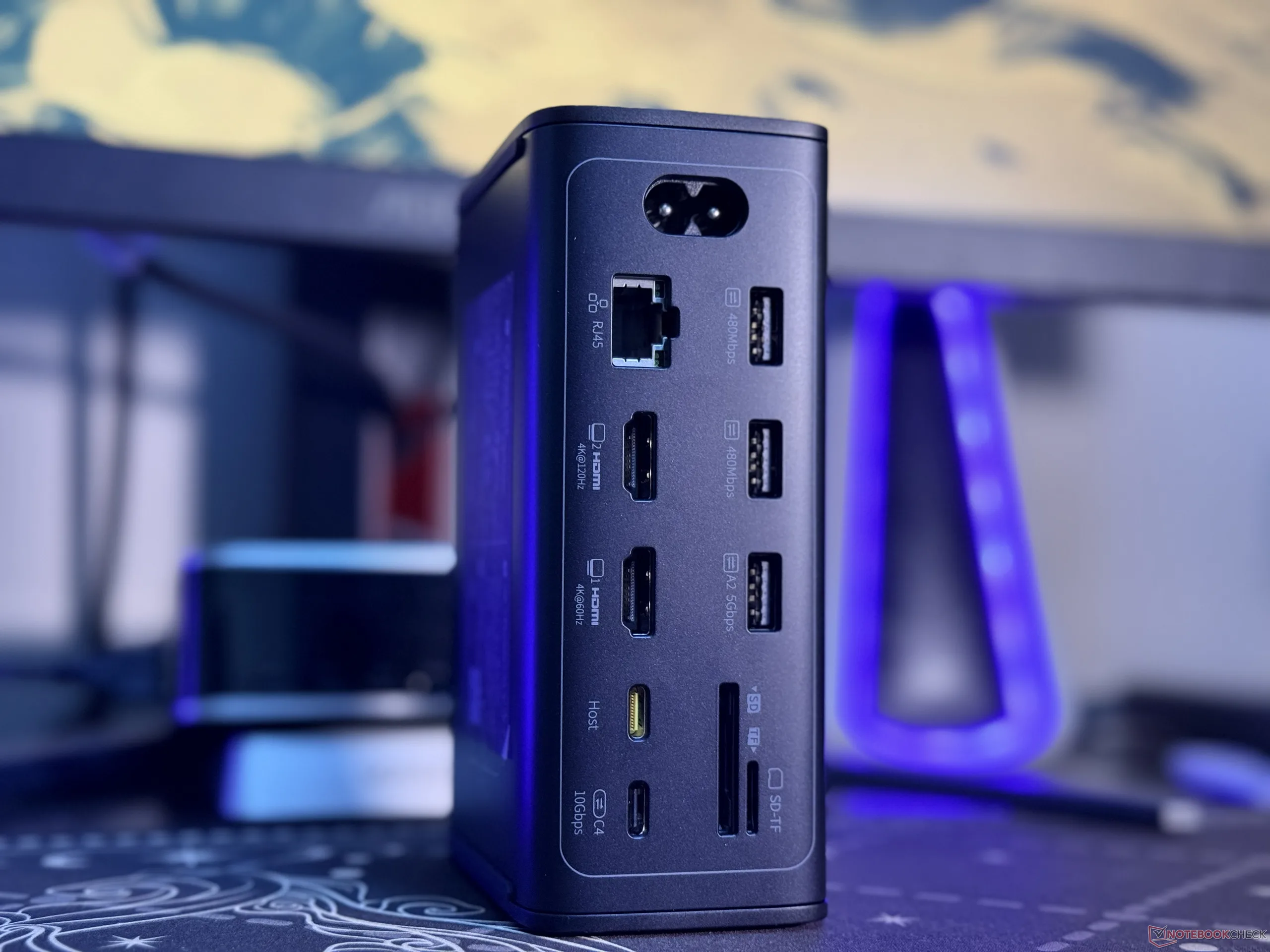
| USB-C data ports | 2x USB-C ports (10Gbps) |
| USB-A data ports | 2x 5Gbps and 2x 480Mbps |
| HDMI ports | two (one maxes out at 4K@60Hz, while the other is rated for 4K@120Hz) |
| Memory card slots | 1x SD and 1x TF |
| RJ45 | 1x Gigabit Ethernet |
| Supported systems | macOS, Windows, and Linux |
| Screen size | 1.5-inch auto rotating LCD display |
Unboxing and initial impressions of the Baseus Spacemate RD1 Plus
The Baseus Spacemate RD1 Plus comes as somewhat of a complete package. In the box, the company includes the AC power cord and one USB-C to USB-C cable for connecting the dock to the host device. However, in my particular setup, the included USB-C cable wasn't long enough to complete the setup without leaving a mess.
For reference, the included USB-C wire is 0.7m long (around 2.3 feet), which might just be enough for most setups, but for mine, I had to use a slightly longer cable to keep things clean (240W Silkland 1-feet 20Gbps cable curr. $11.04 on Amazon). Other than the Type-C cable and the AC power cord, the box had a warranty card and a manual. The unboxing video is attached below for those who want to see the contents inside.
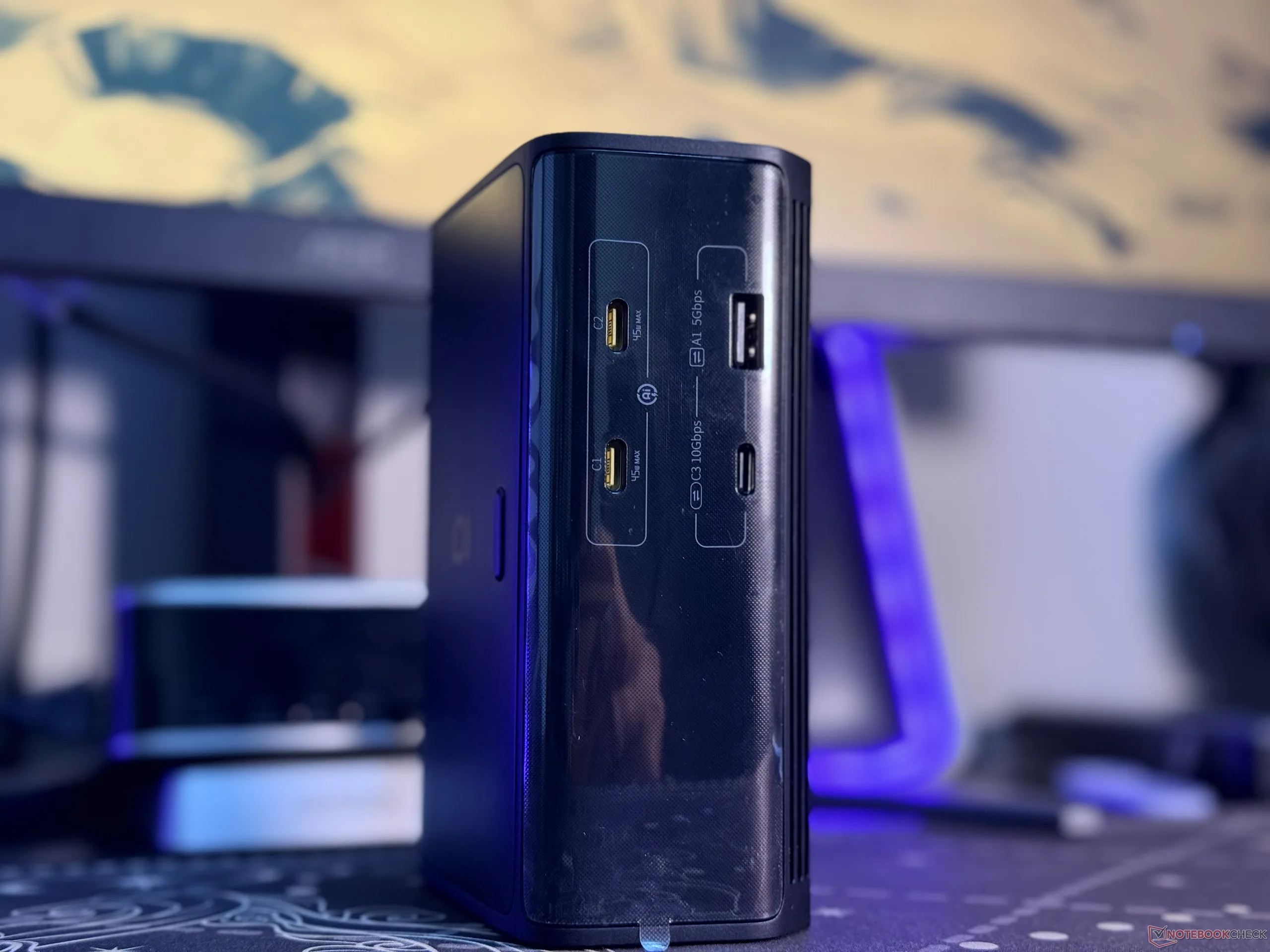
As for the dock itself, it seems to be well-built, and all the ports have proper labels, including the transfer speeds that they are rated for and power output ratings when applicable. Speaking of which, the host, USB-C1, and USB-C2 ports are mainly for powering devices.
Among the three, the host port supports 100W PD, which means one cable can charge the connected laptop while connecting it to the dock. This is a nifty feature, and the 100W fast charging support is enough for most productivity-focused setups, but it would have been good to see PD 3.2 support.
There's a sleek integrated display, and the built-in button is quite versatile
Unlike the standard Baseus RD1, the Plus brings an integrated display. This screen can show most of the important data at a glance. When only the power output ports are in use, the bottom part shows the total output, while the top shows the output from each port.
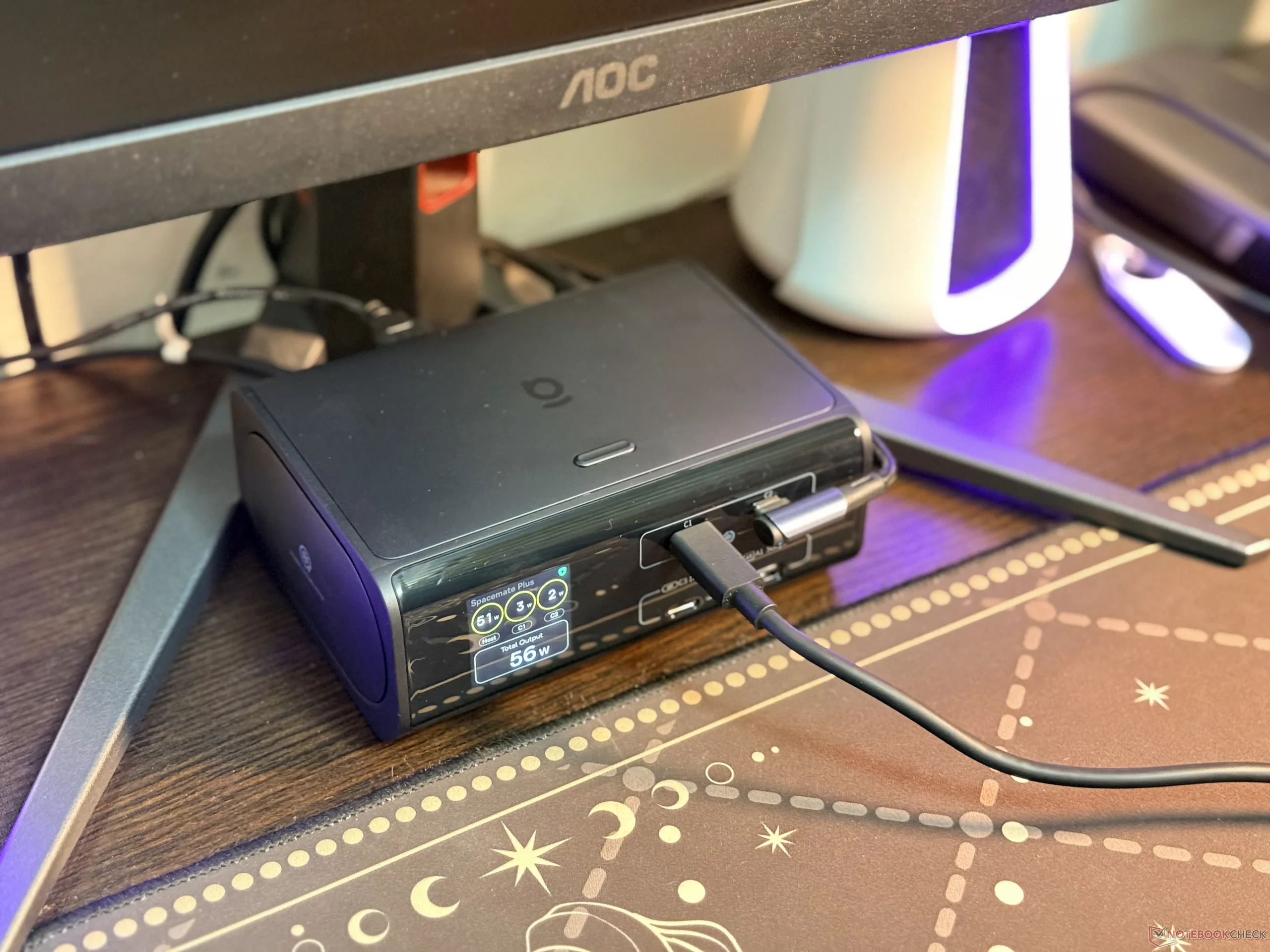
If the data ports are used, the total power output section no longer appears. Instead, the bottom part shows which data ports are active, while the top portion shows the power draw from the host, USB-C1, and USB-C2 ports. There's a built-in button as well, and one of its functions is to turn the built-in display off.
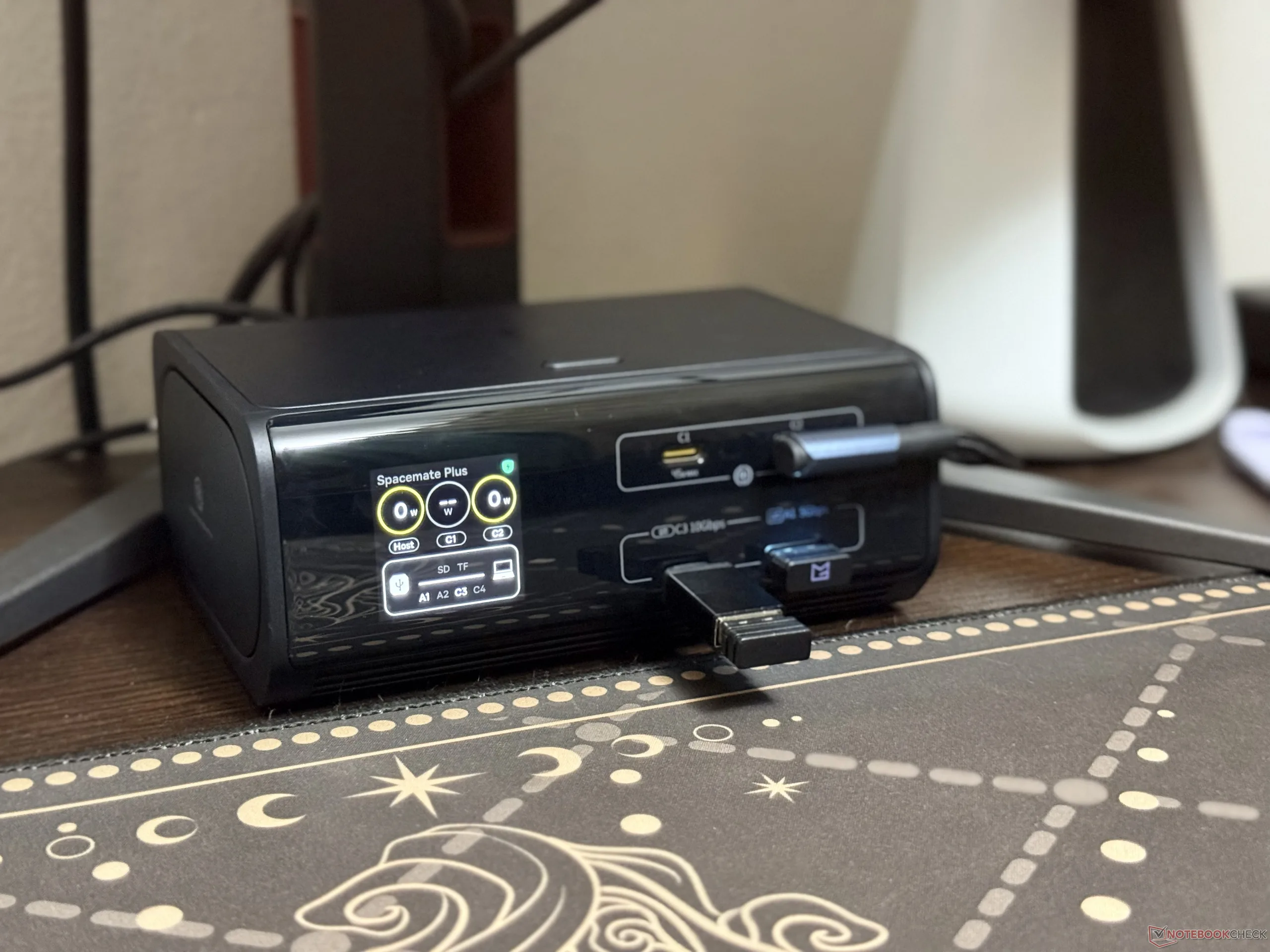
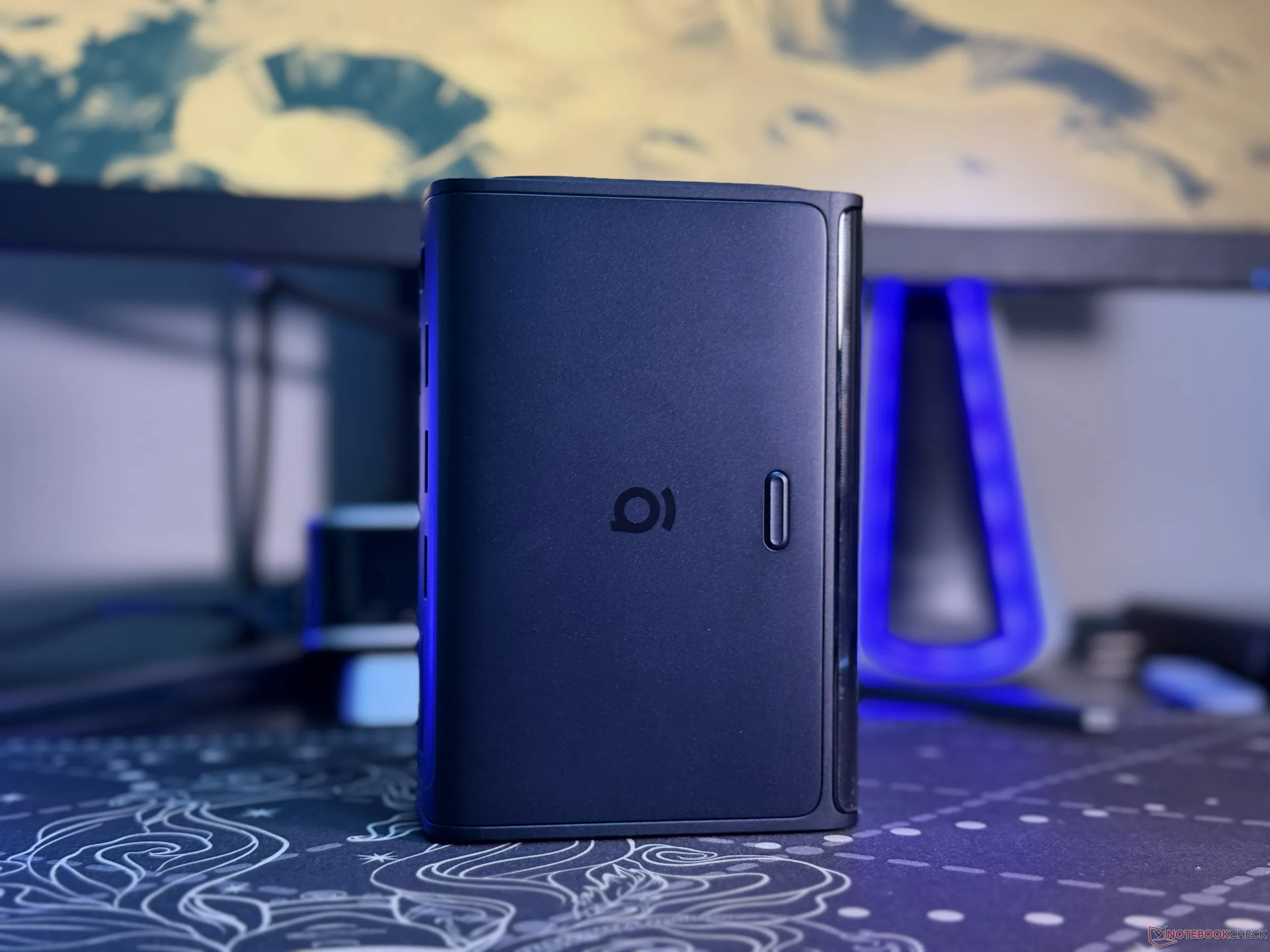
The second function is to lock the connected laptop, which activates when the button is held pressed for two seconds. Of course, the same can be achieved through the "Windows + L" keyboard shortcut, but it's a nice touch.
Another notable aspect of the display is that it can read the connected host's port type. For instance, the screen shows a notification if there's no display output support. Of course, the cable used also plays a notable role here.
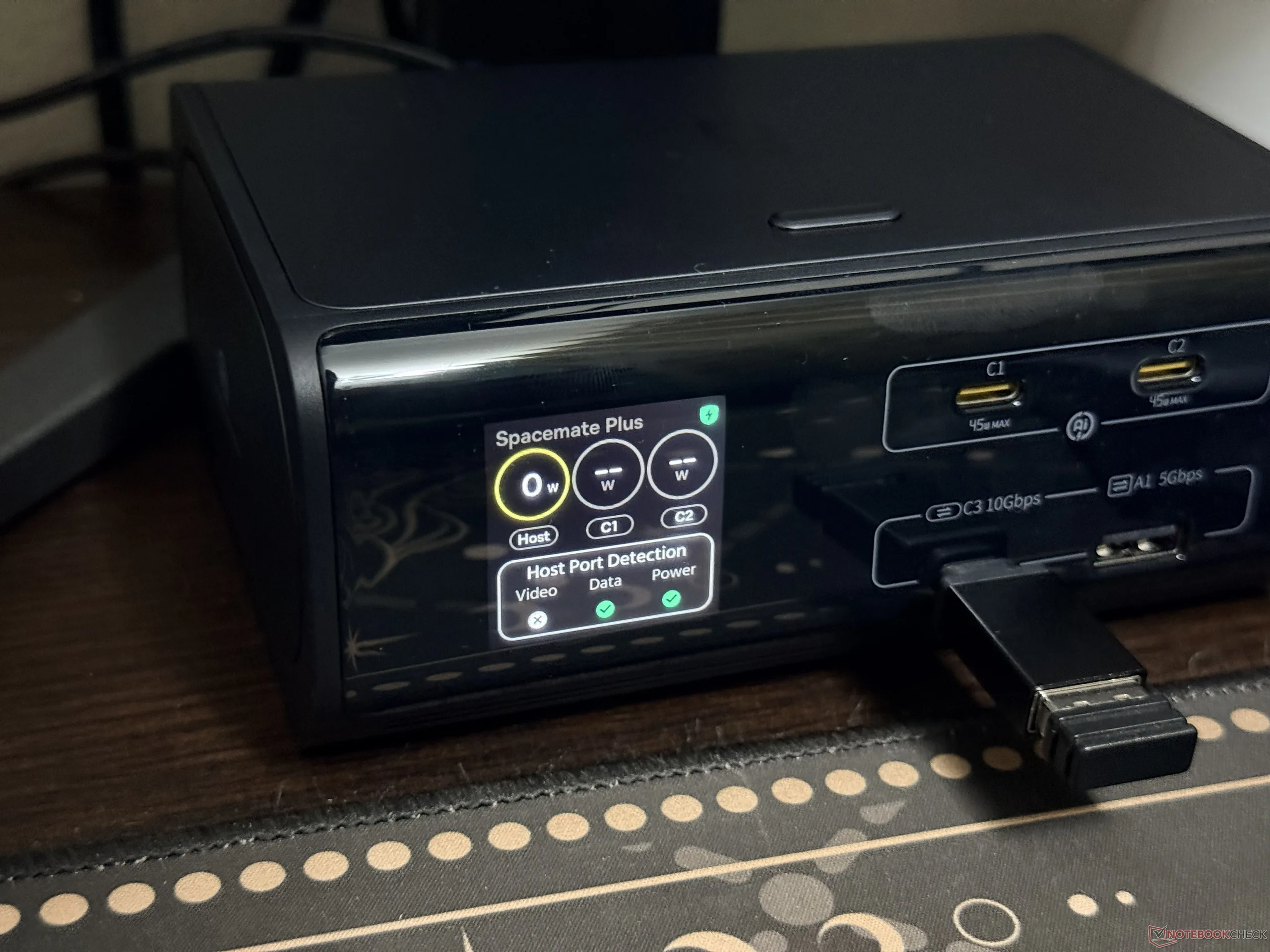
Testing the power output and display accuracy of the dock
Although I couldn't find any major dealbreakers during the first few hours, after a while, one notable issue that stood out was how the PowerTune 3.0 tech of the dock manages power allocation. In my setup, even though the host port is connected to a laptop, the docking station wasn't providing any power to it, as it was already connected to the charger.
Now, while the host is connected, either USB-C1 or USB-C2 can deliver power. Baseus, however, notes that three-port charging is possible, and in that configuration, the Type-C1 and Type-C2 ports would max out at 55W in total, while the host would receive up to 65W of power. I couldn't verify this with the review sample sent to me.
These two ports can, of course, work simultaneously when the host is not connected. What I could theorize is that the dock's power management tech was prioritizing the connected laptop and the USB-C1 port to possibly mitigate overheating issues.
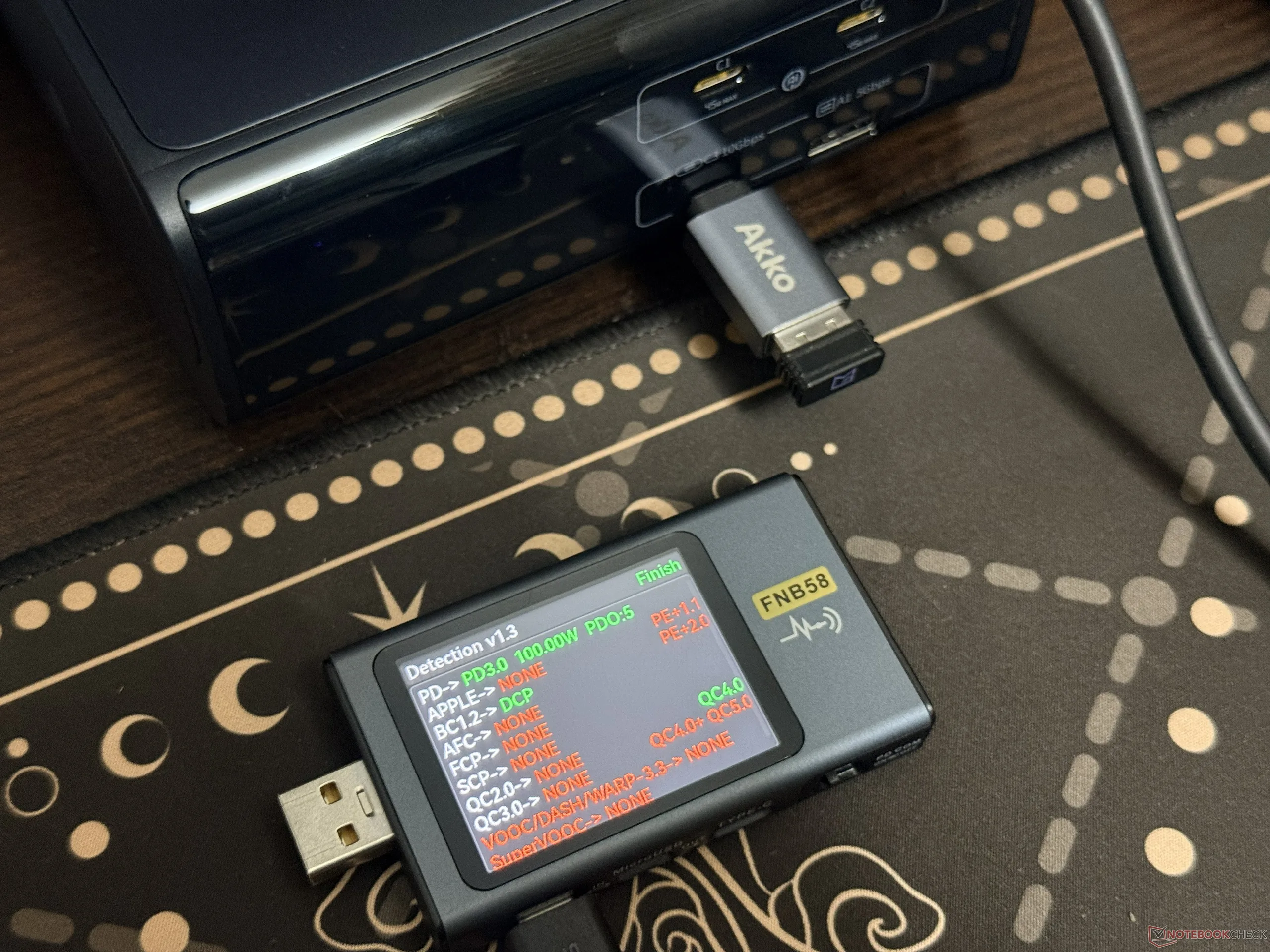
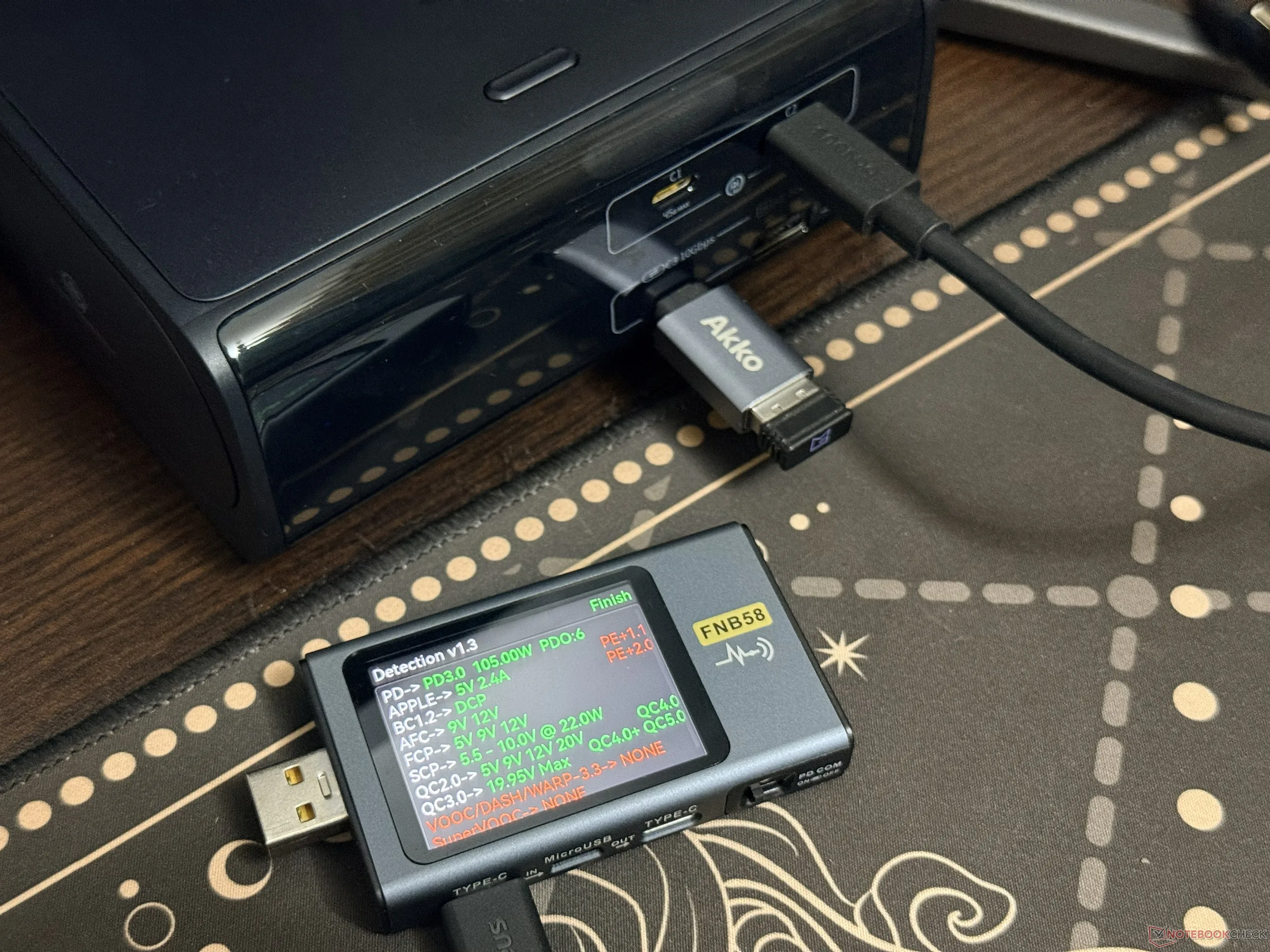
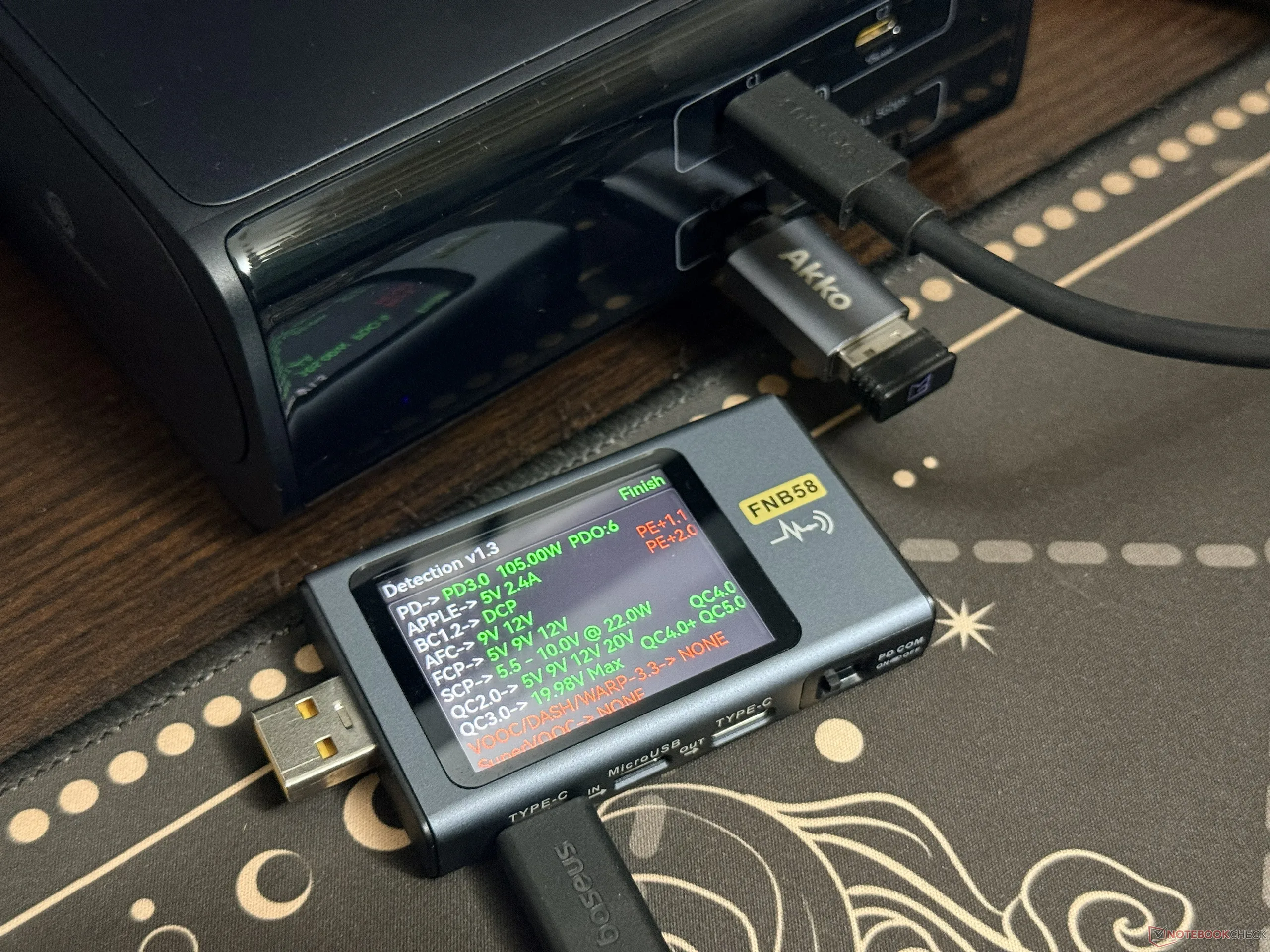
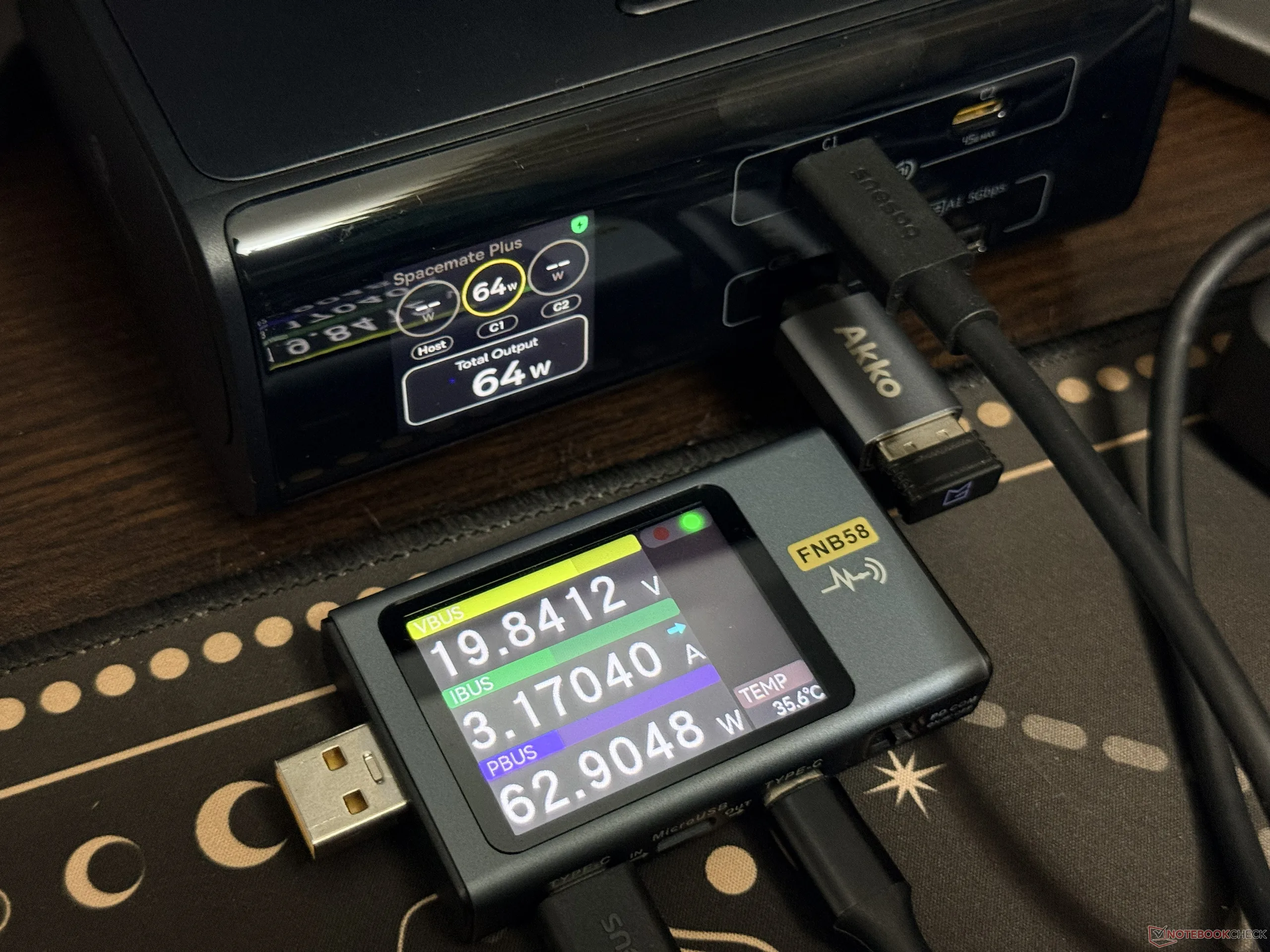
Other than that, the built-in display appeared to be pretty accurate in terms of displaying the output power, which is verified through the Fnirsi FNB58 USB tester. The tester has also confirmed that all three ports have support for PD3.0, but the front two charging ports have wider compatibility support than the host port.
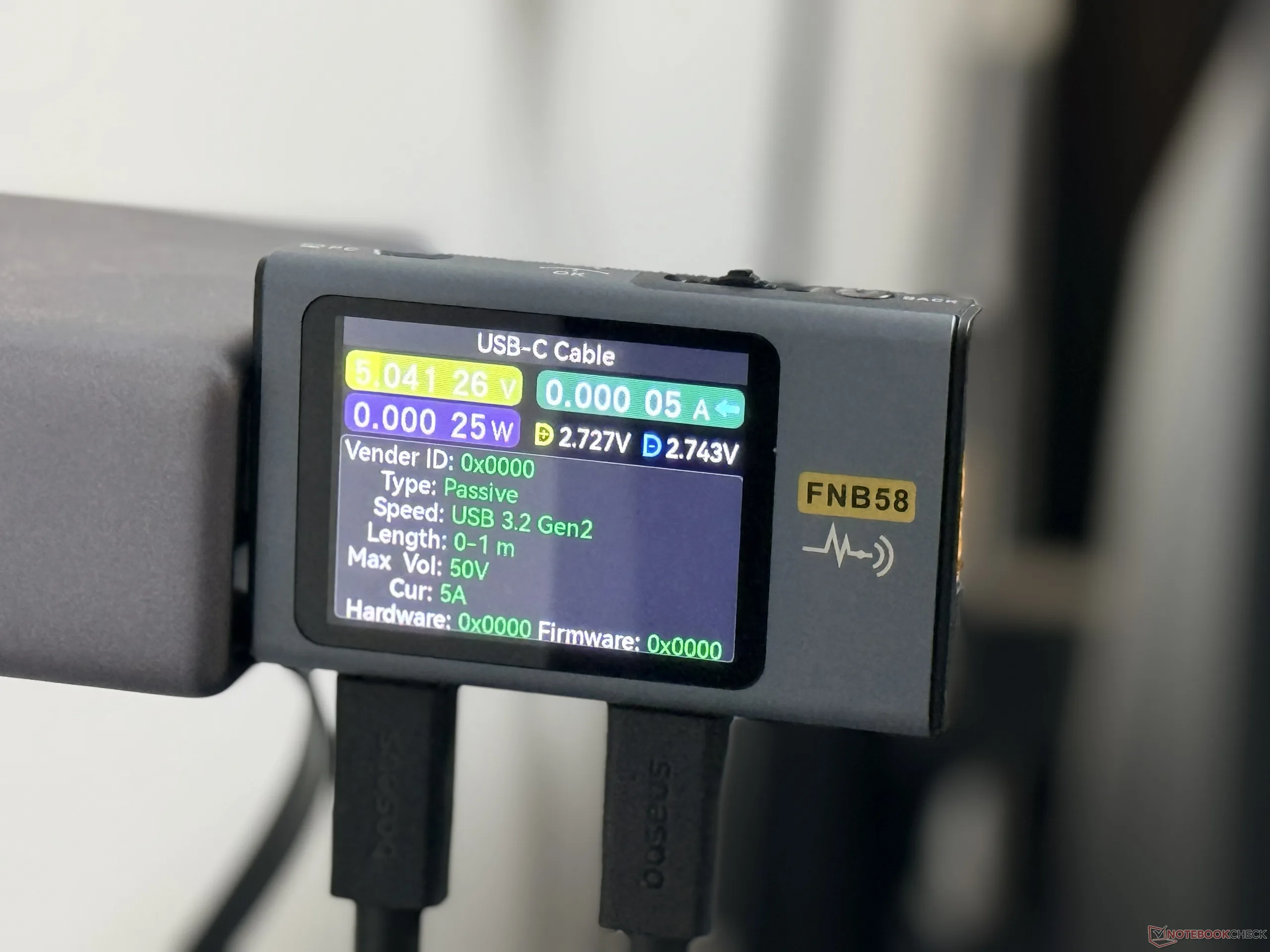
As for the included cable, the Fnirsi FNB58 tester shows that it has support for the USB 3.2 Gen 2 standard, and given that the ports max out at 10Gbps transfer speed, it's the right match.
Transparency
The selection of devices to be reviewed is made by our editorial team. The test sample was given to the author by the manufacturer free of charge for the purposes of review. There was no third-party influence on this review, nor did the manufacturer receive a copy of this review before publication. There was no obligation to publish this review. As an independent media company, Notebookcheck is not subjected to the authority of manufacturers, retailers or publishers.
 Add as a preferred source on Google


