




iOS 27: Apple's new parental controls wait for a setup step

Apple overhauled the parental controls on iPhone, iPad and Mac with iOS 27 on September 14. Children now have to ask before they open a new website in Safari, and parents can set Time Allowances for whole categories of apps. Updating a child's iPhone is not enough to get any of this, though. The new controls need a separate setup step, and only some of them are on by default.
Nothing changes until the setup is done
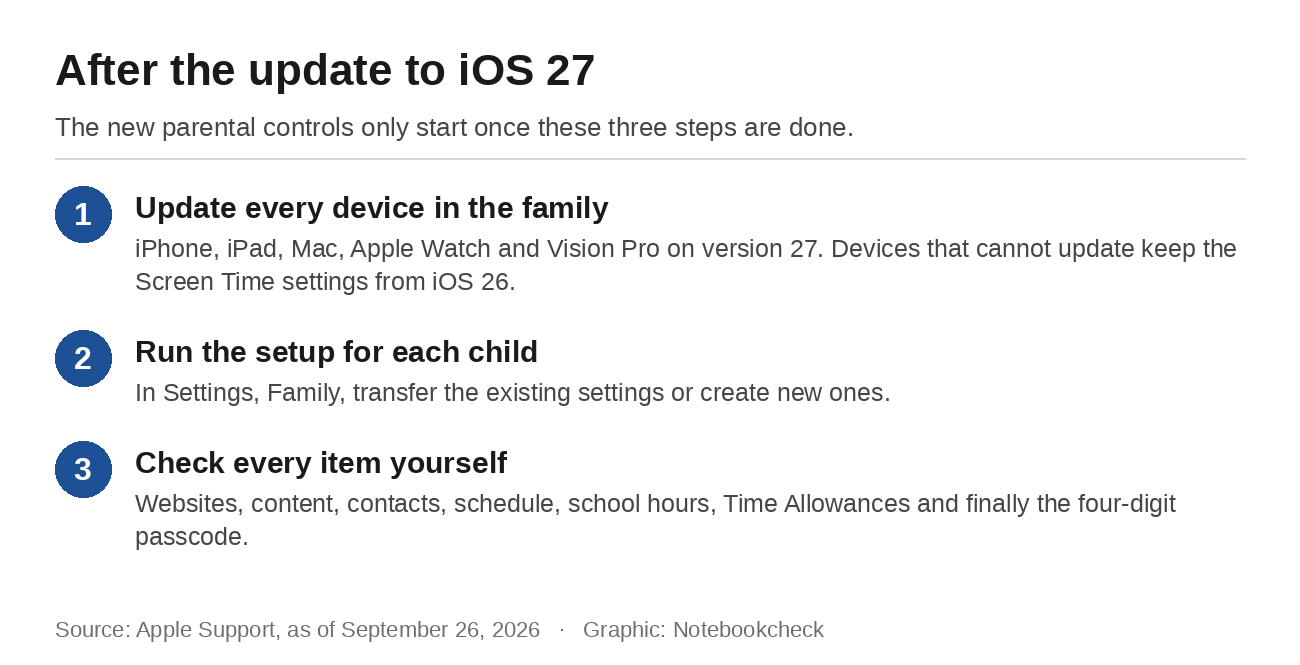
The first requirement is in Apple's own announcement. To use the Screen Time update, every device in a Family Sharing group has to run iOS 27, iPadOS 27, macOS 27, watchOS 27 or visionOS 27. That includes the shared iPad in the living room and a parent's Apple Watch. Once one device is updated, the Family section in Settings lists the devices that still need the update. Apple keeps devices that cannot be updated in a separate list of legacy devices, and those keep using the Screen Time settings from iOS 26.
Even with every device on version 27, the new controls do not appear by themselves. Apple invites parents to go through a short setup for each child, where they either transfer the existing settings or create new ones. The Ask to Browse support page says plainly that parents have to update their parental controls before the feature works.
What Apple turns on by default
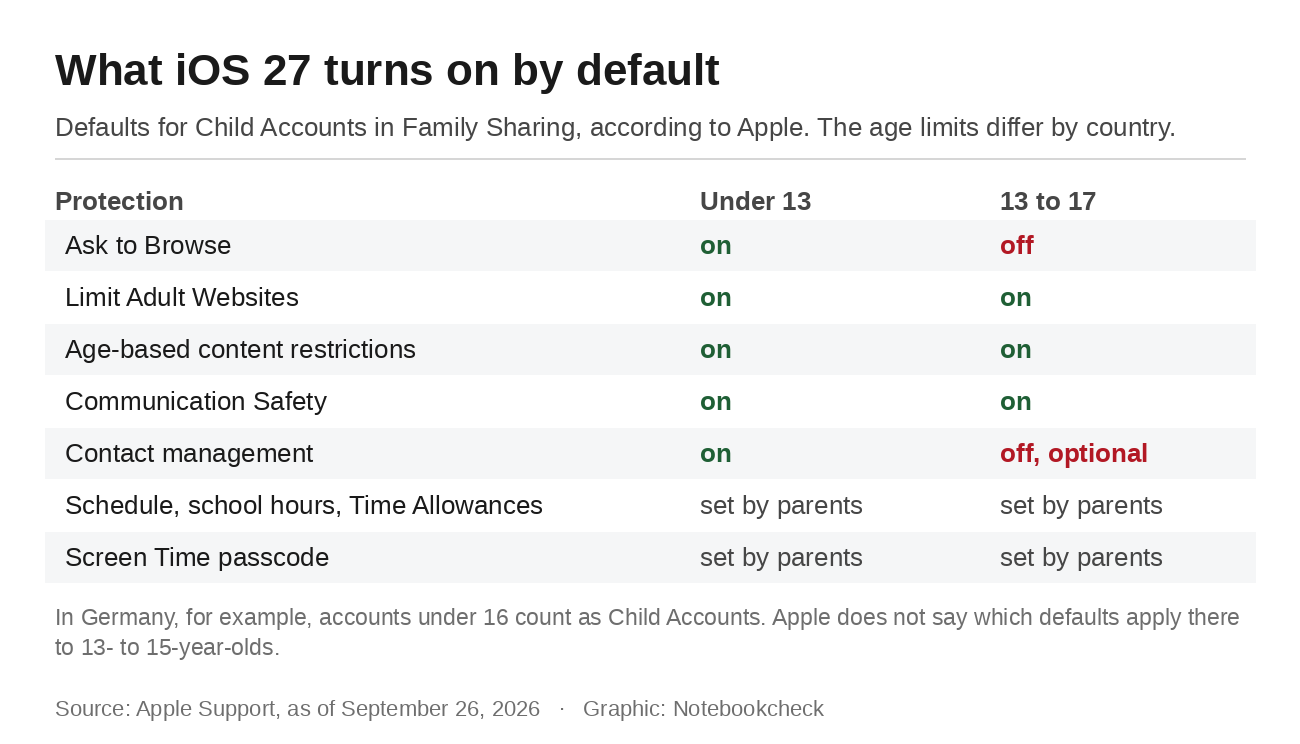
For children with their own Child Account, Apple sets some protections automatically. The support page reads: "Ask to Browse is on by default for children under 13 and Limit Adult Websites is on by default for children under 18." Age-based content restrictions and Communication Safety, which is meant to keep children from viewing or sharing nude images in Messages, AirDrop and FaceTime, are also on for everyone under 18. For children up to 13, contact management is on as well, so parents approve every new person their child wants to message or call.
Apple attaches the same caveat to every age it mentions. Ages vary by country or region, and the gap can be large. In Germany, for example, any Apple Account under 16 counts as a Child Account, while the help pages describe their defaults around the age of 13. Apple does not say which defaults apply to 13- to 15-year-olds in such countries, so parents should check each item during setup.
From 13, the choices fall to parents
Ask to Browse only switches on automatically for the youngest children. From 13, the adult content filter is the only web restriction left by default. Parents who want to approve every new website for an older child have to change this themselves. The path is Settings, Family, the child's name, Apps & Websites and Restrictions. Under Filtering in the Websites section, Approved Websites Only is the stricter option. Apple says Ask to Browse works in Safari and other supported browser apps. It does not list which browsers those are.
Contacts follow the same pattern. Contact management is on by default up to 13 and can be turned on for older children. In the years when many children get their first phone and group chats start to matter, the setting stays off unless a parent enables it. A GPS watch that showed a child's location to anyone made the same point with a different device.
Time Allowances, schedules and the passcode
What used to be Downtime is now part of the child's daily schedule. Parents set separate hours for weekdays and weekends, and outside those hours most apps and notifications are paused. A new option pauses entertainment, games and social media during school hours while leaving everything else available.
App Limits are now called Time Allowances and are built around three categories, Entertainment, Games and Social Media, though parents can add more. Parents set a total for all three and can adjust each category. While moving the slider, the iPhone shows age-based guidance that Apple developed with clinical and child development experts, but the limit is still up to the parents. When a child runs out of time, they can ask their parents for more.
The last step of the setup is a four-digit Screen Time passcode. Apple's wording is a passcode "that your child shouldn't be able to guess." It is required for every change to the parental controls, so it protects everything set up before it. A child's birth year is a poor choice.
Android 17 has its own pitfalls
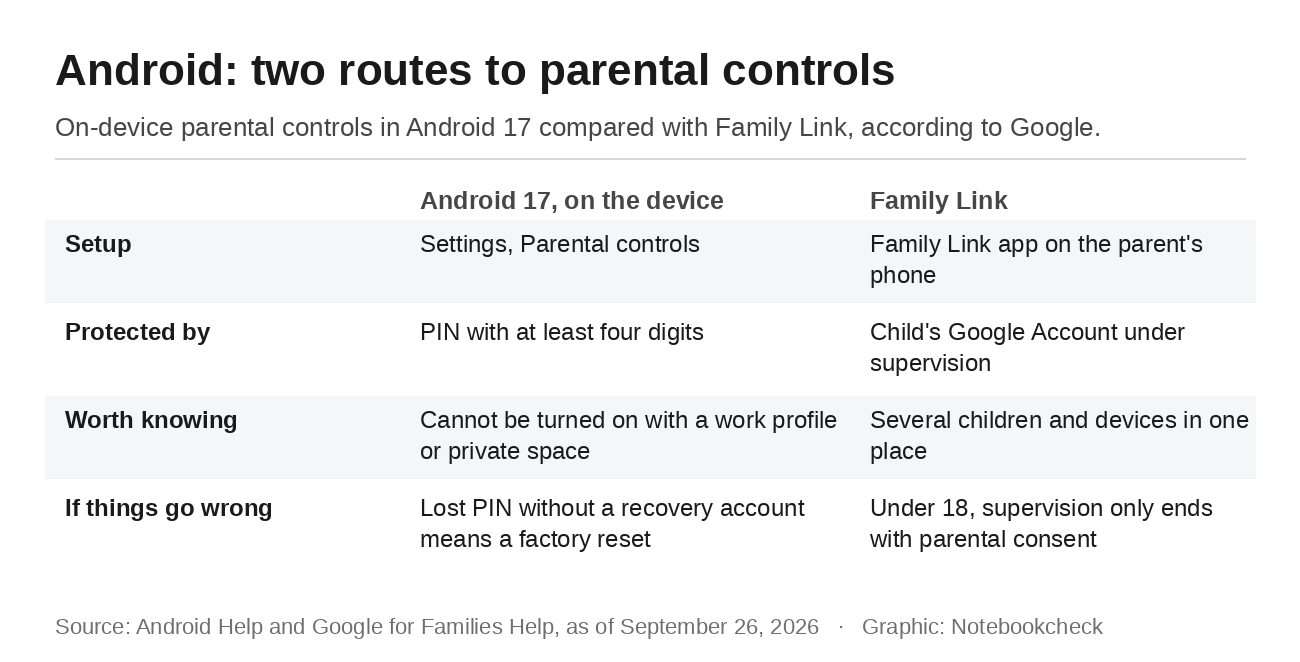
Since Android 17, parents can set parental controls directly on the device without Family Link. They create a parental controls PIN with at least four digits and can then set a daily limit, downtime, app limits, blocked apps and web content filters. According to Google, these controls cannot be turned on if the device has multiple profiles, such as a work profile or a private space. The recovery account matters too. Without one, a forgotten PIN means resetting the device to factory settings.
Family Link remains the better option for managing several children and devices from a parent's phone. Google says children under 18 need a parent's consent to stop supervision, and both sides are notified when it ends.
Apple has built better tools with iOS 27, but most of them only work once parents set them up after the update and choose them for children aged 13 and older. It takes one pass per child. Protections that ship switched off are a pattern, as the new bank scam defense in iOS 27 showed only days earlier.
Source(s)
Apple Newsroom: Apple's new child safety features now available
Apple Support: Use Ask to Browse to approve the websites your child can access
Apple Support: Set up parental controls on your child's device
Apple Support: Update your family devices to iOS 27 and the other version 27 releases
Apple Support: Region-specific rules for managing an Apple Account
Apple Support: About Communication Safety on your child's Apple device
Android Help: Set up parental controls on an Android device
Google for Families Help: Supervision after a child reaches the minimum age
 Add as a preferred source on Google


No comments for this article
