




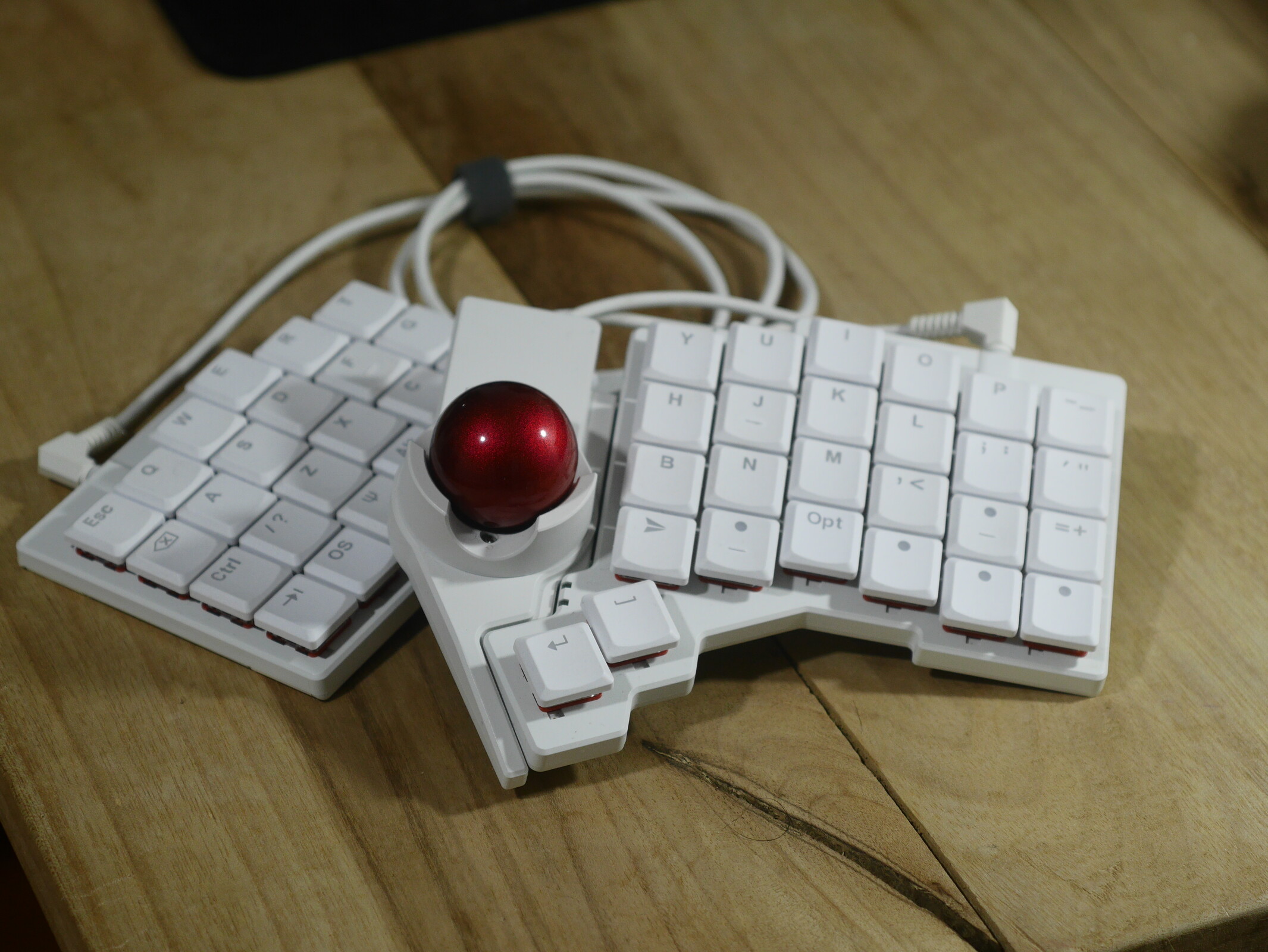
Split ergo keyboard for tinkerers and beginners alike: ZSA Voyager and Navigator track ball review
Take a trip down the rabbit hole.
The ZSA Voyager takes keyboard customisation to the next level. In our review, we figure out who this split, low-profile, ergonomic keyboard is for and whether or not it's worth the sky-high price it commands. Together with the ZSA Navigator track ball, the Voyager is a strong contender for a do-it-all portable ergonomic workstation keyboard.Julian van der Merwe Published 🇫🇷 🇪🇸 ...
Verdict - Buy once, cry once
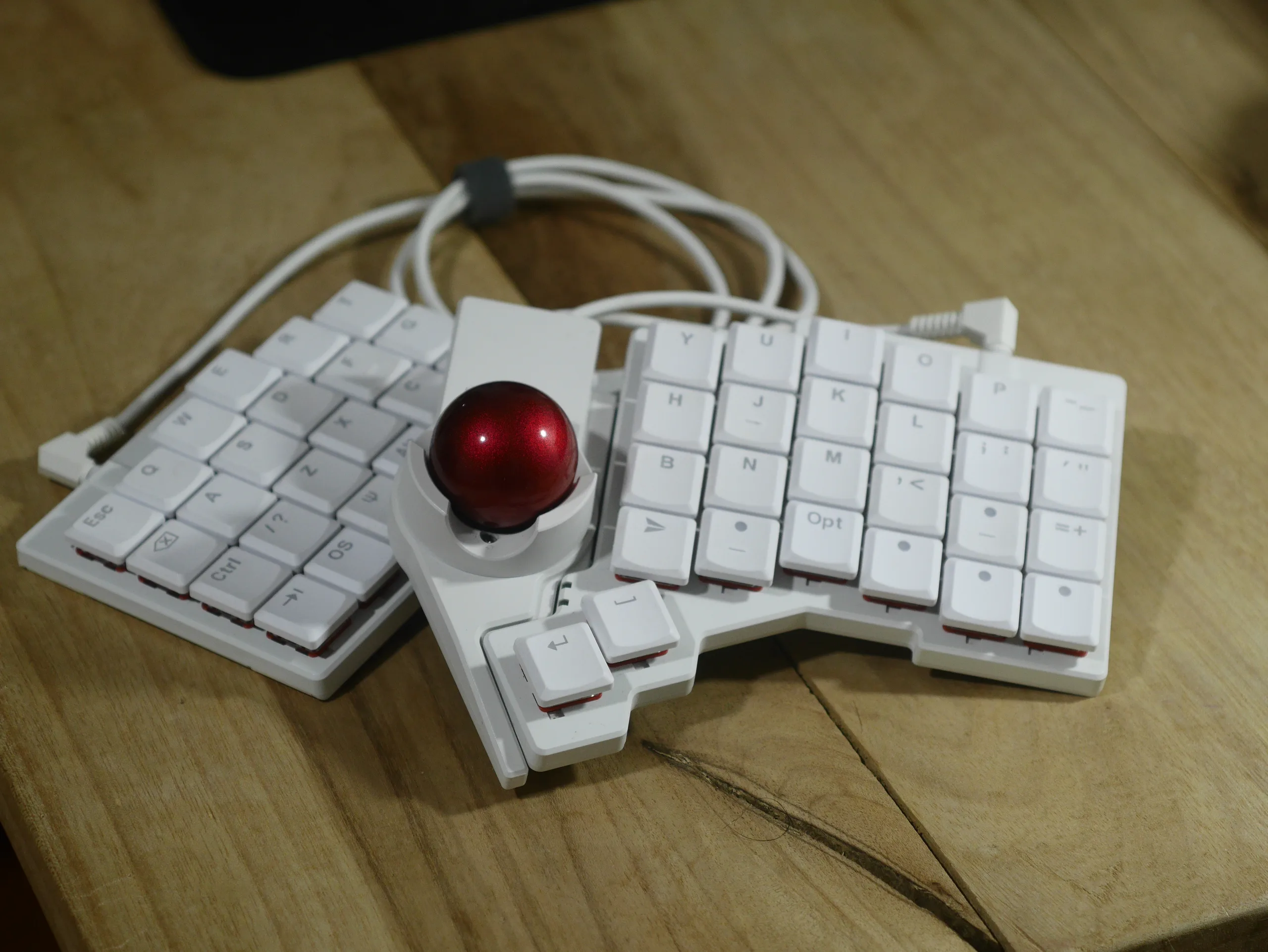
The ZSA Voyager is expensive, even by keyboard enthusiast standards, but it checks so many boxes that it's difficult to call it a bad deal. This is especially true if your employer has some sort of office equipment funding or if a split keyboard might alleviate wrist pain or RSI. The Voyager's feature set makes it very easy to get used, especially the per-layer RGB customisation and the Keymapp App that allows you to see your layers in real time.
The Voyager's superpower lies in its customisation and flexibility. ZSA has seemingly thought about just about every use case for this keyboard, including mounting it vertically to your desk or 3D printing your own accessories. Between Oryx, the configuration software and the included feet and wealth of additional keycaps, the Voyager is very adaptable, making it an easy recommendation for those looking for a portable ergonomic keyboard.
The Navigator, on the other hand, is less impressive, but it pairs well with the Voyager, especially if you want to keep your hands on or near the keyboard when using the mouse.
Pros
Cons
Price and availability
The ZSA Voyager is available from ZSA directly for $365, and it is available in both black and white with US, international, or blank shine-through keycaps. The Navigator track ball costs an extra $169 and is also available from ZSA.
Table of Contents
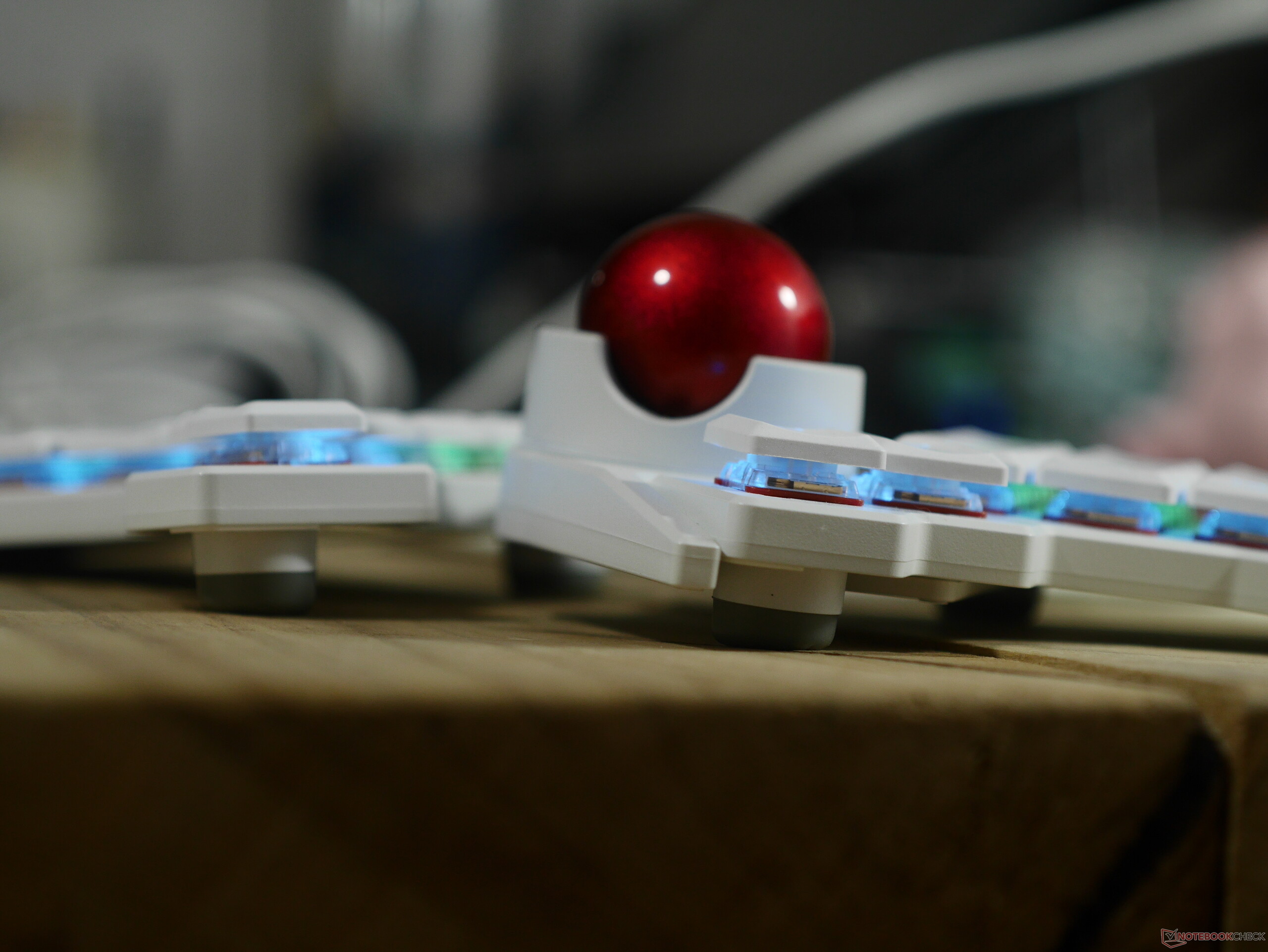
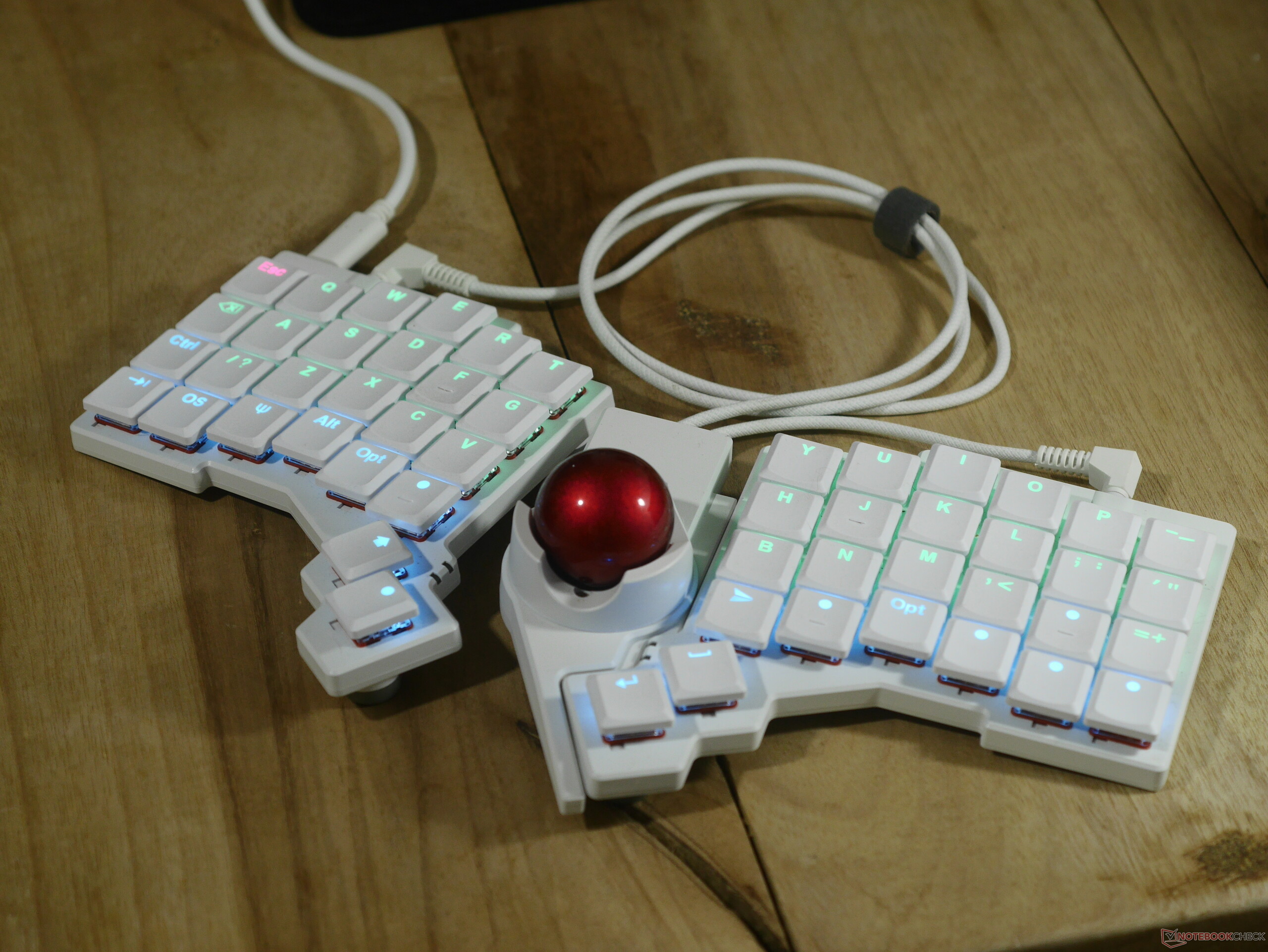
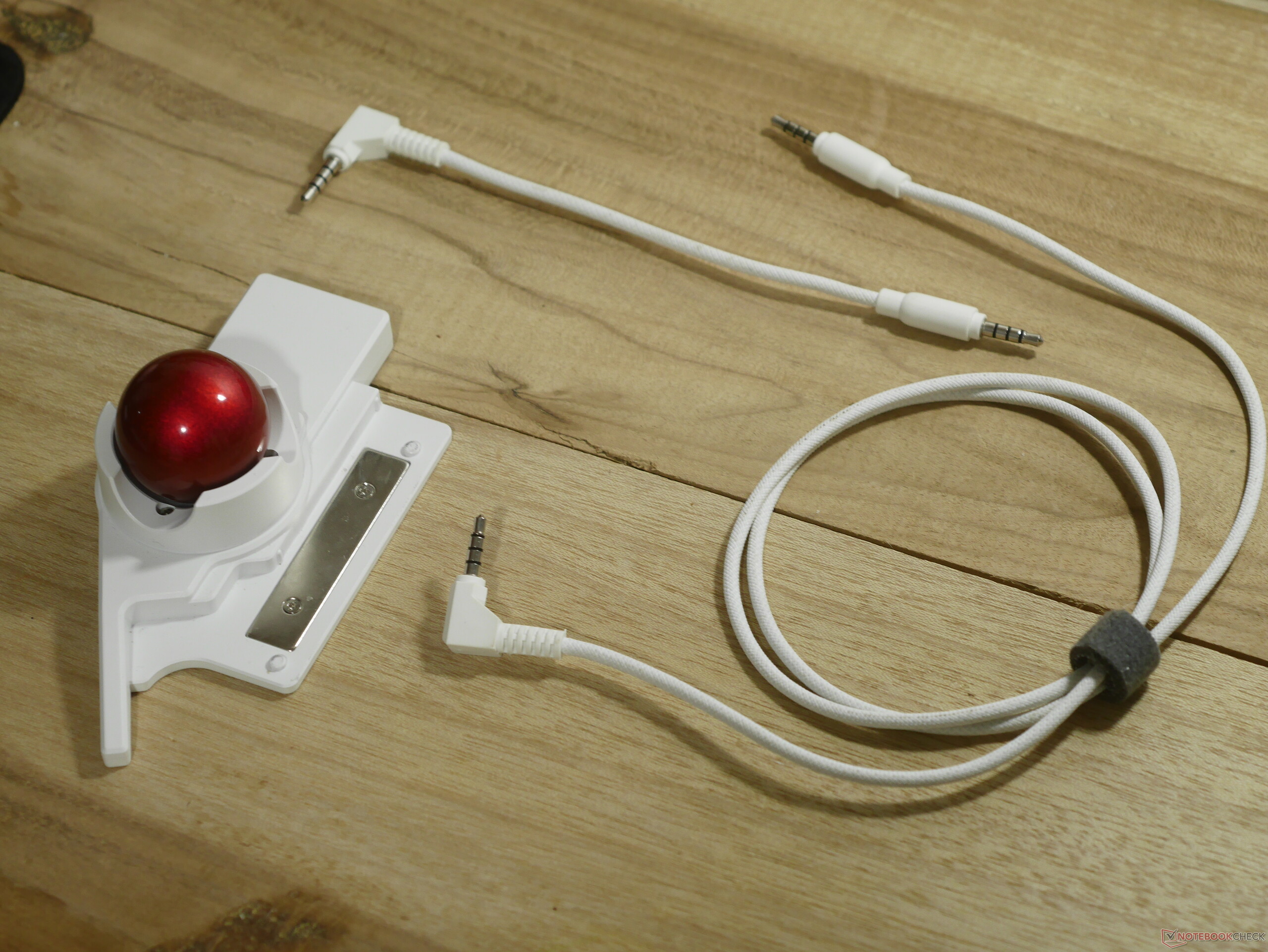
The ZSA Voyager is a low-profile split ergonomic mechanical keyboard with 52 keys and Kailh Choc V1 switch compatibility. The Navigator track ball add-on is a 34 mm track ball that attaches to the Voyager magnetically and connects to the keyboard via two TRRS cables. The track ball uses a PixArt 3805EK sensor and has a resolution of 3,000 DPI.
Specifications
| Form factor and size | 50% ANSI US layout, 140 × 145 mm, 8.5 mm front height, 16 mm total height including keycaps |
| Typing angle | 0 degrees |
| Case material | ABS plastic, steel base |
| Weight | Voyager and Navigator: 498 g; Voyager: 414 g |
| Plate material and mounting style | Integrated plate |
| Connectivity | USB-C wired |
| PCB and switch style | Mechanical switch, 5-pin and 3-pin compatible (CHANGE) |
| Default switch options | Kailh Choc V1 Brown (tactile, 60 gf), White (clicky, 60 gf), Red (linear, 50 gf), Pro Red (linear, 35 gf) |
| Keycap material and profile | Double-shot PBT, shine-through, uniform-height cylindrical profile |
| Customisation | Oryx, QMK Configurator |
| Backlight | North-facing per-key RGB backlighting |
| Polling rate | Up to 334 Hz over wired USB-C |
| Track ball sensor | PixArt PAW 3805EK (3,000 CPI, 10 G acceleration, 40 IPS) |
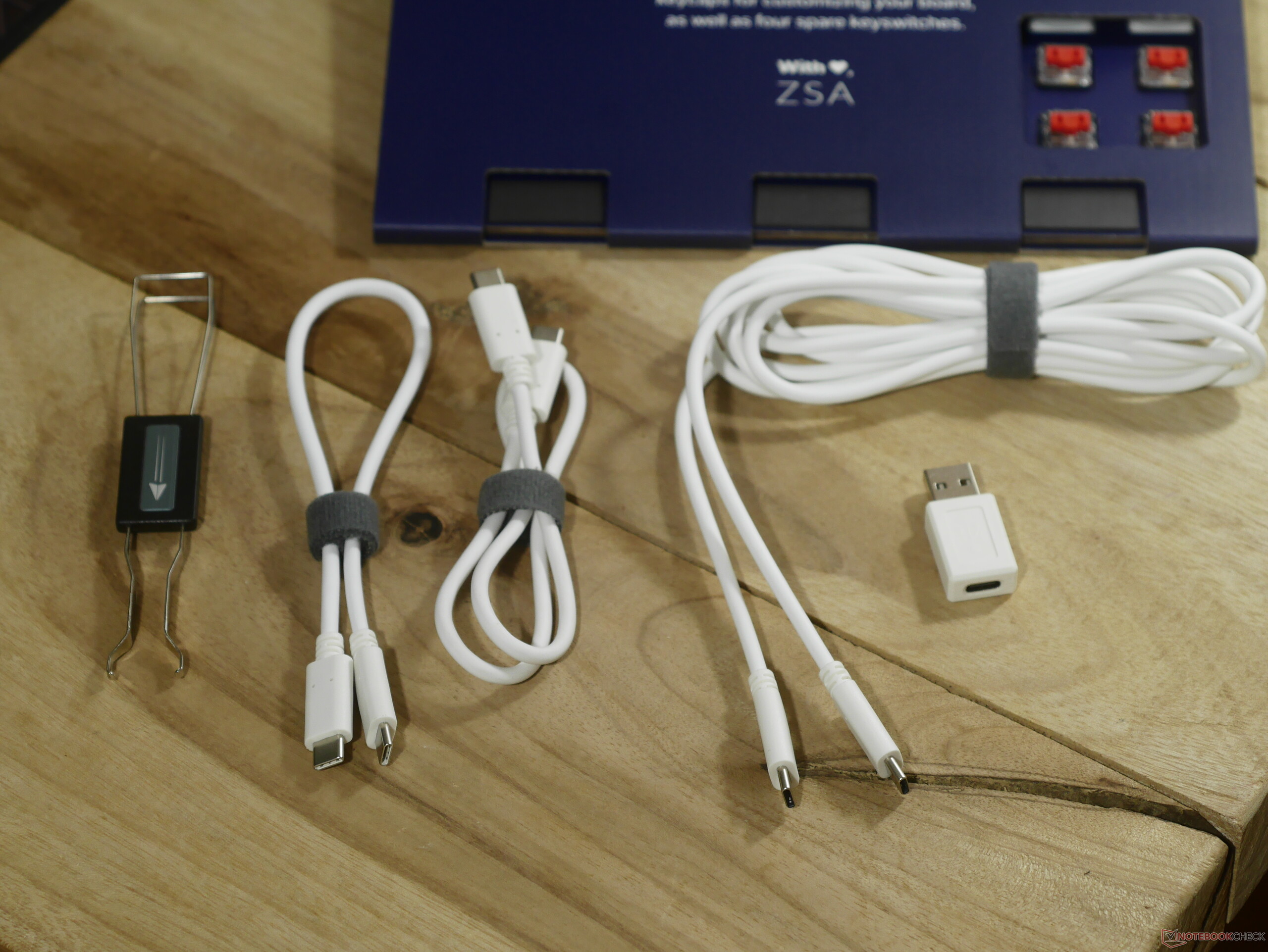
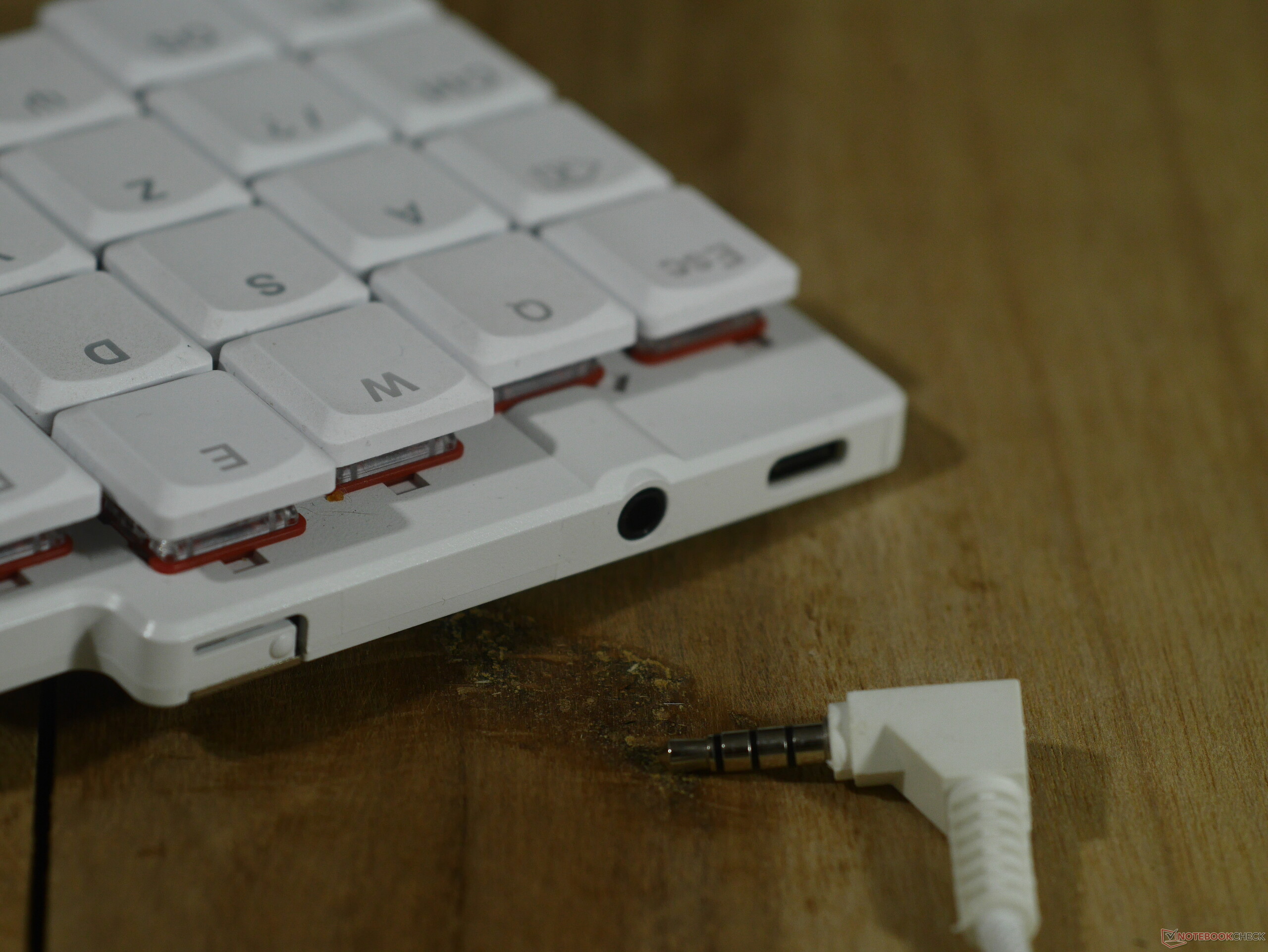
| Included accessories | Voyager: 38 extra keycaps, 3× USB-C-to-C cables (22 cm, 38 cm, 220 cm), TRRS cable (90 cm), carrying case, USB Type-A-to-C adaptor; Navigator: Shell with magnetic attachment, 2× braided TRRS cables. |
Build quality and design — Simple and solid
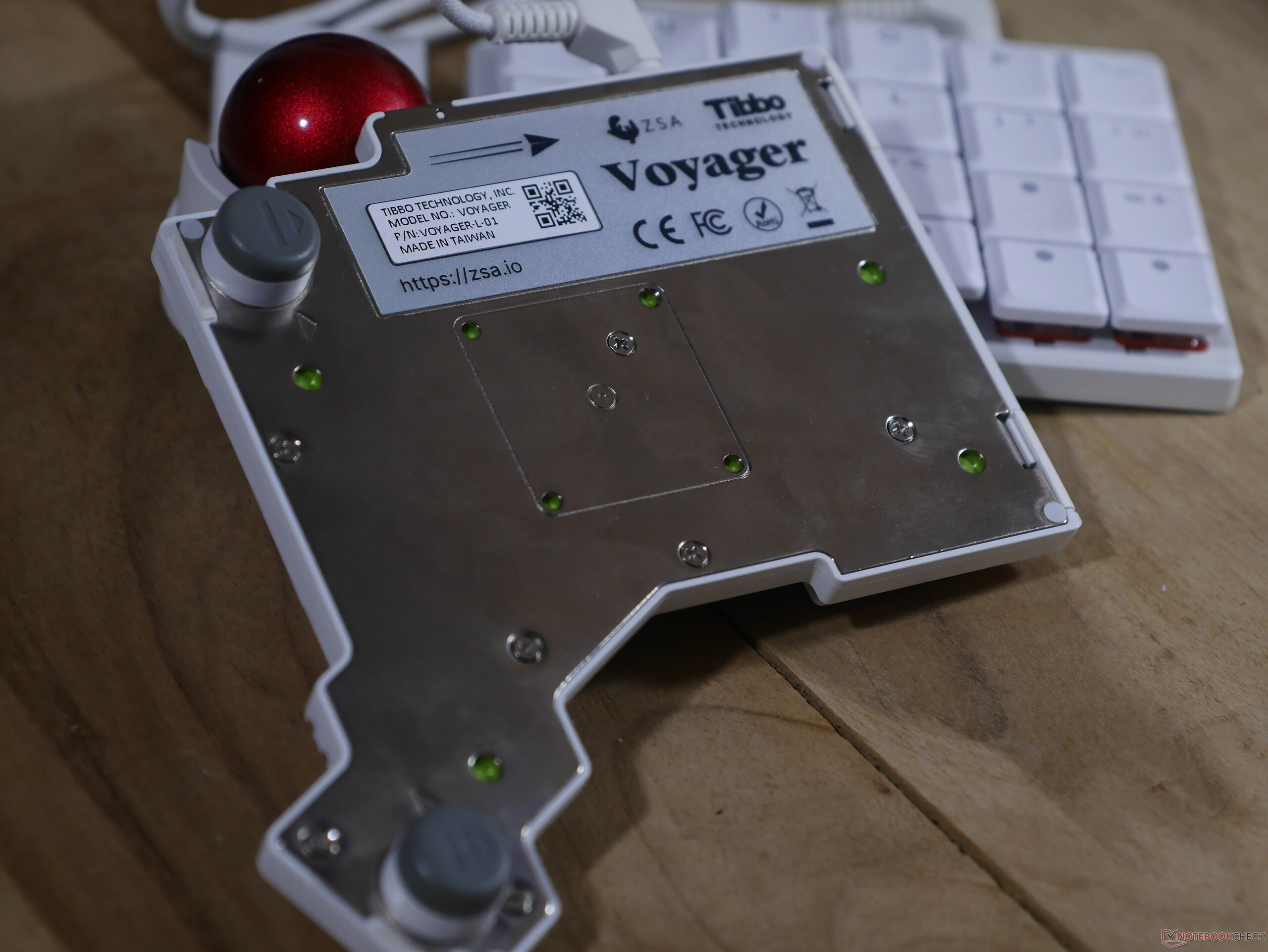
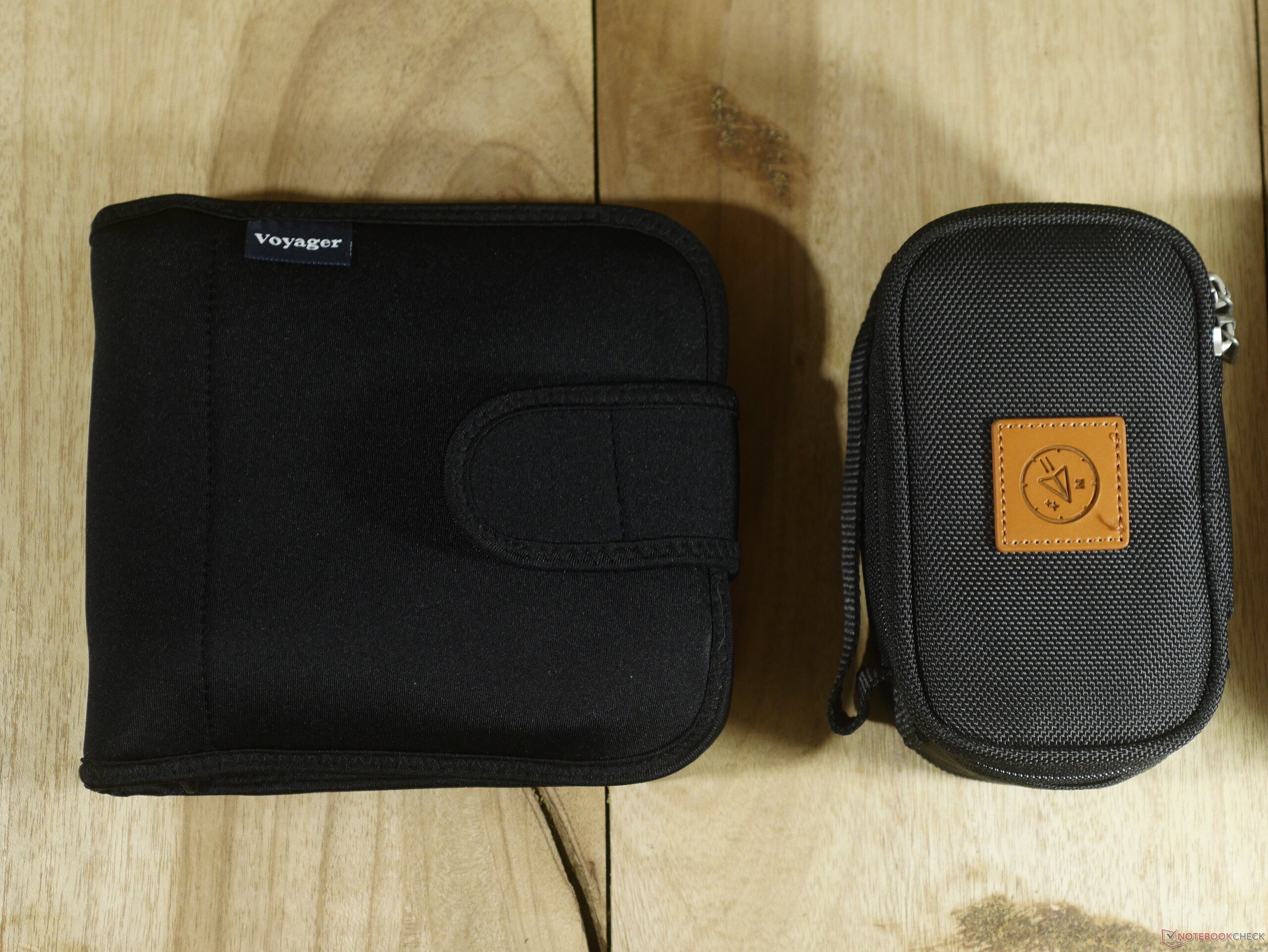
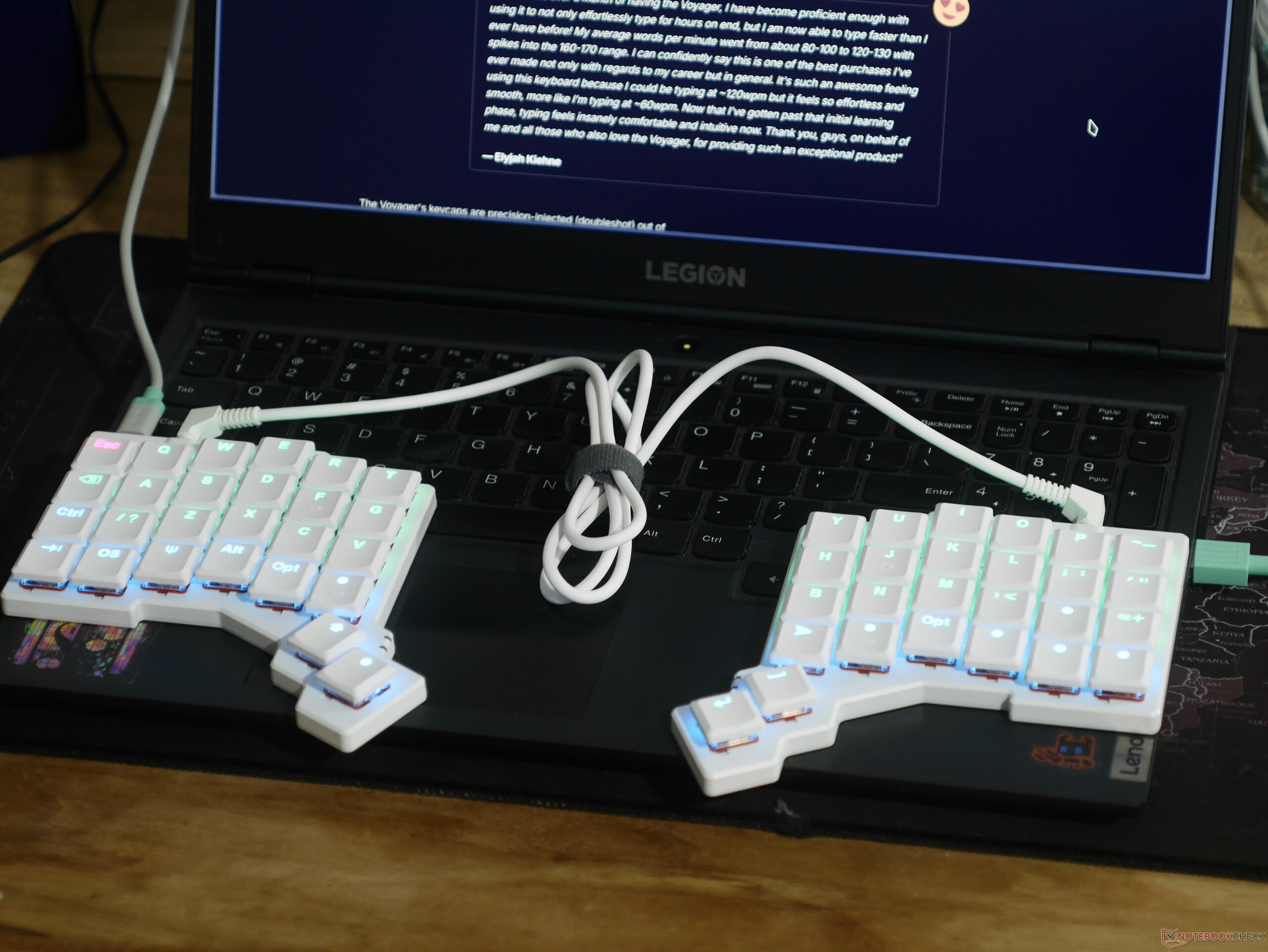
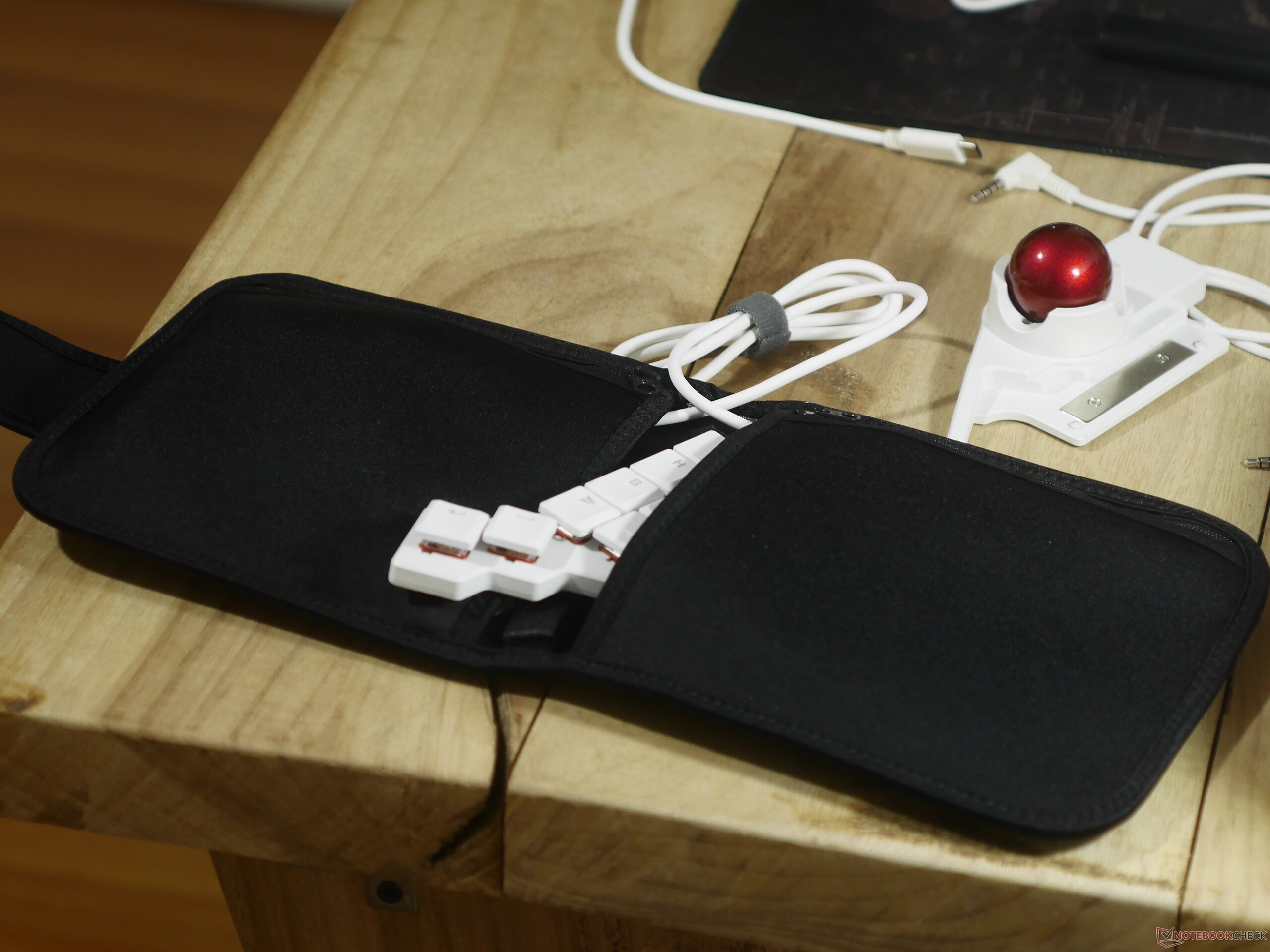
The ZSA Voyager is mainly geared at on-the-go users looking for a more ergonomic setup. As such, the design is minimalistic, with a plastic top case and a steel bottom plate. The steel bottom plate makes the Voyager feel dense, even if it isn't particularly heavy, coming in at 678 g with all the cables, feet, and carrying case. The carrying case is made from a thick stretchy material, that seems durable enough, and it's a nice touch for those who want portability. The keycaps on the Voyager have a slight matte texture to them, and the tactile markers make it really easy to find the home row when necessary.
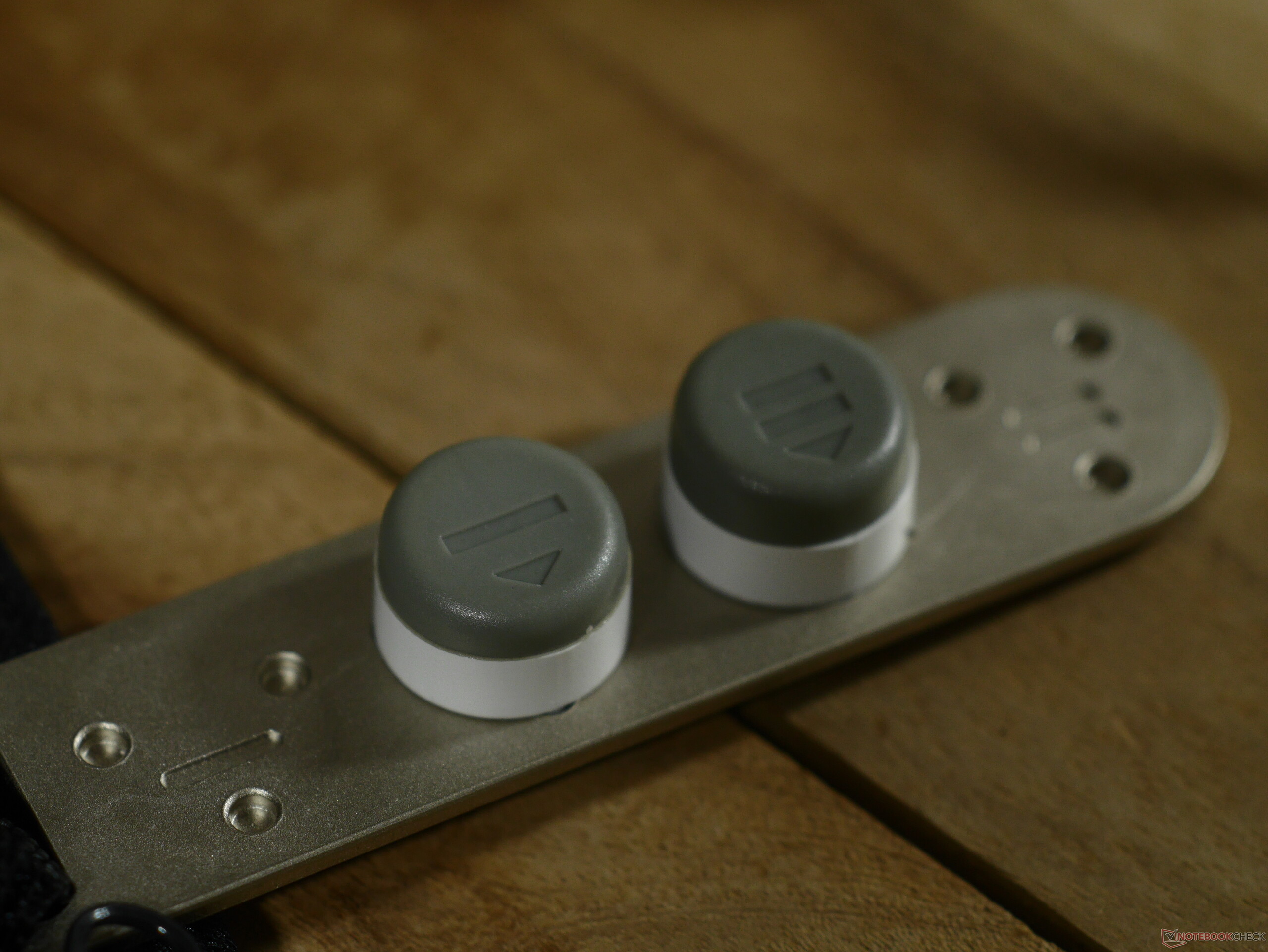
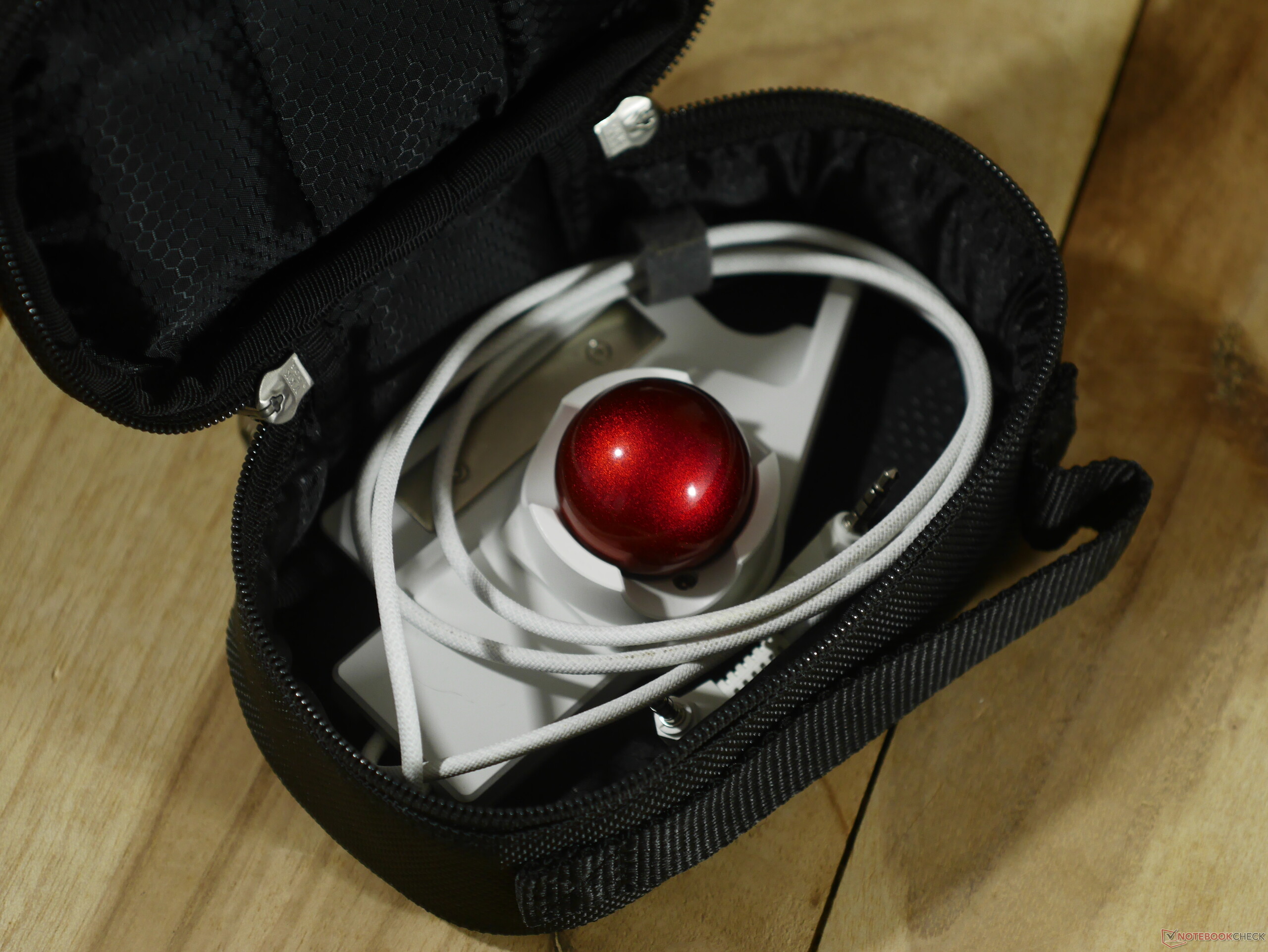
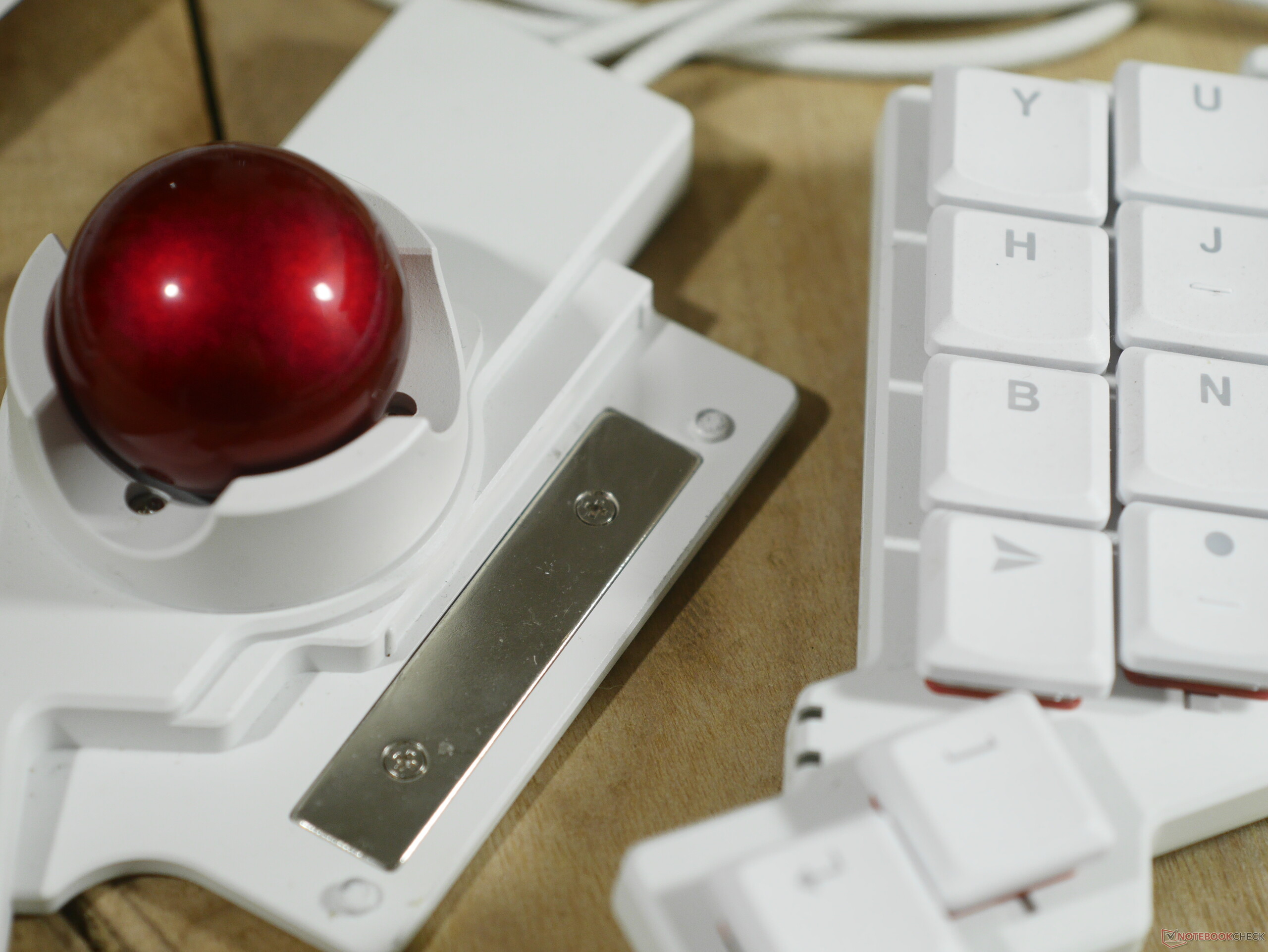
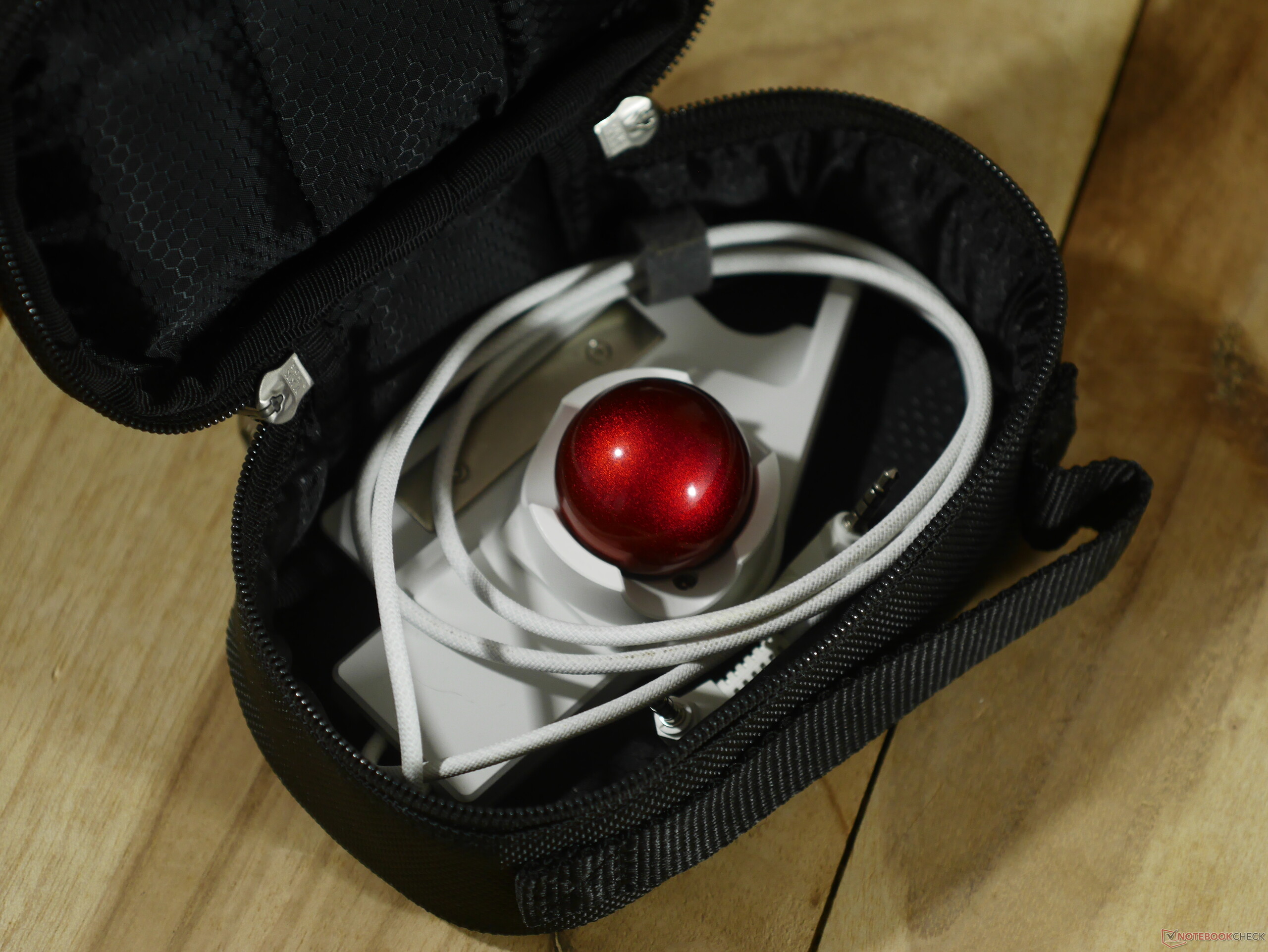
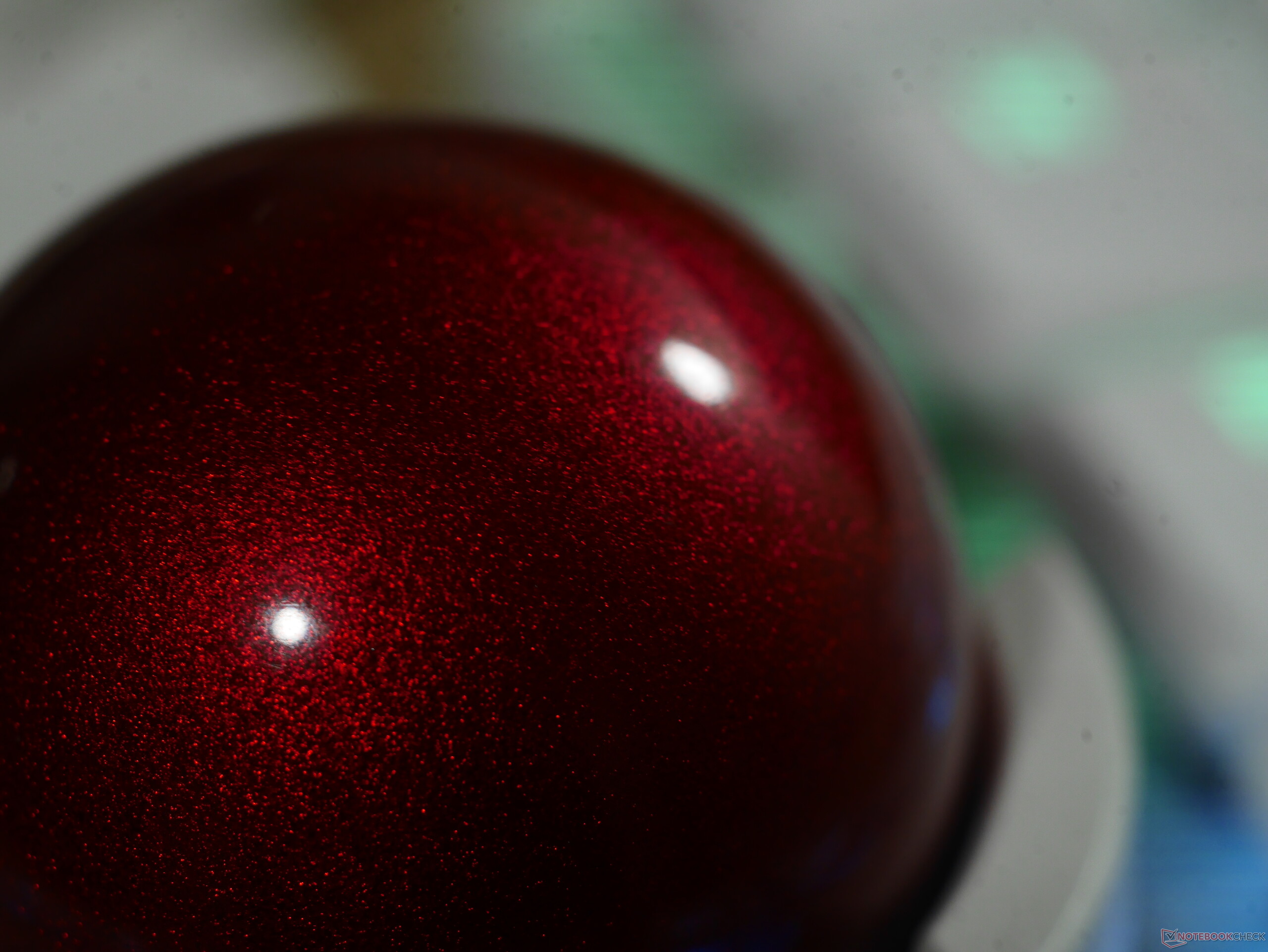
The Navigator, similarly, is almost entirely made of plastic, including the resin track ball. That doesn't mean it's fragile, though — I dropped the track ball onto ceramic tiles several times, and it shows no signs of damage. The track ball uses ceramic bearings for smooth operation, and it attaches very firmly to the Voyager with a large neodymium magnet that is screwed into the shell housing. The Navigator also comes with its own padded carrying case that's big enough for the trackball, the shell, and even the longest USB cable that ZSA includes with the Voyager.
The Voyager is a columnar-stagger keyboard, which means the key columns are shifted vertically instead of horizontally, in order to better fit the curvature of the human hand. This design looks awkward, but it's very intuitive once you start using it, and there is a measurable reduction in strain to keep your fingers on the home row for efficient typing.
Software customisation
One of the best features you get with "premium" mechanical keyboards, like the Keychron Q1 HE 8K we recently reviewed, is the customisation that comes with web drivers, macros, and on-board memory. This is usually taken to the extreme with split keyboards, with many split ergo keyboard users using QMK to recompile firmware with custom hold timings and other turbo-nerd features. ZSA's Oryx customisation suite takes all of that customisation from QMK, which would otherwise require a bunch of coding knowledge, and packages it into a very convenient graphical user interface.
While it was initially somewhat annoying that Oryx needs to recompile the firmware and reflash it every time you want to save a change, that actually became a benefit further down the line. With other keyboards that use VIA, remapping a key means you need to have a WebHID compatible browser. This means you're stuck with desktop Chromium browsers. As an occasional user of an Android tablet, this becomes an issue when a key needs remapping while I'm away from my desk. With Oryx, configurations are stored online and changes are made to a firmware file before flashing that file, so you can make a change to the keyboard configuration on Android and save it to the keyboard later when you're at your desk. All Oryx configurations are publicly available, which means you can take inspiration from other users' layouts, but it also means that you should not, under any circumstances, use a macro to store passwords on your Voyager.
Oryx's recompile-and-flash approach is also what allows you to explore features like QMK's Tap Dance, which lets you assign different keystrokes for a tap, hold, tap and hold, or a double tap — all in an intuitive GUI. Tap Dance is available in VIA, but you can only set the tap or hold binds, whereas Oryx allows you to customise the tapping term — the time the keyboard waits to determine if it's a tap, hold, double tap, or tap and hold before sending a keystroke. This timing customisation is the only reason I was able to use features like layer tap to switch layers when holding the right inner thumb key, which sends enter when tapped and switches to the mouse layer when held. I've played with mod tap on other keyboards before, but it always resulted in false triggers because of a lack of timing control.
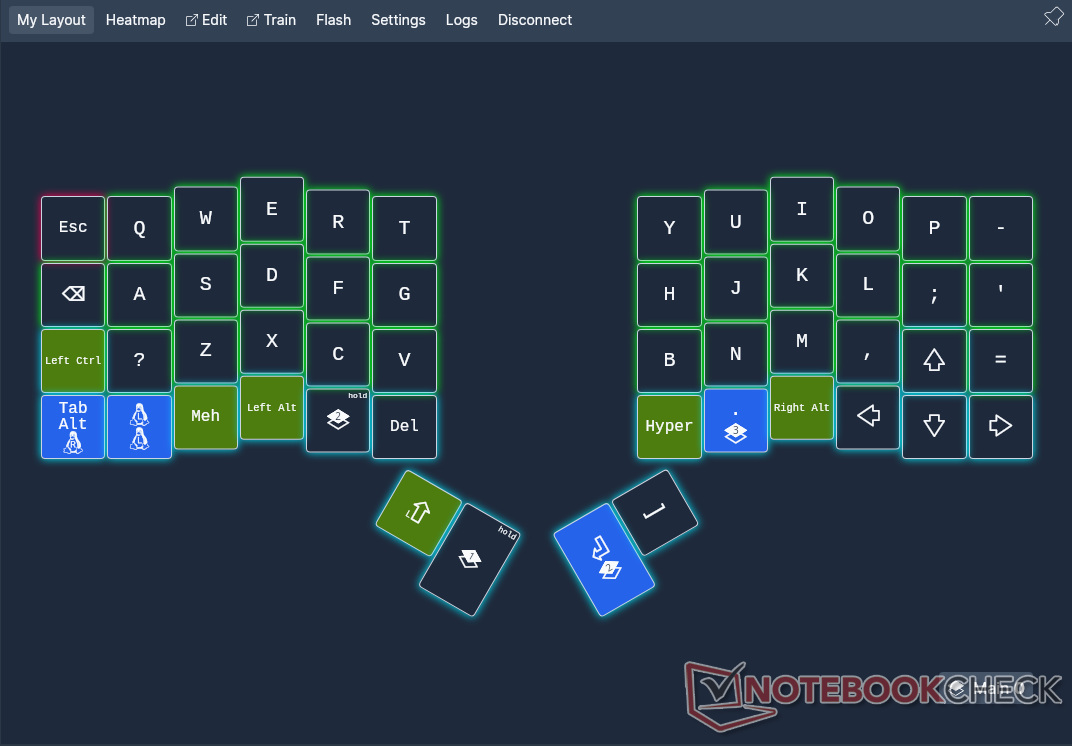
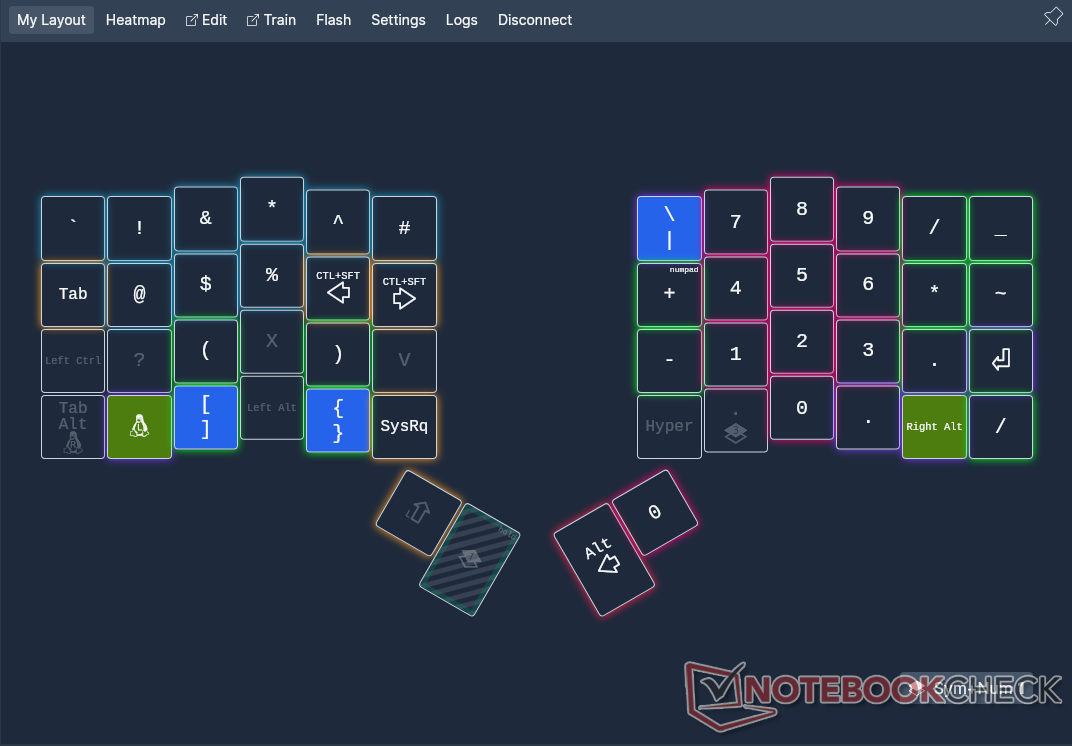
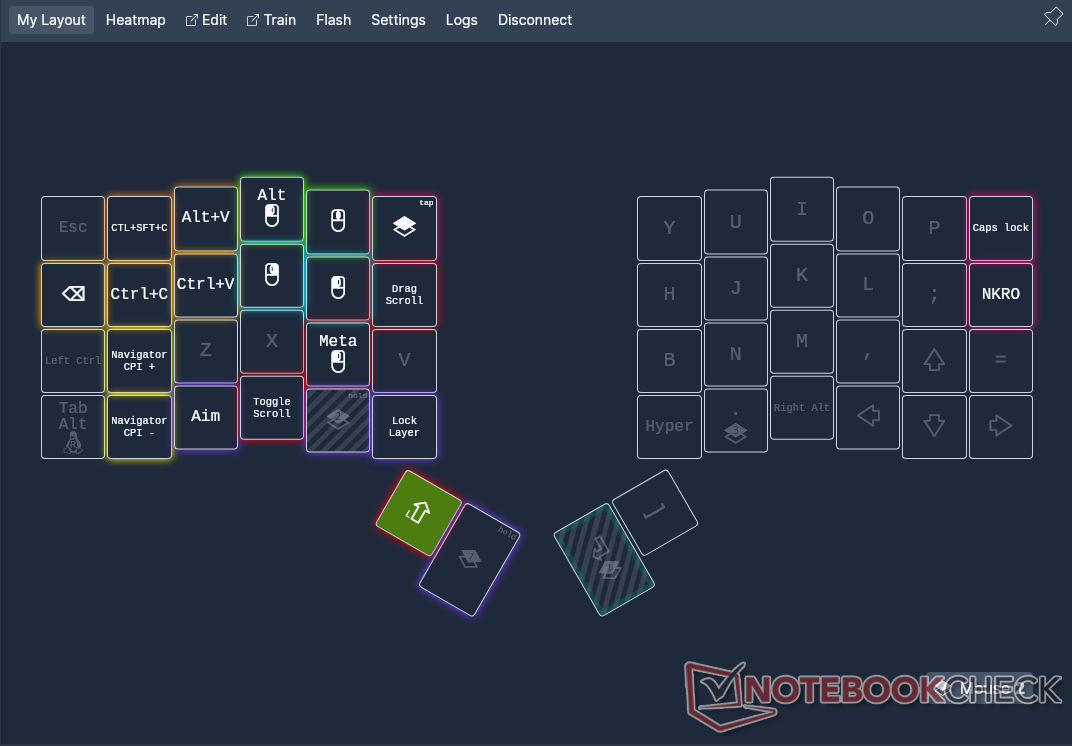
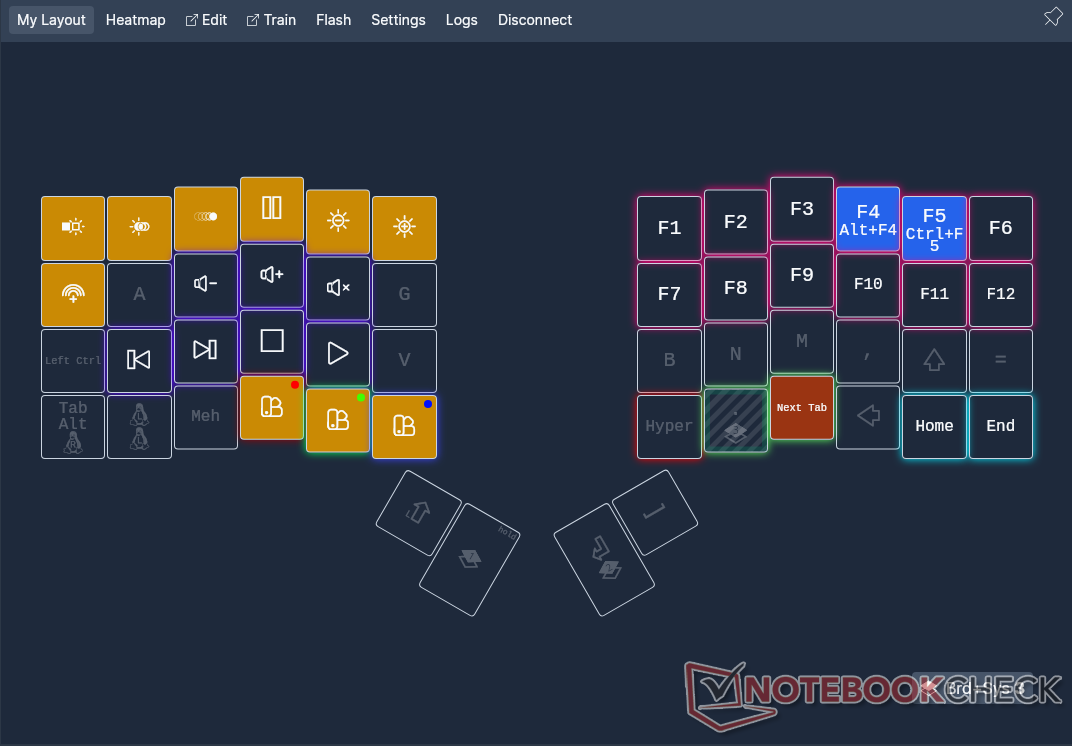
Explore my Voyager layout
ZSA Voyager: As beginner-friendly as it gets
As both my first split and columnar stagger keyboard, the Voyager's adaptation period was fairly short, with accuracy and muscle memory returning quickly, but getting up to my usual typing speed of around 85 WPM was a challenge. That said, being able to place the two keyboard halves shoulder-width apart makes long typing sessions very comfortable, and it's become difficult for me to go back to a slab keyboard after the Voyager. Having used 40% keyboards, like the Epomaker TH40 I reviewed prior, I was already familiar with much smaller layouts, so I used Oryx to customise my layout and eliminate the number row in favour of a set of modifier keys on the bottom row.
In the case of the Voyager, there were eight keys that used mod tap to send either a modifier or regular symbols or letters, which is fairly easy to wrap your head around as a split keyboard beginner. However, mod tap is a challenging for users of shortcut-heavy applications, like Blender, FreeCAD, GIMP, and Krita. To remedy this, I simply moved the alpha keys up one row and placed a row of layer keys and modifiers on the bottom row. The loss of the number row was mourned briefly until I replaced it with the far superior Layer 1 num pad.
Combo keys are another winning feature for the Voyager, since they allow you to map many other characters or key codes to the keyboard without having to use layers. Combos can send individual keys or macros, which opens up a whole world of possibilities. For example, I added an arrow cluster to the bottom right corner of layer 0, but that meant I no longer had the period symbol, so I remapped period to a combo of the comma and the up arrow.
ZSA Navigator short review
The thesis of the Navigator is that it is nice to have, but not essential to the Voyager experience. This was mostly the case for me because I found that using the Navigator for extended periods of time in its default position caused me mild strain in my wrist. This is likely user error or caused by a desk being slightly too tall, but the Navigator is meant to be used on-the-go, and no coffee shop table is the perfect height. At the end of the day all this means I still need to use a mouse alongside the Voyager-Navigator combo. When used alongside a mouse, the Navigator can be set to scroll mode, which works beautifully for both vertical and horizontal scrolling. Track ball navigation mode is also super useful in Blender.
That said, the Navigator integrates perfectly with the Voyager, thanks to Oryx. The setup guide in Oryx is intuitive, and the Navigator activates the mouse layer automatically by default. The default tracking sensitivity and mouse layer deactivation delay are sensible, as is the layout for the default mouse layer.
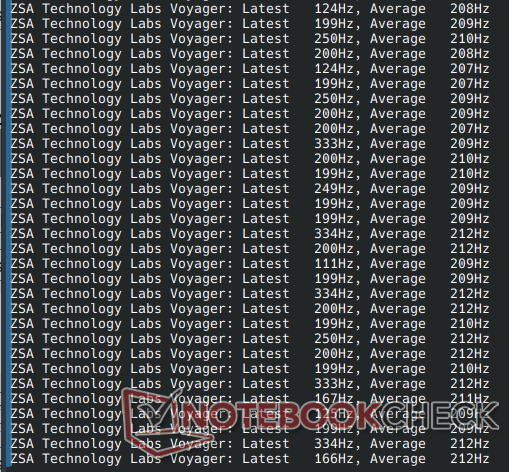
ZSA doesn't list a polling rate anywhere for the Navigator, but I tested it with evhz on Linux and found that the peak polling rate was 334 Hz. ZSA says that low polling rates on the Voyager are due to the fact that the sensor polling data and the RGB effects are all handled by the TRRS connection, which has limited bandwidth. While 334 Hz (somewhere around 210 Hz average) isn't great for gaming, it's certainly more than enough for regular pointing duties.
Minor niggles with the Voyager and Navigator
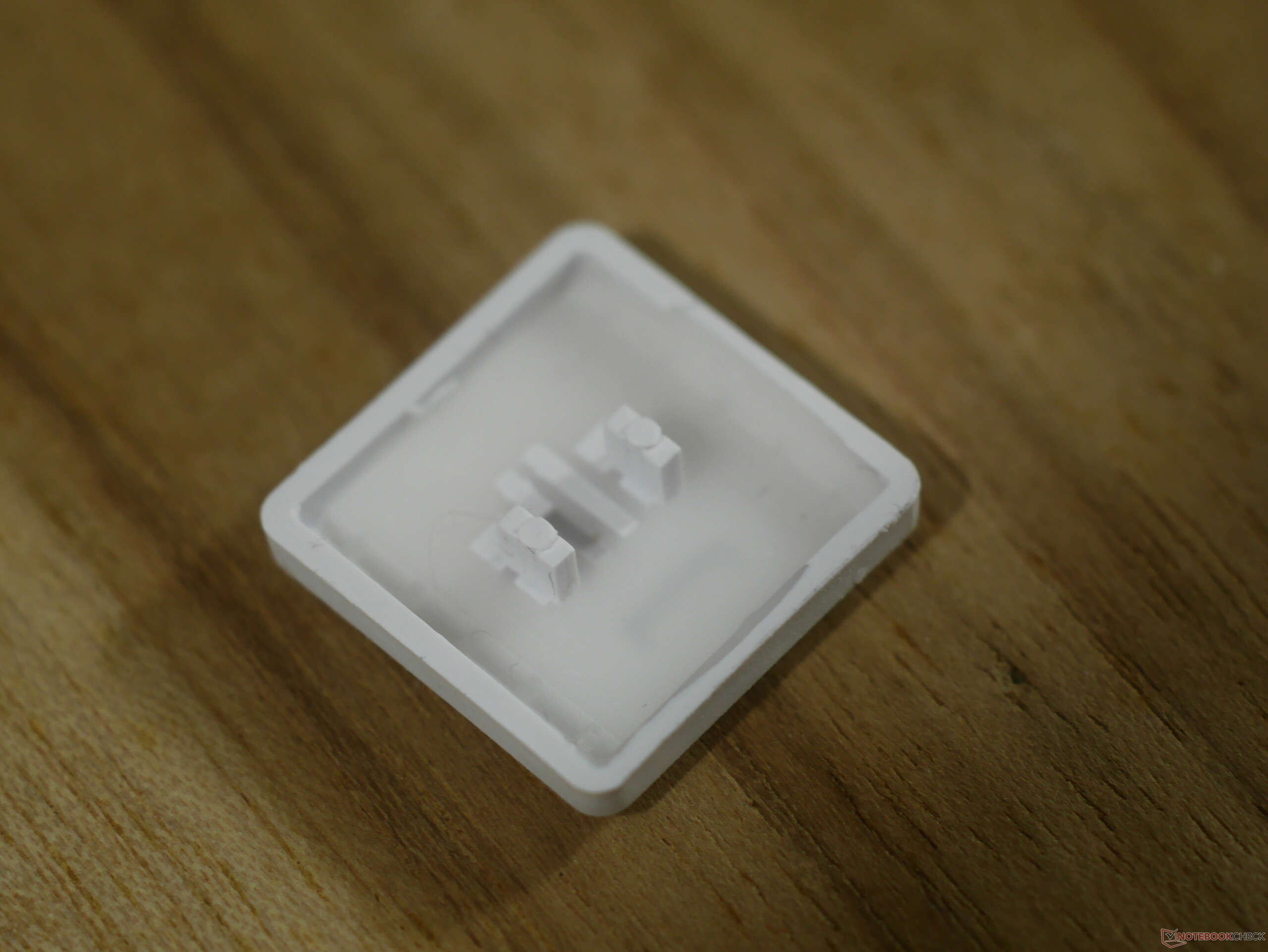
The ZSA Voyager is an excellent keyboard for anyone looking to get into ergonomic split keyboards — especially those who don't want to spend a bunch of time learning how to compile their own QMK firmware — but it's not perfect. There are two consistent annoyances I've had with the Voyager, and they are the switches and keycaps. The Kailh Choc V1 switches in the Voyager are fine, especially the Pro Reds in our test unit, but basically all Choc V1 switches are at least a little bit scratchy. Meanwhile, Choc V2 switches, which are a huge step-up in feel, simply require a larger central hole in the PCB, but the Voyager doesn't and seemingly won't support Choc V2 switches.
On the topic of switches, the Choc V1 switches have never provided the best auditory feedback, but the switch-keycap combination on the Voyager exaggerates that because the bottom of the keycap always bashes up against the top of the switch housing instead of having the stem bottom out inside the housing. This makes even the Pro Red switches sound very loud and clacky and has the side effect of making bottom-outs feel a little harsh. There are modifications to put some space between the inside of the keycap and the top of the switch, but you arguably shouldn't have to mod a $365 keyboard.
Personal comfort aside, the only real concern with the Navigator's functionality is that the bearings require almost-daily cleaning, especially if you have kids and pets kicking up dust. If you don't clean it often enough, the track ball stops rotating smoothly, and it becomes a nuisance to accurately aim.
Conclusion — Expensive, but worth it for some
The ZSA Voyager and Navigator are an excellent combo, even if they are somewhat expensive. ZSA has taken what is usually a very complex set of features and distilled it down to a beginner-friendly package, both in terms of software customisation and solid hardware design. As long as you have the budget, both the Voyager and Navigator earn a strong recommendation.
Transparency
The selection of devices to be reviewed is made by our editorial team. The test sample was given to the author by the manufacturer free of charge for the purposes of review. There was no third-party influence on this review, nor did the manufacturer receive a copy of this review before publication. There was no obligation to publish this review. As an independent media company, Notebookcheck is not subjected to the authority of manufacturers, retailers or publishers.
 Add as a preferred source on Google


