


Windows 11: How to turn off Copilot, Recall and other AI features
Using Windows 11 without AI takes some patience. Copilot and generative features are now built into Paint, Notepad, Photos, the Snipping Tool and File Explorer, and Copilot+ PCs add Recall and Click to Do on top. There is no master switch. We checked the settings on a laptop running Windows 11 Home 26H2 (build 26300). It has a Core Ultra 9 275HX with an NPU but is not a Copilot+ PC, so for Recall and Click to Do we relied on Microsoft's documentation. Many guides online still recommend the TurnOffWindowsCopilot policy. Microsoft's WindowsAI policy documentation now lists it as deprecated. It "may be removed in a future release."
The most important switch is in the privacy settings
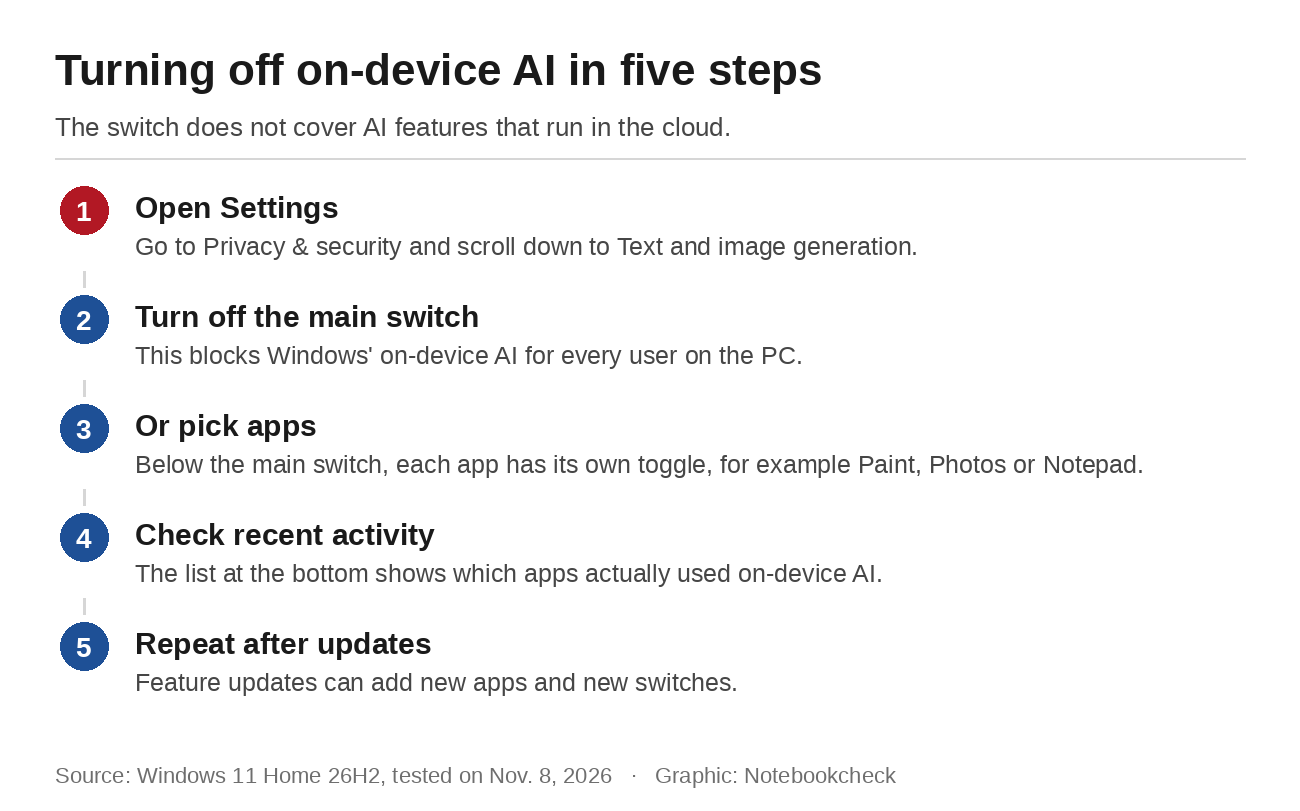
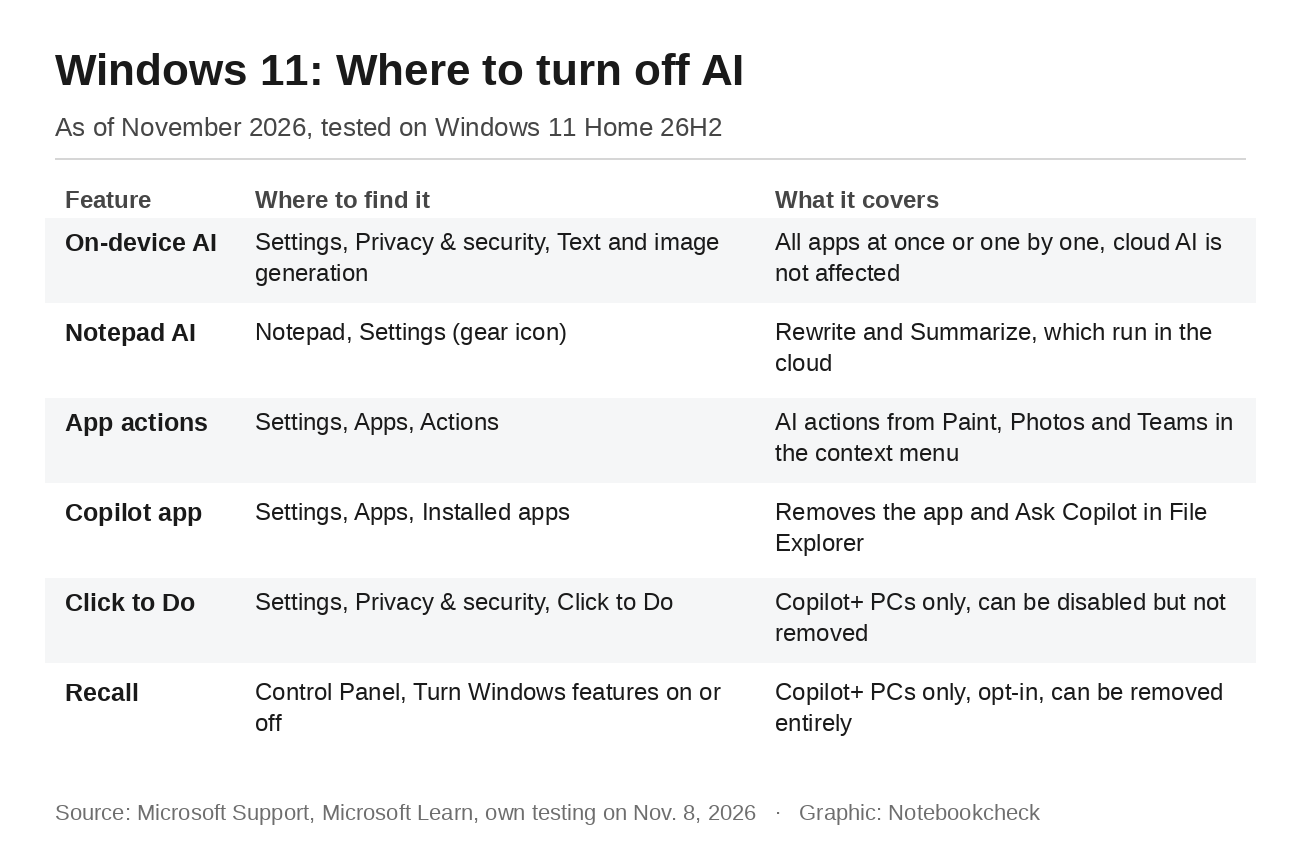
Most on-device AI features are controlled from one little-known settings page. Under Settings, Privacy & security, Text and image generation, Windows' generative AI can be turned off for every user on the device. Below the main switch is a list of apps, each with its own toggle. On our test device, that list included Notepad, Clipchamp, Outlook, Paint, the Snipping Tool, Photos and the Xbox app, all turned on by default.
The page has a catch, and Microsoft points it out in the fine print. The switch only affects AI that runs on the device itself. Apps and features that use cloud AI are not affected. Further down, the page also shows which apps have used on-device AI recently. According to Windows Latest, the app list went viral in the summer because users took it as proof that AI was secretly running in the background. The list only shows permissions, though, and the number of requests is in the activity log below it.
That switch doesn't cover Notepad's AI tools. According to Microsoft's Notepad help page, Rewrite and Summarize are "powered by a cloud-based service" and need a Microsoft account. Microsoft 365 Personal and Family subscribers get 60 AI credits a month for them. They can only be turned off in Notepad itself, through the gear icon in the top right corner.
Actions, File Explorer and the Copilot app
A second set of switches is under Settings, Apps, Actions. This is where Windows decides which apps can suggest their actions in the context menu. On our test device, the list showed Teams, Paint with background removal and Photos with three actions. Those were blurring the background, erasing objects and a visual search with Bing. Each app has its own switch. If you don't want Bing image search in the right-click menu, turn off Photos here.
Microsoft is already removing some Copilot entries from File Explorer itself. The eight Copilot actions for OneDrive files will disappear from the context menu starting in mid-November, according to Microsoft notice MC1515940, as Topedia reports, though they will stay in the OneDrive activity center. We covered the background when Microsoft pulled the eight Explorer actions. They are being replaced by a single entry called Ask Copilot, which is part of the Copilot app and only appears when the app is installed.
The Copilot app can be removed like any other app under Settings, Apps, Installed apps, but it pays to look closely. On our test device, the actual Copilot app wasn't installed at all, yet the Start menu still showed an entry called Copilot. That turned out to be the Microsoft 365 Copilot app, a different application altogether. The new Windows Search is already in the latest Insider build. According to the Windows Experience Blog, Copilot there will be opt-in and will first roll out to select markets.
Recall, Click to Do and policies for Pro
Recall and Click to Do are only available on Copilot+ PCs. According to Microsoft's Recall documentation, Recall needs a 40 TOPS NPU, 16 GB of RAM and at least 50 GB of free storage. Without consent, Recall does not save any screenshots, and each user has to opt in. Microsoft's Recall privacy page adds that users can remove the feature entirely using Turn Windows features on or off. Click to Do, on the other hand, is enabled by default and can't be removed. Microsoft's Click to Do help page says it can be disabled under Privacy & security, Click to Do. After that, Windows key plus mouse click and Windows key plus Q no longer open it.
Group Policy is only available in Windows 11 Pro and higher, so Home users have to rely on the switches in Settings. For Recall, the relevant policy is DisableAIDataAnalysis. The newer RemoveMicrosoftCopilotApp policy only removes the Copilot app under certain conditions. Microsoft 365 Copilot and the Copilot app both have to be installed, the user can't have installed the app themselves and it can't have been launched in the past 28 days. Whether Pro is included is unclear, because Microsoft's own documentation contradicts itself. The text names Pro, but the table above it does not.
Almost everything can be turned off, then, just in a lot of different places. Every major update can bring new features and new switches with them. After a feature update, check the Text and image generation and Actions pages again.
Source(s)
Microsoft Learn: WindowsAI Policy CSP
Microsoft Learn: Manage Recall for Windows clients
Microsoft Support: Privacy and control over your Recall experience
Microsoft Support: Click to Do, do more with what's on your screen
Microsoft Support: Enhance Your Writing with AI in Notepad
Windows Experience Blog: Building Windows for hybrid intelligence
Topedia: "Ask Copilot" replaces Copilot actions in Windows File Explorer
Own testing on Windows 11 Home 26H2, build 26300.9711, Nov. 8, 2026
 Add as a preferred source on Google


