



Inkwon Tag pocket printer hands-on: Creative photos, stickers, tattoos, and heat transfers
A fun printer.
The Inkwon Tag multifunction portable printer opens the door to creative crafting anywhere, allowing smartphone owners to print photos, stickers, tattoos, and iron-on transfers anywhere.David Chien Published 🇪🇸 🇵🇹 ...
Verdict – A fun portable printer
The Inkwon Tag produces colorful prints anywhere using images from a smartphone, thanks to its wireless connection and built‑in battery. Its simple design makes loading paper and changing cartridges easy, even for children.
The print samples are from a pre-production unit, and the company says the print quality and app will be improved for final production models. Nonetheless, the printer delivered an engaging experience, with a range of output that no other portable printer on the market can currently provide.
Pros
Cons
Price and availability
The Inkwon Tag is available in a Basic Pack, which includes the printer, an ink cartridge, and three paper types; the Mega Pack doubles the paper and adds a T‑shirt, tote bag, and photo frame. MSRP is $299 and $349 respectively, with Super Early Bird Kickstarter pricing at $169 and $199.
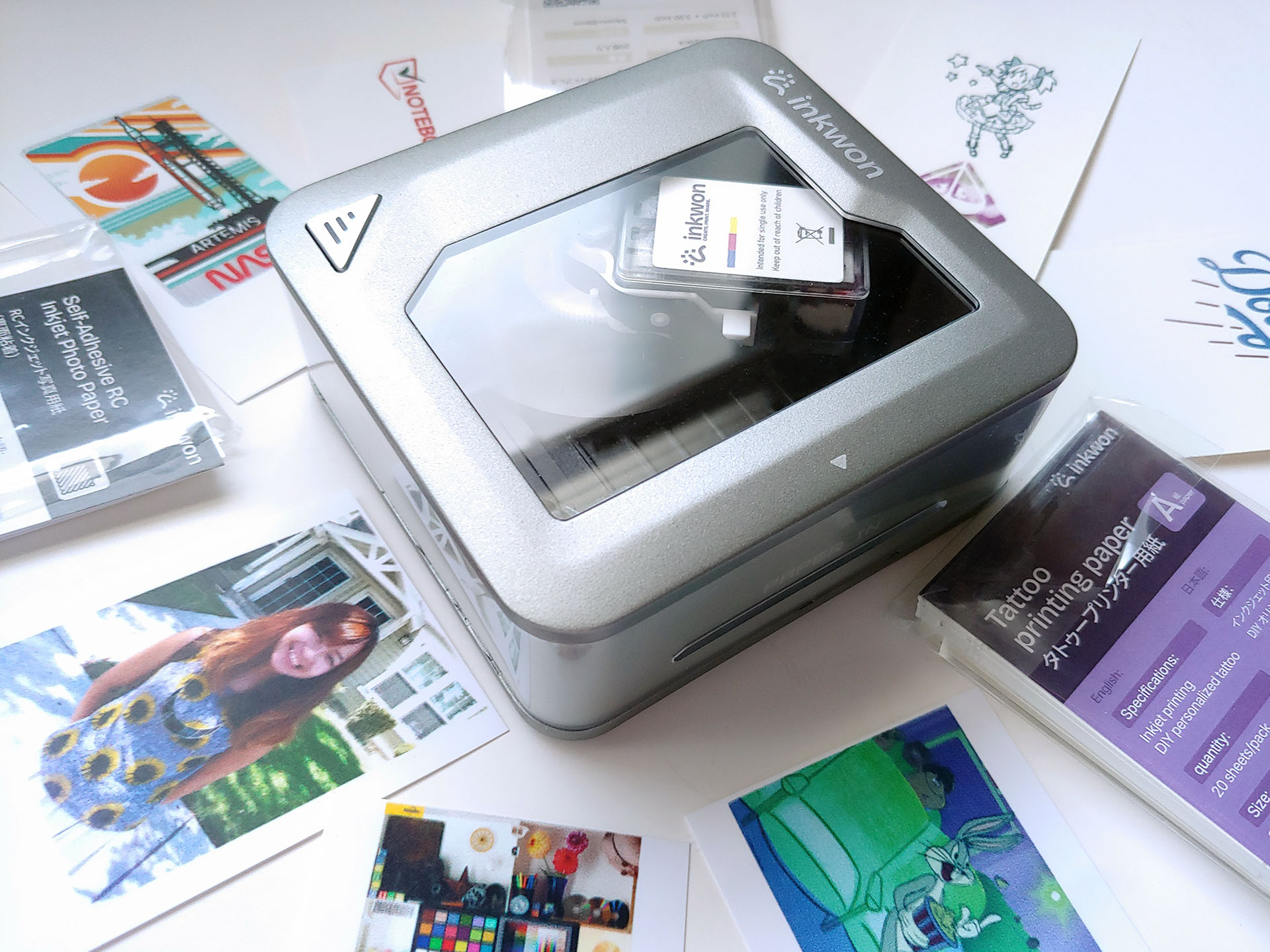
The Inkwon Tag creative printer provides a variety of print outputs, from stickers to iron-ons, using smartphone images in seconds while on-the-go or at home.
Specifications
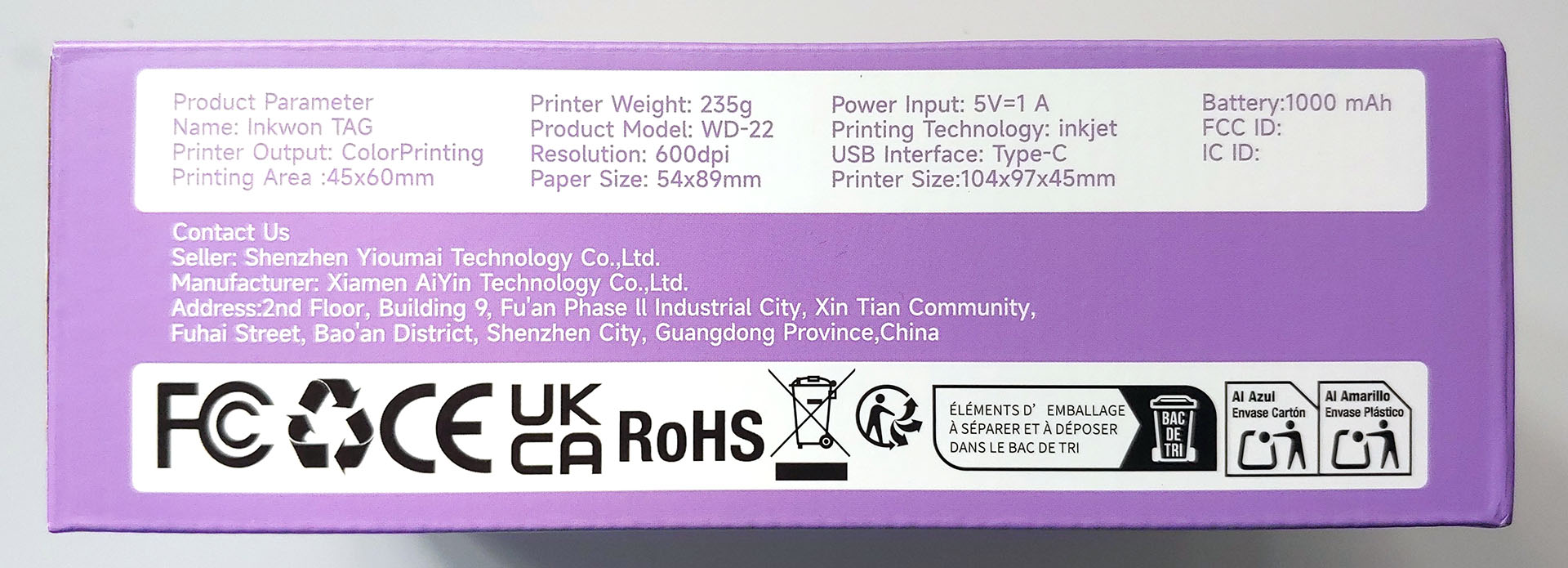
| Ink Cartridge | 3-color (CMY) dye-based, thermal-bubble cartridge with built-in nozzles |
| Ink Capacity | 1.2 ml (0.04 oz.) per color |
| Cartridge Output | ~100 sheets based on 60 × 45mm (2.36 x 1.77 in.) pattern at 40% coverage |
| Print Resolution | 600 DPI |
| Paper Handling | Single-sheet automatic feed slot |
| Paper Types | Adhesive photo paper, Tattoo stickers, Light fabric transfer paper |
| Paper Size | 54 × 89 mm (2.13 × 3.50 in.) |
| Maximum Print Width | 45 mm |
| Print Speed | Maximum 2 mm (0.079 in.) per second |
| OS Compatibility | Android 5.0+ and iOS 12.0+ smartphones |
| Connectivity | Bluetooth 5.4 |
| Power Input | USB-C 5V 1A |
| Battery | 3.7V, 1,000 mAh lithium-polymer battery |
| Battery Life | ~90 minutes continuous printing until empty |
| ~60 sheets on a full charge | |
| Charge Time | 2.5 hours |
| Dimensions | 105 × 97 × 45 mm (4.13 x 3.82 x 1.77 in.) |
| Weight | 235 g (8.29 oz.) |
Packaging
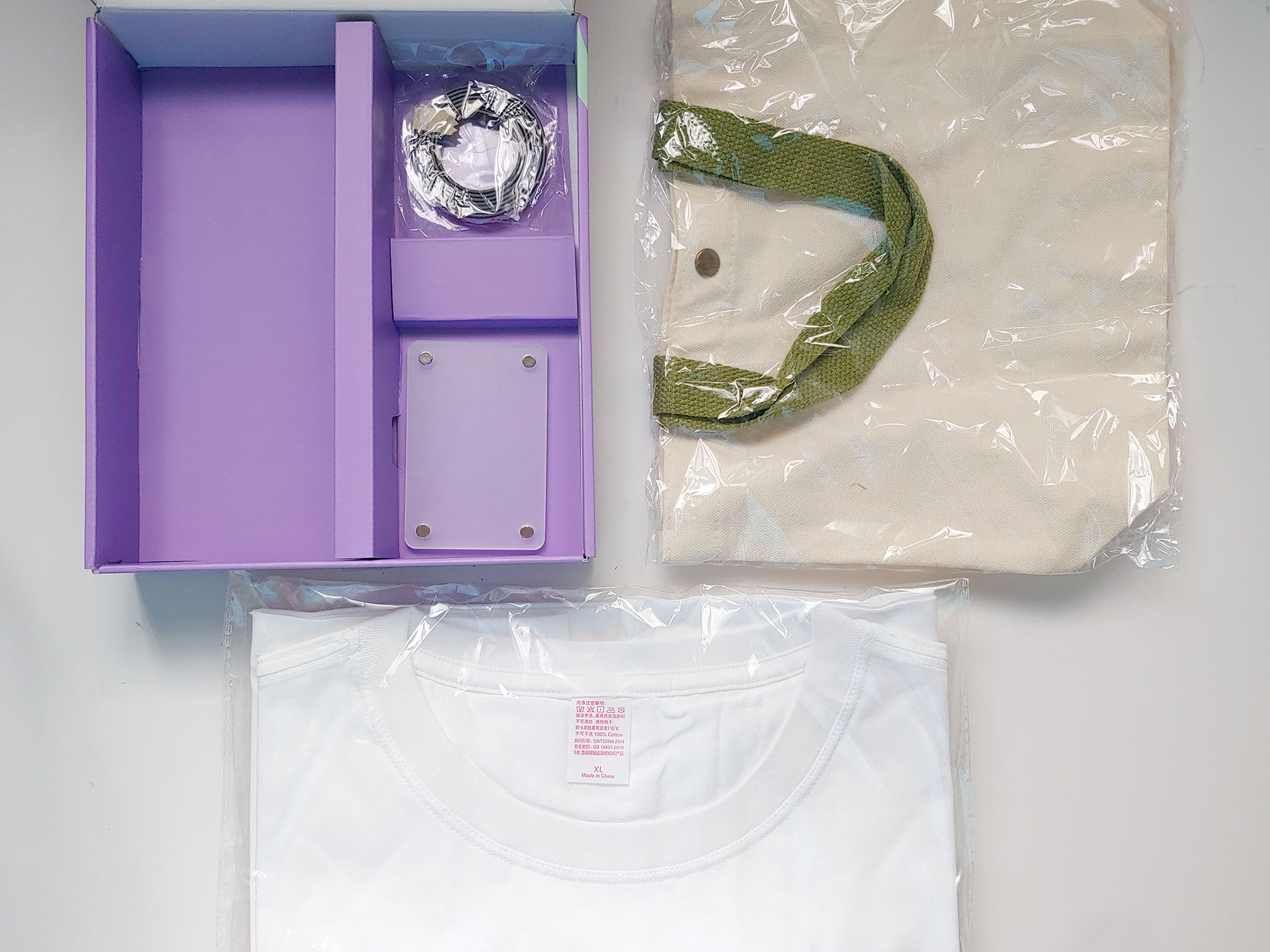
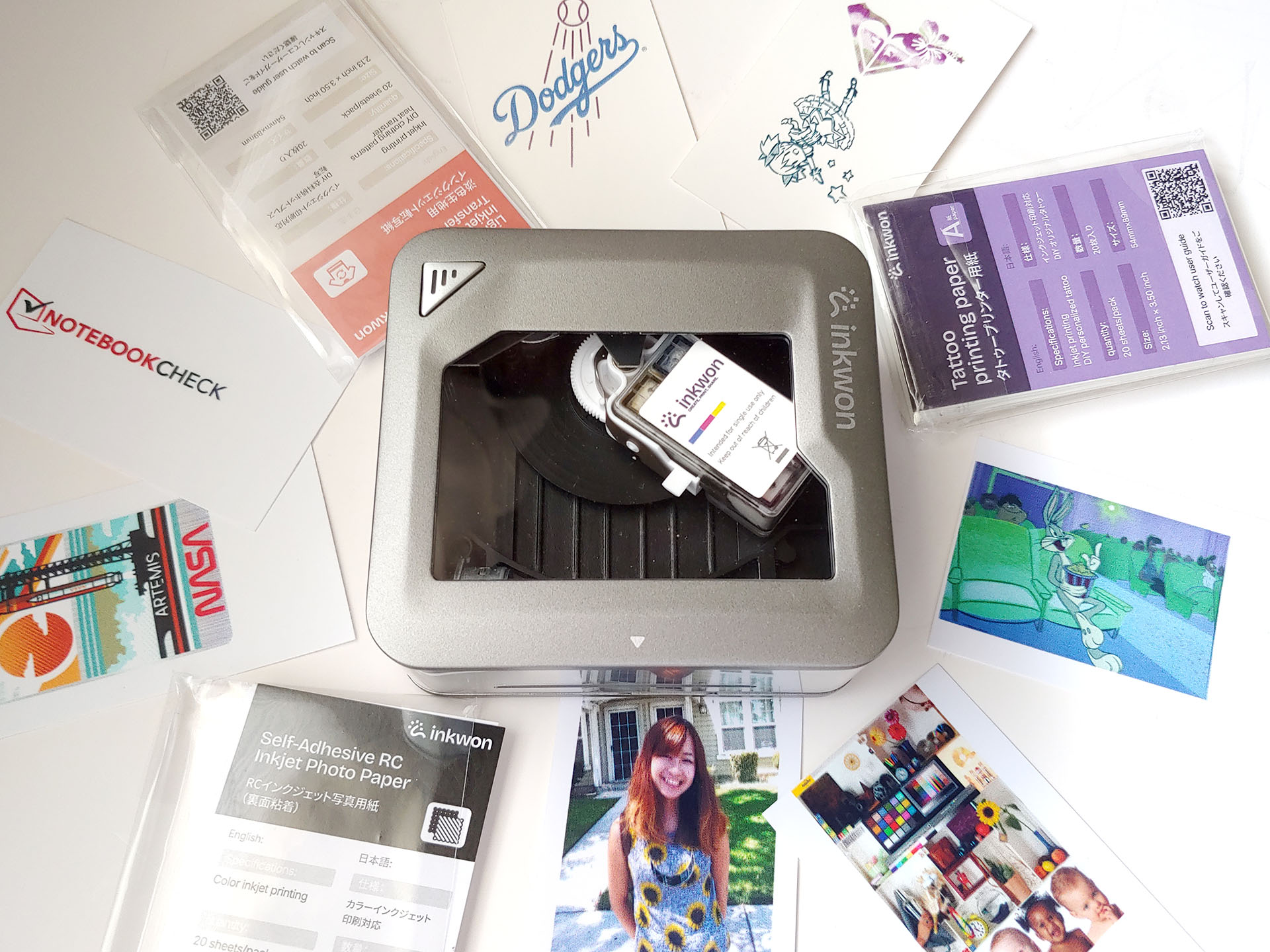
The box included the Inkwon Tag printer, a quick-start guide, a USB-C charging cable, an inkjet cartridge and cartridge holder, printhead cleaning cloths, and a set of adhesive, tattoo, and transfer papers.
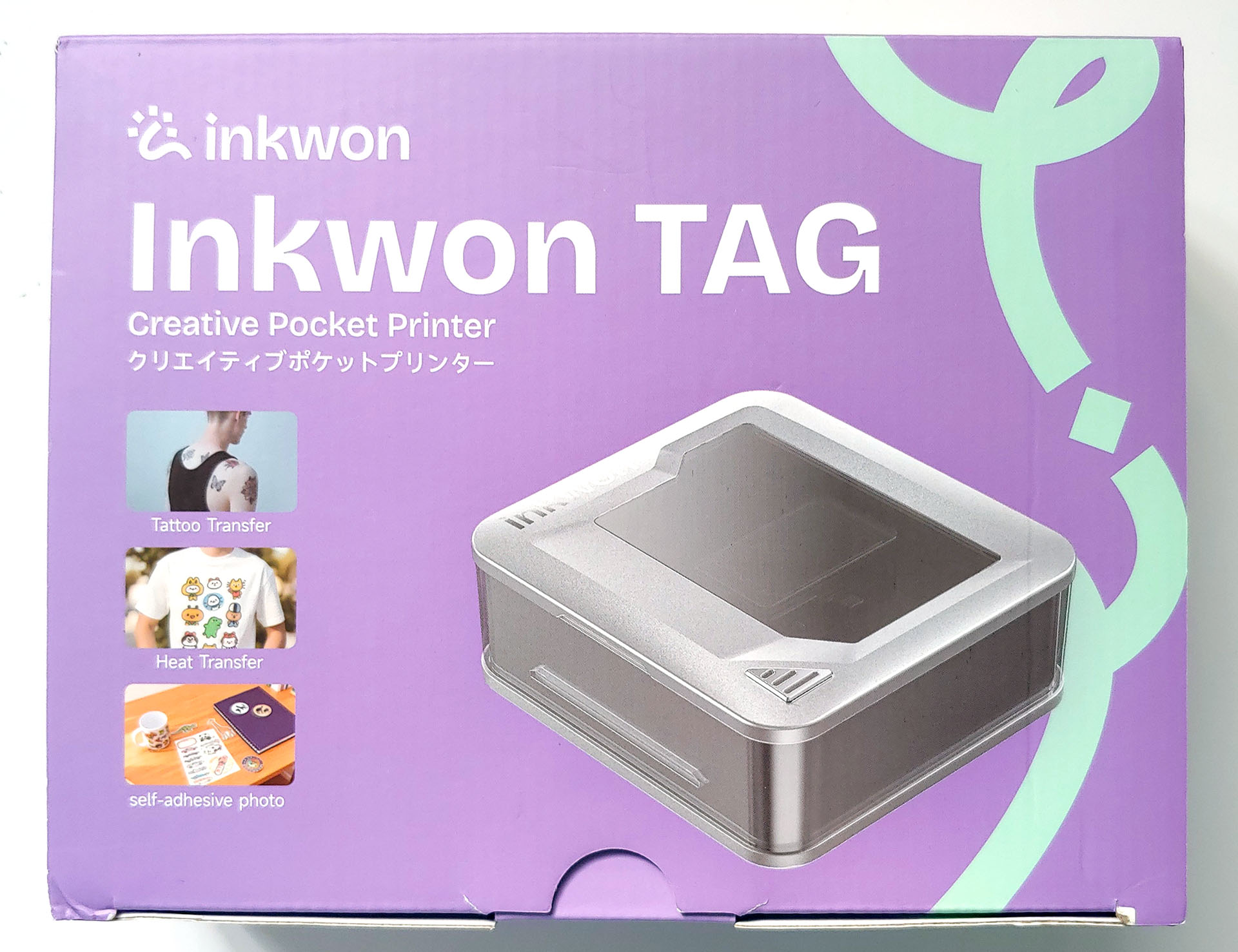
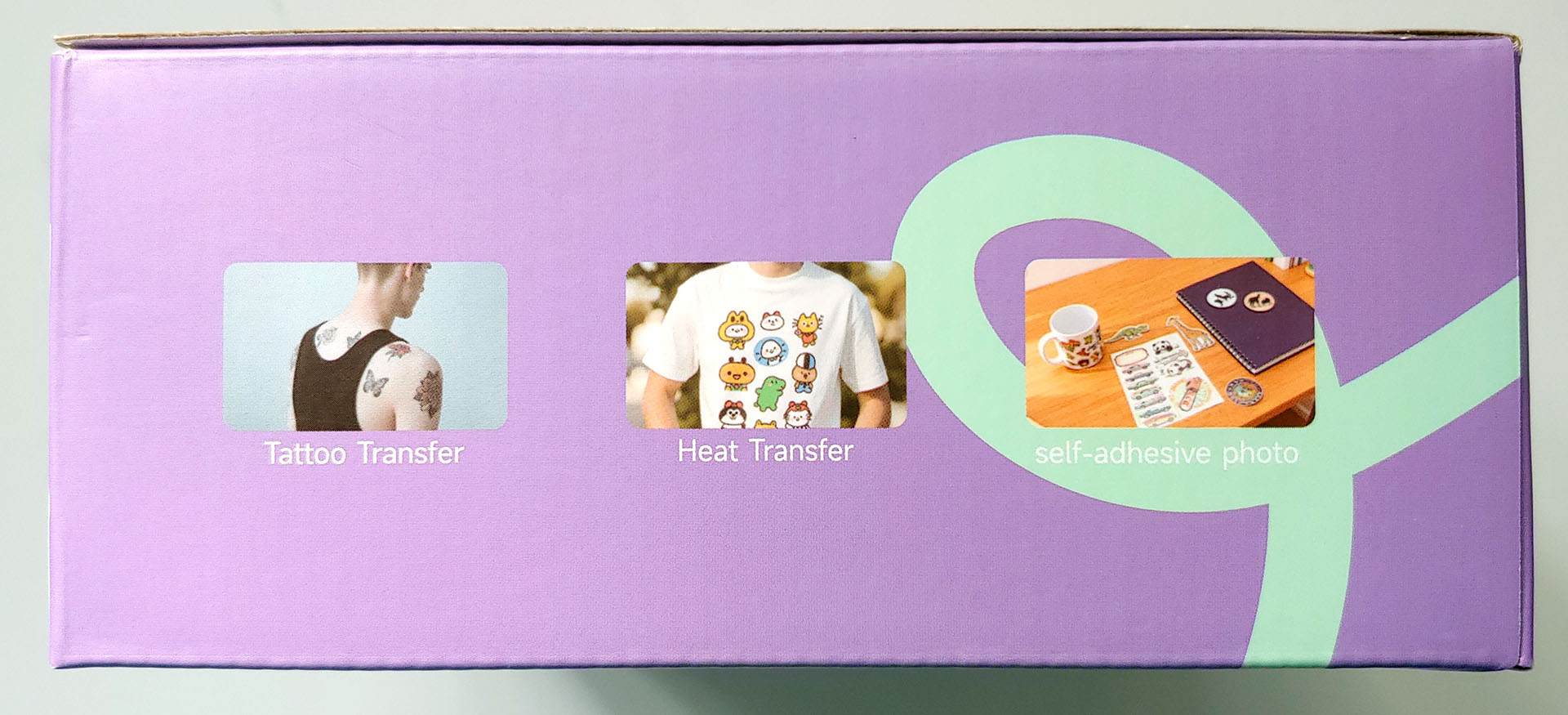
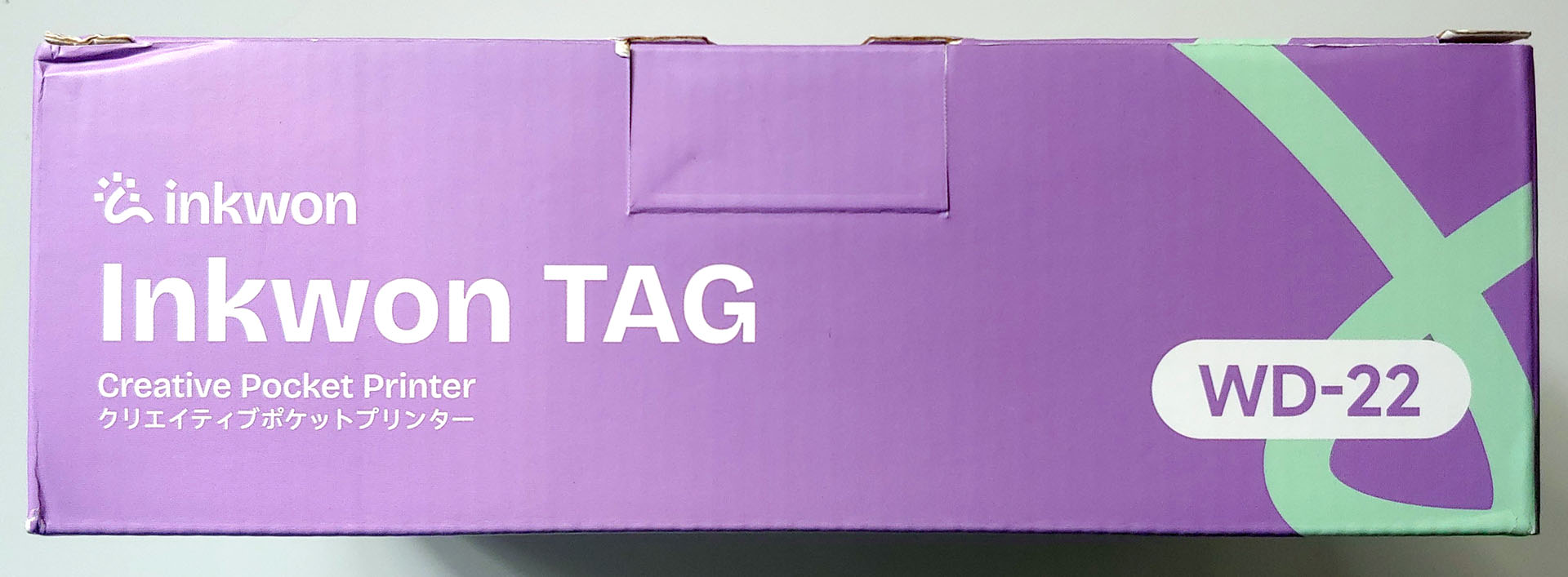

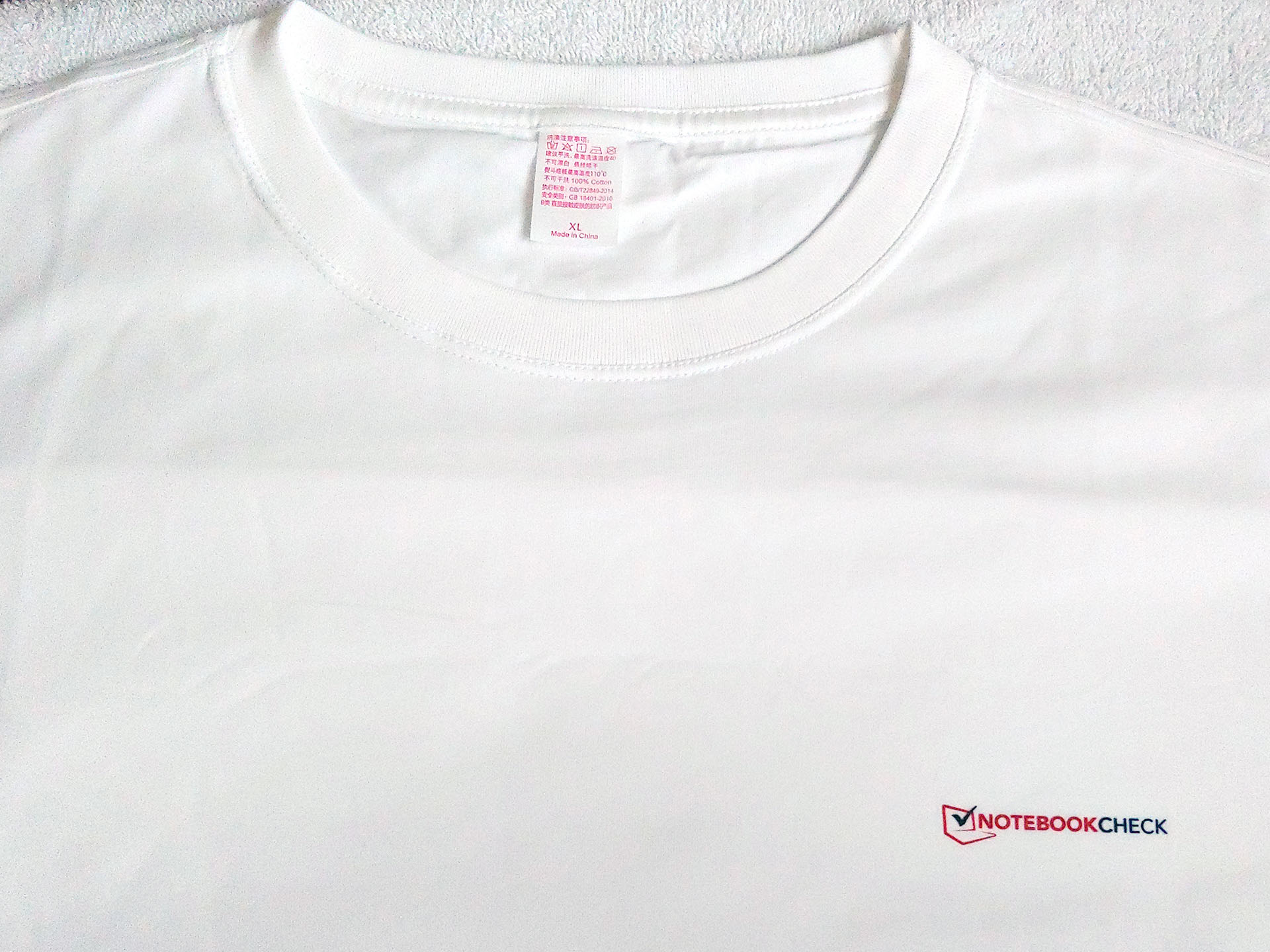
A sample kit was provided, which included a white T-shirt, handbag, magnetic photo frame, and flexible magnet.


Design
The Inkwon Tag’s magnetic clear cover removes easily, revealing a cartridge that sweeps side‑to‑side during printing.
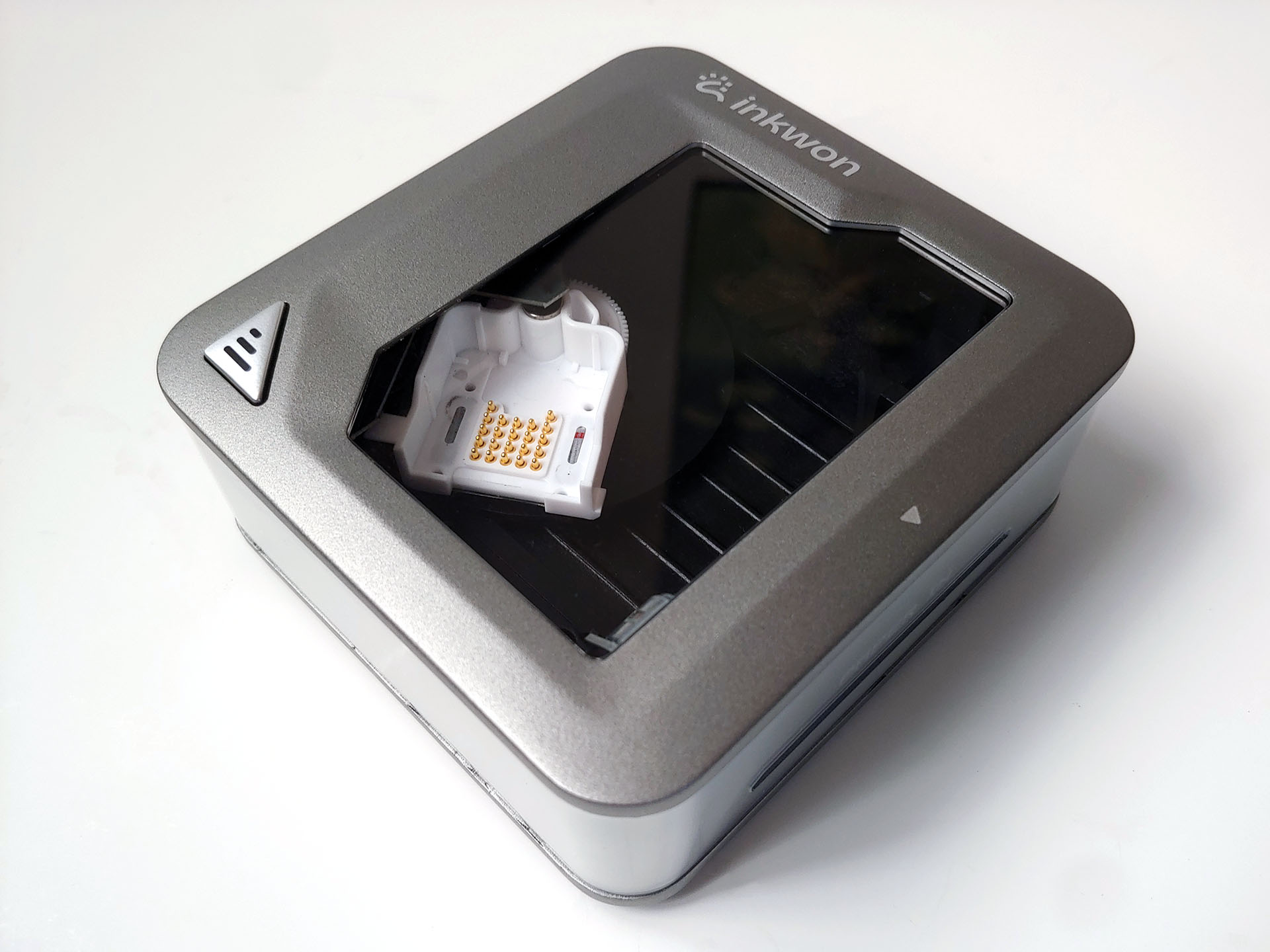

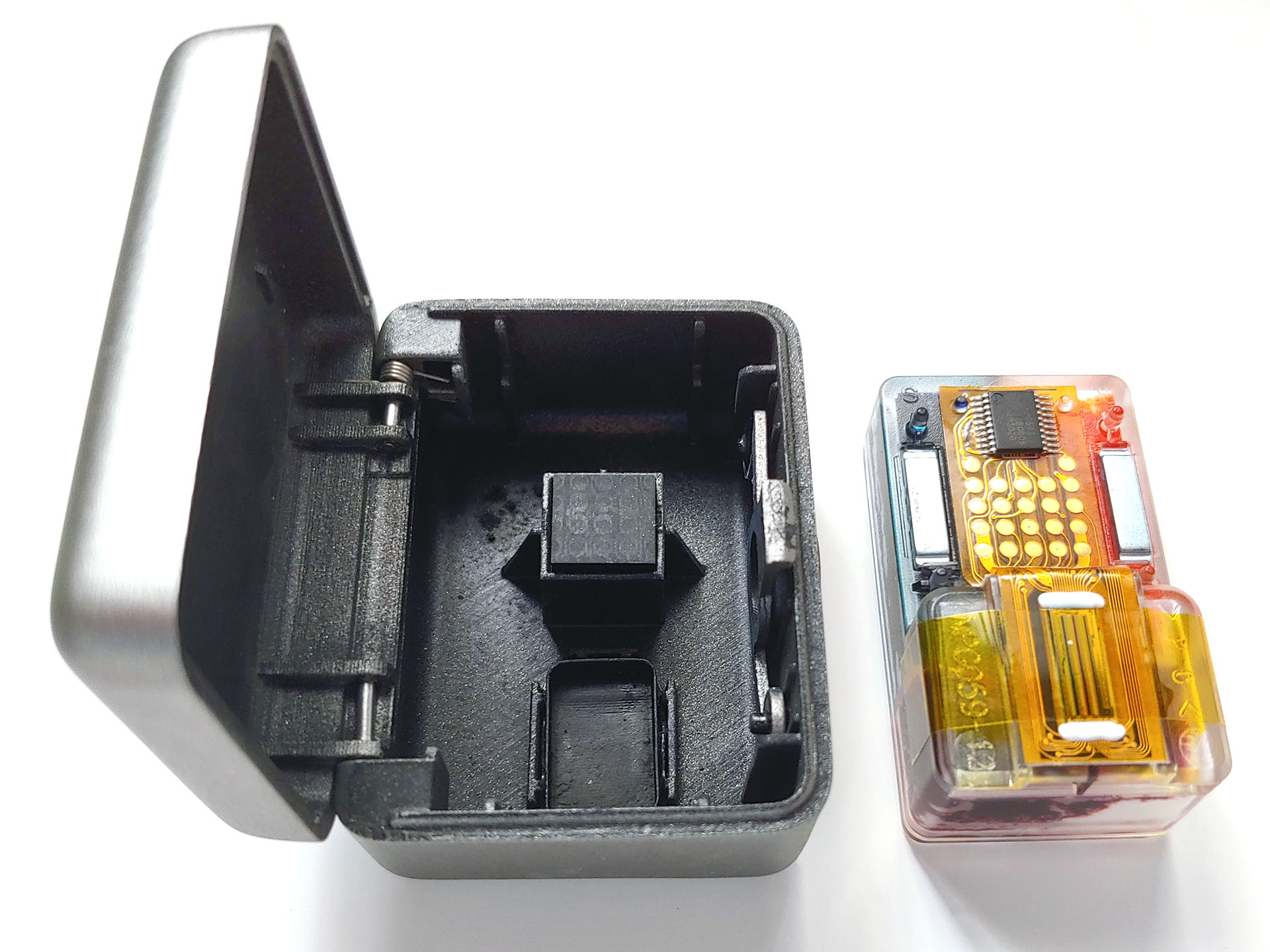
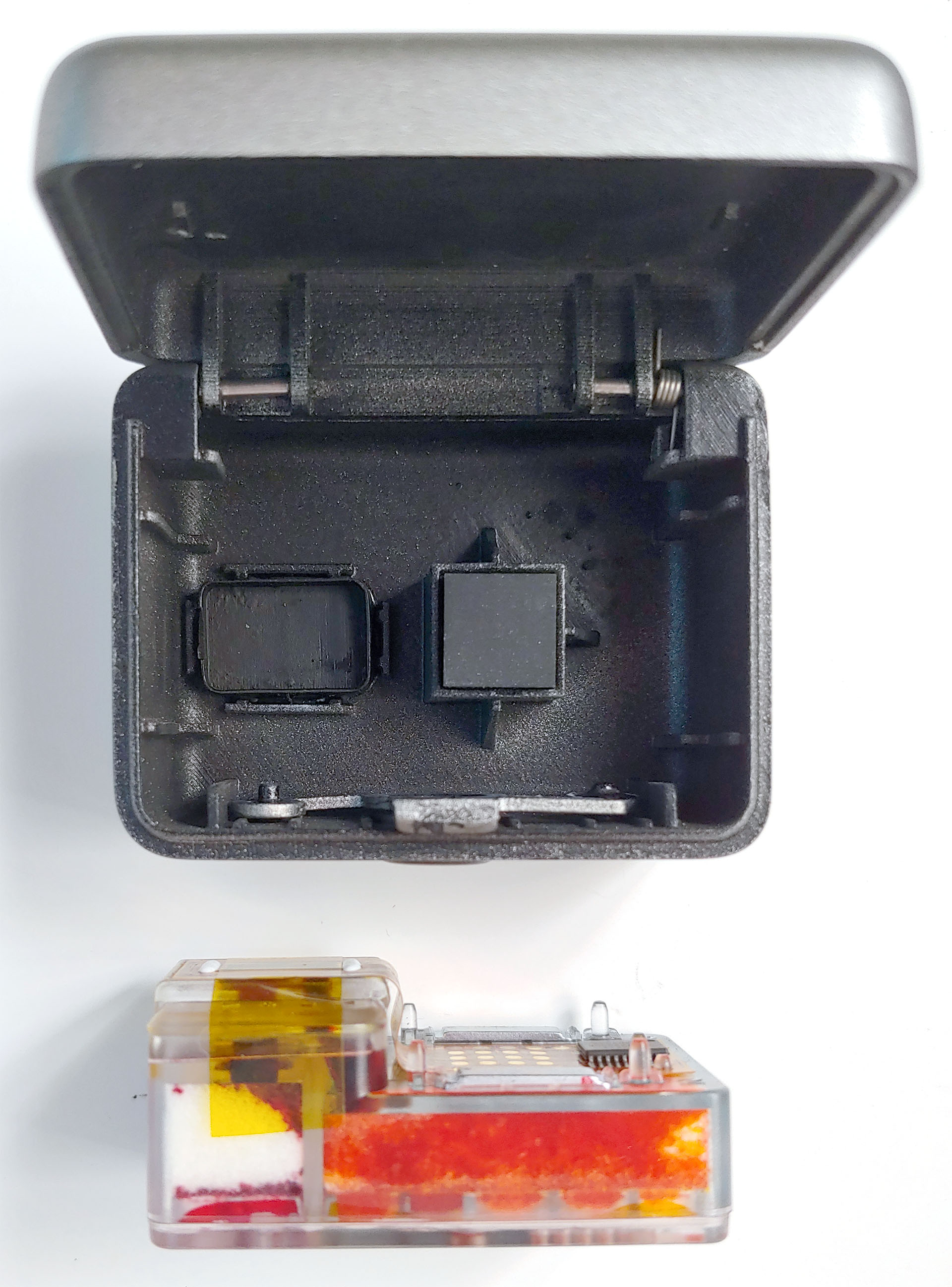
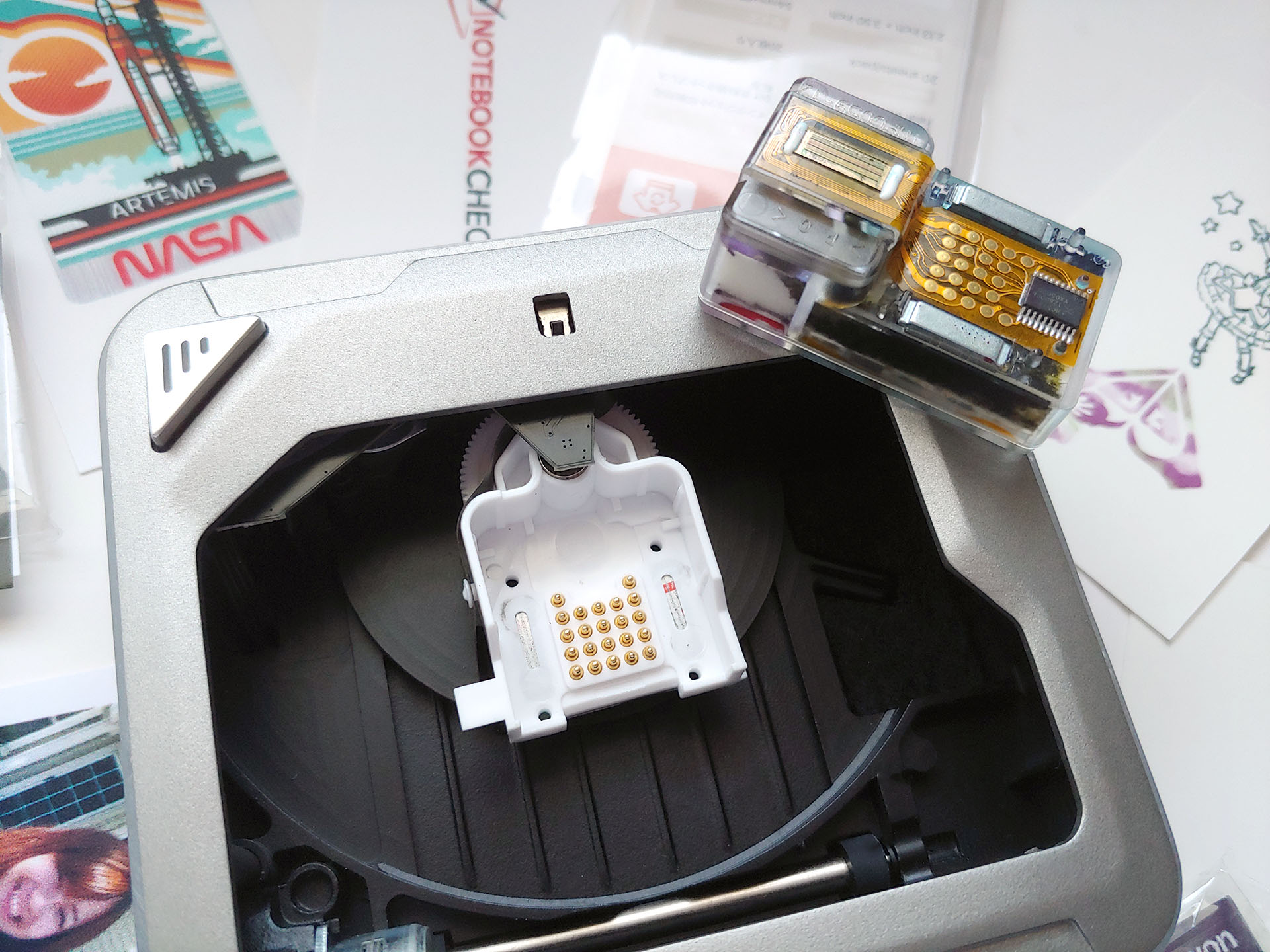
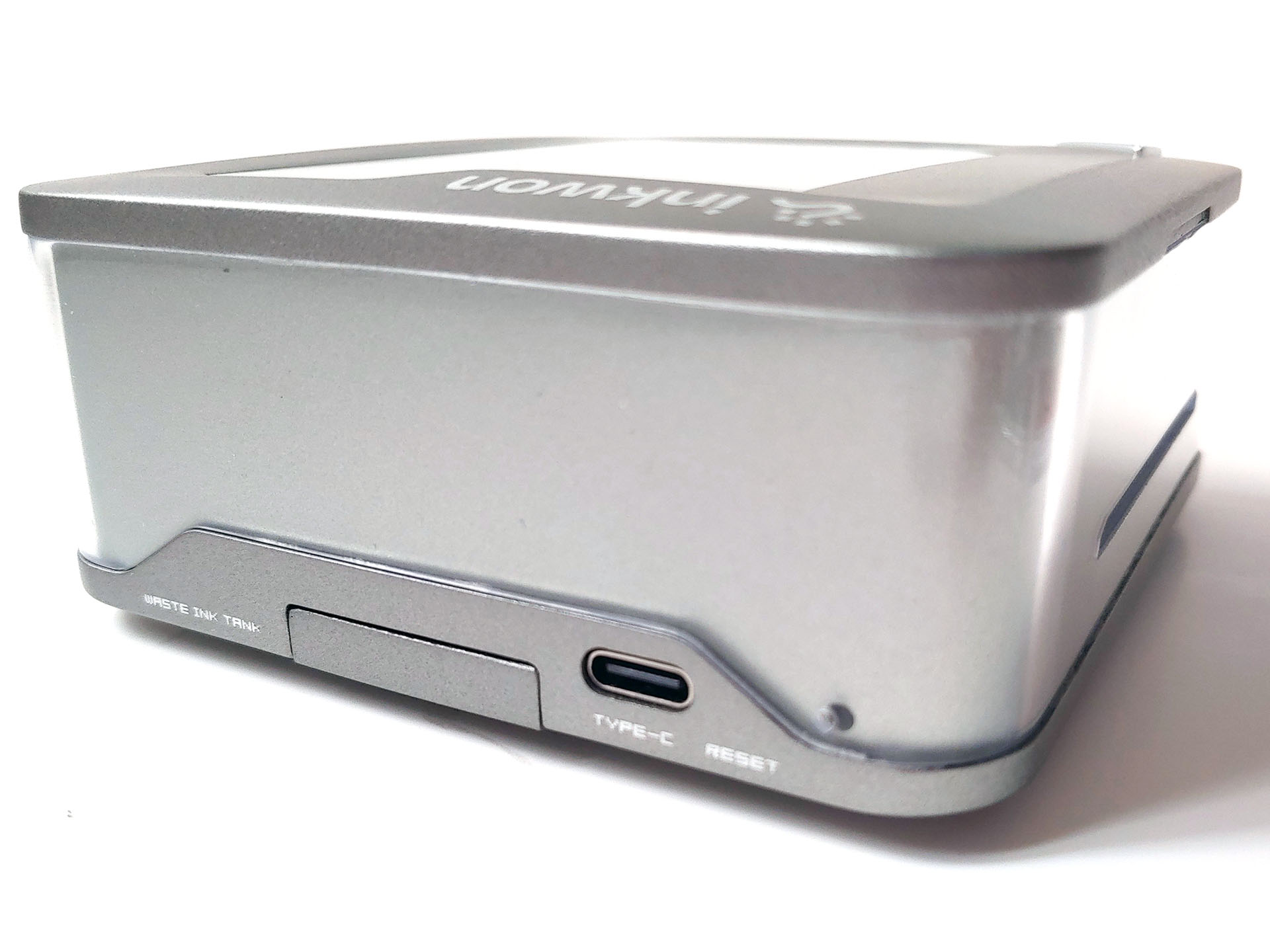
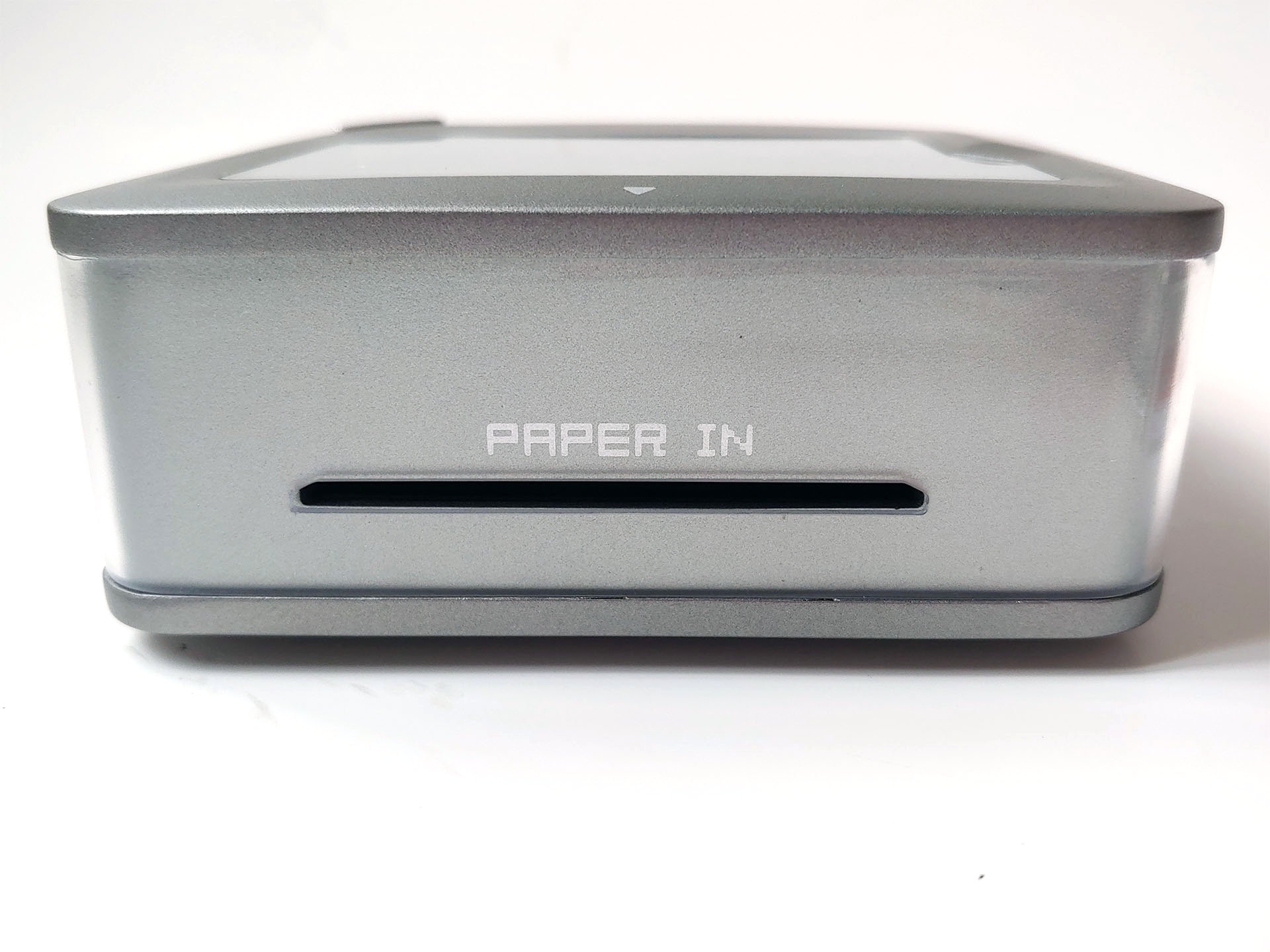
Opposing paper slots handle automatic feeding, with a reset hole, USB‑C port, and waste‑ink cover on another side. The compact printer fits comfortably in large jacket pockets or small bags.
App
The Android/iOS app controls the printer and requires Bluetooth and Location services to be on for the Inkwon Tag to connect.
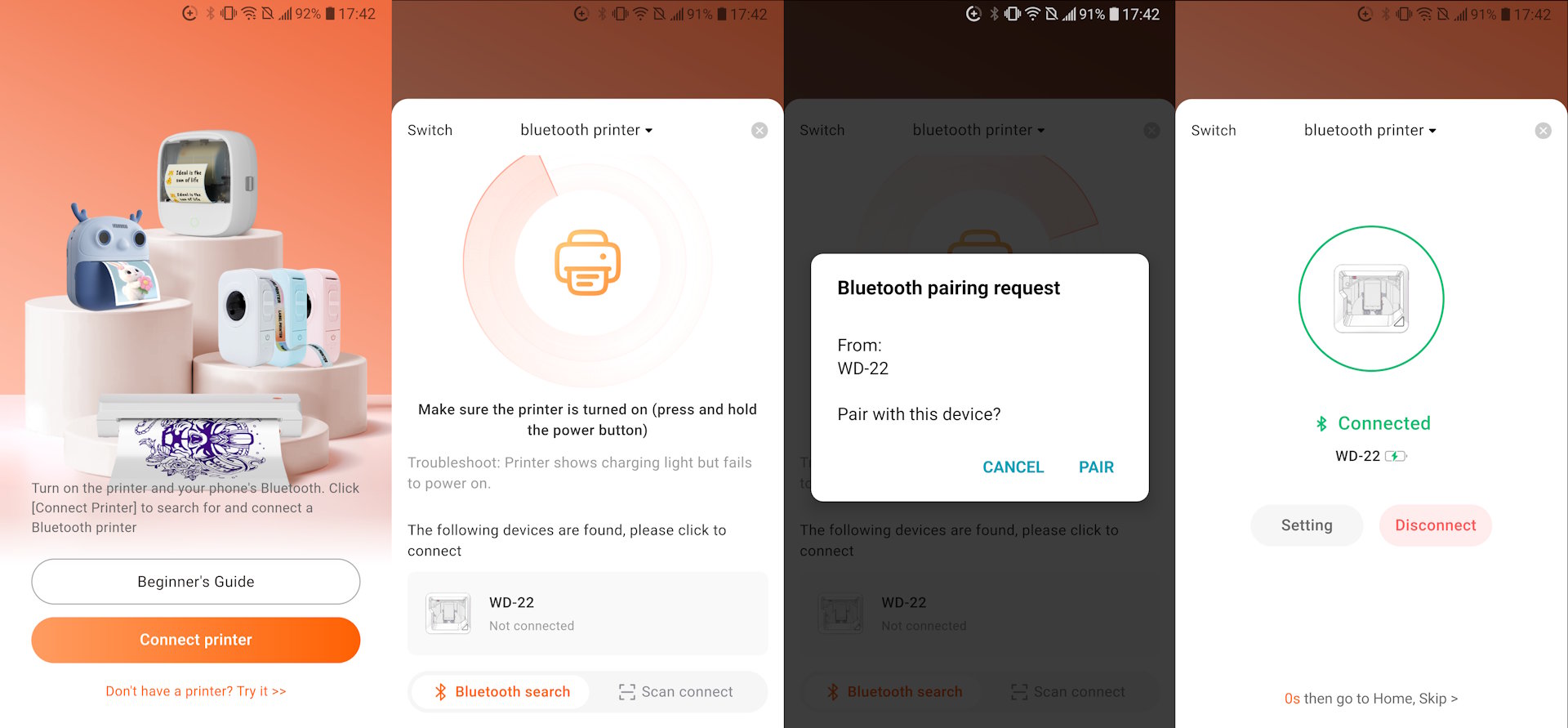
The app has a simple design that is easy to use without reading the manual. The top left corner has an icon for the printer, and tapping on it reveals the printer status. In the middle of the app are three main menu selections – Image Printing, Puzzle, and Image Cutting.
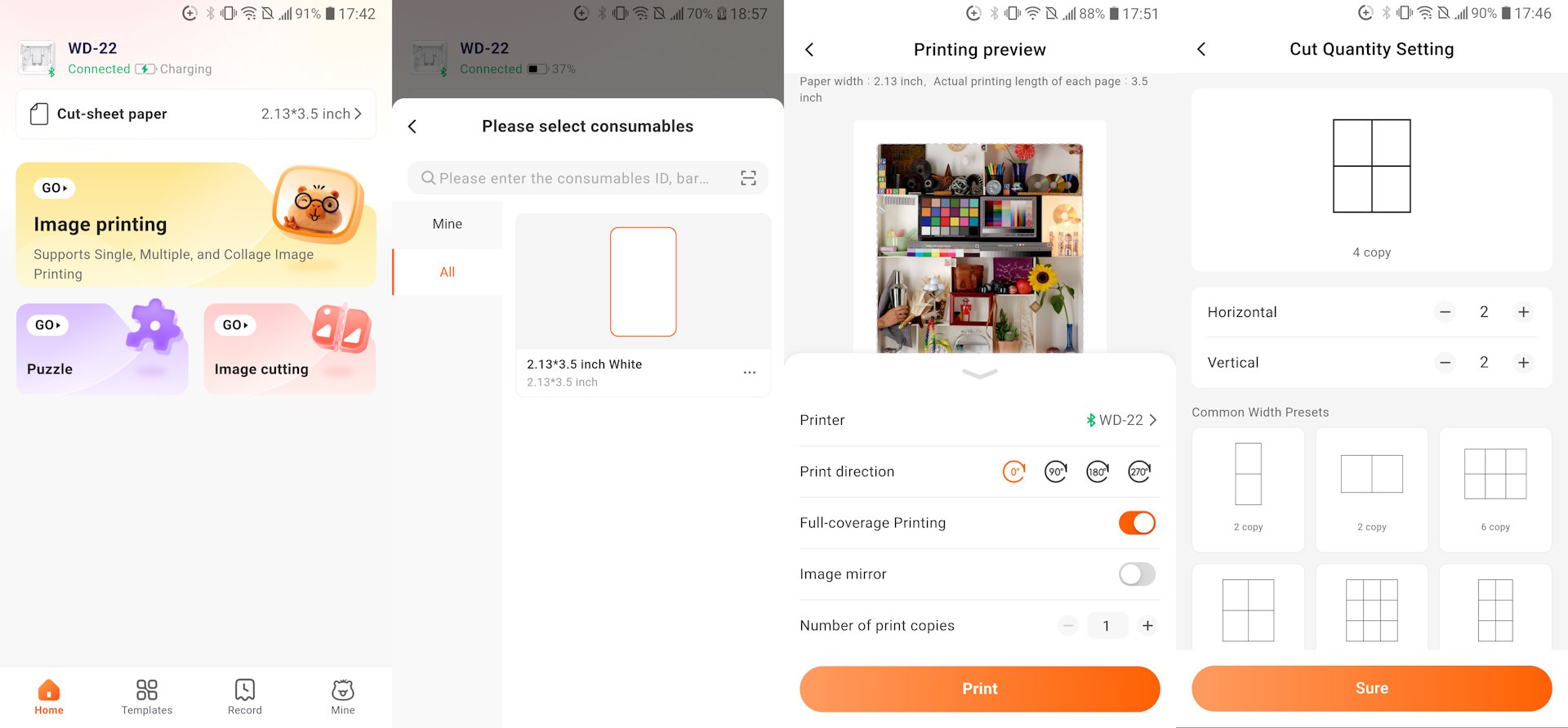
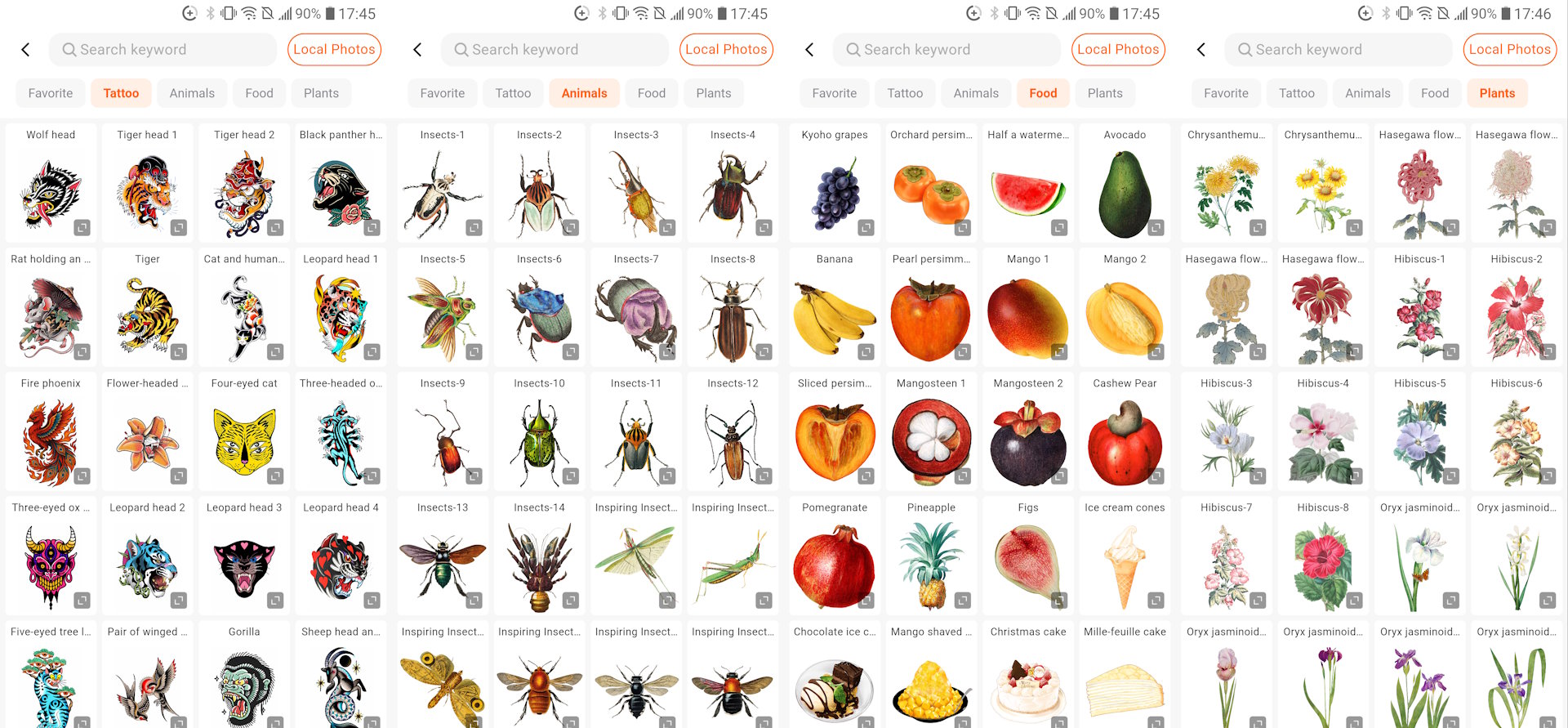
Printing is easy - simply choose an image from your phone or the app’s gallery, adjust settings like brightness or crop, and start printing. The app includes a paper‑type option, but only one paper was available during testing, so no changes were needed.
To print an image, the user selects one of the three paper types and inserts the short edge into the paper feed slot. Once inserted a small amount, the auto-feed mechanism will take over and feed the rest of the paper into the machine. The final image has borders similar to a Polaroid.
Image quality
The Inkwon Tag uses three‑color (CYM) dye‑based inkjet cartridges with built‑in nozzles that heat ink to form thermal bubbles, similar to HP’s system. Print quality depends on factors like ink count, dot size, and resolution.
Professional printers use up to twelve inks and far higher resolutions, so expectations for this three‑ink, 600‑dpi unit should be modest, though prints look decent at arm’s length. These samples are from a pre‑production unit, and the company says both print quality and the app will improve for the final model.


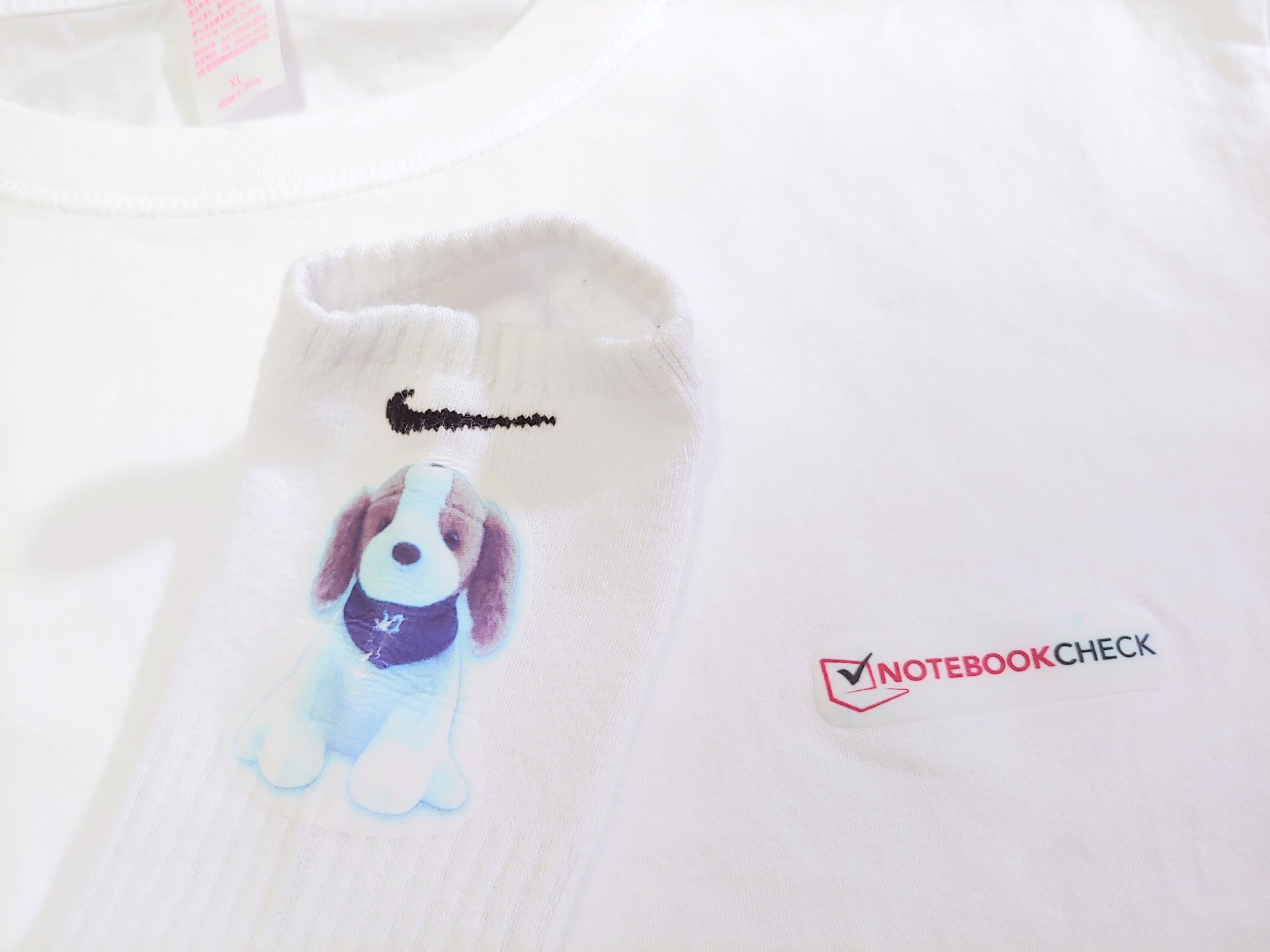
The Inkwon Tag comes with three paper types—Light Fabric Heat Transfer, Self‑Adhesive Photo Paper, and Tattoo Paper—supporting a wide range of creative uses. The sample kit also included items for trying out the iron‑ons.

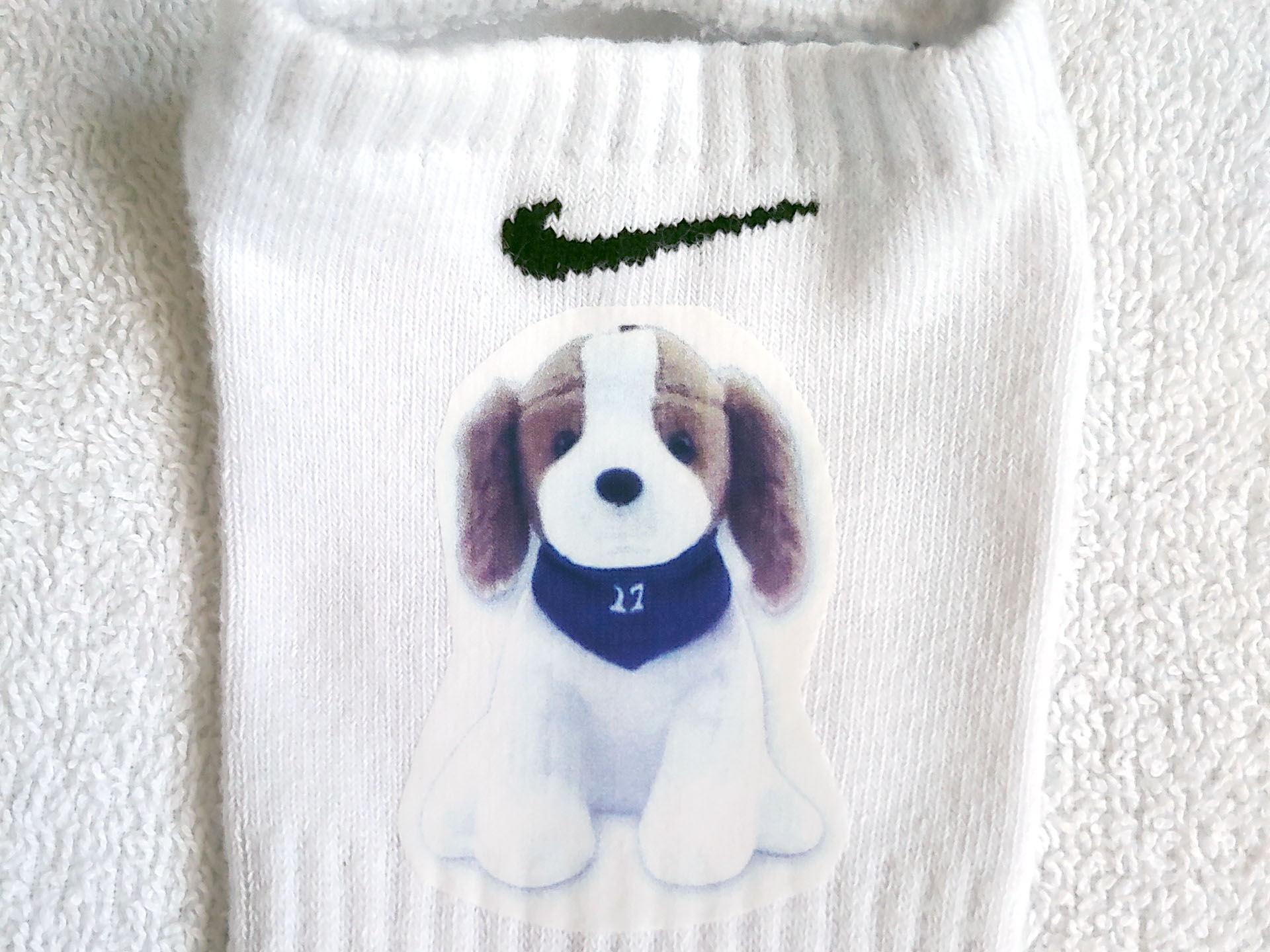
The sticker paper offers the best color saturation of the paper types and works well for logos, stickers, photos, and labels.
It adheres well to clean, flat surfaces, though it isn’t waterproof. A sticker on a tumbler survived hand washing without bleeding or fraying, but the edges began to lift slightly.
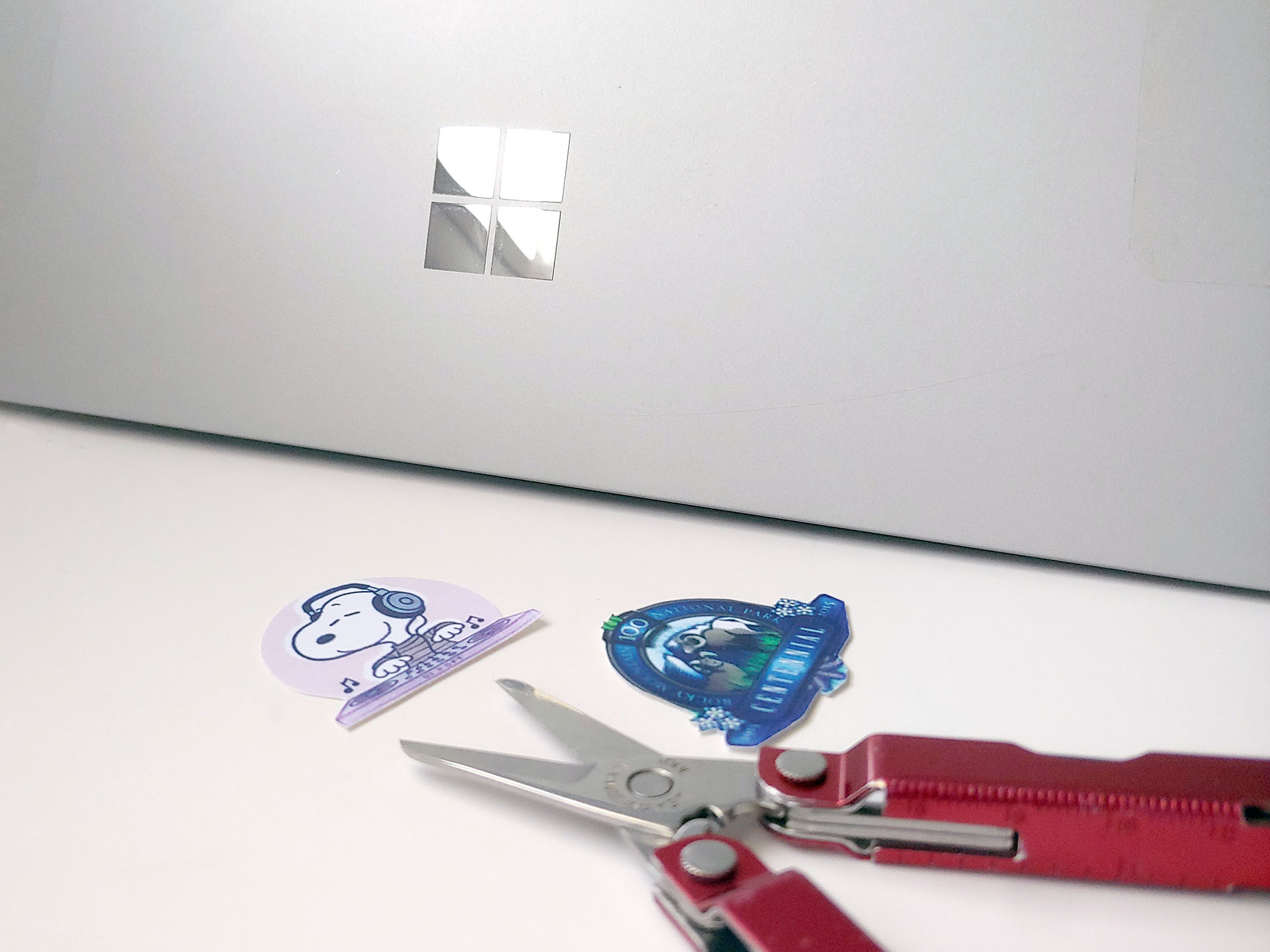
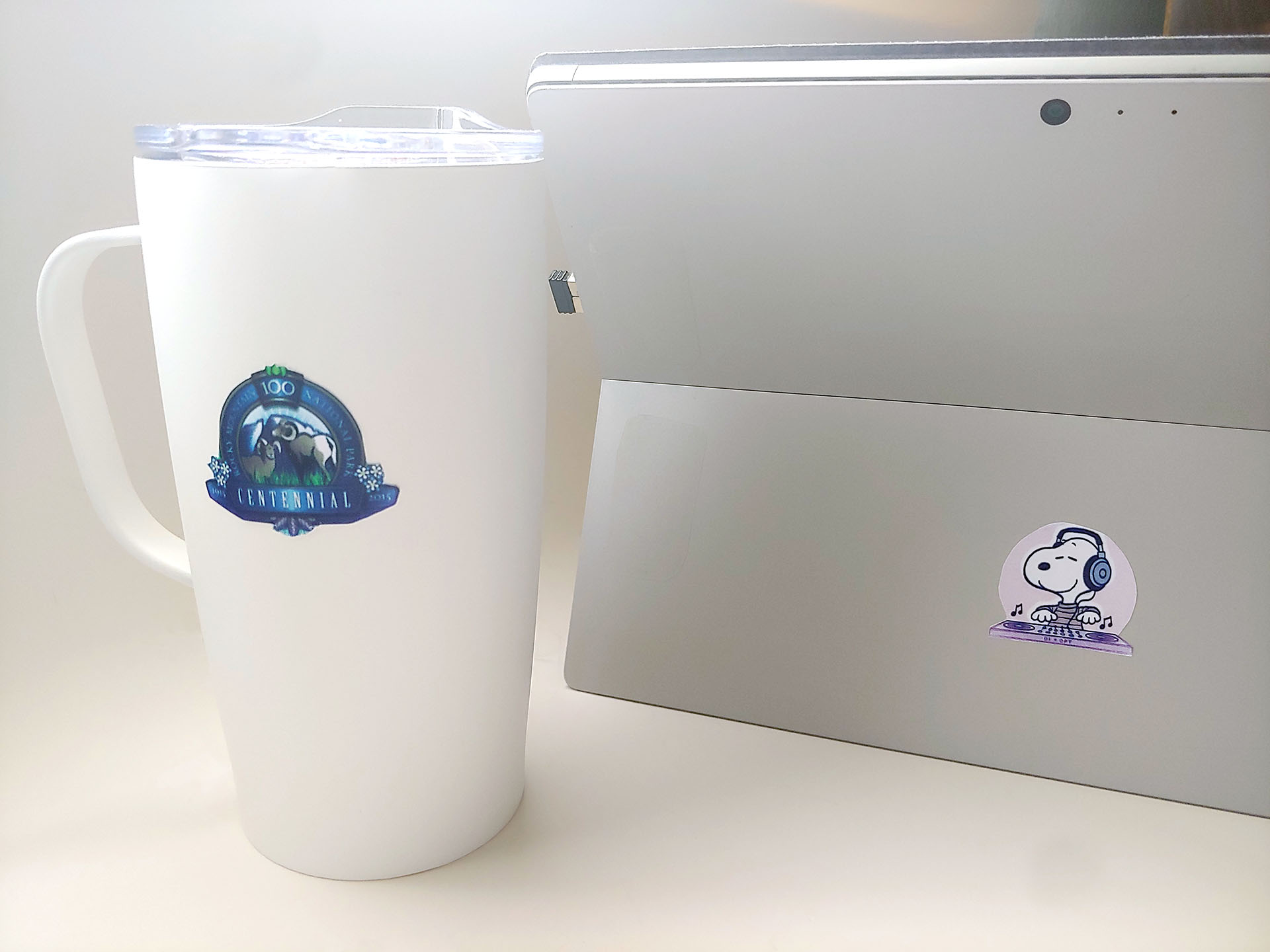
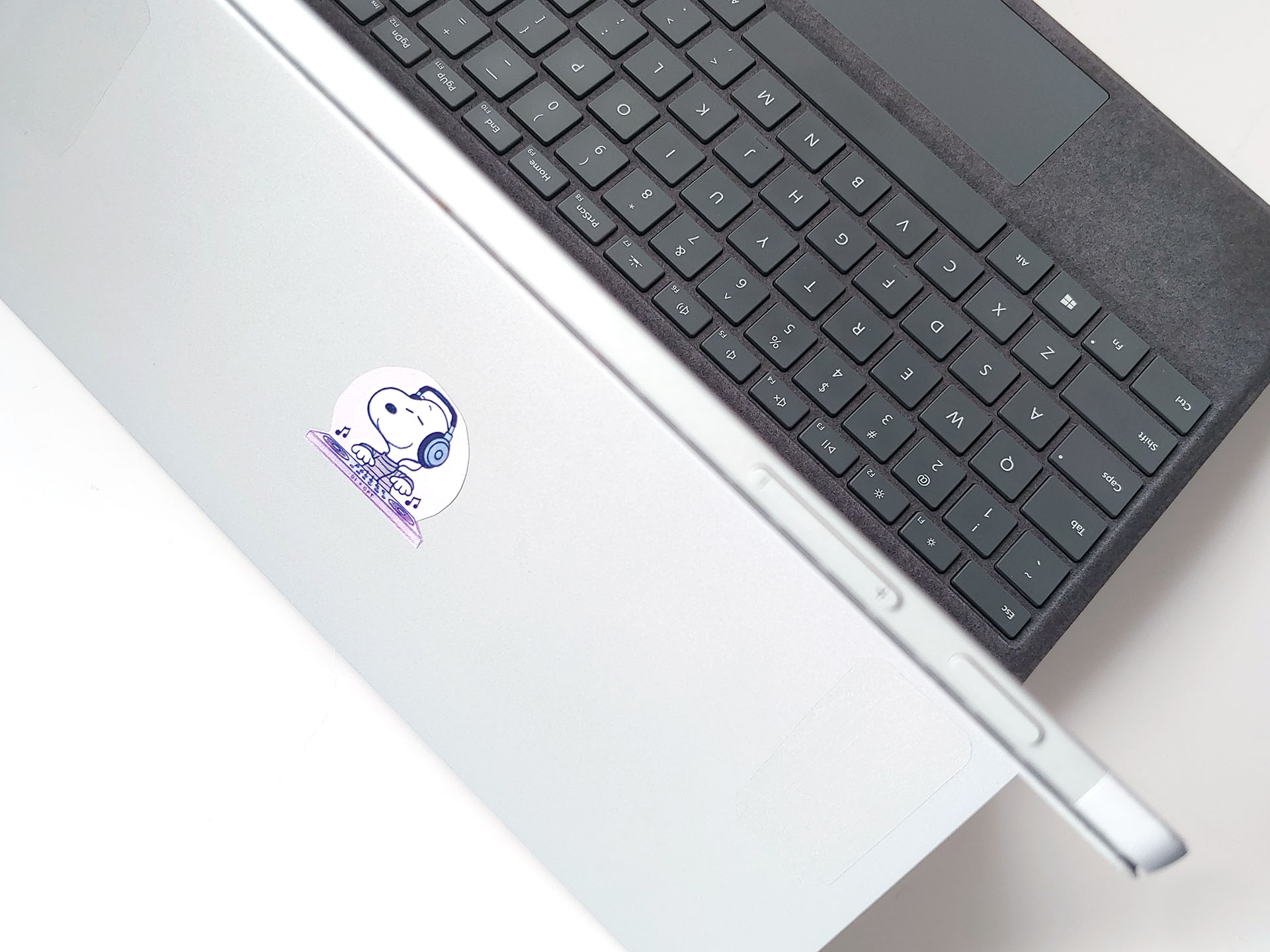
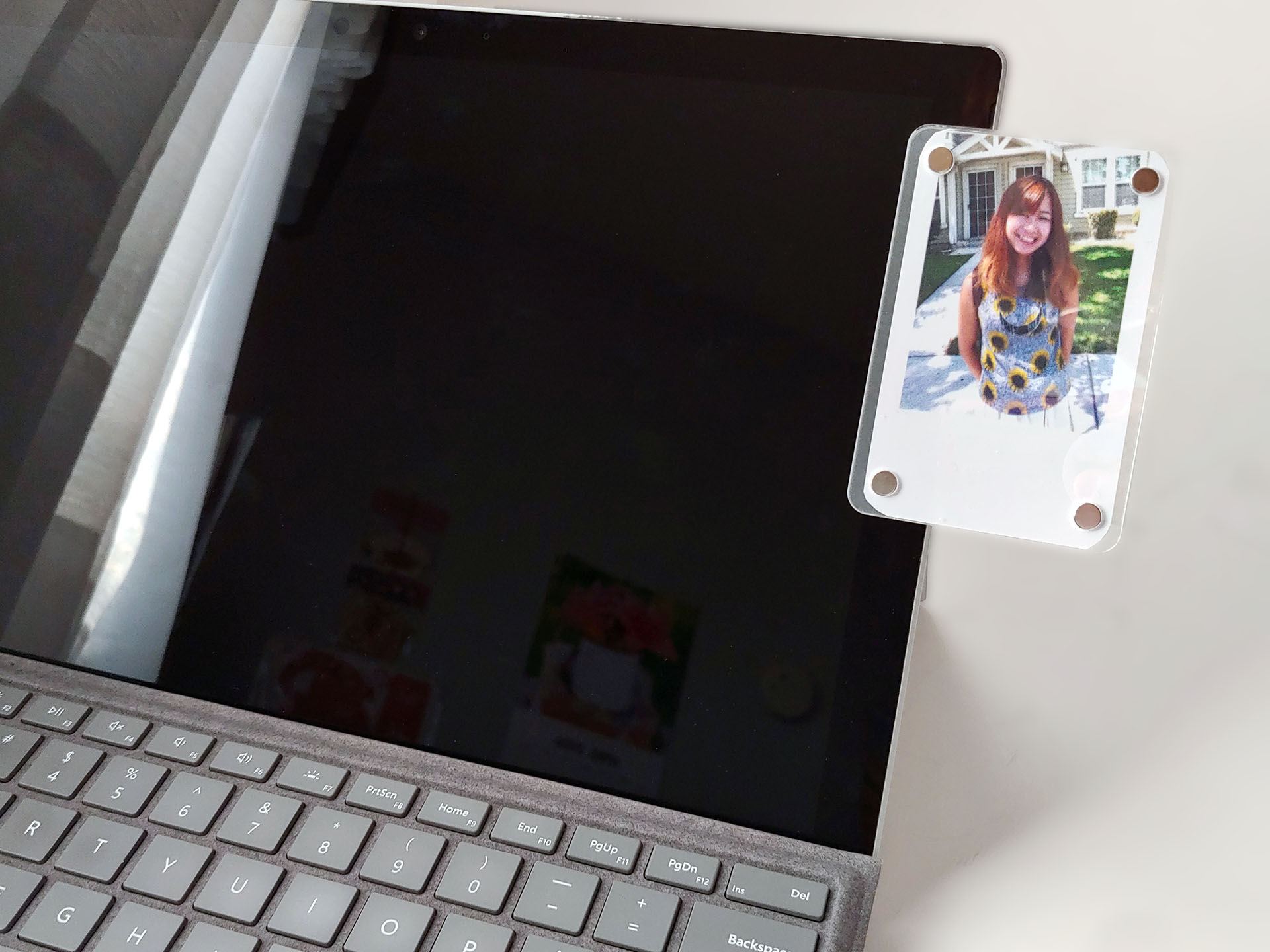

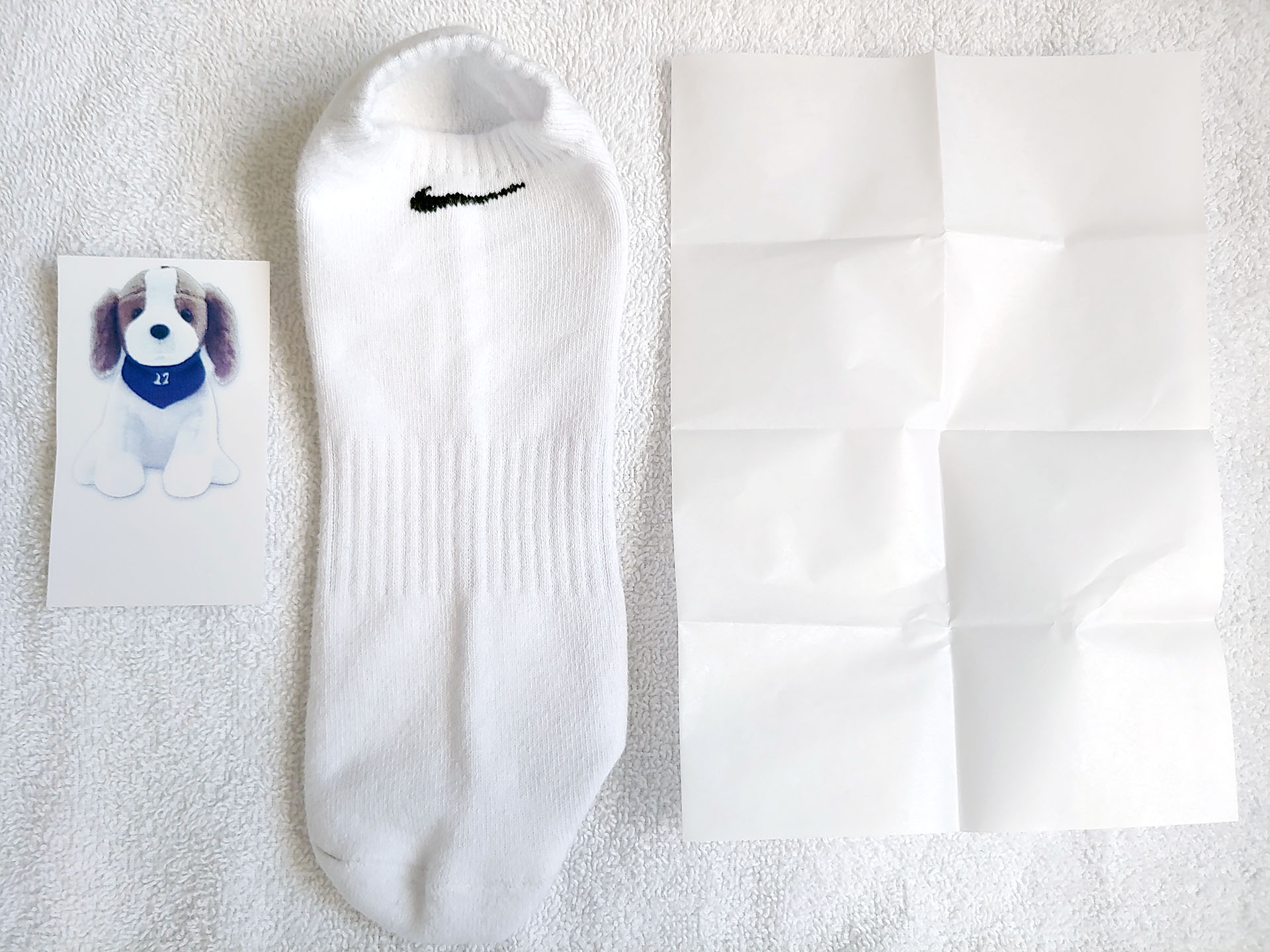
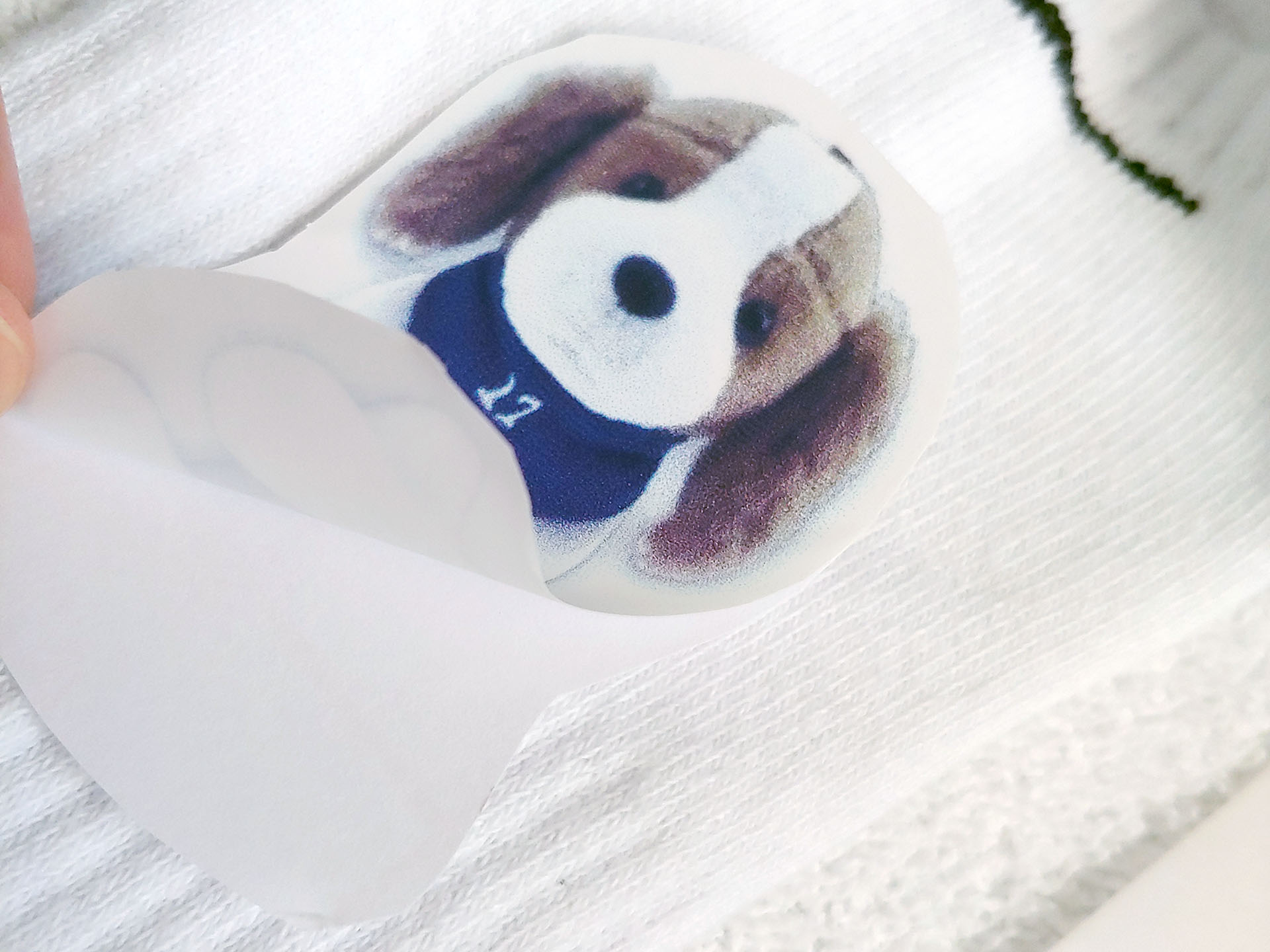
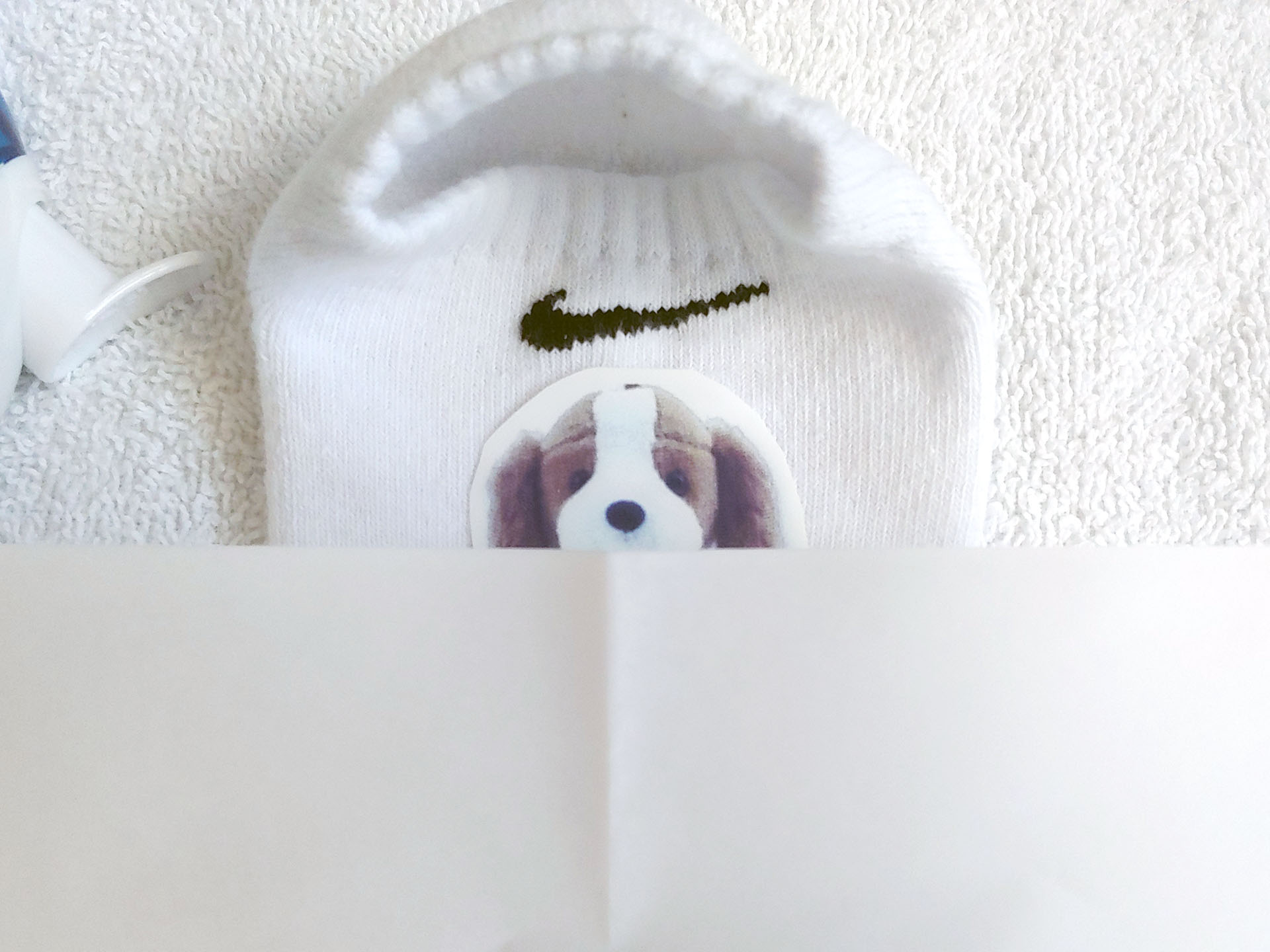
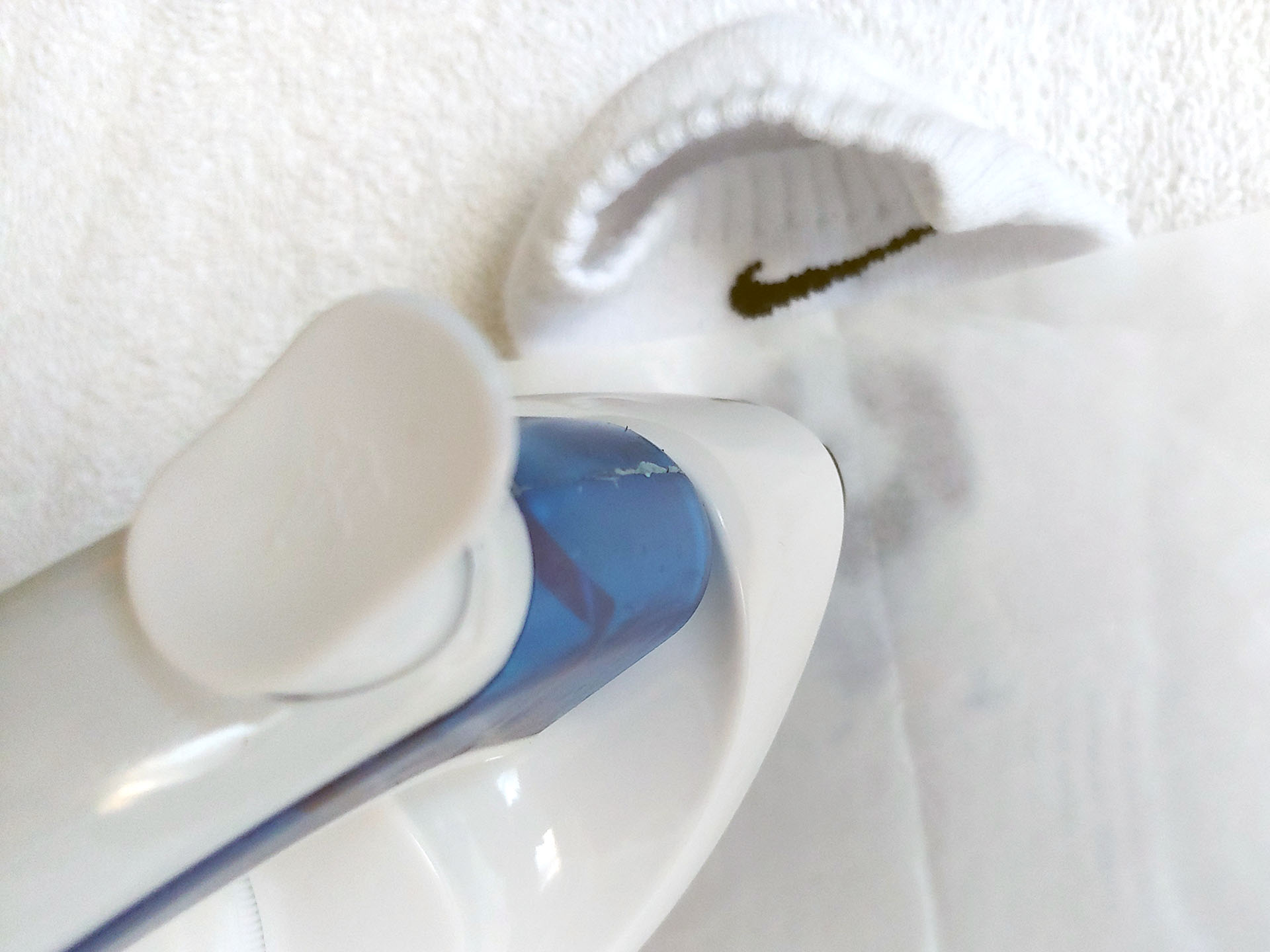
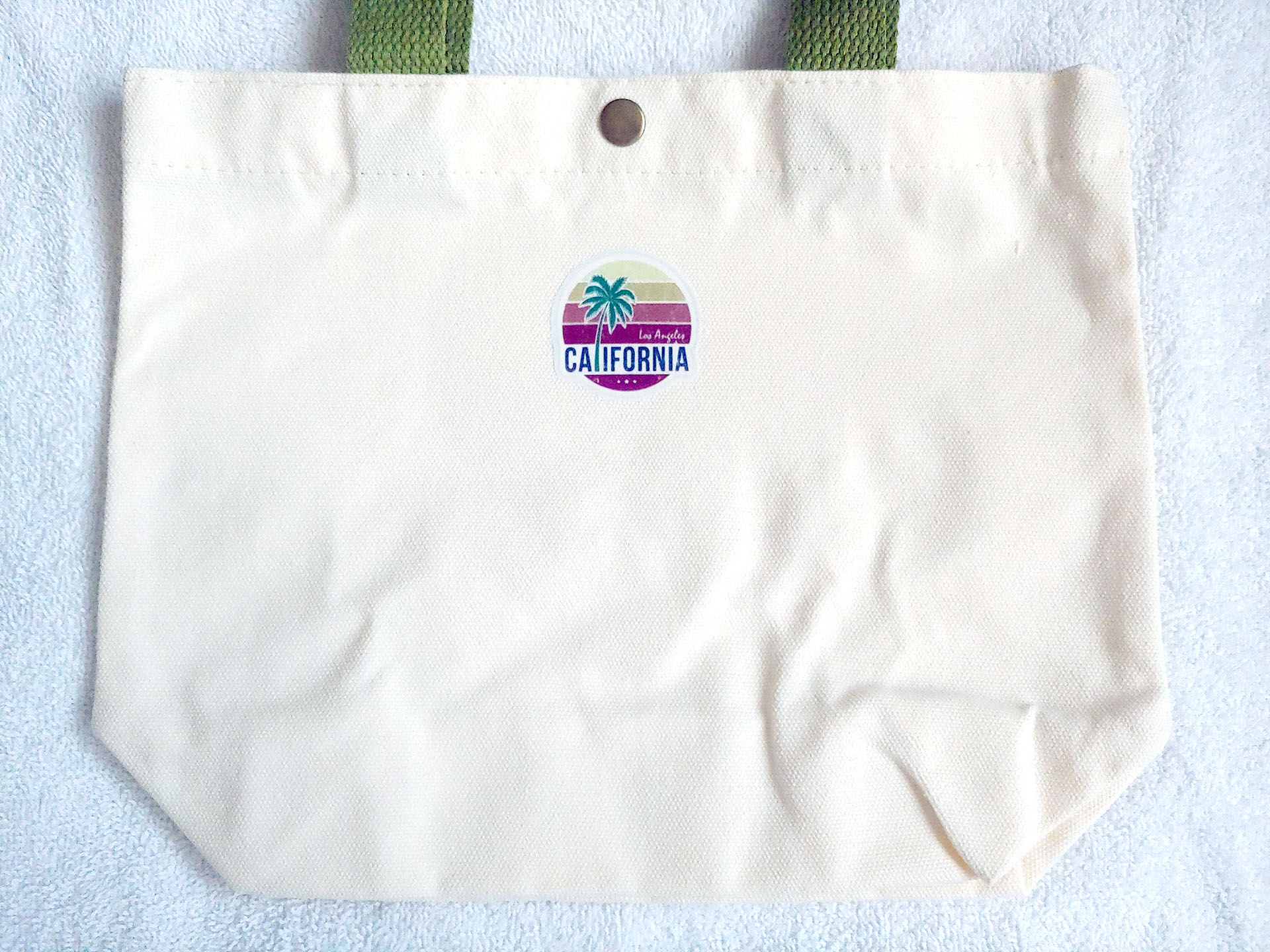
The iron‑on paper is simple to use—peel, place, and iron with the protective sheet for a few dozen seconds to fuse it to fabric. Transfers look professional with a white background and work well for logos, labels, and decorations. Like other iron‑ons, overstretching and machine washing can cause the image to crack.
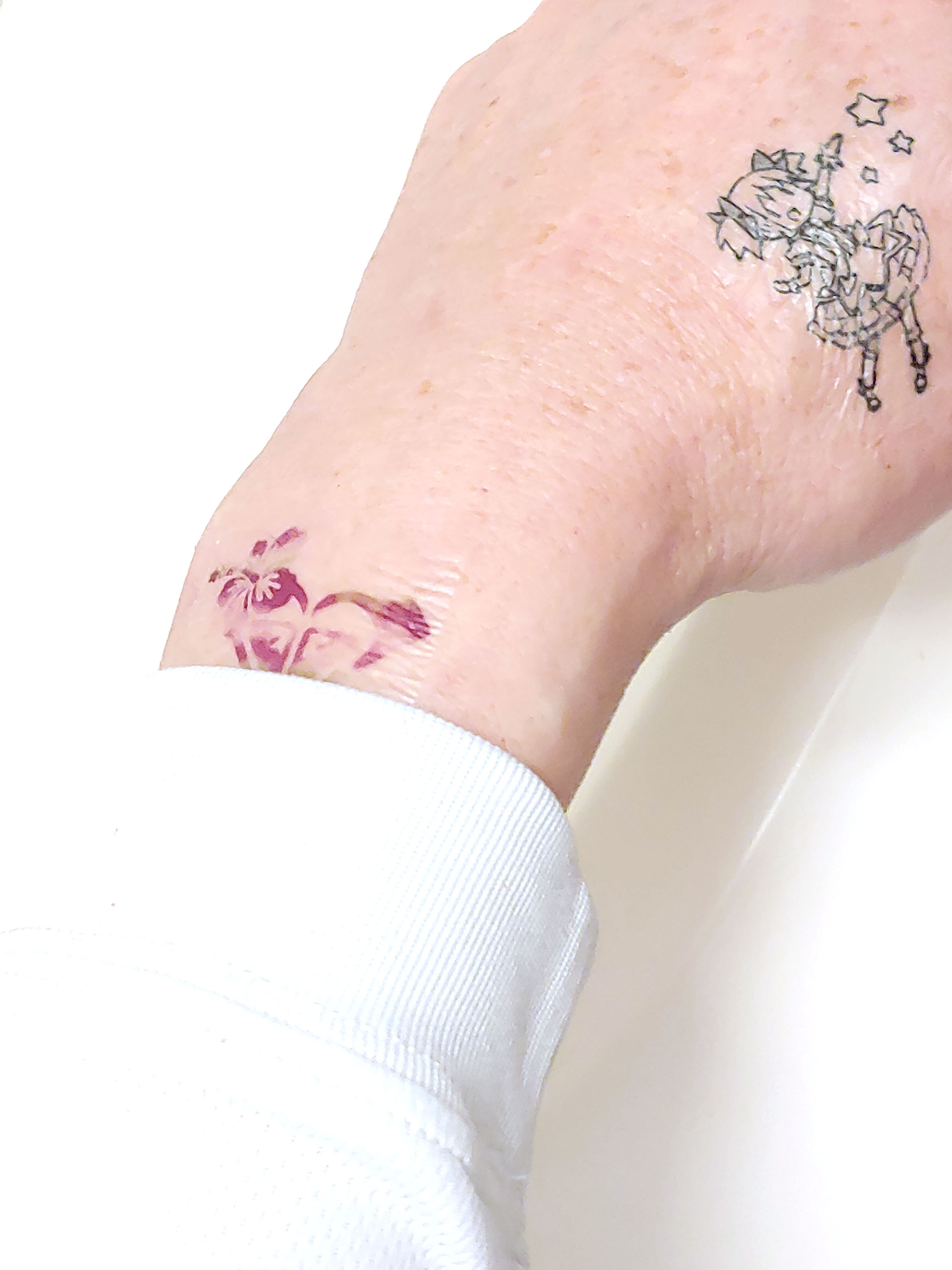
Users can try out temporary tattoo ideas quickly. A clear sheet transfers an adhesive on top of the printed tattoo, then is discarded. The tattoo sheet is placed face-down on the skin, wetted, and peeled off to apply the image.
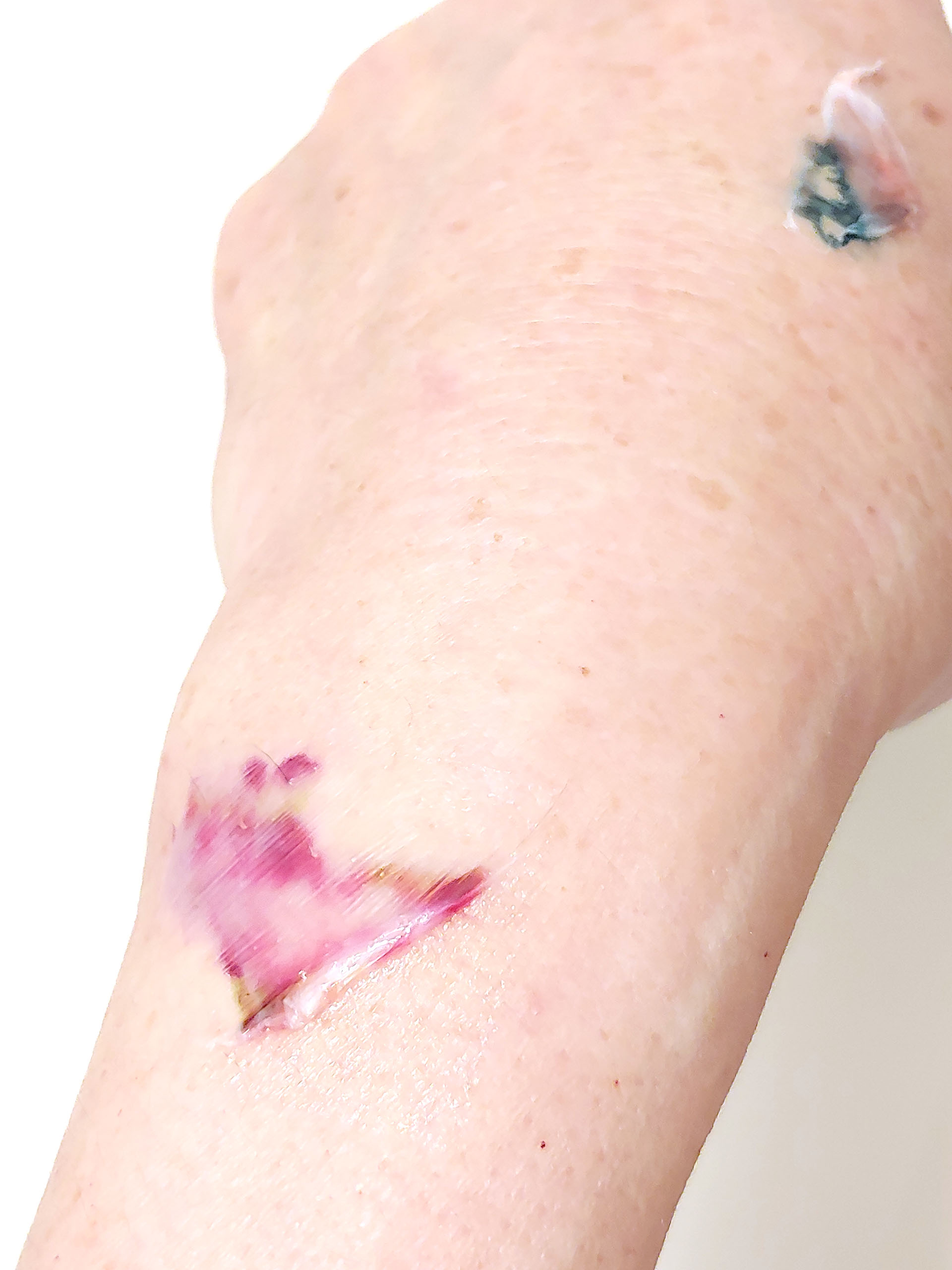
The tattoo retains the quality and color of the original print. A clear top layer gives it a glossy look and doesn’t stretch like skin, so flexing can create slight ripples. The tattoo is water‑resistant but not waterproof, and a hot, soapy shower will break down the adhesive.
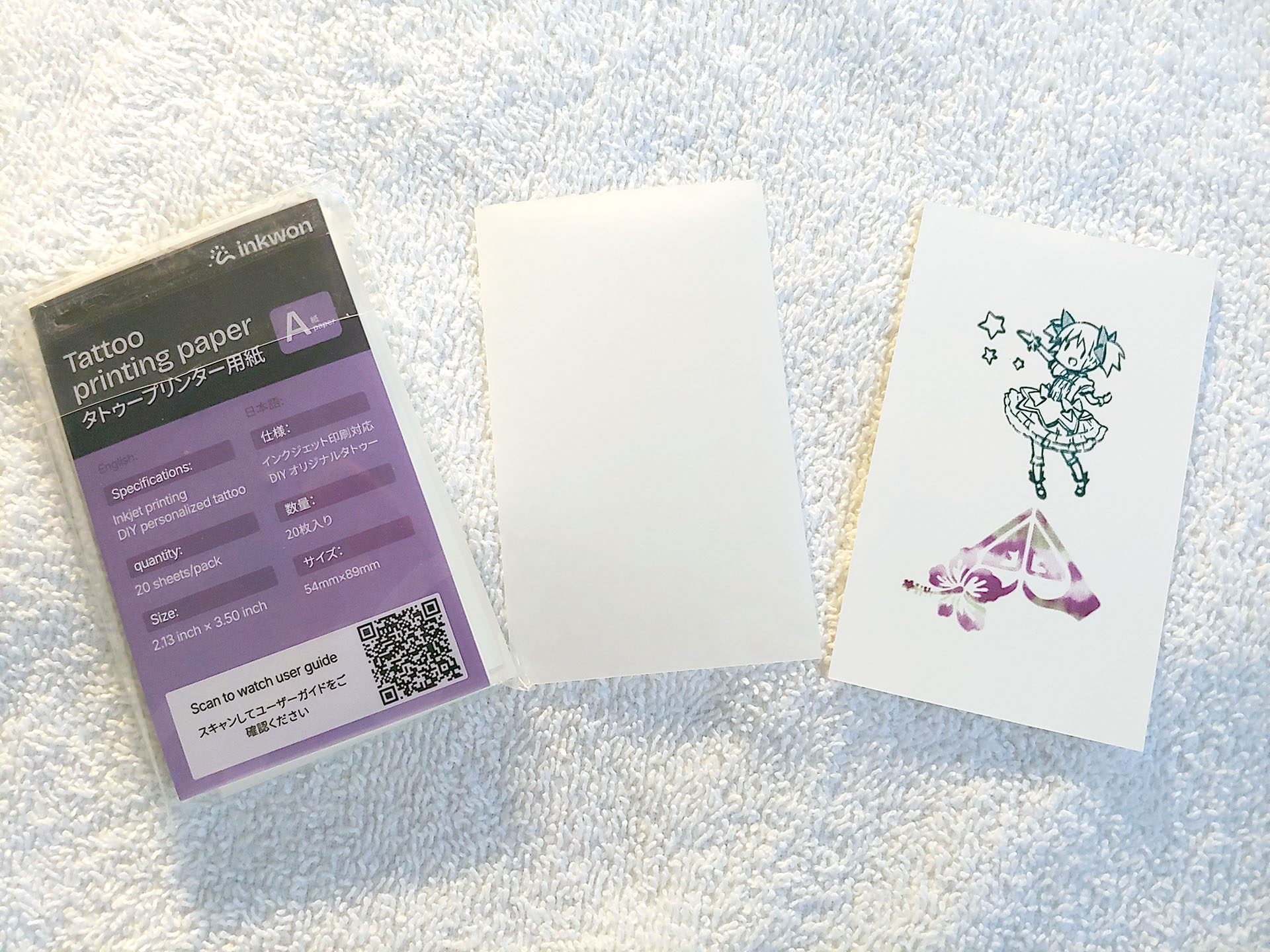
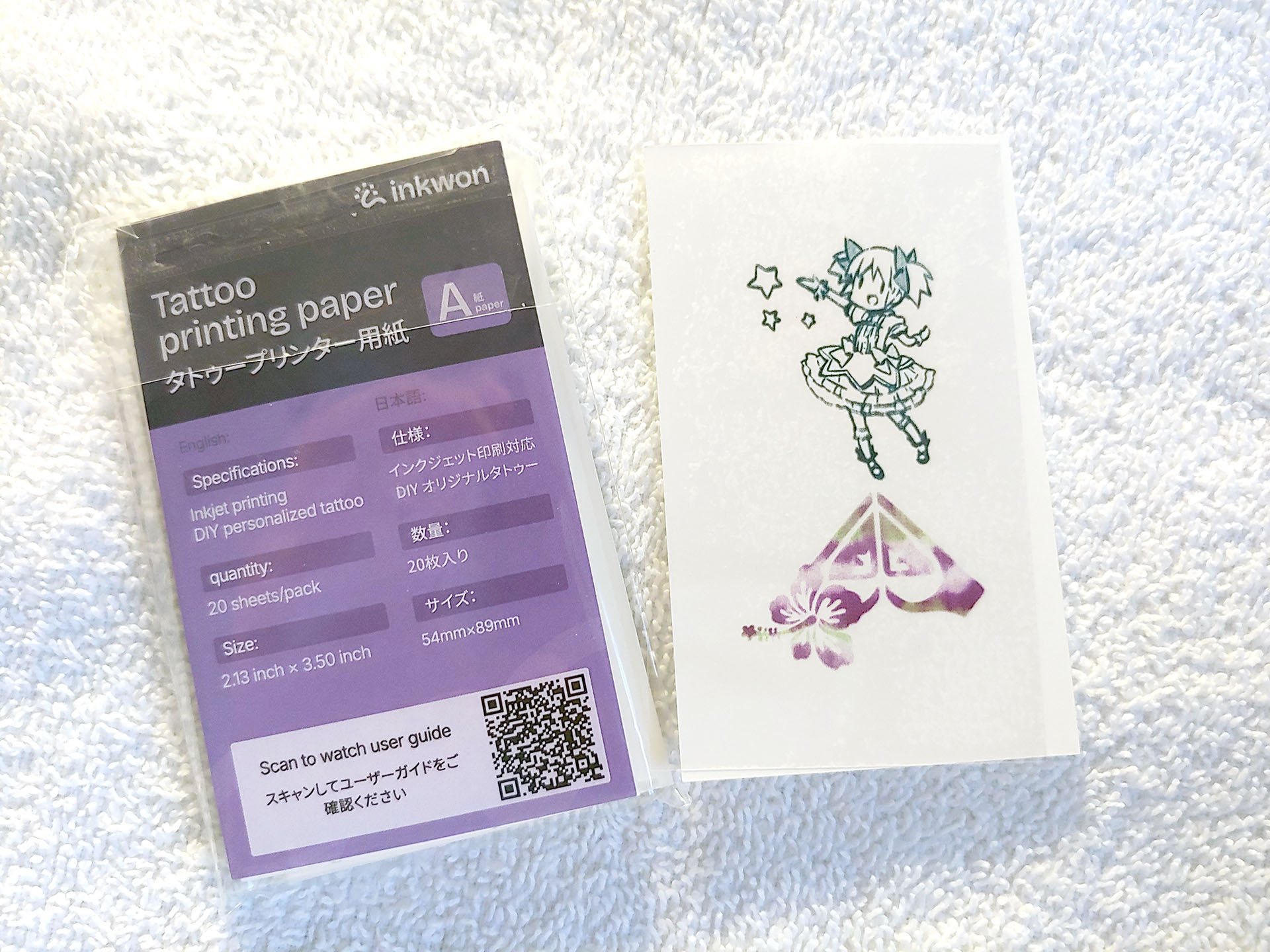
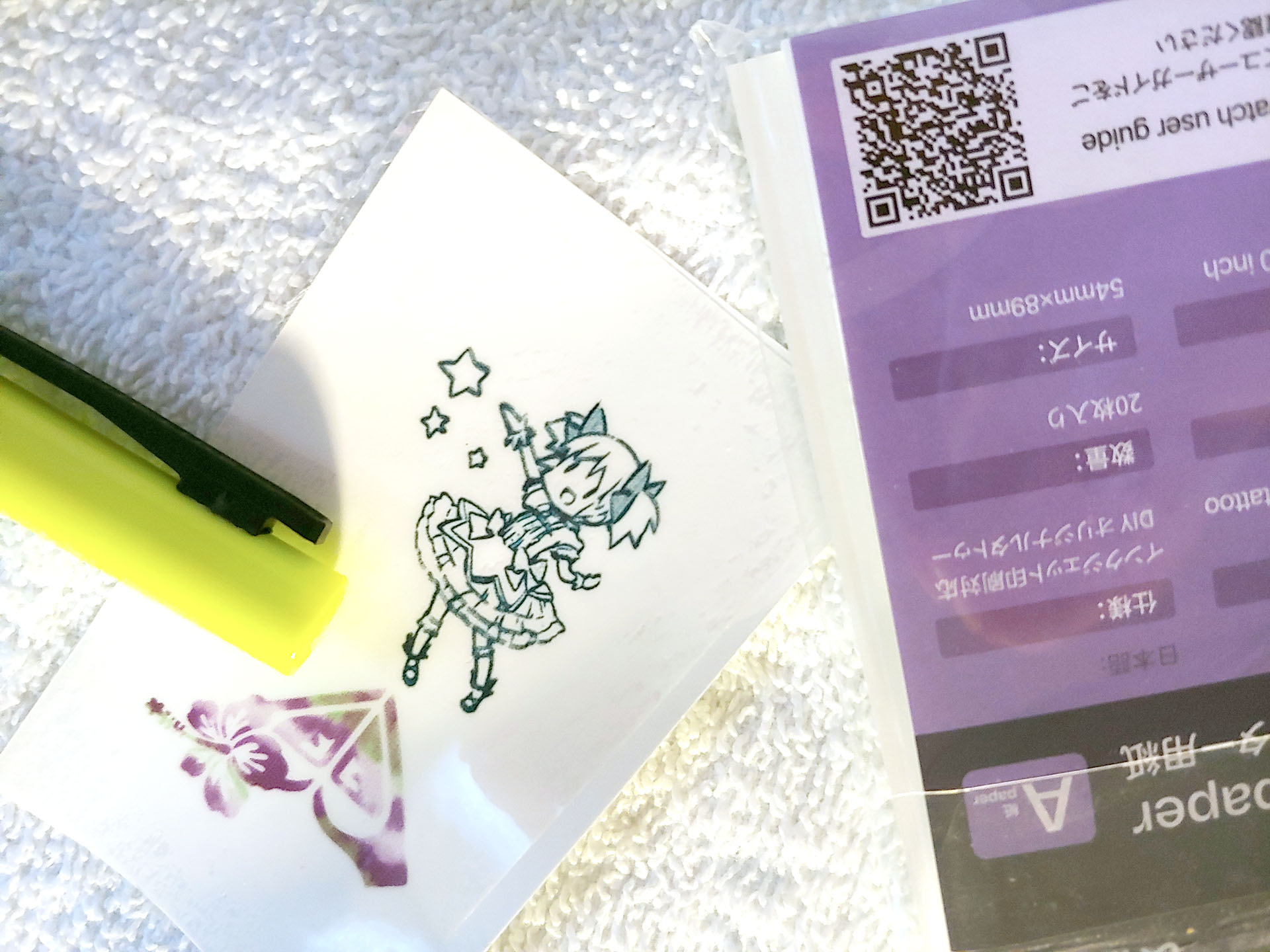
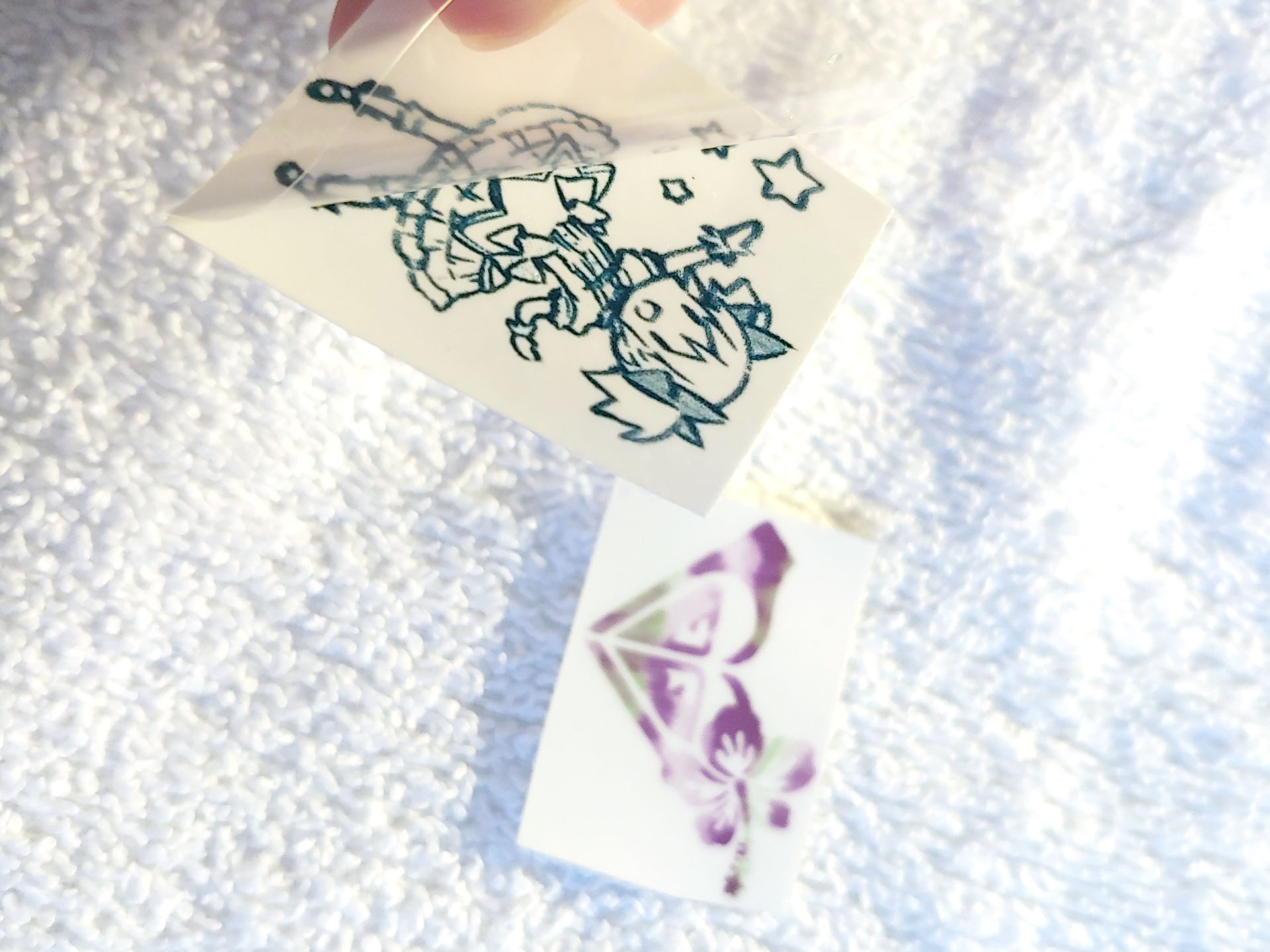
Apply the clear adhesive sheet on top of the tattoo print, rub to remove air bubbles, trim, and peel off the clear sheet.
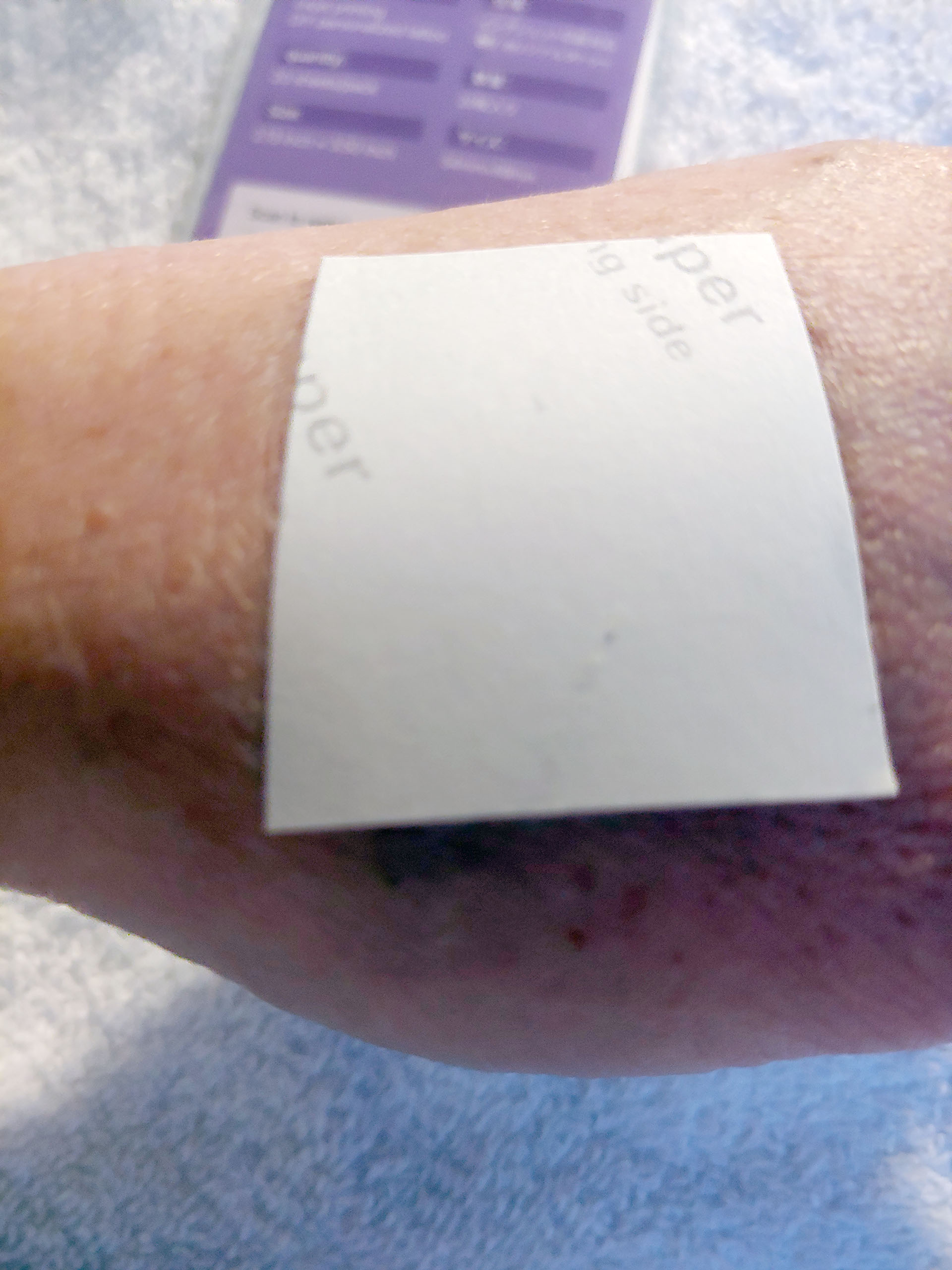
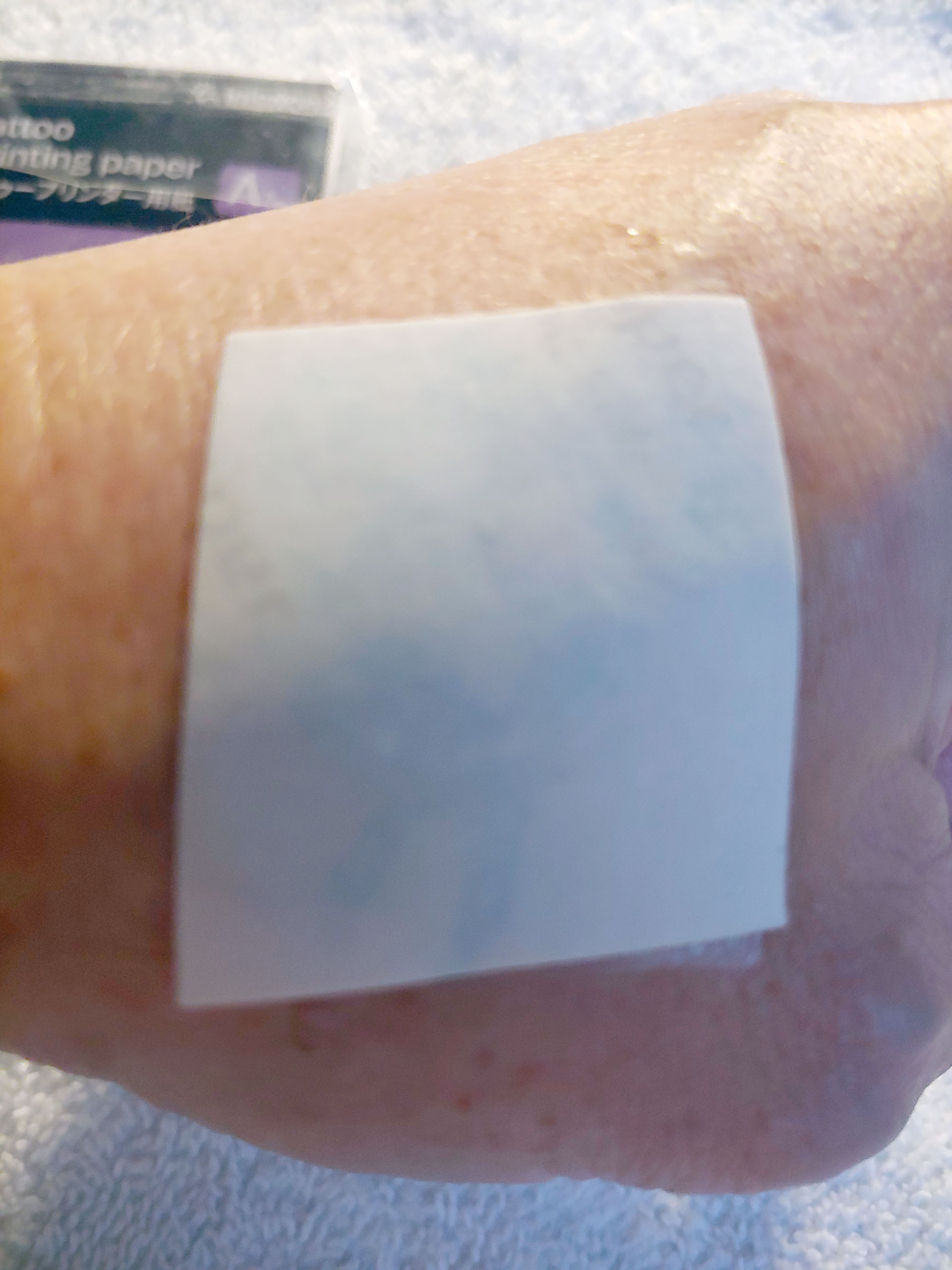
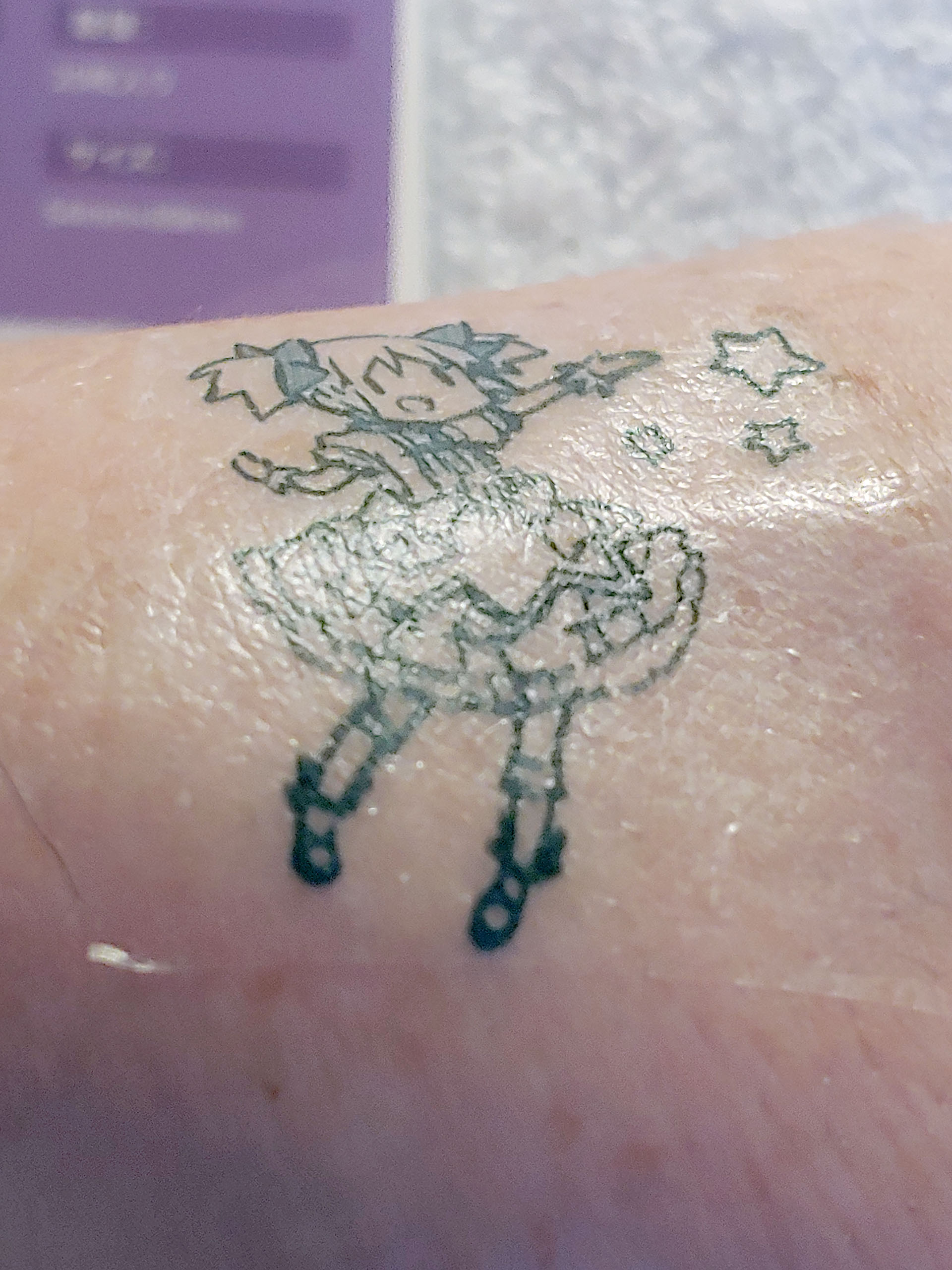
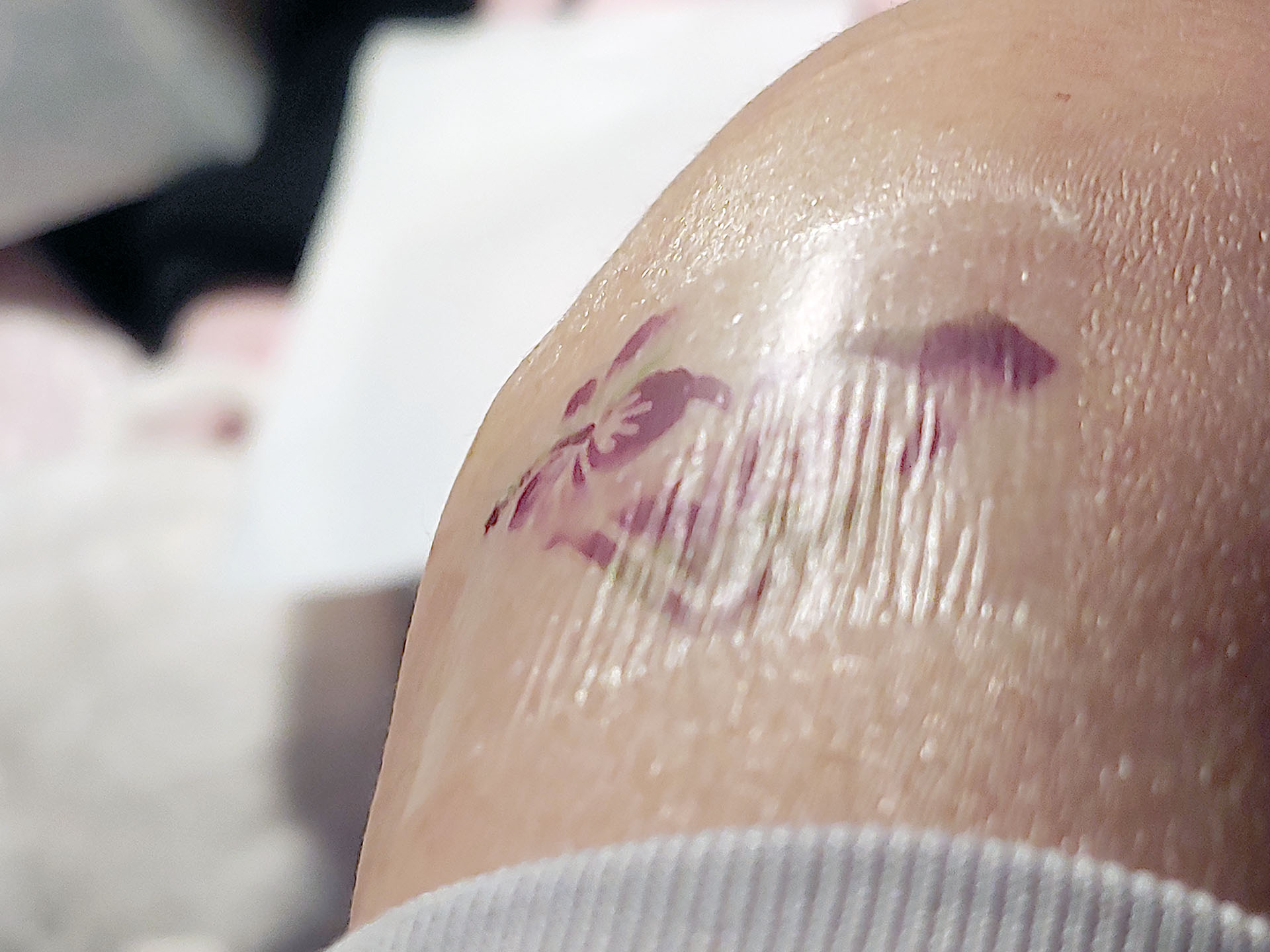
Apply the tattoo with adhesive face down, wet, wait a few seconds, and peel.
Conclusion
The Inkwon Tag is genuinely fun to use, thanks to its clear top window that lets you watch each image print before turning it into a sticker, heat transfer, or tattoo.
Transparency
The selection of devices to be reviewed is made by our editorial team. The test sample was given to the author by the manufacturer free of charge for the purposes of review. There was no third-party influence on this review, nor did the manufacturer receive a copy of this review before publication. There was no obligation to publish this review. As an independent media company, Notebookcheck is not subjected to the authority of manufacturers, retailers or publishers.
 Add as a preferred source on Google


