




Hands-on with Ugreen's USB-C cable with display and touch button
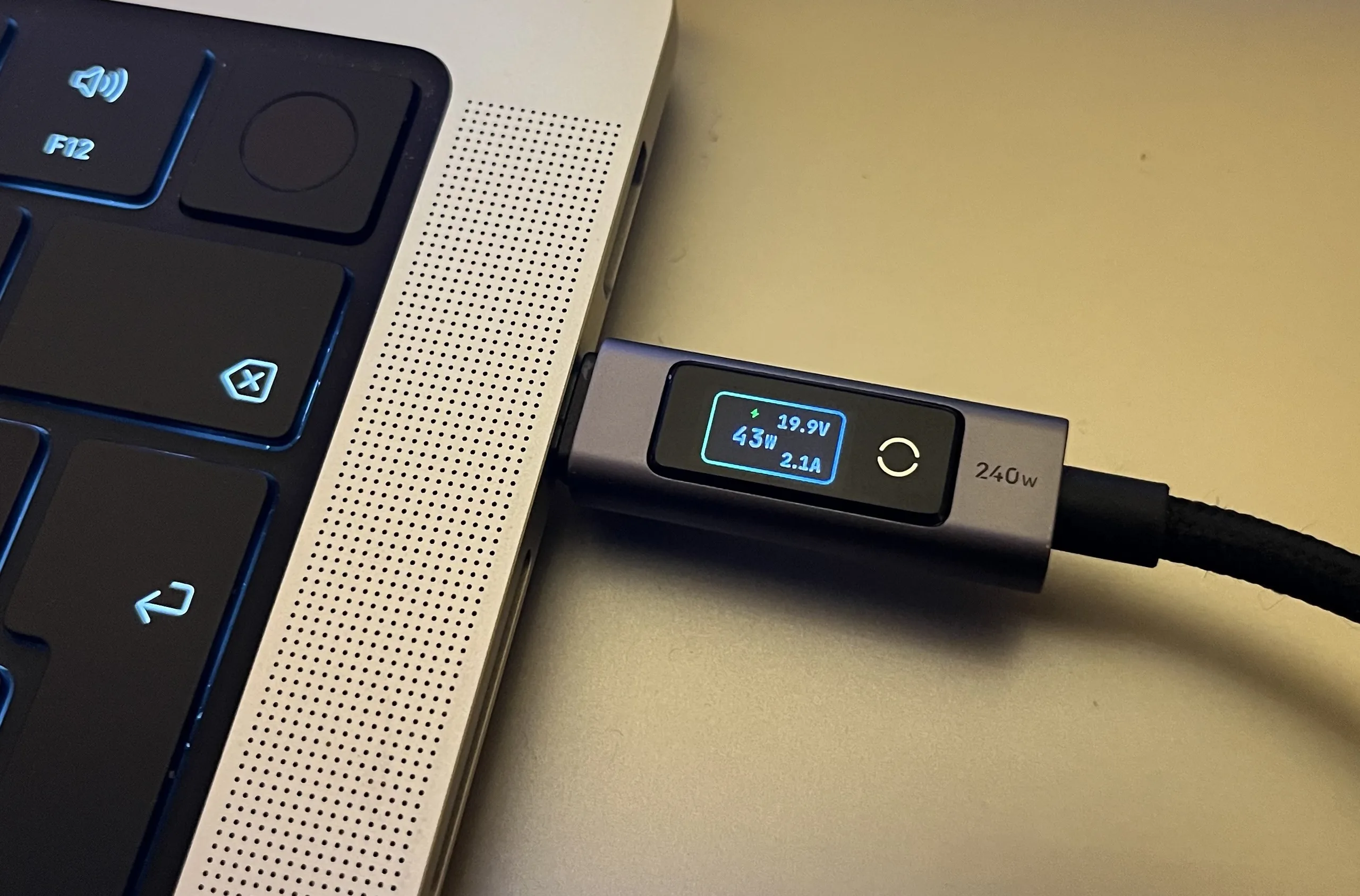
While browsing Amazon recently, we came across a USB-C cable from a well-known manufacturer with a built-in display. To be more exact, Ugreen offers this accessory in 3.3-foot and 6.6-foot versions with US list prices of $23 and $27, respectively. Both cables are currently discounted on Amazon. Still, that is pretty expensive for a cable, but the display caught our attention because it shows current and voltage as well as wattage. It is also built directly into the connector rather than a separate inline module.
We ordered one to try it out. Nothing particularly stood out during unboxing. It has the familiar braided fabric jacket, which usually makes tangled cables easier to untangle. The connectors are well made, and the strain relief also looks decent, although we would probably need to use it for a year before judging its durability.
Like most manufacturers, Ugreen skips USB-IF certification. The cable therefore also lacks the required labeling that would identify its capabilities. At least one side carries a "240w" marking, suggesting support for up to 48 V and 5 A.
The display is slightly larger than those typically found on other cables, but the connector is still a reasonable size. Carrying the cable around is no problem. The larger screen has room to show all three readings needed to assess the charging connection. Has the correct voltage been negotiated? Has the current successfully increased from 3 A to 5 A? Both are immediately apparent, and there is no need to multiply voltage by current to calculate wattage.
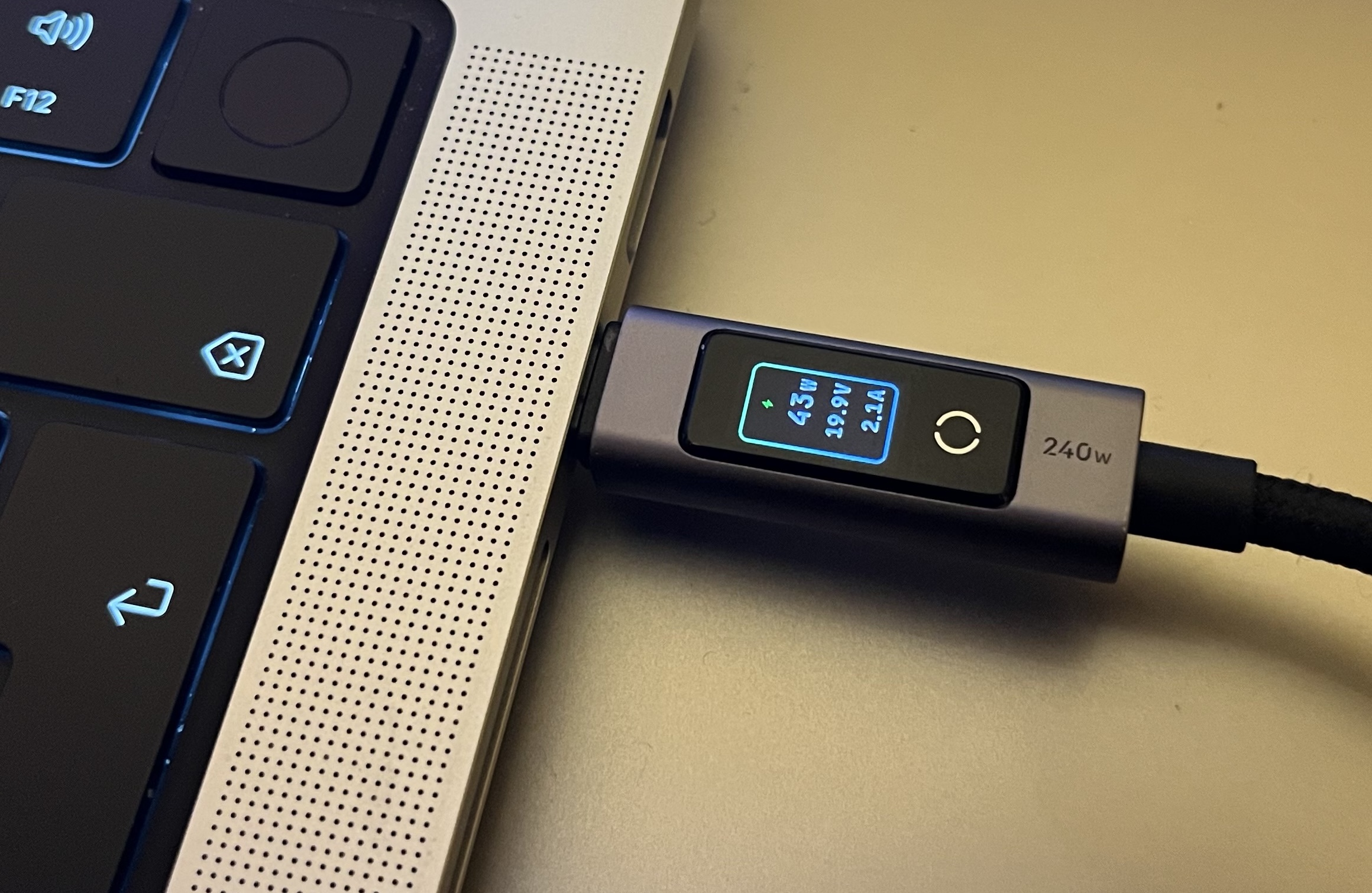
A small touch-sensitive area controls the display. A long press switches it off, while a tap toggles between landscape and portrait orientations. This is useful for smartphones, which usually have their charging port on the bottom. However, some laptop and tablet users might not be fully satisfied with this cable. In landscape mode, the display is correctly oriented only when plugged into the right side of a device. That works on our MacBook Pro M5, but our MacBook Pro M1 and Fujitsu Lifebook U729 have their charging ports only on the left.
Display accuracy
Compared with our AZZHy C3 USB power meter, the readings were reasonably close at moderate power levels. Both showed 43 W. The Ugreen connector displayed 2.1 A, while the C3 showed 2.2 A. Things become trickier at low power levels. From what we observed, the display only steps between 0.0 W, 0.5 W and 1.0 W in that range. At an actual draw of 0.3 W, the Ugreen connector often shows 0.0 W. That limits its usefulness when charging small devices if accurate readings matter.
Incidentally, the C3 is not rated for voltages above 26 V. Interestingly, we were nevertheless able to charge a power bank at 140 W, which means 28 V. Unfortunately, we have no devices that operate above 28 V, so we cannot cover that range in this brief look at the cable. We should also stress that even the C3, which is generally considered fairly accurate, cannot replace professional measuring equipment when high precision is required.
Overall, though, we like the cable. It provides a quick overview of charging conditions beyond power consumption alone. We do find its display orientation slightly inconvenient for laptops, since it is designed around a charging port on the right. Of the five laptops with USB-C in our collection, only one has a suitable port on that side. Admittedly, most of our laptops are older models, and reading the display upside down or in portrait mode does become familiar after a while.
Source(s)
Own research
 Add as a preferred source on Google


