




ZSA Navigator Trackpad: Voyager low-profile mechanical keyboard gets game-changing multi-touch input with minimal setup
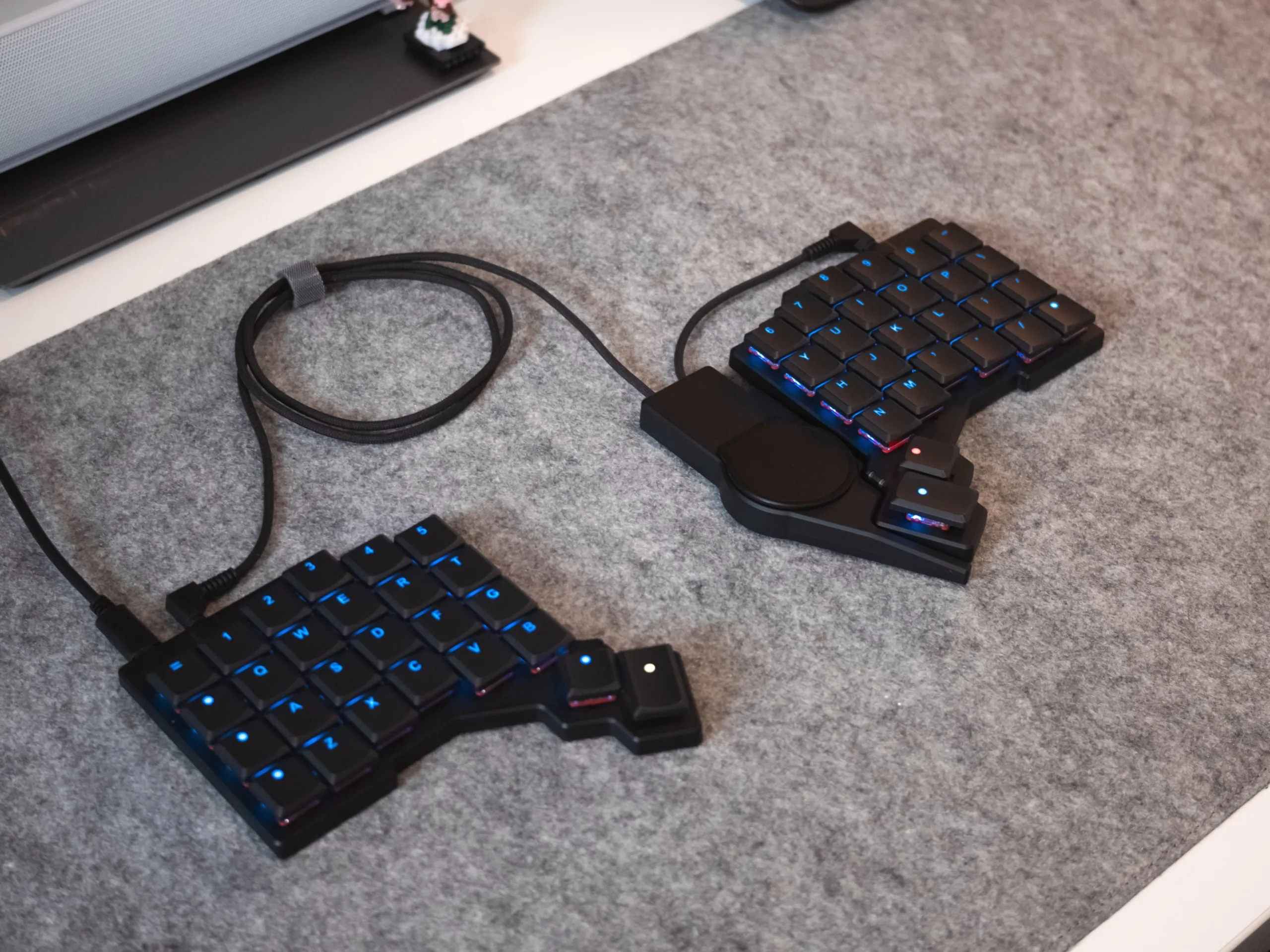
While we didn't touch on it much in our review of the ergonomic, low-profile ZSA Voyager mechanical keyboard, the ZSA Navigator trackball was one of the highlights of that keyboard. The navigator gives you a convenient way to use GUI-based programs without removing your hands from the keyboard and reaching for a mouse — a reach that can negatively impact posture and ergonomics. Now, ZSA has officially launched the Navigator Trackpad accessory for the Voyager and Moonlander mechanical keyboards, and although the hardware is based on the same Cirque designs as can be found in the likes of the MoErgo Go60 (which we are in the process of testing) ZSA has put in a lot of work to make the Navigator Trackpad unique.
The ZSA Navigator Trackpad is available from the ZSA online shop for $99 — or $89 without the magnetic attachment — in both black and white and for both left- and right-handed attachment to the ZSA Voyager keyboard. While this does make it more expensive than even some standalone split mechanical keyboards, like the highly affordable Yivu Corne V4 (which is just $89.99 on Amazon), the Navigator Trackpad has a lot going for it for enthusiast buyers.
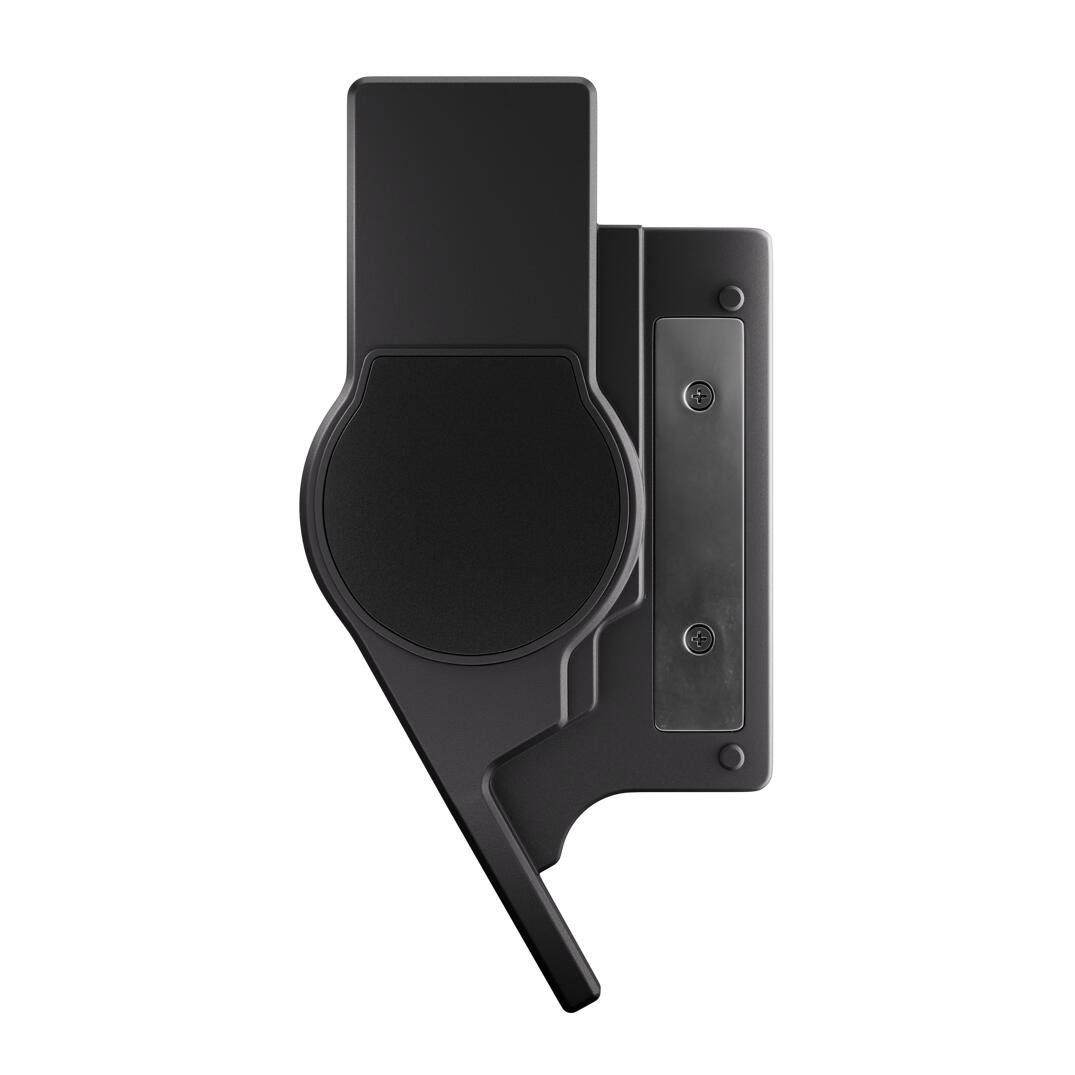
Multitouch gestures, worry-free setup, and open-source
The Navigator Trackpad magnetically attaches to the Voyager keyboard using the same plastic shell as its trackball equivalent, making it possible to have both the trackball and trackpad attached to the Voyager at the same time. This may seem silly, but having a mouse input on each hand means you can do things like assign one side to mouse navigation and the other exclusively to, for example, scrolling, or panning in specific apps.
The Navigator Trackpad is hardly the first trackpad to come on an ergonomic mechanical keyboard — one can be found on the Naya Create and Beekeeb Toucan as well as on the MoErgo Go60 we're in the process of reviewing. What sets the ZSA's touchpad apart, though, is that it features multi-touch gesture support with integration for OS-level customisation on both Linux and Windows. MacOS will require running a background app to enable gesture support, but once that is running, it also supports full multi-touch gestures. The multi-touch gestures are limited to two-finger swipes, however, so that's a limitation to be aware of, although it's also more than likely most people won't be able to comfortably put more than two fingers on the small tracking surface.
The trackpad doesn't offer the same level of customisation in ZSA's Oryx configurator as the trackball, such as switching functions with layer keys, using keyboard keys to emulate mouse clicks, or having the trackpad switch to a specific mouse layer when used, because ZSA says that these features are not necessary thanks to the touchpad gestures. Since the Navigator Trackpad uses the same magnetic shell as the trackball, it is fully compatible with the ecosystem of community-designed shells and mods, which offer different mounting locations and carrying cases.
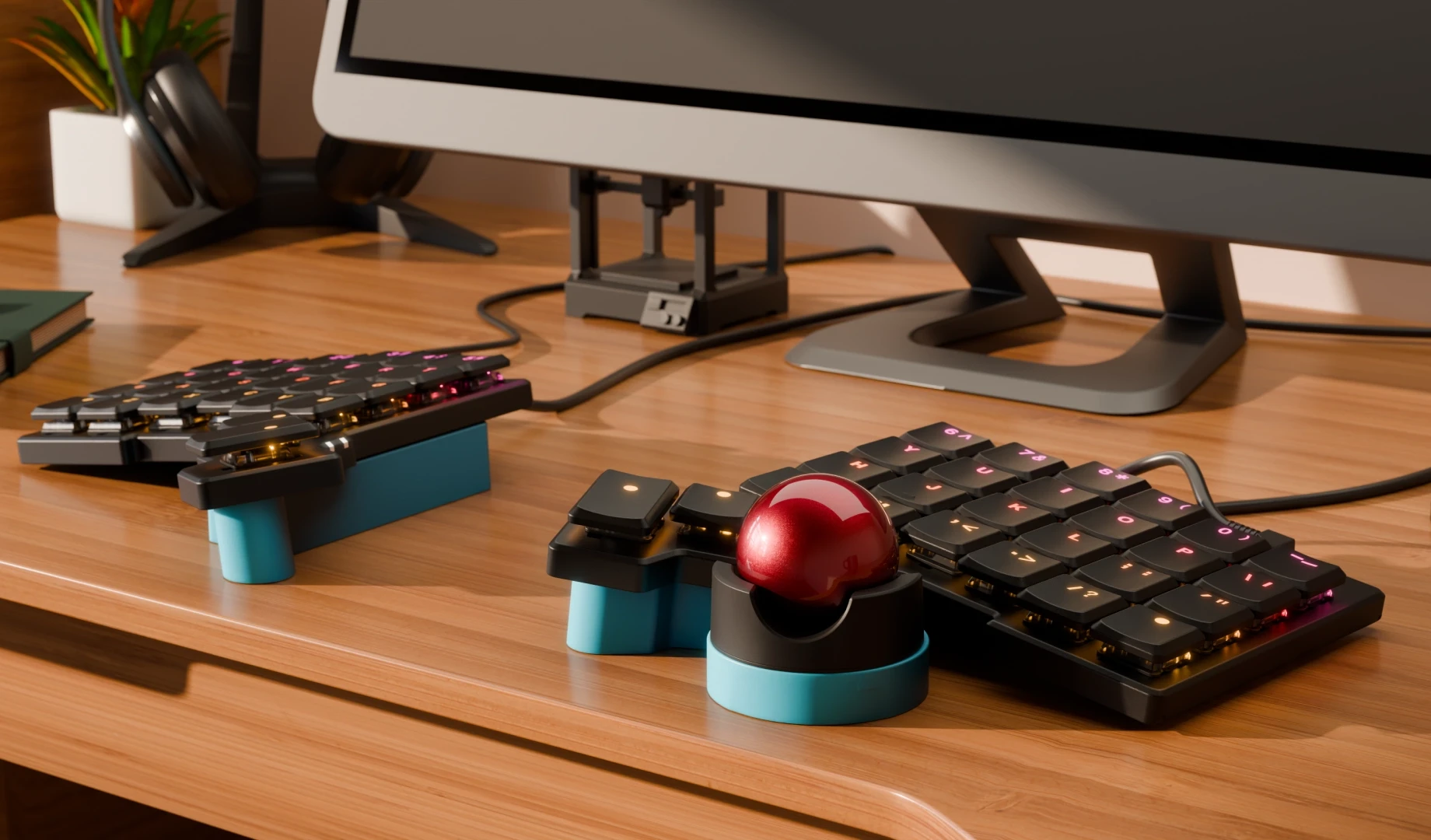
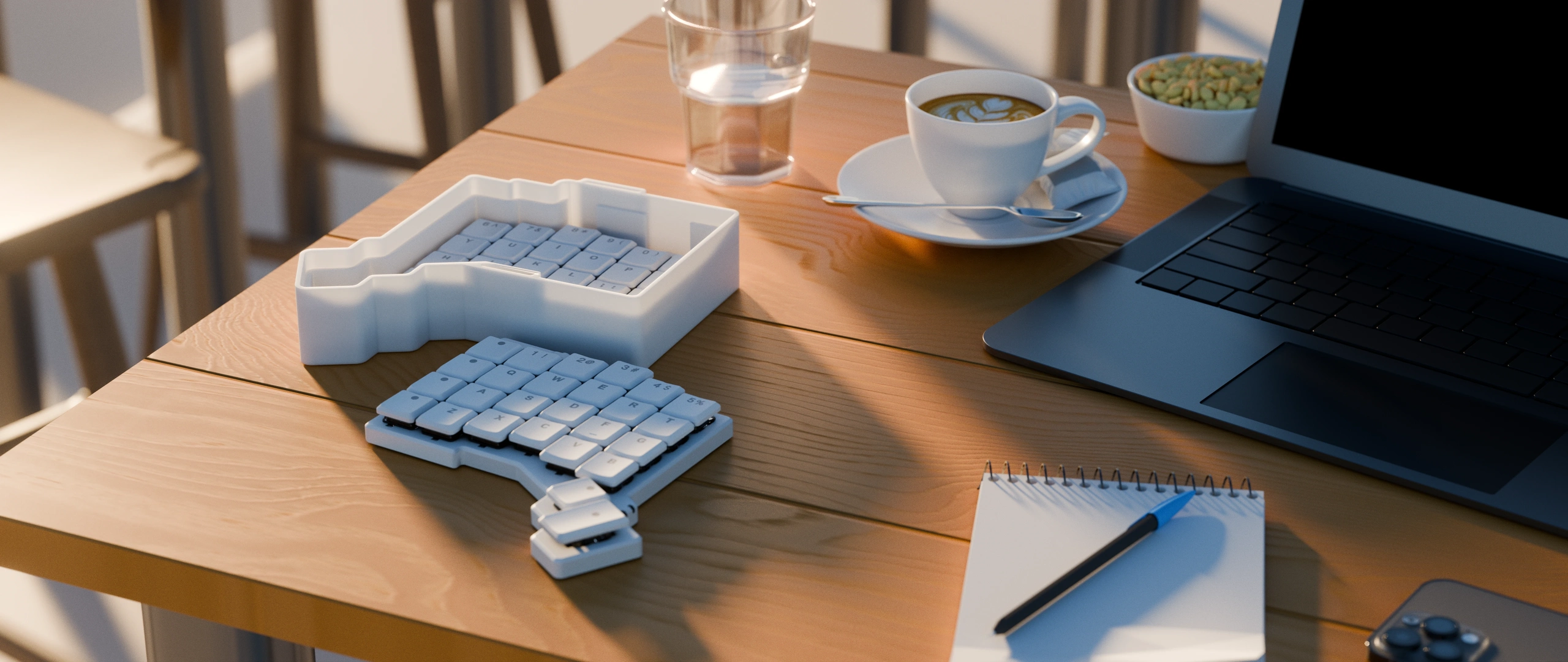
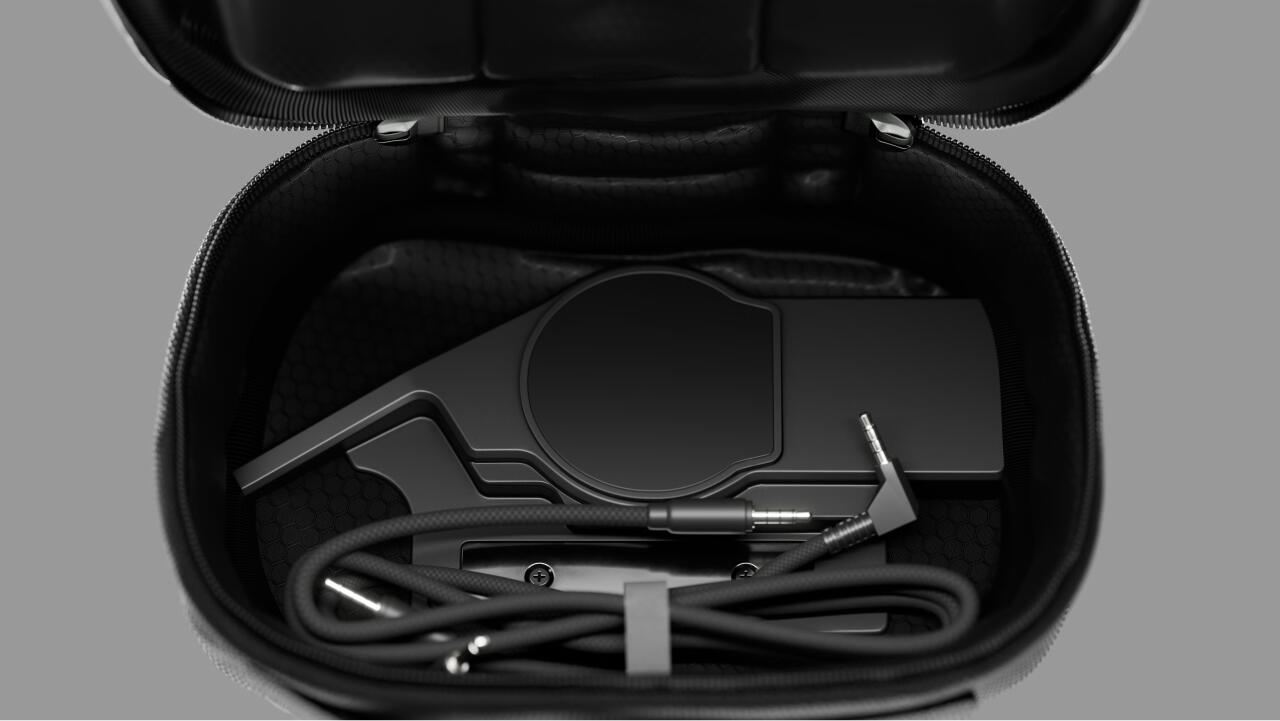
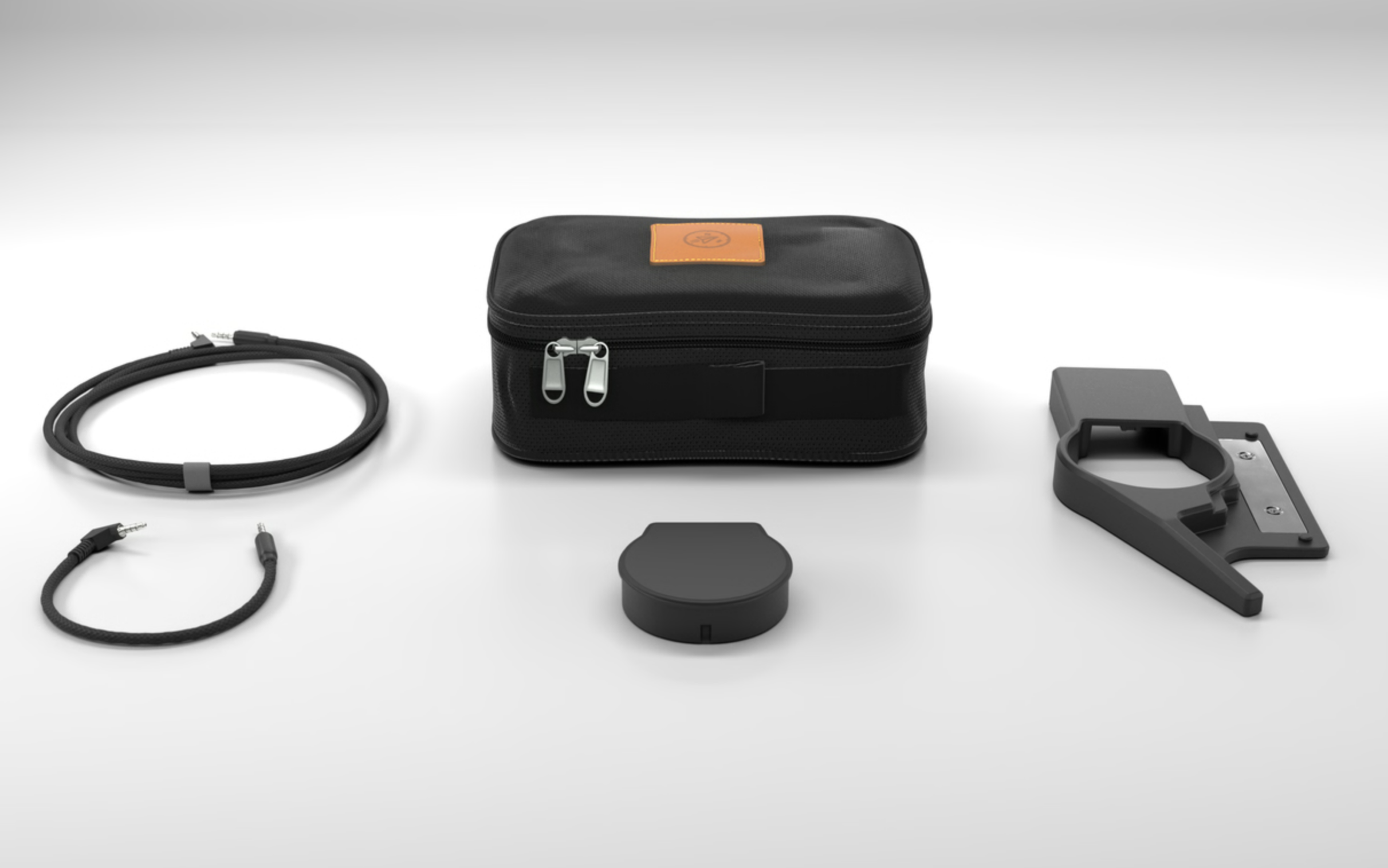
Like the Navigator Trackball, the trackpad comes with all the cables needed to connect the accessory to whichever ZSA keyboard it will be connected to, including two braided TRRS cables, a purpose-built carrying case, and the magnetic shell.
Source(s)
 Add as a preferred source on Google


