





This iPhone setting ate up 7GB of my storage - it’s a one-click fix
CheckMag
Yes, I saved 7GB of iPhone storage with a single click. Do yourself a favor and change the default iPhone setting that takes up gigabytes of storage - if you record Voice Memos as often as I do, that is.Martin Filipov 👁 Published 🇪🇸 🇵🇹 ...
I consider myself reasonably tech-savvy. I make music on my laptop. I do creative writing. I record ideas constantly.
And this means that the iPhone Voice Memos app is basically my second brain, or at least a notebook I don’t need to write in. Humming hundreds of melodies, comedy bits at 2AM, concepts, ideas, etc.
Of course with 1,000+ Voice Memos, thousands of photos and videos, and many apps, my iPhone eventually started warning me that I was running out of storage.
But then I went into the storage settings, and to my surprise, Voice Memos was taking up way more space than I had anticipated - around 10GB.
Then I started doing some research, and as it turns out the Voice Memos I captured over the past five years were recorded in “Lossless” quality - by default.
The iPhone Setting eating up your iPhone storage - No One Knows About it
If you go into your iPhone Settings > Voice Memos > Audio, you’ll find two options for quality - compressed and lossless.
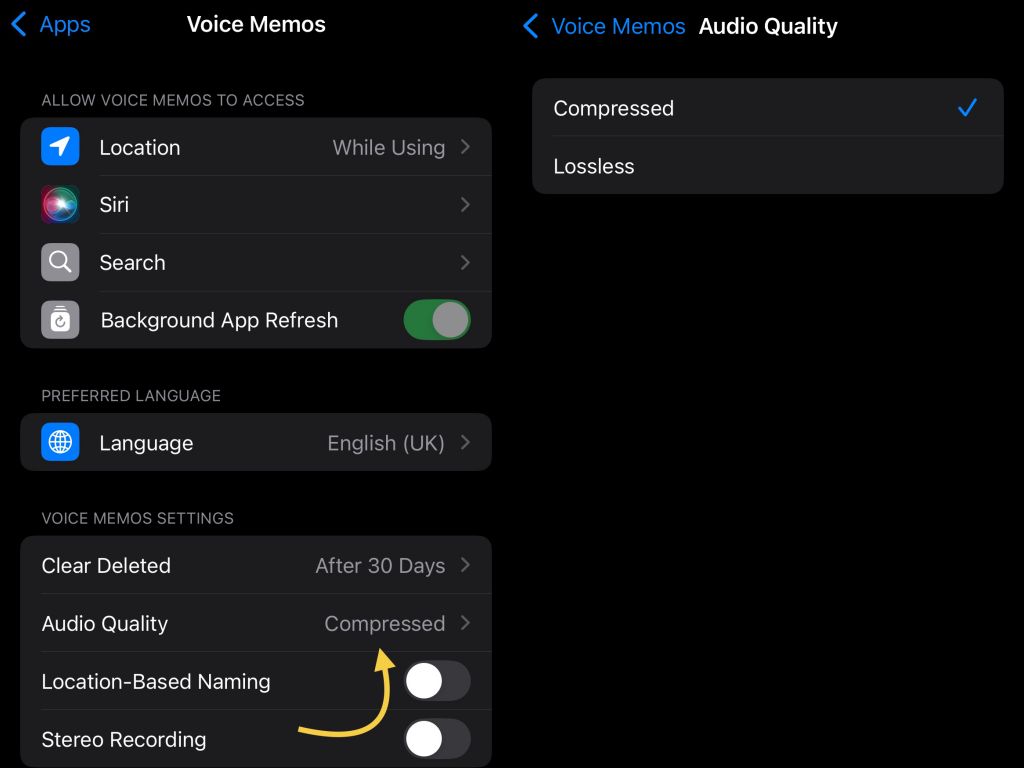
I’d be shocked if any casual user was aware of this iPhone setting, but why would they? Voice Memos is supposed to be simple - press record and capture the thought. Even if you are a Grammy award winning artist like Charlie Puth who released a whole album named after the app (because he used it to record ideas). Or me.
For reasons unknown to anybody on planet Earth, Apple ships iPhones with the “Lossless” audio Voice Memos setting turned on.
Lossless vs Compressed Voice Memos - the file size difference is huge
Lossless audio preserves every bit of sound data, and it might be great if you are recording a live album in a studio with your iPhone. Which no one does.
On the built-in iPhone microphone(s), recorded in day-to-day environments and played back through the speaker or AirPods, the difference between Lossless and Compressed is simply unnoticeable. Yet the file sizes are significantly larger.
My quick test of recording a 1-minute Voice Memo using both settings shows that Lossless Voice Memos are approximately 3.5 times larger than Compressed Voice Memos. 500KB vs 1.7MB for a minute-long memo to be precise.
Now scale for the 1000+ Voice Memos I’ve recorded over the years. That’s easily 7GB of storage gone to waste in my case. For the videographers, that’s like recording TikTok videos in 8K RAW.
You recorded Voice Memos in Lossless quality? You can’t really get your storage back
The other frustrating moment is even if you realize years later that you’ve been recording in Lossless (hello!), there’s no “compress all” button.
You can export your Voice Memos to a computer, compress them (the irony) using something like Audacity, store them elsewhere, and delete the originals. But you can’t pop them back into your Voice Memos app. Android’s file system is much more powerful if you run into the same issue.
All in all, it’s technically impressive that the Lossless option exists on iPhone, but there’s no reason that setting should be on by default.
Most people never change default settings (if they know about them in the first place), and when Apple enables a storage-heavy format in an app used casually by millions of people, it quietly eats up space - and many users will never know why their phone is full.
But maybe that’s how you end up buying a more expensive iPhone with more storage. I definitely did. I went from 128GB to 512GB. But I’m a cheapo so I upgraded from an iPhone 13 mini to an iPhone 13 Pro.
The point is: If you use Voice Memos regularly, check the app settings immediately, and switch to Compressed. You are welcome.
Source(s)
Own experience and research.
 Add as a preferred source on Google


