




We tried the new Googlebook OS - What can it do and what not?
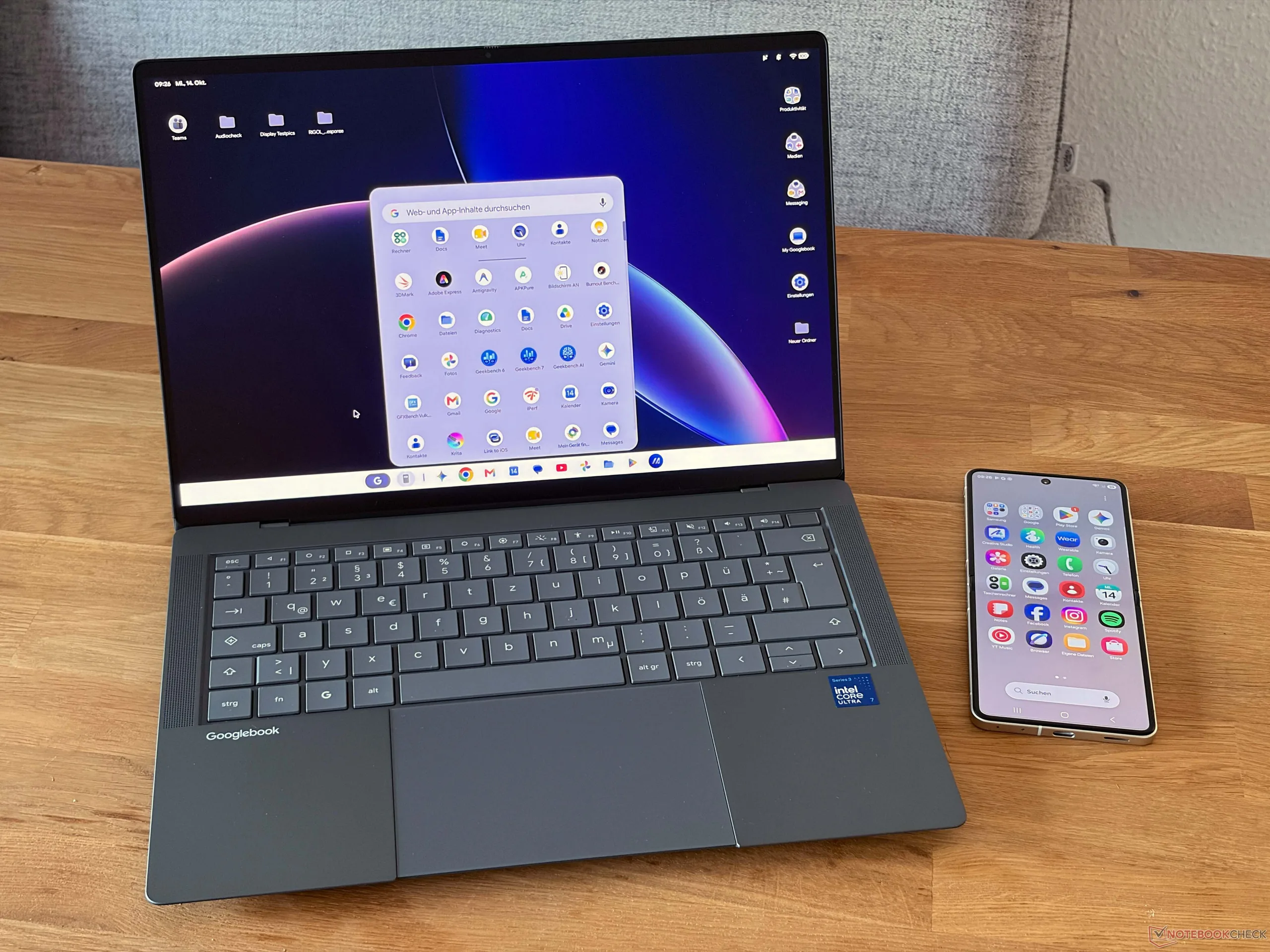
The new Googlebooks are here, and we have already had the chance to take an in-depth look at the HP Googlebook 14c and the Asus Googlebook 14. We cover the hardware in the respective reviews, but in this article we want to take a closer look at how the new Googlebook operating system is structured, what it can do, and how it performs in everyday use.
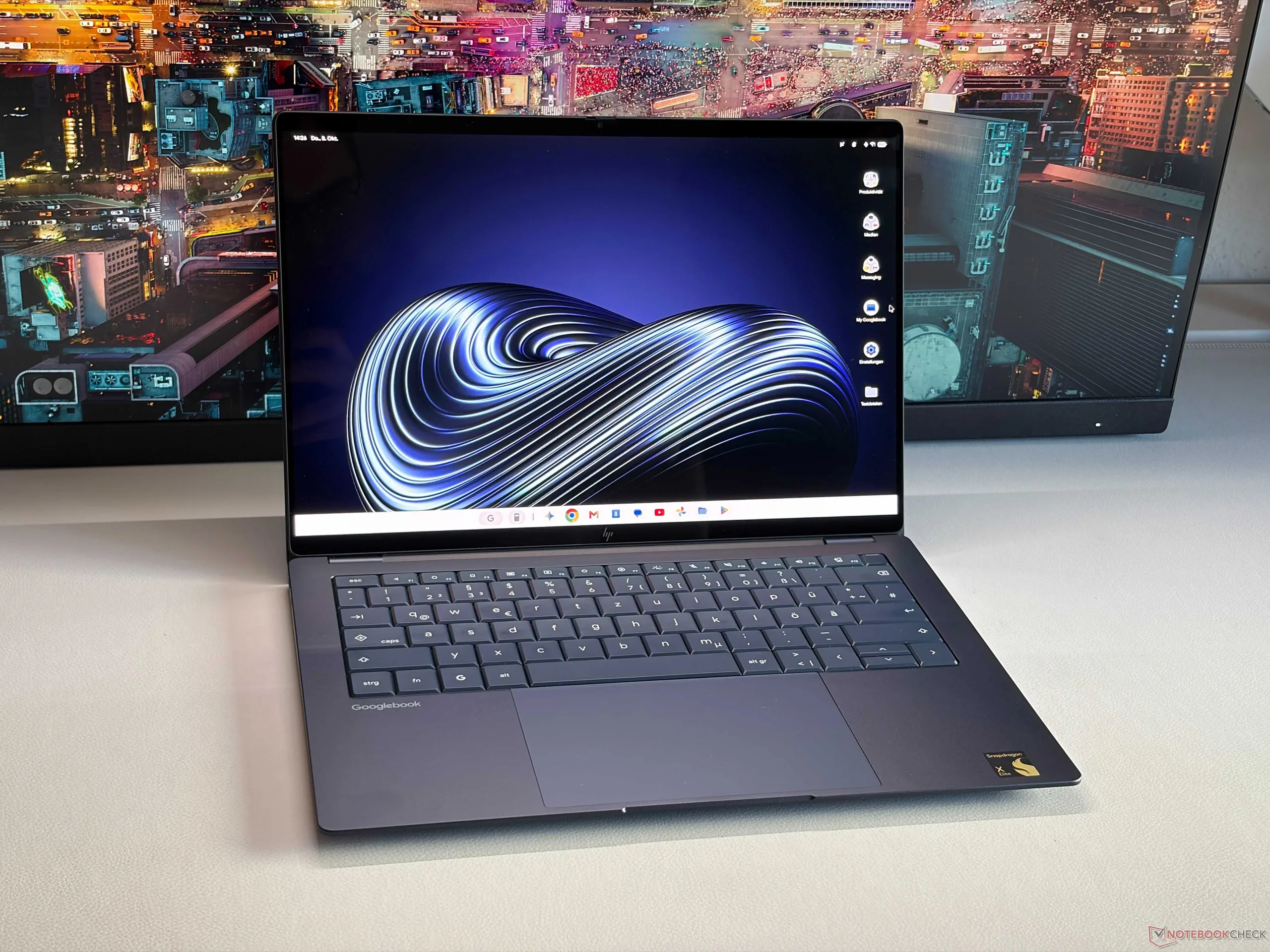

The setup process is very simple and will be familiar to anyone who has already set up an Android smartphone or tablet. Of course, you need a Google account and a Wi-Fi network to set up the device. If you wish, you can also set up biometric data for the fingerprint scanner and voice recognition for the Gemini AI assistant at this stage. An existing Android device can make setup even easier by transferring data and accounts directly. During setup, you are also asked whether you are setting up the device for yourself or for a child. This makes it easy to configure the device using the familiar family sharing feature, for example to give children access only to certain apps and websites or to block the app store. Once setup is complete, you arrive at the desktop.
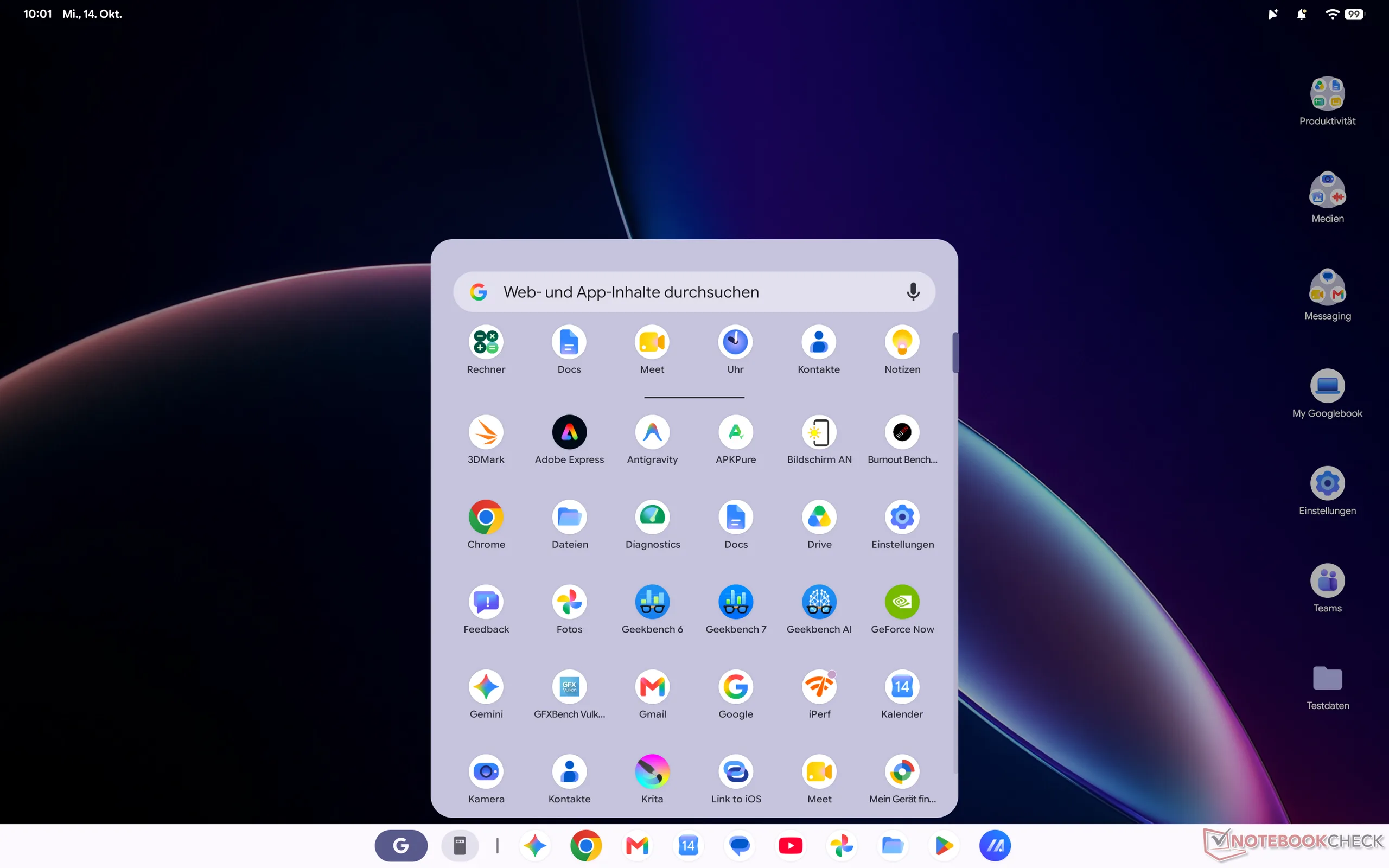
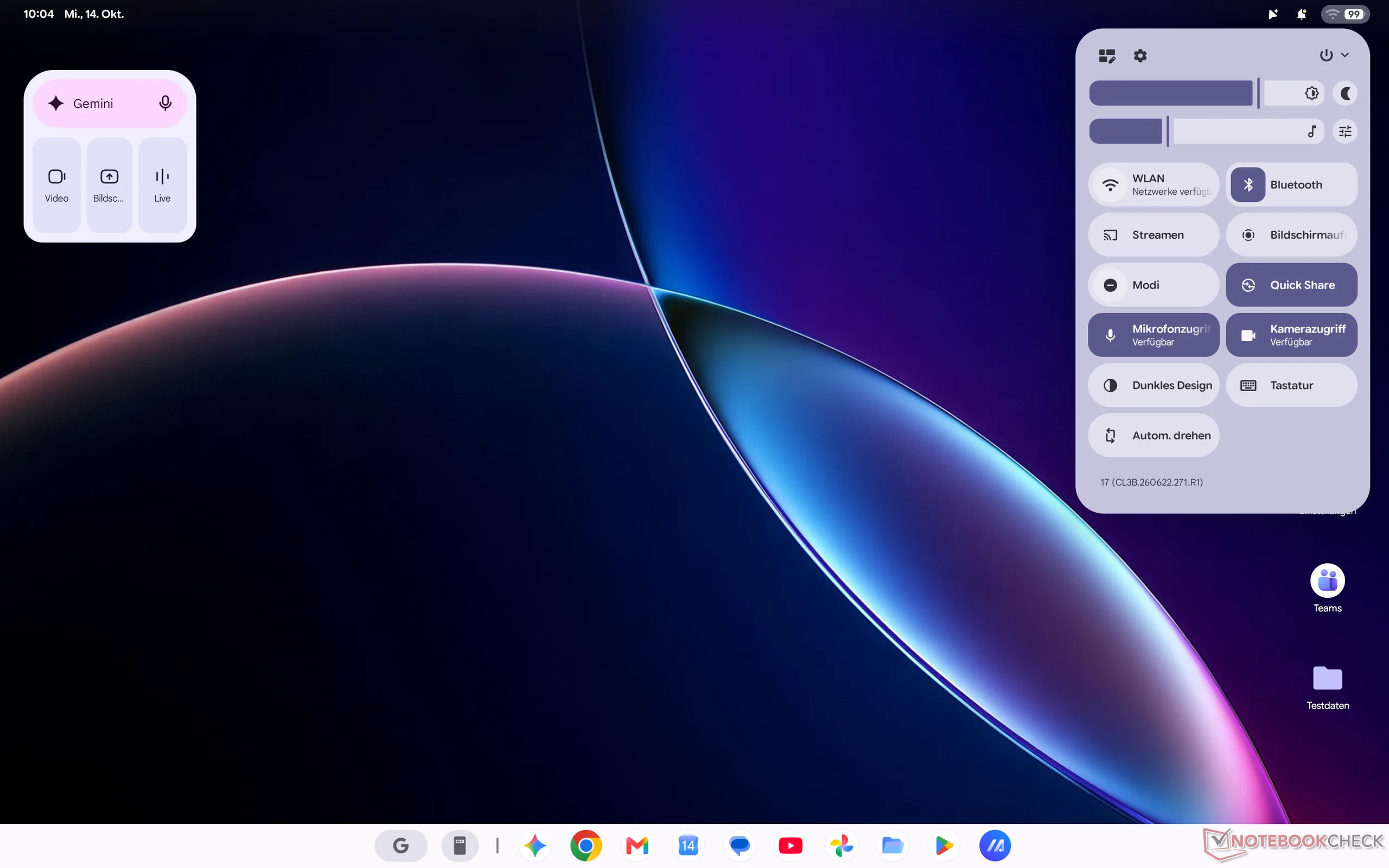
Here you will find the usual elements familiar from Windows or macOS devices: a taskbar (which can either remain visible or be hidden) with a few apps and a button (G) for the start menu, some folders and icons on the desktop, a few widgets, and a status bar at the top of the screen. Clicking the Wi-Fi or battery icon brings up a quick settings menu similar to the one on a smartphone. This gives you access to brightness controls, Wi-Fi and Bluetooth connections, and other settings such as switching to dark mode, which makes particular sense on OLED screens. You can also stream content to compatible TVs, for example, and record the screen here, although Googlebooks also offer a dedicated key for this.
The taskbar also contains the Files option, which opens a file explorer similar to those in Windows or macOS. It displays recently used files and provides direct access to folders for webcam photos, the drive itself, the trash, Google Drive, and connected external storage devices. Note that only flash drives or drives formatted as FAT32 or exFAT are compatible. However, the Googlebook did not like our exFAT SSD and wanted to format it first, whereas a 64 GB USB flash drive (exFAT) worked without any problems. Then, of course, there are the settings, which will also be familiar from Android devices. A Debian terminal is also available directly in the quick settings menu.
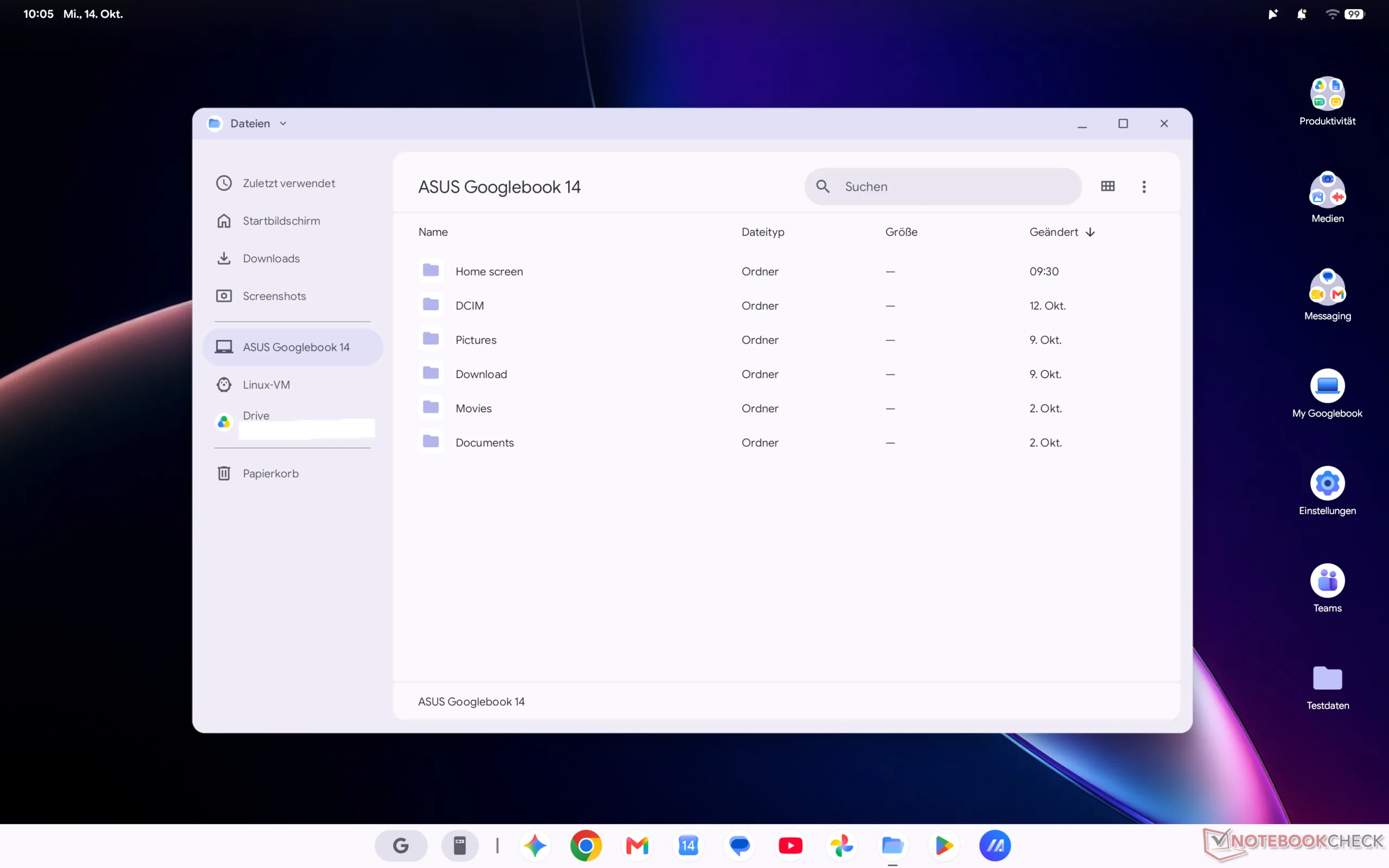
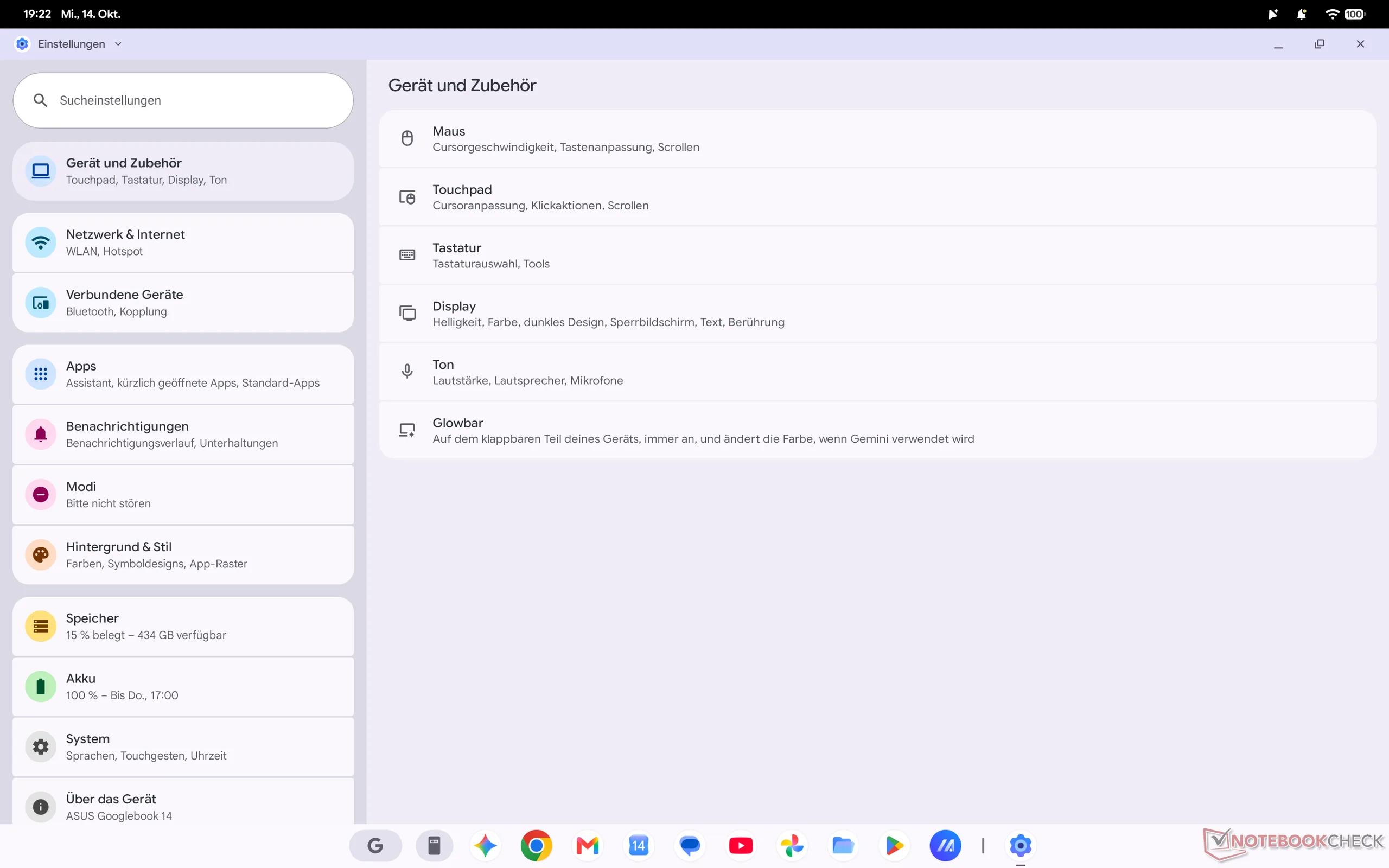
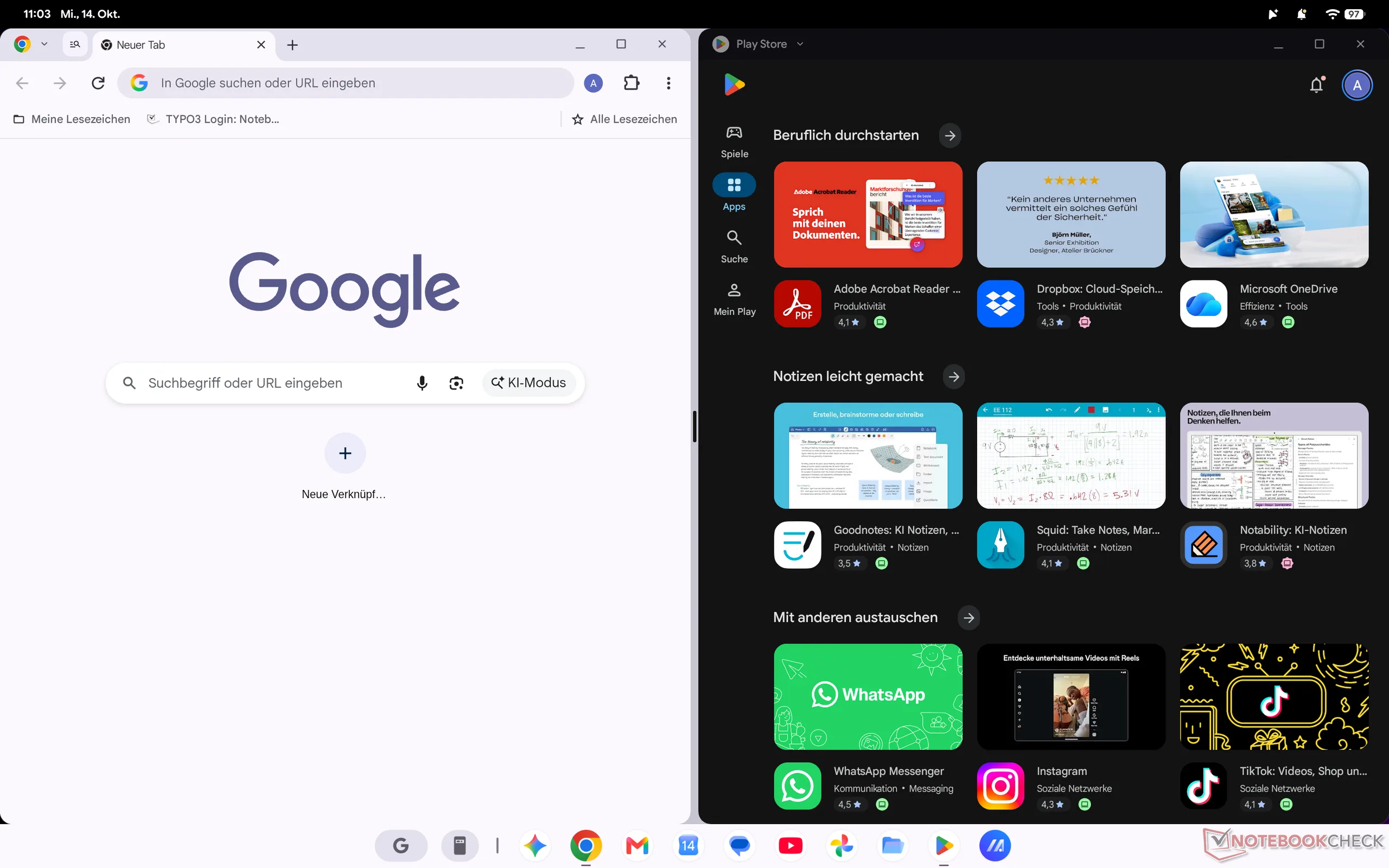
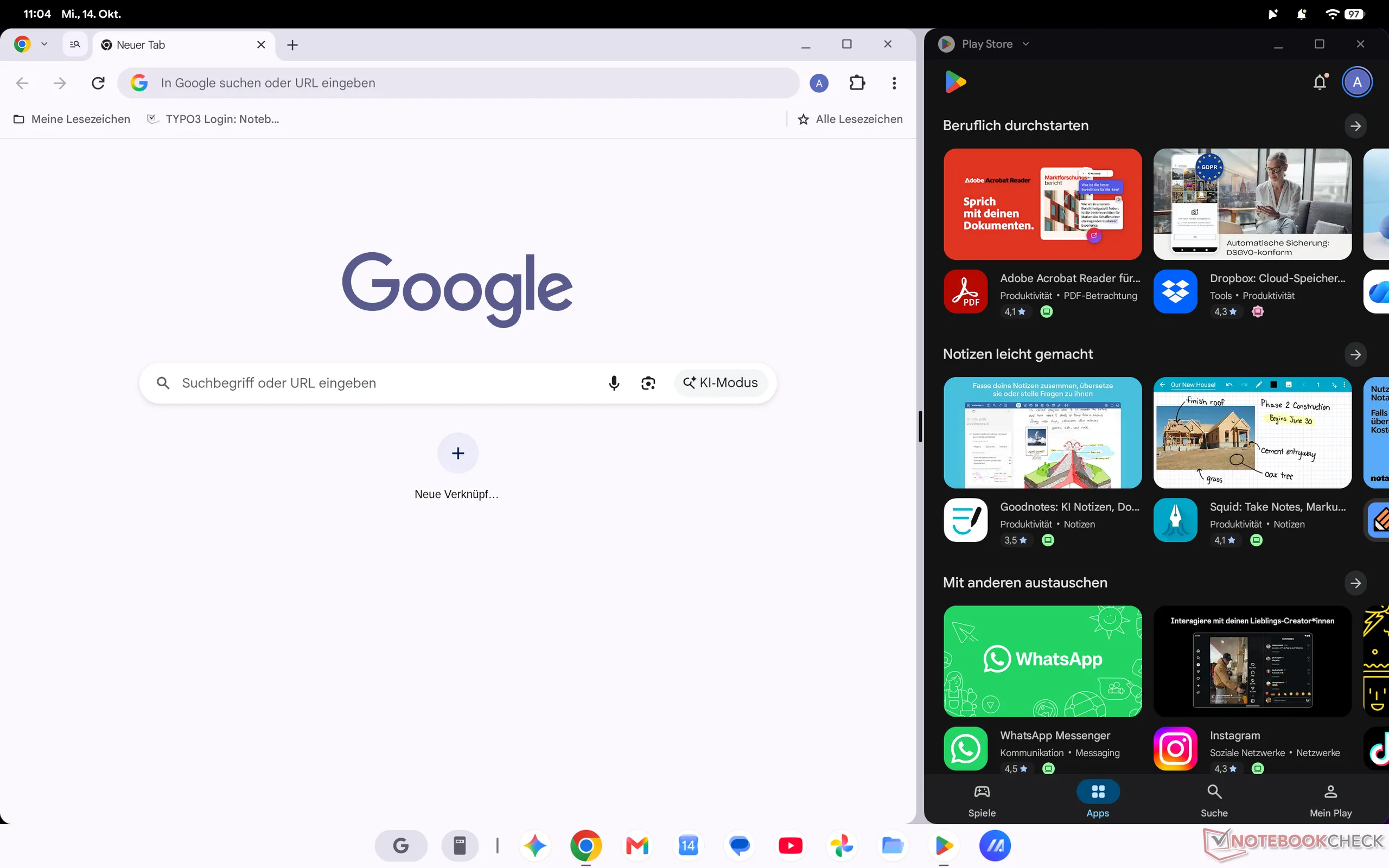
Overall, using the system is very intuitive, and there is little you can really get wrong. Arranging windows is straightforward too: they can easily be positioned side by side, and their relative widths can be adjusted just as easily, either using the trackpad or touch input. You can also use multiple desktops, although we are not entirely happy with the gesture controls here. Currently, switching requires two gestures (swipe up first, then swipe right or left). Switching desktops with a single gesture, as you can in Windows and macOS, is not yet possible.
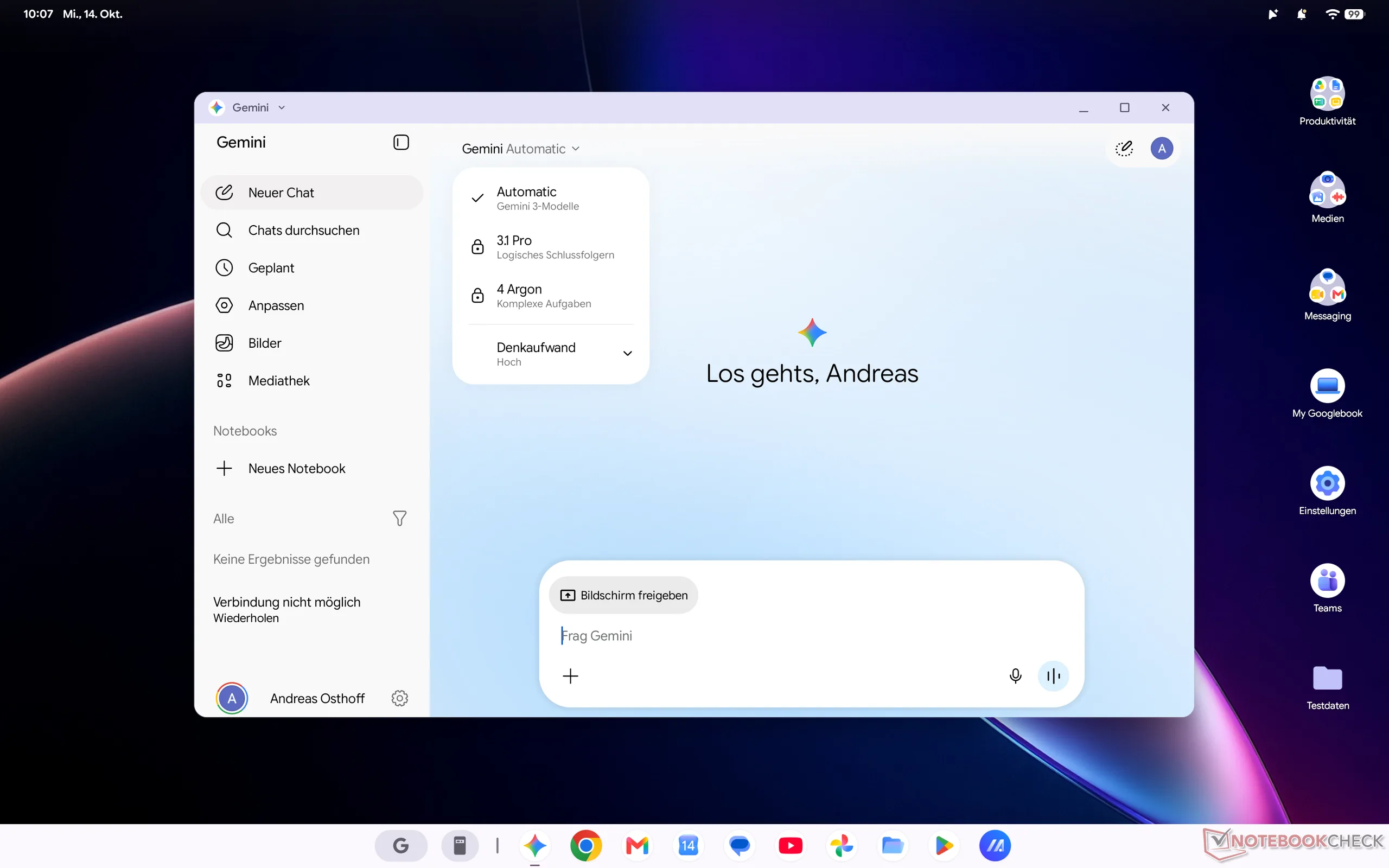
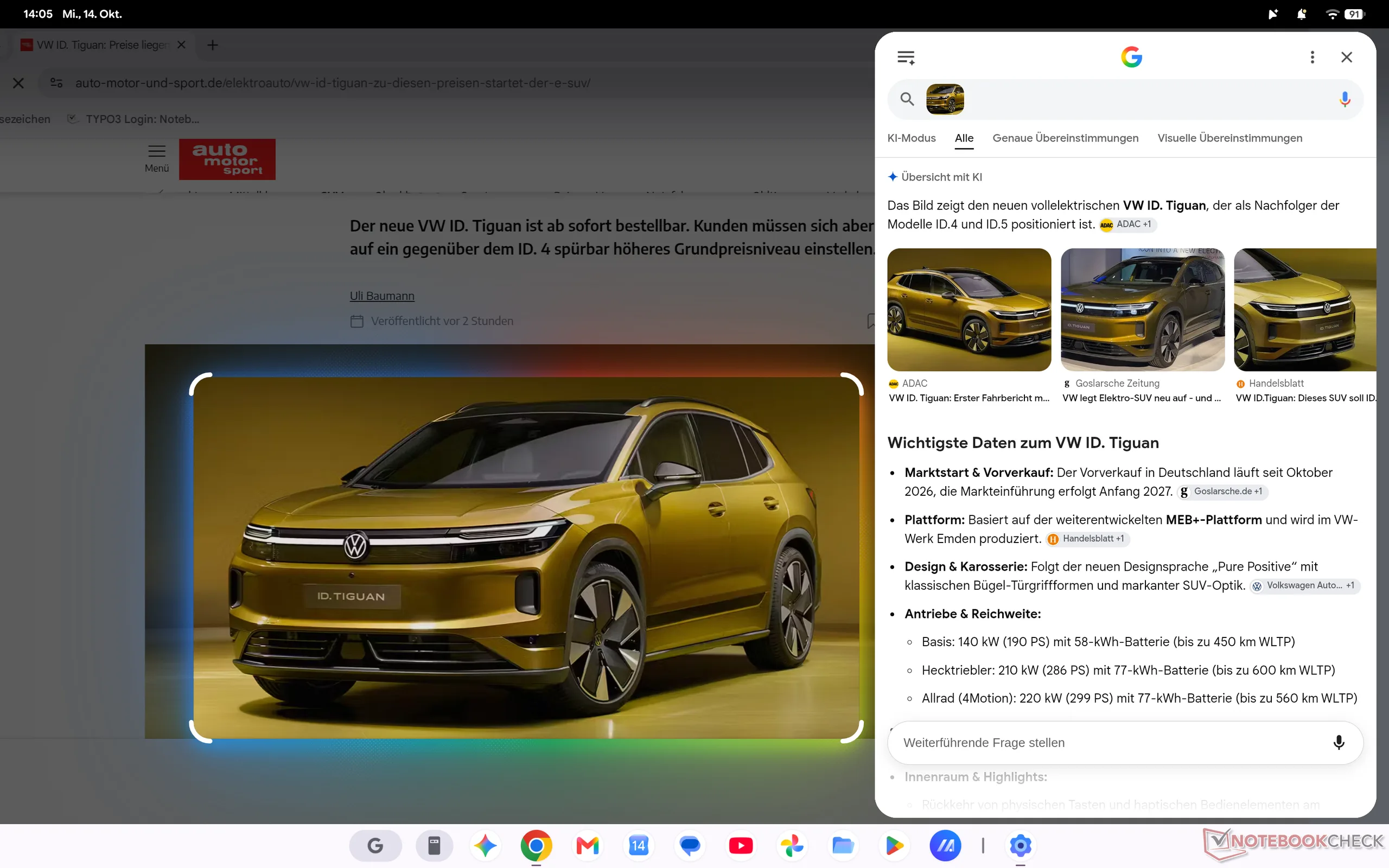
Of course, Google's Gemini AI assistant also plays a central role. It responds to voice input or can be accessed using the Gemini button on the taskbar (as well as a keyboard shortcut). You can then choose whether Gemini should save conversations, select the speed/accuracy of its responses, and choose which model to use. Gemini 3 is currently the default, but you can also pay to switch to Gemini 3.1 Pro or 4 Argon. Magic Pointer also provides a version of Circle-to-Search, allowing you to simply highlight things you would like to learn more about.
The last important feature of Googlebook OS is smartphone connectivity, allowing you to continue working seamlessly, take calls, or simply use apps from your smartphone. The first major limitation, however, is that you need a smartphone running Android 17. Despite having a suitable device, we did not manage to establish the required connection on the Asus Googlebook 14. We will try to test this feature with other Googlebooks soon.
The second major problem at present is app support. As on a smartphone or tablet, Android apps can be installed from the Google Play Store or alternative app stores such as Aurora Store. So far, so good, but some apps apparently are not compatible with Googlebook OS. These apps do not even appear in Google's Play Store, and if you try to install them from other stores, you receive an error message saying that the app is not compatible with the operating system. Google is extremely opaque about this, however, as it provides no information in advance. In addition to apps, this particularly affects games such as Minecraft or Fortnite, both of which are very popular. We do not know whether or when updates will address this. Incidentally, we could not identify any processor-related differences: these restrictions apply to Googlebook models with both Intel and Snapdragon processors. Another problem concerns the displays. Even though you get good OLED panels, there is currently little you can do with them if you want to edit images, for example. Neither of the two devices we have tested so far offered any options for switching between the sRGB and P3 color spaces, and there is no way to calibrate the panels either. The HP Googlebook 14c also currently cannot play HDR content, which we suspect is a software issue.
All in all, Googlebook OS is an easy-to-use operating system, and if you mainly use Google services anyway or are already part of the Android ecosystem, it can certainly make sense. In our view, however, the premium positioning of the new Googlebook models is problematic. While you get good hardware, prices start at around €1,200, and for that price the new Googlebook operating system is very limited. There are plenty of Windows or macOS alternatives (such as the MacBook Air) that also let you use all the Google apps while providing a full-fledged operating system.
 Add as a preferred source on Google


No comments for this article
