




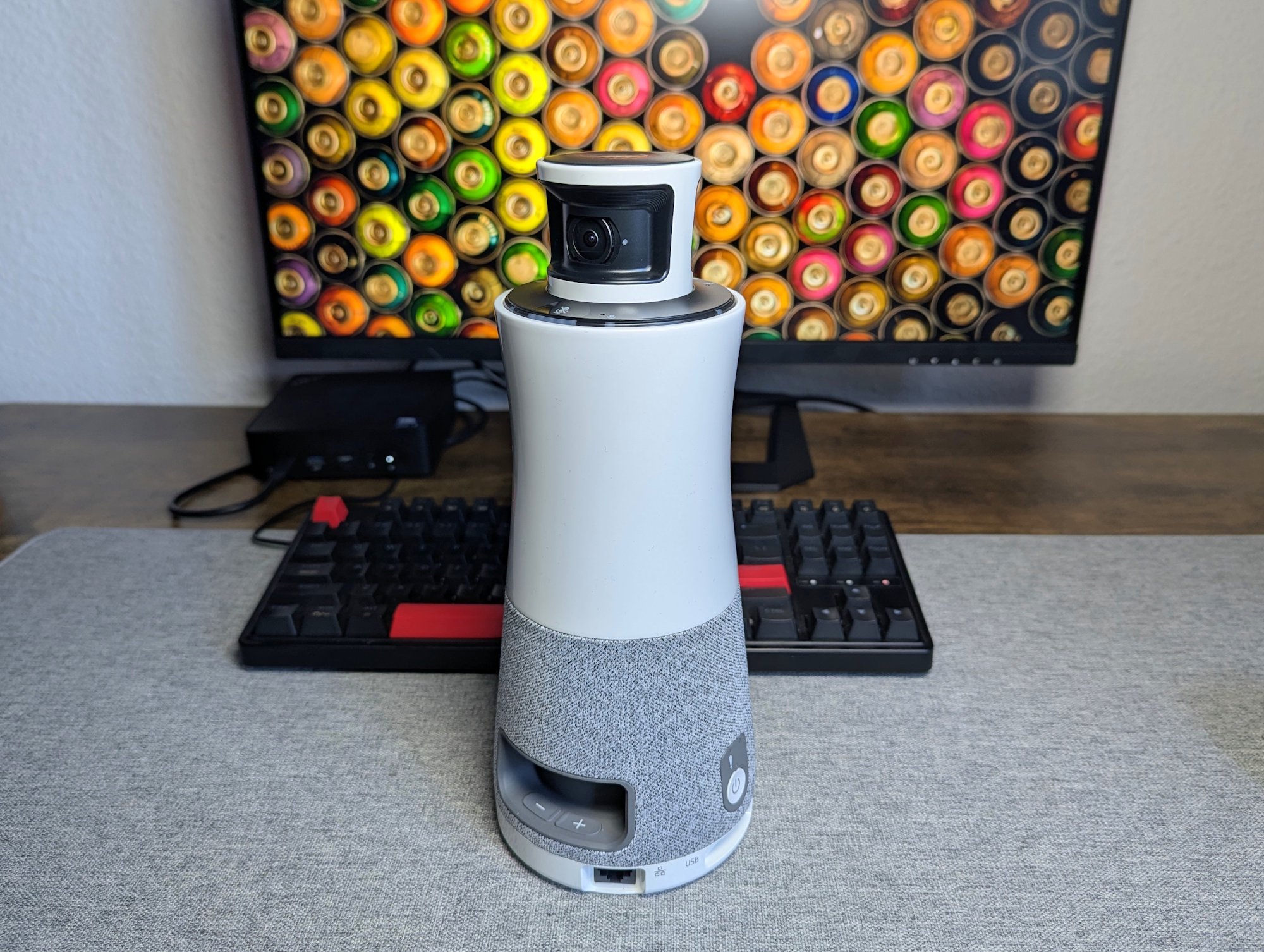
RICOH 360 Meeting Hub review: All-in-one conferencing system with speaker tracking for Teams, Zoom & more
Conference owl.
Hybrid meetings have become a normal part of office life—but traditional webcams quickly reach their limits. The RICOH 360 Meeting Hub uses two 180-degree cameras, automatic speaker recognition, and integrated microphones. In this review, we evaluate how well the 360-degree conferencing system performs in real-world meeting scenarios.Christian Hintze (translated by Christian Hintze) Published 🇩🇪 🇳🇱 ...
Verdict – Impressive for small conference rooms, but expensive
In a video conference, the plug-and-play RICOH 360 Meeting Hub reliably captures the active speaker and every other participant in the room with its panoramic field of view. Image and audio quality (via Zoom, Teams, etc.) are convincing at typical distances and under good lighting conditions. The system performs best in small to mid-size conference rooms.
If participants are seated very far apart (long tables or seminar-style layouts), digital zoom and audio quality become less optimal. However, two RICOH 360 Meeting units can be paired together. Given the relatively high price, though, purchasing the system requires careful consideration.
Pros
Cons

Table of Contents
- Verdict – Impressive for small conference rooms, but expensive
- Specifications– 4k panoramic camera, microphone array, and speakers
- Design & build quality – Column-style plastic housing with fabric
- Box contents – USB-C cable and power adapter
- Setup – Plug and play via USB-C and Ricoh software
- Real-world test in a seminar room: How well does the video conference work?
In hybrid meetings with several people in the room (along with remote participants via video call), meeting hubs—often nicknamed “conference owls”—are commonly used. These devices either automatically pan their camera toward the person currently speaking or capture the entire room with a panoramic camera and digitally zoom in on the relevant speaker thanks to high-resolution sensors.
The RICOH 360 Meeting Hub belongs to the latter category. With its two 180-degree cameras, it captures all participants simultaneously. Equipped with multiple speakers, microphones, and dedicated software, it aims to make everyday conference calls more convenient and professional. In this review, we test what the roughly €900 device can really do.
Specifications– 4k panoramic camera, microphone array, and speakers
| camera | 360 degrees; 4K + 3K; output resolution: 1920 × 1080 at 30 fps | ||
| video range | 3.6 meters | ||
| microphone | array of 3 microphones for 360-degree capture up to 6 m | ||
| speakers | 3 × 8 W; SPL = 91 dB (1 m with power adapter) or 81 dB (1 m via PC connection) | ||
| network | 10BASE-T, 100BASE-TX, 1000BASE-T; Wi-Fi: 802.11 a/b/g/n/ac/ax | ||
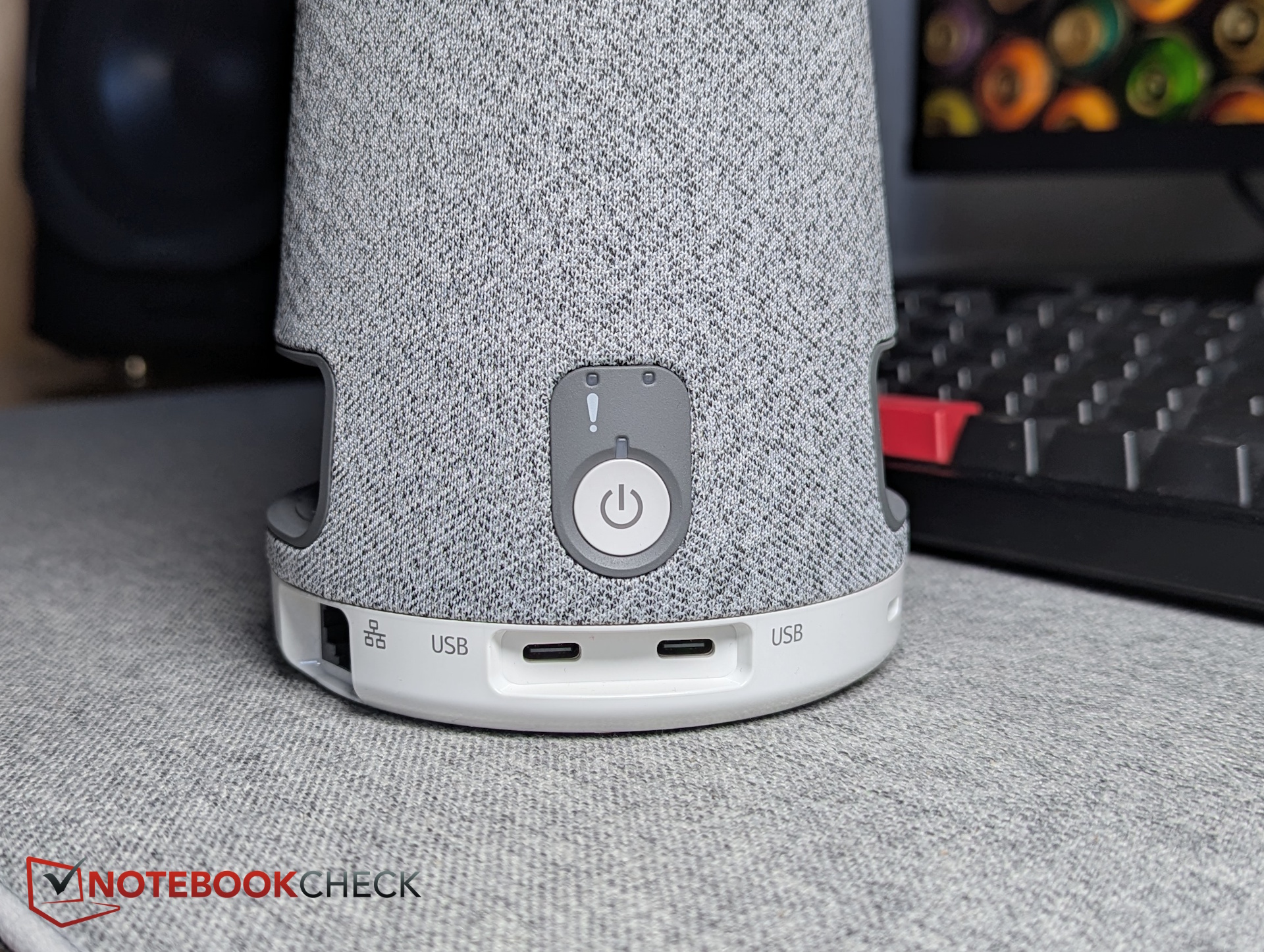
| ports | 2× USB-C, RJ-45, Kensington | ||
| supported conferencing platforms | Microsoft Teams / Zoom / Cisco Webex / Google Meet | ||
| weight | 1.13 kg | ||
| warranty | 3 years | ||
| price | $821 |
Design & build quality – Column-style plastic housing with fabric
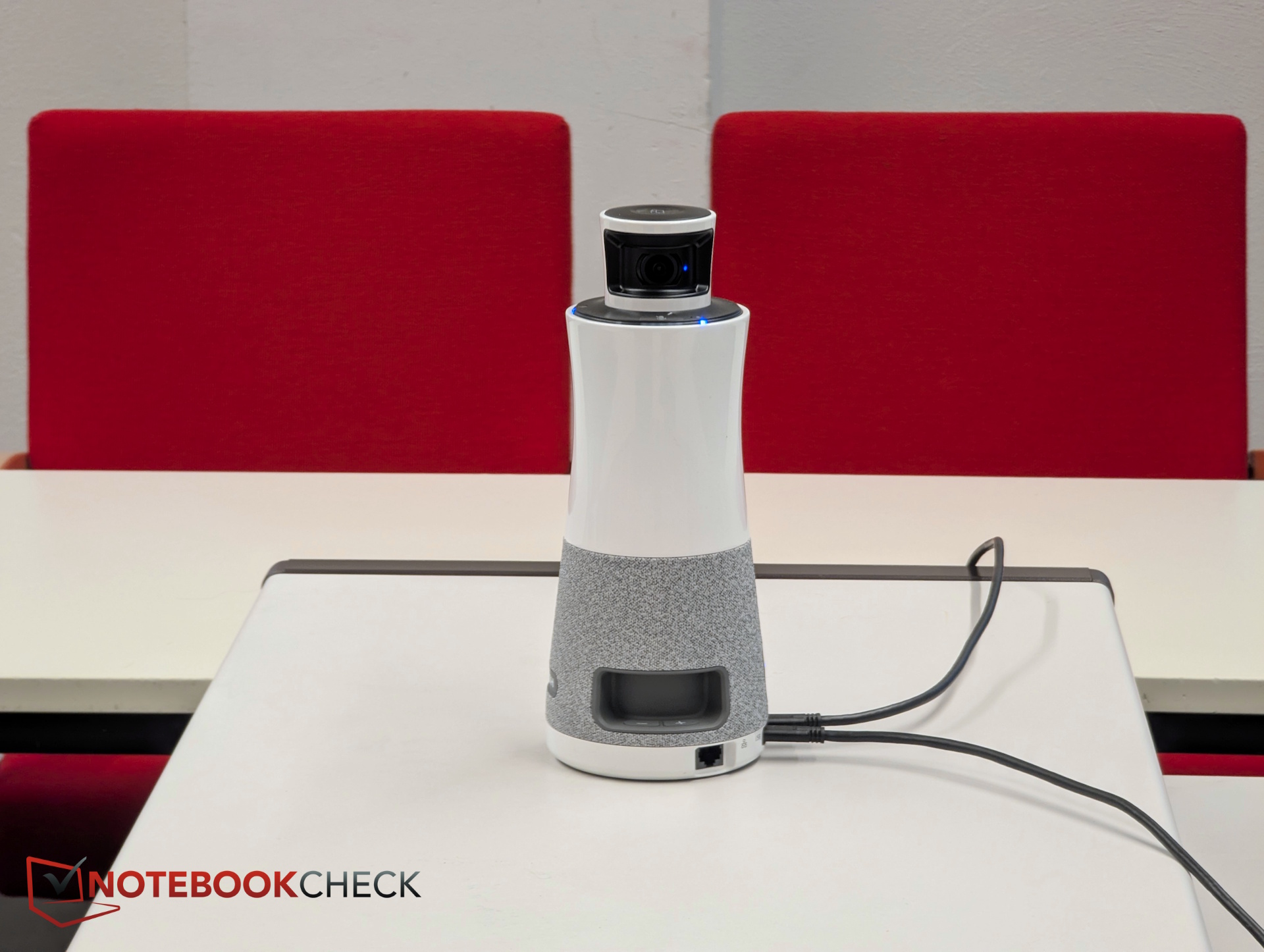
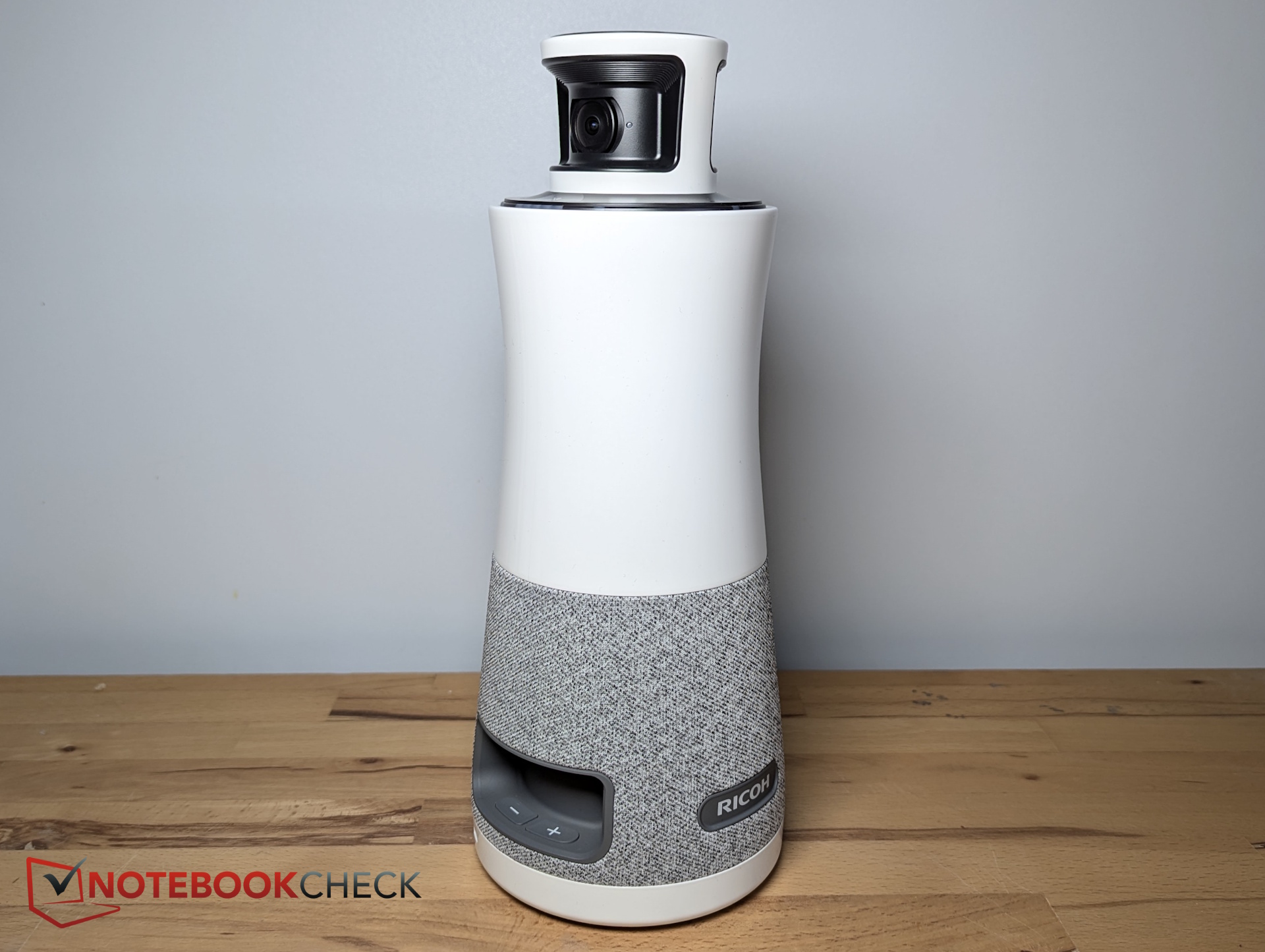
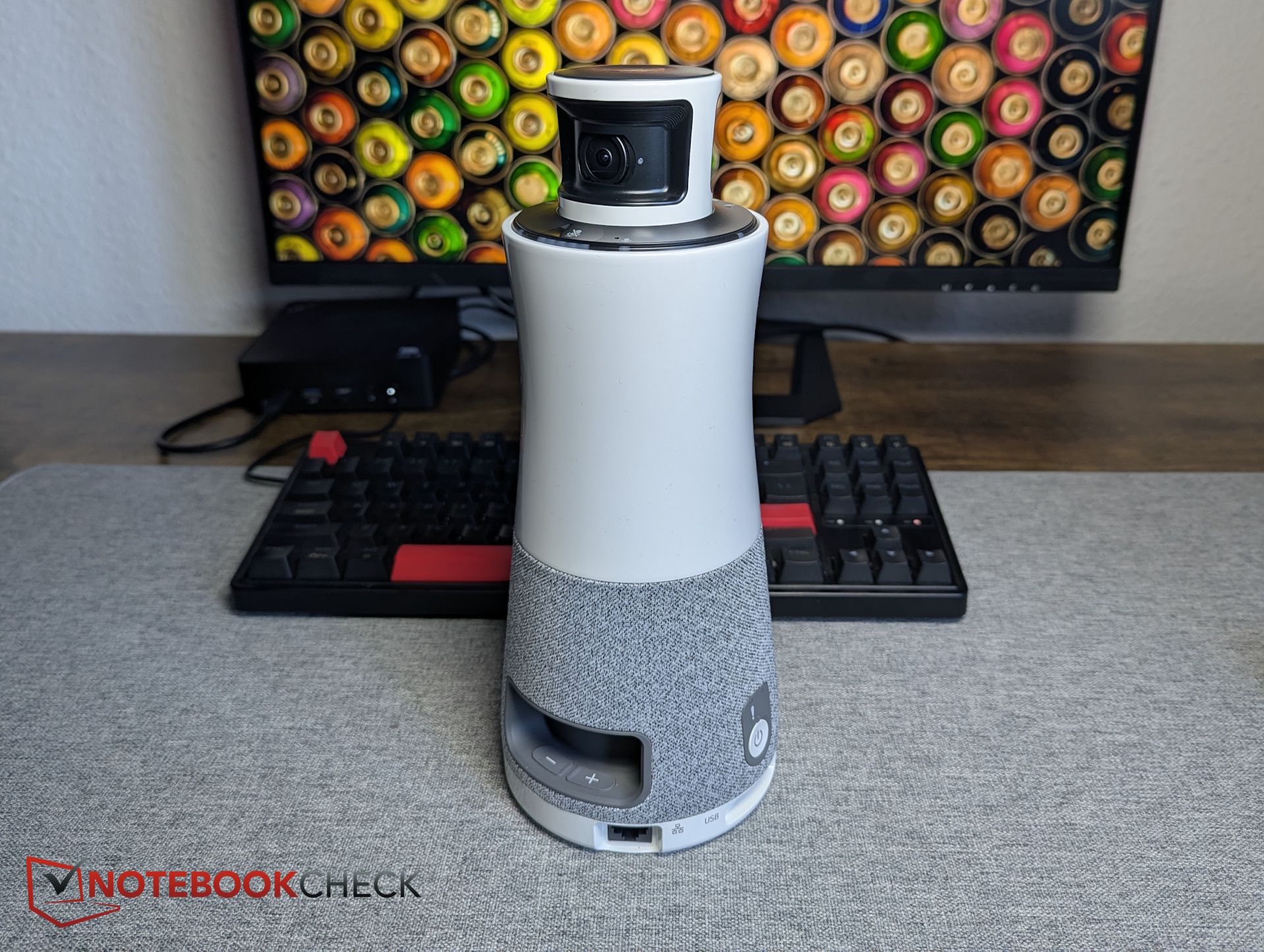
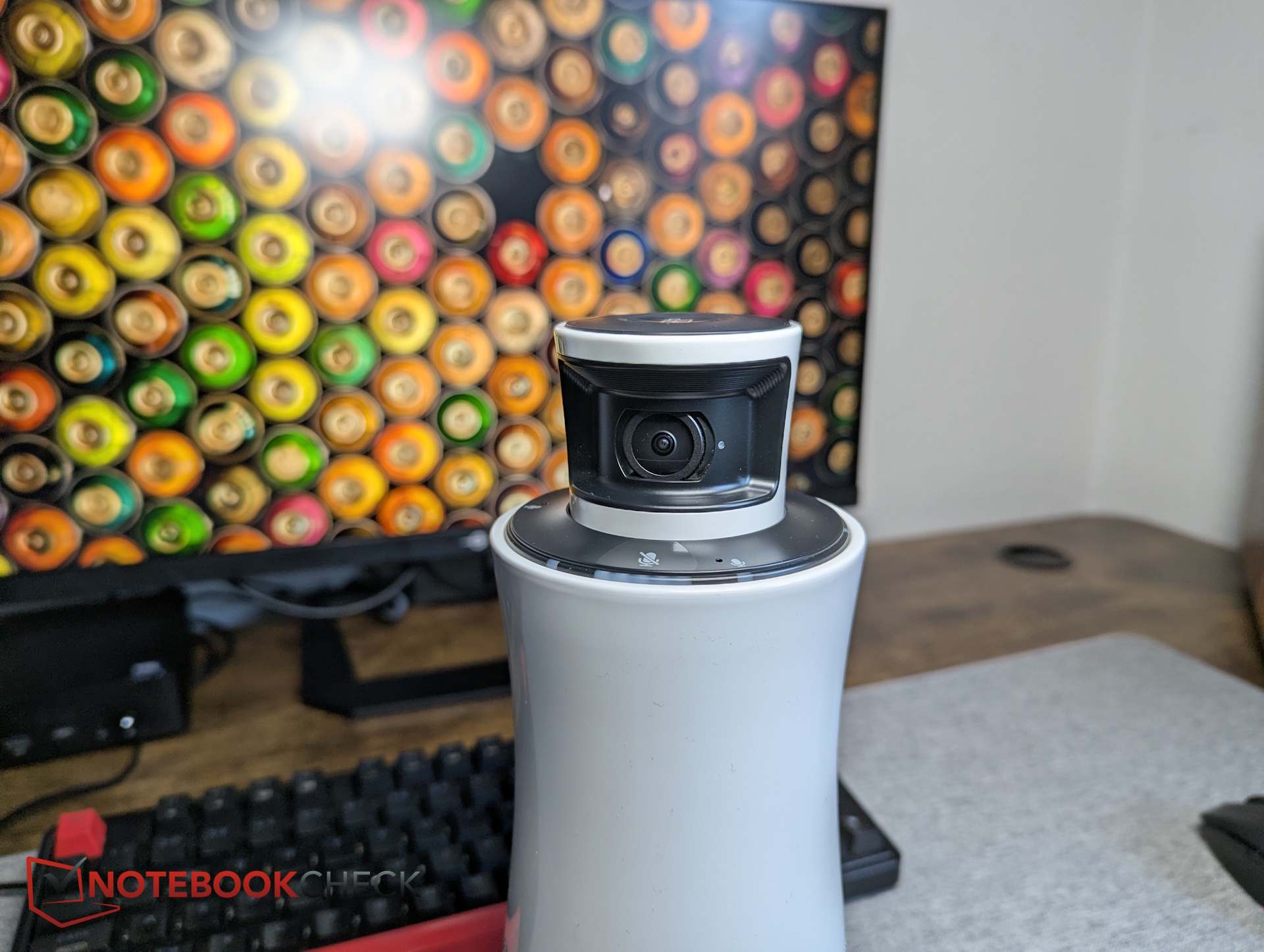
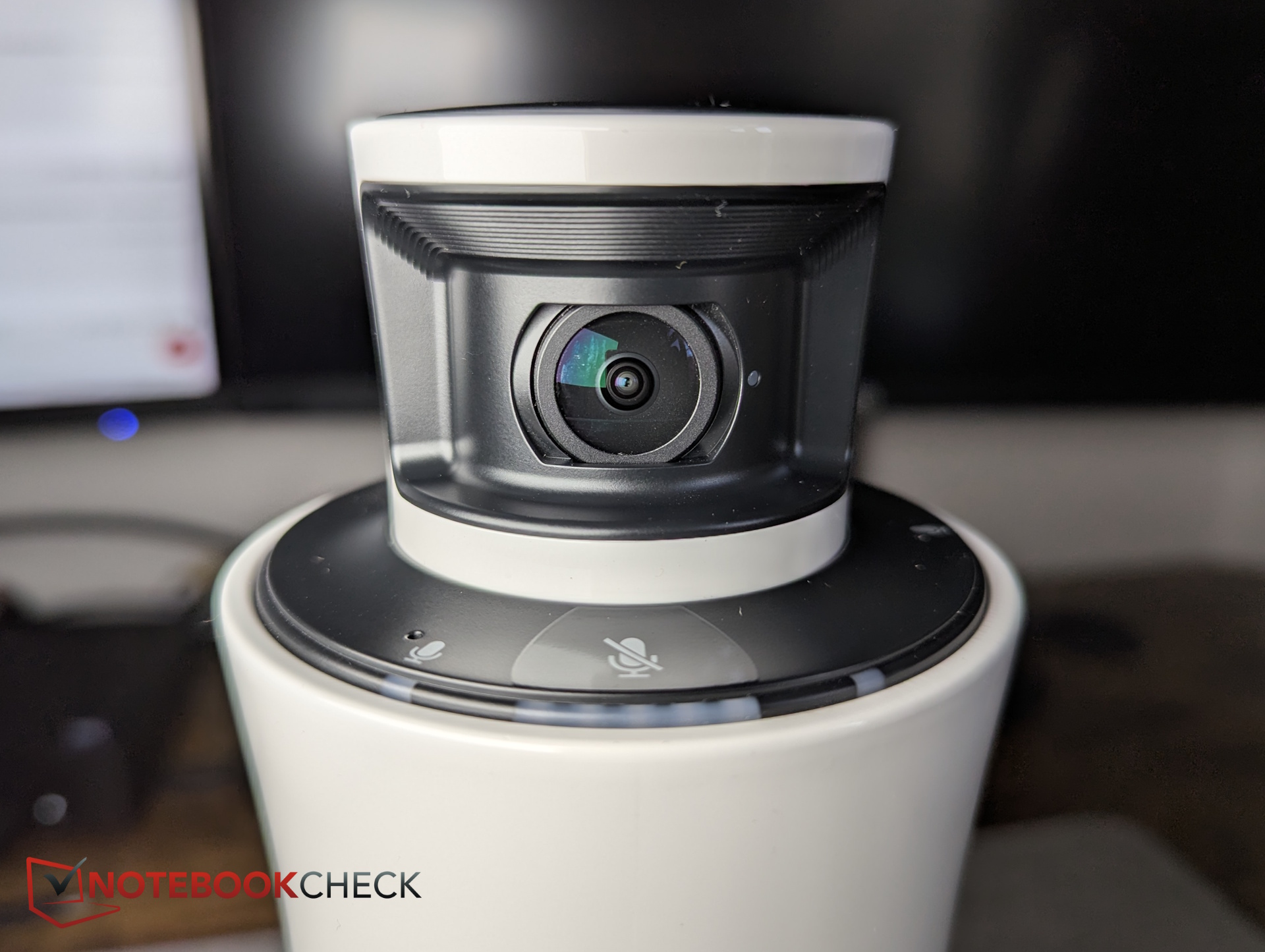
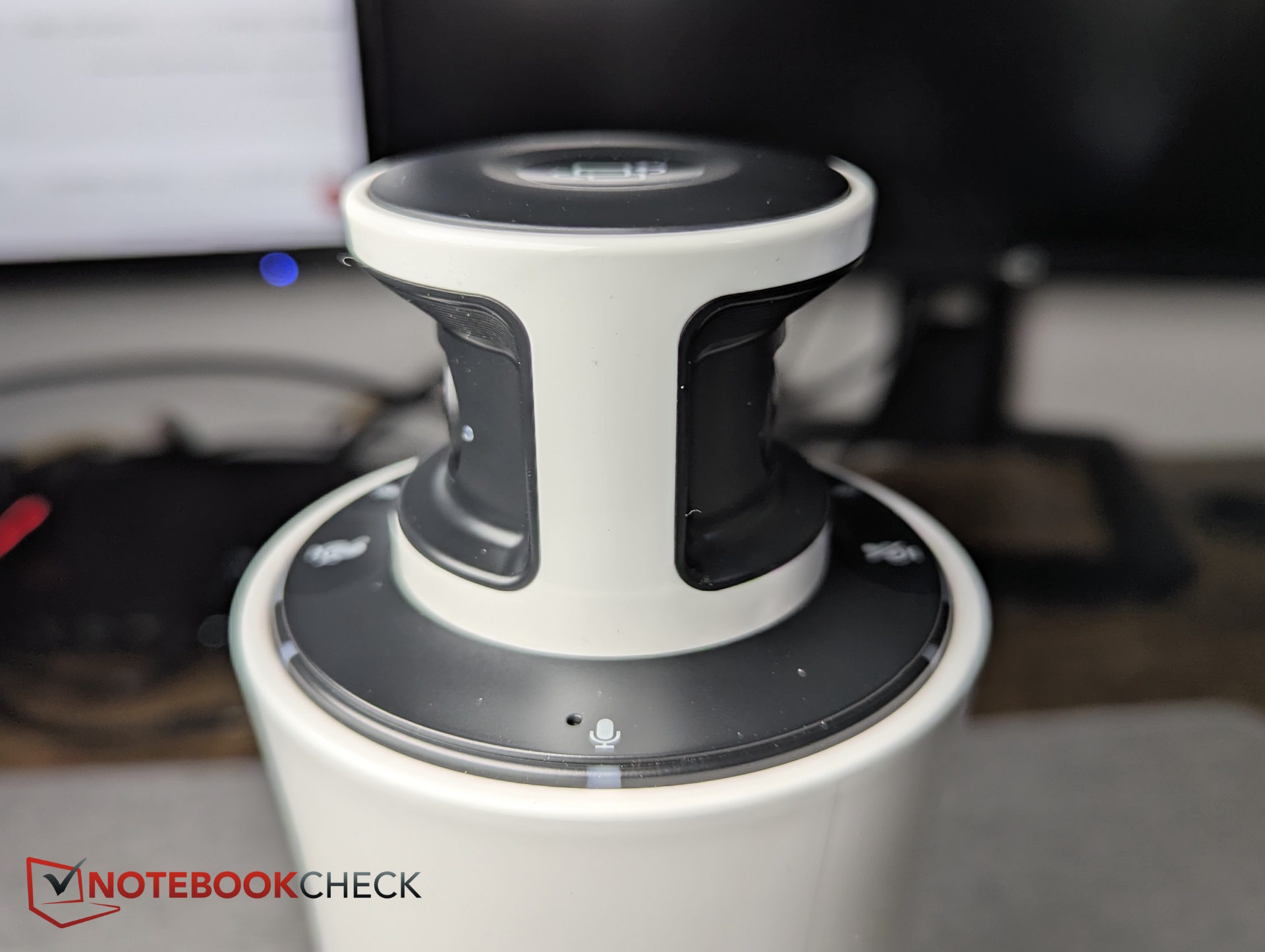
The column-shaped plastic housing places the two 180-degree cameras at the very top. This makes sense, as the cameras rise above laptop displays and other obstacles, positioning them close to eye level without blocking participants’ line of sight to each other. The three microphones are also located at the top.
In the lower third, three speakers are wrapped in gray fabric. Volume buttons are located on both sides of the device. All ports are positioned at the bottom.
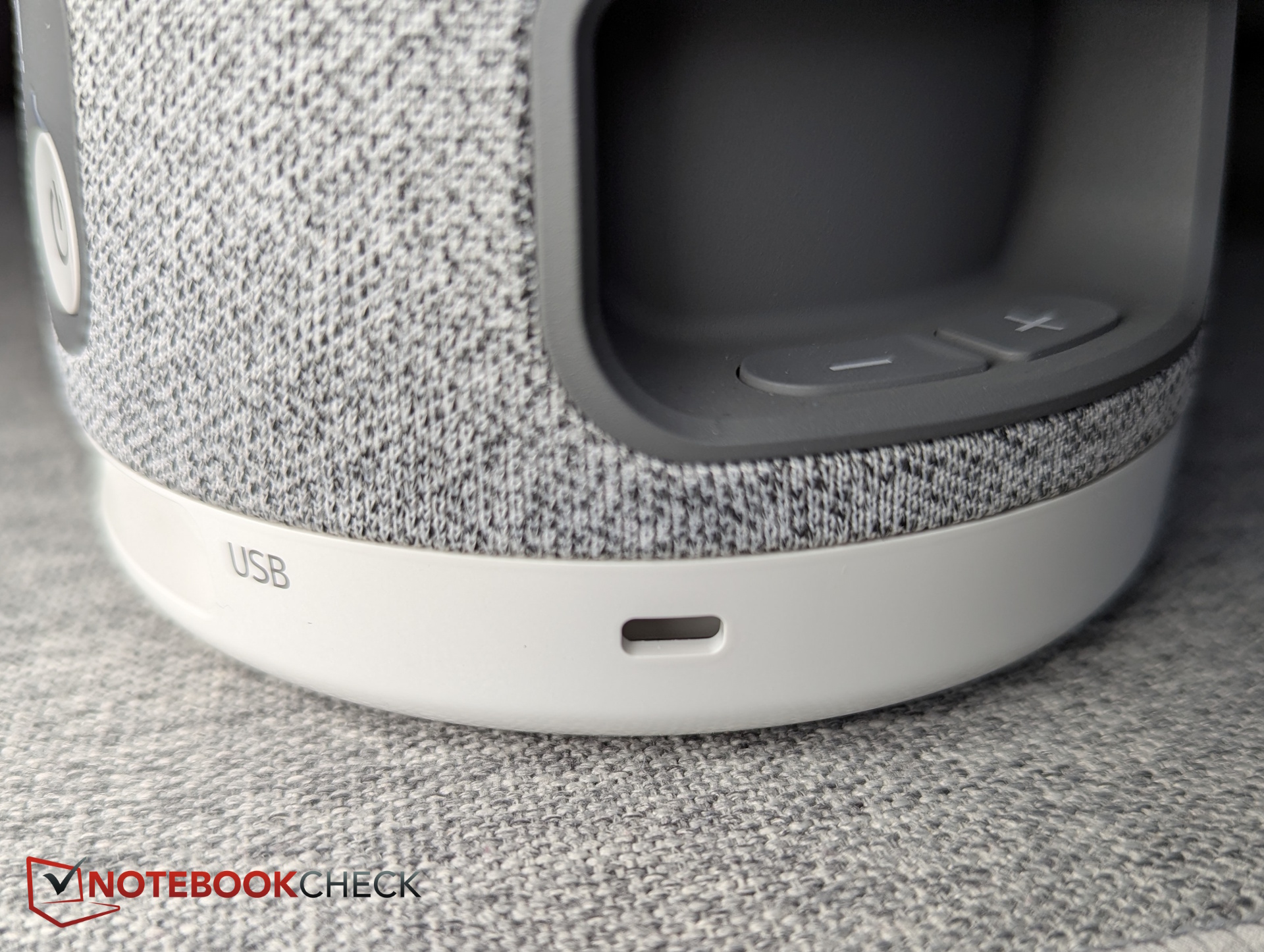
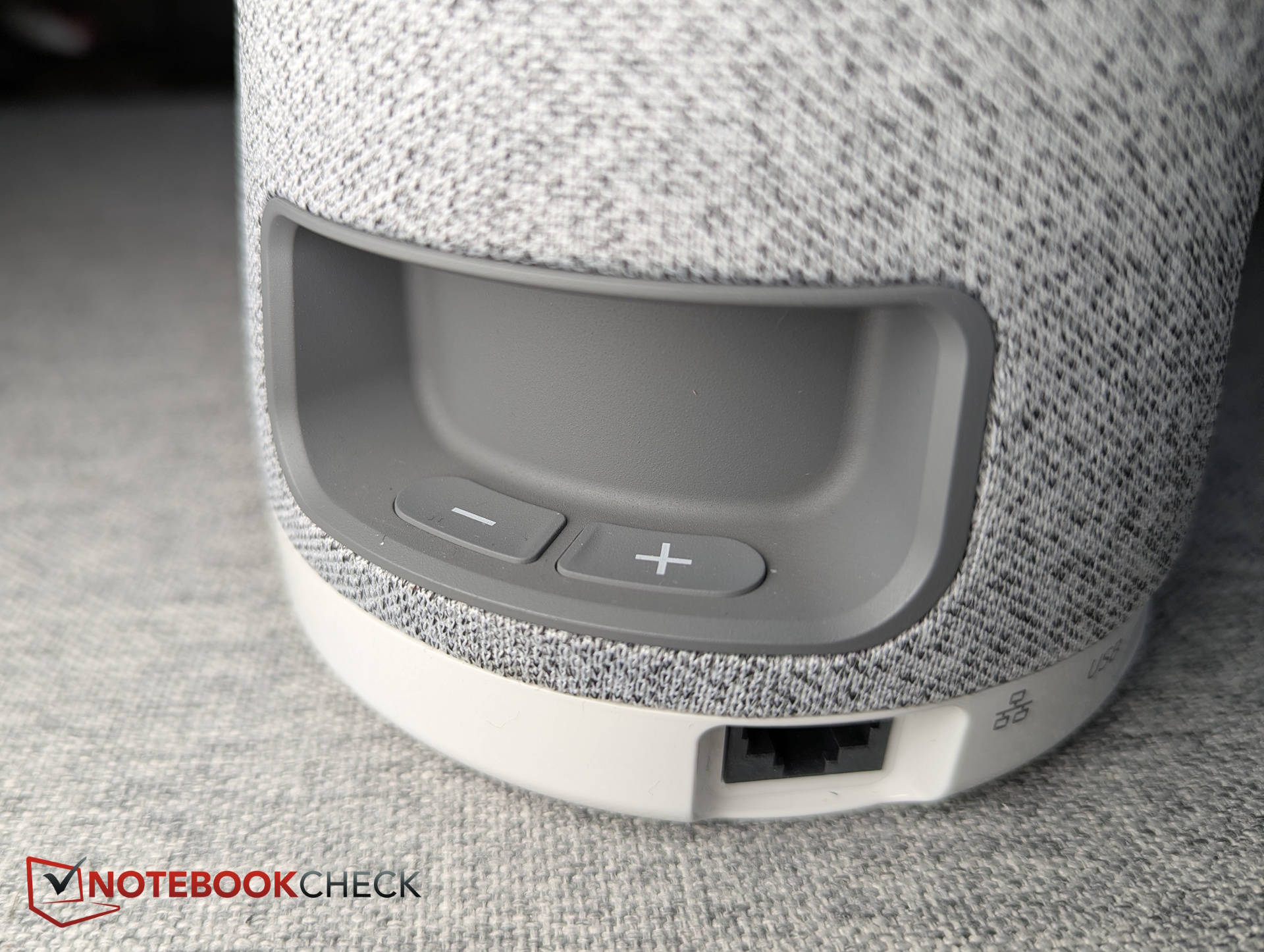
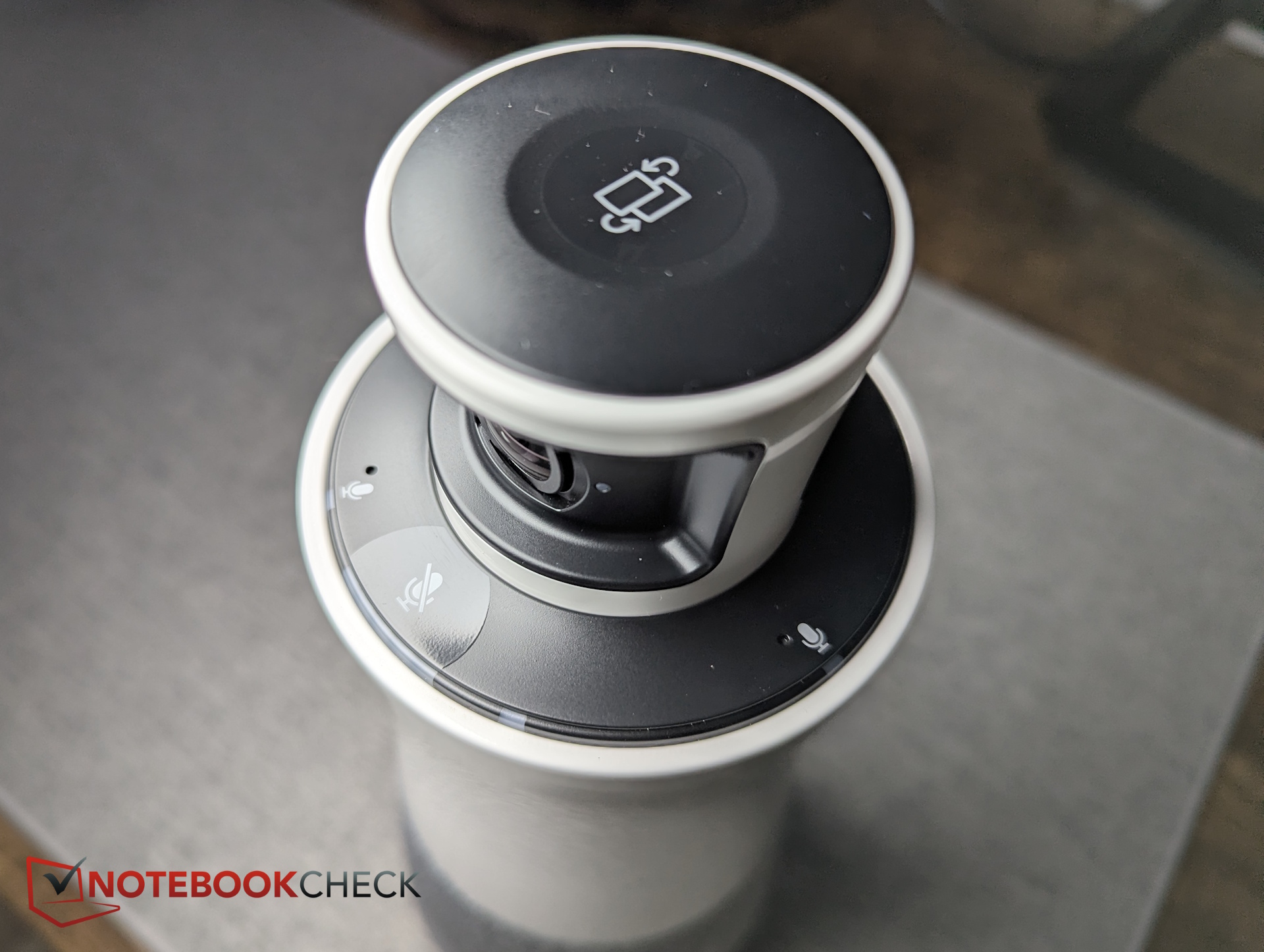
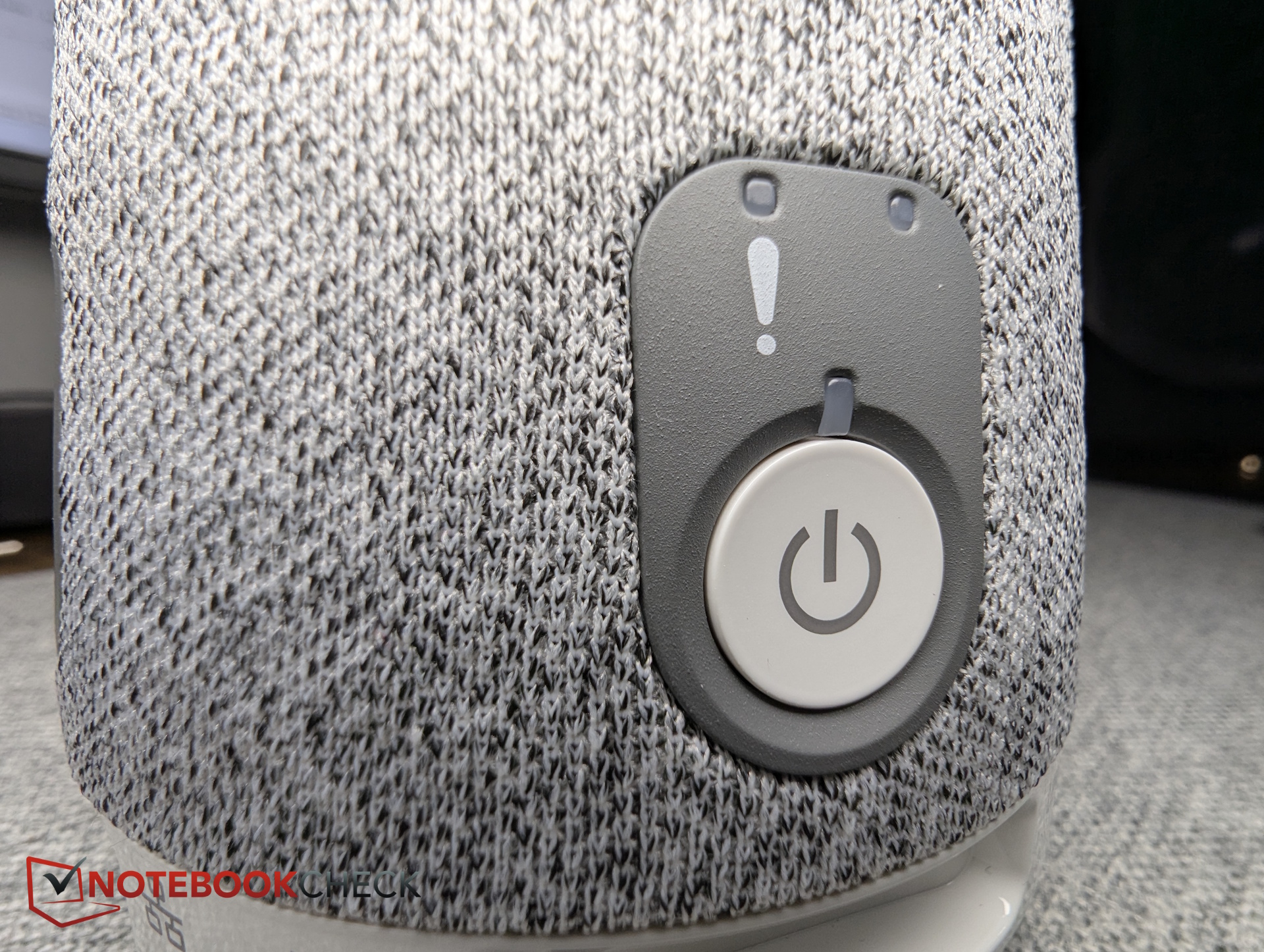
Box contents – USB-C cable and power adapter
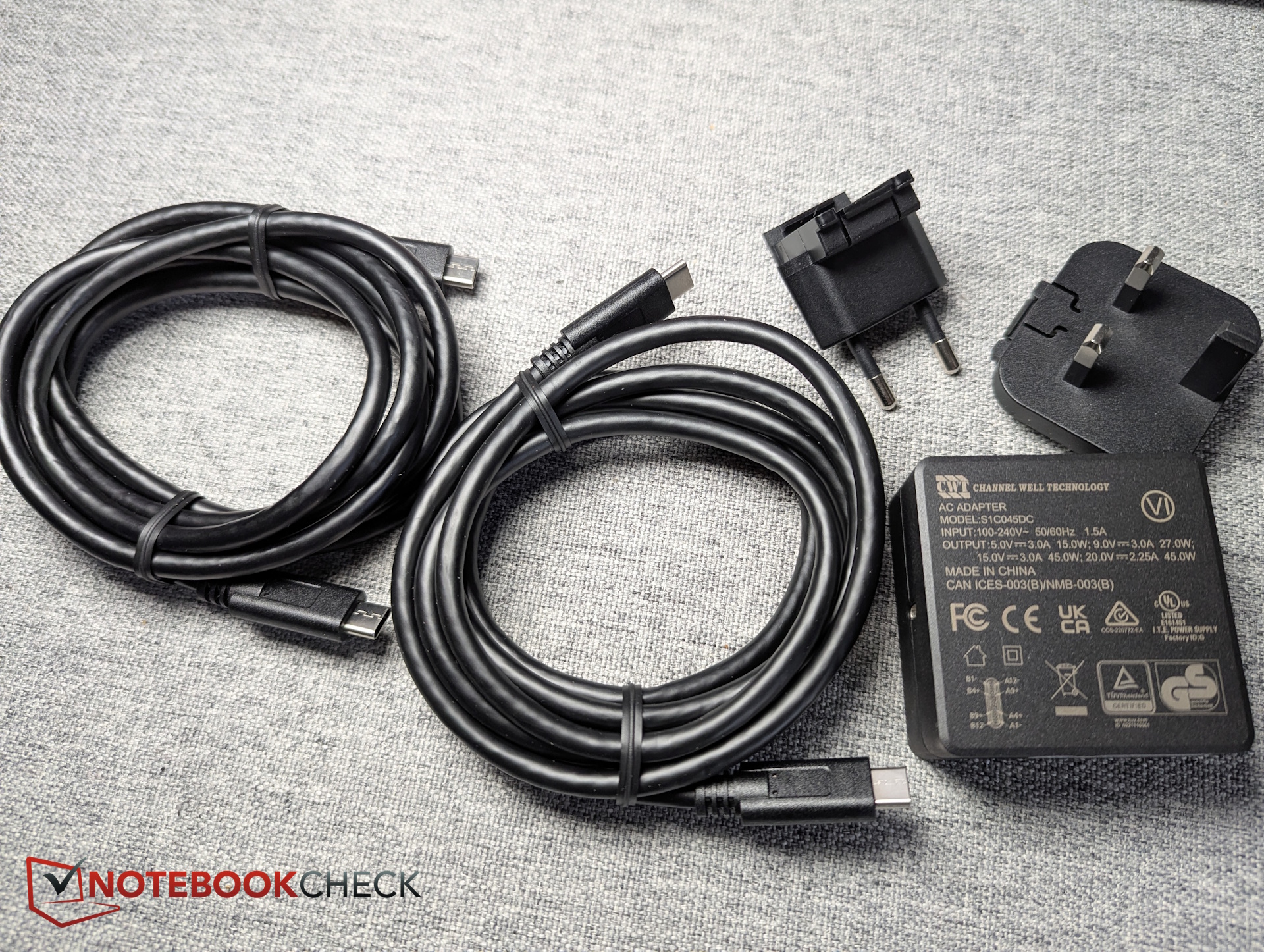
Ricoh includes a 45-W power adapter, two USB-C cables (each about 2 m long), and a quick start guide in the box.
Setup – Plug and play via USB-C and Ricoh software
Ideally, one USB-C port is connected to the power adapter and the other to a PC. If the PC supports Power Delivery with at least 15 W, the power adapter can theoretically be omitted. However, doing so limits functionality: the speakers become quieter, firmware updates are no longer available, and so on.
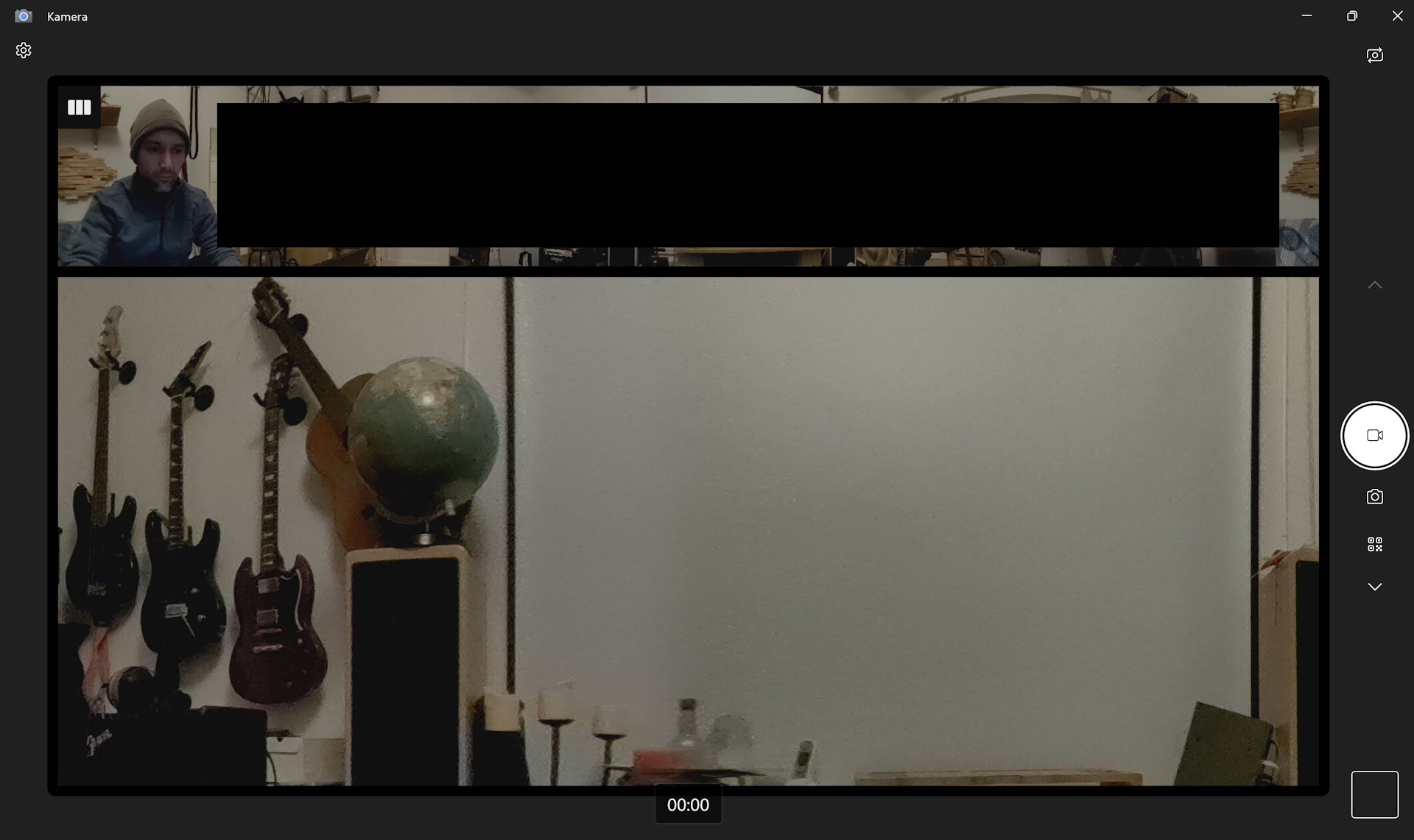
Using the standard connection method, the “conference webcam” can be used immediately—for example, it already appears as a selectable camera in the Windows Camera app.
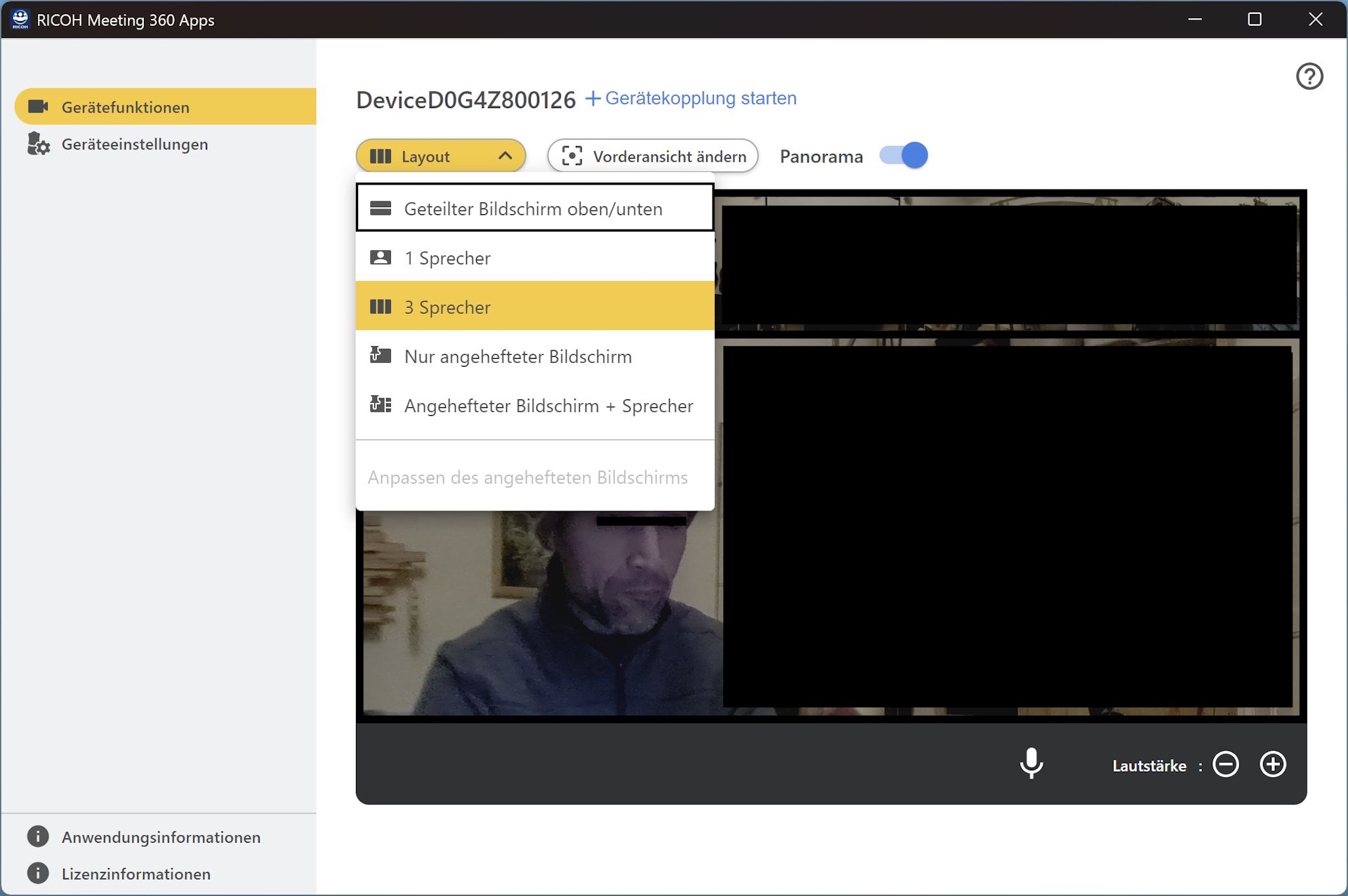
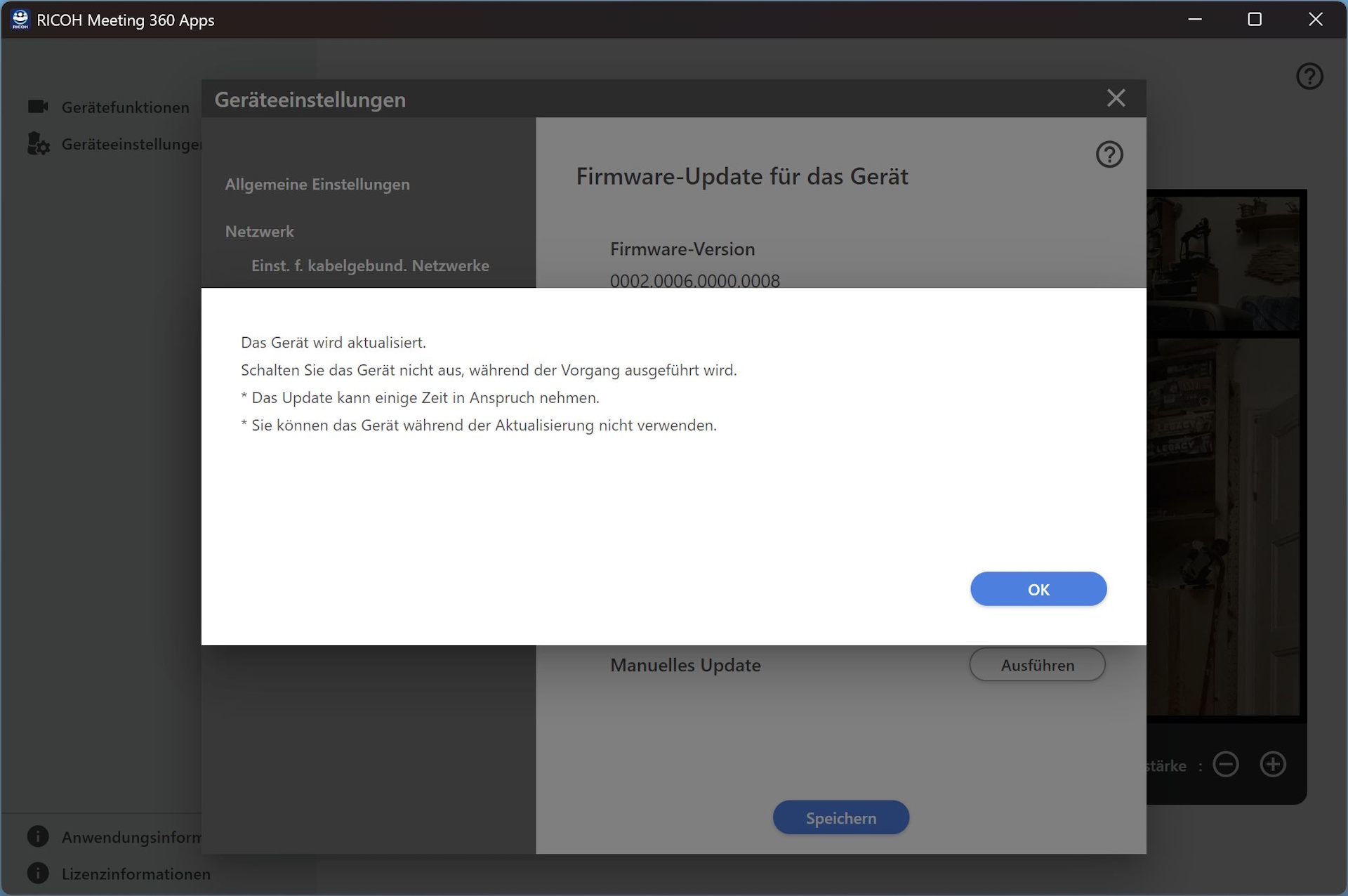
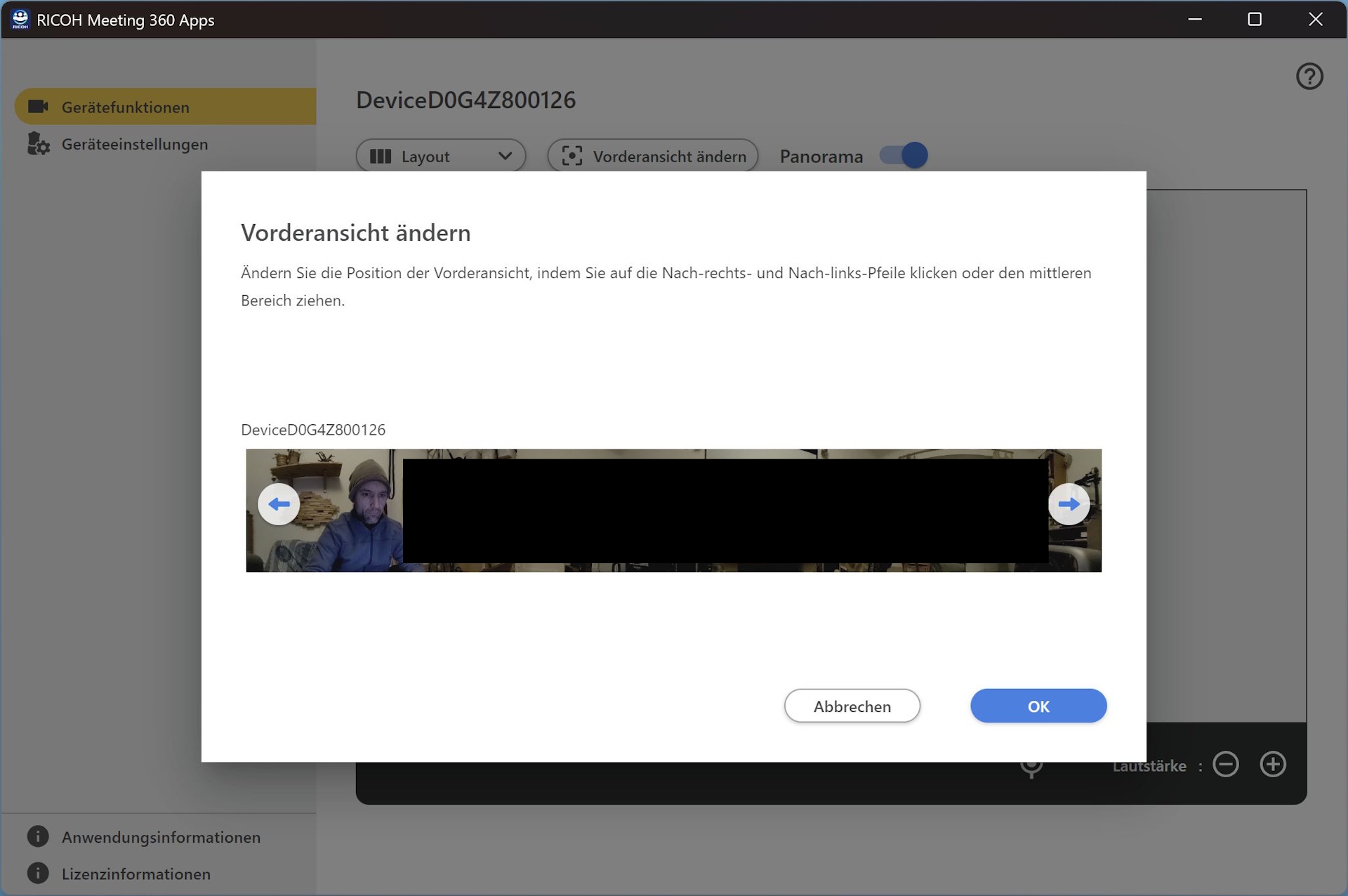
Ricoh also provides the RICOH 360 Meeting app. From there, users can initiate firmware upgrades (the device must be connected via LAN beforehand), configure layout preferences, and adjust other settings.
Real-world test in a seminar room: How well does the video conference work?
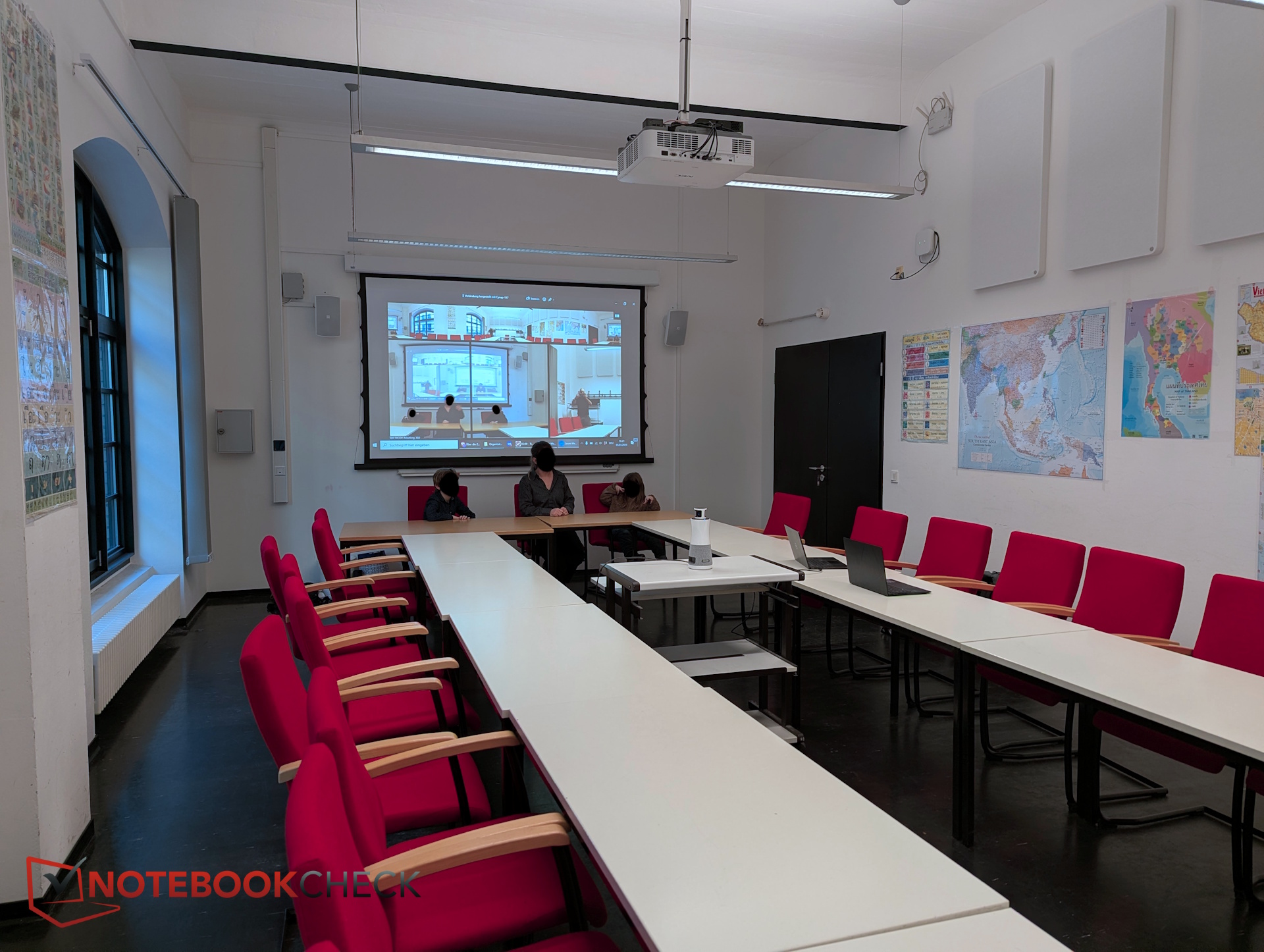
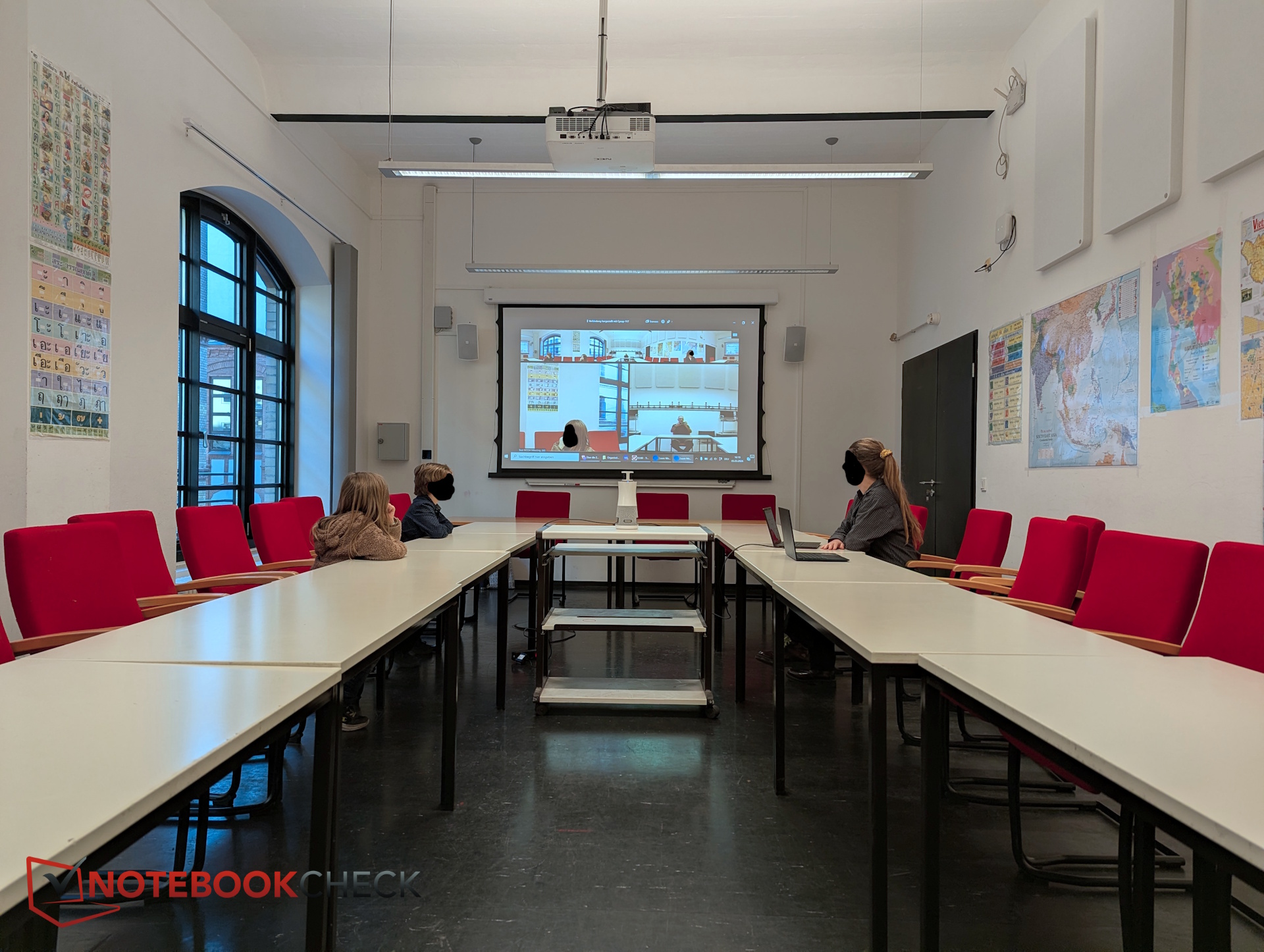
For further testing, we visited Humboldt University in Berlin and evaluated the conferencing hub in a seminar room with several participants seated in different positions. An additional participant joined via Zoom video call.
How well does speaker detection work, and what is the ideal scenario?
Speaker detection works very well—as long as multiple people are not speaking at the same time. Even when seated fairly far away, the hub identifies the active speaker and zooms in. However, this works best in uncluttered rooms.
In my kitchen, the device failed to recognize the speaker at a distance of just 1.5 m. Despite there being only one speaker—and therefore a clear audio source—the camera apparently struggled with the many objects in the room (shelves, refrigerator, kitchen appliances, etc.). In a tidy conference room, however, this is not an issue.
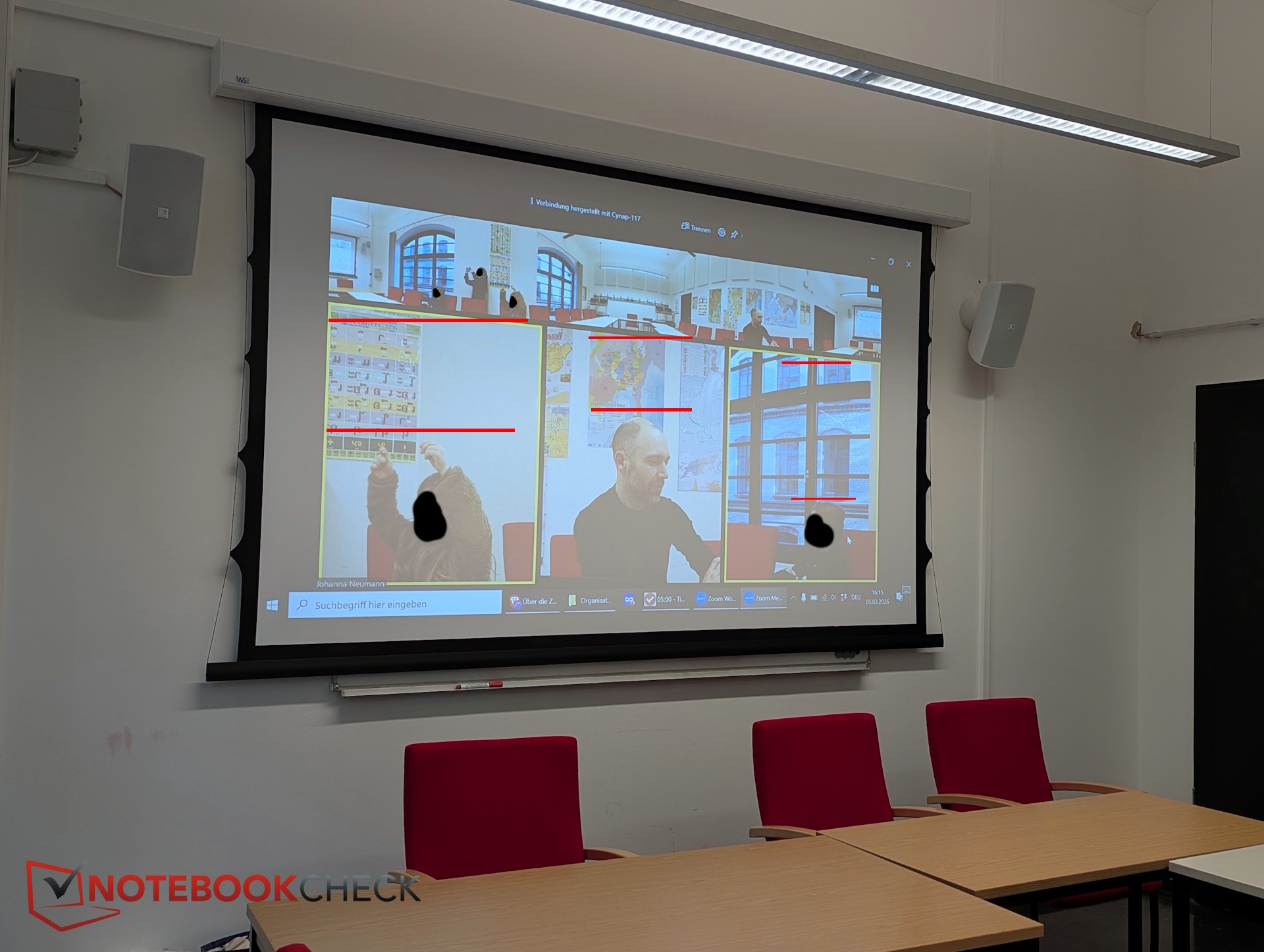
All zoom operations are purely digital. If someone sits at the very back of the room shown here, the image becomes quite small and somewhat blurry. The system is best suited for smaller conference rooms where everyone sits around the same table. In seminar-style scenarios with more distant participants, performance can become more challenging. Ricoh specifies the video range as 3.6 m.
There is also noticeable latency, which proved relatively high in several measurement scenarios. The speaker still appears lip-synced despite the delay.
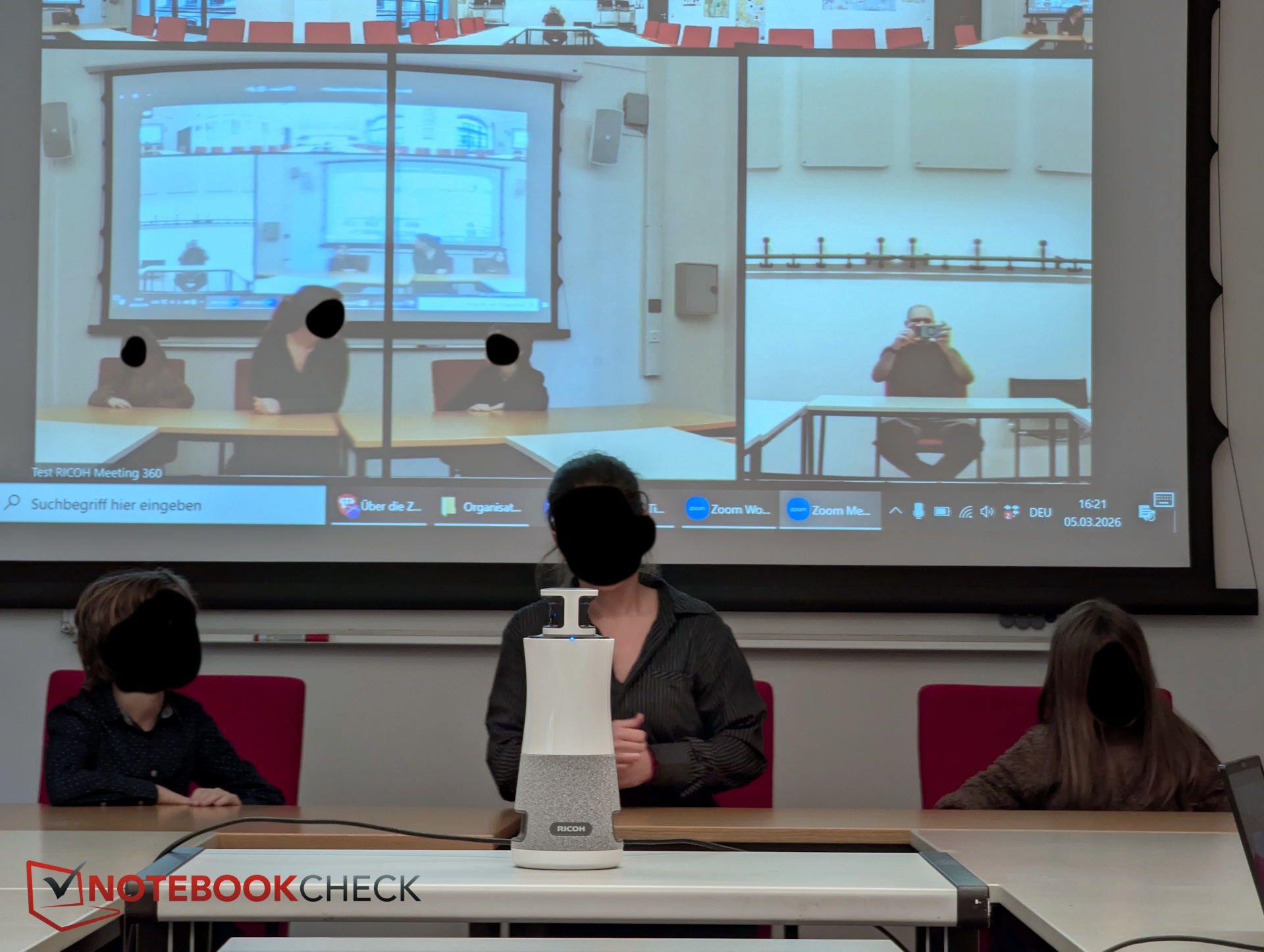
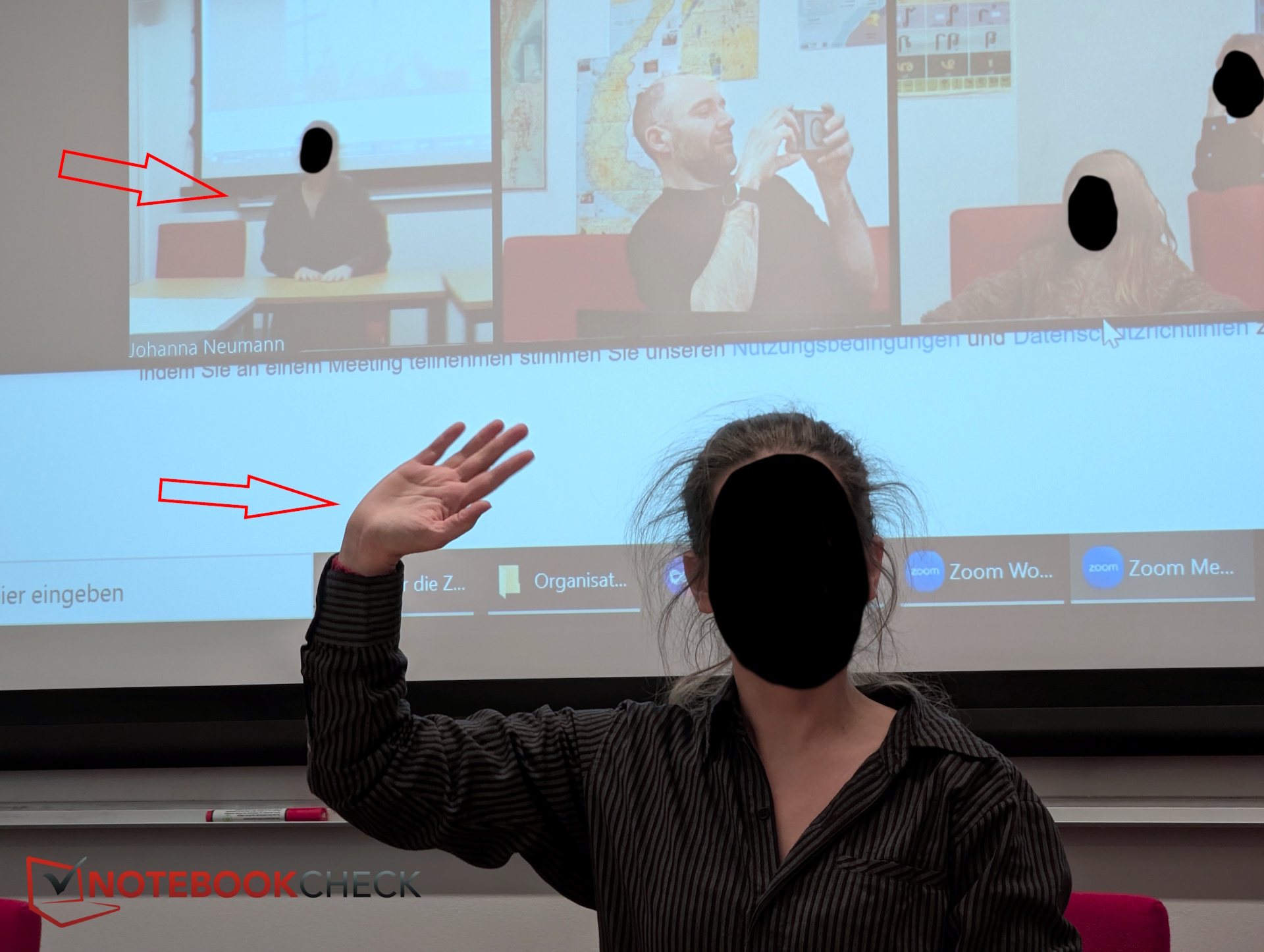
Image quality of the 360-degree camera in good and poor lighting
Under good lighting conditions, image quality is very good thanks to the high resolution. At close range, the cameras deliver a clear and convincing picture. One noticeable detail is that the hub leaves a considerable amount of “headroom” in individual frames, which does not always look ideal.
In low light (a darker room, as mentioned earlier), the image quickly appears washed out. In typical conference rooms, however, lighting conditions should not be a major issue.
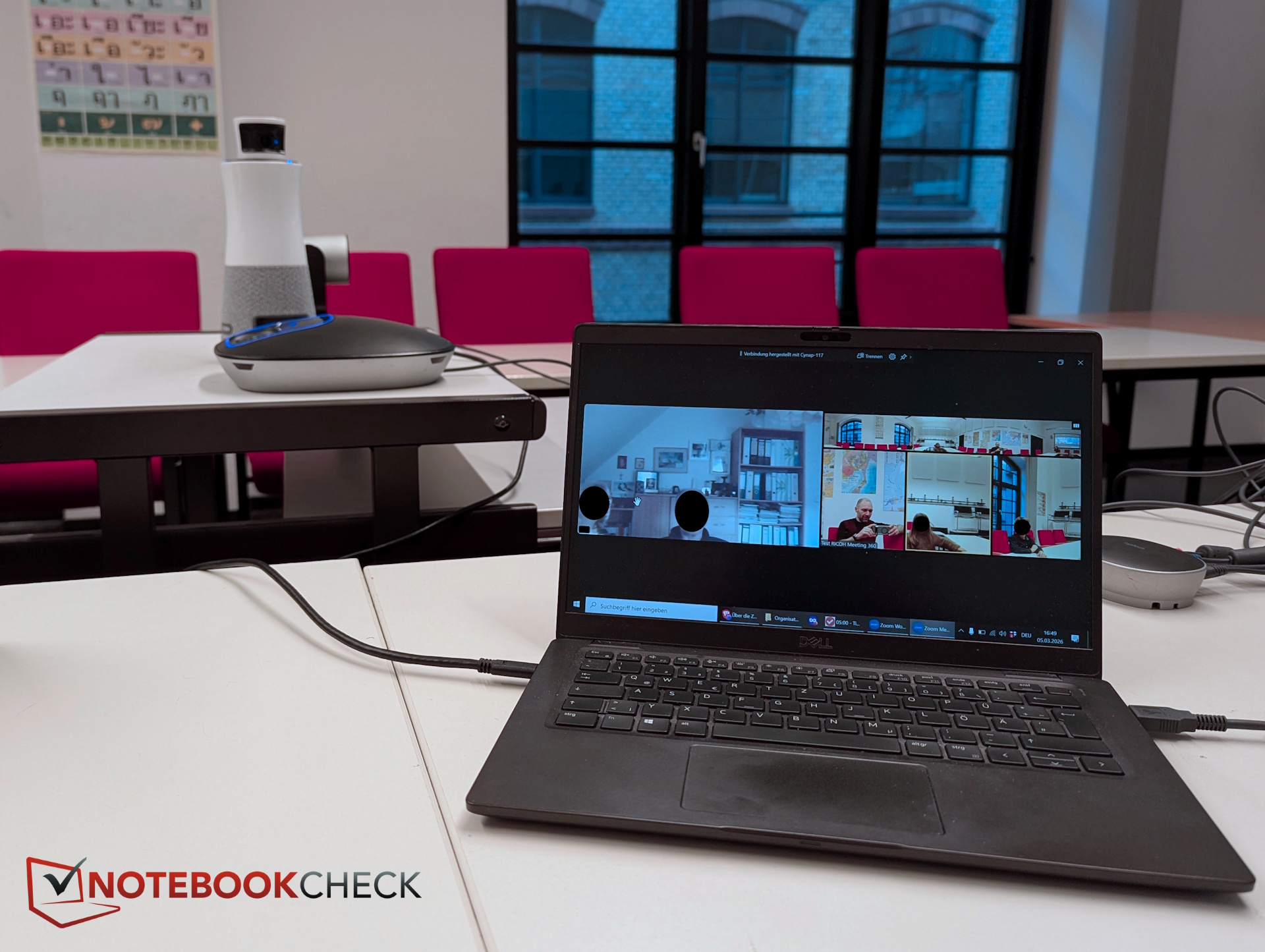
Audio quality: microphones and speakers in testing
The speakers made a good impression; we were able to understand the remote side clearly at all times.
However, the remote participant on that particular day was not satisfied with our audio quality. For comparison, we briefly connected an alternative conference system we had on hand. Its audio was judged to be better, though still not particularly impressive.
Another test conducted at home revealed good overall intelligibility. As distance increases, the system naturally has to boost volume and filter out more background noise, which can make the result sound somewhat artificial. At close range—when everyone is seated around the same table—the audio quality is quite good.
Transparency
The selection of devices to be reviewed is made by our editorial team. The test sample was given to the author by the manufacturer free of charge for the purposes of review. There was no third-party influence on this review, nor did the manufacturer receive a copy of this review before publication. There was no obligation to publish this review. As an independent media company, Notebookcheck is not subjected to the authority of manufacturers, retailers or publishers.
 Add as a preferred source on Google


