




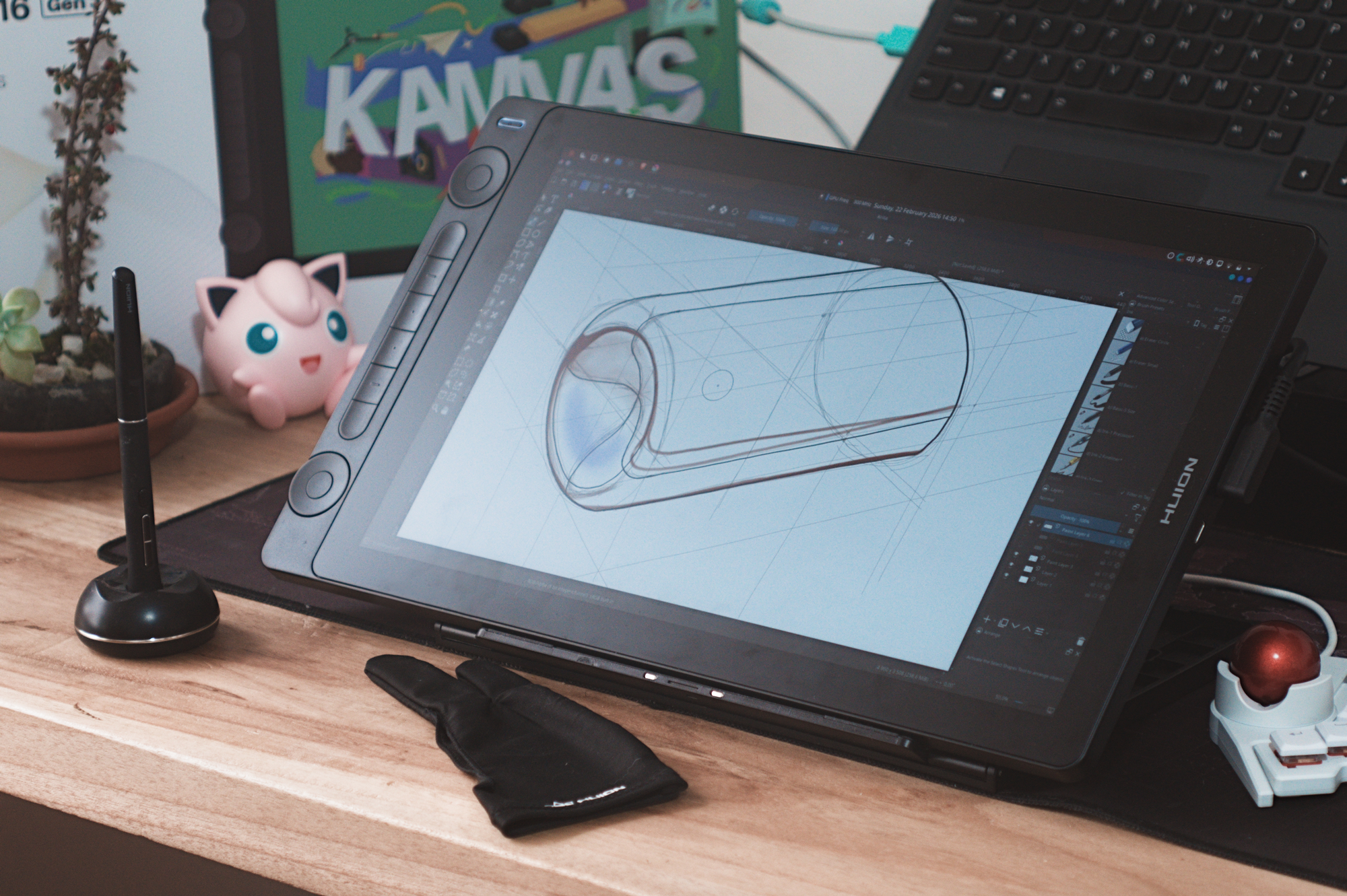
Excellent affordable portable pen display for beginner digital artists: Huion Kamvas 16 Gen 3 hands-on review
Sharp, accurate, and svelte.
The Huion Kamvas 16 Gen 3 is a 16-inch pen display that's equally at home at the studio or on the go, thanks to its slim, lightweight design that slips right into a backpack alongside an average 16-inch laptop. The 2.5K resolution, matte coating, and colour accuracy make for a competitive package for beginner artists, but those looking to game on the side should look elsewhere.Julian van der Merwe Published 🇫🇷 🇪🇸 ...
Verdict - Jack of all trades, master of some
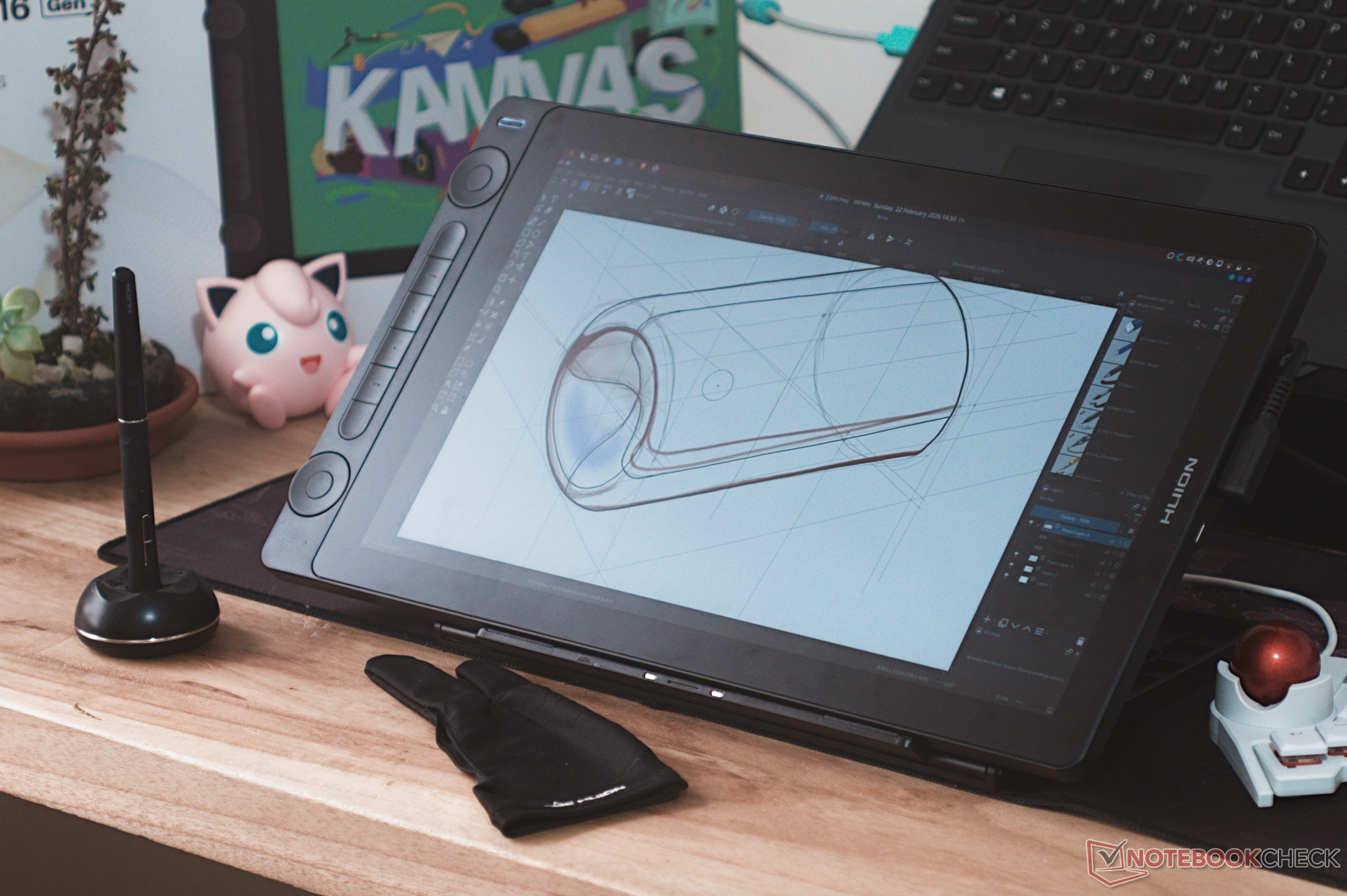
The Huion Kamvas 16 Gen 3's spec sheet points to an impressive balance between on-the-go drawing and use as a main art pen display at a desk, offering a middle-of-the-road size, great pixel density, excellent colour specs, and convenient connectivity options, all at $200 less than its Wacom competitor. In our testing, the Kamvas 16 Gen 3 delivers on those promises, and it makes for an excellent portable pen display for beginner digital artists and on-the-go use. It also happens to make a great additional monitor for laptop setups, although the lack of a VESA mount holds it back when it comes to desktop use.
The only major weaknesses of the Huion Kamvas 16 Gen 3 is the 60 Hz refresh rate and somewhat slow response times, which are noticeable when it comes to fast movements on the display, as well as the minor pen drift towards display edges, although neither of these ruined the experience of using it for digital art. The lack of maximum brightness might also pose limitations for working in bright conditions, but the excellent matte coating fends off glare expertly.
Pros
Cons
Price and availability
The Huion Kamvas 16 Gen 3 is available from Huion directly or from Amazon for $499 ($459, or 8% off, at Amazon at the time of writing).

Table of Contents
The Huion Kamvas 16 Gen 3 is a pen display with a 2560×1440 (186 PPI) resolution, 220 nits peak brightness, 60° of tilt recognition, and a nano-etched glass with a laminated display. The included pen features 16,384 levels of pressure sensitivity, thanks to Huion's proprietary Pen Tech 4.0.
Specifications
| Resolution | 2560×1440 |
| Colour gamut and coverage | 99% sRGB, 99% Rec.709, 90% AdobeRGB |
| Refresh rate | 60 Hz |
| Max. Brightness | 220 nits |
| Pressure sensitivity | 16,384 levels |
| Tilt detection | 60° |
| Programmable buttons | 6 on display; 3 on pen |
| Weight | 1,245 g |
| Dimensions | 421×236×12.62 mm |
| Working area | 350×197 mm |
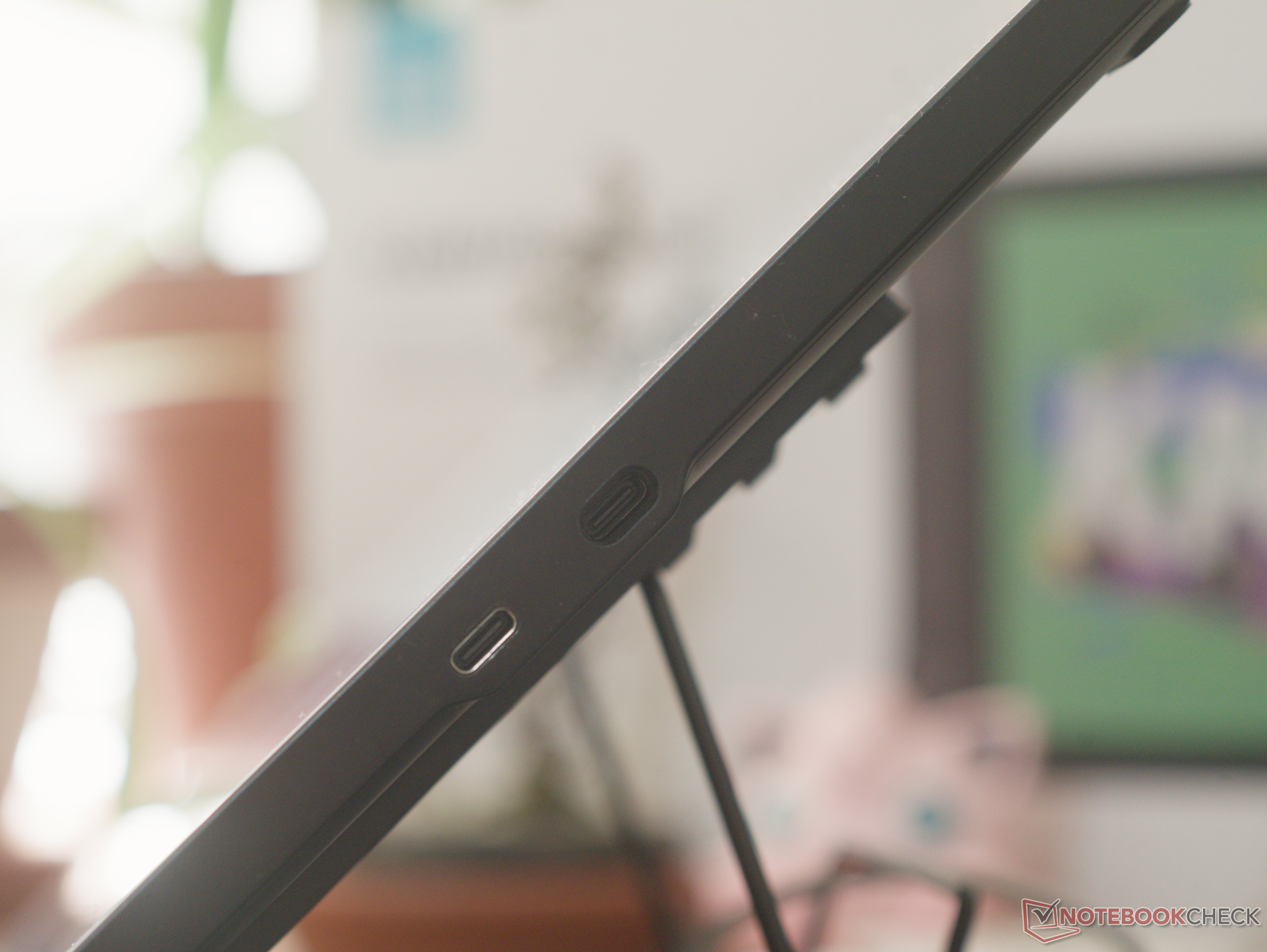
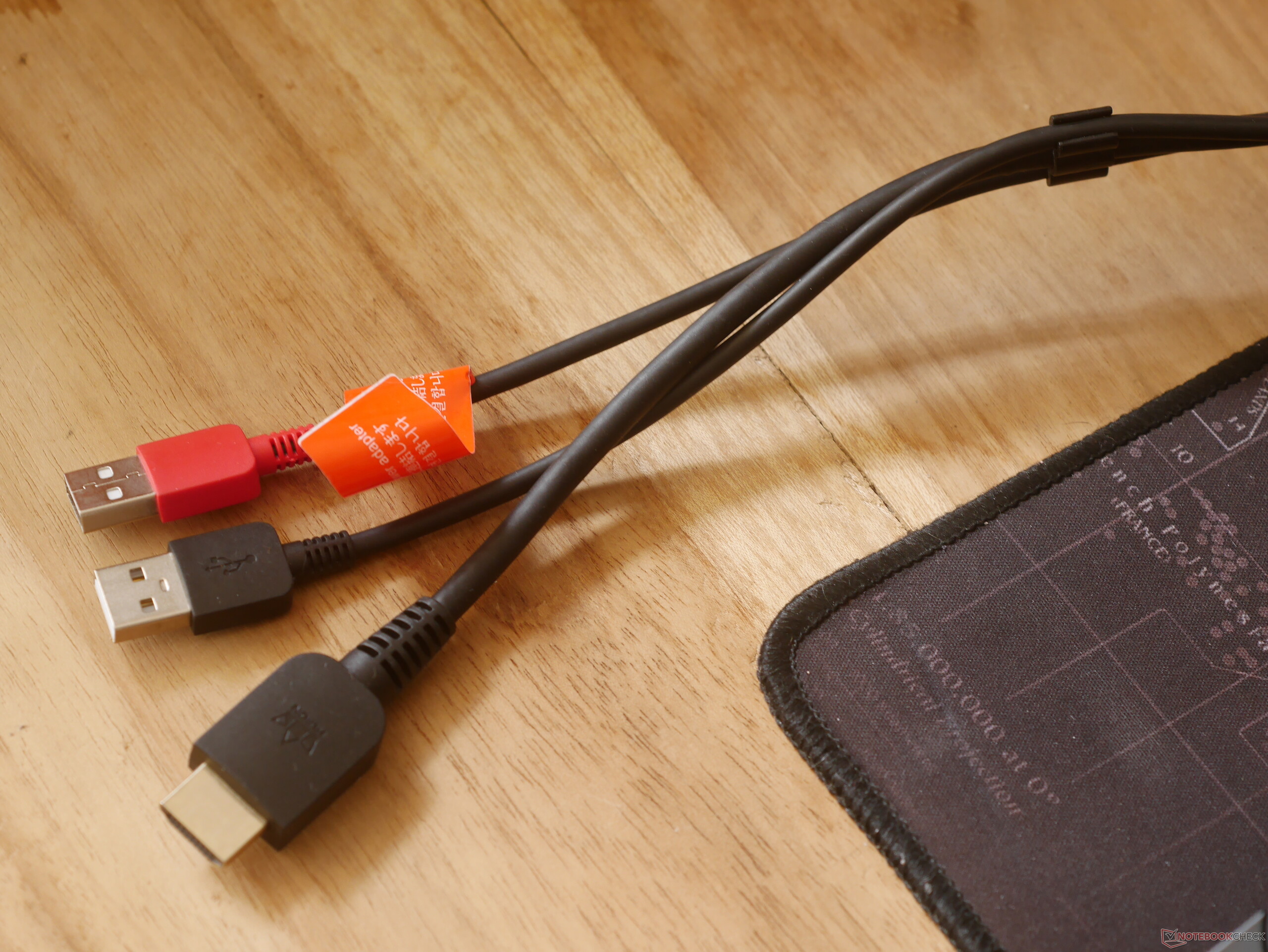
| Connectivity | DisplayPort via USB-C cable (USB 3.1 Gen 1, DP 1.2); 3-in-1 cable with HDMI, USB-A, and separate USB-A power |
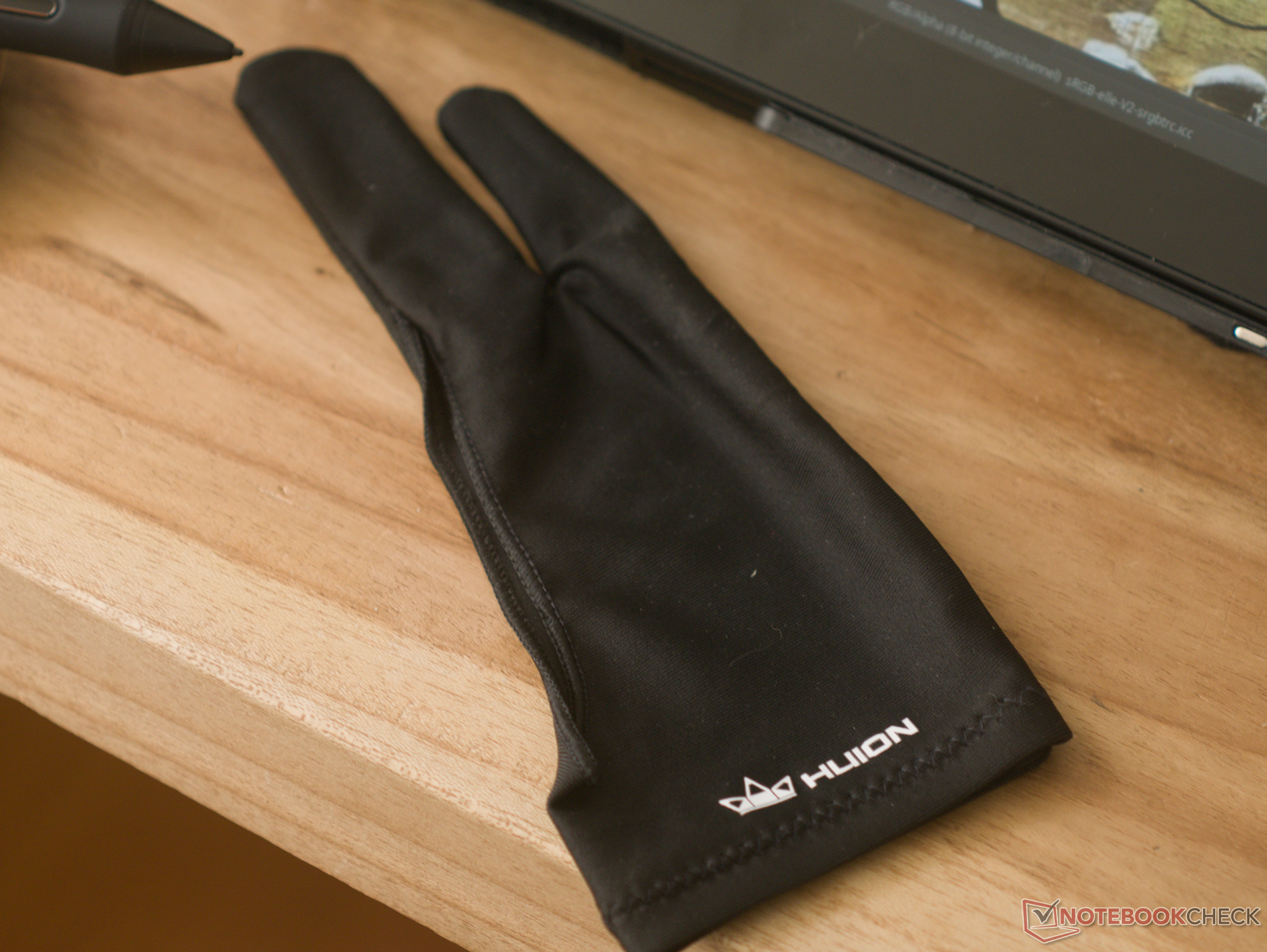
| Included accessories | PW600L pen, pen holder, 10 extra nibs, foldable stand, 3-in-1 cable, USB-C-to-C cable, USB-C-to-A cable, USB-A extension, USB-A power adaptor, artist glove, cleaning cloth, calibration report, quick start guide |
Build quality, setup, and first impressions
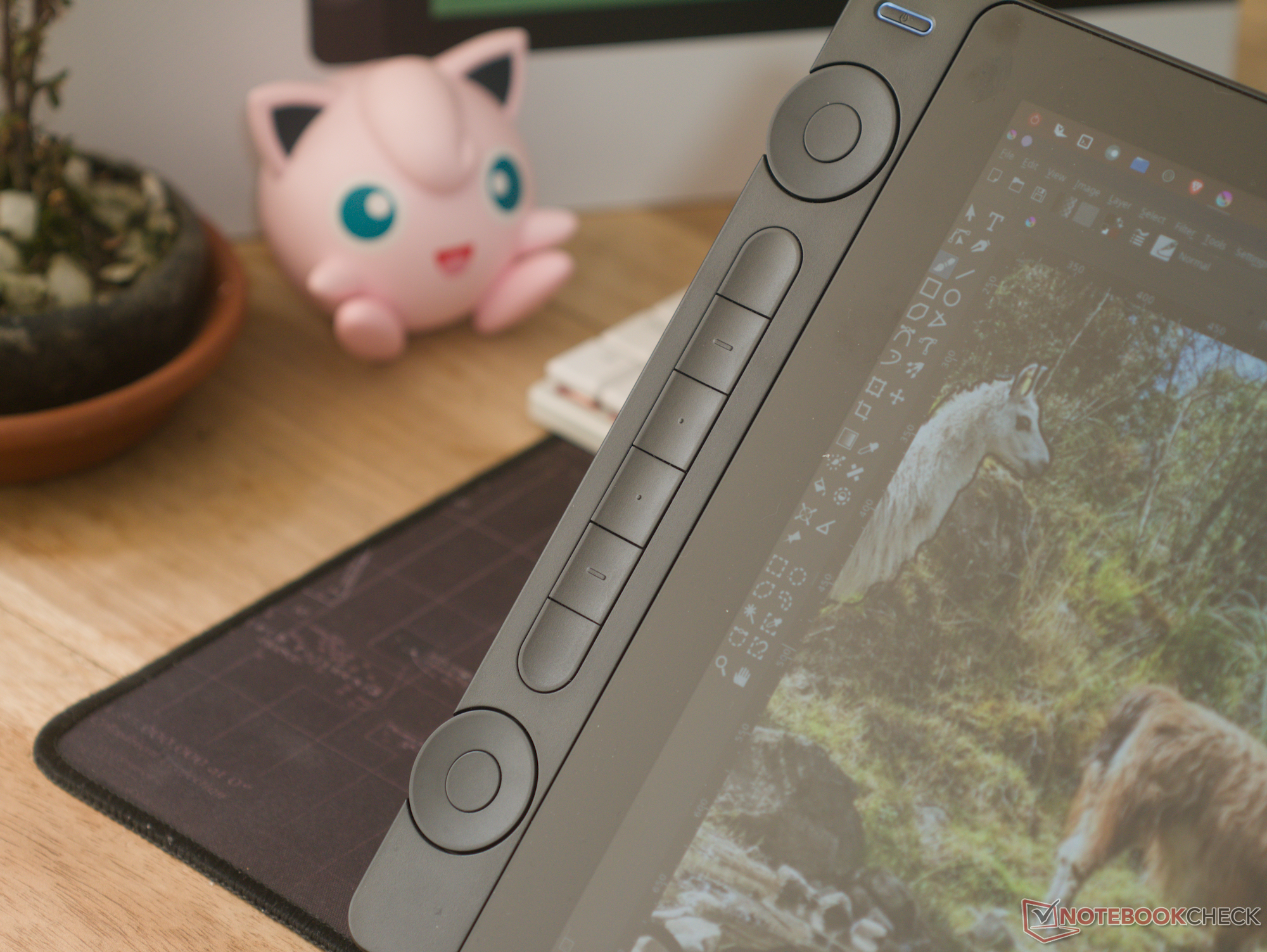
The Huion Kamvas 16 Gen 3 comes in a sturdy white box, and it's honestly quite impressive how compactly all the accessories are packed in there. The cables, power adaptor — yes, a power adaptor in 2026 (!) — glove, foldable stand and other accessories are all neatly nestled under the display itself, and everything seems well protected. Aside from the glass front, the Kamvas 16 Gen 3 is proudly plastic all around. This isn't necessarily a bad thing, as it feels sturdy, and the plastic helps keep the weight down for portable use. The shortcut buttons and scroll wheels on the side of the display feel excellent to use and have decent tactile markers and feedback. The scroll wheels require very little rotational force to move them, and they output a very light clicking sound as you turn them.
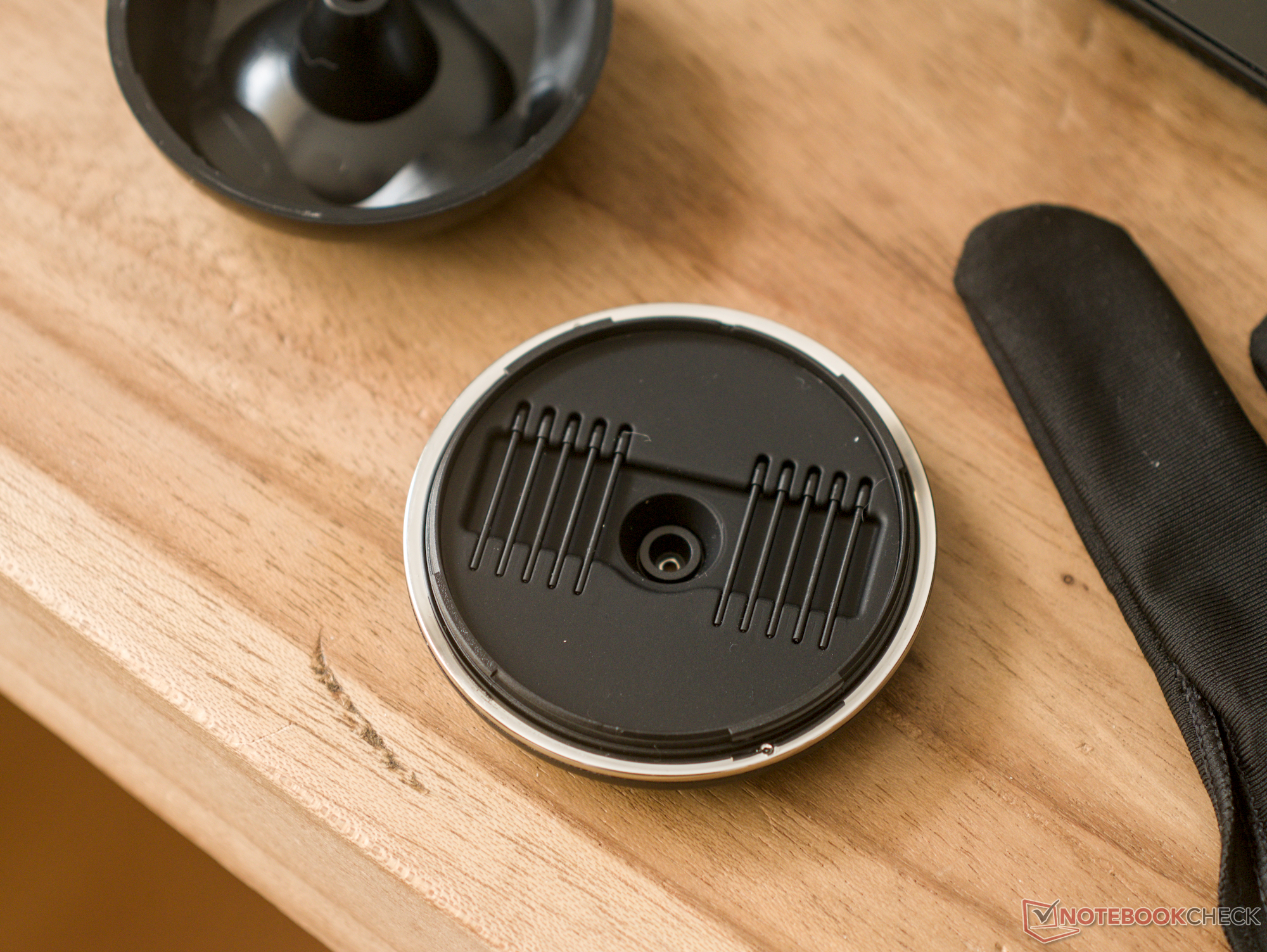
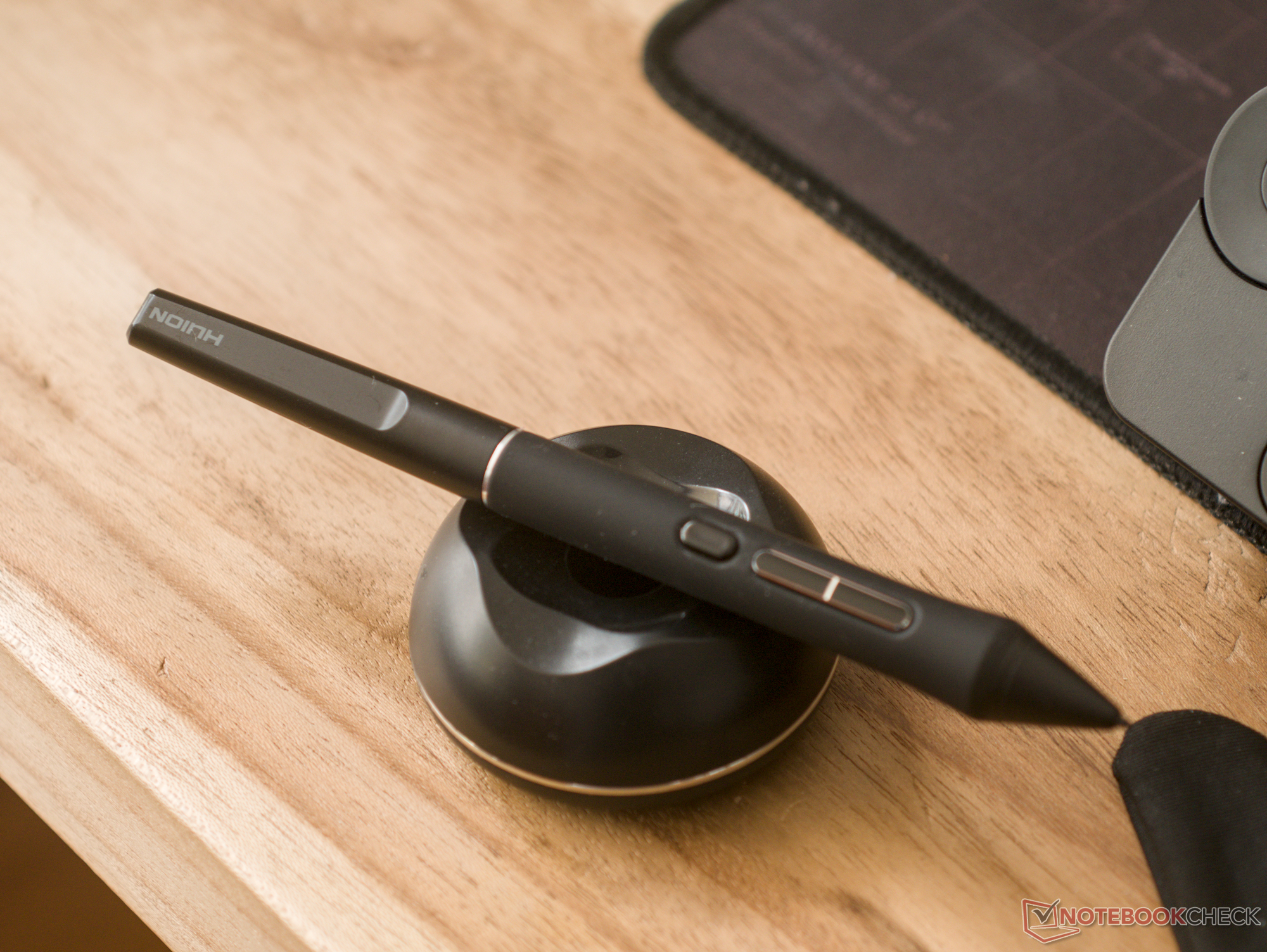
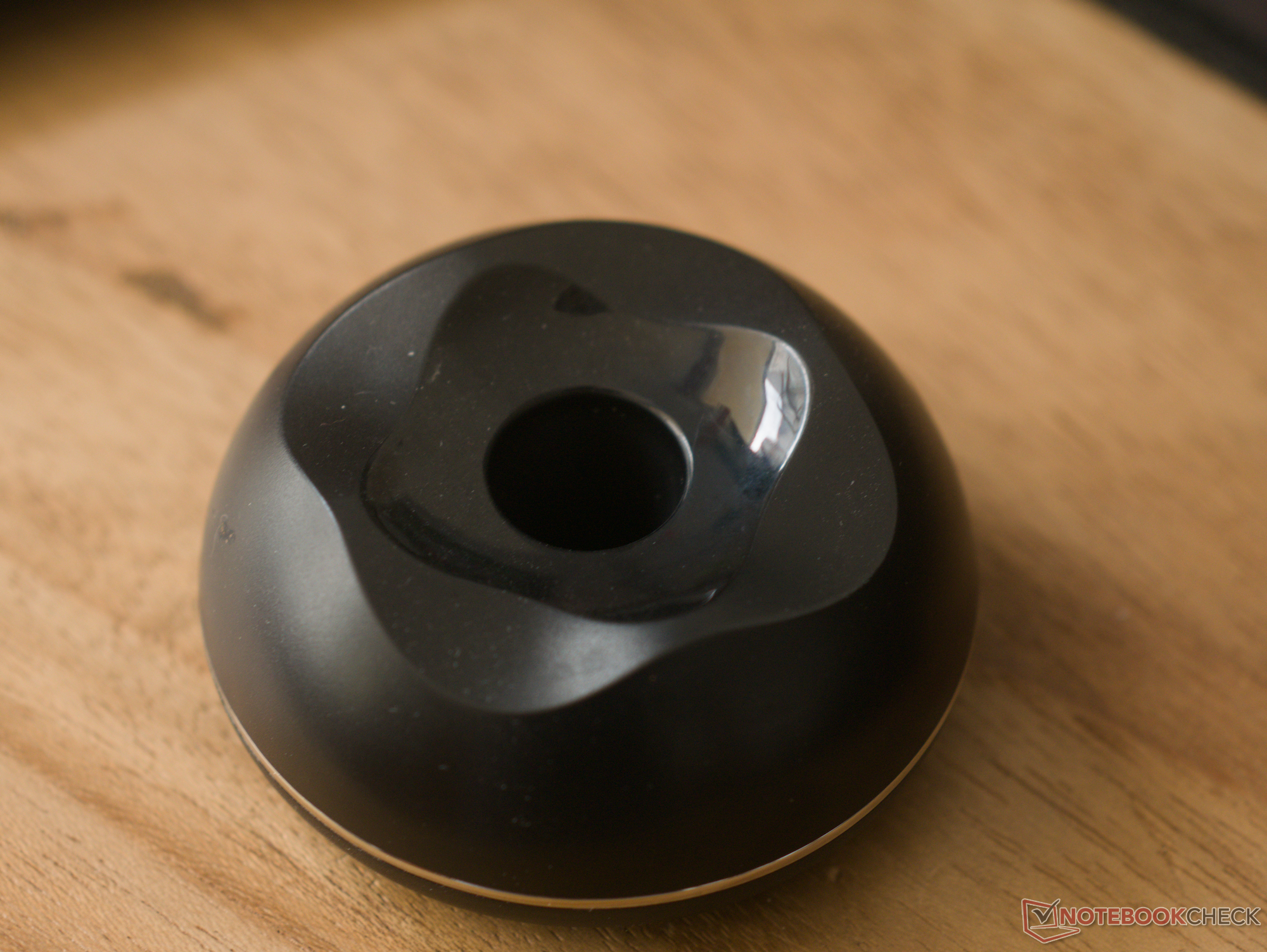
The pen, likewise, feels good to use and robust enough to stand up to day-to-day use, although I have concerns about the rubber coating on the pen barrel degrading over time. Two of the three shortcut buttons are metal — the main ones that are easy to reach — while the topmost button is plastic, and the button closest to the tip feels a little mushy, but overall nothing that screams low quality. The pen has a slightly forward weight bias, but it is light enough that this doesn't make it uncomfortable in daily use. The pen holder is an excellent add-on, not only because it keeps the pen within reach, but also because it has built-in nib storage and a nifty nib removal tool once it comes time to replace the nib.
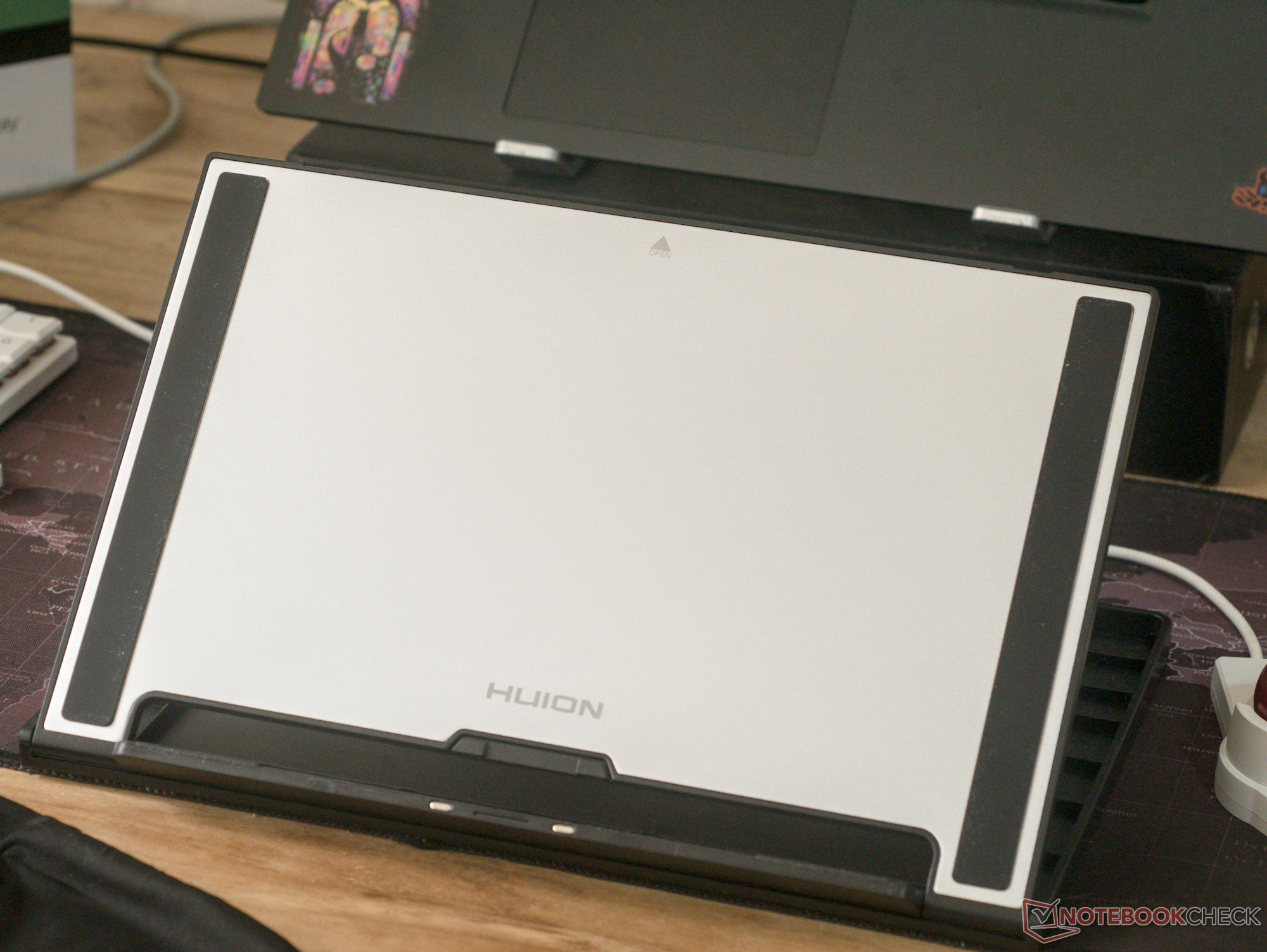
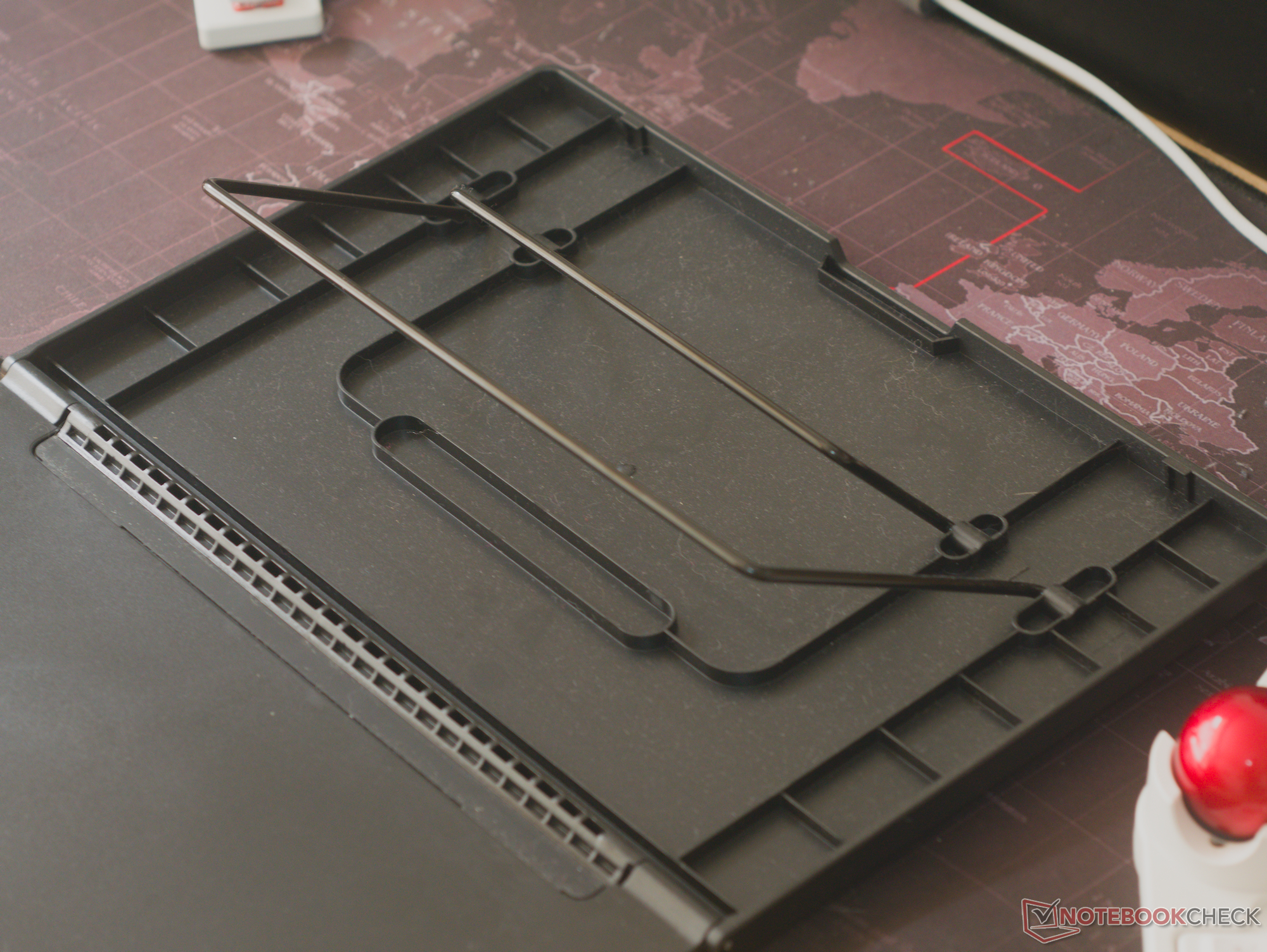
Connecting the Kamvas 16 Gen 3 to my laptop and setting up the stand was self-explanatory, even using the 3-in-1 cable. The stand itself offers a decent amount of support, but if you press hard with the stylus in the top corners of the display, there is a little bit of instability. A built-in stand or something with a wider footprint would be nice.
Huion Kamvas 16 Gen 3 in daily use
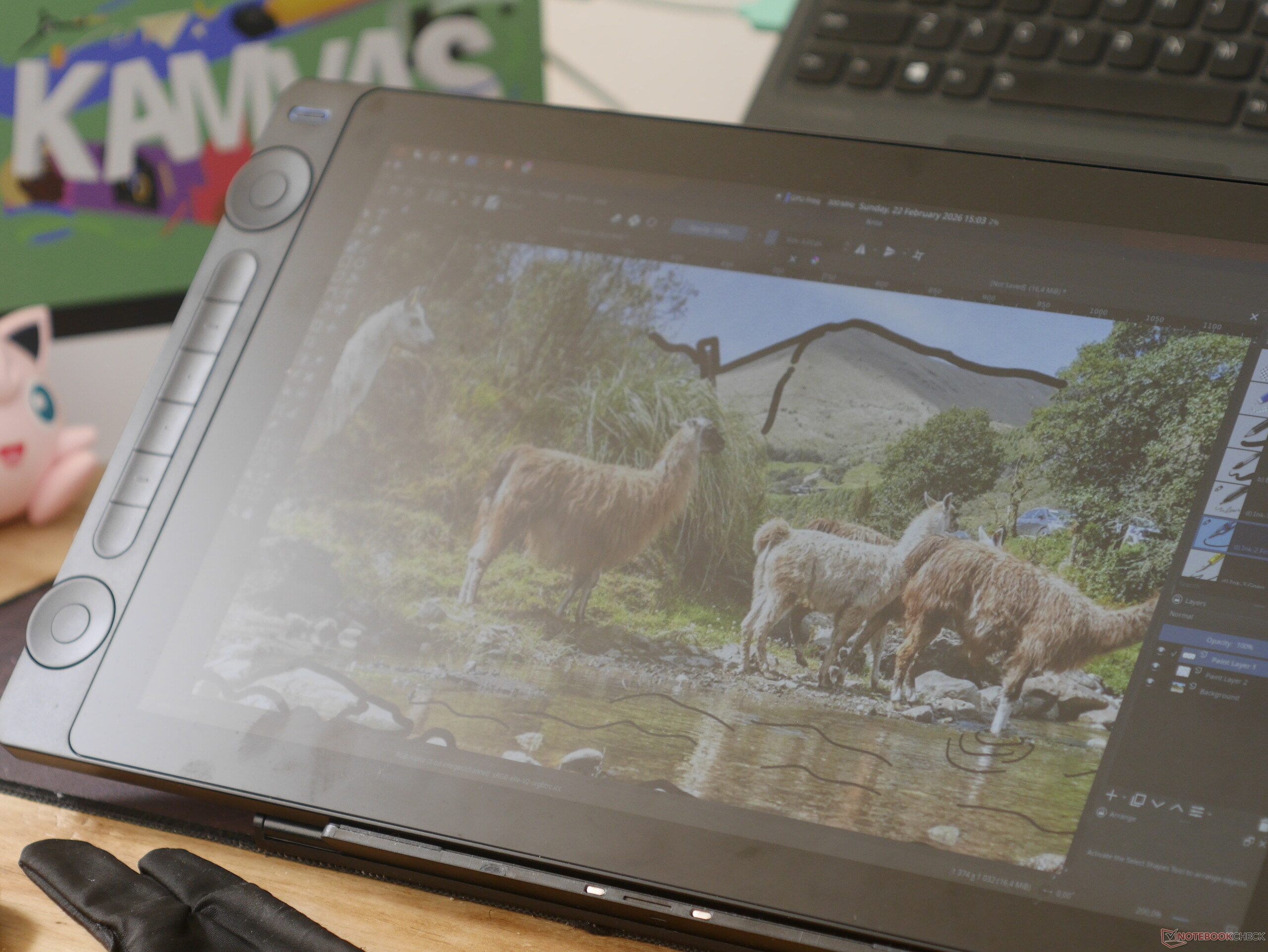
The Huion Kamvas 16 Gen 3 is at its best when used on a desk in an office or studio where the lighting can be controlled, since its biggest limitation is the dim peak brightness. When set up correctly, though, it performs very predictably and just gets out of the way. Pen accuracy could use some improvement, though. Although wobble is very well controlled, there is some drift in pen accuracy towards the edges of the display. Fortunately, the inaccuracy is quite predictable, so once you get used to it, it doesn't actually affect the quality of your sketches. You can also mitigate this by enabling the brush outline in your drawing app and using those to line up stroke ends. The 1440p resolution makes images on the 16-inch pen display feel crisp, which is a lot more important for a pen display than a regular laptop display, because of how much more closely you'll be looking at the display when drawing.
Selecting colour profiles in the OSD is done using the pen, which is incredibly helpful if you want to use the display for some light video or photo editing work. I used the Kamvas 16 Gen 3 connected to a Lenovo Legion 5 laptop running CachyOS and KDE Plasma, and I was pleasantly surprised to find that the tablet worked perfectly out of the box using the USB-C cable with DisplayPort 1.2. Even more surprising: Huion actually has a Linux app to customise the display side buttons and pen shortcut buttons of the Kamvas 16 Gen 3. The app was slightly buggy, sometimes causing the pen to stop being recognised when it was open or causing the pen to not register at all, but Huion says this is because the app is designed for Ubuntu running under X11. The app worked as expected in X11, but X11 is an outdated standard, so it's a good thing Huion assures me that a version of the driver is coming for Wayland systems — although a release date for this is uncertain. Even without the app running in the background, display shortcuts still register in drawing apps, so remapping shortcuts to match the output of the display's shortcut keys is trivial. OpenTabletDriver is also a must-have for those who want in-depth customisation on Linux, macOS, or Windows; its feature set makes it significantly more functional than Huion's in-house driver.
Software weirdness aside, the stock pressure curve is sensible, but it is also customisable in both the Huion driver and in KDE settings. After some minor tweaks to the starting pressure, the pen was incredibly predictable and suited my use case of ideation, sketching, and concept drawings for CNC and 3D printing projects. I had no problems joining ends of curves or creating smooth curves or straight edges, and the large screen meant that avoiding the corners, where the pen lost some accuracy, was easy. This is especially true for apps like Krita and GIMP, which have tool panels on the left and right of the canvas anyway. The matte of the display is largely a preference thing, and coming from an iPad, it might take some getting used to, but it adds some minor resistance and tactile feedback that makes controlling line quality and pressure easy. The matte display does a good job tamping harsh glare and reflections, but in a brightly lit room, it can wash out the display, making your sketches difficult to see.
Huion Kamvas 16 Gen 3 can just about sneak into a laptop bag
Since the Kamvas 16 Gen 3 is only slightly larger than a 16-inch laptop, and not that heavy, it's almost asking to be carried around as a secondary display or as part of a mobile drawing setup, either for the office or to turn your local Starbucks into a mini studio. This portable use case is supported by the USB Type-C connection. What's more, the 3-in-1 cable connects to the tablet with a single USB-C cable — this means you can leave the 3-in-1 cable connected to a desktop when using the USB-C connection with a laptop at home. This way, you only need to connect and disconnect one USB-C cable to the Kamvas 16 Gen 3 when using it in a portable setup. The folding stand is also easy to take with on a daily commute, and it has a wide range of drawing angles to choose from. If you're skilled at using non-display drawing tablets, the Kamvas 16 Gen 3's tablet mode shuts off the display, which is touted as an ergonomic feature but will also save a bit of power for battery-sensitive portable use.
Minor complaints
The Huion Kamvas 16 Gen 3 isn't cheap, but it offers a lot of value for the price. That said, there are some aspects that could be improved. When not in use as a pen display for drawing, the 15.6-inch display pairs really well with a laptop display for a side-by-side or vertical dual-monitor setup, and even for portable use. The only problem with this is that the Kamvas 16 Gen 3 has no VESA mount, so there's no way to sensibly and ergonomically set it up this way with the stock accessories. A right-angle USB-C connector would also be helpful to avoid having the long cable sticking out of the side of the display.
Conclusion — An excellent mid-range pen display for digital art and sketching
The Huion Kamvas 16 Gen 3 acquitted itself well in our hands-on testing, displaying all-round usability with a display that's big enough for desktop use as a main drawing display and compact and lightweight enough for portable use alongside a laptop. Pricing is also reasonable, coming in at $200 less than Wacom's best competitor and nearly matching it in every meaningful way, making the Huion Kamvas 16 Gen 3 an easy recommendation for digital artists who already have some experience or those who want gear they can grow into.
Transparency
The selection of devices to be reviewed is made by our editorial team. The test sample was given to the author by the manufacturer free of charge for the purposes of review. There was no third-party influence on this review, nor did the manufacturer receive a copy of this review before publication. There was no obligation to publish this review. As an independent media company, Notebookcheck is not subjected to the authority of manufacturers, retailers or publishers.
 Add as a preferred source on Google


