




Your own ChatGPT, offline: AI without the cloud on your laptop
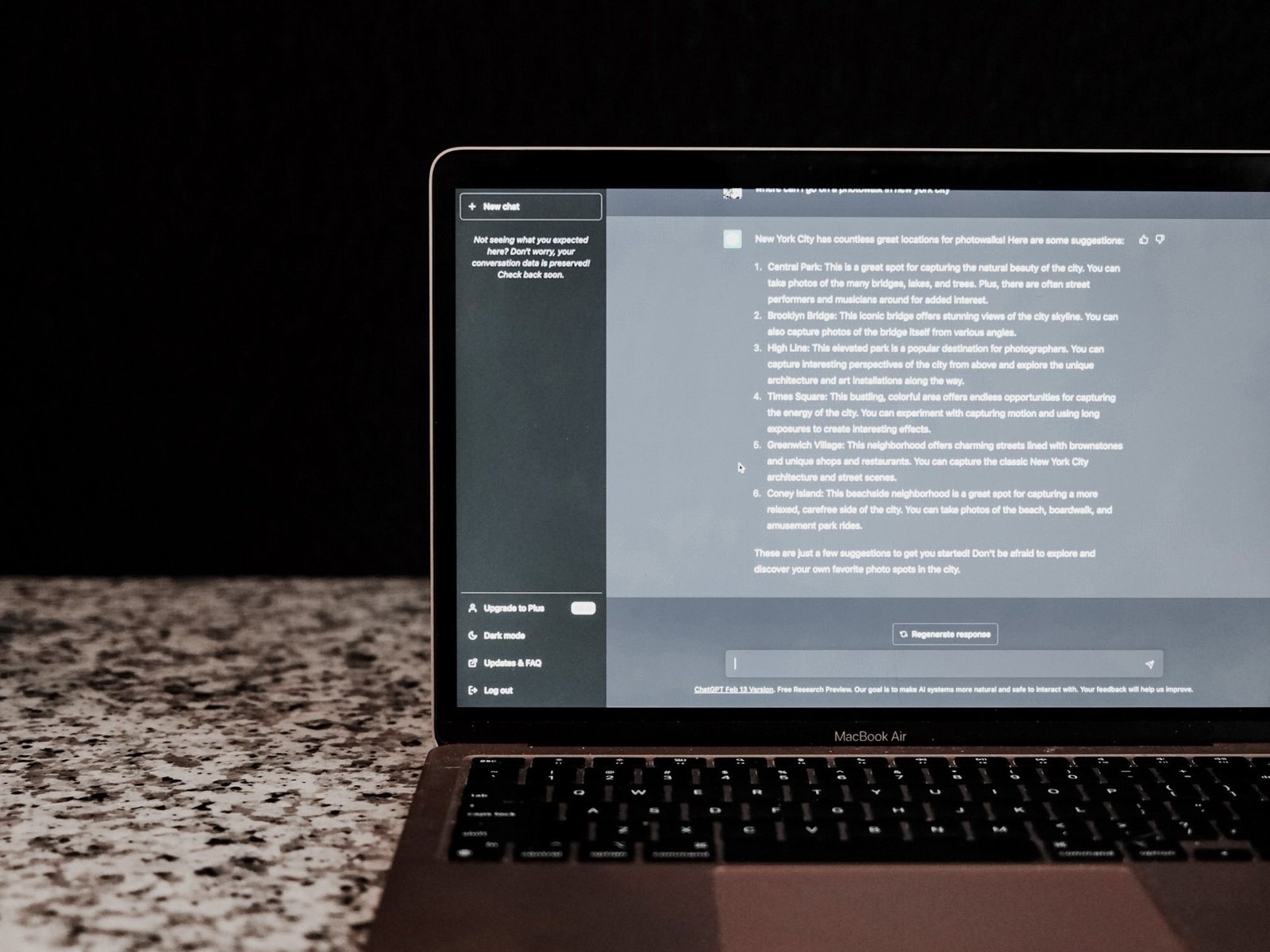
Every time you ask ChatGPT or another cloud service a question, your input leaves your computer. It ends up on the provider’s servers, where it’s processed and, depending on the service and your settings, may also be stored or used for training. For most questions, this doesn’t matter. But when it comes to sensitive information, internal documents, or simply as a matter of principle, you might not want that. The good news: You can run an AI chatbot completely offline on your own laptop. No account, no subscription, no cloud. And by 2026, you won’t even need a high-performance computer to do it.
Why run it locally at all?
The strongest reason is data privacy, and here it is not just a promise, it is a fact. When the model runs on your device, there’s no server eavesdropping, no terms of service that might change tomorrow, and no data breach at a provider that affects you. Your inputs remain private because, technically, they can’t leave your device. On top of that, it costs nothing but electricity, it works without an internet connection, and answers often come back faster, because nothing has to travel to a server and back. The limits are real, though. A local model isn’t as smart as the cloud-based flagship models from OpenAI or Google, and it reaches its limits sooner when dealing with very long documents. But for everyday tasks involving text, summaries, translations, and code, it performs surprisingly well.
What your laptop needs for this
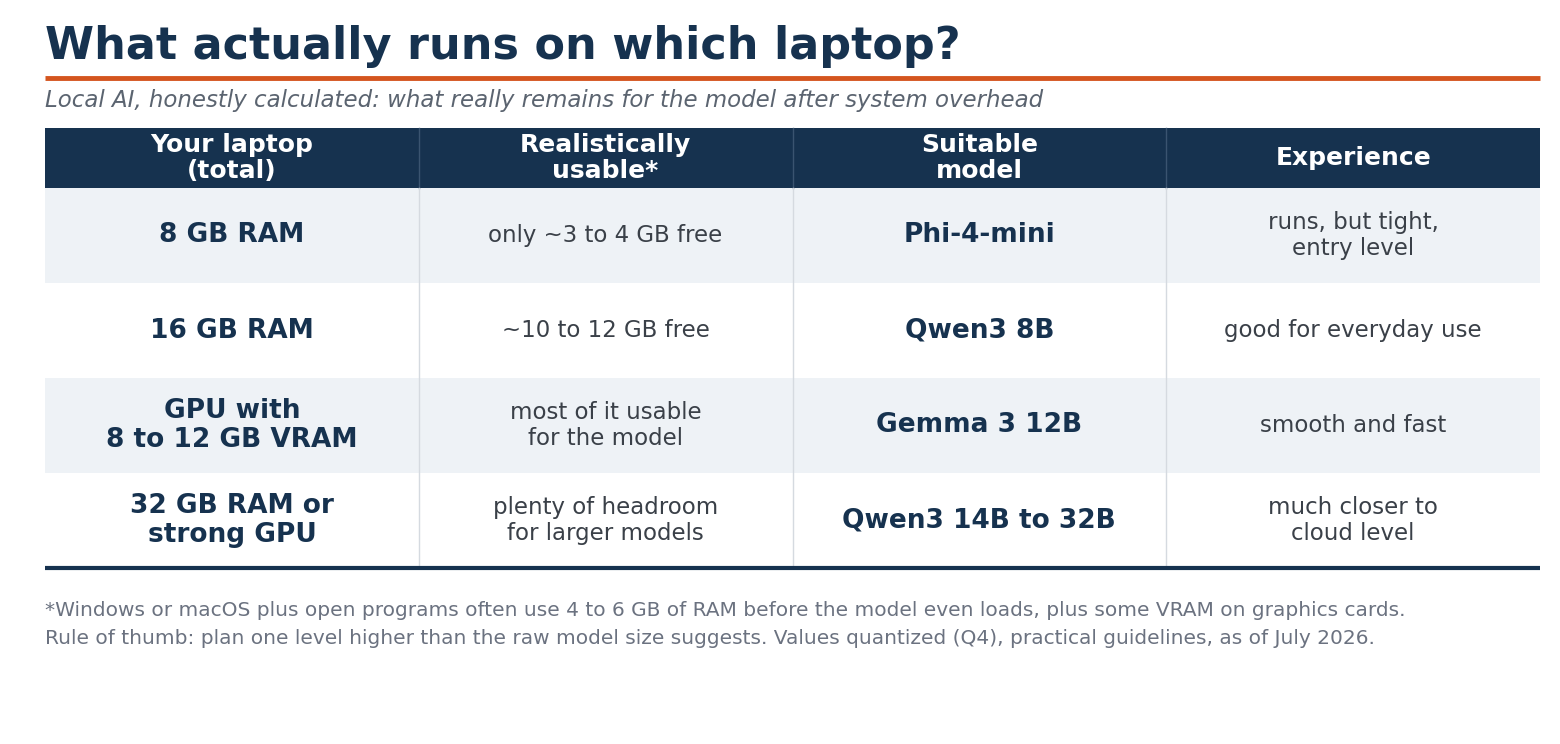
What matters here is not the processor. It is the RAM, plus the graphics memory if you have a dedicated card. And this is where the usual rules of thumb fall apart: An 8-billion-parameter model simply won’t run on 8 GB of RAM. Without a graphics card, the model shares RAM with Windows and your running programs, and 4 to 6 GB of that is quickly used up before the model is even loaded. In practice, a model like that needs closer to 16 GB. A dedicated graphics card takes the pressure off, because the model sits in the card’s own memory and leaves the system RAM alone. In short: 8 GB is only enough for the smallest models; things only get genuinely usable at 16 GB, and a graphics card or a modern NPU chip provides noticeable performance gains. Macs with an Apple chip are a special case. On these machines, the processor and graphics share one pool of memory, which Apple calls unified memory. This means almost all of your RAM can serve as graphics memory for the model. In practice, programs reserve about 70 percent of it by default, so a Mac with 32 GB has roughly 24 GB available for the model. That’s why Macs are often the simpler choice for on-device AI: A Mac with 64 GB can handle models that would require two expensive graphics cards on a Windows PC. You simply buy enough RAM instead of worrying about a separate graphics card.
The table shows which models run on which devices.
The programs: where to start
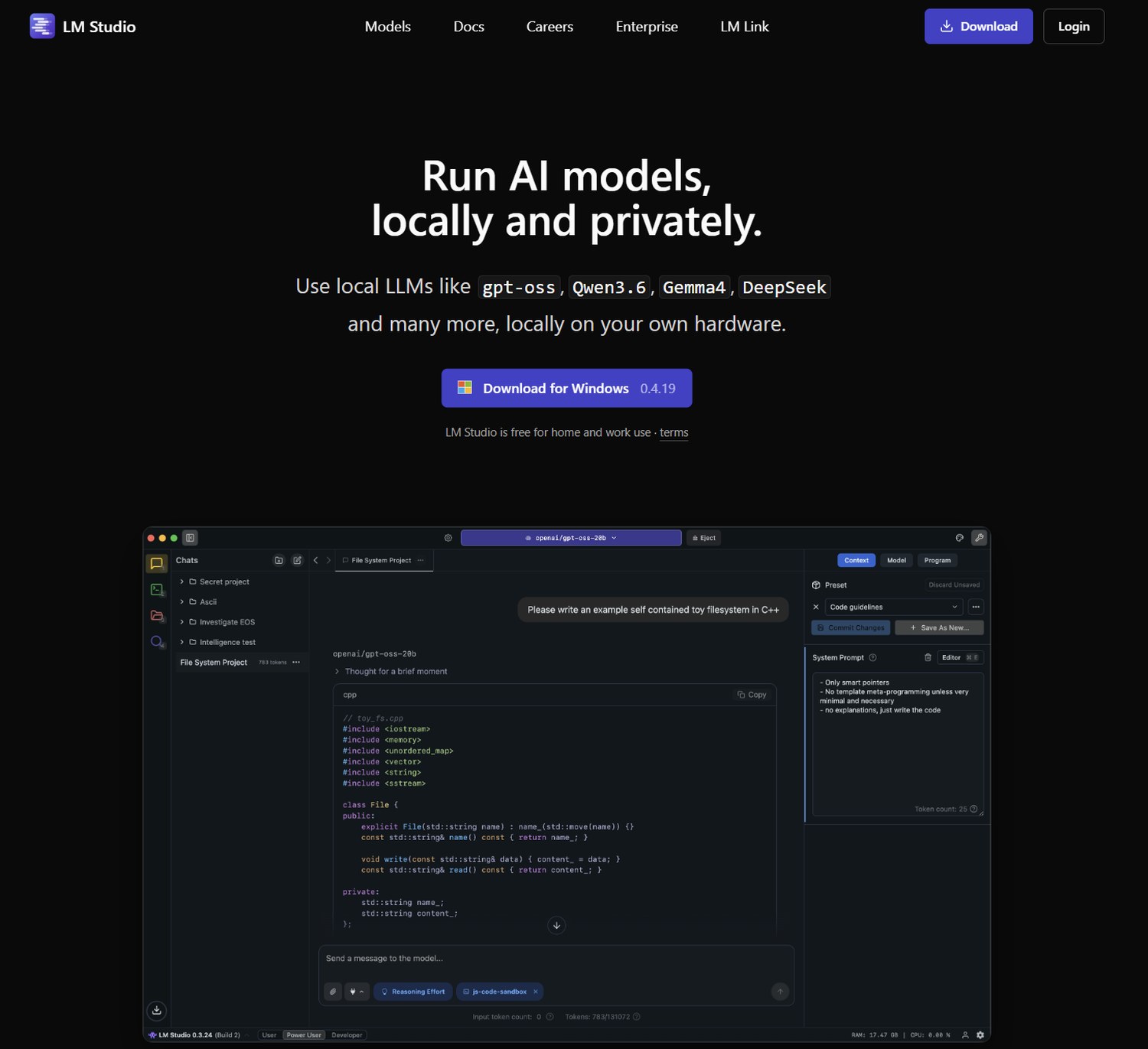
You need two things: a program and a model. All programs are free and run on Windows, Mac, and Linux. LM Studio is the best starting point for most people. It has a graphical interface, so there is no terminal involved. You pick a model from a list and start chatting. It feels like a local version of ChatGPT. Jan works much the same way and is open source. GPT4All is even a bit simpler for quick testing. Ollama is the one for advanced users. It runs from the command line and can be built into your own software, though you need none of that to get started. Under the hood they mostly run the same technology, so speed rarely differs much between them. What you pick really comes down to the interface.
The models: which one is right for you?
The model is essentially the brain of the system. For everyday office work, and especially if you write in a language other than English, Qwen3 in the 8B or 14B variant is a very good choice. It handles German and other European languages cleanly and runs on mid-range hardware. Google’s Gemma 3 in the 12B version performs well with 16 GB of RAM or more, while Llama 4 Scout is a solid all-rounder. If your laptop isn’t very powerful, go for a smaller model like Phi-4-mini with 3.8 billion parameters. It even runs without a dedicated graphics card. The number after the name indicates the model’s size. As a rough estimate, with the standard Q4 setting, you’ll need half a gigabyte of memory per billion parameters. An 8B model, for example, requires about 5 GB, plus some buffer for context and overhead for the system. That is why even the larger models will run on ordinary hardware, just not on a machine that is already scraping by on RAM.
If the model doesn’t quite fit into the graphics card
What if the model you want is slightly larger than the graphics memory? You don’t have to give up. The programs can split the model so that part of it runs on the graphics card and the rest in regular RAM. This is called offloading or GPU offloading. In LM Studio it is a slider. In Ollama it is a setting. That way a model that would never have fit in graphics memory alone will still run. The catch is that the offloaded part runs on the CPU, which is slower, and you will feel it in the response speed. It’s still faster than running without a graphics card at all, but it’s not at full speed. Two more things. You still need enough RAM for the whole model. Offloading shifts the load around, but it does not create memory out of nowhere. And while offloading to the hard drive is theoretically possible, it’s so slow that it’s not worth it.
Setup in six steps
Using LM Studio as an example, the process works almost identically for the other programs. First, download and install LM Studio from the official website. Second, open the model search in the program and select a recommended model, such as Qwen3 8B. Third, download the model. Depending on its size, that takes a few minutes. Fourth, load the model and ask your first question in the chat window. Fifth, if you’d like, connect your own files so the AI can work with your notes. Sixth, keep the setup safe: load only models you trust and keep the program updated. That’s all there is to it. In ten minutes, you’ll have a private AI that runs without an internet connection.
When the cloud is still worth it
Local is great for data privacy, everyday use, and offline access. But if you want the absolute most powerful model, process huge documents, or need image and video generation, there’s no getting around cloud services. We have already looked at what they cost and which subscription suits whom. Plenty of people run both: sensitive material stays local, everything else goes to the cloud.
Who benefits from the local approach?
Local AI is a good fit if privacy matters to you, if you are often offline, or if you would rather not pay a subscription every month. Start with LM Studio and Qwen3 8B. It runs on most reasonably current laptops and is more than enough for everyday use. Trying it out costs nothing except a little storage space.
Chat is not the only thing that runs locally, by the way. Generating images and converting speech to text can also be done completely offline on your own computer. More on that soon.
 Add as a preferred source on Google


