




Our definitive laptop purchase advice: All you need to know to ensure you are getting the perfect laptop for your needs
Introduction
It was never simple to zero-in on a single laptop or notebook and recent advances have only made it a lot more difficult. Today's laptops are very versatile, come in several form-factors, and they are capable of performance that are orders of magnitude higher compared to those from just a few years ago. This article aims to deconstruct all the variations and present to you the factors that should be looked into when deciding on a laptop purchase.
Notebookcheck tests dozens of laptops a year, so we know exactly what the differentiating factors between various models are. You can take these into account during your next purchase to ensure you are getting the right value for your money.
So, without further ado, here's what you should be looking out for while contemplating on your next mobile companion.
Operating system
This is a tricky one and we will definitely not be taking sides here as OS wars are a thing of the past and most popular apps are now cross-platform or can be emulated. Windows 10 and macOS are the most commonly used operating systems (OSs) among consumers and professionals alike even as an umpteen number of Linux flavors exist to complement or totally supplant the default OS. Linux is favored a lot by developers and enthusiasts of free and open-source software (FOSS) for its stability and vast supportive community. Of late, Chrome OS has also been picking up steam for those who just need a basic device for predominantly online tasks and even some light gaming.
macOS users do not have much choice but to stick with whatever Apple offers in terms of hardware. That being said, the tight integration of macOS with the rest of the Apple ecosystem, ease of use for all experience levels, and a consistent user experience throughout is something that Windows and Linux users yearn for. On the other hand, business professionals tend to prefer Windows as it ties-in well with their organization's IT infrastructure. Newer Windows 10 laptops offer a lot more versatility and input methods than macOS can. If you are gamer, Windows 10 is usually the de facto choice although gaming on Linux is fast catching up as well.
If you are not the kind of person who is geeky enough to change OSs at will, you should be aware of which OS suits your workflow and plan accordingly. Of course, you can always try out a new OS down the line and see if you can adapt to it.
Build quality
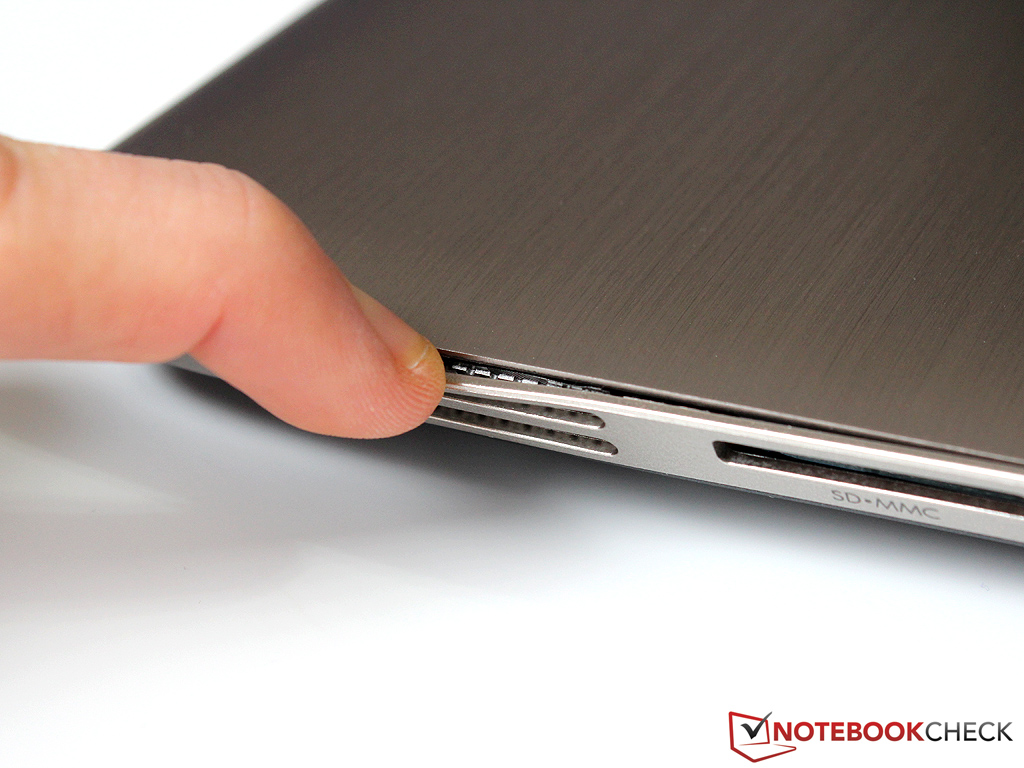
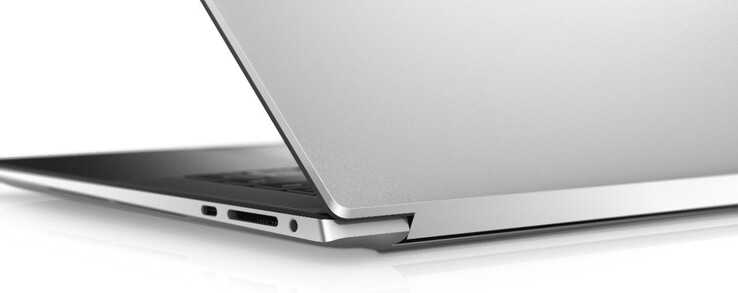
No matter the budget, the laptop of your choice should be able to withstand all the vagaries of day-to-day work. All those fancy internal specs won't offer a welcoming experience if the laptop has a wobbly screen, gaps in the construction, or creaky hinges. When we talk of build quality, it is not only about the materials used but also about the overall stability and quality of workmanship.
Most laptops, especially the more affordable ones, are primarily made of plastic. Some OEMs may offer a touch of aluminum for that sophisticated look and also to lessen the overall weight whereas the more premium ones are completely made of metal or carbon fiber. You should also look out for chassis and display twisting. While these parts lend themselves to twisting to a certain degree, excess deformity indicates poor build quality.
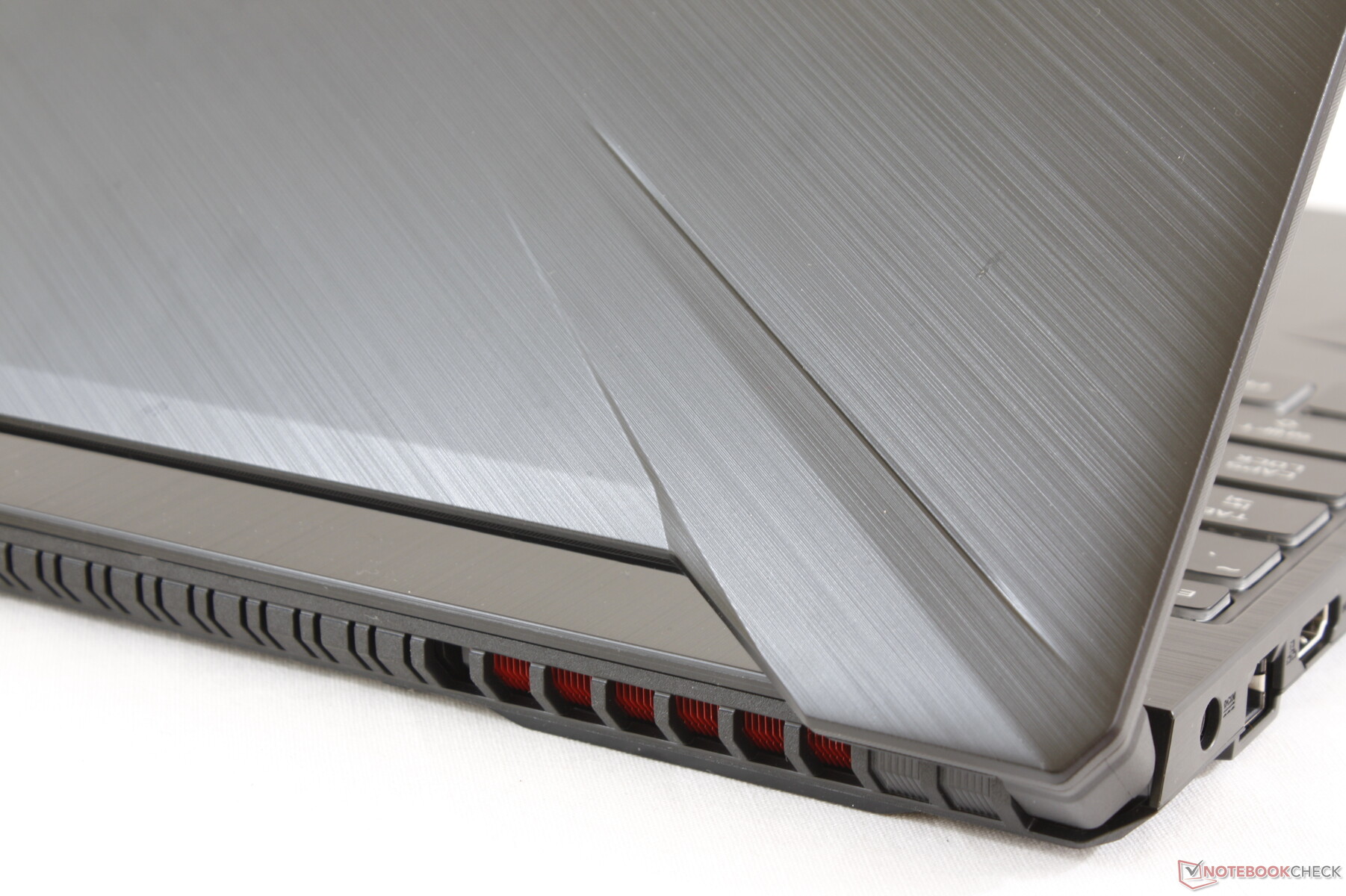
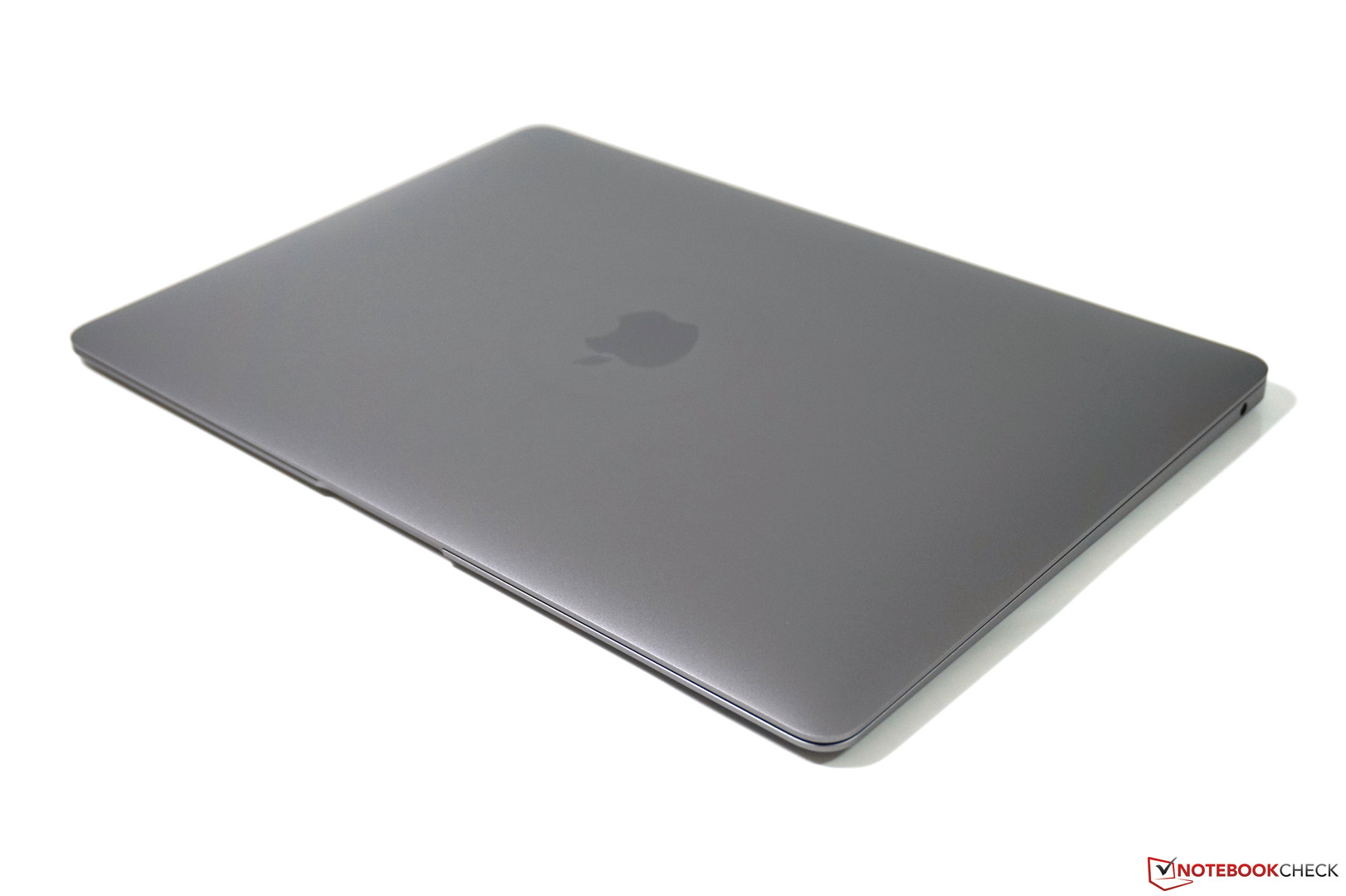
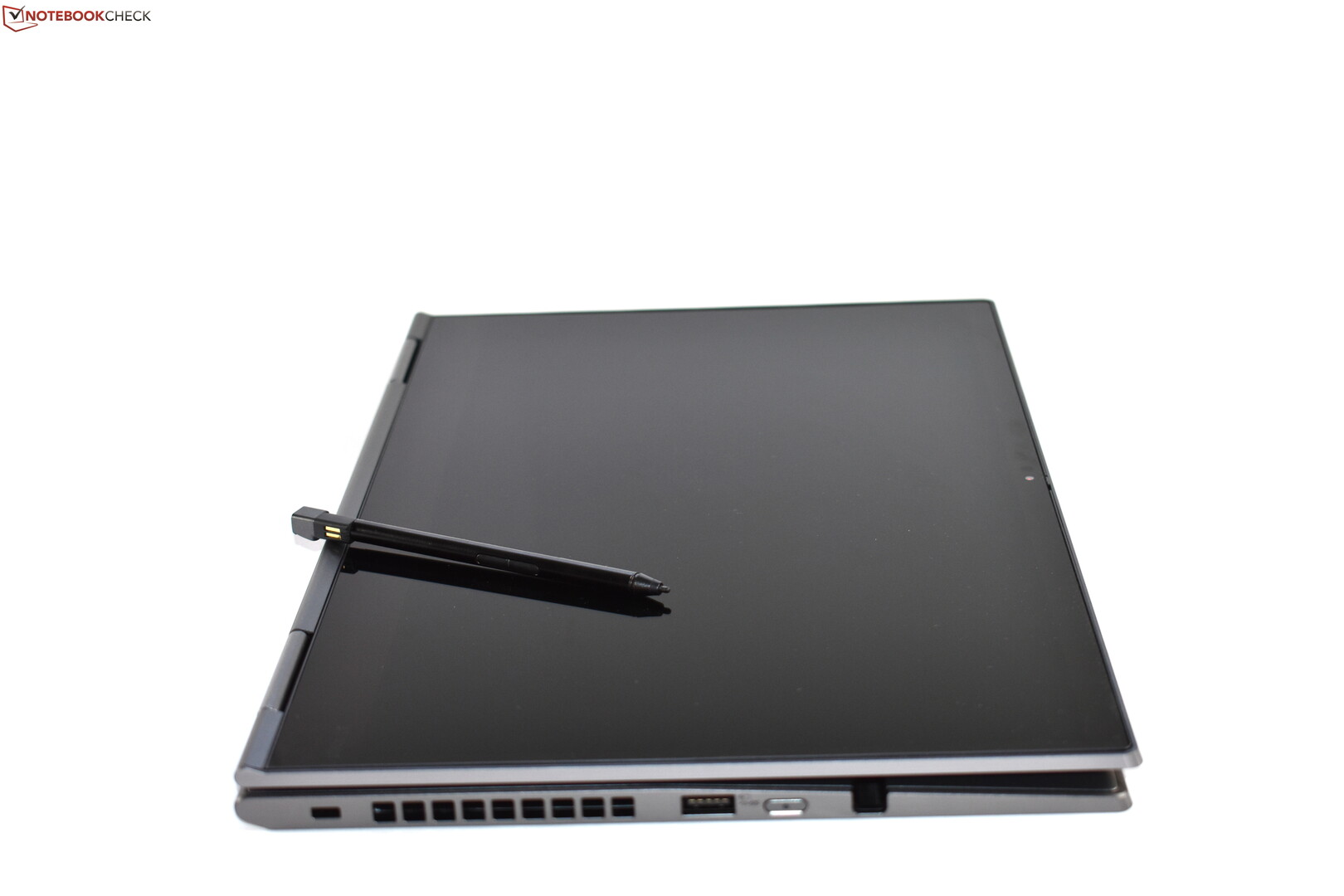
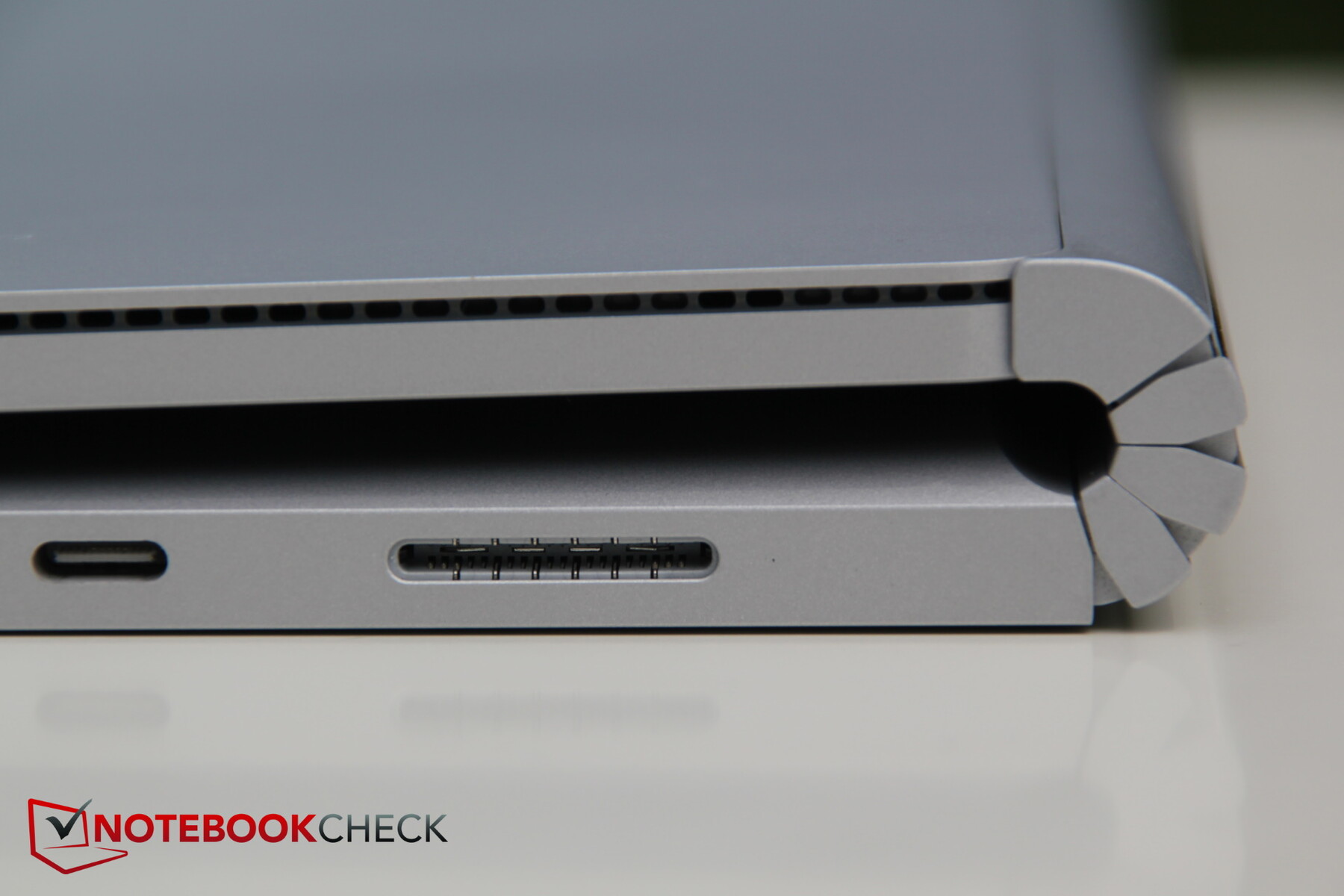
The quality of the hinge matters a lot as well. The hinge is the place which suffers the most mechanical movement and hence is prone to wear and tear over time. A poor quality hinge means that you end up with a wobbling display and sometimes even loose connections to the panel. Ideally, you should be able to open the laptop's hinge with one hand without the base unit shifting its position. This may not be the case with gaming laptops with a large chassis, though.
There should not be any gap between the display and the base unit once the lid is closed. This may be an exception in devices such as the Microsoft Surface Book 3 wherein the hinge mechanism is completely unique to aid in its convertibility. In some cheap laptops, the keyboard often hits the display when closed resulting in key impressions all over the screen. Ensure that such constructions are avoided.
Finally, it is important that the weight of the laptop is also taken into account. Unless you wish to opt for a desktop replacement notebook, a laptop is primarily a mobile device and therefore should be lightweight and portable. Whenever possible, try one at a physical store so that you can get a feel of the device for yourself.
Size
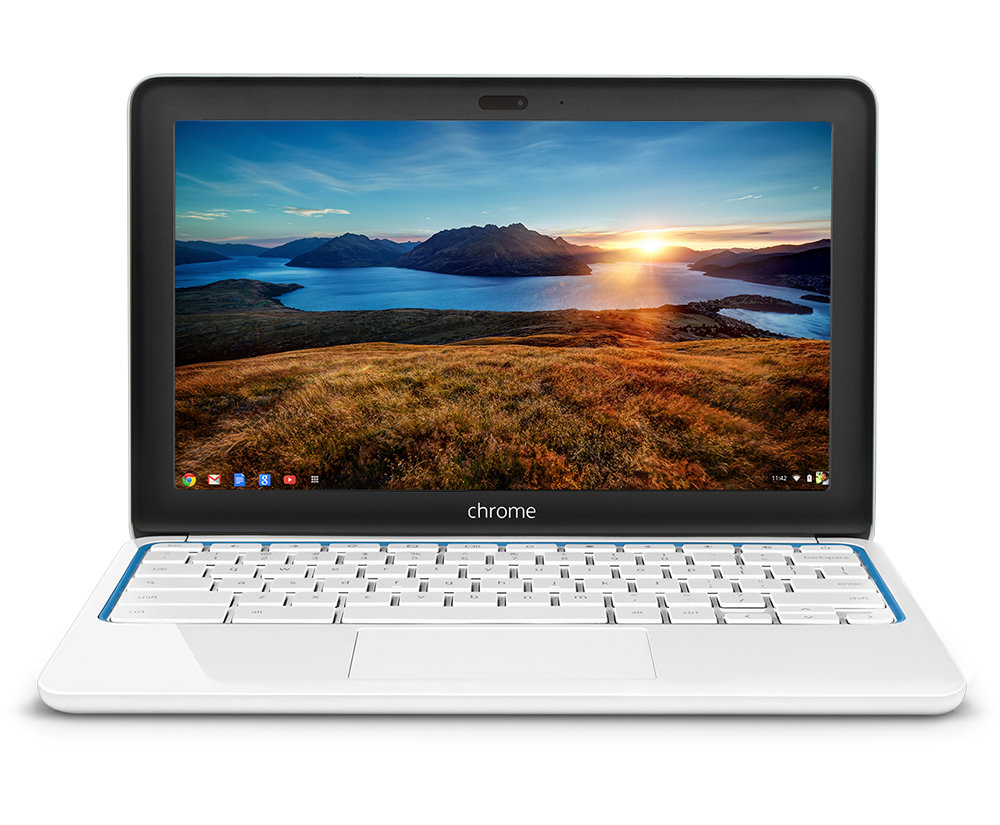
Yes. Size does matter! As discussed above, a laptop has to be portable enough to be easily lugged around for work or play. A vast majority of laptops sport a 15.6-inch display and with newer bezel-less designs it is now possible to cram in a 15.6-inch panel into what is essentially a 14-inch chassis. There are 11-inch, 12.5-inch, 13.3-inch, 14-inch, and 17.3-inch laptops on offer as well. Keep in mind that an increase in display size also often means an increase in chassis size and weight.
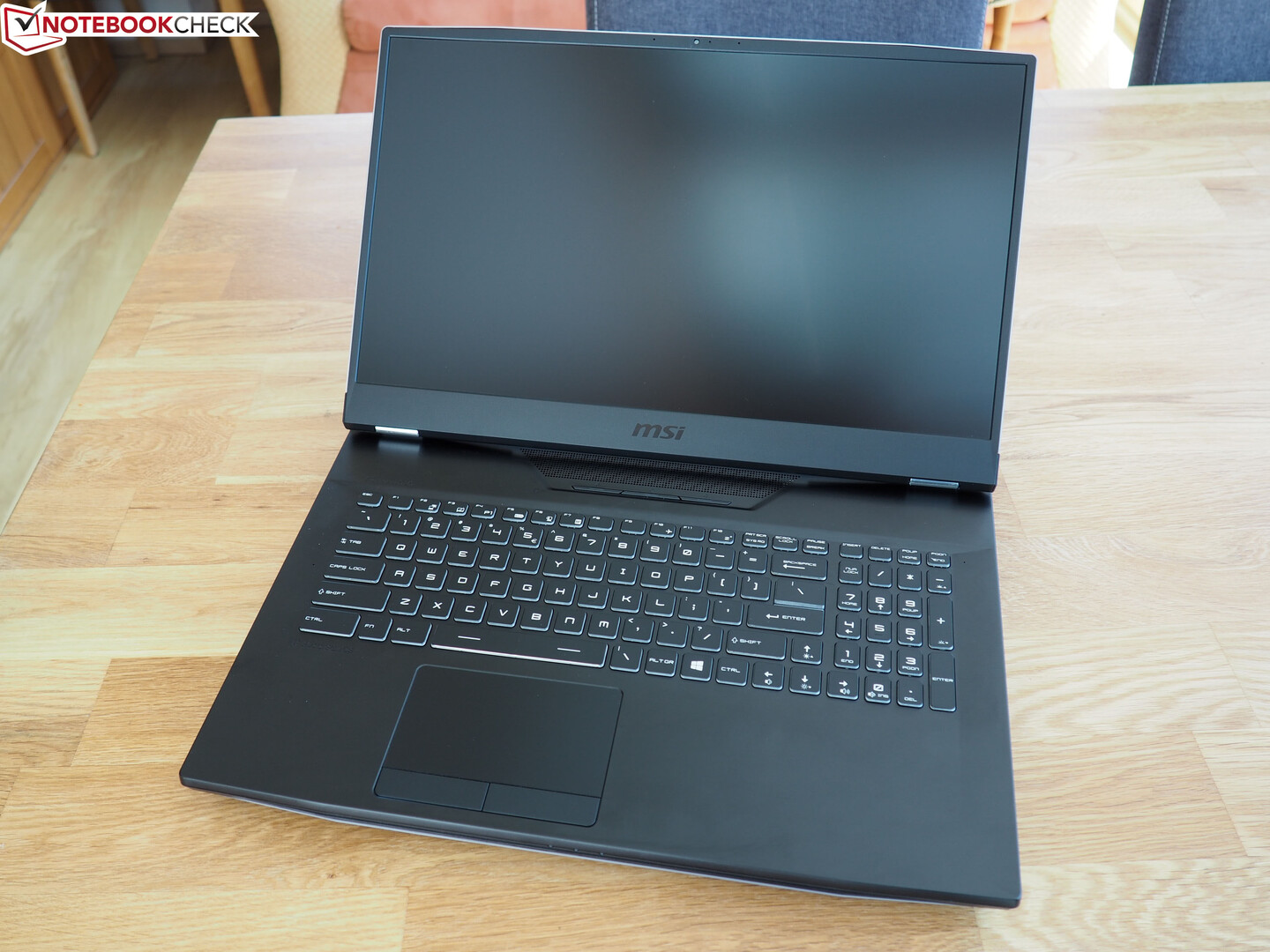
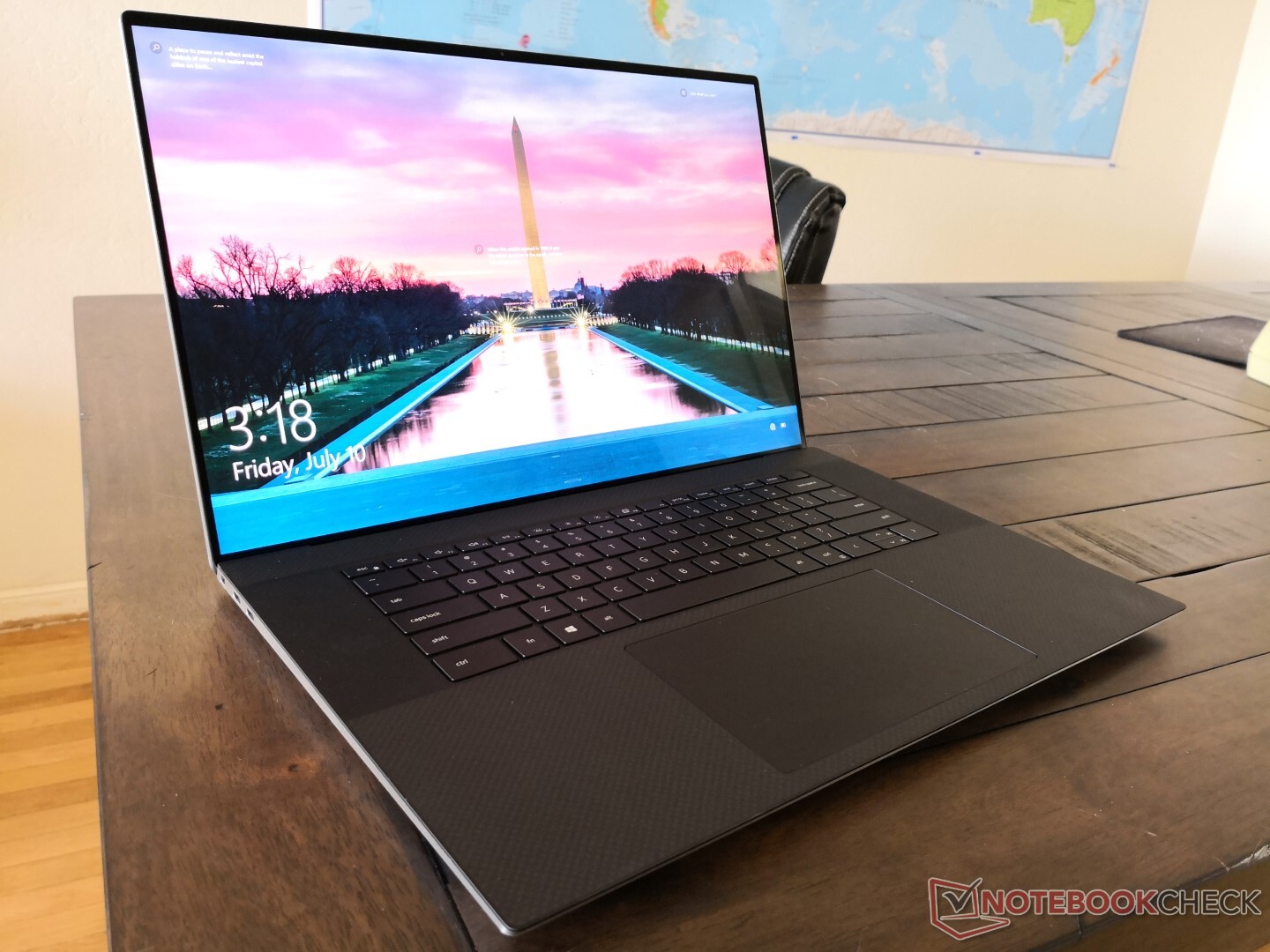
14-inch and 15-inch laptops offer the best trade-off between mobility and available screen estate. With high resolution FHD and even 4K displays becoming the norm these days, a typical 15.6-inch screen can show quite a lot of information compared to the standard 1366x768 resolution that was still the norm until not so long ago.
17.3-inch displays can be quite useful for gamers and content creators as it allows them to use a larger canvas and have more viewing area. However, laptops with these displays are usually bulky and may not be very portable. They also tend to sport more powerful components, which means that you may have to always carry the charging brick. That being said, there are new content creator-focused laptops such as the Dell XPS 17 9700 and the Gigabyte Aero 17 HDR XB that feature a 17-inch screen but are relatively slim.
Ultimately, the screen size would depend on your workflow and there is no one-size-fits-all option here. But ensure that you are getting the maximum size that would benefit your productivity or gaming needs and is allowed by your budget.
Connectivity and port selection
Being a mobile device, it is important that the laptop offers enough connectivity options. First, we will talk about network connectivity and then move on to the ports.
Wired and wireless internet
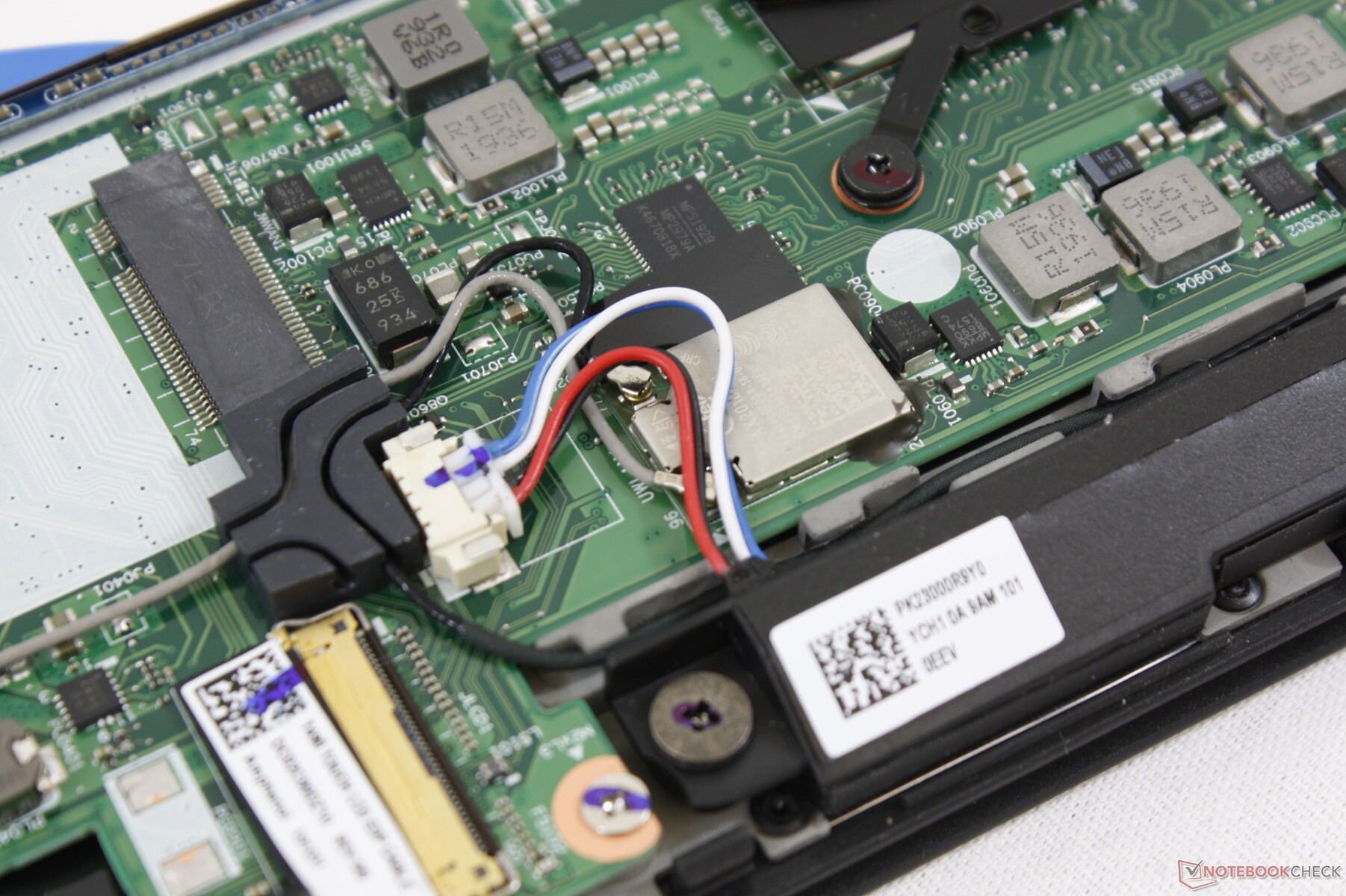
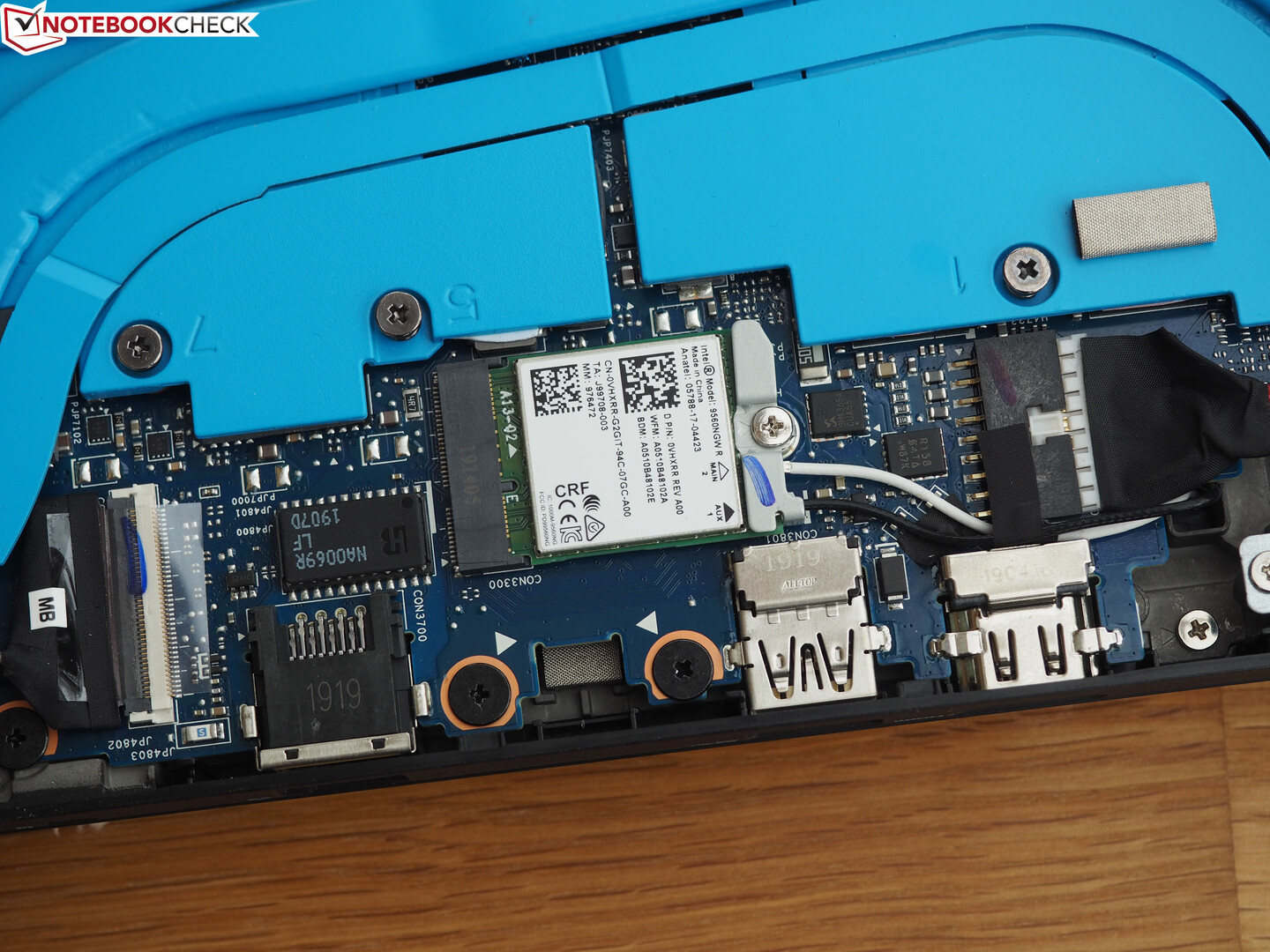
It is a given that every laptop on the market has some form of wireless connectivity and with it associated protocols such as Bluetooth and sometimes even optional NFC and cellular. 802.11ac is still the dominant Wi-Fi standard today, but the newer 802.11ax, also known as Wi-Fi 6, is fast catching up and most laptops being launched in the past few months sport this. While 802.11ax routers are still somewhat expensive and most ISP pipes do not even saturate the full potential of 802.11ac, it is good to have future proofing, especially when it doesn't cost extra.
Also important is the WLAN chip that the laptop uses. Most OEMs use Intel, Broadcom, Realtek, or Atheros WLAN modules. While basic surfing needs are met by all, those who desire full control and maximum performance out of their WLAN modules may need to take a selective approach. The placement of the antenna wires within the chassis is important as well. Most users hardly ever have a need to upgrade their Wi-Fi module. But if you do find the need to do it down the line, it is important that the laptop offers a swappable Wi-Fi card instead of having it soldered onto the motherboard.
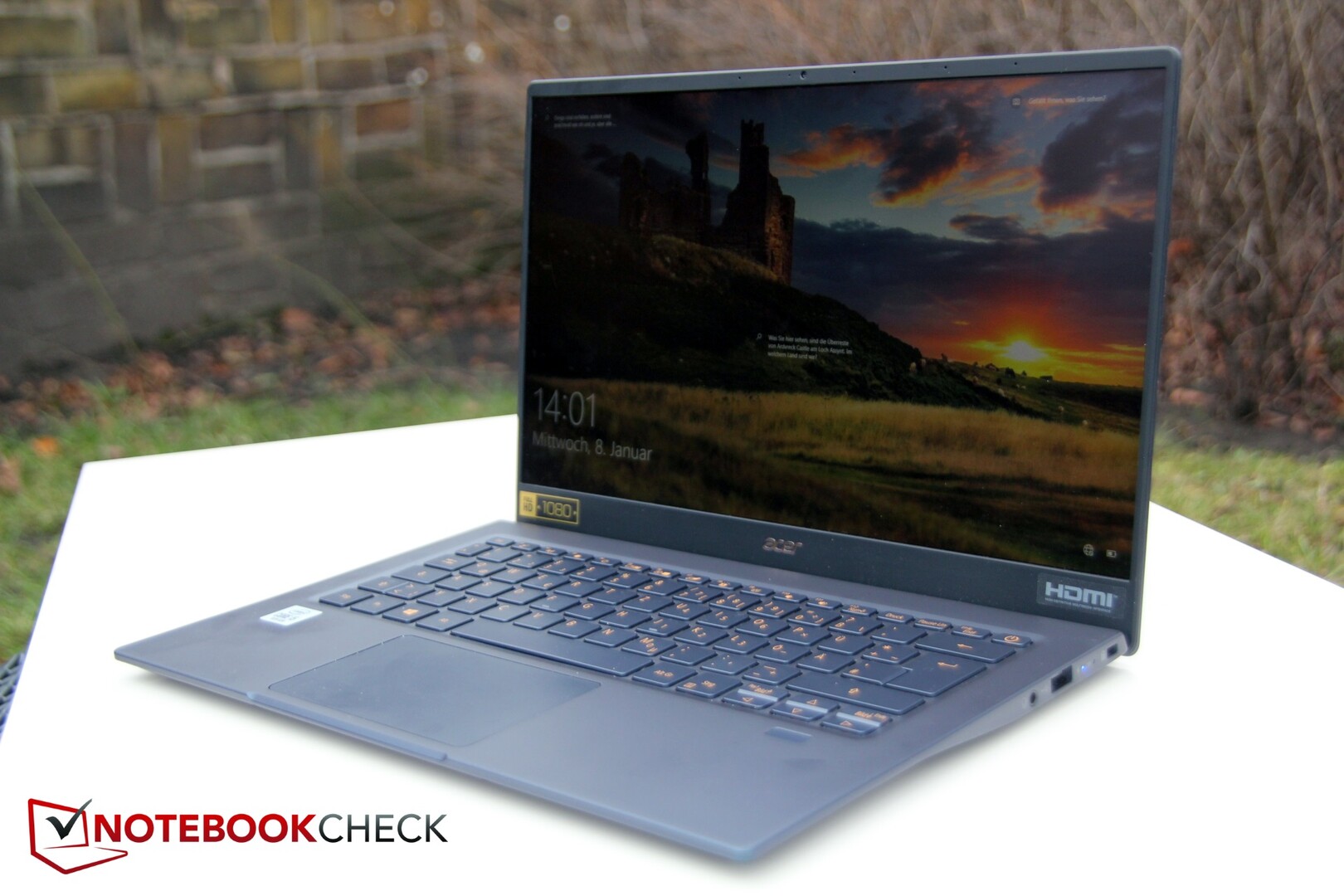
Ultrabooks often forego the Ethernet port in pursuit of a slim design. Gamers, however, will find the presence of a Gigabit Ethernet port particularly useful as wired internet rules out potential latency and signal attenuation problems characteristic of wireless connections.
Business professionals often need to be connected 24/7 even in places without a Wi-Fi hotspot. While it is possible to simply tether your phone's internet with your laptop, some carriers place restrictions for the same. If you do need untethered internet access at all times, look for a laptop with a built-in WWAN module and a SIM slot or the ability to use an eSIM.
The networking and Wi-Fi tests in our reviews are a good place to compare communication speeds of various laptops.
Port selection
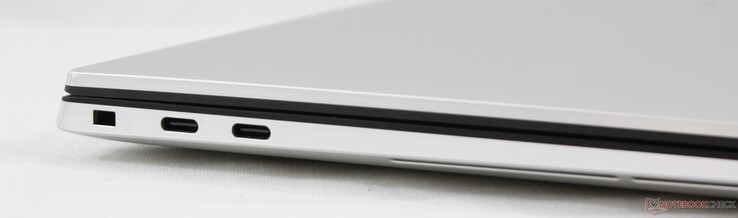
With OEMs increasingly focusing on offering the thinnest possible designs, the number of ports that a typical notebook offers has started to come down. It all started with Apple going with a lone USB Type-C port in the 2015 MacBook. Since then, we have seen Apple offering only Thunderbolt 3 ports on all MacBooks.
In the Windows world, however, you still get a fairly decent port selection. But even newer Windows-based laptops such as the Dell XPS 15 9500 are now increasingly looking at culling all surfeit ports for an integrated Thunderbolt 3 or USB 3.1 Type-C-based solution that can be used for both charging as well as for data transfer.
The USB standards conundrum
USB ports come in several standards, which can get quickly confusing. Often, OEMs just advertise the port as USB 3.2, but knowing the generation of USB 3.2 is essential to understand what would be its throughput. There are several types of USB connectors out there, and it is important that you know which connector types your device supports. Keeping pace with the changing times, you may want to look into laptops that offer Thunderbolt 3 (Intel systems) or USB 3.1 and above Type-C (for AMD systems). USB4 and Thunderbolt 4 are now official and we can expect to see them in laptops soon.

The following table illustrates basic differences between the various USB formats in vogue.
| USB standard | Max. data transfer speed | Connector type | Max. power |
|---|---|---|---|
| USB 1.1 | 12 Mbps | A and B | 2.5 W |
| USB 2.0 | 480 Mbps | A, B, Micro-A, Micro-B, Mini-A, Mini-B | 2.5 W |
| USB 3.2 Gen1 (USB 3.0, USB 3.1 Gen1) | 5 Gbps | A, B, Micro-B, C | 4.5 W |
| USB 3.2 Gen2 (USB 3.1, USB 3.1 Gen2) | 10 Gbps | A, B, Micro-B, C | 100 W |
| USB 3.2 Gen2x2 (USB 3.2) | 20 Gbps | C | 100 W |
| Thunderbolt 2 | 20 Gbps | Mini DisplayPort | 10 W |
| Thunderbolt 3 | 20 Gbps and 40 Gbps (Passive), 40 Gbps (Active) | C | 100 W |
| USB4 | 10 Gbps, 20 Gbps, and 40 Gbps | C | 100 W |
| Thunderbolt 4 | 40 Gbps | C | 100 W |
Audio outputs
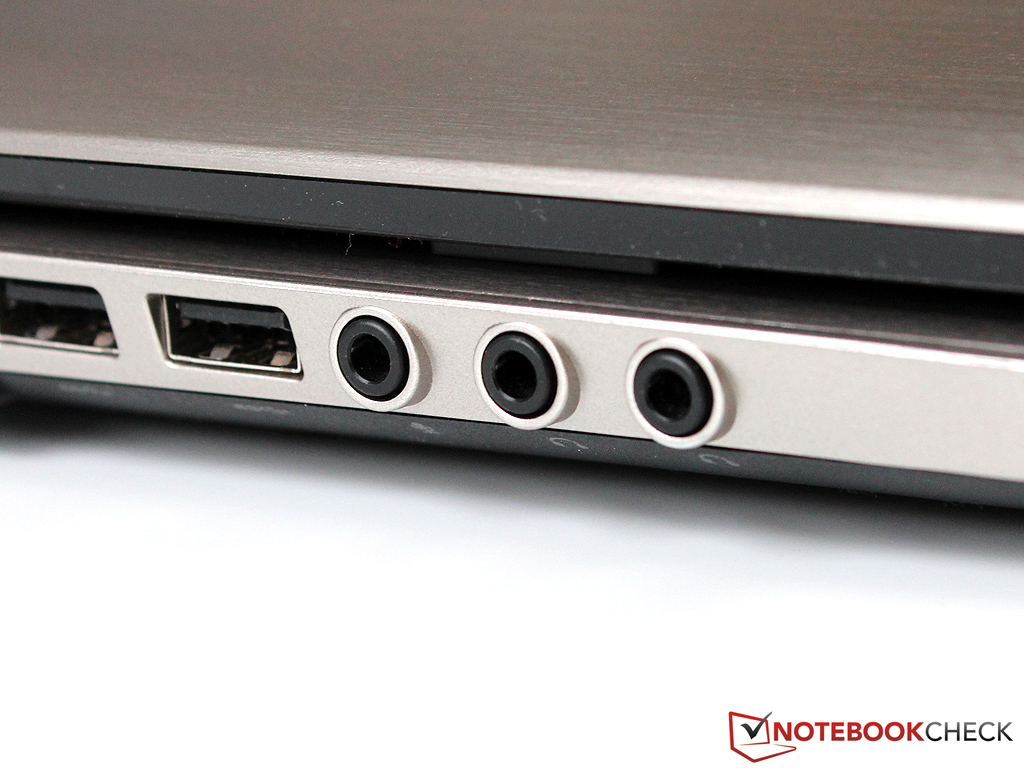
All laptops come with at least a 3.5 mm combo headphone and audio jack. While this is great for casual listening or Skype calls, creators would want something more. Till recently, we have been seeing laptops with three audio jacks for mic, line-in, and line-out each, which could be easily reconfigured to allow directly hooking up 5.1-channel systems. Of late, most laptops, including the gaming variety, are offering just the combo audio jack with few models generously offering separate mic-in and audio-out jacks.
The quality of the audio output directly depends on the DAC used. Realtek chips are the most commonly used internal digital signal processors (DSPs). Some gaming laptops offer additional enhancements such as ESS Sabre or Creative Sound Blaster DACs that further enhance sound quality and allow for additional customization. Audiophiles would want to look out for gold-plated jacks for minimal signal loss. If you find that the onboard sound isn't really capable of driving your high-impedance headphones, consider opting for an external DAC solution.
Video outputs
When it comes to outputting video to an external monitor, the commonly used connectors are HDMI and DisplayPort. Most laptops, even those with integrated graphics, now allow for connecting at least one external 4K display. While HDMI-out is fairly common, high-end gaming laptops also additionally offer a mini DisplayPort-out. With Thunderbolt 3 and USB 3 Type-C supporting DisplayPort Alt-mode, it is now possible to directly connect a laptop to a compatible display via the USB Type-C port without having to use any dock.

That being said, just like USB, there are several HDMI and DisplayPort versions that you need to be aware of to ensure that you are able to get the desired resolution, refresh rate, and audio output.
The following table illustrates some of the basic differences between various HDMI and DisplayPort standards. For a more comprehensive comparison between DisplayPort and HDMI, check out this article from Tom's Hardware.
| Video standard | Max. data bandwidth (Gbps) | Supported resolution and refresh rate (24 bits per pixel) |
|---|---|---|
| HDMI 1.0-1.2a | 3.96 | 1080p @ 60 Hz |
| HDMI 1.31-1.4b | 8.16 | 1080p @ 144 Hz 1440p @75 Hz 4K @ 30 Hz 4K 4:2:0 @ 60 Hz |
| HDMI 2.0-2.0b | 14.4 | 1080p @ 240Hz 4K @ 60 Hz 8K 4:2:0 @ 30 Hz |
| HDMI 2.1 | 42.6 | 4K @ 144 Hz (240 Hz with Display Stream Compression (DSC)) 8K @ 30 Hz (120 Hz with DSC) |
| DisplayPort 1.0-1.1a | 8.64 | 1080p @ 144 Hz 4K @ 30 Hz |
| DisplayPort 1.2-1.2a | 17.28 | 1080p @ 240 Hz 4K @ 75 Hz 5K @ 30 Hz |
| DisplayPort 1.3 | 25.92 | 1080p @ 360 Hz 4K @ 120 Hz 5K @ 60 Hz 8K @ 30 Hz |
| DisplayPort 1.4-1.4a | 25.92 | 8K @ 120 Hz with DSC |
| DisplayPort 2 | 77.37 | 4K @ 240 Hz 8K @ 85 Hz |
Input devices
A laptop may have powerful specs, but the quality of the input devices such as the keyboard and the trackpad can make or mar your experience of using the device.
Keyboard
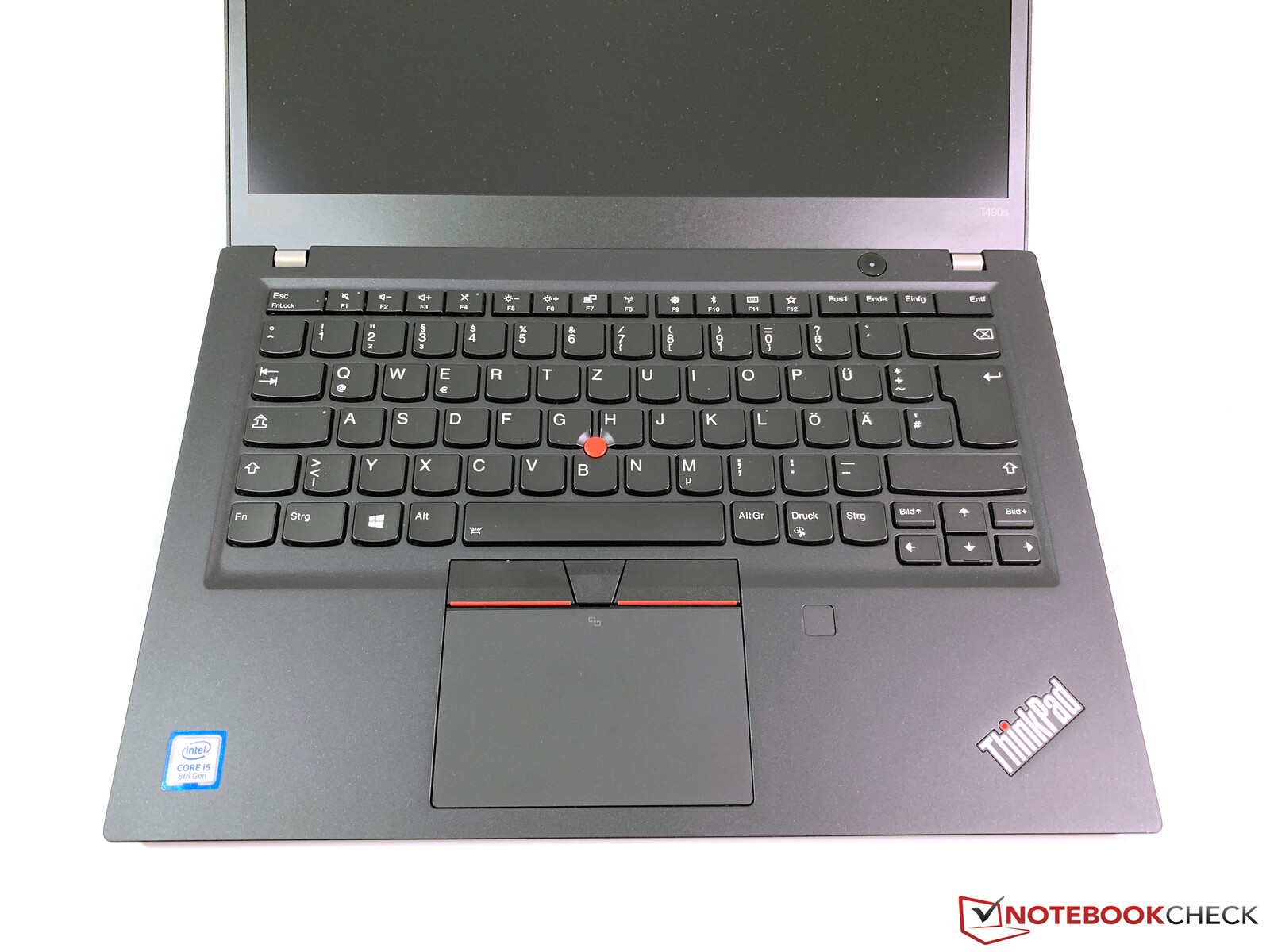
A vast majority of laptops feature membrane chiclet keyboards. These keys should be fine for most typing needs as long as they have decent key travel (~1.2 mm) and feedback. The size of the keys is an important factor too, especially in laptops less than 15.6-inches in size.
The keyboard layout is more or less standard in most laptops. However, you may find the placement of the Ctrl and Fn keys in Lenovo notebooks, for example, different from other notebooks. Getting used to the placement of the Fn key is important as it often allows accessing shortcuts for controlling various settings of the notebook. Depending on the number of keys being crammed onto the deck, you may also find differences in the size of certain keys such as Enter, Shift, and arrow keys. Those who primarily deal with number-crunching would find the inclusion of a numeric keypad very convenient.
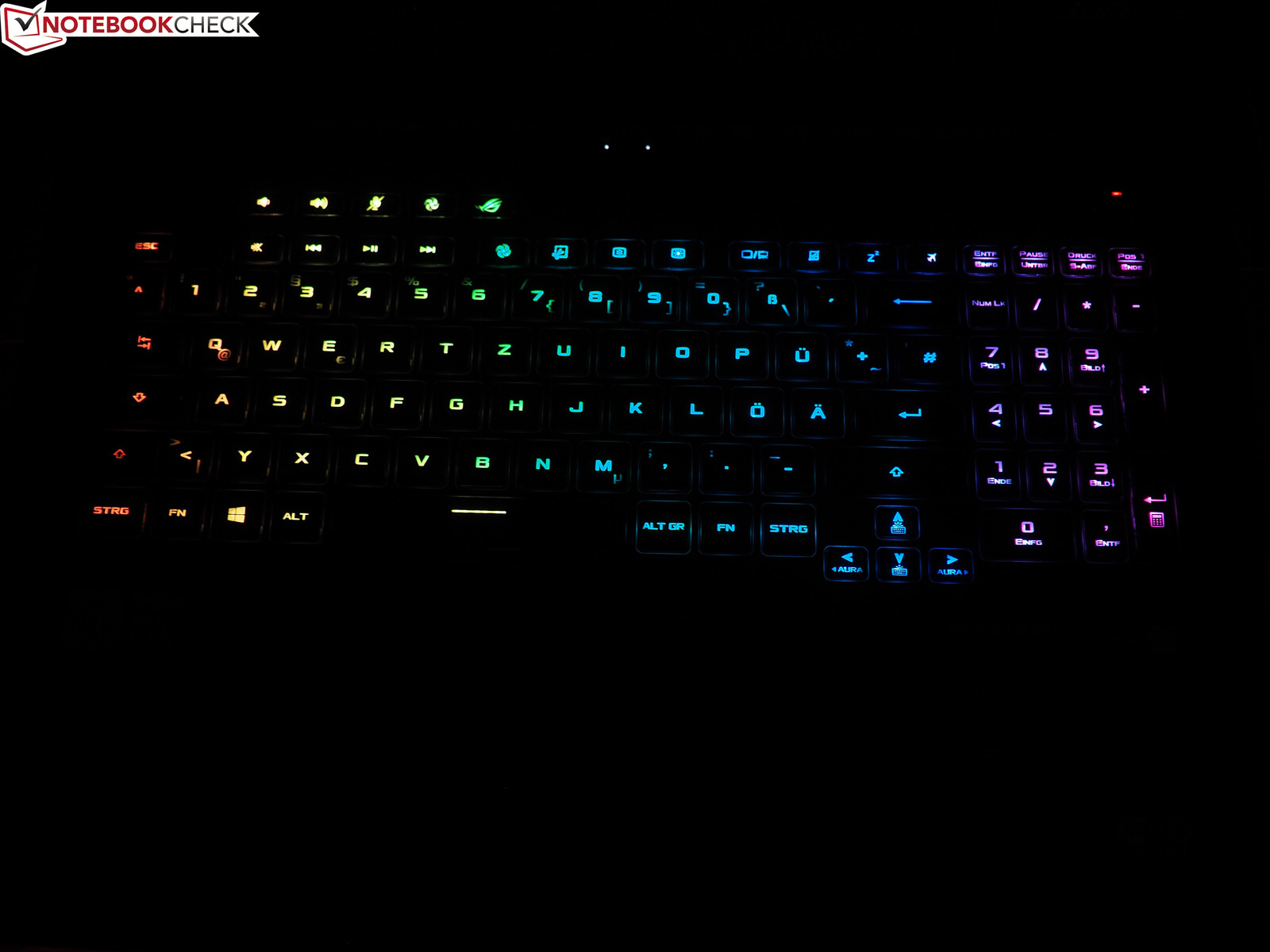
Not all keyboards are made equal. Gaming laptops often implement keys that have longer travel compared to ultrabooks. Some notebooks sport keyboards with concave key surfaces that are more ergonomic for long hours of typing. Newer laptops even sport mechanical keys or optical switches that are reminiscent of a full-fledged mechanical keyboard. You may also want to look at having at least some form of basic backlighting with brightness control included for easy typing in the dark. RGB connoisseurs would want even more control such as per-key RGB lighting and the ability to set custom lighting profiles depending on the task or game.
Finally, pay attention to the overall build quality of the keyboard deck. You wouldn't want any sort of rattling, bending or flexing while typing. The keys should also be fairly resistant to any sort of dust ingress that may cause typing errors or unresponsive keys.
Trackpad
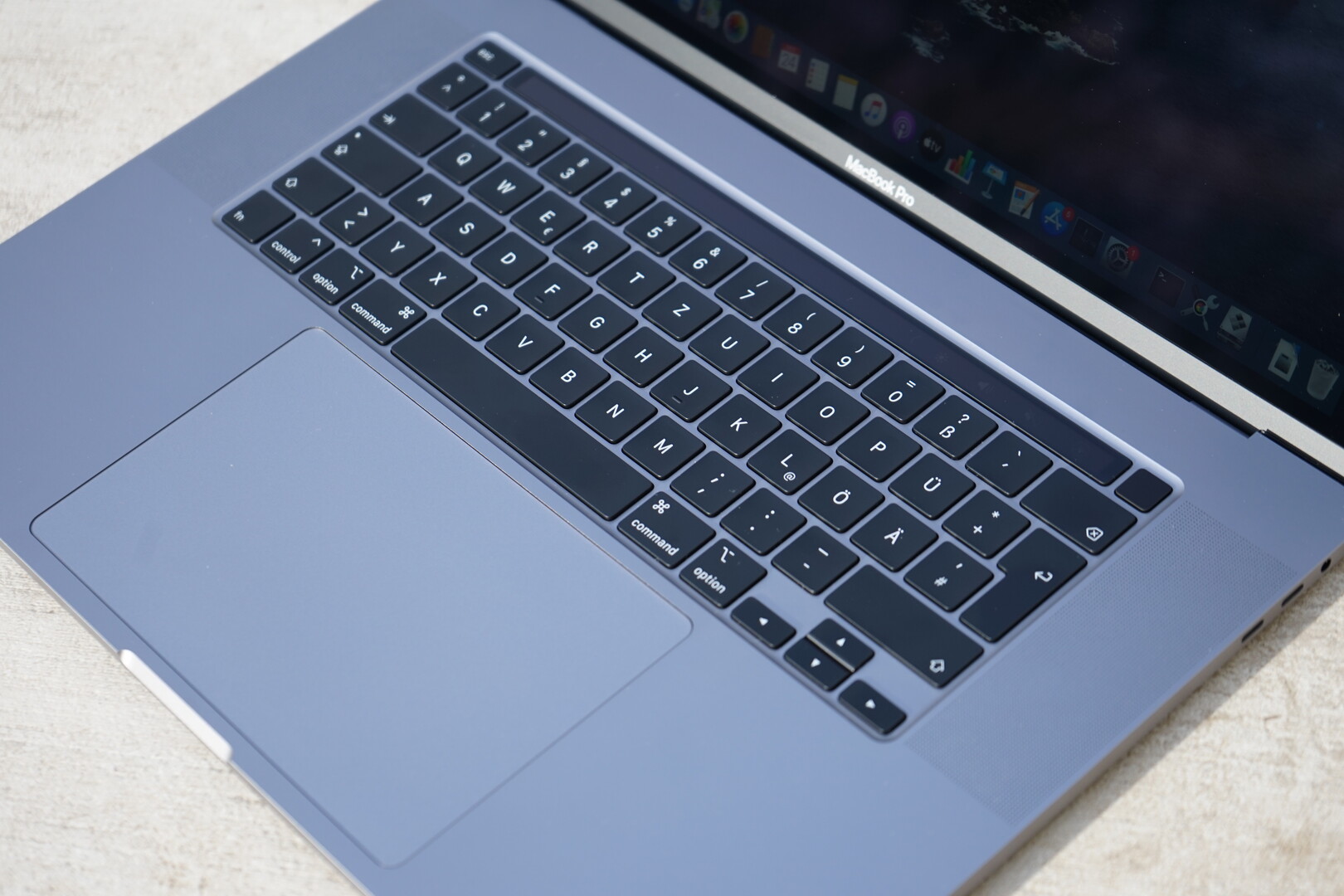
The trackpad controls the mouse pointer, and it is important that it offers a smooth navigation experience. Ensure that the laptop you select has a trackpad that is large, is responsive, allows for gliding your fingers without much friction, and has easily clickable buttons. While MacBooks have long held the distinction of sporting the best trackpads in the industry, modern Windows laptops come with Windows Precision trackpads, often with glass surfaces, meaning you can expect them to track well and support multi-touch gestures in Windows 10.
The placement of the trackpad is important too. Ideally, the trackpad should be placed in the center just below the spacebar. In laptops that offer a numeric keypad, the trackpad may be positioned slightly off-center. Make sure that its placement is ergonomic enough and does not require you to move your hand far away from the keyboard.
Display
The display is your window to the work being done on the laptop. A higher quality display automatically translates to better productivity at work and immersiveness while consuming media. The quality of the display also reflects in the price of the laptop, so it is important that you get what you pay for. Our reviews for each laptop invariably include a host of display measurements. While we won't be getting into all the nitty-gritty of each display parameter here, we will look into a few broad points that must be definitely factored-in during purchase.
Display requirements vary depending on the need, so we also suggest checking out the following articles for more information:
Important display considerations
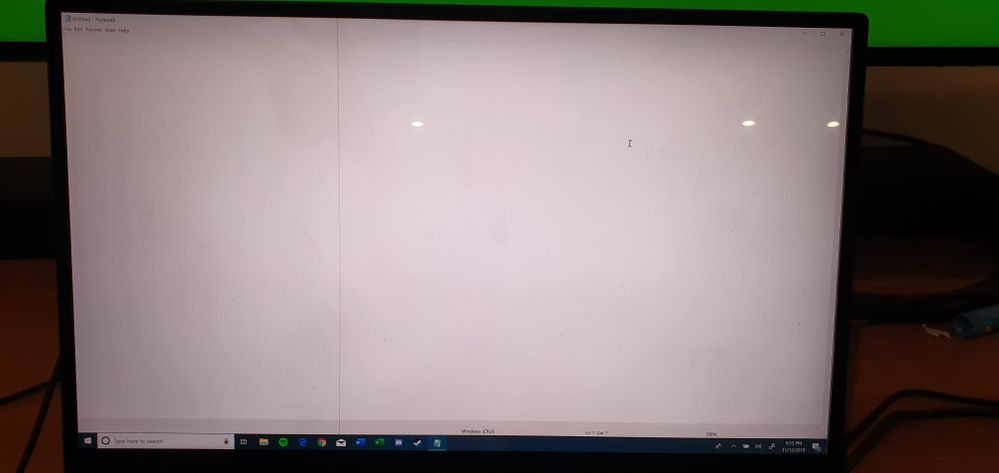

Dead pixels: Dead or stuck pixels can leave a sore impression on the viewer. The predicament with LCD displays is that the presence of dead pixels can be known only after production and assembly. To save costs, almost all laptop OEMs allow for a certain limit of dead pixels in their policy — usually two. Each OEM determines the extent of dead pixels allowed before a replacement claim can be entertained. Whenever possible, it is a good idea to check the laptop's screen physically using an online monitor test tool to see if any dead pixels can be noticed.
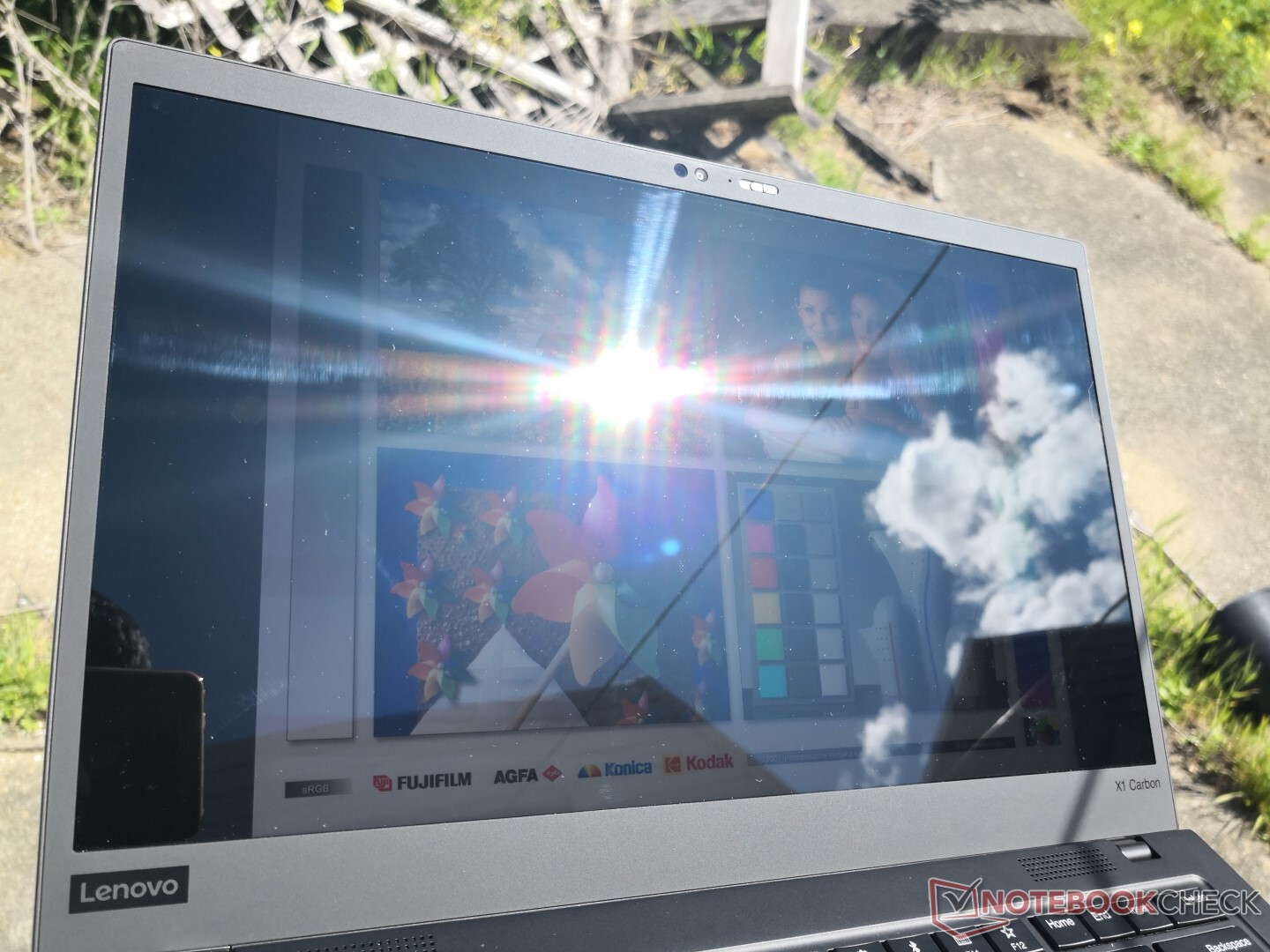
Brightness: Higher the brightness, the better is the reproduction of finer details in the image and better outdoor use. Whenever possible, prefer matte displays to glossy ones to avoid reflections. HDR content requires a minimum brightness of 400-nits.
Resolution: 1920x1080 (FHD) is usually the norm these days and we wouldn't recommend going anything lower unless the laptop's screen is less than 14-inches. Creative pros may want to look into 2560x1440 (QHD) and 3840x2160 (UHD) options as well. Do note that higher-resolution displays can have a significant impact on battery life.
Viewing angles: A wide viewing angle ensures that all the aspects of the image are properly visible from any angle. IPS panels often sport the widest viewing angles while TN panels suffer the worst if the line of sight is even deviated slightly from the center of the display.
Touchscreens: Touchscreens are increasingly becoming popular thanks to the integration of pen and touch input in Windows 10. If you are considering a convertible or 2-in-1 device, having a responsive touchscreen is essential. Also, check for other niceties such as the ability to use active or passive styluses with adequate levels of pressure sensitivity to aid in drawing or note-taking.
Refresh rate: A higher refresh rate results in a smooth viewing experience. 60 Hz is the most common refresh rate. Higher refresh rates greatly help with competitive gaming. However, note that very high refresh rates such as 144 Hz and above are best experienced when the display panel and the GPU support some form of adaptive sync technology such as AMD FreeSync or NVIDIA G-Sync so as to minimize screen-tearing artifacts. Remember that high refresh rates should also be accompanied by low response times for maximum benefit.
The video illustrate how refresh rates can impact gaming:
Response time: Response time is the time taken by the panel to shift from one color to the other, usually measured in terms of gray-to-gray (GtG) and black-to-white (BtW). Lower response times help eliminate ghosting and motion blur.
Contrast ratio: Contrast ratio is derived by dividing the brightness of the peak white pixel with that of the black one. A higher contrast ratio implies better resolution of details in the darker areas of the image and is especially helpful when viewing the display in low ambient light conditions. TN panels have the lowest contrast ratios (~700:1 to 900:1) while IPS panels have a contrast ratio of 1000:1. VA panels, a compromise between TN and IPS, offer a native contrast ratio of 3000:1. OLED displays, on the other hand, have an infinite contrast ratio as the pixels are completely turned off to produce the darkest blacks.

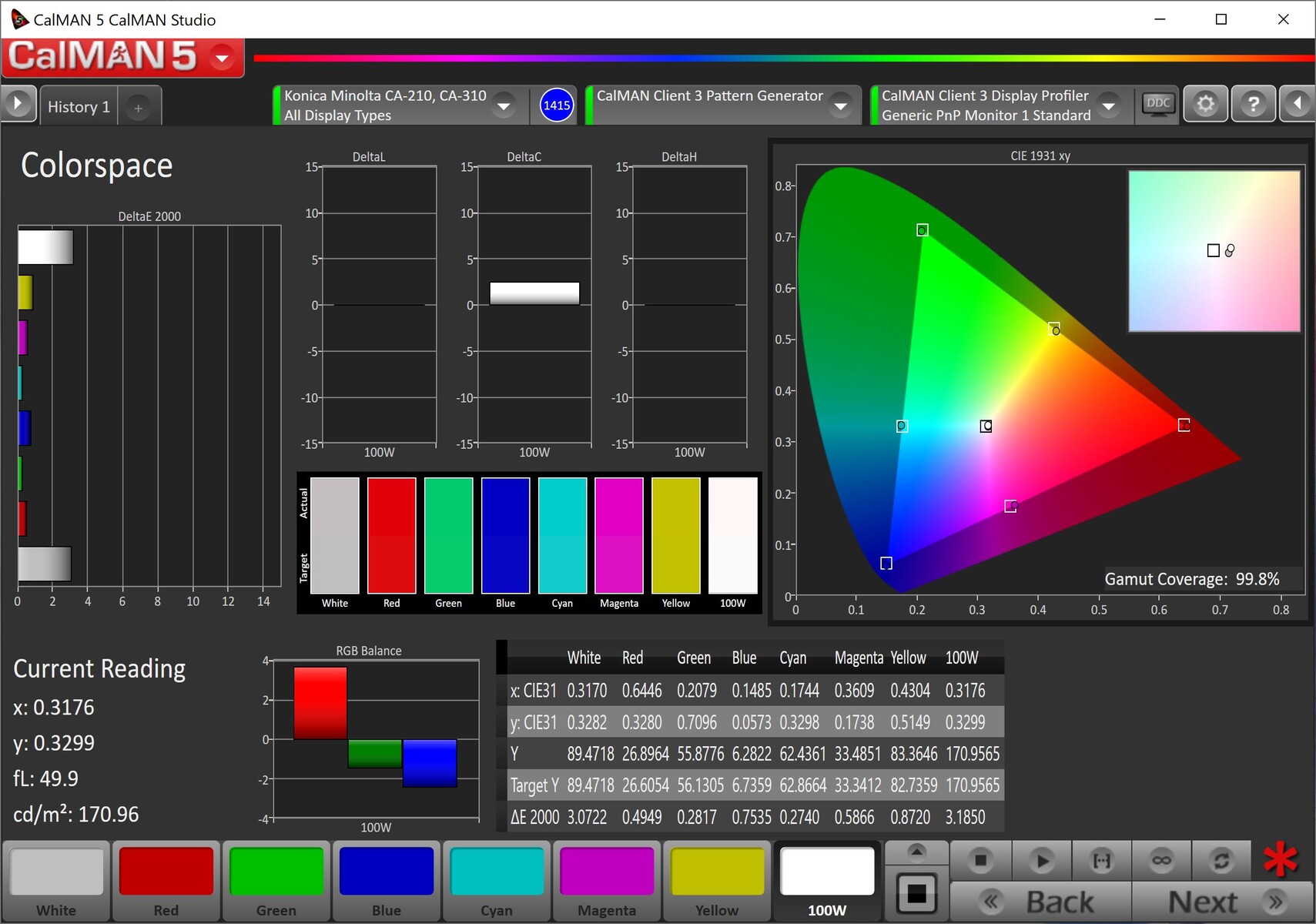
Color gamut and color accuracy: Color gamut represents the range of colors that a display can reproduce. Higher the extent of color-gamut coverage, higher is the amount of color that can be shown. However, a higher color gamut does not necessarily imply accurate colors. Most content produced today is in the standard sRGB color space, so a laptop that adequately covers the sRGB spectrum should offer a decent viewing experience. sRGB suits gamers, movie watchers, productivity, and almost every other use case.
Designers and professional photographers who want to capture more color information usually opt for the Adobe RGB color space. Do note that while Adobe RGB can display more saturated colors, your display should also be capable of reproducing Adobe RGB in order to be able to perceive the difference.
Color accuracy is determined by the delta E value that determines the color difference that can be perceived by the human eye. Properly calibrated displays often have delta E values less than or equal to 2. Low delta E values are important for workflows such as professional photo-editing and color correction in videos.
Performance
It is important that your notebook is able to handle your workflow needs without breaking a sweat. Performance requirements can vary by user, but it helps to opt for a configuration that can handle a little more than your current needs. Unlike some desktop replacement notebooks, most laptops offer much less in terms of upgradability, so pick and choose your components wisely.
CPU
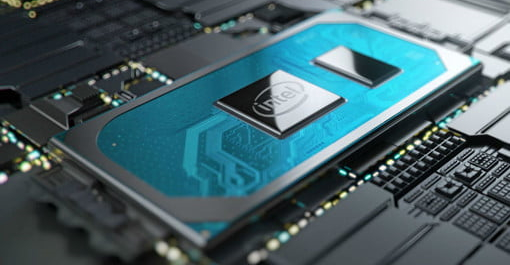
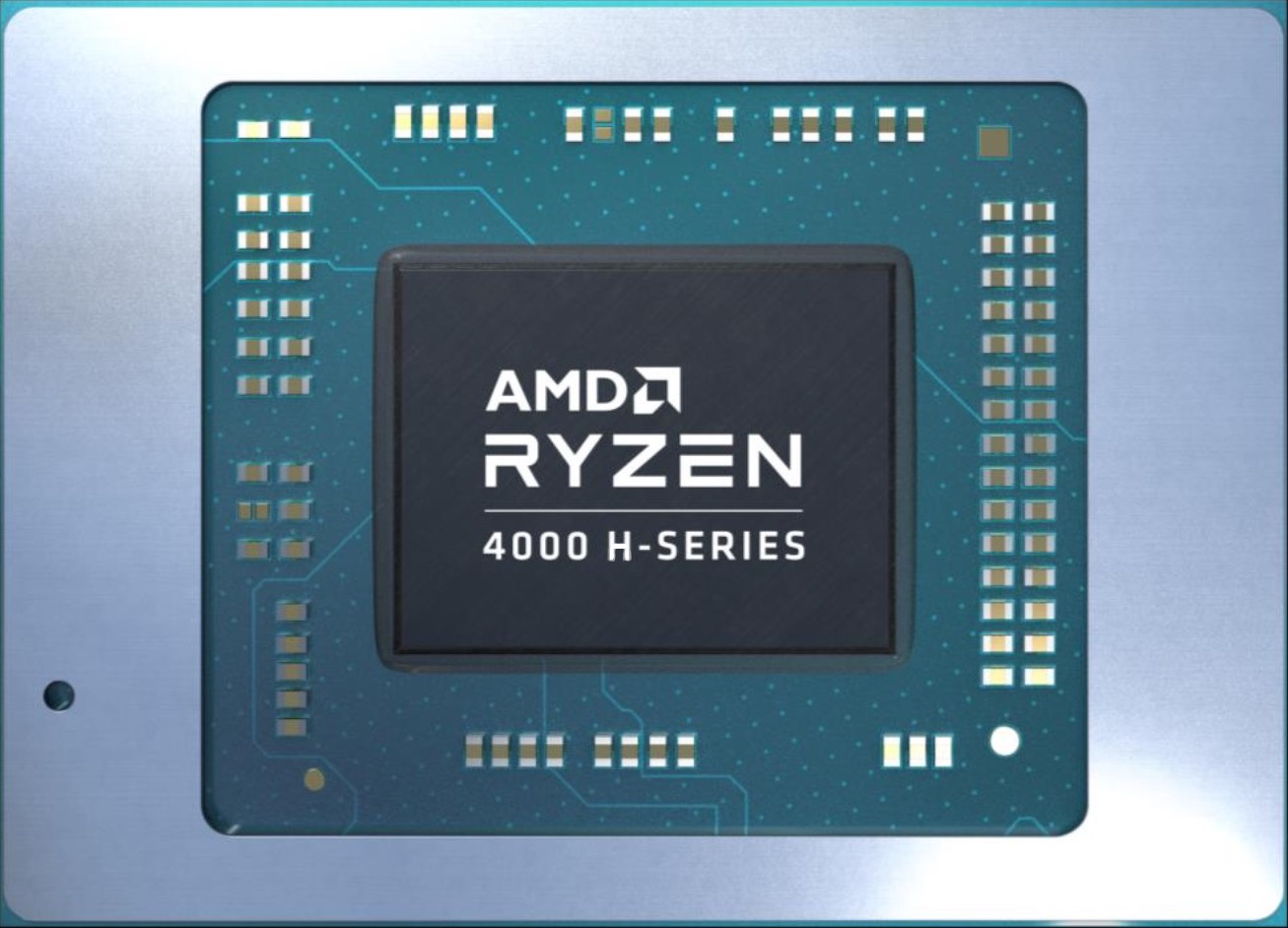
The CPU is what makes everything tick in your laptop, and you would want to make sure it can cater to your needs. Intel has been traditionally the dominant player in the laptop CPU market, but AMD is fast catching up and the latest Ryzen 4000 laptop processors offer excellent multi-core performance coupled with capable integrated Radeon Vega graphics.
Irrespective of whether you opt for Intel or AMD, it is important to note that there are two main classes of laptop CPUs — the U-series chips, which have anywhere between a 15 to 25 W TDP envelope and the H-series chips, which have a TDP between 35 to 45 W. Now, there are differences in how Intel and AMD approach TDP values, but we won't be going into those for now.
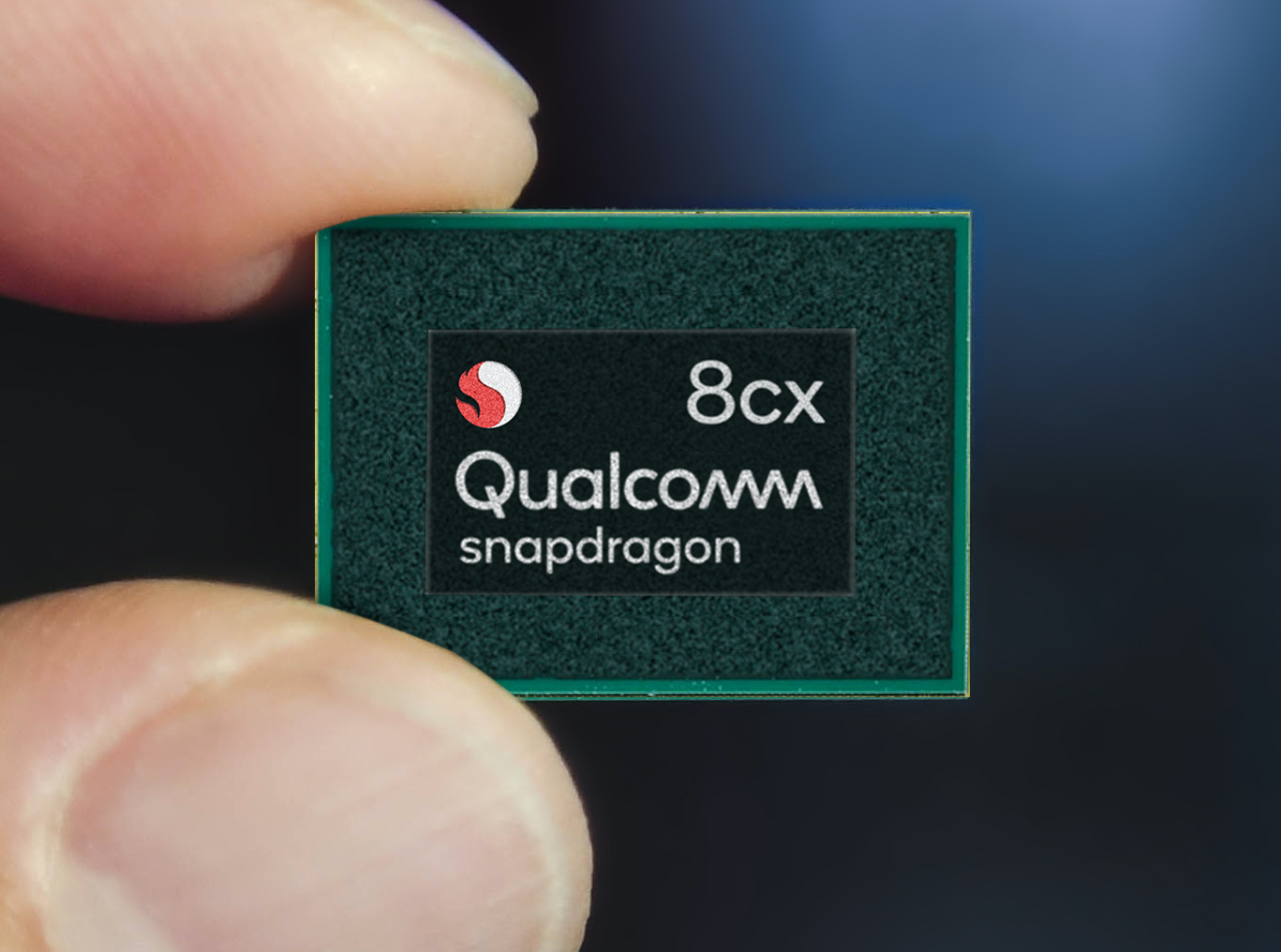
Remember that U-series chips are usually made with mobility and battery life in mind and feature in ultrabooks and thin notebooks that are primarily not aimed at gamers or demanding professionals. H-series chips, on the other hand, cater to mobile gamers and content creators and are more powerful than their U-series counterparts. There are also Y-series processors from Intel that usually range between 4.5 and 7 W. Of late, OEMs have started offering laptops powered by Qualcomm Snapdragon chips, which bring smartphone features such as always on, always connected capabilities along with the promise of all-day battery life to the notebook world.
Note that many OEMs do not explicitly state the class of processor being used; instead, they simply mention "Core i5" or "Core i7". Do your homework to ensure you are getting the right processor class for your needs.
A good place to start would be our Mobile Processor Benchmark comparison tool that allows you compare all the processors we've tested and their performance in various benchmarks.
GPU
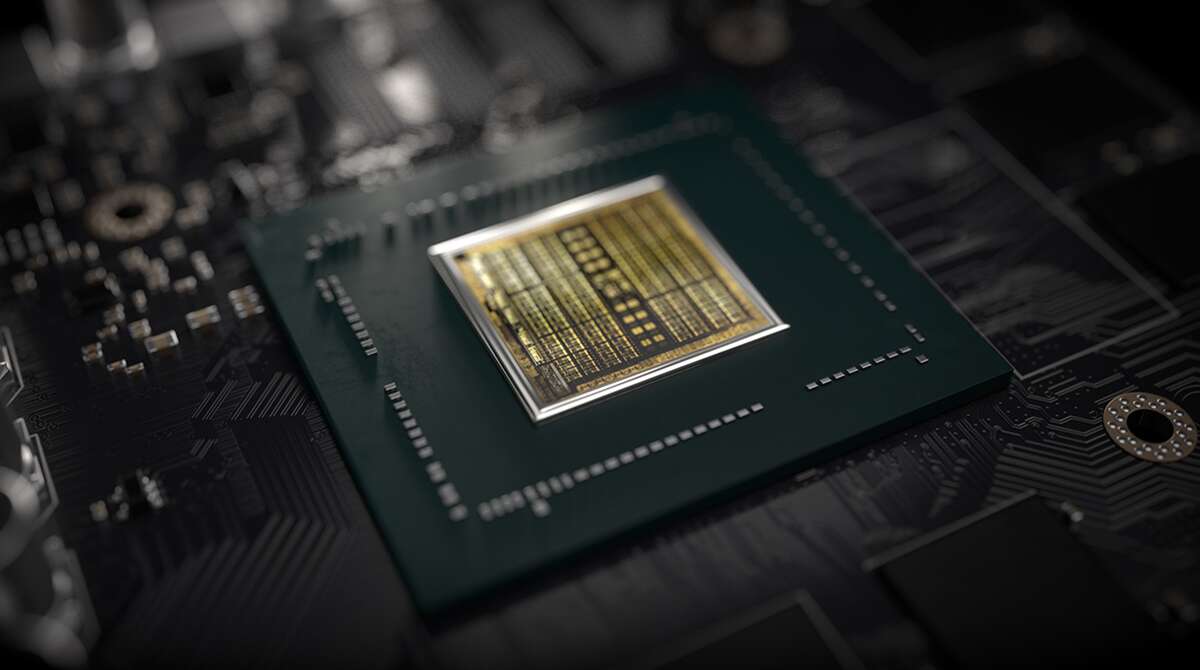
All laptops feature at least a basic integrated GPU that should be enough for getting at least simple office work done. If your workflow requires you to have more powerful graphics, you should be looking at a laptop that offers a dedicated GPU (dGPU). dGPUs are usually variants of their desktop counterparts that are frequency and thermal-constrained to help with battery life. Just like in desktops, it is common to find dGPUs from NVIDIA and AMD in laptops as well. Nowadays, we find fairly capable integrated graphics (iGPUs) such as the Iris Plus series from Intel and Radeon Vega from AMD.
Many software products are increasingly being made to take advantage of GPU acceleration. For example, the latest Adobe Premiere Pro update makes good use of the GPU to scrub faster through the timeline and export videos quicker. dGPUs are also essential if gaming or 3D work is your primary use case.
If you are still unable to decide whether or not to opt for a dGPU, check out our guide to choosing between integrated and dedicated graphics for more in-depth information along with benchmark comparisons. While you are at it, you may also be interested in taking a look at the following pages:
- Comparison of laptop graphics cards
- Computer games on laptop graphics cards (for gaming benchmarks)
- Mobile Graphics Cards Benchmarks list (for synthetic benchmarks)
Thermals
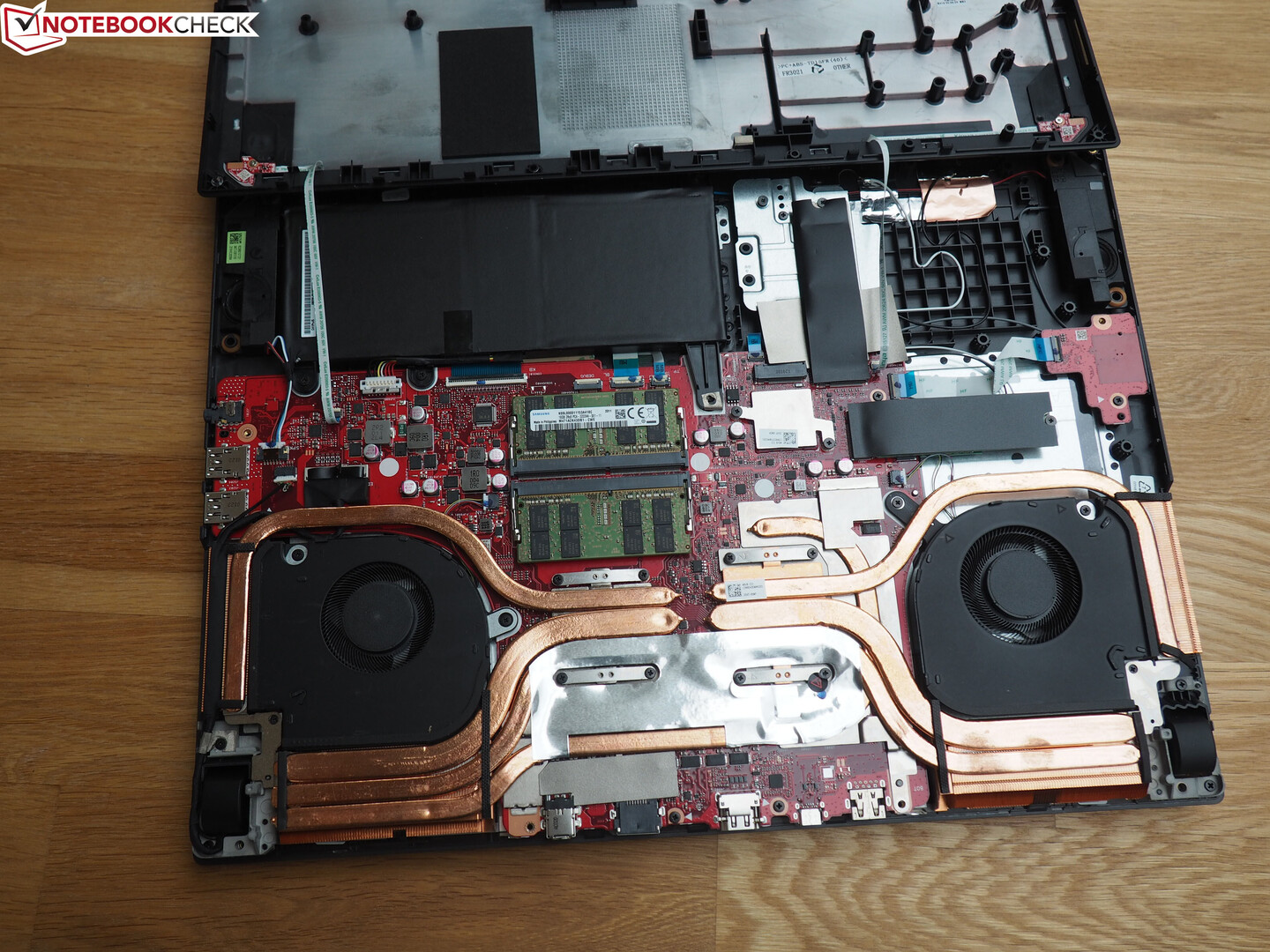
You can have the most powerful CPU and GPU configuration possible, but the actual performance of your laptop will be hindered by a factor that is not really under your control — heat. Excess heat, if not efficiently dissipated, can throttle the clock speeds of the CPU and GPU leading to less-than-ideal performance, often requiring you to perform workarounds such as undervolting or doing a repaste. This issue can be seen even in supposedly premium laptops, so ensure that the notebook's cooling system is adequate for the task at hand.
For more information on how cooling systems for laptops are designed and how they affect overall performance, check out the following article:
We also encourage you to consult our reviews to see if we have noted any potential cooling issues for the laptop you wish to purchase.
RAM
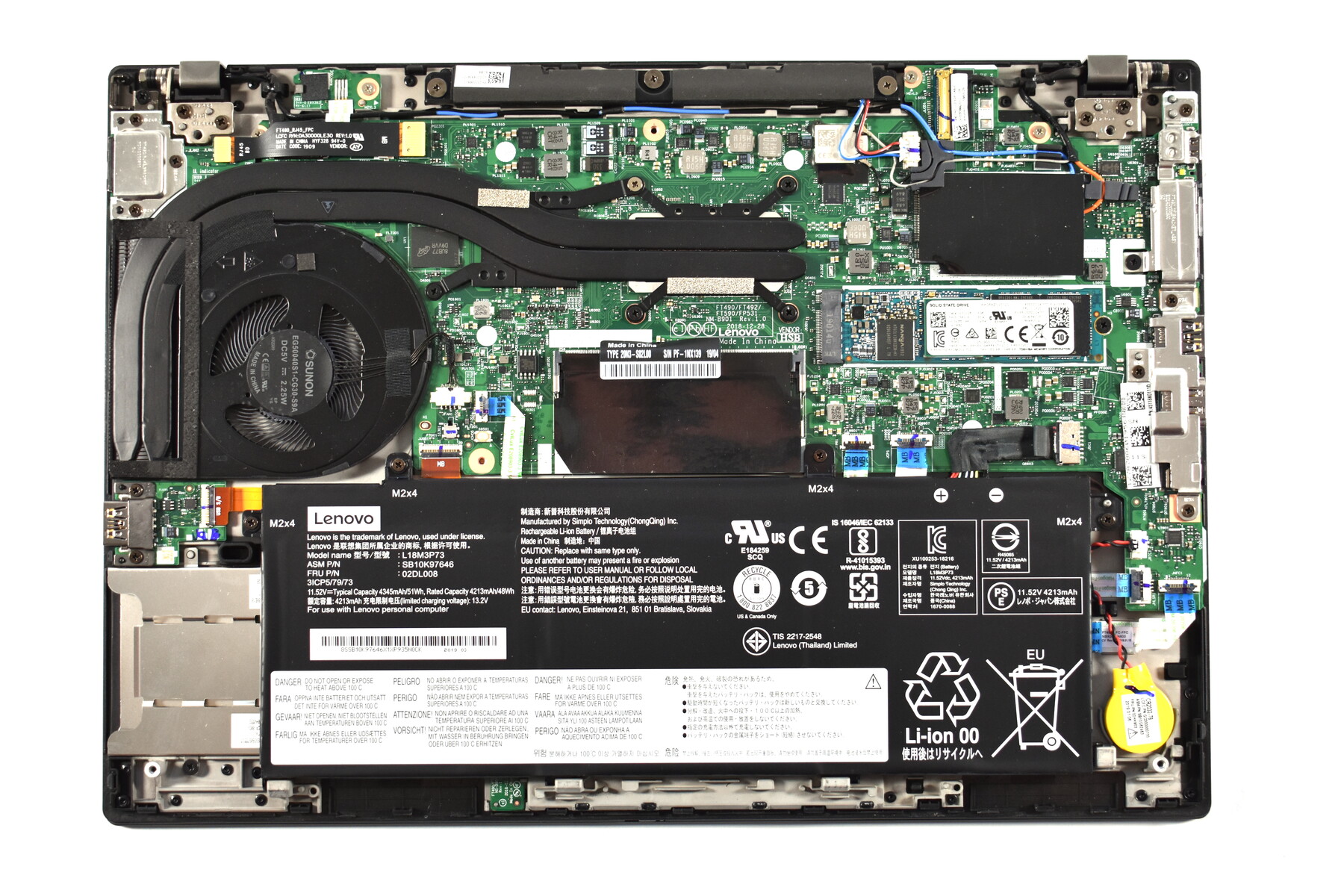
Choice of memory is important to get the maximum performance from your new laptop. Ideally, you should be able to configure the required amount of RAM during purchase itself. If adding more RAM would impact your budget, consider starting low (8 GB is the bare minimum these days) but make sure to opt for a dual-channel configuration for maximum benefit. Modern Intel and AMD laptops all use DDR4 RAM although there may be differences in the frequencies and memory timings between models. Certain models offer soldered memory but upgrades should still be possible as long as there is a vacant memory slot. As much as possible, it is advisable to opt for laptops with completely swappable memory modules.
Storage
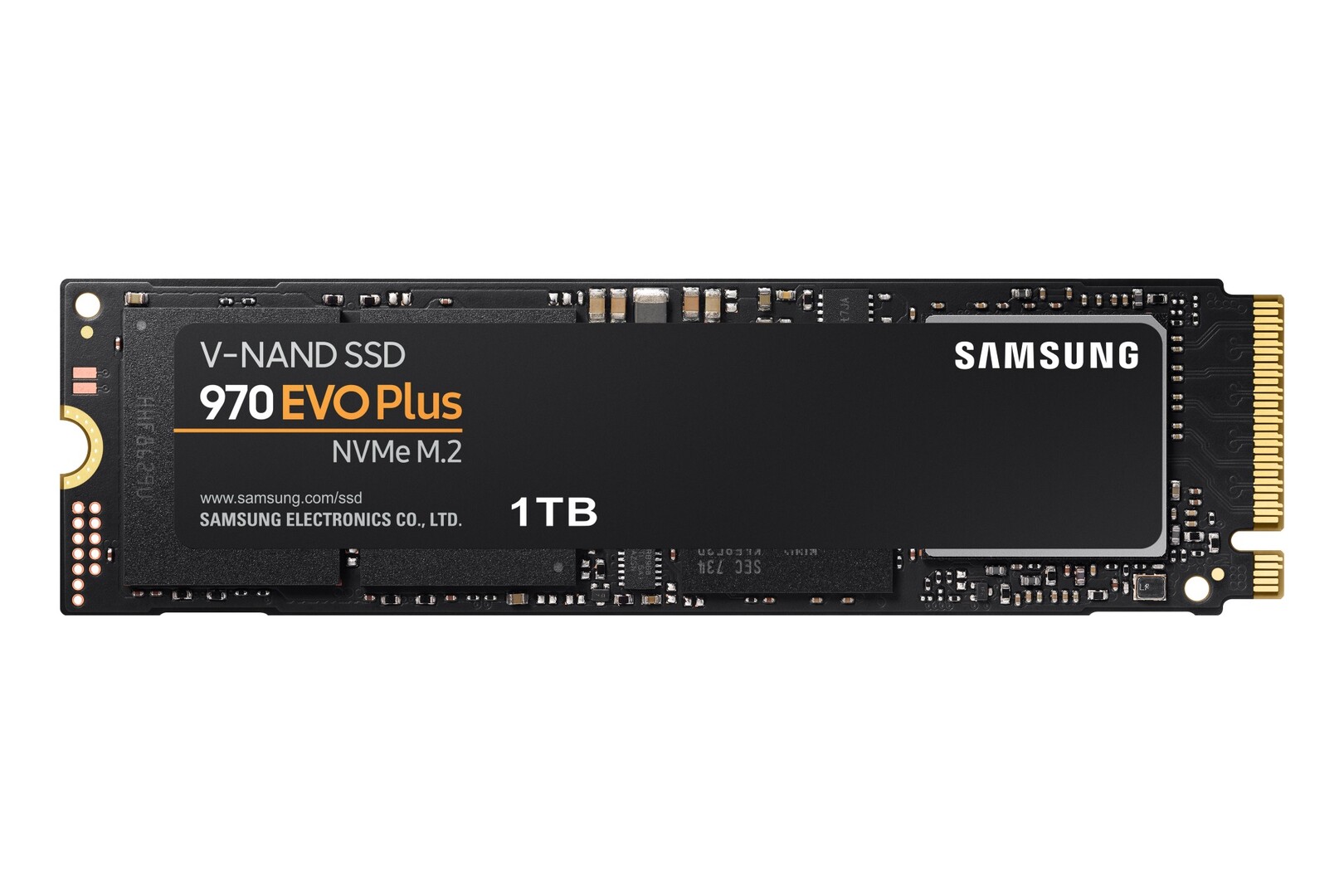
Solid state drives (SSDs) are now being increasingly preferred to traditional hard disk drives (HDDs), as they have no mechanical parts and offer excellent read and write speeds. Even the slowest SSDs are many times faster and more power-efficient than most HDDs. However, HDDs continue to offer the lowest price per GB. Ideally you should opt for a configuration that includes both an SSD and a HDD for the best combination of speed and economical storage.
Many laptops are increasingly being offered with faster PCIe M.2 NVMe SSDs that leverage the high-bandwidth PCIe lanes to offer excellent read and write speeds. These drives can also be useful as scratch disks during video editing. NVMe SSDs are still expensive so most laptops offer either 256 GB or 512 GB NVMe drives as the OS boot drive while leaving an additional bay for adding a 2.5-inch SATA SSD or HDD. Premium laptops often have soldered SSDs while some offer an additional M.2 slot for installing another NVMe SSD and configuring them in various RAID modes for even faster storage access.
For a thorough list of SSDs and HDDs along with their benchmark comparisons, visit our laptop hard drive benchmark page.
Emissions
Emissions are often not accorded high consideration on a purchase list, but they can impact the overall experience. High surface temperatures, loud fan noise, and tinny sound output can all offset the benefits of having an otherwise capable configuration.
Temperature
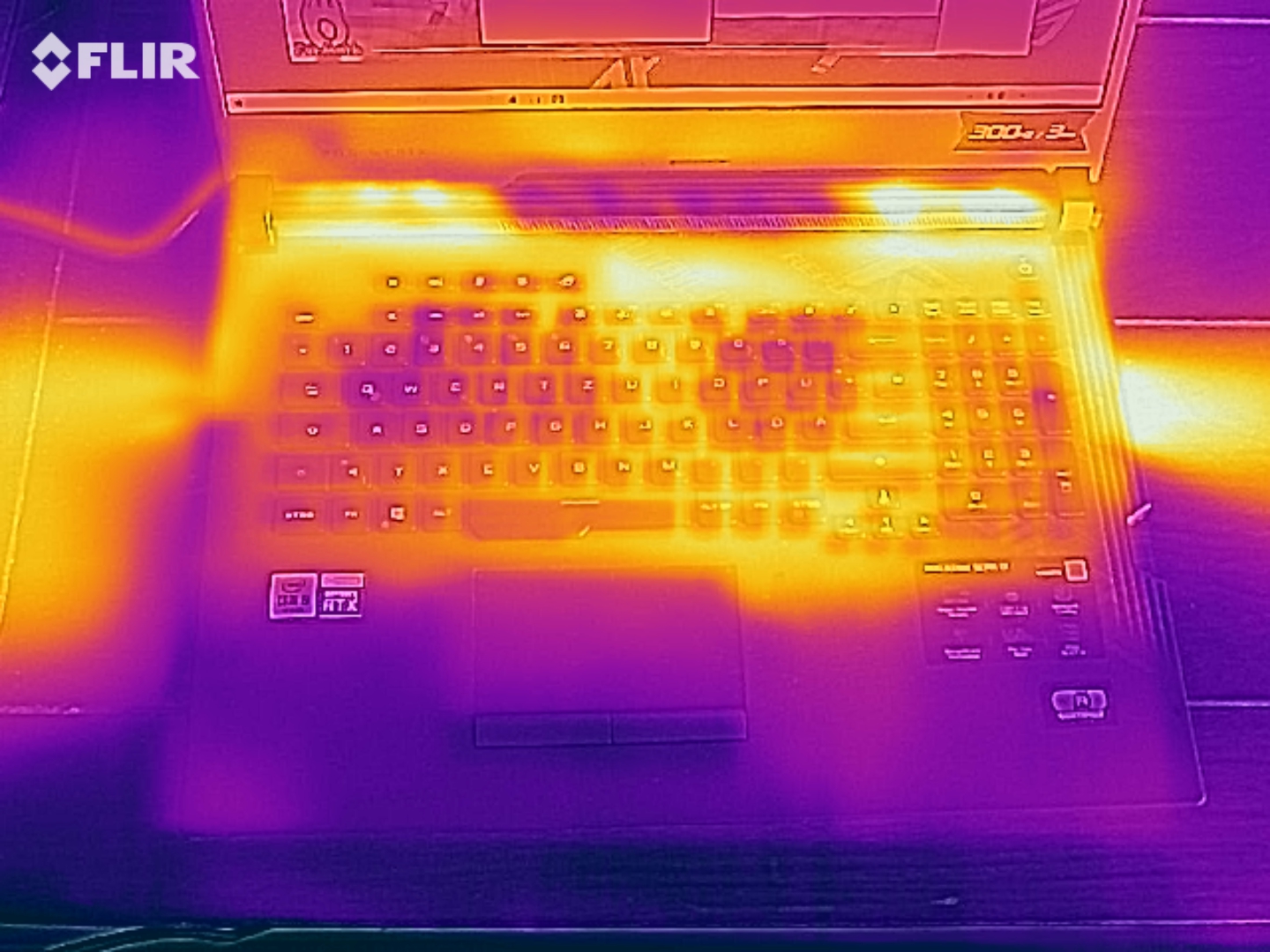
The last thing you would want to have are fried thighs when using your laptop. It is important that the laptop does not have high surface temperatures. Laptops usually get warm near the middle and upper keyboard deck under load as that is where the CPU and GPU — the two most heat-producing components — are located. Even under load, the temperatures in these areas should be manageable. The area near the trackpad and rear bottom half should be absolutely cool and as close to the room temperature as possible.
Fan noise
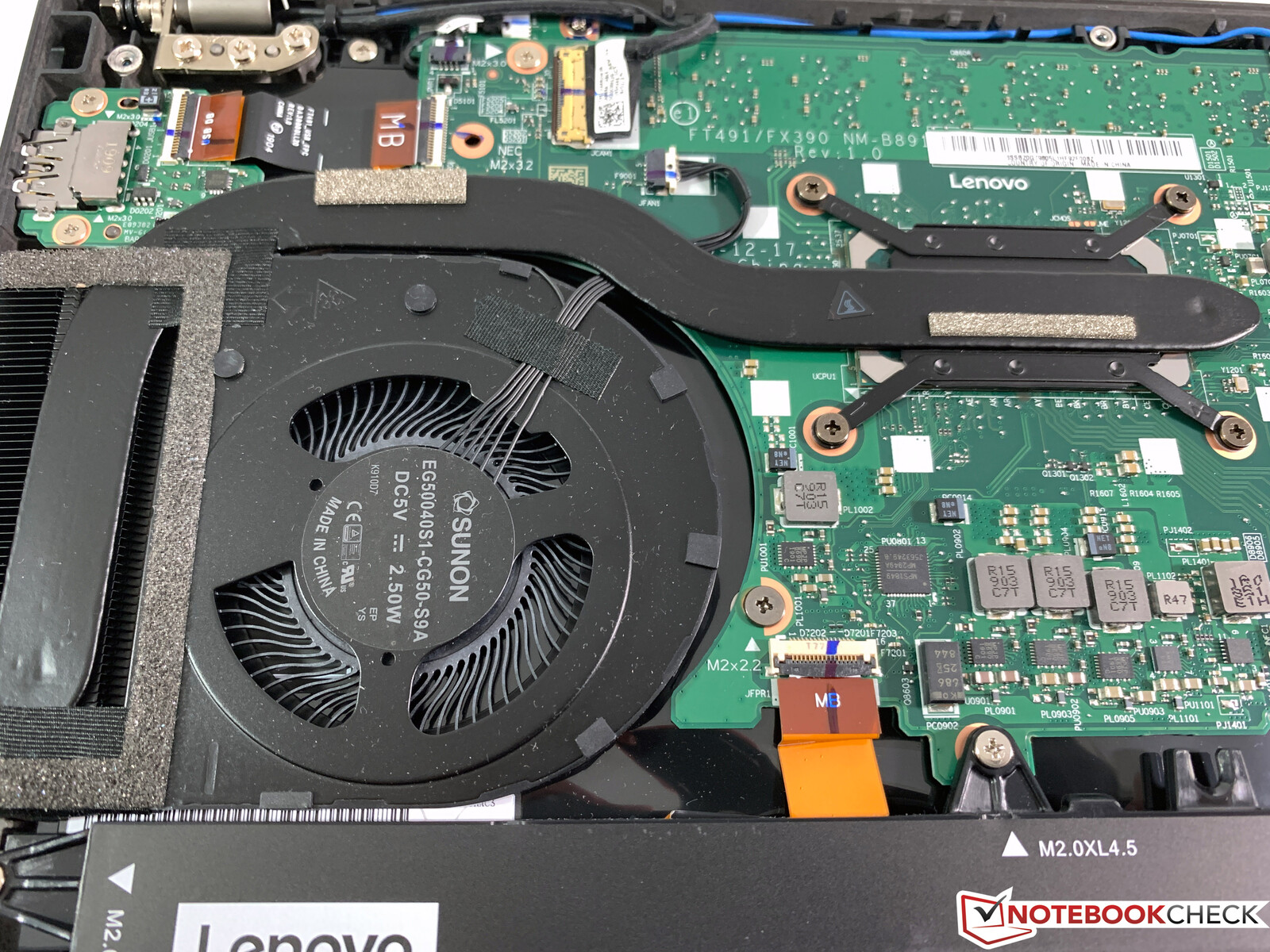
Fan noise may not be a problem while gaming or using a headset, but it can quickly get on your nerves when working in a quiet environment. For most tasks such as web browsing or light Office work, the laptop should have near-inaudible fan noise. Fan noise cannot be avoided under heavy load, but some laptops, especially the large gaming ones, can still sound like a jet engine that's about to take off while playing a game. A proper chassis construction with enough space for ventilation is important for efficient heat dissipation and low fan noise. Modern laptops offer some form of fan control to ensure that fans kick in only when needed. Fan noise is not a concern in passively cooled laptops.
Onboard speakers
Unfortunately, the quality of the onboard speakers is often neglected by most manufacturers. Due to the limited space constraints, onboard speakers often do not have the room to drive enough air to provide an adequate bass response. Moreover, most chassis designs implement downward-firing speakers that further dampen the sound. However, many modern laptops are slowly overcoming these limitations. The Apple MacBook Pro 16 and the Dell XPS 15 9500, for example, sport upward-firing speakers with the MacBook Pro being among the few notebooks that offers a decent bass response. Gaming laptops usually have enough room to accommodate larger drivers and even incorporate multiple speakers and a woofer.
The following article provides even more information on how a laptop's audio subsystem is designed:
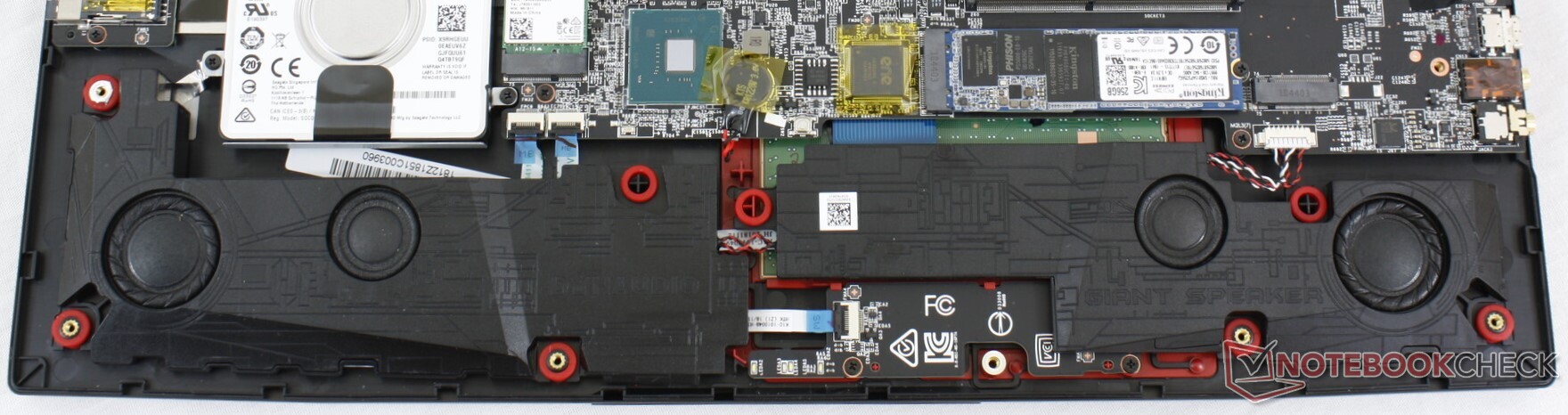
Do remember that audio quality is as much dependent on the hardware as it is on the software. Most laptops offer some form of audio enhancements that result in a fairly decent sound quality improvement. If you plan on using your laptop for music production, you should also ensure that your choice of components and software do not cause any latency issues for recording or playback of audio.
Battery life
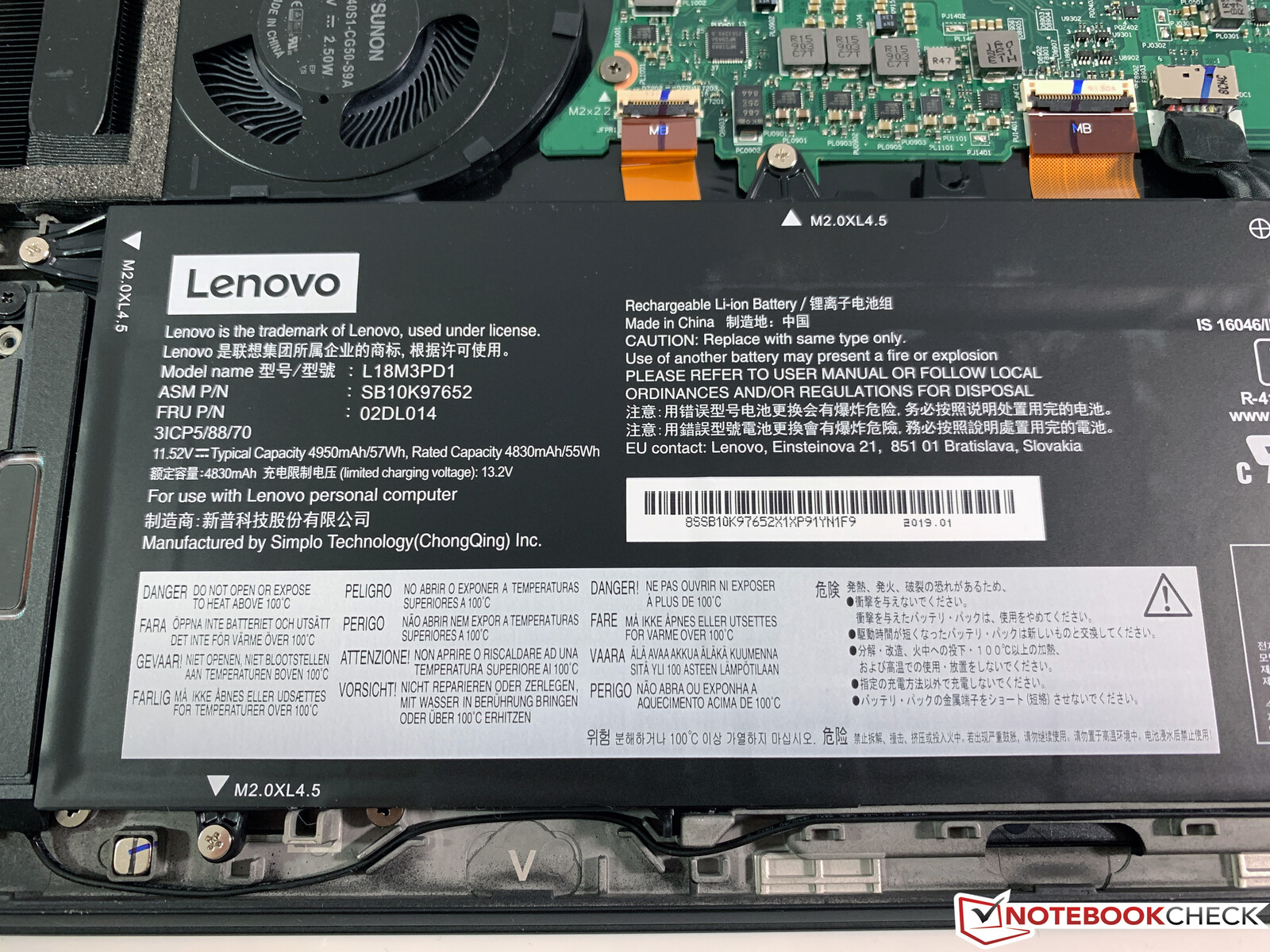
A laptop is a mobile device at the end of the day and all mobile devices need a battery when not plugged in. Battery life is a highly usage-dependent variable and there is no clear metric to quantify how long a notebook will last when away from the mains socket. OEMs do advertise a certain number of hours on battery, but for most purposes that information can be taken with a pinch of salt as those values are under controlled test conditions.
If mobility is what you are after, you should opt for notebooks with U-series or below processors as they are relatively easy on the battery. Factors such as display brightness, resolution, use of GPU, presence of mechanical HDDs, use of Wi-Fi, Bluetooth, WWAN, certain app or browser tasks, etc. can all influence battery life adversely.
Road warriors should look for batteries that have at least a 56 Wh rating. Of course, higher the rating, the better it is. Batteries eventually start wearing-out after multiple charge-discharge cycles, though this is becoming less of a problem with modern lithium-ion batteries. Modern laptops offer hibernation and standby features that turn off hardware that is not in use to conserve battery power, but they also make it difficult to just replace the battery with a spare if the current one dies out.
This article on how to save power and enhance battery life on Windows laptops offers tips and tricks to get the most out of your laptop's battery.
Warranty and after-sales service
Let's face it, many of us would have had a frustrating experience of our favorite machines breaking mid-way during their warranty period or being defective right out of the box. Presence of a proper warranty and returns program should be definitely factored in to ensure peace of mind. Whenever possible, buy laptops from trusted online or offline sellers, who can offer a returns policy and sufficient window period before which you can send the laptop back and claim a refund if it does not meet your requirements. If you are purchasing directly from the OEM, it may help to opt-in for additional warranty support or care plan for a nominal additional charge. Don't forget to inquire for availability of free goodies such as backpacks, USB keys, software discount coupons, and the like.
Warranty and return policies vary from country to country and from store to store so be sure to check about them beforehand to save yourself from feeling remorseful later. Generally, for consumer notebooks, you can expect a standard one-year warranty and in some cases, even two years. The terms of service are often different for consumer notebooks vis-à-vis business and workstation models — the latter often providing 24/7 telephone or email support along with a short service turnaround time. Refer to our FAQ article on guarantees, return policies, and warranties that are applicable in Anglophonic countries for more information.
Also, note that all manufacturers do not necessarily excel in offering the best after-sales service. The trend keeps varying each year and it is often surprising to see even big, reputed brands failing in customer satisfaction. Our annual laptops and smartphones service and support satisfaction survey is a good place to check out which brands have earned consumer trust and which have fallen behind.
Conclusion
So, that was a primer on some of the factors that you should consider during your next laptop purchase. For more specific information, we recommend checking out the respective benchmark pages that have been linked in each purchase criterion above. A few other resources that can help you in better planning your notebook purchase are listed below:
- To zero-in on the best laptop for your particular use case, check out our laptop buying tool.
- Impressed by our testing methodology? Learn how we test and rate laptops here.
- Stay up-to-date with all our latest reviews or subscribe to our RSS feed on our reviews page. Or, check out our vast notebook library that collates reviews from other languages and publications.
- Also, feel free to interact with our helpful community in our forums.
 Add as a preferred source on Google


